
Have you ever had this experience: you spent a lot of money on a supposedly high-speed external solid state drive, specifically chose a USB-C interface, thinking transferring large files would be blazing fast, but when copying a movie you only get 30+ MB/s, even slower than an old USB flash drive? Many people’s first reaction is “I bought a fake”, but in reality, the vast majority of slow USB-C external SSD issues are not caused by a broken drive itself, but by a bottleneck in some part of the entire transmission link — it could be the phone charging cable you grabbed casually, the low-speed C port on your laptop you plugged into by mistake, or even the fact that your method of testing speed with tens of thousands of photos is simply wrong.
Next, we will start with the most basic “how to judge whether it is actually slow or not”, step by step guide you to troubleshoot all common causes from hardware to system, and finally give you a set of troubleshooting methods from easy to difficult and practical speed-up suggestions. Even if you are an ordinary user who knows nothing about technology, you can follow along to find the problem.
First, Judge: Is Your External SSD Actually Slow, or Is It Normal?
Many people think there is a problem as soon as they see the speed does not reach the advertised value on the packaging, but the speed of an external SSD is not a fixed number. Some situations are completely normal, and there is no need to repair, return or exchange.
What Counts as a Real Fault?
If the following situations occur, there is a high probability that there is a problem with the link or hardware, and troubleshooting is needed:
- For an external SSD rated at 10Gbps, the speed stays consistently at 30-40MB/s when transferring a single large file over 10GB. This usually means the device has dropped to USB 2.0 mode, equivalent to the interface speed from 20 years ago.
- For the same drive and same file, the speed differs by more than double after changing the cable, interface, or computer, indicating that there is an obvious bottleneck in a certain part of the link.
- The speed is normal for the first few minutes, then continues to drop significantly, and it is not caused by small files. This may be due to overheating, exhausted SLC cache, or power supply issues.
- The drive suddenly disconnects, freezes during copying, or even file corruption occurs. This is no longer just a “slow” problem, and you need to prioritize checking hardware stability and SSD health.
What Are Normal Phenomena That Don’t Need to Be Worried About?
The following situations may seem slow, but they are actually caused by product characteristics or usage scenarios, and are not faults:
- Transferring a large number of small files (such as tens of thousands of photos, code repositories, WeChat chat history) is much slower than transferring a single large file, because each small file requires separate processing of directories, permissions, metadata, and verification — just like delivering packages one by one, which is definitely slower than shipping in whole boxes.
- It is normal not to reach the peak speed advertised by the manufacturer, because the rated value is the theoretical maximum of the interface bandwidth. Actual use has to deduct the overhead of encoding, protocol, bridging, and file system, just like the designed maximum speed limit of a road — actual driving will always be a bit slower.
- If you copy files to an external SSD from a mechanical hard drive, low-speed USB flash drive, SD card, or wirelessly connected network drive, the speed will be limited by the source device. If the source device itself only has 100MB/s, no matter how fast the external SSD is, it won’t help.
- Low-end or small-capacity SSDs slow down after long-term writing, which is mostly a normal product characteristic after the SLC cache is exhausted, not a breakdown.
First Understand Speed Units, Then See What Speed You Should Get
Many people can’t tell the difference between MB/s and Gbps. Here is a plain explanation first:
- MB/s: It is the “megabytes per second” displayed in the window when you transfer files, and it is the most intuitive actual transmission speed.
- Gbps: It is the bandwidth unit often marked on interface packaging. It cannot be directly converted to MB/s by dividing by 8, because various transmission overheads have to be deducted. The actual usable speed is about 70%-90% of the rated value.
For your convenience, we have compiled the measured speed ranges of external SSDs for common interfaces:
| Interface Specification | Common Colloquial Names | Measured Continuous Large File Speed Range | Remarks |
|---|---|---|---|
| USB 2.0 | – | 30-40MB/s | Common in charging cables, old interfaces, or negotiation failures |
| USB 5Gbps | USB 3.0 / USB 3.2 Gen1 | 350-450MB/s, good devices close to 500MB/s | The most common speed for ordinary USB-C ports currently |
| USB 10Gbps | USB 3.2 Gen2 | 700-1050MB/s | Depends on the enclosure, SSD, and cache status |
| USB 20Gbps | USB 3.2 Gen2x2 | 1500-2000MB/s | Most Macs do not support it, usually drops to 10Gbps |
| USB4 | – | Not fixed, depends on the 20G/40G rate supported by the device, PCIe tunneling, and enclosure implementation | You cannot assume it is fast just because of the “USB4” label |
| Thunderbolt 3/4 | Thunderbolt 3/4 | 2000-3000MB/s (external NVMe) | The entire link (computer interface, cable, enclosure, SSD) must support Thunderbolt |
| SATA SSD External | – | 450-550MB/s | The upper limit of the drive itself; it will not speed up even with a faster interface |
You can first compare with this table to judge:
- If it stabilizes at 30-40MB/s, first suspect that the cable, interface, or dock has dropped to USB 2.0.
- If it stabilizes at 350-500MB/s, it may be caused by a 5Gbps interface, SATA drive, SATA enclosure, or 5Gbps cable.
- For a device rated at 10Gbps, actual performance of 700-900MB/s is within the normal range, no need to worry; only when it stabilizes at 300-500MB/s do you need to focus on troubleshooting whether there is a 5Gbps bottleneck.
Correct Speed Testing: Don’t Mistake Testing Method Issues for Faults
Many people’s speed testing methods are simply wrong. For example, testing with tens of thousands of photos or WeChat backup folders, the resulting speed is of course slow — this is not a problem with the drive. Correct speed testing should meet these conditions:
- Test object: Use a single large file over 10GB (such as a movie, compressed package), or the sequential read/write test of professional speed testing tools. Do not use a large number of small files to judge interface bandwidth.
- Recommended tools: For Windows, you can use CrystalDiskMark to test sequential read/write speed, and use USBTreeView or HWiNFO to check the current USB negotiation speed; for Mac, you can use Blackmagic Disk Speed Test or AmorphousDiskMark to test speed, and check the current connection speed of the external drive in “System Information > USB/Thunderbolt”.
- Test environment: Laptops must be plugged in, turn off ongoing downloads, cloud sync, full-disk antivirus scans, and backup tasks; when testing, plug directly into the computer’s own interface, temporarily bypass docks, monitors, and adapters; test two consecutive rounds, the first round to see peak speed, the second round to see stable speed after cache exhaustion.
Beginner Must-Know: External SSD Speed Is Determined by the Slowest Link
Many people think that buying a high-speed SSD and high-speed cable will definitely reach full speed, but that’s not the case. The transmission speed of an external SSD follows the “barrel effect” — the slowest part of the entire link determines the final overall speed.
The Entire Link Has At Least 5 Components
A complete external SSD transmission link includes at least 5 parts: the SSD itself, the enclosure bridge chip, the USB-C cable, the computer interface, and the operating system and drivers. If any component has a low specification, the overall speed will be pulled down to the level of that component.
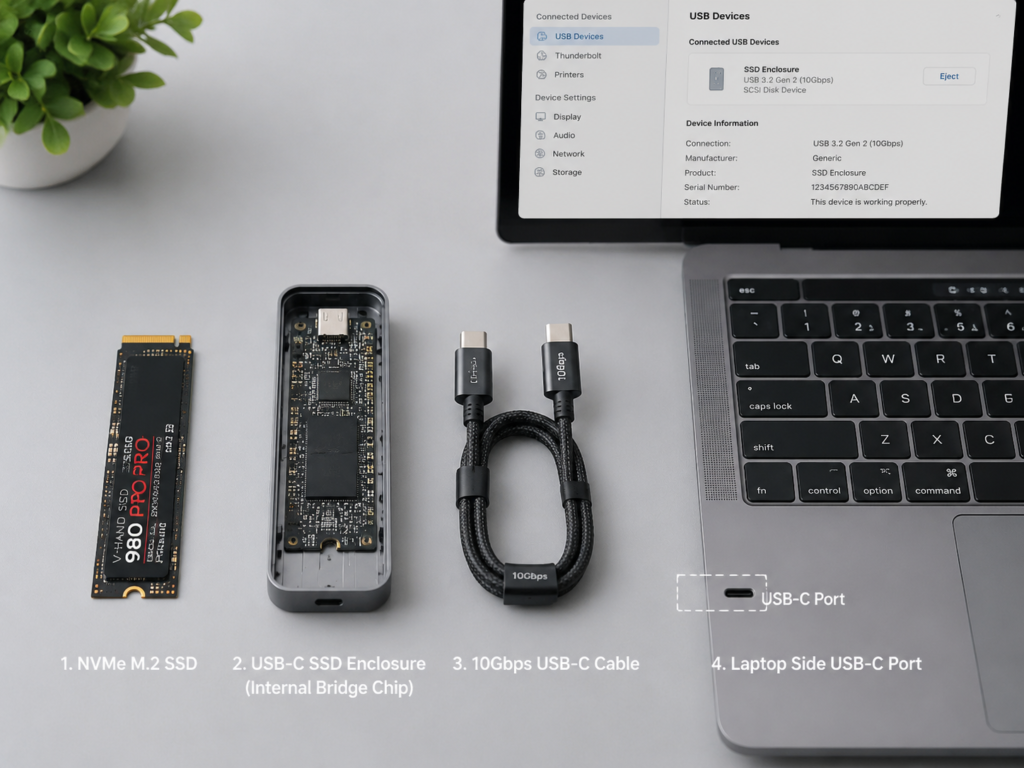
Here are some of the most common examples:
- Putting a high-speed NVMe SSD into a 10Gbps enclosure but using a charging cable that came with a phone, the final speed may only be 30-40MB/s, because the cable is USB 2.0.
- A Thunderbolt enclosure plugged into an ordinary USB-C port cannot automatically get Thunderbolt speed, and can only run at the level of ordinary USB at most.
- A 20Gbps Gen2x2 enclosure plugged into most Macs usually only works at 10Gbps, because most Macs do not support the Gen2x2 protocol. This is not a fault, but determined by hardware specifications.
The Biggest Misconception: USB-C Is Just a Plug Shape, It Does Not Mean High Speed
Let’s correct a few common misconceptions:
- Fast charging capability does not mean high-speed data transmission: Many 100W fast-charging C-port cables only have USB 2.0 speed for data transmission.
- USB-C is not necessarily faster than USB-A: Many desktop USB-A 10Gbps ports are much faster than low-speed USB-C ports on laptops.
- A cable that can power a monitor does not mean an external SSD can run at full speed: Many video cables only need USB 2.0 bandwidth to transmit video signals, which is far from enough for data transmission.
Plain-Language Explanations of Must-Know Terms
The following troubleshooting will mention several terms. Here is a clear explanation in plain language. You don’t need to memorize them, just come back to check when you need them:
- SATA SSD: The older generation of solid state drives, with an actual upper limit of about 550MB/s, suitable for ordinary backup and office files, usually cheaper.
- NVMe SSD: Higher-speed solid state drives, with their own speed reaching thousands or even tens of thousands of MB/s, but the upper speed limit when used externally depends on the enclosure and computer interface.
- Enclosure bridge chip: Equivalent to a “translator”, it converts the SATA or NVMe signal inside the SSD into USB or Thunderbolt signal. The quality of the bridge chip directly determines the upper speed limit and stability of the enclosure.
- UASP: A USB transmission mode more suitable for SSDs, more efficient than the old mode, with better multi-tasking and random read/write performance; when old enclosures, old drivers, or compatibility issues occur, it will revert to the old BOT mode, and speed will deteriorate.
- SLC cache: You can understand it as the SSD’s “temporary high-speed workbench”. When writing data, it is first placed in this high-speed area, so the initial speed is very fast. When the workbench is full, data can only be slowly written to the ordinary storage area behind, and the speed drops. Low-end or small-capacity SSDs usually have very small cache.
The Most Common Cause: Mismatched Hardware Link Specifications
The vast majority of slow external SSD problems are caused by mismatched hardware link specifications. You can troubleshoot one by one in the following order.
First Pitfall: Wrong or Poor-Quality USB-C Cable
This is the pitfall that the most people fall into, bar none. Many people grab a C cable that came with a phone, earphones, or charger and use it, not knowing that most of these cables only support charging and USB 2.0 data, so file transfer is naturally only 30-40MB/s.
There are also several common cable misconceptions:
- Supporting 60W/100W fast charging does not mean supporting 5Gbps, 10Gbps, or 40Gbps data. Fast charging capability and high-speed data capability are completely independent.
- Cables without speed markings, too long (such as over 2 meters), severely bent, or with loose plugs are very prone to speed reduction or disconnection.
How to identify the speed of a cable? Prioritize checking the markings on the packaging or the cable body, such as whether there are words like 5Gbps, 10Gbps, 20Gbps, USB4 40Gbps, Thunderbolt 3/4. Do not use a C cable without any speed marking to judge the performance of an external SSD.
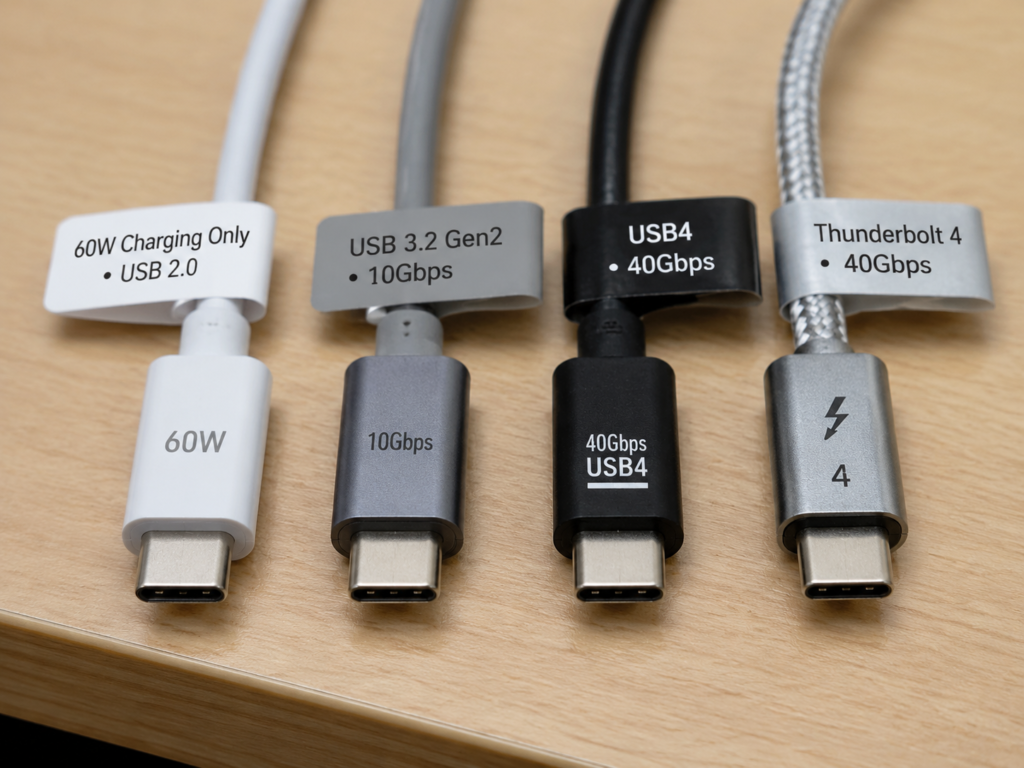
The quick verification method is very simple: replace it with a short cable clearly marked 10Gbps or higher, connect directly to the computer’s high-speed interface. If the speed jumps from 30-40MB/s to hundreds of MB/s or even close to 1GB/s, then the original cable is the main bottleneck.
Second Pitfall: Computer USB-C Port Specification Is Insufficient or You Plugged Into the Wrong Port
Many laptops have different C ports with different capabilities. Some support Thunderbolt/USB4, some are just ordinary USB, and some are even charging-only ports. If you accidentally plug into a low-speed port, the speed will of course not be fast.
There are several other common situations:
- Many front USB-C ports on desktop cases are connected to the motherboard via adapter cables, and their speed and stability are not as good as the native ports on the rear of the motherboard.
- Some laptop C ports prioritize display output or charging, with relatively low data transmission capability. You need to check the computer’s specification sheet to confirm.
How to check the speed of the interface? Windows users can check the specification page on the computer’s official website, the motherboard manual, or use USBTreeView/HWiNFO to check the current connection speed of the device; Mac users can directly open “System Information > USB/Thunderbolt” to see the current connection speed of the external SSD. For example, “Up to 10 Gb/s” means it is a 10Gbps interface.
The judgment method is also very simple: if the same SSD is plugged into different C ports and the speed difference is obvious, it means that the specifications or internal connection methods of different computer interfaces are different.
Third Pitfall: Docks, Monitors, and Adapters Share Bandwidth
Many people like to plug external SSDs into the USB ports on docks or the back of monitors for convenience, but this is precisely the reason for easy speed reduction.
The uplink bandwidth of a multi-port dock is shared, and video, network ports, card readers, and USB devices all compete for the bandwidth of the same link. If you connect a 4K high-refresh monitor, some docks will actively reduce the USB data bandwidth, commonly from 10Gbps to 5Gbps or even lower. The USB ports on the back of monitors mostly only have USB 2.0 or 5Gbps speed, which are not designed for high-speed SSDs at all.
The principle of troubleshooting such problems is: first connect the external SSD directly to the computer’s high-speed interface, confirm that the drive and cable are fine, then test the dock or monitor interface.
Fourth Pitfall: Mismatched Enclosure or Adapter Specifications
If you assembled your own external SSD by buying an SSD and enclosure separately, it is very easy to have specification mismatch problems.
First, M.2 interface SSDs are divided into two types: NVMe and SATA. They look almost identical, but their protocols are completely different and cannot be mixed: NVMe SSDs use NVMe enclosures, SATA M.2 SSDs use SATA M.2 enclosures. If plugged incorrectly, either the drive will not be recognized, or it can only run at a slow speed.
Second, the enclosure itself has a clear upper speed limit:
- 5Gbps enclosures usually can only run 300-500MB/s.
- 10Gbps enclosures are suitable for most ordinary consumer-grade NVMe external use.
- 20Gbps Gen2x2 enclosures require the computer to also support the Gen2x2 protocol, otherwise the speed will drop to 10Gbps.
- Thunderbolt enclosures require a Thunderbolt interface and Thunderbolt cable to run at full speed. The compatibility of some Thunderbolt enclosures with ordinary USB interfaces depends on the specific model.
In addition, the enclosure’s bridge chip (the “translator” mentioned earlier) is very important. Cheap old controllers often have high heat generation, poor compatibility, poor UASP support, and even cannot passthrough SMART health information and TRIM commands, causing many problems in use.
Fifth Pitfall: Performance or Status Limitations of the SSD Itself
If the previous components are all fine, it may be caused by the performance or status of the SSD itself:
- The upper limit of SATA SSD itself is around 550MB/s, and no matter how fast the interface is, it will not exceed the limit of the drive body.
- Small-capacity, old-model, QLC particle, or low-end cacheless NVMe SSDs have much lower sustained write speeds than the advertised peak, because the SLC cache is very small and will be used up quickly.
- If the SSD has too little remaining space, it will affect the efficiency of garbage collection, leading to a decrease in write stability. It is recommended to keep at least 10%-20% free space.
- If you copy files to an external SSD from a low-speed source device (such as a mechanical hard drive, SD card, wireless NAS), the speed will be limited by the source device, no matter how fast the external SSD is.
System Settings and Usage Habits Can Also Slow Down Speed
If the hardware link is all fine, you can check whether the slow speed is caused by system settings or usage habits.
Write Cache, UASP, and Driver Settings
There is a “Removal policy” option in Windows system, and many people don’t understand its function:
- “Quick removal” mode is safer, you can directly unplug the drive without safe ejection, but the write cache strategy is more conservative, and the speed may be slightly slower.
- “Better performance” mode enables more aggressive write caching, which may improve write performance, but you must safely eject the device, otherwise data loss is easy.
- Note: This option is not a switch for USB high-speed mode, it will not turn USB 2.0 into 10Gbps. It only optimizes the cache strategy, and the improvement in speed is very limited.
Next is UASP mode. If UASP is supported, the SSD will perform better in multi-tasking and random read/write. If your old enclosure, old driver, or compatibility issues occur, it may revert to the old BOT mode, and performance will deteriorate.
In terms of drivers, Windows users should prioritize installing the chipset, USB, Thunderbolt/USB4 drivers and firmware officially provided by the computer manufacturer. Some Windows laptops’ Thunderbolt interfaces also require installing the official control center, or enabling authorization settings in the BIOS to work properly.
Impact of File Type and File System
Many times you think the speed is slow, but it is actually caused by the file type or file system, not the interface.
- File type: Large files such as single large videos and compressed packages can approach the maximum speed of the interface during transmission; but a large number of small files such as tens of thousands of photos, code projects, game directories, and WeChat chat files will be much slower because each file needs to process metadata. This is a normal phenomenon.
- File system: Different file systems are suitable for different systems, with different speeds and features:
- exFAT: Can be used directly on both Windows and Mac, suitable for cross-platform mobile drives, but the performance of a large number of small files and consistency after abnormal power failure are not as good as NTFS or APFS.
- NTFS: Stable performance under Windows; macOS can only read by default, and third-party drivers are required for writing. The quality of the driver will directly affect speed and stability.
- APFS: A file system specially optimized by Apple for SSDs, supporting snapshots and encryption, with the best performance under Mac; not supported by Windows by default.
How to choose a file system? Choose NTFS if you only use it on Windows for a long time, choose APFS if you only use it on Mac for a long time, choose exFAT if you need frequent cross-platform transfer, but be sure to back up important data.
Background Tasks, Encryption, and Security Software Slow Things Down
When transferring files, if there are many resource-intensive tasks in the background, it will also slow down the speed. Common background occupations include:
- Real-time scanning by Windows Defender or third-party antivirus software.
- System indexing services (Windows Search, Mac Spotlight).
- Backup software (Time Machine, Windows File History).
- Cloud sync software (OneDrive, iCloud, Dropbox, etc.).
In addition, disk encryption also affects speed, such as BitLocker, FileVault, APFS encryption, and third-party encrypted containers, which all increase CPU and I/O overhead. It may not be noticeable on new computers, but old computers or low-power devices may experience obvious speed drops.
The judgment method is very simple: open Task Manager (Windows) or Activity Monitor (Mac) to see if the occupancy of CPU, internal drive, external drive, and antivirus processes is very high.
Power Management and System Version Issues
When a laptop is in battery mode, it limits hardware performance to save power. When testing speed, be sure to plug it in, otherwise the results will be inaccurate.
Windows users can check the USB selective suspend settings, power mode, and USB device power saving options in Device Manager to see if there is a speed reduction due to power saving.
Mac systems usually do not need to manually enable high-speed mode, but you need to confirm that your Mac model supports the corresponding protocol — special reminder here: most Macs do not support the USB 3.2 Gen2x2 20Gbps protocol, so plugging in a 20Gbps enclosure can only run at 10Gbps. This is not a fault, but a normal specification limitation.
Easily Overlooked Causes: Hardware Abnormalities, Overheating, and Health Status
If the previous routine troubleshooting did not find the problem, you can check these easily overlooked hardware abnormal situations.
Poor Contact of Interface or Cable
If your external SSD’s speed suddenly drops to 30-40MB/s, or it often disconnects and re-recognizes during copying, or even disconnects when you lightly touch the cable or move the enclosure, it is most likely caused by poor contact.
Common causes include: dust in the interface, loose plug, broken wire cores inside the cable, poor welding quality of the enclosure interface.
The solution is also very simple: re-plug several times, use a soft brush or air blower to clean the dust from the interface, replace the cable, and try a different computer interface.
External SSD Overheating Throttling
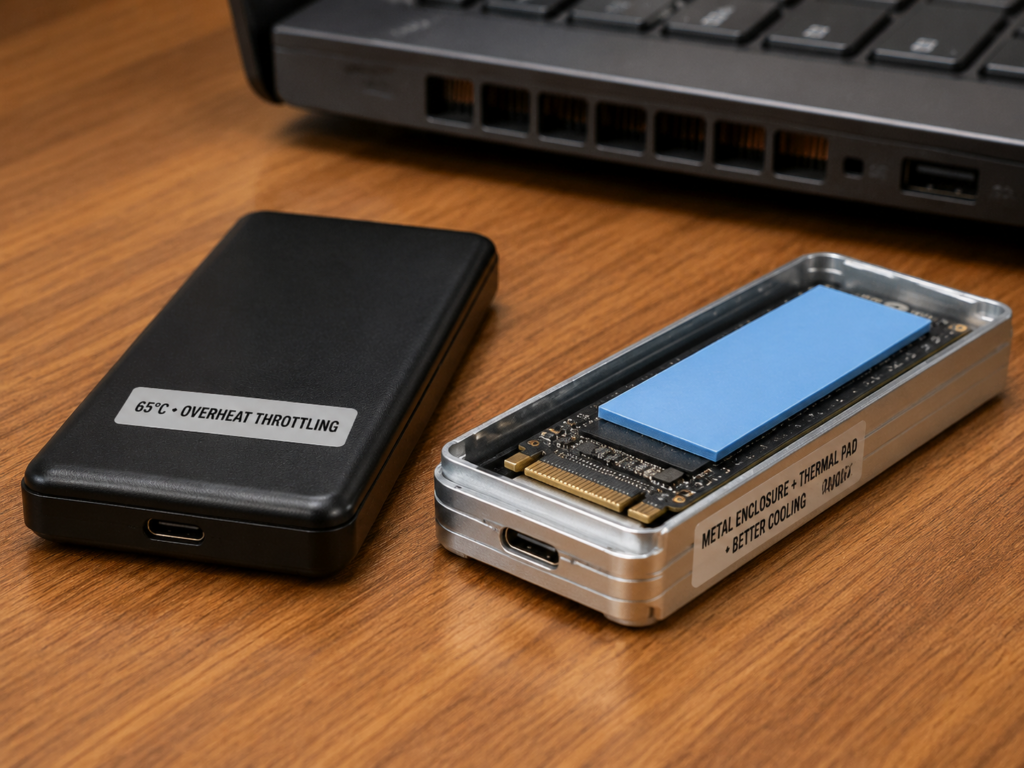
When NVMe SSDs continuously write tens to hundreds of GB for a long time, they are very prone to speed reduction due to overheating, especially enclosures with plastic shells, no heat dissipation pad, no metal shell, or when used in summer high temperature, placed next to the computer’s air outlet, or stuffed in a bag during transmission, this problem is more likely to occur.
The typical manifestation of overheating throttling is: the initial speed is normal, drops significantly after a few minutes, the enclosure shell feels very hot to the touch, and after cooling down, the speed recovers when tested again.
Solutions: Use a metal shell enclosure with a thermal pad, place it in a ventilated place during long-term transmission, do not cover it with anything, and do not place it near heat sources; if it is a high-heat NVMe SSD, you can consider replacing it with a lower-power model, or an enclosure with active heat dissipation.
Insufficient or Fluctuating Power Supply
If there are situations such as dropout during copying, fluctuating speed, unstable recognition when plugged into a dock but normal when directly connected to the computer, it may be caused by insufficient power supply.
Common causes include: unpowered docks with too many devices mounted, high-power NVMe SSDs with high instantaneous power that cannot be driven, insufficient power supply when the laptop is in battery mode, or obvious voltage drop in low-quality cables.
Verification method: Connect the external SSD directly to the computer’s own C port, plug in the laptop, replace with a shorter high-quality cable, or try an enclosure with auxiliary power.
SSD Health, Firmware, and Data Risks
If the SSD’s write volume is approaching its lifespan, bad blocks increase, firmware has bugs, or file system errors are caused by abnormal power failure, speed slowdown may also occur.
In terms of detection tools, Windows users can use CrystalDiskInfo, official tools from SSD manufacturers, and Event Viewer; Mac users can use DriveDx, smartctl, Disk Utility’s First Aid feature, or the SMART status in System Information.
Note here: Many USB enclosures do not support SMART information passthrough, so not being able to see the health status does not mean the SSD is definitely normal. If necessary, you can replace it with an enclosure that supports SMART passthrough, or connect the SSD directly to the motherboard for testing.
If file corruption, frequent dropouts, or SMART warnings have occurred, be sure to back up important data first before continuing speed testing and repair to avoid data loss.
5-Step Quick Troubleshooting Method: Locate Bottlenecks From Easy to Difficult
You don’t have to check all the causes. Follow these 5 steps from easy to difficult. Most problems can be found in the first 3 steps, no need to open the enclosure or install complex tools.
Step 1: Standard Speed Test, Confirm Which Speed Tier It’s In
First, use the correct method mentioned earlier to test the speed, and record three key pieces of information: sequential read speed, sequential write speed, and whether it is fast at first then slow.
Then compare with the speed tiers to initially judge the direction:
- Stable 30-40MB/s: Prioritize checking USB 2.0 link issues.
- Stable 350-500MB/s: Prioritize checking whether it is caused by 5Gbps interface, SATA drive, or SATA enclosure.
- Fast at first then slow: Prioritize checking SLC cache, overheating, and free space issues.
Step 2: Check Current Negotiated Rate, Don’t Judge by Feel
Don’t just guess based on file transfer speed. Directly check the current connection rate displayed in the system, which is the most accurate.
- Windows: Use USBTreeView or HWiNFO to check whether the device is currently connected to High-Speed (USB 2.0), SuperSpeed 5Gbps, SuperSpeedPlus 10Gbps, or other tiers.
- Mac: Open “System Information > USB/Thunderbolt”, find the external SSD, and check the current connection speed.
If the system shows only USB 2.0 level (480Mb/s), then focus on troubleshooting the cable, dock, interface, and enclosure.
Step 3: Replace Cable, Connect Directly, Change Port, Rule Out Front-End Link
This step has the lowest cost and is the easiest to solve the problem:
- Replace with a short cable clearly labeled 10Gbps or higher.
- Bypass docks, monitors, and adapters, and plug directly into the computer’s own interface.
- Try two more ports on the same computer, prioritize ports labeled Thunderbolt, USB4, 10Gbps, or SS 10.
If the speed improves significantly, it means the original cable, interface, or dock is the bottleneck; if the speed does not change, continue to check the enclosure, SSD, system, and overheating issues.
Step 4: Rule Out Interference From Files, Background, and System Settings
If the previous steps are all fine, then rule out the interference of usage scenarios:
- Test with a single large file over 10GB, do not use directories with a large number of small files.
- Turn off antivirus scans, cloud sync, backups, and indexing tasks.
- Plug in the laptop and switch to high performance or best performance mode.
- Windows users check whether the removal policy, USB power saving settings, and chipset/USB/Thunderbolt drivers are normal.
If large files are fast but small files are slow, it is mostly a characteristic of file type or file system, not an interface fault, and no repair is needed.
Step 5: Cross-Test to Locate the Specific Hardware
If the previous steps did not find the problem, use the cross-test method to locate which specific hardware has the problem:
- Test the same set of external SSD on another computer that is confirmed to have a high-speed interface.
- Test with a confirmed qualified enclosure of the same specification.
- If possible, connect the SSD directly to the motherboard and use the manufacturer’s official tool to check health status.
Result judgment:
- Faster when changing computers: It means the original computer’s interface, driver, system, or expansion link has a problem.
- Faster when changing the enclosure: It means the original enclosure’s controller, heat dissipation, power supply, or protocol support has a problem.
- Faster when changing the cable: It means the original cable’s specification or quality has a problem.
- Slow no matter what you change, and the health status is abnormal: Prioritize backing up data and consider a fault in the SSD itself.
How to Make Your External SSD Reach a Reasonable Speed?
If you want your external SSD to reach its proper speed, or plan to buy a new set, you can refer to the following suggestions to avoid wasting money.
Check 4 Core Specifications Before Buying
Be sure to check these 4 specifications before buying to avoid buying the wrong one and wasting money:
- SSD and enclosure match: NVMe SSD with NVMe enclosure, SATA SSD with SATA enclosure. Don’t buy just by the M.2 appearance.
- Computer interface and enclosure match: If the computer only has 5Gbps ports, buying a 20Gbps enclosure won’t make it faster.
- Cable and protocol match: 10Gbps devices use 10Gbps cables, Thunderbolt devices use Thunderbolt cables, and USB4 devices need to check whether they are labeled 20Gbps or 40Gbps.
- System and file system match: Windows prioritizes NTFS, Mac prioritizes APFS, cross-platform uses exFAT with good backups.
Daily Speed-Up Tips
Without changing hardware, just changing a few usage habits can significantly improve the actual experience:
- Pack a large number of small files into zip/7z/rar before transmission, which can significantly reduce metadata overhead, and the speed may increase several times.
- Keep 10%-20% free space on the SSD to avoid sustained write speed reduction due to low garbage collection efficiency.
- During long-term large file transmission, place the enclosure in a ventilated place, do not cover it or place it close to heat sources, to reduce the possibility of overheating throttling.
- When transferring important data, do not move the cable or enclosure while copying, to reduce the risk of dropout and file system damage.
- Regularly update enclosure firmware, computer BIOS/firmware, and USB/Thunderbolt drivers, but do not update during data transmission to avoid dropout and data loss.
Upgrade Priority: From Highest to Lowest Cost-Effectiveness
If you really need to upgrade, follow the priority below. Spend small money to do big things first, don’t buy the most expensive one at the beginning:
- First priority: Replace with a qualified high-speed short cable. Especially if the current speed is only 30-40MB/s, this can solve the problem for just a few dozen yuan.
- Second priority: Connect directly to the computer’s high-speed interface, bypass the dock and monitor USB ports. You can speed up without spending money.
- Third priority: Replace with a matching-spec enclosure with better heat dissipation, especially old, plastic-shell, 5Gbps enclosures.
- Fourth priority: Replace with a more suitable SSD, such as upgrading from SATA to NVMe, or from low-end QLC to a model with more stable sustained write performance.
- Fifth priority: Upgrade the computer interface or use a Thunderbolt/USB4 solution. This has the highest cost, and is only worth it if you really need to transfer large volumes of material (such as 4K/8K video) for a long time.
Clarification of Common Misconceptions
Finally, let’s clarify a few of the most easily misunderstood misconceptions to avoid pitfalls:
- USB-C ports are definitely fast: Wrong. USB-C is just a plug shape; speed depends on protocol and cable.
- 100W fast charging cables are definitely suitable for SSD transfer: Wrong. Fast charging capability and high-speed data capability are two different things.
- NVMe is definitely faster than SATA: Not necessarily. If the external link is the bottleneck, the two may have similar speeds.
- Any peripheral plugged into a Thunderbolt port is fastest: Wrong. The device, cable, and enclosure must all support Thunderbolt to reach full speed.
- 20Gbps enclosures are definitely faster on Mac: Wrong in most cases. Many Macs do not support USB 3.2 Gen2x2, so they can only run at 10Gbps.
- Peak speed test results are daily speed: Wrong. Sustained speed, small file speed, and speed after cache exhaustion are closer to daily experience.
- The more expensive the cable, the faster the speed: Not necessarily. The key is certification, rated speed, length, and workmanship. A qualified 10Gbps short cable may run 10Gbps more stably than an expensive long Thunderbolt cable.
Quick Reference for Typical Scenarios
If you encounter a specific problem, you can directly compare the table below to quickly find the cause and solution:
| Common Symptom | Most Likely Cause | Priority Action |
|---|---|---|
| Speed stabilizes at 30-40MB/s | USB 2.0 cable/interface, negotiation failure | Replace with 10Gbps short cable directly connected to high-speed port, check system negotiated rate |
| Speed stabilizes at 350-500MB/s | 5Gbps interface, SATA SSD, SATA enclosure, 5Gbps cable | Confirm SSD type, whether enclosure and computer port support 10Gbps+ |
| Starts very fast, then continues to slow down after a few minutes | SLC cache exhausted, enclosure overheating, insufficient free space | Retest after cooling, keep 10%-20% free space, check cooling |
| Large files are fast, small files are slow | Large number of files, metadata overhead, background scanning | Pack small files before transfer, turn off antivirus/indexing/cloud sync |
| Dropout during copying, unstable recognition | Poor contact, insufficient power, poor enclosure quality, abnormal SSD health | Back up data first, then replace cable/connect directly/replace enclosure/check SMART |
Summary
When encountering the problem of slow USB-C external SSD speed, you only need to remember three sentences to quickly judge and handle:
First, look at the speed tier first: 30-40MB/s → check USB 2.0 link; 350-500MB/s → check 5Gbps/SATA bottleneck; fast at first then slow → check cache and temperature.
Second, troubleshoot according to the barrel effect: SSD, enclosure, cable, computer interface, system drivers. Any component with low specification will slow down the overall speed.
Third, upgrade with low cost first: first replace the cable and connect directly, then replace the enclosure. After confirming that the entire link supports higher specifications, then consider replacing the SSD or going with a Thunderbolt/USB4 solution.