
Introduction: Why USB-C Is More Than Just a Charging Port
From Multiple Ports to One Universal Connector: The Rise of USB-C
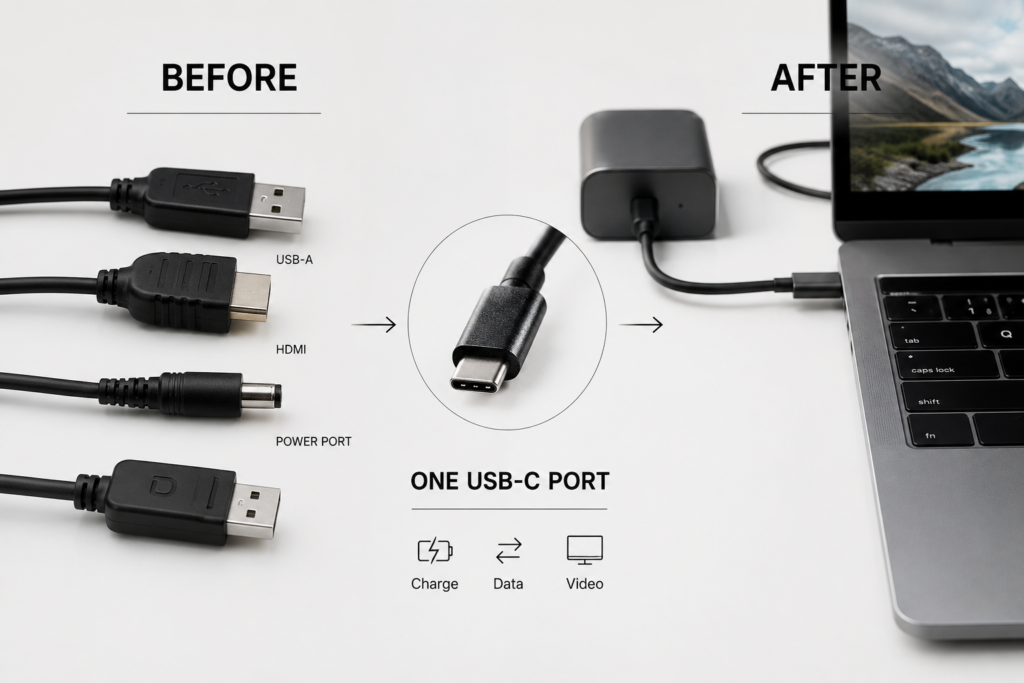
A few years ago, every device had a jumble of ports: round charging jacks, USB-A, HDMI, headphone sockets. Today, USB-C has become the standard across phones, laptops, tablets and monitors. It promises to replace every connector with a single shape, handling charging, data transfer and video all at once.
The Big Question: Why Do USB-C Ports Work So Differently?
Many people run into the same confusion: two USB-C ports look identical, but one can connect to a monitor and the other can only charge. One works with high-speed SSDs, the other only transfers files slowly. The reason for this gap is USB-C Alternate Mode.
What Exactly Is USB-C Alternate Mode?
Simple Definition: The Ability to Carry Non-USB Signals
By default, a USB-C port only handles USB data and power delivery. Alternate Mode (often shortened to Alt Mode) is the ability to “switch lanes”: it lets the USB-C port bypass USB protocol entirely and carry other types of signals like video or high-speed expansion.
Official Standard: Pin Reuse Defined by USB-IF
Alternate Mode is not a proprietary feature made up by brands — it is a universal mechanism written into the official specification by the USB Implementers Forum (USB-IF). At its core, it works via pin multiplexing: the same physical pins can switch between different functions without adding extra ports.
Design Value: Thinner Devices and Universal Connectivity
With Alternate Mode, devices don’t need separate HDMI, DisplayPort or dedicated charging ports. This lets manufacturers build slimmer, cleaner designs. For users, it means one cable can handle charging, display and file transfer — the reason USB-C earned its “universal connector” reputation.
How Alternate Mode Works (In Plain English)
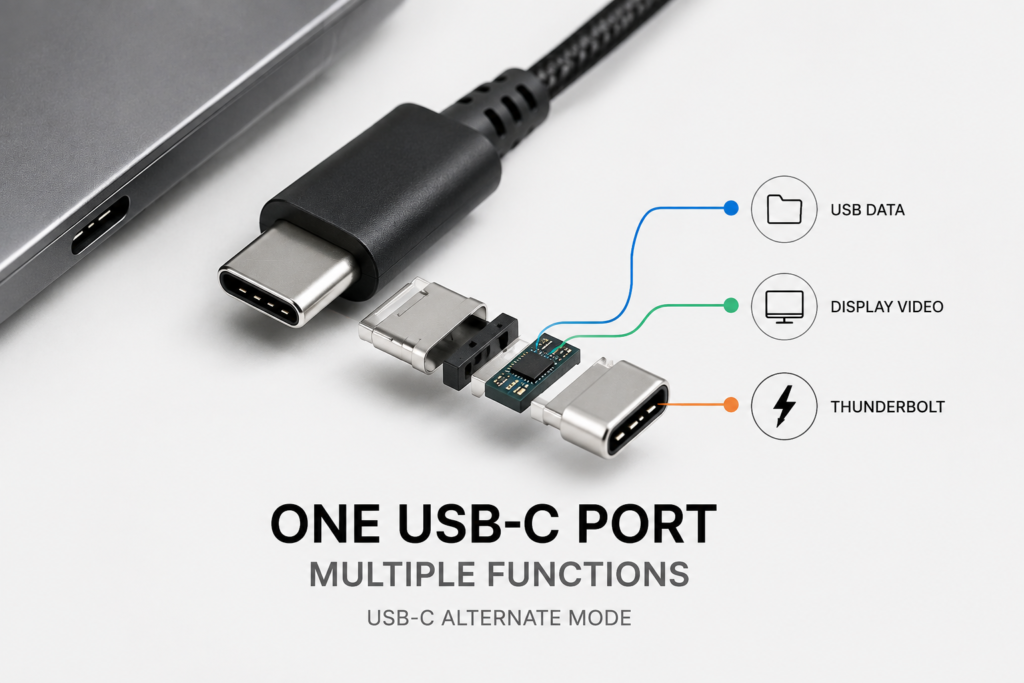
Hardware Basics: The Channels Inside a USB-C Port
A USB-C connector has 24 pins divided into dedicated “channels”: some for power, some for standard USB data, and four high-speed differential lanes that can be reassigned. Alternate Mode simply repurposes these high-speed lanes.
Negotiation: How the CC Pin Switches Modes
Inside the port is the CC pin (Configuration Channel), the “communicator” of the connector. When you plug in a device, the CC pin first talks to it to check if both sides support the same Alternate Mode. Once confirmed, it automatically switches the high-speed lanes to the correct protocol.
The Unsung Hero: E-Marker Chips and High-Speed Cables
Not every USB-C cable can run Alternate Mode. Quality cables have a tiny E-Marker chip inside — the cable’s “capability ID” — that tells the device how much bandwidth and power the cable can handle. Basic charging cables without this chip don’t even connect the high-speed lanes, so Alternate Mode won’t work at all.
Coexistence: Can You Charge and Use Alternate Mode At the Same Time?
Absolutely. Power runs on its own dedicated pins, completely separate from video and data channels. When Alternate Mode is active, you can still run USB Power Delivery (PD) fast charging, and even keep two lanes open for USB data — all over one cable.
The Main Types of USB-C Alternate Mode
DisplayPort Alt Mode: The Most Common Video Standard
Short for DisplayPort Alternate Mode, this is by far the most widely supported option. It carries native DisplayPort video signals directly over USB-C. Almost every USB-C device with video output uses this standard.
Thunderbolt Alternate Mode: High-Performance Expansion
Thunderbolt Alternate Mode is the most capable variant. Beyond video, it supports ultra-fast data, external GPUs and daisy-chained devices. It is common on premium laptops and professional workstations. Thunderbolt 3 and later versions all run natively over the USB-C physical connector.
HDMI Alt Mode: A Largely Obsolete Standard
Native HDMI Alternate Mode was released early on, but poor ecosystem support and slow protocol updates killed it off. Today, almost no devices support it. Most USB-C to HDMI cables on the market use an internal conversion chip — they are not native Alternate Mode.
Other Niche Alternate Modes (MHL, Analog Audio, Etc.)
There are other less common modes like MHL (Mobile High-Definition Link) and analog audio, mostly designed for older phones. They have largely been replaced by DisplayPort Alt Mode and digital audio, and are rarely seen today.
Clearing Up Common Confusion
USB-C Is a Physical Port — Alternate Mode Is a Feature
Many people mix up USB-C with its capabilities. In reality, USB-C only describes the shape and physical design of the connector — think of it as the road surface. Alternate Mode is one set of rules that determines what kind of traffic the road can carry.
Alternate Mode vs. USB4 / Native Thunderbolt
Alternate Mode is a “port expansion mechanism”, while USB4 and Thunderbolt are full, complete transfer protocols. Early Thunderbolt ran as an Alternate Mode over USB-C; with USB4, video and expansion are built directly into the protocol itself, so they don’t rely on classic Alt Mode switching — but they remain compatible.
Native Alternate Mode vs. Adapter Chips
Native Alternate Mode sends video straight from the port with almost no loss. Many cheap USB-C to video adapters, however, use a built-in conversion chip that turns USB data into a video signal. These are not true Alternate Mode, and usually have limited resolution and higher latency.
| Concept | What It Really Is | Core Purpose | Simple Analogy |
|---|---|---|---|
| USB-C | Physical connector standard | Defines port shape and pin layout | The road surface and number of lanes |
| USB-C Alternate Mode | Port expansion system | Lets the port carry non-USB signals | Allows other vehicle types on the road |
| USB4 | High-speed transfer protocol | Unifies data, video and expansion | A new rulebook for faster traffic |
| Thunderbolt | High-performance protocol | Delivers top-tier speed and features | The dedicated express lane |
How to Tell If Your Device and Cable Support Alternate Mode
Check the Port Symbols
Look for icons next to the USB-C port: a DisplayPort logo, a lightning bolt (Thunderbolt) or a USB4 logo almost always mean Alternate Mode video is supported. A plain USB logo usually means charging and data only.
Read the Official Specifications
Check the product manual or website. Terms like “DisplayPort over USB-C”, “DP Alt Mode”, “video output” or “Thunderbolt” all confirm Alternate Mode support.
Check Your Cable
Cables are the most common mistake. Basic charging cables only connect power pins — they have no high-speed data lanes and cannot carry video. Only full-featured cables, Thunderbolt cables or USB4 cables have the wiring for Alternate Mode.
| Cable Type | Charging | USB Data Transfer | Video (Alternate Mode) | Common Use Case |
|---|---|---|---|---|
| Basic charging cable | Yes | USB 2.0 only or none | No | Charging phones and tablets |
| Standard data cable | Yes | USB 3.x high speed | Usually no | File transfers, USB drives |
| Full-featured video cable | Yes (PD fast charge) | USB 3.x high speed | Yes (DP Alt Mode) | Monitors, docking stations |
| Thunderbolt / USB4 cable | Yes (PD fast charge) | Maximum speed | Full Alt Mode support | High-end docks, eGPUs |
Common Myths Debunked
Myth 1: Every USB-C port supports video output
False. Manufacturers can choose to enable only charging and data on a USB-C port. Many budget laptops and tablets have USB-C ports that cannot output video at all.
Myth 2: All USB-C to video cables use native Alternate Mode
False. Low-cost USB-C to HDMI/VGA adapters almost always use a conversion chip running over USB data. They are not native Alternate Mode, and often lack support for high resolution or high refresh rates.
Myth 3: Using Alternate Mode stops fast charging
False. Power and video run on completely separate pins. As long as your device, cable and dock support USB PD, you can charge and output video at the same time with no issues.
Myth 4: Thunderbolt supports every Alternate Mode
False. Thunderbolt is backwards compatible with DisplayPort Alt Mode, but it does not support every niche mode. For example, the obsolete native HDMI Alt Mode does not work on most Thunderbolt ports.
Everyday Use Cases
Single-Cable Docking: Monitor + Charging + Peripherals
At your desk, one USB-C cable between your laptop and monitor handles video output, PD charging, and keyboard/mouse/USB drives all at once. It leaves your desk clean with just one cable to plug in.
Docking Stations: Expand One Port Into Many
With an Alternate Mode dock, one USB-C port turns into HDMI, USB, Ethernet, SD card readers and more. It’s the perfect solution for thin laptops with very few ports.
Mobile Desktop: Phones and Handhelds on the Big Screen
Phones and gaming handhelds that support DP Alt Mode can plug straight into a TV or monitor for desktop-style work or big-screen gaming — no separate streaming dongle required.
Summary and Future Outlook
The Core Value of Alternate Mode
USB-C Alternate Mode is what makes the “universal connector” actually work. By reusing the same pins for different jobs, it turns one small port into a full-featured connection for power, video and expansion. It has made devices slimmer and simplified life for users everywhere.
The Shift Toward a Unified USB4 Ecosystem
The industry is moving away from separate Alt Mode switching and toward built-in protocol integration. USB4 and latest Thunderbolt standards include video and expansion natively, so future USB-C ports will have more consistent, predictable capabilities. For now, though, DisplayPort Alt Mode remains the most widespread and reliable way to get video over USB-C.