
Today’s thin-and-light laptops, tablets, and even smartphones come with fewer and fewer ports — many devices have only one or two USB-C ports. You can’t plug in a USB drive while charging, or use wired internet while connecting a monitor. This is where USB-C docks come in: with just one port connection, they add charging, data transfer, video, networking, and more.
Many people wonder: how can a single port deliver so many functions? What’s inside a dock? This guide breaks down how USB-C docks work in plain language, so you can understand them even with no technical background.
What Is a USB-C Dock?
1.1 Basic Definition
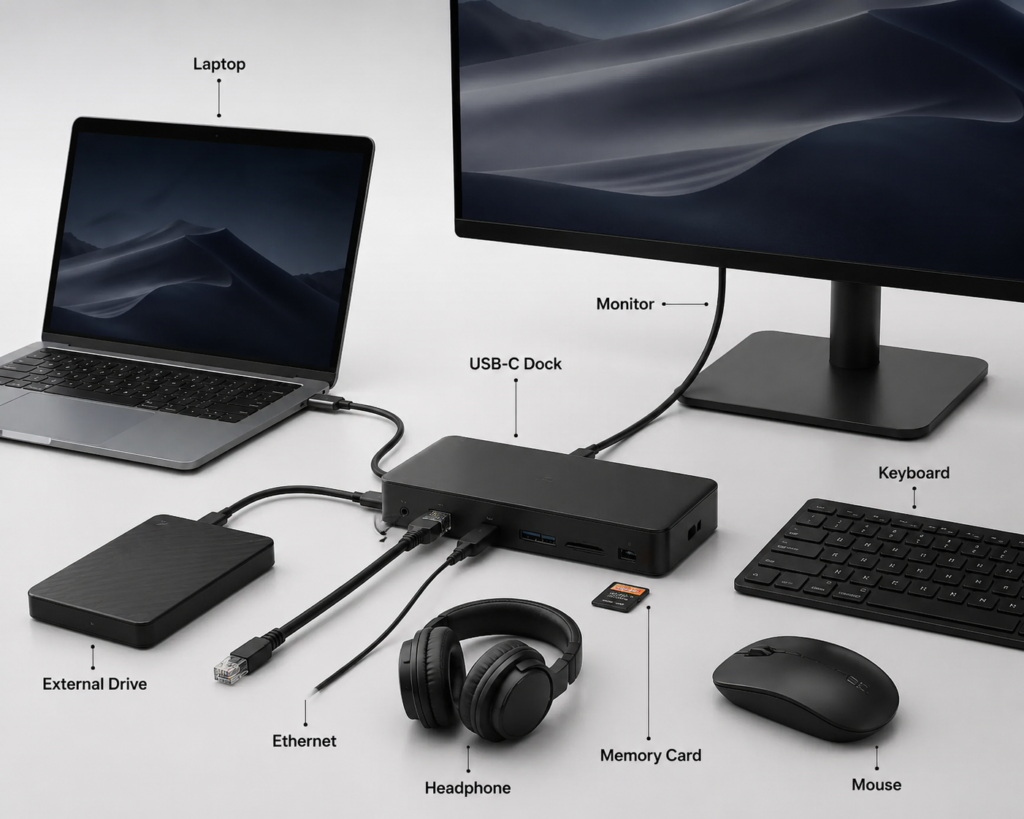
A USB-C dock (or USB-C docking station) is an external device that connects to a laptop, tablet, or other host via a single USB-C port, and expands it into multiple different ports for connecting various peripherals at the same time.
Most common peripheral connections can be added through a dock:
Common Ports on a USB-C Dock and Their Uses
| Port Type | Main Purpose |
|---|---|
| USB-A | Connect USB drives, mice, keyboards, external hard drives, and other classic USB accessories |
| USB-C | High-speed data transfer, connect USB-C accessories, or power small devices |
| HDMI / DisplayPort | Connect monitors, TVs, and projectors for high-definition video output |
| RJ45 Ethernet Port | Plug in a network cable for a more stable, faster wired internet connection than WiFi |
| SD / microSD Card Reader | Read memory cards from cameras and drones directly, no extra card reader needed |
| 3.5mm Audio Jack | Connect headphones, speakers, and microphones for audio input and output |
In short, the core job of a dock is to expand your device’s connectivity, so you don’t have to constantly plug and unplug accessories, and your desk setup stays more convenient.
1.2 Why Can One Port Turn Into Many?
Many people think USB-C is only for charging, but it’s actually an all-in-one port. The same cable can carry multiple completely different types of signals at the same time:
- Power: Supports fast charging for laptops and other devices
- USB data: Transfers files and connects peripherals like mice and keyboards
- Video: Sends display output to monitors and TVs
- High-speed data for networking and storage: Carries data for wired internet and fast storage drives
Because the USB-C port itself can transmit multiple types of signals at once, the dock can split these signals out to separate ports — turning one connection into many.
1.3 A Key Myth: Docks Don’t Add New Features
It’s very important to understand this: a dock does not create new capabilities. It only splits and converts existing signals.
If your laptop’s USB-C port doesn’t support video output, the dock’s HDMI port won’t work to connect a monitor. If your computer doesn’t support high-speed USB protocols, the dock won’t deliver faster file transfer speeds than your port allows.
Put simply: your computer’s port sets the performance limit. The dock just unlocks that limit and splits it up so you can use multiple features at once.
What’s Inside a USB-C Dock? Core Components
Docks deliver all these functions thanks to multiple independent control chips inside, each handling a different type of signal. You don’t need to take one apart to understand what each part does:
Core Components Inside a USB-C Dock and What They Do
| Component Name | Simple Explanation |
|---|---|
| USB Hub Controller | The “manager” of USB ports. It splits one USB signal into multiple streams and manages data communication for all USB accessories. |
| High-Speed Signal Switch (MUX) | The “traffic controller” for high-speed lanes. It flexibly assigns the USB-C port’s high-speed bandwidth to video, fast data, or other functions as needed. |
| Video Conversion Chip | The “format converter” for video. It turns the video signal from USB-C into a format HDMI and DisplayPort ports can understand. |
| Network Controller Chip | Converts USB to Ethernet, enabling wired internet connectivity. |
| Audio Controller Chip | Processes audio signals and powers headphones, microphones, and other audio devices. |
| Card Reader Controller | Recognizes SD and microSD memory cards and handles reading and writing files. |
| USB PD Power Management Chip | Handles fast-charging protocol negotiation and power distribution, allowing a charger to power your laptop through the dock. |
The high-speed signal switch (MUX) is the heart of a multifunction dock. It’s what lets the dock support both video output and high-speed data transfer at the same time by switching how the high-speed lanes are used.
How a USB-C Dock Works: 4 Simple Steps
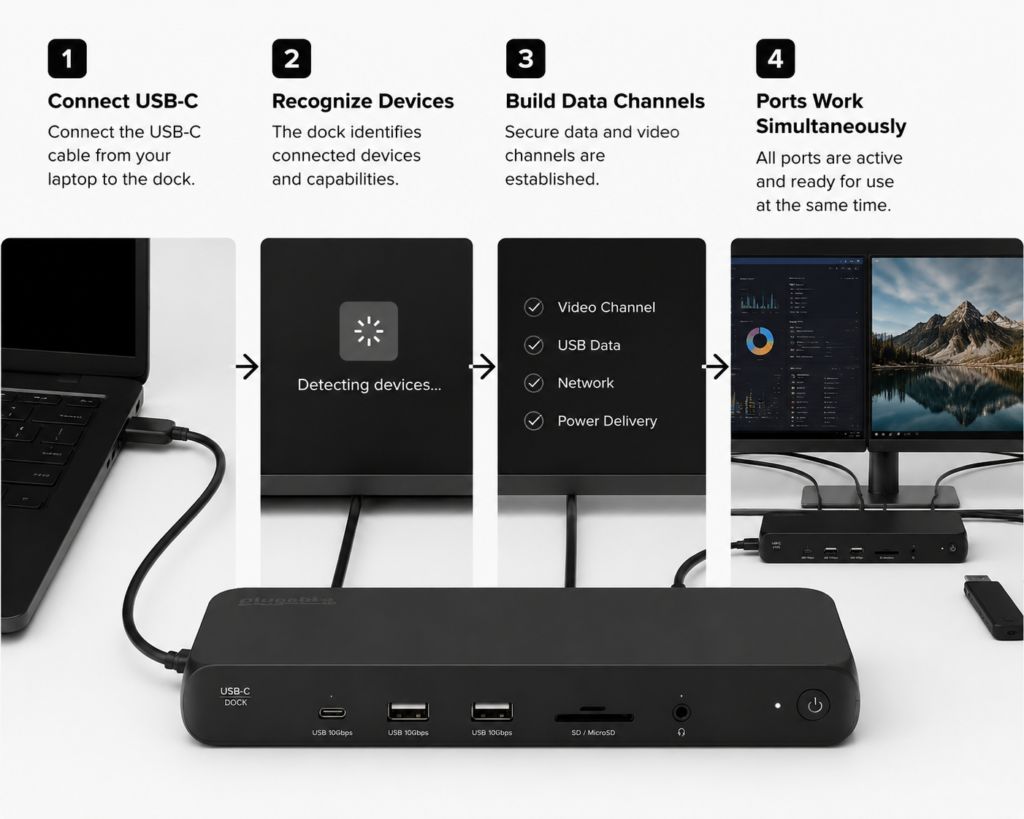
From the moment you plug the dock into your laptop until all ports are working, the whole process happens automatically in four steps:
3.1 Step 1: Connection and Detection
When you plug the dock into your computer via USB-C, your computer immediately detects a new device and starts “device enumeration” — basically saying hello to the dock and confirming what it can do.
3.2 Step 2: Driver Loading and Device Recognition
Your operating system recognizes every function chip inside the dock as a separate device — a separate network adapter, a separate audio device, a separate USB hub, and so on — and automatically loads the required drivers.
This is why plugging in one dock can add multiple new entries to your computer’s device manager.
3.3 Step 3: Setting Up Independent Transmission Paths
Once recognition is complete, the USB-C port sets up multiple independent transmission paths based on the dock’s features. Power goes through the power path, video through the video path, data through the data path. All signals run in parallel without interfering with each other.
3.4 Step 4: All Ports Work Independently
At this point, every port on the dock is fully functional. You can connect a monitor via HDMI, plug in an external hard drive via USB-A, plug in an Ethernet cable, and charge your laptop via PD — all at the same time.
Why Can Multiple Ports Work at the Same Time? Are There Limits?
4.1 Why Multiple Ports Work Simultaneously
- Dedicated chips for each job: Every function has its own chip handling it, like different departments in a company each doing their own work without stepping on each other.
- USB-C supports parallel signals: The physical design of USB-C already supports multiple signal types running at the same time, with enough bandwidth for multiple functions.
- Independent system management: The operating system manages each function as a separate device, transferring data on its own schedule.
4.2 Performance Isn’t Unlimited — There Are Real Limits
While docks let you use many ports at once, their performance isn’t infinite. There are two key limits:
- Total bandwidth limit: The USB-C port has a fixed total bandwidth. If you use multiple high-bandwidth devices at the same time (like a 4K monitor + a fast external SSD + gigabit Ethernet), they share that total bandwidth, and transfer speeds may drop.
- Total power limit: The dock can only supply a limited amount of total power. If you connect multiple power-hungry USB devices at once (like external hard drives and high-power fans), they may not get enough power to work properly.
What Affects How Well a USB-C Dock Works?
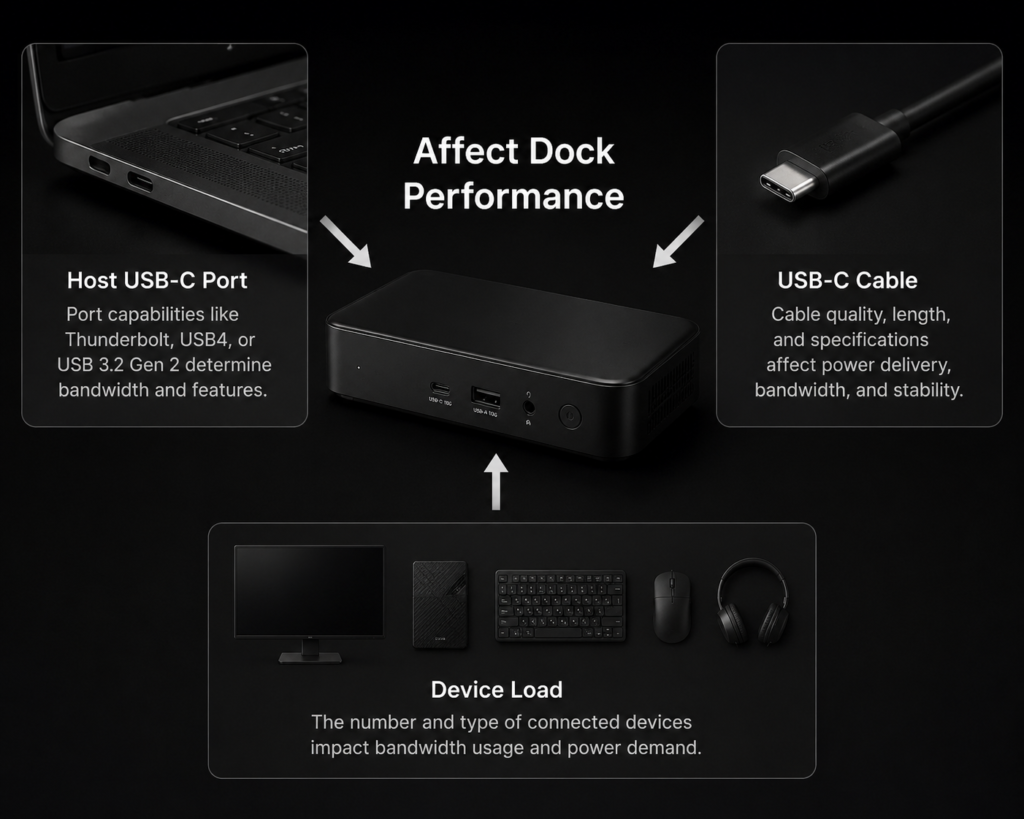
Many people buy a dock and find it doesn’t work well, and it’s often not the dock itself — it’s one of these factors:
5.1 What Your Computer’s USB-C Port Supports
This is the most important factor. The protocols and features supported by your computer’s USB-C port determine what the dock can actually do. For example:
- A USB-C port that only supports data and charging can’t output video through a dock.
- A port without USB PD fast charging support can’t charge your laptop through the dock.
- Regular USB-C and Thunderbolt 3/4 ports have very different bandwidth and expansion capabilities.
5.2 The Quality and Spec of Your USB-C Cable
Not all USB-C cables are the same. Cheap charging-only cables may only carry power, and can’t transmit video or high-speed data. To get full functionality from a dock, you need a full-featured USB-C cable with the right specifications.
5.3 Device Load and Resource Sharing
The more high-bandwidth, high-power devices you connect at once, the less resources each one gets. A mouse and keyboard won’t cause any issues, but running two 4K monitors plus a fast solid-state drive may hit bandwidth limits.
Summary: What Is a USB-C Dock, Really?
Let’s wrap up with a simple summary of how USB-C docks work:
A USB-C dock is essentially a signal splitter and protocol converter. It uses the multi-protocol, high-bandwidth nature of USB-C, and uses multiple independent internal chips to split and convert the single port’s signals into multiple output ports, so you can connect many devices at once.
It doesn’t make your computer more powerful than it already is, but it unlocks the full potential of your USB-C port and solves the problem of too few ports on thin, light devices. When choosing and using a dock, just confirm what your computer’s port supports and use a proper cable, and you’ll get a reliable experience.