
If you have ever bought a USB-C cable only to find it cannot connect to a monitor, or charges your phone way slower than expected, you are not alone. Most people see USB-C as just a single type of charging port — but in reality, it is a flexible connection standard that can carry power, data, video, and audio — depending on the device and cable support.
Think of it as a slim, multi-purpose pipeline. The same oval plug shape can be used for everything from charging a wireless earbud case to driving an 8K monitor, but not every port or cable supports every feature. The #1 rule for beginners: just because every USB-C port looks identical on the outside does not mean they all have the same abilities. What a port can actually do depends on the internal electronics of the device and the quality of the cable you use — just like how a small garden hose and a large fire hose look similar at a glance, but have very different capabilities.
This guide breaks down all four core functions of USB-C in plain language, with real-world examples and simple analogies, so you always know what your USB-C port can and cannot do.
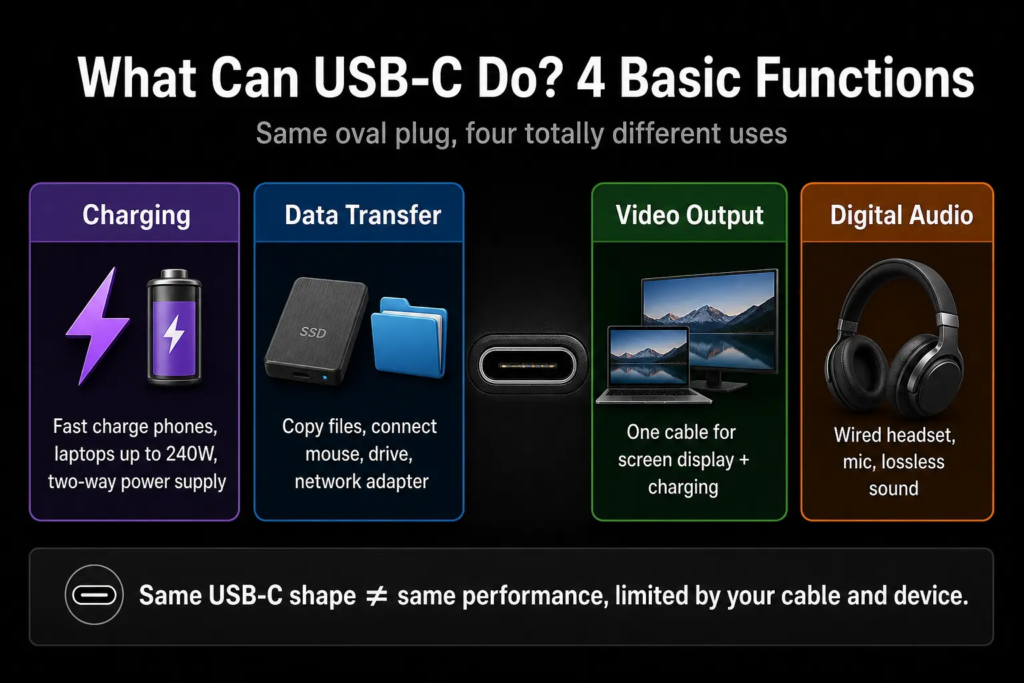
1. Charging: The Universal Power Pipeline
1.1 Everyday Use Cases
USB-C has become the default charging port for nearly all modern electronics. Phones, tablets, laptops, handheld game consoles, power banks, cameras and even small monitors can all charge through a USB-C port. For most people, this means one charger and one cable can work across almost all your daily devices, replacing a pile of different proprietary power adapters.
1.2 Power Delivery Specifications
All smart USB-C charging is built around the USB Power Delivery (USB PD) protocol. The actual maximum power a port can deliver depends entirely on the device’s internal design:
- Basic 5V charging: The universal baseline. Every USB-C port supports at least basic 5V power, compatible with all standard USB devices for simple low-power charging.
- Standard Power Range (SPR): Up to 100W (20V / 5A). This is the most common high-power grade, enough to charge nearly all ultrabooks, tablets and mid-size laptops.
- Extended Power Range (EPR): Up to 240W (48V / 5A) under USB PD 3.1. This is the highest official standard, designed for gaming laptops, mobile workstations and large high-power monitors.
To put it in perspective: a typical phone fast charger is 25–65W, a thin laptop uses 65–90W, and a high-performance gaming laptop needs 100–240W. All of these can run over the same USB-C connector shape.
Analogy: Think of it like a city water supply system. Basic 5V charging is a regular household tap for drinking water. SPR is a commercial water line for shops and office buildings. 240W EPR is a high-capacity main pipe that can supply entire large buildings.
1.3 Two-Way Power & Smart Negotiation
Unlike old charging ports that only worked one way, USB-C power can flow in either direction.
- Devices can switch between being a power provider (Source) and a power receiver (Sink). For example, your monitor can charge your laptop over the same cable that carries video, or your laptop can top up your wireless earbuds.
- The CC (Configuration Channel) pins help devices identify connections and negotiate power settings. They detect what is plugged in, read how much power the device needs, and adjust voltage and current automatically to avoid overheating or overloading.
1.4 Fast Charging Technologies
- PD 3.0 / 3.1 with PPS: Short for Programmable Power Supply. Instead of jumping between fixed voltage levels, PPS allows very fine, step-by-step voltage adjustment. This lowers charging heat, improves efficiency, and is gentler on battery health — like a variable-speed water pump that delivers exactly the right amount of pressure at every stage of filling a tank.
- Many phones and tablets also add extra controller chips to support third-party fast charging standards such as Qualcomm QC or MediaTek PE, on top of standard USB PD. These are manufacturer-specific extensions built on top of the basic USB-C physical port.
2. Data Transfer: The Multi-Lane Information Highway
2.1 Everyday Use Cases
Data transfer is the original purpose of USB. With a USB-C port you can connect external hard drives, cameras, keyboards, mice, docking stations, network adapters and more. A high-speed USB-C connection can transfer an entire 4K movie file in seconds, far faster than older USB-A ports from a decade ago.
2.2 Speed Tiers & Protocols
USB-C itself does not define a speed. How fast data actually moves depends on the controller inside the device. There are several common speed grades:
- USB 2.0: Up to 480Mbps. Slow but universally compatible, used for keyboards, mice, Bluetooth adapters and basic accessories. Many budget charging-only cables only support USB 2.0 data.
- USB 3.2 Gen 2×2: Up to 20Gbps. Fast enough for external solid-state drives, high-speed USB network adapters and high-bandwidth peripherals.
- USB4 and Thunderbolt 3/4: Both can provide up to 40Gbps-class bandwidth, but they are separate standards with different certification requirements. Thunderbolt generally has stricter mandatory features for more reliable high-performance use, and it is the one you usually see marked with a lightning bolt logo next to the port.
To give you a real sense of speed: transferring a 10GB video file takes roughly 3 minutes over USB 2.0, about 7 seconds over USB 3.2 Gen 2, and under 3 seconds over USB4 / Thunderbolt 40Gbps.
Analogy: USB 2.0 is a narrow one-lane country road. USB 3.2 is a multi-lane city highway. USB4 / Thunderbolt is a full barrier-separated expressway with no traffic lights, built for maximum speed.
2.3 How Cable Length Affects Speed
Unlike simple charging, high-speed data signals weaken over distance. The longer the cable, the lower the maximum achievable speed:
- Standard passive copper cables maintain full rated speed up to around 2 meters. This covers most desk and bag-cable use cases.
- For longer high-speed connections (up to ~5 meters), you need active cables with built-in signal amplifier chips — like relay stations along a highway that boost the signal so it does not fade over distance. For very long runs, fiber optic USB-C cables are also available.
2.4 E-Marker Chip Requirement
USB-C cables that support higher current (above 3A) require an E-Marker chip, which acts as the cable’s official ID card. When you plug in the cable, the device reads this chip to learn what current rating and speed grade the cable supports, so the system never pushes more power or data than the cable can safely handle.
3. Video Output: The Direct Display Broadcast Line
3.1 Everyday Use Cases
The most popular advanced use of USB-C is video output. The classic one-cable setup: plug your laptop into a USB-C monitor with a single cable, and it sends video to the screen, charges your laptop, and connects your keyboard, mouse and USB drives all through the monitor’s built-in hub. This is often called a “one-cable dock” setup, and it is one of the biggest reasons USB-C replaced so many older ports on laptops.
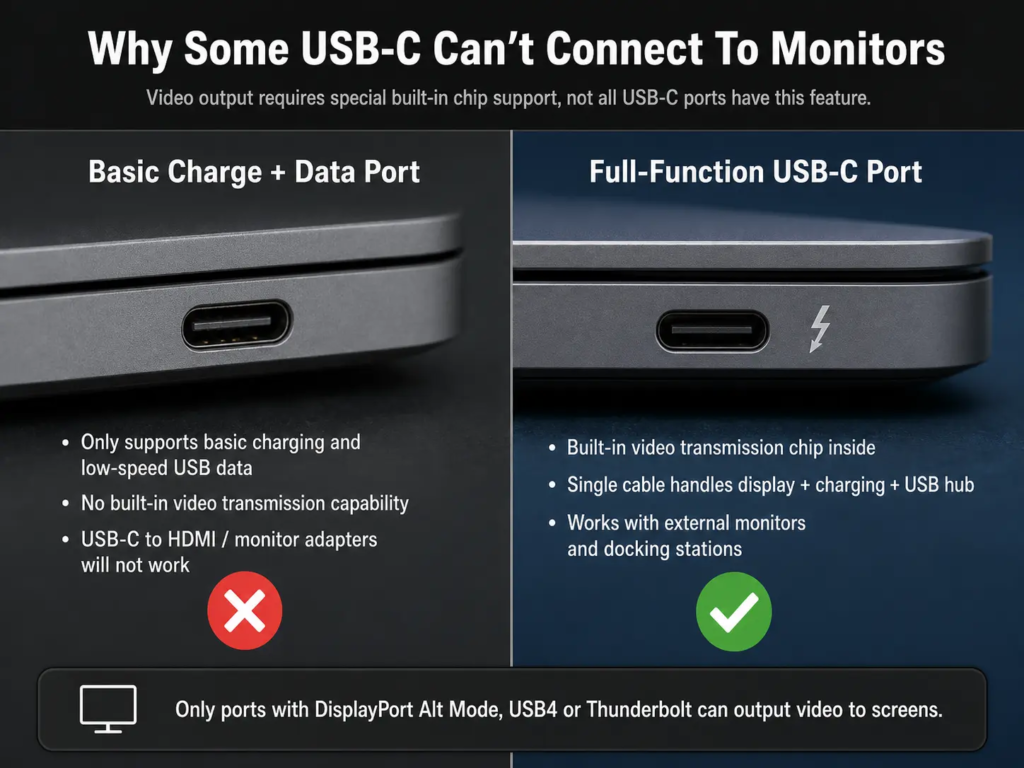
Important Note
Not every USB-C port supports video output. Some USB-C ports only provide charging and basic data transfer. Video capability requires DisplayPort Alt Mode, USB4, or Thunderbolt support from the device itself. If your phone or budget laptop only has a basic charge-and-data USB-C port, a USB-C to HDMI adapter will not work for video — this is one of the most common mistakes new users make.
3.2 Video Protocols & Resolutions
USB-C itself does not generate video signals. It repurposes its high-speed data lanes to carry native video protocols coming from the device’s graphics processor:
- DisplayPort Alt Mode: The most widely adopted standard. Depending on the DisplayPort version, cable quality and DSC compression support, it can drive 4K at 120Hz or even 8K@60Hz.
- HDMI output: Almost all USB-C to HDMI adapters convert DisplayPort Alt Mode signals to HDMI internally. Native HDMI Alt Mode was added to the official spec but never saw widespread real-world use.
- Thunderbolt-enabled ports: Can drive dual 4K monitors or a single 5K display over one cable, when paired with a compatible cable and display. Thunderbolt also supports docking stations with even more display outputs.
Analogy: Alt Mode is like converting a general-purpose highway lane into a dedicated live broadcast line. Instead of carrying regular data traffic, the lane is reserved purely for high-quality video signals, so they arrive smoothly with no delay.
3.3 Multi-Monitor Setups
- You can connect multiple monitors via daisy-chaining or a USB-C docking station to expand your desktop workspace.
- One important thing to know: video and data share the same high-speed bandwidth. Running multiple high-resolution monitors will leave less bandwidth available for file transfers and other USB devices.
3.4 Built-In Audio Over Video
Video signals carried over USB-C automatically include audio. Your monitor or TV can play sound without a separate audio cable, and advanced formats like Dolby Atmos are also supported when the display and source device are compatible.
4. Audio: The Digital Sound Channel
4.1 Everyday Use Cases
You can plug USB-C headphones, microphones, audio interfaces and gaming headsets directly into the port with no extra adapter. As phones and laptops removed the 3.5mm headphone jack, USB-C became one of the main ways to connect wired audio accessories.
4.2 How USB-C Audio Works
USB-C transmits audio as a pure digital signal, using the standard USB Audio Class protocol. This is very different from the old 3.5mm jack, which sent analog sound directly from the device.
- Most USB-C earphones and headsets have a built-in DAC (Digital-to-Analog Converter) chip inside them. This chip turns the digital data into analog sound waves your ears can hear. Sound quality depends heavily on the quality of this built-in DAC chip. Some USB-C audio devices support high-resolution lossless audio formats, depending on the DAC and device capability.
- USB-C to 3.5mm adapters work exactly the same way: the DAC chip lives inside the adapter instead of the earphones. A cheap adapter will usually give you basic sound quality, while a premium adapter can drive higher-end headphones.
Analogy: The digital audio signal is like a coded radio broadcast. The DAC is the translator that turns the coded digital data into actual sound waves you can listen to. The better the translator, the clearer and more accurate the final sound.
4.3 Pro Audio & External DACs
For audiophile listening, music production or professional recording, you can connect an external USB DAC / audio interface through USB-C. These use much higher-quality audio hardware than the tiny chips built into headphones or cheap adapters, for noticeably improved sound quality, more power for high-impedance headphones, and extra inputs and outputs for microphones and studio gear.
4.4 Two-Way Audio Features
- USB-C audio works in both directions: it can output sound to headphones and also receive input from a microphone at the same time. This makes it perfect for video calls, voice recording, live streaming and online gaming.
- It also supports multi-channel and virtual surround sound, for home theater setups and spatial audio in games.
Quick FAQ: Most Common Beginner Questions
Q: Can every USB-C port connect to a TV or monitor?
A: No. Only ports with DisplayPort Alt Mode, USB4 or Thunderbolt support video output. Basic charge-only or USB 2.0-only ports cannot output video.
Q: Do all USB-C cables support fast charging?
A: No. Cheap thin cables may only support 2A or 3A current. For 65W+ fast charging and especially 100W+ power, you need a properly rated cable with an E-Marker chip.
Q: Is USB4 the same as Thunderbolt?
A: Not exactly. They are closely related and use the same USB-C connector, but Thunderbolt has stricter certification and mandatory features. Many USB4 ports do not meet full Thunderbolt 4 requirements.
Q: Does a longer cable charge slower?
A: For normal charging lengths (1–2 meters), no. For very long cables or very high power levels, thin cheap cables will lose more voltage and charge slightly slower.
Key Takeaways
- USB-C is a single multi-function interface that can handle charging, data, video and audio — but not every port supports every feature.
- Same shape ≠ same features. Actual capabilities are determined by the device’s internal electronics and the cable specification.
- For maximum performance, every part of the chain (device, port, cable) must support the feature you want — the weakest link always sets the limit.
- The CC pins are the control center of the whole USB-C system: they handle direction detection, role identification, power negotiation, and Alt Mode setup.