
USB speed names can feel like a puzzle.
The same speed may have worn several names over the years. You may see USB 3.0, USB 3.1 Gen 1, USB 3.2 Gen 1, SuperSpeed USB, USB 5Gbps, USB 10Gbps, or USB 20Gbps. Many of these names are not new speeds. They are new labels on an old road.
The beginner rule is simple:
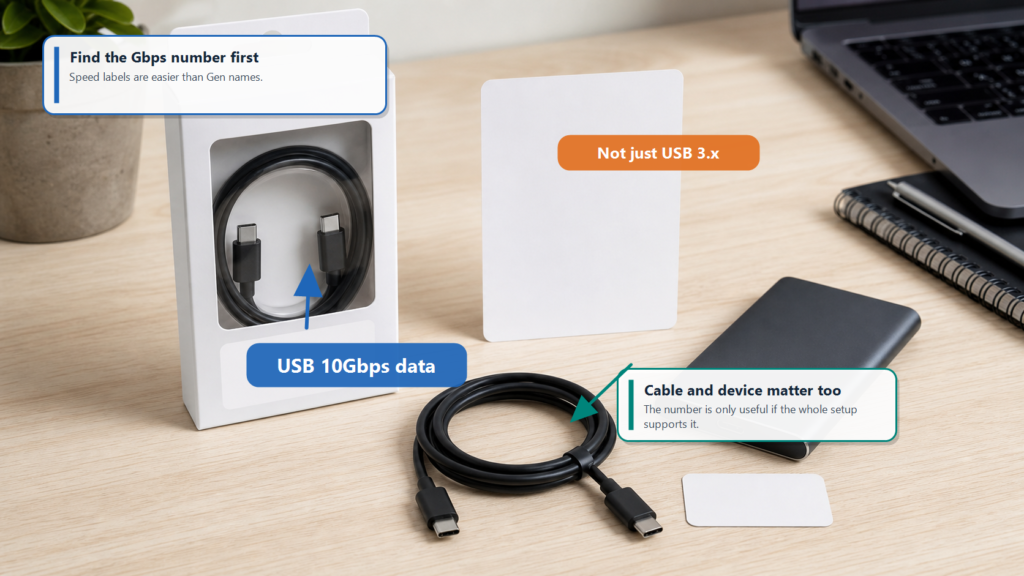
Look for the Gbps number first, then check whether the port, cable, and device all support it.
“USB 3.x” is a version-style label. “USB 10Gbps” is closer to a speed sign. When you buy a cable, an SSD enclosure, or a laptop dock, the speed number tells you more than the word “Gen.”
What Does Gbps Mean?
The numbers on USB packaging, such as 5Gbps, 10Gbps, and 20Gbps, describe theoretical data rate. Gbps means gigabits per second.
Your file manager usually shows MB/s or GB/s, which are bytes per second. Bits and bytes are different units.
| Marking | Rough meaning | Beginner intuition |
|---|---|---|
| 480Mbps | USB 2.0 High-Speed | Fine for mice, keyboards, printers, and small files |
| 5Gbps | Entry-level USB 3.x high speed | Common for drives, flash storage, and capture devices |
| 10Gbps | Faster USB 3.x | Common for external SSDs |
| 20Gbps | USB 3.2 Gen 2×2 | Needs host, cable, and device support |
| 40Gbps / 80Gbps | Common around USB4 products | Used for higher-performance docks, displays, and storage |
As a rough mental shortcut, divide Gbps by 8 to estimate the theoretical GB/s ceiling. Real file transfers are lower because USB has protocol overhead, and your storage device, file size, heat, and operating system also matter.
Think of a speed label like a highway speed limit. A sign may say 70 mph, but traffic, ramps, tolls, and the car itself still affect the trip.
Why Does One Speed Have Several Names?
USB naming changed over time. The confusing part is that the technology did not always change when the name changed.
| Older name you may see | Later technical name | Better consumer-facing name |
|---|---|---|
| USB 2.0 High-Speed | USB 2.0 | 480Mbps |
| USB 3.0 | USB 3.1 Gen 1 / USB 3.2 Gen 1 | USB 5Gbps |
| USB 3.1 Gen 2 | USB 3.2 Gen 2 | USB 10Gbps |
| USB 3.2 Gen 2×2 | USB 3.2 Gen 2×2 | USB 20Gbps |
| USB4-related products | USB4 / USB4 Version 2.0 related capabilities | USB 40Gbps / USB 80Gbps |
USB 3.0 did not become faster just because it was later grouped under USB 3.2 Gen 1. It is still the 5Gbps class.
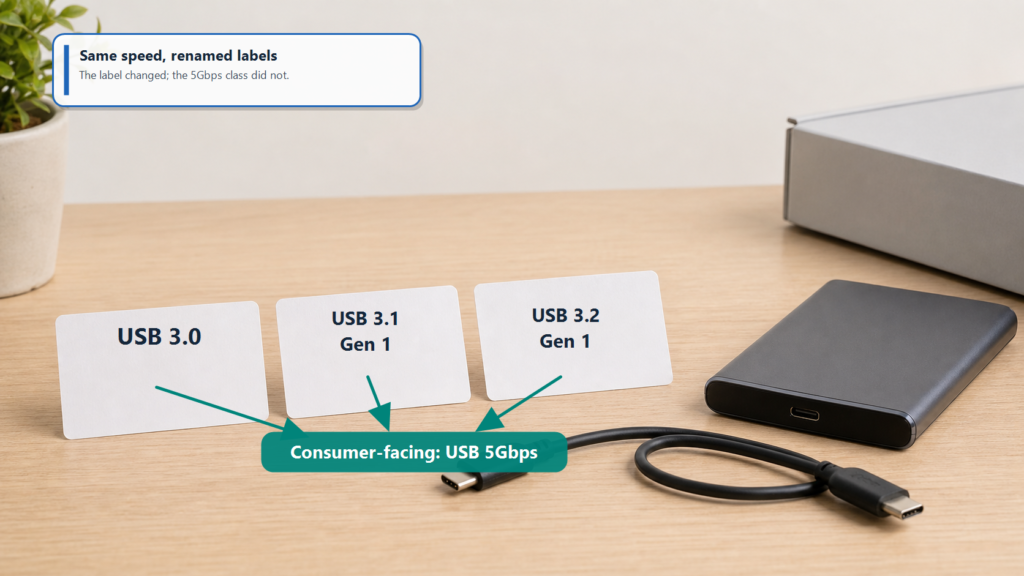
Imagine an apartment building that gets new room numbers. The rooms did not move. The signs changed.
What Does “Gen” Mean?
Gen means generation. In USB 3.x naming, it is not very friendly for normal buyers.
USB 3.2 Gen 1 means 5Gbps. USB 3.2 Gen 2 means 10Gbps. USB 3.2 Gen 2×2 means 20Gbps.
The “x2” part means two high-speed data lanes are used together. Picture a road with two lanes going in the same direction. Each lane carries 10Gbps, so two lanes can reach 20Gbps. But the computer, cable, and device must all support that two-lane mode.
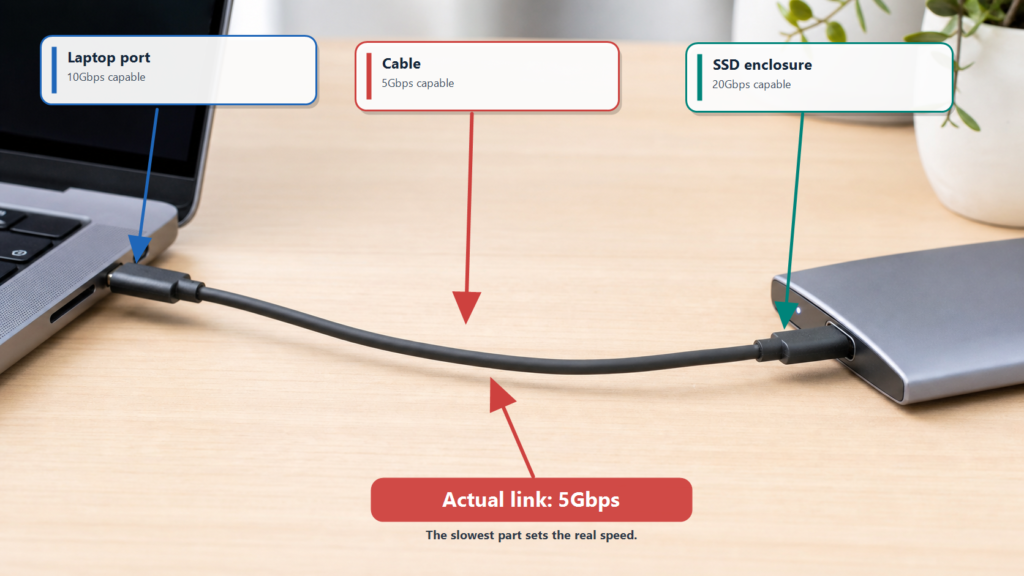
If your SSD enclosure supports 20Gbps but your laptop port supports only 10Gbps, the connection falls back to the lower shared speed.
Should You Still Care About “SuperSpeed USB”?
SuperSpeed USB was a common marketing term during the USB 3.x era. It is not the clearest label for beginners.
SuperSpeed, SuperSpeedPlus, USB 3.1, and USB 3.2 Gen 2 can sound like internal code names. USB-IF’s public language now puts more weight on direct performance labels such as USB 5Gbps, USB 10Gbps, USB 20Gbps, USB 40Gbps, and USB 80Gbps.
If you see SuperSpeed, do not panic. Keep looking for the Gbps number on the package, manual, or product page.
Speed Names Do Not Decide the Whole Experience
A USB connection is like a relay team. The computer port, cable, adapter, dock, and device all have to carry the same speed.
| What you saw | What you still need to check |
|---|---|
| Laptop says USB 10Gbps | Whether the cable and device also support 10Gbps |
| Cable says 240W | What data speed it supports, if any |
| Device says USB-C | USB-C is the connector shape, not a speed promise |
| SSD enclosure says 20Gbps | Whether the laptop port and cable support USB 20Gbps |
| Package says USB 3.2 | Whether it means Gen 1, Gen 2, or Gen 2×2 |
One common trap is buying a 20Gbps SSD enclosure and using a cable that only supports USB 2.0 or 5Gbps data. The plug fits, but the cable becomes the slow section of the road.
A Quick Buying Checklist
Use this order:
- Find the speed number: 480Mbps, 5Gbps, 10Gbps, 20Gbps, 40Gbps, or 80Gbps.
- Check the connector shape: USB-A, USB-C, Micro-USB, and so on.
- Check the cable capability. Data speed and charging power are separate.
- Check the device. The SSD, phone, laptop, or dock must support the same capability.
- Check certification and clear documentation. Clear specs usually mean fewer surprises.
If a product page only says “USB-C high-speed transfer” and never gives a Gbps number, be careful. Useful USB specifications are usually more specific.
Summary
The easiest way to read USB speed names is to stop staring at USB 3.0, USB 3.1, and USB 3.2 first. Find the speed number.
USB 5Gbps, USB 10Gbps, and USB 20Gbps are easier to understand than Gen 1, Gen 2, and Gen 2×2. Then check the whole chain: port, cable, adapter, and device.
Names change. A speed does not become faster because the label changed. Read the number, then check the chain.