
Preface
Have you ever been confused by terms like “USB 3.2 Gen 2×2,” “USB4 v2.0,” or “40Gbps” when trying to buy a simple cable? Or bought a docking station only to find it won’t connect to your monitor?
It’s not that you’re not tech-savvy—USB standards are genuinely complicated.
From USB 1.0 in 1996 to today, USB has been around for nearly 30 years. Over that time, we’ve seen countless connector shapes, transfer speeds, and charging protocols—and the naming has only gotten more confusing. Even tech enthusiasts struggle to keep up.
But this “dictionary” isn’t meant to make you memorize terms. Once you understand these words, you’ll be able to read specs when buying cables, docking stations, and external drives—and you won’t waste money on the wrong products.
Chapter 1: USB Basics
USB (Universal Serial Bus)
USB stands for Universal Serial Bus. Simply put, it’s a standard that lets electronic devices (phones, computers, USB drives, printers, etc.) connect to each other, transfer data, and charge.
USB first appeared in 1996 with a painfully slow speed of just 1.5Mbps. After nearly 30 years of development, it now reaches 80Gbps—over 50,000 times faster.
USB-IF (USB Implementers Forum)
USB-IF is the organization that creates and maintains USB standards. Products that meet USB standards can apply for USB-IF certification and display the official logo. That logo means the product has been tested for compatibility, safety, and performance.
USB Versions
USB version numbers keep changing:
- USB 2.0: 480Mbps, common on older devices
- USB 3.x: This one’s the most confusing—more on this later
- USB4: Up to 40Gbps
- USB4 Version 2.0: Up to 80Gbps, still rolling out as of 2025
USB Specification
A specification is a technical manual that tells manufacturers how to design and build USB-compliant products. For everyday users, the specification matters more than the version number—because two products both called “USB4” might have different capabilities. Some only support 20Gbps, while others support 40Gbps.
Chapter 2: Connector Terms
Connectors are the “shape” of the plug. The same USB version can use different connectors.
USB Type-A
The most common rectangular USB port—the one you see on computers. It’s been around for over 20 years, and almost everyone has seen one.
USB Type-B
A square-shaped connector, usually found on printers and scanners. Not very common in daily use anymore.
Mini USB
A small connector used on older MP3 players and early digital cameras. Mostly obsolete now.
Micro USB
The “trapezoid-shaped” connector once used on almost all Android phones. It has a top and bottom—plug it in the wrong way and it won’t fit. Before Type-C came along, nearly every Android phone used Micro USB. It’s now being replaced by Type-C.
USB Type-C
This is the most mainstream connector today. It has three big advantages:
- No wrong way to plug it in: Works either way—no more “trying three times to get it in”
- Slim design: Much thinner than older connectors
- Versatile: Not just charging and data—it can also output video
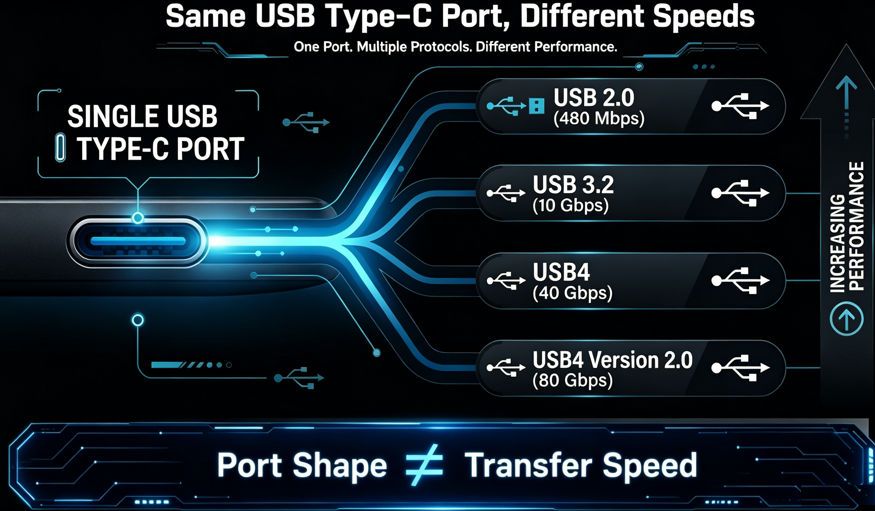
But remember: Type-C is just the shape of the connector. It doesn’t guarantee fast speed or fast charging. More on this later.
Chapter 3: Data Transfer Terms
Data Transfer
The process of moving files and data between devices.
Transfer Rate
The theoretical maximum speed, measured in Mbps or Gbps. For example, “5Gbps” means 5 gigabytes of data per second.
Throughput
The actual speed you get in real-world use. Due to various factors (cable quality, device performance, etc.), actual speed is usually slower than the theoretical maximum.
Bandwidth
Think of it as “road width”—the wider the road, the more cars can run at the same time, and the faster everything moves.
Full Duplex vs Half Duplex
- Full Duplex: Can send and receive data simultaneously, like a two-way road
- Half Duplex: Can only send or receive at one time, like a one-lane road where cars have to take turns
Lane
The “lane” data travels on. More lanes mean faster speeds. Dual Lane means two lanes working together.
Chapter 4: USB Speed Terms
USB speed grades, from slowest to fastest:
| Name | Speed | Note |
|---|---|---|
| Low Speed | 1.5 Mbps | USB 1.0 era—practically obsolete |
| Full Speed | 12 Mbps | USB 1.1—also obsolete |
| High Speed | 480 Mbps | USB 2.0—still found on older devices |
| SuperSpeed | 5 Gbps | USB 3.0—ten times faster than 2.0 |
| SuperSpeed+ | 10 Gbps | USB 3.1—even faster |
| USB 20Gbps | 20 Gbps | Formerly called USB 3.2 Gen 2×2 |
| USB 40Gbps | 40 Gbps | USB4 speed |
| USB 80Gbps | 80 Gbps | USB4 Version 2.0—currently the fastest |
Good news: Starting in 2025, USB-IF introduced a new labeling system. Instead of confusing names like “USB 3.2 Gen 2×2,” products will now simply display their speed—like “USB 20Gbps” or “USB 40Gbps”. Just look at the number on the package.
Chapter 5: USB Power Terms
USB Power
Charging devices through a USB port.
USB PD (USB Power Delivery)
USB PD is the mainstream fast-charging protocol. It lets USB ports do more than just charge—they can “negotiate.” The device and charger communicate to figure out the best voltage and current for charging.
PD has gone through several versions:
- PD 2.0: Up to 100W
- PD 3.0: Added PPS functionality
- PD 3.1: Up to 240W
SPR vs EPR
Simply put, EPR is the “high-power” version of USB charging—it can power gaming laptops and even some small appliances.
PPS (Programmable Power Supply)
PPS is a feature added in PD 3.0 that allows voltage to be adjusted in small steps (20mV). The benefit is more efficient charging and better battery safety. Many phones that support “super fast charging” use PPS.
Current, Voltage, Power
- Current: Measured in Amps (A)—think of it as “water flow”
- Voltage: Measured in Volts (V)—think of it as “water pressure”
- Power: Measured in Watts (W) = Voltage × Current
Higher watts mean faster charging. 5W is slow, 20W is fast, and 100W+ can charge a laptop.
Chapter 6: Video Output Terms
Alternate Mode
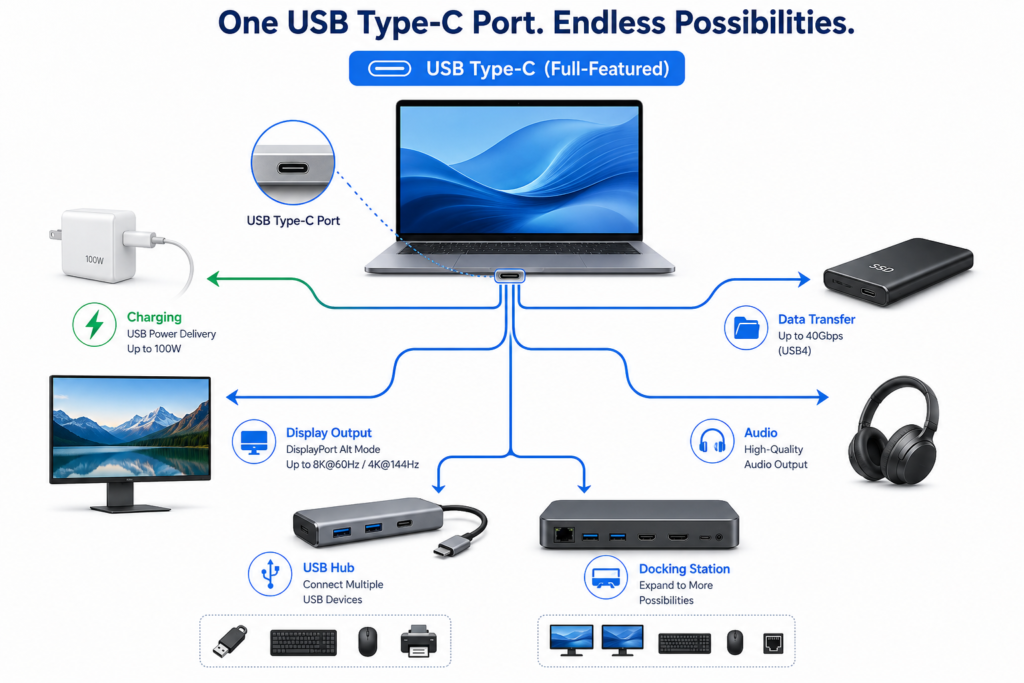
Type-C ports can do more than transfer data and charge—they can “transform” into other types of ports. For example, they can become HDMI ports for TVs or DisplayPort ports for monitors.
DisplayPort Alt Mode
The most common alternate mode. With this feature, a single Type-C cable can connect directly to a monitor. No adapters, no extra cables.
HDMI Alt Mode
Output HDMI signals directly through Type-C to connect to TVs or monitors.
Chapter 7: Thunderbolt Terms
Thunderbolt
Thunderbolt is a high-speed connection technology developed by Intel. It shares the Type-C connector with USB but has higher performance requirements and stricter standards.
Thunderbolt 3
Launched in 2015, speed of 40Gbps, uses the Type-C connector.
Thunderbolt 4
Launched in 2020, same 40Gbps speed as TB3, but with stricter requirements—all TB4 devices must support two 4K monitors and 15W power delivery, among other things.
Thunderbolt 5
The latest generation. Bidirectional bandwidth of 80Gbps, with Bandwidth Boost reaching up to 120Gbps. Power delivery up to 240W. Currently found mainly on high-end laptops.
PCIe Tunnel
A technology that lets data travel through PCIe channels over USB or Thunderbolt cables. In simple terms, it lets external graphics cards, high-speed SSDs, and other devices connect to your computer through a Type-C port.
Daisy Chain
Connecting multiple devices in series using a single port. For example: monitor 1 connects to the computer, monitor 2 connects to monitor 1, monitor 3 connects to monitor 2—one cable, multiple devices.
Chapter 8: USB Protocol Terms
Protocol
Think of it as the “language” devices use to communicate. If they speak the same language, they can understand each other and work together.
USB2 Protocol, USB3 Protocol, USB4 Protocol
Different USB versions use different “languages.” USB4’s language is more advanced and faster.
PCI Express
The high-speed internal channel inside computers, usually used for graphics cards and SSDs. Both USB4 and Thunderbolt can “package” PCI Express signals and transmit them over USB cables.
Tunneling
Packaging one type of signal inside another for transmission. Like putting cargo in a shipping container—it gets unpacked at the destination.
Chapter 9: Cable Terms
Charging Cable vs Data Cable
- Charging Cable: Can only charge, cannot transfer data
- Data Cable: Can both charge and transfer data
Full-featured Cable
A cable that does it all—high-speed data transfer, fast charging, and video output. Usually more expensive, but one cable replaces several.
Passive Cable vs Active Cable
- Passive Cable: A regular cable with no chips inside
- Active Cable: Has signal-amplifying chips inside to maintain speed over longer distances
E-marker Chip
E-marker is the “electronic ID card” inside a USB-C cable. It tells the device: how much current this cable can handle, and how fast it can go.
Key point: Cables that carry more than 3A of current (roughly 60W+) or speeds faster than USB 2.0 must have an E-marker chip. So any cable that supports fast charging or high-speed data has one of these tiny chips inside.
Chapter 10: Storage Device Terms
USB Flash Drive (U Disk)
The most familiar portable storage device. Small and convenient, but generally not very fast.
External SSD
External solid-state drive—much faster than a USB flash drive. Great for large files or as a system drive.
External HDD
External hard disk drive—large capacity but slower. Good for archiving files you don’t access often.
UASP vs BOT
- BOT: Older transfer protocol that handles one task at a time
- UASP: Newer protocol that can handle multiple tasks simultaneously—much faster
In simple terms: USB flash drives are fine with BOT; external SSDs should support UASP, or they won’t reach their full speed.
TRIM
Lets the SSD know which data has been deleted and can be cleaned up. Helps maintain SSD speed and longevity.
Chapter 11: Hub and Docking Station Terms
USB Hub
Turns one USB port into several. For example, if your laptop has only one USB port, plug in a hub and you can connect a mouse, keyboard, and USB drive all at once.
Docking Station
More powerful than a hub. A docking station not only has multiple USB ports but also HDMI, Ethernet, card readers, and more. It’s like giving your laptop a whole bunch of extra ports.
Bus Powered vs Self Powered
- Bus Powered: Gets power from the computer’s USB port—no extra power cord needed
- Self Powered: Plugs into its own power adapter—can support more devices
Upstream vs Downstream
- Upstream: The end that connects to the computer
- Downstream: The end that connects to devices
Chapter 12: Common Chip Terms
USB Controller
The chip that manages USB data transfer. Found in computers, phones, USB drives—everywhere.
Host Controller
The chip on the computer side that manages USB.
Device Controller
The USB chip on the device side (USB drive, keyboard, etc.).
Retimer vs Redriver
- Redriver: Signal amplifier—gives weak signals a “push”
- Retimer: Signal “redo” chip—not only amplifies but also cleans up and reorganizes the signal for better results
Chapter 13: Compatibility Terms
Backward Compatibility
New devices can work with older cables and devices. For example, a USB4 port can accept a USB 2.0 flash drive.
Forward Compatibility
Older devices can work with newer cables. For example, an old computer can use a USB4 cable—it won’t reach full speed, but it will work.
Negotiation
The device and charger “negotiate” what voltage and current to use.
Enumeration
The process where a computer recognizes a USB device that’s just been plugged in.
Handshake
Devices “greeting” each other and confirming each other’s identity.
Chapter 14: Certification Terms
USB Certified
The product has passed USB-IF testing and can display the official certification logo.
Certified USB Cable
An officially certified cable—quality and performance are guaranteed.
USB Logo
USB’s official trademark. Only certified products can use it.
Thunderbolt Certification
Thunderbolt certification is even stricter than USB’s. All Thunderbolt devices must pass Intel’s certification tests.
Chapter 15: Most Confusing Terms
❌ Type-C ≠ USB4
Type-C is just the connector shape; USB4 is the protocol standard. A Type-C port might only support USB 2.0 (very slow) or it might support USB4 (very fast).
❌ Type-C ≠ Fast Charging
A Type-C port doesn’t necessarily support fast charging. Whether it can fast-charge depends on the protocol (like USB PD), not the connector shape.
❌ USB 3.2 ≠ 20Gbps
USB 3.2 comes in three speeds: 5Gbps, 10Gbps, and 20Gbps. 20Gbps is just the fastest one.
❌ Thunderbolt ≠ USB
Thunderbolt and USB are different technologies, even though they use the same Type-C connector. Thunderbolt has stricter requirements and better performance—but it’s also more expensive.
✅ Type-C Is Just a Connector
Remember: Type-C is just the “shape of the plug.” It doesn’t guarantee any specific functionality. Just like how all round power outlets look the same but some have power and some don’t.
✅ Protocol Determines Function
How fast it goes, whether it can charge, whether it can output video—these are all determined by the protocol, not the connector.
✅ The Cable Determines the Experience
No matter how good your device and protocol are, if the cable is poor quality, speed will suffer.
Chapter 16: USB Terms Quick Reference
| English | Chinese | One-sentence explanation |
|---|---|---|
| USB | Universal Serial Bus | The standard for device connections |
| Type-C | USB-C connector | A reversible connector shape |
| USB PD | USB Power Delivery | The “language” of fast charging |
| PPS | Programmable Power Supply | Smarter fast charging |
| Alt Mode | Alternate Mode | Type-C transforms into a video port |
| DP Alt Mode | DisplayPort output | Connect a monitor via Type-C |
| Thunderbolt | Thunderbolt protocol | Intel’s high-speed connection technology |
| Lane | Lane | The “road” data travels on |
| Bandwidth | Bandwidth | Theoretical maximum speed |
| Throughput | Throughput | Actual achievable speed |
| UASP | USB Attached SCSI Protocol | Makes SSDs run faster |
| BOT | Bulk Only Transfer | Old protocol for USB drives |
| Hub | Hub | One USB port becomes many |
| Dock | Docking Station | Multi-function port expander |
| E-marker | Electronic marker chip | The cable’s “ID card” |
Chapter 17: Frequently Asked Questions
Why do all Type-C ports have different speeds?
Because Type-C is just the connector shape—the protocol inside can be completely different. Some only support USB 2.0 (480Mbps), while others support USB4 (40Gbps). Always check the speed label, not just the connector.
Why can’t some cables connect to monitors?
Connecting to a monitor requires video output support—that is, Alt Mode. Many cheap charging cables only do charging and data, not video. Look for “full-featured” cables.
Why are 240W cables more expensive?
240W cables need to support higher voltage (48V) and current (5A). That means thicker, safer materials—and they must have an E-marker chip inside to tell the device “I can handle 240W”. Naturally, they cost more.
Does USB4 always support 40Gbps?
Not necessarily. The minimum spec for USB4 is only 20Gbps. Only products labeled “USB 40Gbps” are the full-speed version.
Is Thunderbolt always faster than USB?
Not necessarily. Thunderbolt 3 and 4 are both 40Gbps, while USB4 Version 2.0 can reach 80Gbps. Thunderbolt’s advantage is that the “floor” is high—all TB devices guarantee 40Gbps, while some USB4 devices only do 20Gbps.
Why is USB 3.2 naming so confusing?
USB-IF (the standards organization)really messed up the naming: USB 3.0 was renamed USB 3.1 Gen 1, then USB 3.2 Gen 1… Consumers were completely lost. The good news is that starting in 2025, they’re switching to direct speed labels like “USB 10Gbps” and “USB 20Gbps”.
How do I quickly tell if a USB cable is good?
Look at three things:
- Speed label: Does the package show a speed (like “USB 10Gbps”)?
- Power label: Does it support fast charging and what’s the max wattage?
- Certification mark: Does it have the USB-IF official certification logo?
If the package doesn’t say anything, it’s probably just a basic charging cable—don’t expect it to do big things.
Conclusion
USB terminology may seem overwhelming, but it all comes down to four dimensions:
- Connector: What does it look like? Type-A or Type-C?
- Protocol: What “language” does it speak? USB 2.0 or USB4?
- Speed: How fast can it go? 5Gbps or 40Gbps?
- Power: How fast can it charge? 5W or 240W?
Ask yourself these four questions before buying any USB device, and you’ll rarely make a mistake. Hope this little dictionary helps you out.