
If you’ve ever bought a USB-C to HDMI or DisplayPort adapter, plugged it into your monitor, and got nothing but a black “no signal” screen, you know how frustrating USB-C video can be. Two identical-looking USB-C ports can behave completely differently: one drives an 8K display at 60Hz, while the other only charges your device and transfers files.
Here is the core rule every beginner should memorize: USB-C is only the physical shape of the connector. Video output is an optional feature, not a built-in guarantee. Whether you can connect a monitor depends on whether your device supports DisplayPort Alt Mode, USB4 with DisplayPort tunneling, or Thunderbolt.
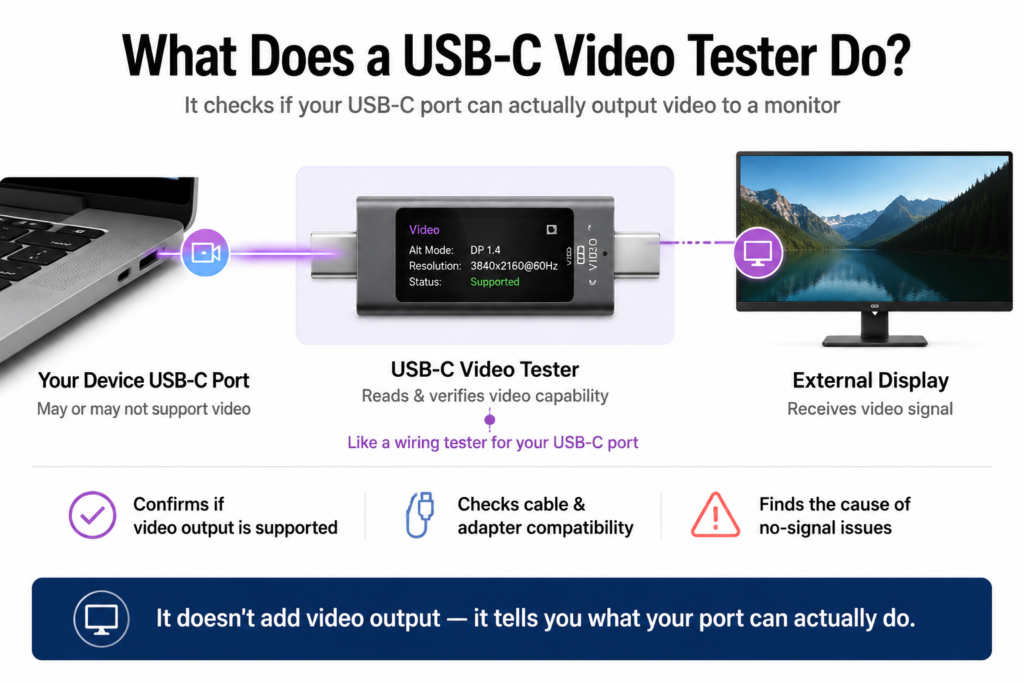
Think of each USB-C port like a standard wall outlet panel. Every panel looks the same from the outside, but some only have electrical wiring, some add internet wiring, and some include cable TV wiring too. A USB-C video output checker is like a wiring tester: you plug it in, and it tells you exactly what signals the port can actually carry, so you don’t waste money on adapters that will never work.
1. Why You Need a Video Output Testing Tool (Common Pain Points)
These are the exact problems this type of tool solves:
- You buy a USB-C to HDMI/DisplayPort adapter, but your monitor shows no signal at all.
- You aren’t sure if your laptop, tablet or phone’s USB-C port can actually connect to an external display.
- Two USB-C cables look identical, but one works with monitors and the other only charges.
- Your external display flickers, shows visual glitches, or won’t run at its advertised resolution and refresh rate — and you can’t find the cause.
- You can’t tell if the problem is the port itself, the cable, the adapter, or the monitor.
2. What a USB-C Video Output Testing Tool Actually Does
2.1 Verify Video Output Capability
- It confirms whether a USB-C port supports video output at all, and identifies which video transport method is used: DisplayPort Alt Mode, Thunderbolt 3/4/5, or DisplayPort tunneling over USB4. Each method supports different maximum resolutions and features.
- It calculates the maximum supported resolution, refresh rate, single-display performance, and multi-display MST (Multi-Stream Transport) capability, based on the device’s video protocol, DisplayPort version, available bandwidth, DSC (Display Stream Compression) support, cable specification, and monitor capabilities.
- It clearly states the minimum requirements for video output, so you know the real limits of your port.
2.2 Troubleshoot Cables, Docks & Adapters
- It checks whether a USB-C cable, docking station or adapter actually supports video transmission.
- It identifies cases where a low-spec cable is causing no video output or limiting resolution and refresh rate.
- It can tell whether a USB-C to HDMI/DisplayPort adapter relies on DisplayPort Alt Mode or uses a DisplayLink chip for video, and warns you if driver installation is required.
2.3 Validate End-to-End Compatibility
- It tests whether your device, cable, and monitor will work together properly, and identifies why a video handshake might fail.
- It can confirm if a USB-C port is charge-and-data only, with no video output hardware at all.
2.4 Diagnose Display Faults & Instability
- It pinpoints the root cause of common issues like no signal, screen flickering, visual artifacts, and refresh rate limits.
- It helps you tell apart hardware incompatibility, missing drivers, and broken accessories.
3. How It Works (Simple Beginner Explanation)
There are two main categories of testing tools, and they work very differently:
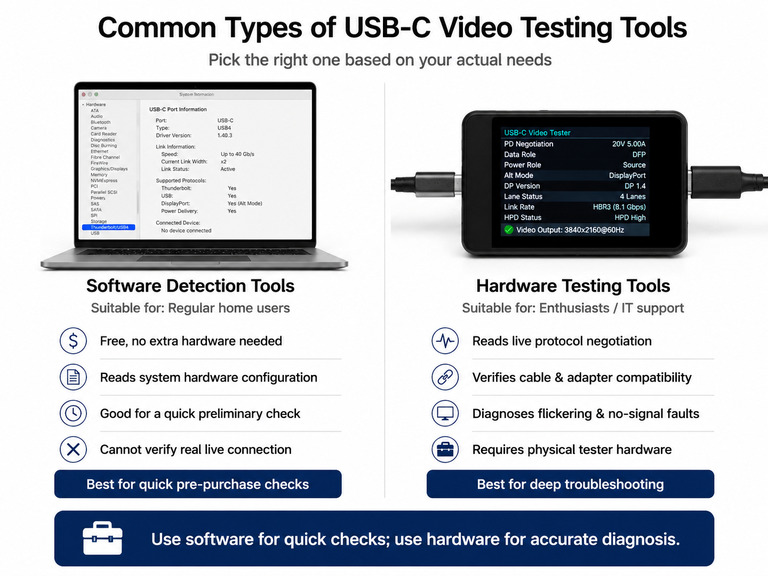
- Software tools read your system’s internal hardware and interface configuration data to estimate what the port should support.
- Hardware tools plug in between your device, cable, and display, or directly into the USB-C port. They inspect the live protocol negotiation and connection state without interfering with normal video output.
Higher-end professional tools can also analyze the full video link training process, bandwidth allocation, and protocol status for deep troubleshooting. For everyday users, you only need to look at the final result — you don’t have to understand the underlying protocol details.
4. Who Should Use These Tools?
4.1 Regular Consumers
- Confirm whether your device supports video output before buying a monitor, dock, or adapter.
- Troubleshoot basic issues like no signal or poor display quality.
4.2 Tech Enthusiasts
- Test video compatibility across different cables and adapter accessories.
- Verify that a device’s advertised video output specs match real-world performance.
4.3 IT & Workplace Support Teams
- Batch-check office devices for video output capability.
- Quickly diagnose meeting room display connection issues.
4.4 Hardware R&D & Quality Testing
- Verify that a product’s USB-C video specs meet official standards.
- Debug compatibility and stability issues during development.
5. Common Types of USB-C Video Testing Tools
5.1 System & Software Detection Tools
These require no extra hardware and are free to use, but their information is limited:
- Windows: You can use tools like USB Device Tree Viewer, the built-in Thunderbolt Control Center, or manufacturer-provided management software to inspect port details. Windows Display Settings shows your current connection, but cannot tell you if an unused USB-C port supports video.
Note: USB Device Tree Viewer shows general USB interface info and can help estimate capability, but it cannot directly confirm DisplayPort Alt Mode support on its own.
- macOS: You can view full USB-C and Thunderbolt port details directly in System Information.
- Linux: Tools like
boltcan query Thunderbolt and USB4 port support.
These tools are great for a quick check, but the level of detail varies by manufacturer, and not every device will expose video support status clearly.
5.2 Portable All-In-One USB Testers
- Popular examples: select models from the Power-Z series, AVHzY, FNB58 and similar multi-function USB-C testers.
- They can read some video negotiation data and cable specifications, alongside their main charging power and protocol testing features.
- Important note: These are primarily charging and general protocol testers, not dedicated video protocol analyzers. Full deep-dive video protocol analysis requires specialized professional equipment.
5.3 Professional Integrated Test Equipment
- Support full video protocol analysis and link quality testing.
- Used almost exclusively in laboratories, factories and quality assurance environments. Everyday consumers almost never encounter these.
6. How to Check If Your USB-C Port Supports Video (No Tools Needed)
- Most reliable: Check the official product specs — the manufacturer’s spec sheet will always state whether a USB-C port supports video output.
- Check port icons: If you see a DisplayPort logo or Thunderbolt lightning bolt next to the port, it definitely supports video. No icon does not guarantee no video support.
- Check system information: Use your computer’s built-in system info tool to inspect port capabilities, though some devices do not show complete details.
- Test with a tool: Use a USB-C video testing tool or a known-good cable + monitor to confirm real-world support.
7. Practical Tips & Key Facts About USB-C Video
Below are the core rules for buying accessories and troubleshooting issues, all aligned with official USB-IF specifications.
7.1 Core Basics & Most Common Myths
- Video output is an optional USB-C feature, not a built-in guarantee. An identical port shape does not mean identical capabilities.
- Almost all USB-C to HDMI adapters convert a DisplayPort signal internally. Native HDMI Alt Mode is extremely rare in consumer devices.
7.2 Device Capability Varies Widely
Video performance is ultimately determined by your device’s internal hardware. Always check official manufacturer specs for your exact model:
- Many Android phones use USB-C but only support USB 2.0 data and charging, with no native video output — they cannot connect directly to a monitor.
- Video output capabilities differ across iPhone, iPad, and Mac models, even when they all use USB-C.
- Some laptop USB-C ports support charging and data but no external display output.
- Even among devices with USB4, supported video bandwidth, DisplayPort version, and Thunderbolt compatibility can vary.
7.3 How Cables & Accessories Impact Video
- Only full-featured cables with video support can carry a display signal. Charge-only cables will not work for video.
- DisplayLink adapters produce video over standard USB data, not native video lanes. They require driver software and do not need DisplayPort Alt Mode from the port. They typically differ in performance, latency, and CPU usage compared to native Alt Mode.
- When using a USB-C dock or hub, the internal chipset, number of video ports, and bandwidth sharing all affect maximum resolution, refresh rate, and multi-monitor capability.
- Maximum resolution and refresh rate are determined by four factors together: port bandwidth, DisplayPort version, cable specification, and the monitor itself. DSC (Display Stream Compression) can enable higher resolutions or refresh rates when supported.
- A video-capable USB-C port does not support every resolution and refresh rate. Some devices only output 4K@30Hz, while others support 4K@120Hz or 8K.
- For a single-cable setup (charging + data + video), you need both a full-featured USB-C cable and a port that supports all three functions.
7.4 Quick Troubleshooting Order for Display Issues
Follow this step-by-step order to narrow down no-signal or quality problems:
- Confirm your USB-C port natively supports video output
- Confirm your cable supports video transmission
- Confirm your adapter or dock uses a compatible protocol
- Confirm the monitor is set to the correct input source
- Update your graphics or Thunderbolt drivers
- Use a testing tool to inspect port capability and negotiation status
Key rule: USB-C video performance follows the weakest-link principle. The device, port, cable, accessory, and monitor all matter — the least capable component in the chain sets the final limit.
Quick Summary
USB-C video output is never guaranteed by the connector shape alone. A video testing tool removes the guesswork: it tells you what your port can actually do, helps you find the cause of display issues, and stops you from wasting money on incompatible adapters and cables.