
Introduction
If you own a modern tablet, you’ve almost certainly used a USB-C charger — but you may have also noticed that some chargers top up your device in an hour while others take all afternoon. This guide breaks down everything you need to know: how USB-C charging works, what USB PD and PPS actually mean, how to pick the best USB-C charger for your tablet, whether fast charging harms your battery, and how to fix common slow-charging problems. By the end, you’ll be able to buy accessories with confidence and keep your tablet’s battery healthy for years.
1. Why USB-C Is Now the Standard Tablet Charging Port
1.1 More Than Just a Charging Connector
USB-C is the small, oval, reversible connector found on nearly all new tablets. Unlike older ports that only handled power, a USB-C port can carry electricity, transfer files, and send video to an external display — all through the same compact design.
A standard USB-C connector has 24 physical pins, but devices use different combinations of these pins depending on their design and supported features. A budget tablet may only enable the pins needed for charging and basic file transfers, while a premium model unlocks high-speed data and video output.
Quick clarification: You may hear people say “USB-C” and “Type-C” — they mean exactly the same thing. “USB-C” is the official standard name, and “Type-C” is just casual shorthand.
1.2 The Evolution of Tablet Charging
Tablet charging hasn’t always been this universal.
- Micro-USB era: Early Android tablets relied on micro-USB, a one-way connector that only supported basic charging. Most micro-USB tablets charged at 5–10W, while some models using proprietary fast-charging technologies could reach higher speeds. Charging a large 10-inch tablet could take half a day.
- Lightning era: For years, Apple iPads used the proprietary Lightning port. It was small and reversible, but it used Apple’s own authentication system, so cross-device compatibility was more limited than universal USB-C.
- USB-C era: Apple first introduced USB-C on the 2018 iPad Pro line, making it one of the first major brands to bring USB-C to premium tablets. Since then, nearly all Android and Windows tablets have adopted the standard, turning USB-C into the first truly universal tablet charging connector.
Global regulation has also pushed this shift forward. The EU Common Charger Directive requires most portable electronic devices sold in the European Union — including tablets — to use USB-C charging as of December 28, 2024, with laptops following on April 28, 2026. The rule aims to cut electronic waste and reduce duplicate charger costs for consumers, and many other regions are moving toward similar standardization.
1.3 The Big Benefits for Tablet Users
For everyday owners, the USB-C transition brings three clear wins:
- One cable for everything: The same cable charges your phone, tablet, power bank, and laptop. No more drawers full of incompatible chargers.
- Faster charging for big batteries: Most large tablets have 7,000–10,000 mAh batteries. USB-C fast charging cuts full charge times from 4–5 hours down to 1.5–2 hours.
- Productivity upgrades: A single USB-C port can connect your tablet to an external monitor, keyboard, and external storage — turning it into a lightweight desktop workstation.
2. How USB-C Tablet Charging Actually Works
You plug in the cable, and the battery starts charging — but what’s happening behind the screen? Let’s break it down in plain language.
2.1 The Full Charging System: From Wall to Battery
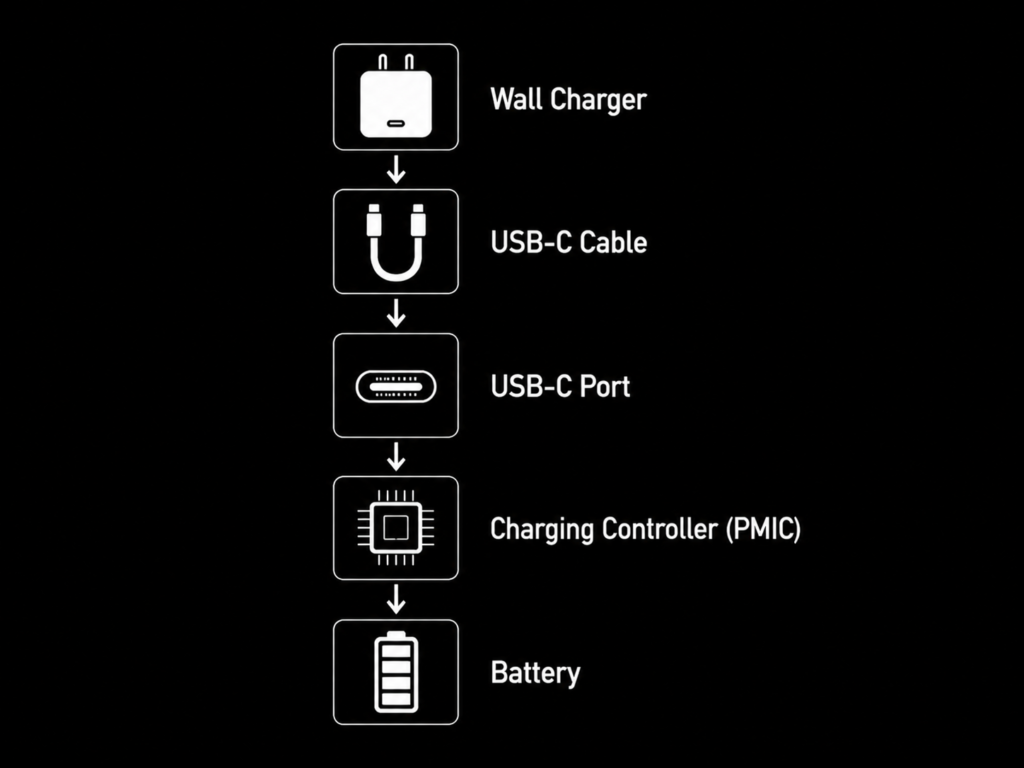
Electricity follows a clear, controlled path from your wall outlet to your tablet’s battery. Think of it as a relay team, with each part passing power along safely:
- Wall charger: Converts household AC power to the low-voltage DC power your tablet uses.
- USB-C cable: Carries power and data between the charger and tablet.
- USB-C port: The physical connection point on your tablet.
- Charging controller (PMIC): The “smart manager” that adjusts voltage and current, monitors temperature, and keeps the battery safe.
- Battery: Stores the electrical energy for later use.
2.2 Inside the USB-C Port: What Those Pins Do
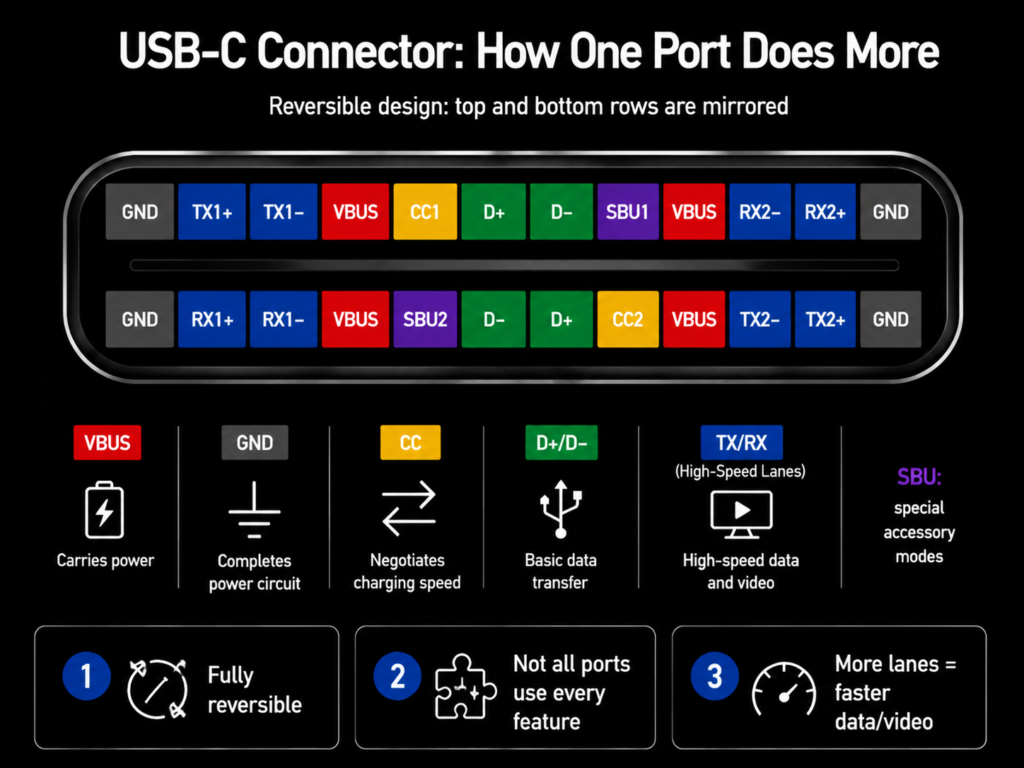
Think of the USB-C port as a multi-lane highway, with different lanes assigned to different jobs:
- VBUS pins: The “power lanes.” They carry electrical current from the charger to your tablet’s battery.
- GND pins: The “return lanes.” They complete the electrical circuit and keep power delivery stable.
- CC pins: Short for Configuration Channel pins. Think of them as a dedicated walkie-talkie line between the charger and your tablet. They communicate to agree on the safest and fastest charging speed both can support.
- D+/D- pins: Basic data pins. They handle simple file transfers and work with basic accessories like wired mice and keyboards. Basic USB-C cables may include only USB 2.0 data lines (D+ and D-), or may be charging-only cables with no data connection at all.
- TX/RX lanes: High-speed differential lanes used for USB 3.x, USB4, Thunderbolt, and DisplayPort video signals. Depending on the device design, these lanes may be assigned to different functions.
2.3 Why Charging Slows Down Above 80%
You’ve probably noticed: your tablet charges super fast from 0% to 80%, then creeps very slowly to 100%. This is not a bug — it’s intentional battery protection.
Fast charging is mainly used during the early charging stage, while charging speed gradually decreases at higher battery levels to reduce chemical stress on the battery cells. Near 100%, only a tiny trickle of power flows in to finish the charge.
This slowdown is one of the most important things manufacturers do to help your battery last for years..
2.4 Why Some USB-C Chargers Feel Way Slower Than Others
Two USB-C chargers can look identical and charge at completely different speeds. There are five common reasons:
- Different charging protocols: USB-C is just the shape; the actual fast-charging “language” (protocol) has to match. If the charger and tablet don’t speak the same protocol, they fall back to slow basic charging.
- Underpowered or low-quality chargers: Cheap no-name chargers may print a high wattage on the case but can’t sustain it consistently.
- A slow cable: Even a 100W charger will be held back by a low-spec cable. This is one of the most overlooked causes of slow USB-C charging speed.
- Tablet hardware limits: Every tablet has a built-in maximum charging speed. A 100W charger won’t charge a 30W tablet any faster — it’s just safe and future-proof.
- Battery level and temperature: Tablet fast charging only runs at full speed when the battery is roughly 0–70% and the device is cool. Above 80% or when hot, charging slows down on purpose.
3. Fast Charging Protocols: USB PD & PPS Demystified
If you’ve shopped for a charger, you’ve seen terms like “USB PD” and “PPS.” They sound technical, but they’re easy to understand.
3.1 USB PD: The Universal Fast Charging Language
USB Power Delivery (USB PD) is the official universal fast charging standard set by the USB-IF, the group that defines all USB rules. It’s the protocol that makes cross-brand fast charging possible.
There are a few generations of PD, but for everyday tablet use, you don’t need to memorize version numbers. The key thing to know: any reputable USB PD charger will work safely with any PD tablet.
- PD 2.0 laid the foundation for high-power USB-C charging up to 100W
- PD 3.0 improved safety and added adjustable voltage support (PPS)
- PD 3.1 EPR extends maximum power to 240W, mostly used for laptops and high-performance devices
Technical note: For standard tablets, any USB PD charger will work. Higher PD versions mostly matter for very high-wattage laptops.
3.2 PPS: Smoother, Cooler Fast Charging
Programmable Power Supply (PPS) is an optional feature of PD 3.0 that makes charging more efficient.
Instead of jumping between fixed voltage levels, PPS lets the charger adjust voltage in small, smooth increments based on the battery’s real-time needs. This can improve charging efficiency by allowing more precise voltage adjustment, which may reduce heat generation.
PPS is primarily used by the Samsung Galaxy Tab S series and some other high-end Android flagships. To get full 45W Super Fast Charging on a compatible Samsung tablet, you need both a PPS-enabled charger and a 5A E-Marker USB-C cable.
3.3 USB PD vs Brand-Specific Fast Charging
USB PD is the universal standard, but many brands also have their own proprietary fast charging technologies. Here’s how they compare:
| Type | Advantage | Limitation |
|---|---|---|
| USB PD (universal) | Works across almost all brands; safest and most widely compatible | Usually slower than top-tier proprietary chargers |
| Samsung PPS (PD-based) | Fast, efficient, and cooler charging | Requires a PPS-compatible charger and 5A cable |
| Brand proprietary (Xiaomi, Huawei, etc.) | Often reaches very high wattages for top speeds | Mostly requires official or brand-certified accessories; poor cross-brand compatibility |
For most people, a good USB PD charger with PPS is the best balance of speed, compatibility, and value.
3.4 Fast Charging Specs by Popular Tablet Brands
| Tablet Line | Typical Max Power | Protocol | Quick Tip |
|---|---|---|---|
| iPad (base) / mini | ~20W | USB PD | A 20W+ PD charger delivers full speed |
| iPad Air | ~30W | USB PD | The included 20W charger works but isn’t the fastest |
| iPad Pro | ~30–35W (varies by generation) | USB PD | A 35W+ PD charger unlocks the fastest speeds |
| Samsung Galaxy Tab S series | Up to 45W | USB PD + PPS | Full speed needs a PPS charger + 5A E-Marker cable |
| Lenovo Tab / Yoga | Up to 45W | USB PD | Works well with most third-party PD chargers |
| Microsoft Surface Pro | 60–65W | USB PD | Follows strict PD standards; great third-party compatibility |
| High-end gaming tablets | 100W+ | USB PD 3.1 | Built for sustained charging during heavy use |
Note: Charging specs change between model years. Always confirm official specs for your exact tablet generation.
Related: If you want a deeper breakdown of charger specs, see our full USB PD charger buying guide.
4. How to Choose the Right USB-C Cable & Charger
The cable and charger you pick make a huge difference in real-world USB-C charging speed. Here’s how to choose wisely.
4.1 USB-C Cable Ratings: What They Actually Mean
Two USB-C cables can look identical on the outside but perform completely differently. Think of them like water pipes — a thin pipe can’t carry as much water, even with a powerful pump.
| Cable Type | Current Rating | Max Power | Best For |
|---|---|---|---|
| Basic 3A cable | 3A | Up to 60W | Phones, earbuds, basic tablet charging |
| 5A E-Marker cable | 5A | Up to 100W (standard PD) | All tablets, 45W+ fast charging, laptops |
| 5A EPR cable | 5A | Up to 240W (PD 3.1) | High-performance laptops, future-proofing |
The E-Marker chip is a tiny chip inside higher-spec cables that stores the cable’s capabilities. The charger reads this chip to know how much power it can safely send. By official USB rules, any cable carrying more than 3A must have an E-Marker chip.
One common reason people experience slower charging is using a cable that cannot support the required current. If the cable lacks an E-Marker, the charger will cap power at 3A for safety — even if the charger and tablet support higher speeds.
Cable Length Recommendations
Long cables are convenient, but extra length adds electrical resistance and can reduce charging speed. Pick the right length for your use case:
| Length | Recommendation |
|---|---|
| 0.5m | Short desk use, power banks |
| 1m | Best all-around performance and convenience |
| 2m | Bedside / couch use; buy high-quality cables only |
| 3m+ | Avoid for high-power fast charging; significant speed loss |
4.2 Common Cable Mistakes That Slow You Down
- Buying the cheapest cable you can find: Ultra-cheap cables often fake their wattage rating and lack an E-Marker chip.
- Using an extra-long cheap cable: Long budget cables have thin internal wires, causing big voltage drops and slow charging.
- Confusing data speed with charging speed: Fast data cables don’t charge faster. Charging speed depends on wire thickness and the E-Marker, not data lanes. A basic USB 2.0 5A cable charges just as fast as a Thunderbolt cable.
4.3 How to Pick the Right Charger Wattage
This is the single most important rule for buying chargers:
A higher-wattage charger will never damage your tablet. The tablet only draws as much power as it needs.
Buying slightly more wattage than you strictly need is almost always a good idea:
- It works with your next tablet, phone, or laptop
- It runs cooler and more efficiently when not at maximum load
- One charger can handle all your devices
Real-World Buying Example
If your tablet supports 45W charging:
- ❌ An 18W phone charger will work, but will charge very slowly
- ✅ A 45W PD charger will charge at full speed
- ✅ A 65W PD + PPS charger is even better: it charges at full speed, runs cooler, and works with your laptop too
Quick wattage guide:
- Basic iPads / entry-level tablets: 20–30W PD
- iPad Pro / flagship Android tablets: 30–45W PD (add PPS for Samsung)
- Gaming tablets / 2-in-1s: 65–100W PD
Also consider:
- Single-port vs multi-port: Single-port chargers are smaller and cheaper. Multi-port chargers let you charge your tablet, phone, and earbuds from one plug — just note that power splits when multiple devices are connected.
- GaN technology: Gallium Nitride (GaN) chargers are 30–50% smaller than traditional chargers and run cooler. They cost a little more but are worth it for travel and desk use.
- Safety certifications: Look for USB-IF, UL/ETL, CE, and FCC markings. A charger with no safety certifications is never worth the risk.
4.4 Recommended Setups for Common User Profiles
- Students: 30W compact GaN charger + 1.5m 5A E-Marker cable. Light, affordable, and works for both phone and tablet.
- Professionals / office users: 65W dual-port GaN charger + full-featured USB 3.2 cable + PD pass-through hub. Charges two devices at once and supports monitor and accessories.
- Frequent travelers: 65W multi-port GaN charger (foldable plug) + 100W E-Marker cable. One charger handles phone, tablet, and laptop.
5. What Else Can You Do With a USB-C Tablet Port?
Charging is just the start. Depending on your tablet’s port capabilities, USB-C unlocks a whole range of productivity features.
5.1 Not All USB-C Ports Are Created Equal
This is the biggest surprise for many new tablet owners: just because it looks like USB-C doesn’t mean it does everything.
There are three common capability tiers:
- Basic charging USB-C: Found on budget tablets. Handles charging and basic USB 2.0 file transfers; does not support video output.
- Full-featured USB-C: Found on most mid-range and premium tablets. Supports USB 3.2 high-speed data and DisplayPort Alt Mode (a feature that allows USB-C to carry video signals) for monitors.
- USB4 / Thunderbolt: Found on high-end 2-in-1 and professional tablets. Supports 40Gbps+ speeds, professional docks, multiple monitors, and high-speed storage devices.
Always check your tablet’s official specs before buying accessories like monitor cables.
5.2 Popular USB-C Uses Beyond Charging
- Connect to an external monitor: With DisplayPort Alt Mode or Thunderbolt, you can mirror or extend your tablet screen to a TV or monitor for work, movies, or presentations. You’ll need a full-featured cable or USB-C hub — basic charging-only cables won’t carry video.
- Use wired keyboards, mice, and drawing tools: Plug in a keyboard and mouse for a desktop-like experience. Many artists connect external drawing tablets or pen displays via USB-C for professional creative work.
- Transfer files to external storage: Plug in a portable SSD or flash drive to move large photos, videos, or work files in seconds.
- Add a USB-C hub: A hub adds HDMI output, extra USB ports, an SD card reader, and wired Ethernet — all while charging your tablet at the same time. For heavy accessory use, look for a hub with PD pass-through charging..
6. Battery Health: Myths, Facts, and Actionable Tips
“Does fast charging ruin my battery?” is the most asked question about tablet charging. Let’s separate myth from fact.
6.1 Does Fast Charging Damage Your Tablet Battery?
The short answer: Not meaningfully, when implemented properly.
All modern tablets have sophisticated charging management systems. The PMIC carefully controls voltage, current, and temperature to keep the battery within safe limits. Fast charging is mainly used during the early charging stage, while charging speed gradually decreases at higher battery levels to reduce chemical stress.
Fast charging does generate a small amount of extra heat, but well-designed systems manage this effectively. Heat — not fast charging itself — is the biggest enemy of long-term battery health.
6.2 What Actually Wears Out a Battery?
All lithium-ion batteries slowly lose capacity over time. It’s a natural chemical process. Every charge cycle gradually reduces total maximum capacity.
Many modern lithium-ion batteries are designed to retain a significant portion of their capacity after hundreds of charge cycles. For most people, that translates to 3–5 years of use before the battery feels noticeably weaker.
The factors that speed up aging the most:
- Sustained high temperatures (like leaving a tablet in a hot car)
- Keeping the battery at 100% charge for weeks on end
- Regularly fully draining the battery to 0%
- Using cheap, uncertified chargers and cables
6.3 Simple Habits to Extend Battery Life
You don’t need to obsess over battery health — small, consistent habits make the biggest difference.
- Turn on optimized / adaptive charging. Almost all modern tablets have this feature. It learns your schedule and holds charging at 80% until right before you unplug, reducing time spent at 100%.
- You don’t need to obsess over keeping your battery between 20% and 80% every day. Staying in that range helps long-term health, but occasional full charges are completely fine. Don’t let battery anxiety ruin how you use your device.
- Remove thick cases while fast charging. Good airflow helps keep temperatures down.
- Avoid extreme temperatures. Don’t leave your tablet on a hot dashboard or in a freezing car for long periods.
- Use certified chargers and cables. Cheap, unregulated accessories are the biggest avoidable battery risk.
- Store long-term at 50% charge. If you won’t use your tablet for months, charge it to about 50% and turn it off.
Is overnight charging safe? Yes. Modern tablets stop charging completely at 100% and only top back up as needed. They do not “overcharge.” For maximum battery life, use optimized charging — it eliminates almost all overnight wear.
7. Troubleshooting: Fix Slow or Unreliable Charging
90% of charging problems are easy to fix. Work through this checklist in order.
7.1 My Tablet Charges Very Slowly
- Clean the charging port. Lint and dust build up over time and break the connection. Gently pick out lint with a plastic or wooden toothpick — never use metal.
- Test with a different cable. Swap in a known-good 5A E-Marker cable. If speeds improve, your old cable was the problem.
- Test with a different charger. Try another PD charger to rule out a faulty unit.
- Check protocol support. Make sure the charger supports the right protocol (PPS for Samsung 45W, etc.).
- Check battery level and temperature. If you’re above 80% or the tablet is hot, slow charging is normal.
- Restart your tablet. Software glitches can sometimes break charging negotiation. A reboot often fixes it.
7.2 Charging Keeps Connecting and Disconnecting
This almost always means a bad physical connection.
- Clean lint out of the port
- Try a different cable (loose or damaged cables cause this constantly)
- Gently wiggle the plug — if it cuts in and out, the cable or port is worn out
7.3 Charger or Cable Feels Abnormally Hot
Mild warmth is normal. If it’s too hot to comfortably hold, that’s a problem.
- Immediately unplug it
- Test with a different, reputable cable
- If the charger itself gets very hot even with no device connected, stop using it and replace it
7.4 External Hub / Monitor Doesn’t Charge the Tablet
- Make sure the hub supports PD pass-through charging
- Make sure the charger plugged into the hub is powerful enough (the hub uses some power itself)
- Make sure you’re using a full-featured cable, not a charging-only cable
8. Frequently Asked Questions
Can I use any USB-C charger for my tablet?
Physically, yes — any USB-C charger will plug in and provide basic charging. For fast charging, the charger needs to support the same fast charging protocol (usually USB PD) as your tablet. Always use certified chargers from reputable brands for safety.
How many watts do I need for a tablet charger?
Most tablets charge at full speed with a 30–45W USB PD charger. Entry-level models work fine with 20W. High-end gaming or 2-in-1 tablets may need 65W or more. When in doubt, buy slightly more wattage than you need — it’s safe and future-proof.
Is USB-C the same as USB Power Delivery?
No. USB-C refers to the physical shape of the connector and port. USB Power Delivery (USB PD) is the fast charging protocol that runs over USB-C. You can have a USB-C port without PD fast charging, but all PD chargers use USB-C connectors.
Why is my 65W charger charging my tablet so slowly?
The most common causes are: a 3A cable without an E-Marker chip capping the speed, the charger not supporting the required protocol (like PPS for Samsung 45W), the tablet being above 80% charge, or the tablet overheating.
Can I use a laptop USB-C charger on my tablet?
Yes, it is completely safe. The tablet will only draw the amount of power it needs. A laptop charger won’t charge the tablet faster than the tablet’s maximum speed, but it will work perfectly.
Does fast charging reduce tablet battery life?
When implemented properly, fast charging causes only minimal extra battery wear. Heat, high state of charge, and deep discharge have a much bigger impact on long-term battery health. Using optimized charging features matters far more than avoiding fast charging.
What is the best USB-C cable for tablet fast charging?
For most people, a 5A E-Marker USB-C cable with USB-IF certification is the best choice. It supports 100W charging, works with every tablet and laptop, and is very affordable. Only pay extra for USB 3.2 or Thunderbolt if you need high-speed data or video output.
Why doesn’t my tablet’s USB-C port connect to my monitor?
Video output requires the tablet to support DisplayPort Alt Mode or Thunderbolt over USB-C. Many budget tablets only have charging + basic data USB-C ports and cannot output video. Check your tablet’s official specs to confirm.
Is it okay to leave my tablet plugged in all the time at my desk?
Yes, it’s safe. For maximum long-term battery health, use the built-in 80% charge limit feature if your tablet has one. This keeps the battery in a lower-stress state while still being fully usable all day.
Final Takeaways
Key Things to Remember
- USB-C is the port shape; USB PD is the fast charging standard. They are not the same thing.
- Fast charging needs three matching parts: tablet, charger, and cable. The cable is very often the bottleneck.
- Any cable carrying more than 3A needs an E-Marker chip. Without one, speeds will be capped.
- Higher-wattage chargers are safe. Your tablet only takes the power it needs.
- Heat harms batteries far more than fast charging does. Good charging habits and optimized charging features make a real difference.
- Not all USB-C ports support video output. Always check the specs first.
Simple Recommended Setups
- iPad users: 30–35W USB PD GaN charger + 5A E-Marker USB-C cable
- Samsung Galaxy Tab users: 45W PD PPS charger + 5A E-Marker USB-C cable
- Multi-device users: 65W dual-port GaN charger + 100W E-Marker cable
With this knowledge, you can buy accessories with confidence, troubleshoot problems on your own, and keep your tablet’s battery healthy for years to come.