
Introduction
From the early proprietary magnetic charging port to the now widely adopted USB-C port, Surface charging has evolved toward universal compatibility. The biggest practical benefit of USB-C charging is that it eliminates the need for a dedicated charger. You only need to carry one charger on the go to power your laptop, phone, tablet and other devices, greatly reducing travel burden.
This guide is written for all everyday Surface users. It explains everything you need to know about USB-C charging in plain language, helping you choose accessories and charge your device safely and efficiently.
1. Which Surface Models Support USB-C Charging?
1.1 Supported portable models
- Surface Pro series: All models starting from Surface Pro 7 (Pro 7, 7+, 8, 9, 10, 11, etc.) support USB-C charging
- Surface Laptop series: All models starting from Surface Laptop 3 support USB-C charging
- Surface Go series: All generations from Surface Go 1 to Go 4 support USB-C charging
- Surface Book & Laptop Studio series: Surface Book 2/3, Laptop Studio 1/2 are all supported
1.2 Devices that do NOT support USB-C charging
- Older classic models: Surface Pro 6 and earlier, Surface Laptop 2 and earlier. They either have no USB-C port, or the port only works for data transfer, not power input.
- Desktop all-in-ones: The USB-C ports on the Surface Studio series are for data and video only, and do not support charging.
1.3 3 quick ways to check if your device supports USB-C charging
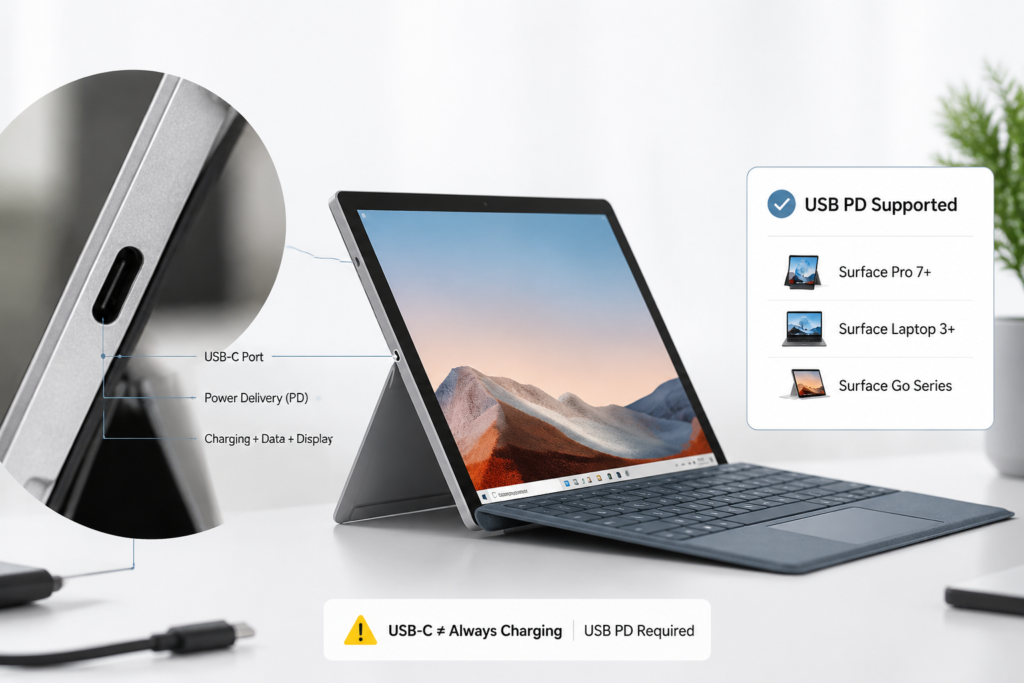
- Check the port label: If there is a Thunderbolt logo or Power Delivery mark next to the USB-C port, it definitely supports charging.
- Check in system settings: Go to Windows Settings > System > About to find your device model, then verify with official specifications.
- Test directly: Plug in a certified PD charger and check if the battery icon shows a charging status.
2. Basics of USB-C Charging: Protocol & Power Requirements
2.1 Core requirement: Must support USB Power Delivery (USB PD)
Many people assume any USB-C charger works for Surface, but that is not true. Surface USB-C charging is based on the USB Power Delivery (USB PD) fast charging protocol. Only chargers with this protocol can automatically negotiate the right power level with your laptop. Regular low-power phone chargers or non-PD USB-C chargers mostly cannot charge Surface properly.
2.2 Minimum and recommended power for each model
Different Surface models have different power needs. Too little power results in slow charging or even battery drain during use; sufficient power ensures a steady charging speed. Below is the reference for mainstream models:
| Device Series | Minimum Charging Power | Recommended Daily Power |
|---|---|---|
| Surface Go series | 24W | 45W |
| Surface Pro series | 36W | 65W |
| Surface Laptop series | 36W | 65W |
| Surface Book series | 60W | 95W |
| Surface Laptop Studio series | 60W | 100W |
2.3 Voltage level matching: Why some PD chargers don’t work
A PD charger does not output only one voltage. It has multiple levels such as 5V, 9V, 15V, and 20V. Surface requires 15V or 20V to charge. If your PD charger only has low-voltage levels like 5V/9V, it will not work even if the total wattage seems high enough. This is the most common reason a charger looks compatible but does not charge.
2.4 How usage affects charging speed
Charging speed is not fixed — it depends directly on how you use your device:
- Off or sleep mode: Lowest power consumption, fastest charging
- Daily use (web browsing, document editing): Moderate speed, steady battery gain
- Heavy load (gaming, video editing): High power consumption, much slower charging, and sometimes the battery can still drain
3. How to Choose the Right Charger & Cable
3.1 Charger buying tips
- Power matching principle: Pick a charger close to your device’s recommended power. You do not need an overly high-wattage charger. For example, 65W is fully sufficient for Surface Pro. A more powerful charger will not charge faster, because the laptop limits its input power automatically.
- Official vs. third-party chargers: Microsoft official chargers have the most stable compatibility but are more expensive. Reputable third-party PD chargers with USB-IF certification are equally safe and will not damage your device.
- GaN and multi-port chargers: GaN (Gallium Nitride) chargers are compact and run cool, perfect for travel. For multi-port chargers, note that when multiple devices charge at the same time, the output per port drops. Make sure the port you use for Surface delivers enough power on its own.
- Car chargers and power banks: Car chargers and portable power banks must also support USB PD and meet the minimum power requirement. Most regular car fast chargers only output 18W/25W, which is not enough for Surface.
3.2 USB-C cable buying tips
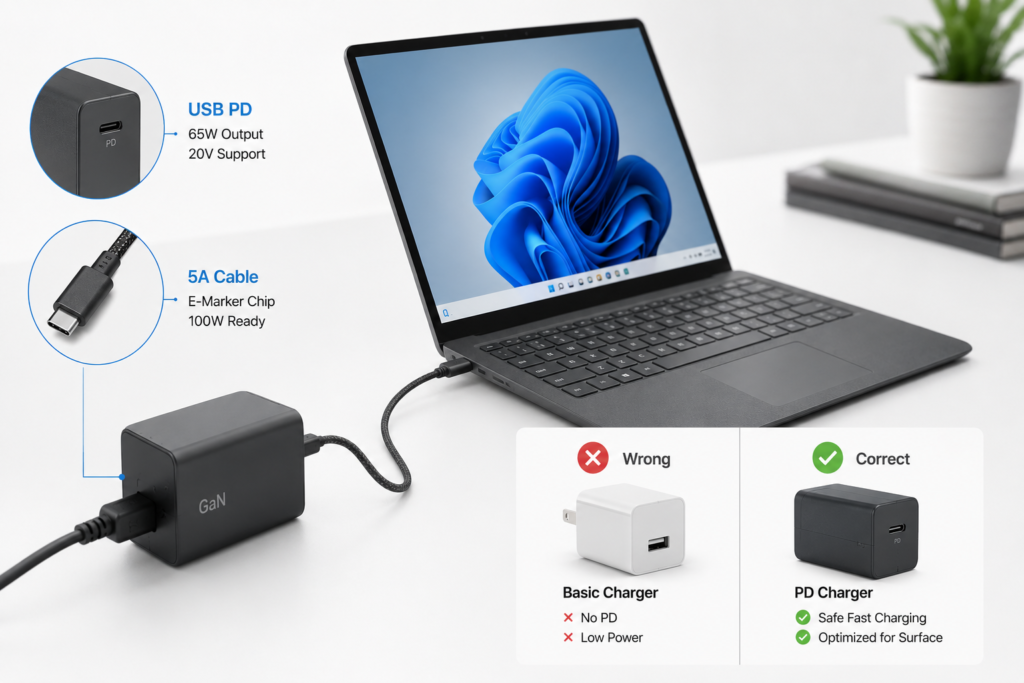
- E-Marker chip is a must for high-power charging: Many people overlook the importance of cables. For PD charging above 60W, the cable needs a built-in E-Marker chip. It tells the charger and device how much current the cable can handle. Without this chip, cables are limited to 60W max, and high-power charging will slow down or fail.
- Cable specs for different power levels: Regular USB-C cables work for charging under 60W. For 65W to 100W charging, you need a 5A cable with an E-Marker chip. 240W cables are backward compatible, but 100W specs are enough for daily use.
- Can USB-A to USB-C cables be used? Almost never. USB-A ports do not support the PD protocol. These cables can only deliver low 5V power, which charges extremely slowly or not at all on Surface.
- Risks of low-quality cables: Cheap unbranded cables usually lack an E-Marker chip and have thin internal wires. They can overheat, limit charging speed, and even damage your port. Always choose reputable brands with clear power ratings.
4. Proper Charging Practice & Battery Care
4.1 Standard USB-C charging steps
Charging is simple; follow this order to protect your port: First plug the USB-C cable firmly into the charger, then connect the other end to your Surface, and finally plug the charger into a wall outlet. When unplugging, remove the wall plug first, then the laptop end. This reduces sparking at the port and extends its lifespan.
4.2 Charging performance in different states: Off / Sleep / In use
- Off: No power consumption, highest charging efficiency, ideal for long idle periods
- Sleep: Very low power consumption, charging speed is nearly as fast as off, great for lunch breaks or short absences
- In use: Battery charges steadily during daily office work. Under heavy load, charging slows down noticeably, which is normal.
4.3 Full comparison: USB-C charging vs. original magnetic charging
| Aspect | USB-C Charging | Original Surface Connect Magnetic Charging |
|---|---|---|
| Versatility | High — works for phones, tablets, laptops; fewer chargers to carry | Low — only works for Surface devices |
| Speed | Nearly identical to original when power is sufficient | Officially tuned, stable maximum power |
| Port usage | Occupies the USB-C port, limits external accessories | Dedicated port, does not take up data ports |
| Safety | Safe for normal use, cable tug can pull the device | Magnetic design disconnects easily if tripped over, prevents falls |
4.4 Practical tips to extend battery life
- Turn on battery limit mode: Windows has a built-in battery protection feature that stops charging at 80%, ideal for devices that stay plugged in all day.
- Avoid storing at 100% charge: If you will not use your device for a long time, store it with 50%-70% battery.
- Do not let the battery die completely: Full discharge damages battery life. Plug in when battery drops below 20%.
- Avoid charging in hot environments: Do not block the ventilation grilles while charging. High heat speeds up battery aging.
5. Common Myths Debunked
- All USB-C chargers can charge Surface False. Only USB PD chargers with 15V/20V voltage levels and sufficient power can charge Surface properly. Many basic USB-C chargers only output 5V and will not work at all.
- High-wattage chargers damage the battery False. Surface has a built-in power management chip that controls charging current and voltage automatically. A reputable PD charger with higher wattage will only deliver the power the device needs — it will not force extra power into the battery.
- Phone chargers work fine for Surface Mostly no. Phone chargers typically output 18W–30W, far below Surface’s minimum requirement. They may show charging in an emergency, but the speed is extremely slow, and the battery can still drain during use. Not recommended for daily use.
- USB-C charging is always slower than magnetic charging False. When the USB-C charger has sufficient power, charging speed is nearly identical to the original magnetic charger. Some high-power third-party PD chargers can even be faster than lower-wattage original chargers.
- Plugging in both ports charges faster False. Surface does not draw power from two ports at the same time. It only uses one power source. Plugging in both ports does not speed up charging and serves no practical purpose.
6. Common Issues & Troubleshooting
- No charging reaction when plugged in Step 1: Make sure both ends of the cable are plugged in firmly, and try a different wall outlet. Step 2: Confirm the charger supports USB PD and meets the minimum power requirement. Step 3: Test with another known-good PD cable to rule out a broken cable. Step 4: Check the USB-C port for dust or debris, and clean it gently before trying again.
- “Slow charger” warning on screen This warning means the charger’s power is not enough to keep up with your device’s current power use. The fix is simple: upgrade to a more powerful certified PD charger, or close heavy background apps to reduce power consumption.
- Abnormal overheating during charging Slight warmth on the charger and bottom of the laptop is normal. If it gets too hot to touch or smells strange, unplug immediately. Check if you are using a low-quality charger/cable, or if the ventilation grilles are blocked. Stop using faulty accessories and replace them with reputable ones.
- Battery drains while charging This is not a malfunction — it happens when your device uses more power than the charger can deliver. It is common during gaming or running professional design software. Use a more powerful charger, or reduce performance load to fix this.
- Notes on docking station / monitor reverse charging When charging through a USB-C dock or monitor, pay attention to the dock’s input power. Many docks lose some power on their own, so the actual power delivered to the laptop is lower. This often causes “slow charging”. Choose a dock with sufficient power output and PD support.
7. Recommended Charging Setups for Different Scenarios
- Travel & portable setup Pick a compact 65W GaN PD charger with a 1-meter 5A E-Marker cable. It is lightweight and small, works for Surface, phones, tablets and more, greatly reducing the number of chargers you need to carry.
- Desktop office setup Choose a 100W+ multi-port PD charger paired with a USB-C dock that supports PD power delivery. One cable connects to your laptop and handles charging, external monitor, keyboard, mouse, and USB drives all at once. It keeps your desk clean and eliminates frequent plugging and unplugging.
- Budget backup setup You do not have to buy an official charger. A reputable 65W PD charger from a trusted brand, paired with a matching 5A cable, costs only about one-third of the official option. It meets all daily needs in performance and safety, perfect as a backup or home charger.
- Multi-device universal setup If you have a phone, tablet, earbuds, and laptop, go for a 100W–140W multi-port GaN charger. It delivers enough power across multiple ports at the same time, covering all your devices with one charger — cleaner desk and easier travel.
8. Summary
8.1 Key takeaways for Surface USB-C charging
To charge your Surface via USB-C safely and reliably, remember three core rules: the charger must support the USB PD protocol, its power must meet your device’s minimum requirement, and the cable must match the power level. With these three conditions met, you can charge your Surface without relying only on the original magnetic charger.
8.2 Quick reference for charging specifications
You can refer to the power specification table earlier in this article to choose the right charger and cable for your Surface model.