
If you’ve ever wondered why a fancy USB-C port won’t give you fast charging or 4K video with a cheap cable, this is the answer: the port and the cable are two different parts of the connection, and each has its own limitations.
Think of it like a wall outlet and the cable plugged into it:
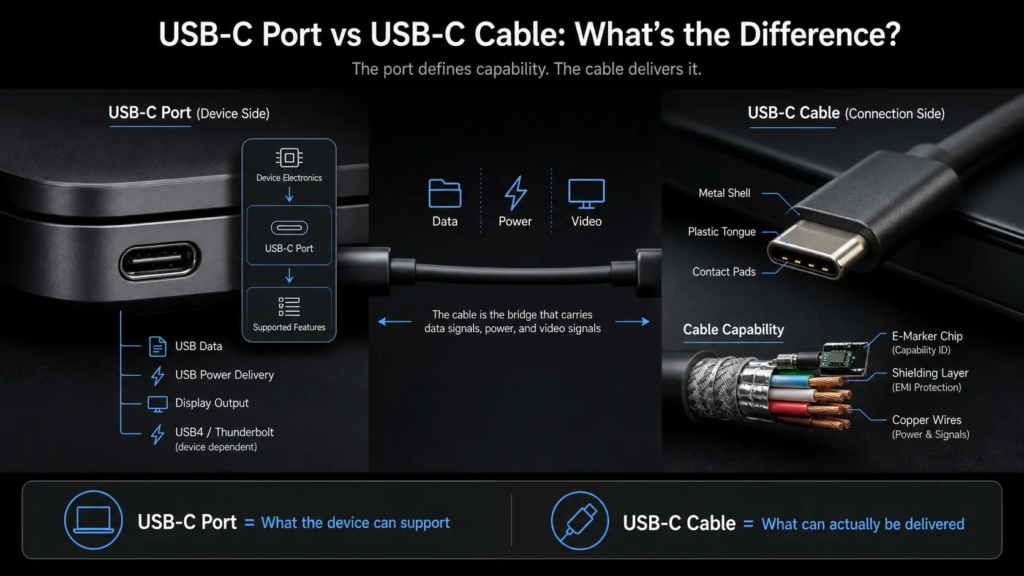
- The USB-C port is the socket built into your device. The electronics behind it decide how much power it can safely deliver and what features it supports.
- The USB-C cable is the bridge that carries power, data, and signals between two ports. Its build quality and internal design decide how much of that capability actually reaches the device on the other end.
Even the most fully featured port in the world will feel limited if paired with a basic low-spec cable. This guide breaks down exactly how they differ, and how to pick the right cable for your needs.
1. Core Idea: Two Different Jobs
- The USB-C port is the “socket” on your phone, laptop, or charger — it’s the fixed connector built into the device.
- The USB-C cable is the “bridge” that connects two ports together.
The device’s internal electronics decide what features are available through that USB-C connection. The cable decides whether those features can be delivered fully, safely, and reliably to the other end.
2. Definitions & Basic Concepts
2.1 What Is a USB-C Port?
- It is the physical connector built into your device (the receptacle/socket), with the signature 24-pin reversible Type-C shape.
- It is a standardized physical connection point — it does not define which protocols it supports. The device’s internal electronics decide what it can actually do.
- Depending on the device, it can carry USB 2.0, USB 3.x, USB4, Thunderbolt, DisplayPort Alt Mode, USB Power Delivery, and more.
2.2 What Is a USB-C Cable?
- It is the physical wire that connects two ports together. It does not have to have USB-C on both ends.
- It can be USB-C to USB-C, or USB-C to USB-A, USB-B, Lightning, Micro-USB, etc.
- Its internal wires, shielding, and built-in chips determine the speeds, power levels, and features it can reliably carry.
3. How Their Functions Differ
On the port side
- It provides the physical connection and electrical contact points. It does not, by itself, decide what features the device supports.
- Its mechanical design affects durability — for example, how many plug/unplug cycles it can withstand and how stable the connection stays over time.
On the cable side
- It is the actual physical highway for data and power. The thickness of the internal wires and the quality of shielding directly determine real-world performance.
- Certified cables provide better assurance of compatibility, safety, and performance compared to unbranded generic options.
4. Key Specs: Side-by-Side Comparison
4.1 Data Transfer Speed
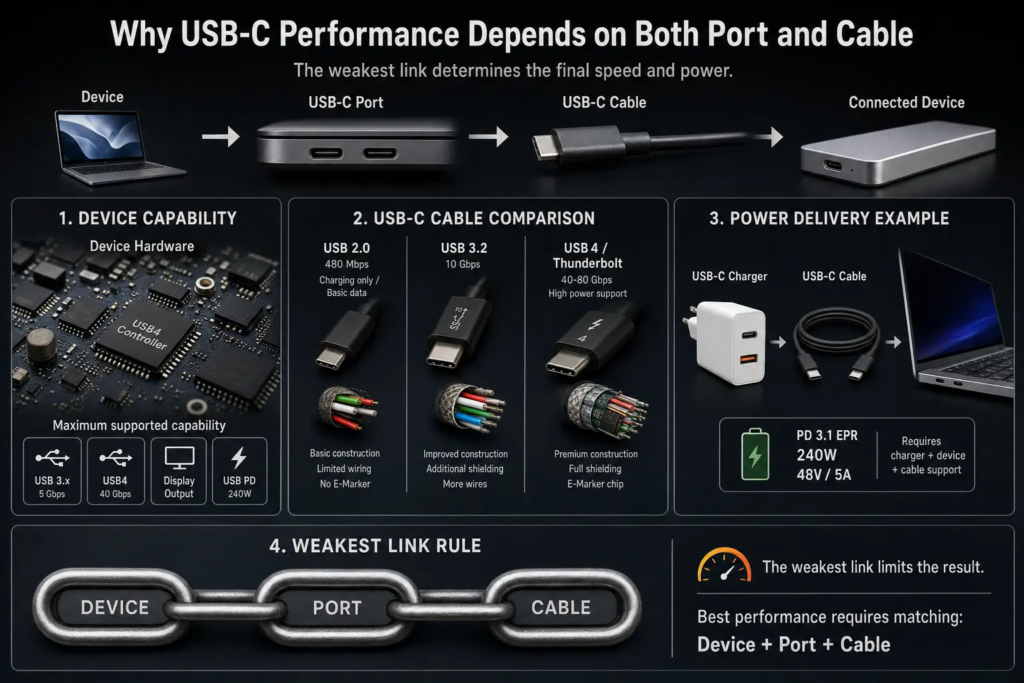
- Port side: The USB-C port itself does not define a specific speed. Real speed depends on the device controller, supported protocol, port implementation, and cable capability — all working together.
- Cable side: Different cables are rated for different speed grades. Common ratings: 480Mbps, 5Gbps, 10Gbps, 40Gbps, 80Gbps.
- Length matters: For high-speed protocols like USB4 and Thunderbolt over long distances, you usually need active cables (with built-in signal boosters) or fiber optic cables to keep full bandwidth. Slower speeds like USB 2.0 have much looser length limits.
Analogy: The device and port define the maximum possible speed. The cable is the road that must be good enough to carry that speed. A narrow, bumpy dirt road will never let you drive at highway speed, no matter what the official speed limit sign says. Long distances are like driving over rolling hills: you need a stronger engine (active cable) to maintain your speed the whole way.
4.2 Power Delivery
- Port side: The USB-C port acts as the physical carrier for USB Power Delivery. To reach the maximum 240W (48V/5A, USB PD 3.1 EPR), the device, charger, and cable must all support it end-to-end.
- Cable side: A cable’s internal resistance causes voltage drop. Cheap, thin cables cannot carry high power stably and can overheat.
- Hard rule: Any USB-C cable designed to support more than 3A current must include an E-Marker chip — a tiny built-in identification chip to identify its current capability, so the device knows how much power it can safely push through.
Analogy: The port is the water main outlet coming into your house. The cable is the hose connected to it. A thin, flimsy garden hose will lose pressure and can’t move much water, even if the main outlet is very powerful. The E-Marker chip is the hose’s official safety rating label that states how much water pressure it is built to handle, so the tap never pushes more than the hose can take.
4.3 Compatibility Rule
When the device, port, and cable have different capabilities, the system automatically runs at the highest performance level supported by all components.
- High-end features like USB4 and Thunderbolt require both a matching cable and a matching device.
- This follows the classic “weakest link in the chain” principle: the lowest-spec part in the connection sets the final performance ceiling.
5. Common Myths & Buying Tips
5.1 Myths Cleared Up
- ❌ Myth: All USB-C cables support high-speed data and fast charging.
✅ Fact: Cable capabilities vary widely. Always check the rating label or product specs. - ❌ Myth: If the port is fast, the cable doesn’t matter.
✅ Fact: If you plug a USB 2.0 cable into a USB 3.2 port, you will only get USB 2.0 speeds (max 480Mbps). Performance always falls to the lower spec.
5.2 How to Buy the Right Cable
- Check your device first: Look up what protocols and speeds your device’s USB-C port actually supports. There’s no point buying an 80Gbps cable if your port only does 10Gbps.
- For charging: Choose a certified 5A cable with an E-Marker chip — this helps ensure safe high-power delivery when used with compatible devices.
- For data: Pick a cable officially rated for the speed you need (10Gbps, 40Gbps, etc.).
- Length advice: Short cables (0.3–1 meter) give the best performance. For long-distance high-speed use, prefer active cables or fiber optic cables.
Quick Summary
- USB-C port = the socket in your device; USB-C cable = the wire that carries power, data and signals between two sockets.
- The port’s maximum features are set by the device’s internal hardware; the cable determines what actually gets delivered reliably.
- Speed, power, and video features all follow the weakest-link rule: the lowest-spec part sets the limit.
- For best results: match your cable to your port’s actual capabilities, and prefer certified options.