
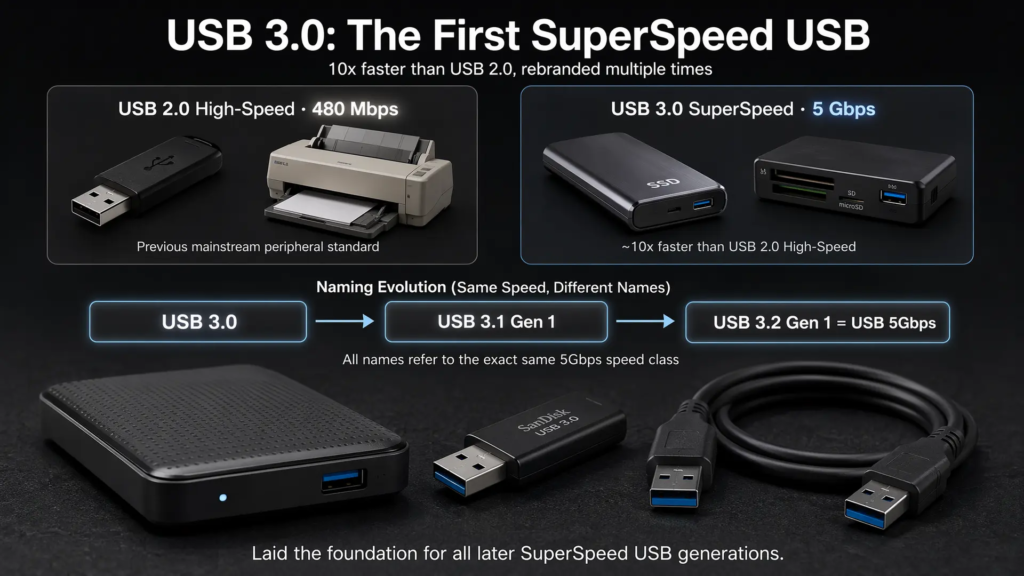
USB 3.0 was a major step forward in USB performance. While USB 2.0 introduced High-Speed operation at 480 Mbps, USB 3.0 raised the nominal signaling rate to 5 Gbps and introduced the first generation of SuperSpeed USB.
Today, this same 5Gbps performance class may appear under several names: USB 3.0, USB 3.1 Gen 1, USB 3.2 Gen 1, or simply USB 5Gbps. For most practical buying and engineering discussions, these names refer to the same 5Gbps SuperSpeed generation.
USB 3.0 was designed for applications that had outgrown USB 2.0, including external storage, high-speed flash drives, video capture devices, large file transfer, and high-resolution imaging. It also preserved backward compatibility with USB 2.0 and USB 1.1 devices, which helped it become widely adopted.
1. Naming and Historical Background
USB 3.0 was introduced as the first SuperSpeed USB specification. Its headline feature was a 5Gbps nominal signaling rate, roughly ten times the 480 Mbps rate of USB 2.0 High-Speed.
The naming later became more complicated. USB 3.0 was renamed USB 3.1 Gen 1, and later folded into the USB 3.2 naming system as USB 3.2 Gen 1. To reduce confusion, USB-IF has increasingly promoted performance-based names such as USB 5Gbps, USB 10Gbps, USB 20Gbps, USB 40Gbps, and USB 80Gbps.
| Common Name | Later Specification Name | Consumer-Friendly Name | Nominal Rate |
|---|---|---|---|
| USB 3.0 | USB 3.2 Gen 1 | USB 5Gbps | 5 Gbps |
| USB 3.1 Gen 2 | USB 3.2 Gen 2 | USB 10Gbps | 10 Gbps |
| USB 3.2 Gen 2×2 | USB 3.2 Gen 2×2 | USB 20Gbps | 20 Gbps |
| USB4 | USB4 | USB 40Gbps / USB 80Gbps depending on generation | 40 Gbps and above |
This naming history is important because many products still use older labels. A device marked “USB 3.0” and a device marked “USB 3.2 Gen 1” may both operate at the same 5Gbps class.
2. Why USB 3.0 Was Needed
USB 2.0 was good enough for keyboards, mice, printers, scanners, and many embedded devices, but its 480 Mbps signaling rate became a bottleneck for storage and media applications.
Large files, external hard drives, SSDs, HD cameras, and high-speed card readers needed more bandwidth. USB 3.0 addressed this demand by increasing the signaling rate to 5Gbps and redesigning the physical layer to support simultaneous bidirectional communication.
This made USB more useful for:
- External hard drives and SSDs
- High-speed USB flash drives
- Card readers
- Video capture devices
- High-resolution cameras
- Large file backup and transfer
- Docking and expansion accessories
3. Physical Layer and Cable Design
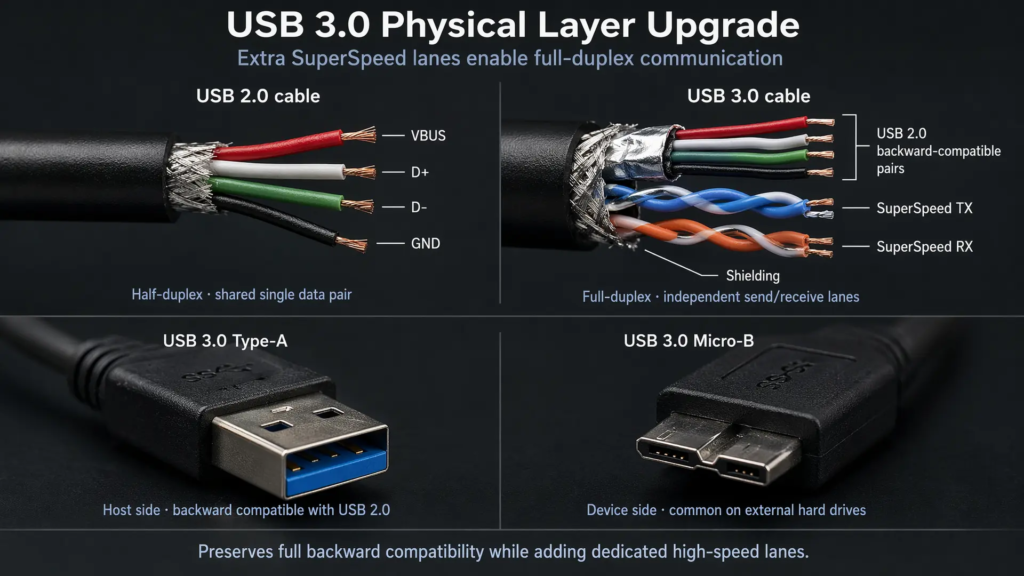
USB 3.0 did not simply make the old USB 2.0 wires faster. Instead, it added extra SuperSpeed signal pairs while keeping the original USB 2.0 D+ and D- lines for backward compatibility.
A classic USB 2.0 connection uses four main conductors: VBUS, D+, D-, and GND. USB 3.0 adds additional SuperSpeed transmit and receive differential pairs, allowing higher bandwidth and full-duplex data transfer.
3.1 Additional Pins
USB 3.0 Type-A and Type-B connectors added extra contacts while keeping mechanical compatibility with older USB plugs where possible. This is why many USB 3.0 Type-A ports look similar to USB 2.0 ports but include additional internal contacts.
| Part of Connection | Function |
|---|---|
| VBUS | 5V bus power |
| D+ / D- | USB 2.0 backward-compatible data pair |
| SuperSpeed TX pair | High-speed transmit differential pair |
| SuperSpeed RX pair | High-speed receive differential pair |
| GND / Shielding | Ground reference and signal integrity support |
The additional SuperSpeed pairs are one reason USB 3.0 cables are thicker and more sensitive to quality than USB 2.0 cables. Shielding, impedance control, connector quality, and cable length all matter more at 5Gbps.
3.2 Full-Duplex Communication
USB 2.0 uses a shared D+ / D- pair and operates in a half-duplex style. USB 3.0 introduced separate transmit and receive SuperSpeed pairs, which allows simultaneous data movement in both directions.
This full-duplex architecture is one of the major technical upgrades of USB 3.0. It improves efficiency for storage, data acquisition, and devices that need both upstream and downstream traffic.
3.3 Cable Length and Signal Quality
USB 3.0 SuperSpeed signaling is more sensitive to cable quality than USB 2.0. Passive copper cables are commonly kept short, and around 3 meters is often treated as a practical upper range for compliant SuperSpeed cables. In real-world use, shorter high-quality cables are usually more stable.
Poor shielding, weak connectors, excessive cable length, or strong electromagnetic interference can cause link instability, reduced performance, or device detection problems. For long-distance use, active cables, powered hubs, or optical/electrical extenders may be required.
4. Encoding and Effective Bandwidth
USB 3.0 uses 8b/10b encoding. This means every 8 bits of data are encoded into 10 transmitted bits to provide clock recovery, DC balance, and reliable high-speed signaling.
The trade-off is encoding overhead. A 5Gbps raw signaling rate does not equal 5Gbps of usable payload data. With 8b/10b encoding, the theoretical encoded data efficiency is 80%, so the raw 5Gbps link corresponds to about 4Gbps before additional protocol overhead.
| Item | Value |
|---|---|
| Raw signaling rate | 5 Gbps |
| Encoding method | 8b/10b |
| Encoding efficiency | 80% |
| Theoretical data rate after encoding | About 4 Gbps before other overhead |
Actual file transfer speed is lower than this because of USB protocol overhead, storage media limits, controller performance, operating system behavior, file system overhead, and the transfer protocol used by the device.
5. Power and Power Management
USB 3.0 increased the standard current available to configured bus-powered devices compared with USB 2.0. A configured USB 3.0 device may draw up to 900mA from a standard downstream port, compared with 500mA for USB 2.0.
| USB Version | Typical Maximum Current After Configuration | Power at 5V |
|---|---|---|
| USB 2.0 | 500mA | 2.5W |
| USB 3.0 | 900mA | 4.5W |
This additional power made USB 3.0 more useful for external hard drives, SSD enclosures, capture devices, and other bus-powered peripherals. However, USB 3.0 itself is not the same as USB Power Delivery. Higher charging power, laptop charging, and advanced power negotiation require USB PD and proper cable/device support.
5.1 Link Power States
USB 3.0 introduced more advanced link power management states, commonly referred to as U0, U1, U2, and U3.
| State | Meaning |
|---|---|
| U0 | Active link state |
| U1 | Fast low-power state |
| U2 | Deeper low-power state |
| U3 | Suspend state |
These states allow the link to reduce power consumption when idle and return to active operation when needed. The actual power savings depend on the host controller, device design, firmware, operating system, and workload.
6. Connector Types and Compatibility
USB 3.0 appeared in several connector forms. The most common were USB Type-A, USB Type-B, and USB 3.0 Micro-B.
6.1 USB 3.0 Type-A
USB 3.0 Type-A is the familiar rectangular host-side connector. Many USB 3.0 Type-A ports use a blue insert to distinguish them from older USB 2.0 ports, although color alone is not a formal guarantee of capability.
A USB 2.0 device can be plugged into a USB 3.0 Type-A port and will operate at its own supported speed. A USB 3.0 device plugged into a USB 2.0 port normally falls back to USB 2.0 High-Speed operation if the device supports backward compatibility.
6.2 USB 3.0 Type-B
USB 3.0 Type-B is larger than the older USB 2.0 Type-B connector because it includes additional SuperSpeed contacts. It was commonly used on printers, scanners, external storage docks, and larger peripherals.
6.3 USB 3.0 Micro-B
USB 3.0 Micro-B is the wide connector often seen on older external hard drives and portable storage devices. It combines a Micro-USB 2.0 section with an additional SuperSpeed section.
This connector provided good backward compatibility but was physically wider and more fragile than later USB Type-C designs. Many modern devices have moved to USB Type-C for improved usability and stronger ecosystem support.
7. Real-World Performance
The 5Gbps number is a signaling rate, not a guaranteed file copy speed. Real-world transfer performance depends on the entire chain: device controller, storage media, bridge chip, USB host controller, cable quality, operating system, file system, and protocol.
7.1 Storage Performance Examples
| Device Type | Typical Real-World Range | Notes |
|---|---|---|
| Mechanical external hard drive | About 100–200 MB/s | Usually limited by the hard drive, not the USB 3.0 link |
| SATA SSD in USB 3.0 enclosure | About 350–500 MB/s | Depends on bridge chip, UASP support, SSD performance, and workload |
| Basic USB flash drive | Highly variable | Often limited by flash quality and controller design |
A high-quality USB 3.0 SSD enclosure can be much faster than USB 2.0, but not every USB 3.0 product reaches the same speed. Low-cost flash drives may advertise USB 3.0 while still using slow NAND flash or a weak controller.
7.2 UASP Support
UASP, or USB Attached SCSI Protocol, can improve storage performance compared with older USB mass storage transport methods. It supports features such as command queuing and can reduce overhead and latency.
The actual improvement depends on the operating system, USB controller, device firmware, storage workload, and drive type. It is reasonable to say UASP can improve performance in many storage scenarios, but it should not be treated as a fixed percentage gain for every device.
8. Typical Applications
USB 3.0 became popular because it provided a large performance increase while keeping USB familiar and backward compatible.
8.1 External Hard Drives and SSDs
External storage was one of the most important use cases for USB 3.0. Compared with USB 2.0, USB 3.0 made backups, large file transfers, photo libraries, and video project storage much more practical.
8.2 High-Speed Flash Drives
USB 3.0 flash drives can be much faster than USB 2.0 drives, especially for large sequential reads. This makes them useful for bootable operating systems, portable software environments, installation media, and file transfer between computers.
8.3 Cameras and Capture Devices
USB 3.0 is widely used by cameras and capture devices because it provides enough bandwidth for many HD and industrial imaging applications. Whether it can support uncompressed 1080p 60fps video depends on pixel format, bit depth, protocol overhead, and device implementation.
8.4 Card Readers and Docking Accessories
USB 3.0 also improved card readers, docking accessories, adapters, and data acquisition devices. These products often benefit from the extra bandwidth even when they do not need the highest speeds offered by newer USB generations.
9. Limitations and Practical Notes
9.1 Cable Quality Matters
USB 3.0 is more demanding than USB 2.0. A poor-quality cable may work at USB 2.0 speed but fail or become unstable at SuperSpeed. Symptoms can include device disconnects, speed fallback, slow transfer, or failure to enumerate.
For stable USB 3.0 operation, use a short, well-shielded cable from a reliable manufacturer. For longer runs, consider active extension cables or powered hubs designed for SuperSpeed operation.
9.2 USB 3.0 Cables Are Not Automatically USB 10Gbps or USB 20Gbps Cables
A cable that works for USB 3.0 / USB 5Gbps is not automatically suitable for USB 10Gbps, USB 20Gbps, USB4, or Thunderbolt-class performance. Higher speeds require tighter signal integrity, better shielding, and certified cable capability.
This is especially important with USB-C, where the connector shape alone does not tell the full story. A USB-C cable may support charging only, USB 2.0 data, USB 5Gbps, USB 10Gbps, USB 20Gbps, USB4, or different power levels depending on its design and certification.
9.3 USB 3.0 Is Not the Same as Video Output
USB 3.0 itself is a data transfer standard. Video output through DisplayPort Alternate Mode is associated with USB Type-C and requires support from the host, cable, and device. A USB 3.0 Type-A port does not automatically support video output.
This distinction matters because many users confuse USB speed, USB connector type, and alternate modes. Speed describes data rate; connector type describes physical shape; alternate mode describes additional protocol support over certain USB-C connections.
10. USB 3.0 Compared with Later Standards
| Standard / Marketing Name | Nominal Rate | Main Improvement |
|---|---|---|
| USB 2.0 High-Speed | 480 Mbps | Mainstream peripheral connectivity |
| USB 3.0 / USB 5Gbps | 5 Gbps | First SuperSpeed generation, full-duplex SuperSpeed lanes |
| USB 10Gbps | 10 Gbps | Higher single-lane SuperSpeed performance |
| USB 20Gbps | 20 Gbps | Dual-lane USB 3.2 operation over USB-C |
| USB4 | 40 Gbps and above | Protocol tunneling, dynamic bandwidth sharing, stronger USB-C ecosystem integration |
USB 3.0 remains useful, but it is no longer the highest-performance choice. Modern external SSDs, docking stations, high-resolution displays, and professional workflows are better served by USB 10Gbps, USB 20Gbps, USB4, or Thunderbolt-class connections.
Summary
USB 3.0, now commonly understood as USB 5Gbps or USB 3.2 Gen 1, was the first major SuperSpeed USB generation. It increased the nominal signaling rate from USB 2.0’s 480 Mbps to 5Gbps, added separate SuperSpeed transmit and receive pairs, enabled full-duplex communication, improved power availability, and introduced more advanced link power management.
Its real-world value was especially clear in external storage, high-speed flash drives, cameras, card readers, and capture devices. At the same time, USB 3.0 performance depends heavily on cable quality, device controller design, storage media, protocol support, and host implementation.
The most important takeaway is this: USB 3.0 is not just “a faster USB 2.0 port.” It introduced a new SuperSpeed physical layer while keeping USB 2.0 compatibility. That combination of higher speed and backward compatibility made USB 3.0 the foundation for many later high-speed USB standards.