
USB confusion does not come only from confusing names. It also comes from simple “rules” that sound right — until you buy the wrong cable or the wrong charger.
USB-C must be fast. A blue port must be high speed. A 100W charger must charge every phone faster. All USB-C cables are basically the same.
Each sentence sounds reasonable. Each one can lead you to waste money on the wrong product.
This guide uses myths and plain-language corrections instead of dense standards text.
Myth 1: USB-C Means High Speed
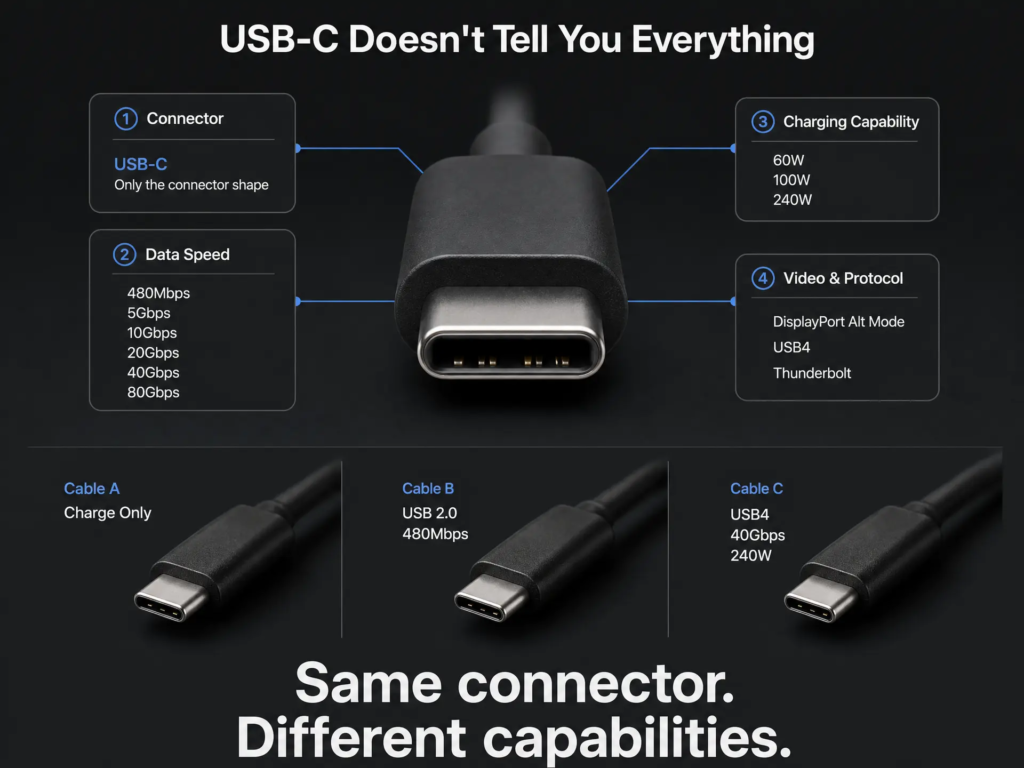
USB-C is a connector shape, not a speed class.
The same USB-C plug shape may carry USB 2.0 data (very slow), USB 10Gbps, USB 20Gbps, USB4, video output, or high-power charging. The outside can look identical while the inside capability is completely different.
| What you see | What it really tells you |
|---|---|
| USB-C connector | Only the plug shape |
| USB 10Gbps | Actual data speed |
| 100W / 240W | Charging power capability |
| DP Alt Mode / USB4 / Thunderbolt | Video or high-bandwidth capability |
USB-C is like a door frame. The same door frame does not mean the same room inside — one door might lead to a closet, another to a warehouse.
Myth 2: All USB-C Cables Are Basically the Same
USB-C cables are one of the most common hidden causes of USB problems.
One cable may only charge and carry no data at all. Another may transfer USB 2.0 data. A third may support 10Gbps. A fourth may support USB4 40Gbps and 240W charging. They can look almost identical — same shape, similar thickness, same connector on both ends.
If your external SSD feels slower than advertised, do not blame the drive first. The cable may be the bottleneck.
Also, length matters for speed. A very long USB-C cable (2 meters or more) often cannot support the highest speeds. Short cables are more reliable for 10Gbps, 20Gbps, or 40Gbps transfers.
When buying a cable, check at least two things:
- Data speed: 480Mbps, 5Gbps, 10Gbps, 20Gbps, 40Gbps, or 80Gbps
- Charging power: 60W, 100W, 240W, and so on
Data and charging are two separate report cards. A cable can charge very well and still transfer files slowly.
Myth 3: A High-Wattage Charger Will Force Too Much Power
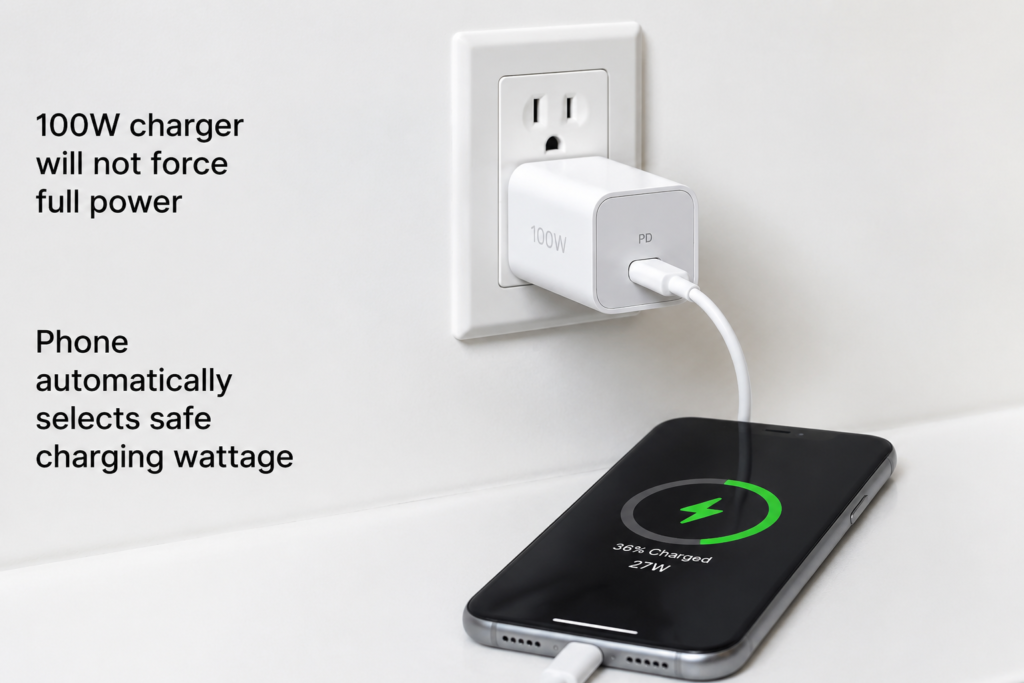
Compliant USB-C high-power charging does not force power into the device.
USB Power Delivery works more like ordering from a menu. The charger lists the voltage and power levels it can provide. The device looks at the menu and chooses a level it can safely accept. Only after both sides agree does that charging mode start.
So a 100W or 240W charger does not automatically blast full power into every device. If the phone or laptop does not support that level, it simply does not request it.
That said, USB is not magically safe in every case. Poorly built, damaged, counterfeit, or non-compliant accessories can still create risk. Safety depends on products actually being built to the official requirements — which is why cheap no-name chargers are worth avoiding.
Myth 4: A Blue USB-A Port Always Means High Speed
Many USB-A 3.x ports use blue plastic inside, so people learned a shortcut: blue means fast.
That shortcut can help as a quick guess, but it is not a rule. Manufacturers may use different colors for design reasons — some use red, some use black, some use teal. The color is not part of the official standard.
The more reliable method is to check the product manual, the port marking (like “SS” for SuperSpeed), or the official specification page.
Color is clothing. The specification is the ID card.
Myth 5: USB 3.2 Always Means 20Gbps
USB 3.2 is not one speed — it is a family name that covers three different speed levels.
| Name | Speed |
|---|---|
| USB 3.2 Gen 1 | 5Gbps |
| USB 3.2 Gen 2 | 10Gbps |
| USB 3.2 Gen 2×2 | 20Gbps |
If a product page only says “USB 3.2” and does not show a Gen number or a Gbps number, you still do not know the speed. It could be the slowest one, the middle one, or the fastest one.
The easier habit is to look for direct speed labels such as USB 5Gbps, USB 10Gbps, and USB 20Gbps.
Myth 6: If It Charges, It Must Transfer Data
You plug in a USB-C cable. The phone charges, but file transfer does not work. It is easy to blame the phone or the computer.
The cable may be the problem.
Some cables are designed mainly or only for charging. They may have very limited data capability, or none at all. They will not work properly for external drives, video capture cards, phone backups, or other data-heavy uses.
If you need data transfer, buy a cable with a clear data speed printed on the package. Do not stop at “USB-C charging cable.”
Myth 7: An Adapter Can Give Old Devices New Abilities
Adapters usually solve a shape problem. They do not upgrade the device itself.
A USB-A mouse can work through a USB-C adapter on a new laptop, but the mouse does not suddenly become a high-speed device. A USB-C to HDMI adapter also cannot add video output to a USB-C port that was never designed to support video output.
An adapter is like a translator and plug converter. It can help two sides talk to each other. It cannot give one side a skill it never had.
Myth 8: Certification Marks Are Just Decoration
USB-IF certification marks are not ordinary marketing stickers. USB-IF is the official organization that sets all USB standards, and its certification means a product went through official compliance testing and follows trademark rules.
This does not mean every non-certified product is bad. It also does not mean every certified product is perfect for your use case. But a certification mark at least points to an official compliance path and controlled quality testing.
For high-power chargers, fast cables, docks, and accessories connected to expensive devices, it is worth preferring products with clear specifications, reliable brands, and visible certification information.
Myth 9: USB-C Is the Same as Thunderbolt
This is one of the most common mix-ups today. Thunderbolt uses the exact same USB-C connector shape, but it is a different and more powerful protocol underneath.
A Thunderbolt port can do everything a regular USB-C port can do — plus more, like connecting external graphics cards, super-fast docks, or multiple 4K monitors from a single cable. But a regular USB-C port cannot do Thunderbolt-specific things, even if the plug fits.
Think of it like two roads that look identical from the entrance. One is a local street (regular USB-C). The other is an express highway with extra lanes (Thunderbolt). The on-ramp looks the same, but what you can do on the road is very different.
Thunderbolt 3 and Thunderbolt 4 both run at up to 40Gbps. Thunderbolt 4 is basically the stricter, guaranteed version — every Thunderbolt 4 port must meet the full 40Gbps standard with no cut corners.
Beginner Quick Check
| What you want to know | Do not rely only on | Check instead |
|---|---|---|
| File transfer speed | USB-C shape | USB 5Gbps / 10Gbps / 20Gbps speed label |
| Charging speed | Cable thickness | USB PD support and wattage on charger, cable, and device |
| Monitor output | “USB-C to HDMI” cable wording | Whether your computer port supports video output |
| Cable capability | “USB-C” on the package | Both data speed and power rating |
| External GPU / fast dock | The USB-C shape alone | Whether the port supports Thunderbolt or USB4 |
| Product reliability | Nice product photos | Specifications, certification, brand reputation, clear documentation |
Summary
Most USB confusion comes from treating shape, speed, power, video, and certification as if they are all the same thing.
USB-C is only the shape. Speed is the Gbps number. Charging depends on USB PD and the wattage rating. Video depends on whether the port supports alternate modes or Thunderbolt. Cables need separate checks for data and power. Certification marks are worth paying attention to.
Separate these ideas in your head, and USB becomes much less mysterious.