
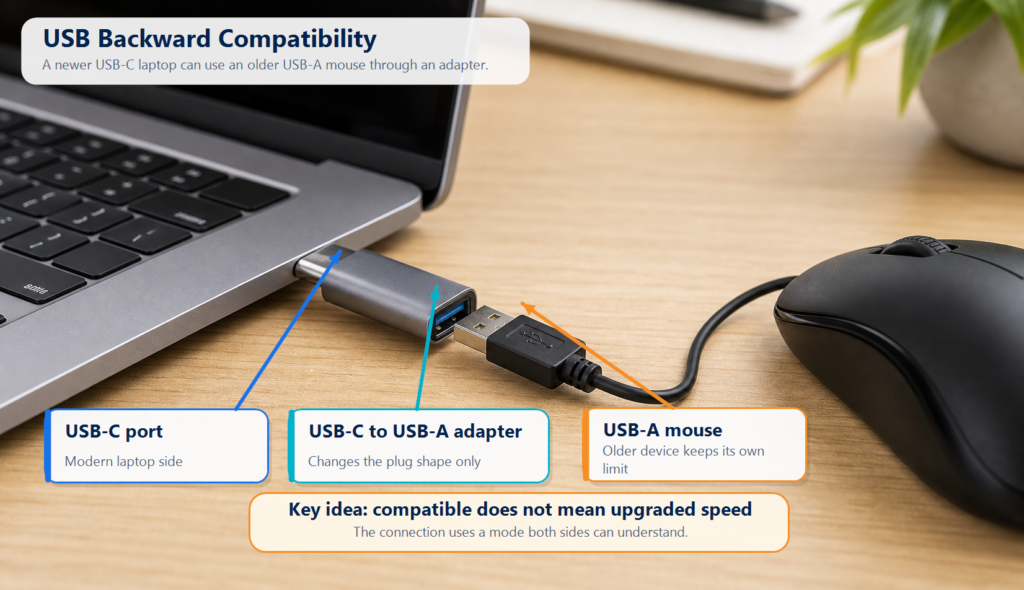
An old USB mouse can often still work on a brand-new laptop. The laptop may have USB-C or USB4 ports, while the mouse may have been built for USB 2.0 years ago. Add the right adapter, and the mouse still moves. The clicks still register.
That is USB backward compatibility.
Think of it like two people trying to talk. The new laptop knows many languages. The old mouse knows one older language. Instead of forcing the newest language, they switch to the one both sides understand.
In one sentence:
USB backward compatibility lets new and old USB devices negotiate a working mode they both support.
Start With One Rule: The Weakest Link Sets the Limit
A USB connection is not decided by the laptop alone. It is not decided by the cable alone either.
A normal USB connection may include:
| Part | What it controls |
|---|---|
| Host port | The highest USB protocol and speed the computer can support |
| Cable | Whether high-speed data and higher power are possible |
| Adapter or dock | Whether speed, power, or video features are limited |
| USB device | The maximum capability of the device itself |
Imagine a road trip. Most of the road may be a highway, but if one part becomes a narrow local road, that slow section sets the pace.
USB works the same way. The real speed and feature set depend on the least capable part of the chain.
1. Physical Compatibility: The Plug Has to Connect First
The first question is simple: can the plug connect to the port?
Older USB devices may use USB-A, USB-B, Mini-USB, or Micro-USB. Newer laptops often use USB-C. USB-C is smaller, reversible, and able to carry more features.
But this is the trap:
USB-C is a connector shape. It does not automatically mean high speed, fast charging, or video output.
A USB-C cable may support only USB 2.0 data. Another USB-C cable may support USB 10Gbps, USB 20Gbps, USB4, or higher-power charging. They can look almost the same from the outside.
If you connect an old USB-A mouse to a USB-C laptop, the adapter only helps the plug fit. It does not turn the old mouse into a faster device.
2. Data Compatibility: Both Sides Need a Shared Language
After the device is connected, the host and device negotiate the USB mode.
If both sides support a faster mode, they can use it. If one side only supports an older mode, the connection falls back to that older shared mode.
| Connection example | Typical result | Why |
|---|---|---|
| USB 2.0 mouse + USB4 laptop | The mouse works normally | The mouse needs very little data |
| USB 3.2 external SSD + USB 2.0 port | It works, but slowly | The host port limits the speed |
| USB 20Gbps drive + USB 10Gbps port | It falls back to a lower speed | Both sides do not share a 20Gbps mode |
| High-speed drive + low-speed USB-C cable | Speed drops, or data may not work | The cable lacks high-speed data support |
This is why “it plugs in” and “it runs at full speed” are two very different things.
3. Cables: The Hidden Bottleneck
Many USB problems are really cable problems.
A cable is like a pipe. The water source may be strong, but a narrow pipe still limits the flow. With USB, the port and device may both support high speed, but the wrong cable can pull the whole connection down.
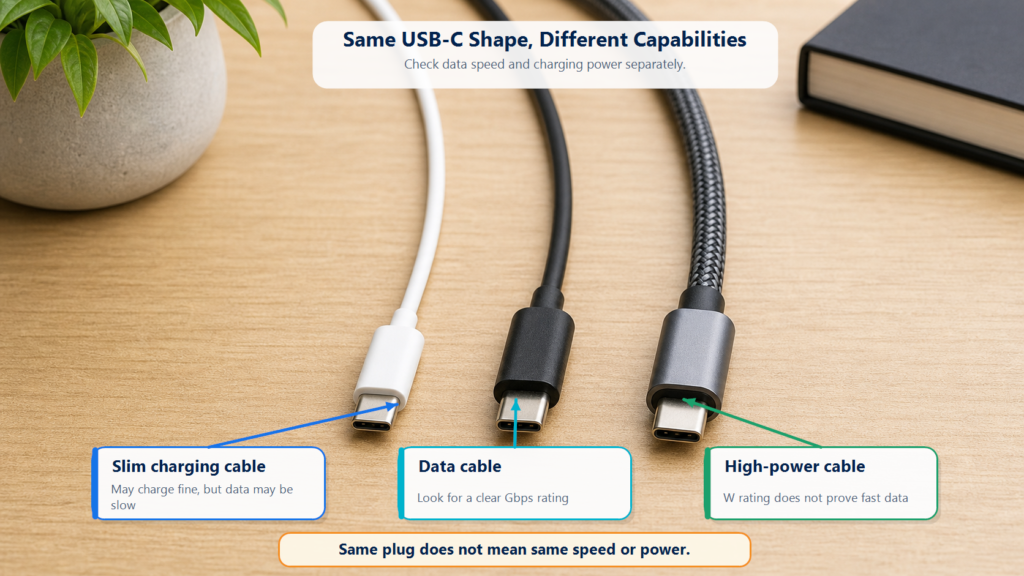
Common cable differences include:
- Some USB-C cables are for charging only.
- Some support data, but only at USB 2.0 speeds.
- Some support USB 10Gbps or USB 20Gbps.
- Some support USB4 and higher-power charging.
So do not buy a cable just because it says “Type-C.” Check the actual rating, such as USB 10Gbps, USB 20Gbps, USB4, 100W, or 240W.
E-Marker Is Helpful, but Not Magic
An E-Marker is a chip inside some USB-C cables. It reports cable capabilities to connected devices, especially for higher-current or higher-performance cables.
But do not reduce it to a simple yes-or-no rule.
| Misunderstanding | Better explanation |
|---|---|
| No E-Marker means USB 2.0 only | Not always. Check the cable rating |
| E-Marker means every high-speed and high-power mode is supported | Not always. E-Marker reports capability, but the actual rating still matters |
The safest habit is to read the cable specification and certification information.
4. Power Compatibility: A High-Wattage Charger Does Not Force Full Power
A common worry is simple: if I plug an old phone into a 100W or 240W USB-C charger, will it damage the phone?
A compliant USB-C charger does not work that way. High-power charging is more like ordering from a menu. The charger offers power options. The device chooses what it can safely accept.
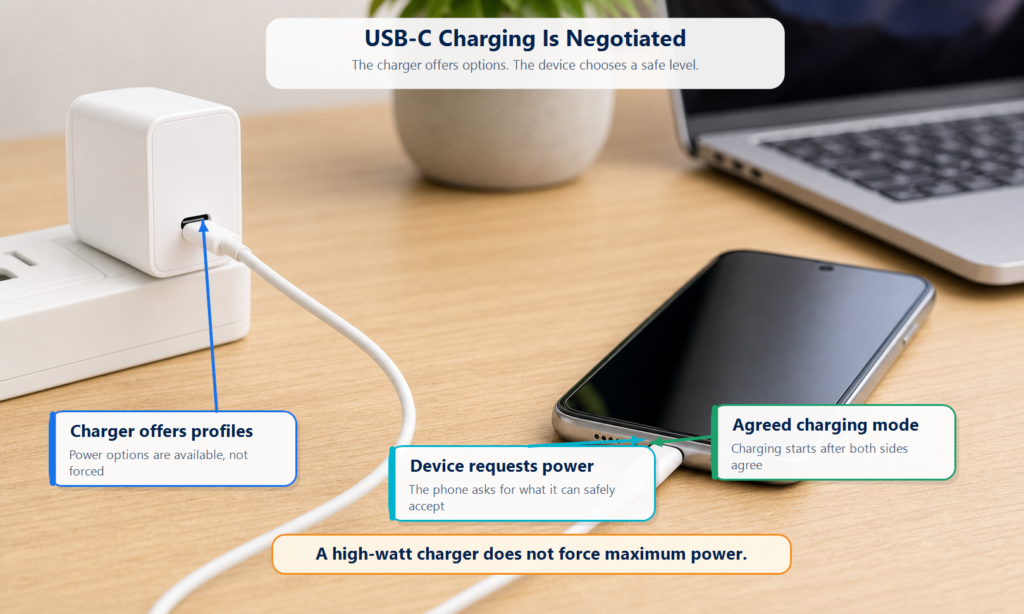
For higher-power USB-C charging, this negotiation is usually handled by USB Power Delivery, or USB PD.
The simplified process looks like this:
- The charger advertises the voltages and power levels it supports.
- The device requests a suitable level.
- After both sides agree, that power mode is used.
USB-IF says USB PD 3.1 can support up to 240W over suitable full-featured USB Type-C cables and connectors. It also adds higher voltage levels such as 28V, 36V, and 48V.
That does not mean every USB-C device can use 240W. The device, charger, and cable all need to support the required mode.
It is also wrong to say USB can never damage hardware. Standards-compliant devices are designed to negotiate safely, but damaged, counterfeit, poorly built, or non-compliant accessories can still create risks.
What Backward Compatibility Does Not Guarantee
Backward compatibility helps devices find a shared working mode. It does not unlock every feature.
| Common misunderstanding | Correct explanation |
|---|---|
| A new port makes old devices faster | No. Old devices are still limited by their own hardware |
| All USB-C cables are the same | No. They may look the same but support very different capabilities |
| A higher-wattage charger always charges faster | No. The device must support the matching USB PD mode |
| An adapter adds new features | Usually no. Most adapters only bridge connector shapes or supported signals |
| USB-C always supports video output | No. Video needs DP Alt Mode, USB4, Thunderbolt, or another supported video path |
Common Real-World Scenarios
| Scenario | What usually happens | What to check first |
|---|---|---|
| Old USB mouse on a new USB-C laptop | It works through a proper adapter | Adapter quality and OS support |
| Portable SSD is much slower than advertised | The cable or port may be limiting speed | Host port speed, cable rating, SSD enclosure rating |
| USB-C charger charges a phone slowly | The phone or cable may not support higher power | Phone USB PD support, cable power rating, charger profiles |
| USB-C to HDMI adapter shows no display | The USB-C port may not support video output | DP Alt Mode, USB4, or Thunderbolt support |
| USB-C cable charges but cannot transfer files | It may be a charge-only or low-speed cable | Whether the cable supports data transfer |
How to Avoid USB Compatibility Problems
- Do not judge by connector shape alone. USB-C does not automatically mean high speed or fast charging.
- Check the port speed label, such as USB 5Gbps, USB 10Gbps, USB 20Gbps, USB 40Gbps, or USB4.
- Check the cable rating for both data speed and charging power.
- Treat data speed and charging power as separate features. A cable can charge well but transfer data slowly.
- Choose accessories with clear specifications, reliable brands, and certification information when possible.
Summary
USB backward compatibility does not give old devices new abilities. It lets new and old devices find a shared mode that works.
It is like translation, and it is also like a speed limit. A new laptop may know the newest standards, but it can still speak the old language when an older device needs it. A fast port may support high speed, but one slow cable or adapter can still slow everything down.
So when a USB device runs slowly, charges slowly, or fails to enable a feature, do not blame only the computer or the device. The cable, adapter, port specification, and device capability all matter.