
Introduction
If you own a Steam Deck, you’ve probably asked yourself: Can I charge it with my phone charger? Will a high-wattage charger damage my device? Does playing while charging ruin the battery?
With its full-featured USB-C port, charging the Steam Deck seems straightforward, but there are plenty of common pitfalls. This plain-English guide covers everything you need to know about charging, from picking the right accessories to best practices, so you can use your handheld safely and confidently.
1. Basics of Steam Deck Charging
1.1 Function and Location of the USB-C Port
The USB-C port is located on the top of the Steam Deck. It is not just for charging — it also supports data transfer, external display output, and connections to docks, keyboards, mice, and controllers. It is a fully multifunctional port, with charging as one of its core uses.
1.2 Official Charger and Rated Specifications
The Steam Deck comes with a 45W USB-C charger that uses the universal USB PD fast charging standard. The handheld has a built-in lithium-ion battery with a maximum charging power of around 45W. With the official charger, it can charge most of the battery in about 2.5 hours when powered off.
1.3 Charging Differences Between LCD and OLED Models
The two generations of Steam Deck share the same core charging standard, and their chargers are interchangeable. The main differences are battery capacity and battery life, as shown below:
| Model | Battery Capacity | Included Charger | Official Battery Life |
|---|---|---|---|
| LCD | 40Wh | 45W USB PD | Approx. 2–8 hours |
| OLED | 50Wh | 45W USB PD | Approx. 3–12 hours |
1.4 Supported Fast Charging Protocols
The Steam Deck only works with USB Power Delivery (USB PD), the most universal fast charging standard for USB-C ports. It does not support QC fast charging or proprietary fast charging protocols used by many phones. Using incompatible chargers will result in very slow charging, or no charging at all.
2. How to Choose a USB-C Charger
2.1 Core Criteria for Buying a Charger
You don’t need to understand complex specs to pick a good third-party charger. Just remember two key requirements:
- It must support the USB PD fast charging protocol.
- Single-port output must be at least 30W, with 45W or higher preferred. Bonus tip: Always choose reputable brands with official safety certifications (3C, CE, FCC, etc.) to avoid safety risks.
2.2 Real-World Performance of Different Wattage Chargers
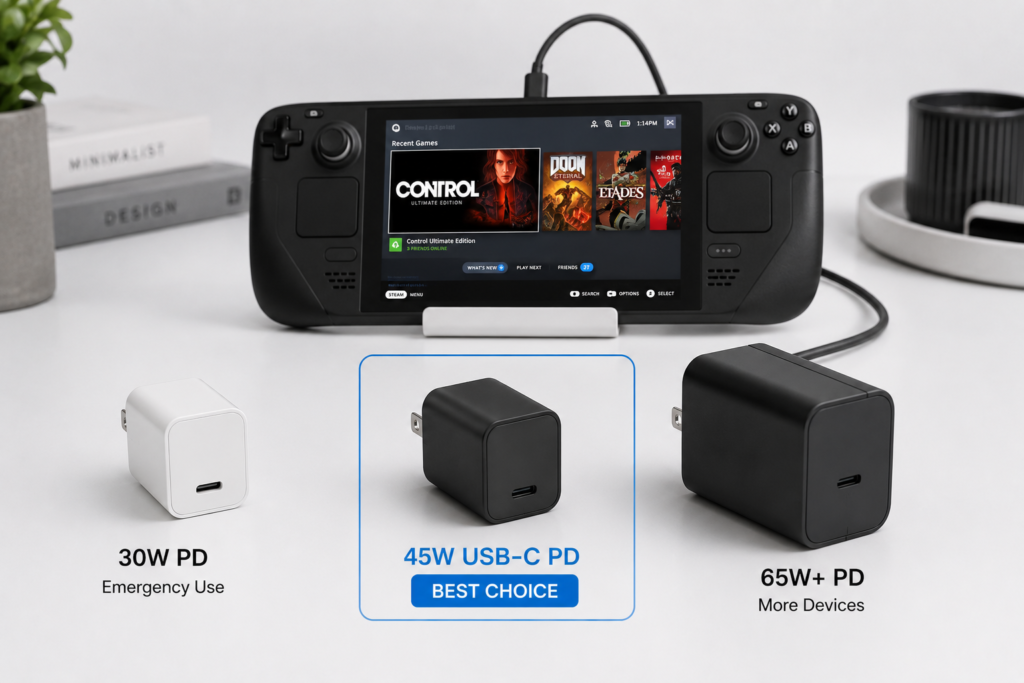
Many people think higher wattage means faster charging, but the Steam Deck has a maximum charging power limit. Going above that limit won’t speed things up. Here’s how different wattages perform:
| Charger Wattage | Real-World Performance | Recommendation |
|---|---|---|
| 10–25W | Extremely slow charging; battery will drain during gameplay. Only for emergency top-ups | Not recommended for daily use |
| 30W | Charges normally when idle; slow gain during light games; may still drain during heavy games | Only for emergency use |
| 45W | Matches official speed; fastest idle charging; maintains or slowly gains battery during most games | Top recommendation |
| 65W and above | Charging speed is nearly identical to 45W; main benefit is compatibility with laptops and other devices | Good for users with multiple devices |
2.3 Can You Use Phone or Laptop Chargers?
- Phone chargers: If your phone charger supports USB PD and is 30W or higher, you can use it temporarily. If it only uses a proprietary fast charging protocol, charging will be very slow and is not recommended for regular use.
- Laptop chargers: Almost all USB-C laptop chargers support USB PD and are typically 65W or higher. They work perfectly with the Steam Deck — the device automatically negotiates the right power level and will not be damaged.
2.4 Are GaN Chargers Good for the Steam Deck?
Gallium Nitride (GaN) chargers work perfectly with the Steam Deck. They are smaller and lighter than traditional chargers, and many have multiple ports — great for travel, since one charger can power your handheld, phone, and earbuds. Note that when charging multiple devices at once, the power available for the Steam Deck will drop. For best results, charge your handheld alone.
3. Charging Cables and Docking Accessories
3.1 What to Look for in a Charging Cable
Many slow charging issues are caused by bad cables. Keep these three rules in mind:
- Use a USB-C to USB-C cable. USB-A to C cables usually don’t support PD fast charging.
- The cable should be rated for at least 60W. You don’t need 100W or 240W cables — they won’t charge your Steam Deck any faster.
- Choose certified cables with an E-Marker chip, and keep lengths under 1.5 meters. Longer cables cause more power loss.
3.2 Notes for Docks and Hubs
When using the official dock or a third-party hub, keep two things in mind:
- The dock/hub must support USB PD power input (often called “PD pass-through”).
- Use a 65W+ charger with the dock. The hub itself uses some power, so less power reaches the handheld.
3.3 Accessories You Should Avoid
- No-name, uncertified chargers and cables — they often have false wattage ratings and serious safety risks.
- Old 5V standard USB chargers — they charge slower than the device drains power.
- Cables with cracked casing or loose connectors — they can cause connection issues or even short circuits.
4. Charging Solutions for Every Scenario
4.1 Home Daily Charging
The most convenient home setup is a 45W/65W GaN charger plus an official or third-party dock. You can charge directly with a cable, or dock the handheld to charge while outputting to a monitor — practical and tidy.
4.2 Portable Travel Charging Kit
For travel, pick a compact 65W 1-port or 2-port GaN charger paired with a 1-meter high-quality USB-C cable. This setup is light and small, and works with phones, tablets, and other devices — no need to carry multiple chargers.
4.3 Choosing and Using a Power Bank
For long gaming sessions away from outlets, your power bank must meet two hard requirements:
- The USB-C output port supports USB PD, with at least 30W output (45W preferred).
- Capacity between 10,000mAh and 20,000mAh. Most 20,000mAh power banks are allowed on airplanes. Note: Cheap power banks that only output 5V will barely charge the Steam Deck and are not worth buying.
4.4 Car and Emergency Charging
- Car charging: Use a 45W+ USB PD car charger for quick top-ups on short trips.
- Emergency charging: Laptop USB-C ports and USB-C monitor ports can give a small emergency charge. However, they usually don’t output enough power for gaming while charging.
5. Charging Speed and Play-and-Charge Explained
5.1 Charging Speed in Different States
- Powered off / sleep mode: With a 45W charger, the LCD model fully charges in about 2–2.5 hours; the OLED model takes about 2.5–3 hours.
- Idle with screen off: Charging speed is nearly the same as when powered off, just slightly slower.
- Running heavy 3D games: Charging speed drops significantly, and the battery may even drain slowly.
5.2 How Well Does Play-and-Charge Work?
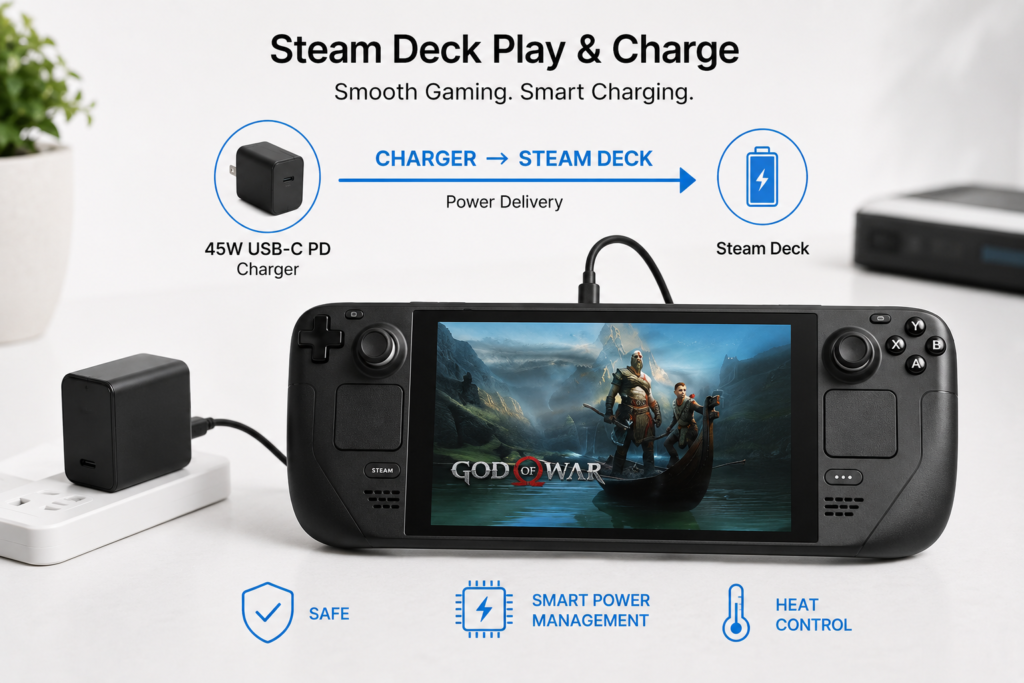
Playing while charging is completely safe, but results depend on charger power and game intensity:
- With a 45W+ PD charger, battery will slowly gain charge during light indie games.
- During heavy 3A games, the system uses a lot of power. Even with a 45W charger, the battery may stay level or drain slowly — this is normal.
5.3 Factors That Affect Charging Speed
Besides charger wattage, these things also slow down charging:
- Higher game workload = more power used = slower net charging speed.
- Max screen brightness and background downloads/update use extra power.
- Above 80% battery, charging automatically slows down (trickle charging) to protect the battery. This is normal.
6. Common Charging Myths Debunked
6.1 Will a high-wattage charger damage my Steam Deck?
No. USB PD works by negotiation: the charger and device talk first, and the charger only delivers exactly what the device asks for. It never forces extra power. Any reputable PD charger, even 100W, will not damage your Steam Deck.
6.2 Do I have to use the official charger to be safe?
No. Any third-party charger that follows USB PD standards and has proper safety certifications is just as safe as the official one. Cheap, no-name chargers are the real safety risk — not third-party products in general.
6.3 Does playing while charging wear out the battery faster?
No. The Steam Deck has smart power management. Once the battery is full, it runs directly off the charger and stops charging the battery. What really shortens battery life is prolonged high heat and deep discharge. Normal play-and-charge, at reasonable temperatures, has minimal impact.
6.4 Other Common Misconceptions
- Myth: All USB-C chargers do fast charging. Fact: Only USB PD chargers do. Regular USB-C chargers may only charge at slow 5V speeds.
- Myth: Higher-wattage cables charge faster. Fact: As long as the cable meets the device’s needs, a 60W cable charges just as fast as a 240W one.
7. Troubleshooting Charging Problems
7.1 Step-by-Step Fix for Slow or No Charging
Most charging issues can be fixed at home, in this order:
- Swap in a known-good PD charging cable to rule out a bad cable.
- Try a confirmed-working PD charger to rule out a bad charger.
- Check the USB-C port for dust or debris, and gently clean it.
- Restart the Steam Deck to rule out a temporary software glitch.
7.2 Why You See “Low Power” Warnings or Frequent Disconnects
- “Low power charging” warning: Almost always caused by an underpowered charger or a non-PD charger. Switch to a 45W PD charger to fix it.
- Frequent disconnects: Usually caused by a loose cable connection or an unstable charger. Test with a different cable first.
7.3 Simple Fixes for Port Issues
If the port is dusty or has a loose connection, use a soft brush to gently remove dust, or a lint-free cotton swab to carefully clean the inside. Never use needles, toothpicks, or sharp objects — they can break the pins inside the port.
8. Battery Care and Safety Tips
8.1 Good Daily Charging Habits
Lithium-ion batteries have no “memory effect.” You don’t need to drain them fully before charging — top them up whenever you want. Try to avoid dropping below 20% regularly, and you don’t have to charge to 100% every time. Staying between 20% and 80% is easiest on the battery.
8.2 Long-Term Storage Care
If you won’t use your Steam Deck for a while, don’t store it fully charged or fully empty. Charge it to about 50%, turn it off, and store it. Top it up every 1–2 months to prevent the battery from draining completely and getting damaged.
8.3 USB-C Charging Safety Reminders
- Never use chargers or cables that are cracked, bulging, or damaged.
- If the handheld gets unusually hot while charging, unplug it and close background apps to let it cool down.
- Avoid charging under blankets, pillows, or other places with poor airflow — heat can build up.
9. Summary and Recommended Setups
9.1 Best Setups for Different Scenarios
- Home use: 45W PD charger + official/third-party dock — simple and reliable.
- Frequent travel / commuting: 65W GaN dual-port charger + 1m PD cable — one charger for all your devices.
- Outdoor use: 20,000mAh 45W PD power bank — all-day battery life on the go.
9.2 Key Takeaways
Here’s the short version: Look for USB PD support, and 45W is the sweet spot for chargers. Buy reputable USB-C to USB-C cables, and skip cheap no-name accessories. Playing while charging is perfectly safe — heat is what hurts batteries, not charging. If you run into issues, check the cable first, then the charger — most problems are easy to fix on your own.