
Introduction
Modern laptops have a problem. They keep getting thinner, lighter, and more portable — but that comes at a cost. To save space, manufacturers have removed most of the ports. A typical ultrabook today might have just two or three USB-C ports and nothing else. No HDMI. No Ethernet. No SD card slot.
Meanwhile, the number of devices we connect to our laptops keeps growing. An external monitor for work. A keyboard and mouse for comfort. A wired network connection for stability. A charger to keep the battery topped up.
Every time you sit down at your desk, you plug in five different cables. Every time you get up for a meeting, you unplug five cables. It’s frustrating, messy, and wastes time.
A docking station solves this. One cable connects to your laptop. Everything else — monitor, keyboard, mouse, network, power — stays plugged into the dock. Sit down, plug in one cable, and your entire desktop setup comes to life. Get up, unplug one cable, and you’re on your way.
This guide explains everything you need to know about docking stations: what they are, how they work, what to look out for, and how to avoid common problems.
1. What Is a Docking Station?
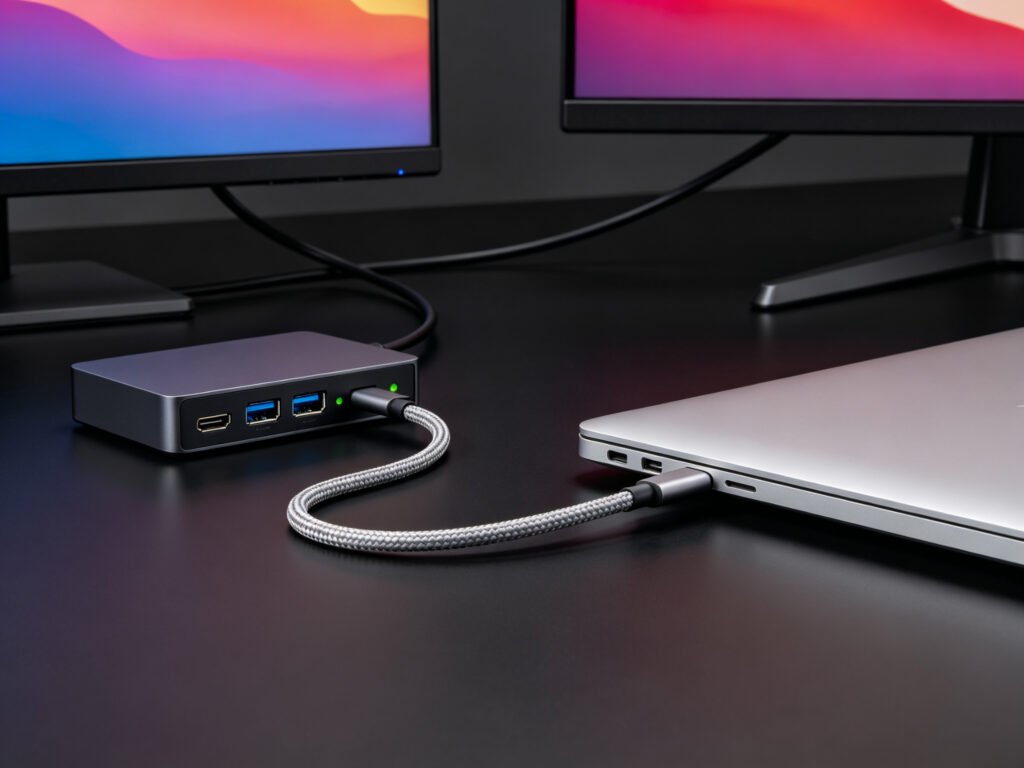
A docking station (also called a port expander or simply “dock”) is a device that connects to your laptop through a single cable and gives you access to multiple extra ports. It solves one of the most common frustrations with modern thin-and-light laptops: not enough ports.
Instead of plugging and unplugging your monitor, mouse, keyboard, network cable, and charger every time you sit down or get up, you plug all those things into the docking station once. Then you connect your laptop to the dock with a single cable — and everything works at once.
The core principle behind a docking station is the USB-C port’s ability to carry multiple signals at the same time. A full-featured USB-C connection can carry video, data, and power simultaneously. The docking station taps into this capability and splits it out into separate, dedicated ports.
Think of the USB-C cable like a single thick pipe that carries three things at once: video, data, and electricity. The docking station splits that one pipe into separate outlets for your monitor, your USB drive, and your laptop charger.
Important: Not every USB-C port supports all these functions. Some USB-C ports are for charging only. Make sure your laptop’s USB-C port supports video output (DisplayPort Alt Mode) or Thunderbolt — we’ll cover how to check this in Section 7.
2. What a Docking Station Does
Expands Your Port Selection
Modern laptops often have only two or three USB-C ports and nothing else. A docking station gives you back the ports you need: USB-A for your mouse and keyboard, Ethernet for a stable network connection, an SD card slot for your camera, and more. You no longer have to constantly swap cables in and out.
Connects External Monitors
Most docking stations let you connect one, two, or even three external monitors. They support high-resolution output up to 4K, so you can work on large screens with clear, sharp images. This is especially useful for designers, developers, and anyone who benefits from more screen space.
Charges Your Laptop Through the Same Cable
This is called power passthrough. You plug the docking station’s power adapter into the dock, and the dock delivers power to your laptop through the same USB-C cable that carries data and video. One cable handles everything — power, data, and video. When you need to leave your desk, you unplug a single cable and go.
Cleans Up Your Desk
Instead of having a tangle of cables running from your laptop to every peripheral, you have one neat cable from your laptop to the docking station. All the other cables stay plugged into the dock, hidden behind or under your desk. Your workspace stays cleaner, and you can move your laptop in seconds.
3. Common Types of Docking Stations
By Physical Form
Portable Docking Stations
Small, lightweight, and designed to fit in a laptop bag. They usually have a modest number of ports and are ideal for travelers who need occasional connectivity on the road. They typically don’t require an external power adapter — they draw power directly from the laptop.
Desktop Docking Stations
Larger and more feature-rich, designed to stay on your desk permanently. They offer more ports, higher power delivery, and support for multiple monitors. They require their own power adapter and are meant for users who need a full desktop experience at their workstation.
Vertical Docking Stands
These hold your laptop upright in a stand while connecting to it. They save desk space and make your setup look cleaner.
Note: Not all vertical stands include electronic connections — some are just mechanical holders. Make sure the one you’re looking at actually has ports and a USB-C connector if you need it to function as a dock.
By Protocol
Standard USB-C Docking Stations
These use the DP Alt Mode (DisplayPort Alternate Mode) protocol to transmit video over USB-C. Think of it like a multi-purpose room that can switch functions — the USB-C port normally carries data, but in Alt Mode it switches to carrying video instead. They offer good performance for everyday use and support single 4K monitors at 60Hz. They’re more affordable and sufficient for most office and home users.
Thunderbolt 3 / 4 Docking Stations
These use Intel’s Thunderbolt technology, which offers much higher bandwidth than standard USB-C. Think of bandwidth like highway lanes — standard USB-C is a 2-lane road, while Thunderbolt is an 8-lane highway. With more lanes, it can carry more video signals and transfer data much faster (up to 40Gbps, fast enough to move a full HD movie in seconds). They can support multiple high-resolution monitors (dual 4K or even 8K) and are more expensive. They work with both Mac and Windows laptops that have Thunderbolt ports.
4. Common Ports You’ll Find
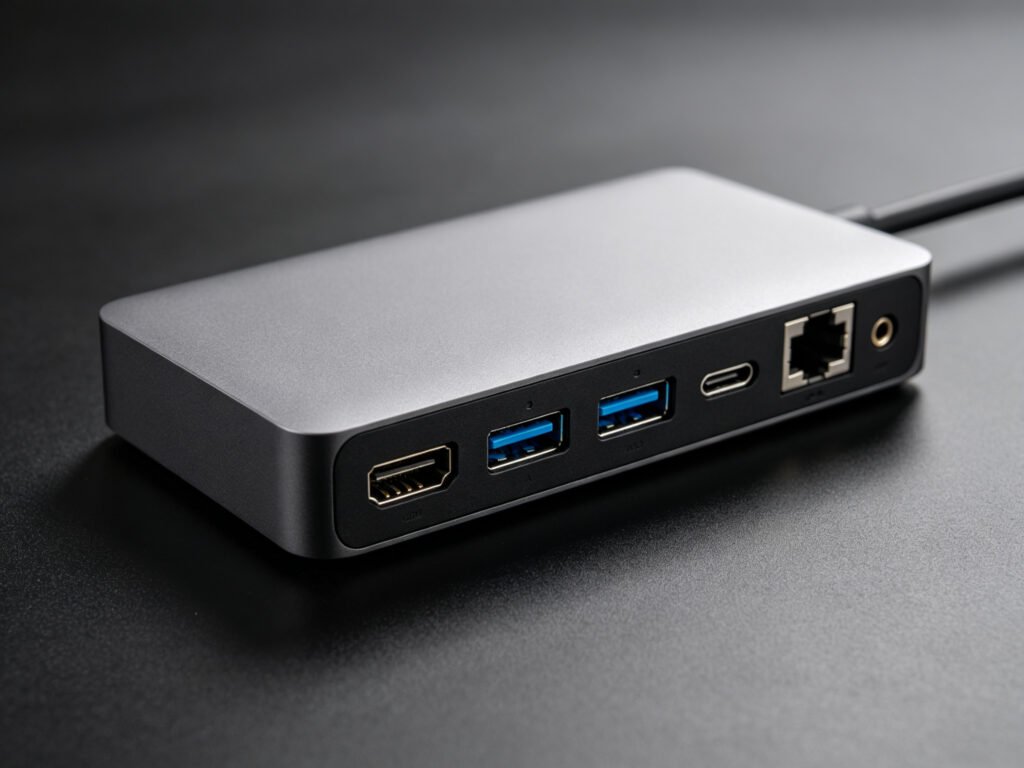
Video Output Ports
- HDMI: The most common video port. Use it to connect to TVs, monitors, and projectors.
- DisplayPort (DP): Often found on professional monitors. It offers higher bandwidth than HDMI and supports higher refresh rates.
- VGA: An older analog port found on legacy projectors and older monitors. Useful for presentations in conference rooms.
Data Ports
- USB-A: The rectangular USB port. Plug in your mouse, keyboard, USB drives, and other peripherals.
- USB-C: For high-speed data transfer, charging smaller devices, or connecting additional accessories.
- SD / microSD Card Slot: Insert your camera’s memory card directly to transfer photos and videos.
Network Port
- RJ45 Ethernet: Wired network connection. More stable and faster than Wi-Fi, especially for large file transfers and video calls.
Audio Port
- 3.5mm Audio Jack: For headphones, speakers, or a headset with a microphone.
Power Port
- PD Charging Port: The port that receives power from the dock’s power adapter and delivers it to your laptop through the USB-C cable.
5. Core Protocols Explained
DP Alt Mode (DisplayPort Alternate Mode)
This is a protocol that allows USB-C ports to transmit video signals. The USB-C port normally carries data, but it can “switch modes” and carry video instead — like a multi-purpose room converting from an office to a meeting room. Standard USB-C docking stations use this mode to output video to external monitors. For most people, DP Alt Mode handles a single 4K monitor well — that’s sufficient for typical office work and home use.
Thunderbolt 3 / 4
A high-speed protocol developed by Intel. Thunderbolt offers significantly more bandwidth (up to 40Gbps) than standard USB-C. Using the highway analogy: standard USB-C is a 2-lane road, Thunderbolt is an 8-lane highway. More lanes means it can support more monitors, higher resolutions, and faster data transfers. Thunderbolt docking stations are more expensive but offer the highest performance.
USB 3.x Data Protocols
USB 3.0, 3.1, and 3.2 are successive generations of the data transfer standard. Higher numbers mean faster file transfer speeds — think of them as different speed limits on the same road. All work with docking stations, but the speed you get depends on both the dock and your laptop’s USB version.
PD 3.0 (Power Delivery)
This is the standard that enables docking stations to deliver power back to your laptop. Newer USB PD specifications can support up to 240W with Extended Power Range (EPR) for very high-power laptops.
For most users, remember only three things:
- You need one monitor at 4K? A standard USB-C dock with DP Alt Mode is probably enough.
- You need two or more high-resolution monitors? Thunderbolt is your better choice.
- You need your laptop to charge through the dock? Check the dock’s PD wattage — it needs to match or exceed your laptop’s original charger.
Don’t get lost in the technical details. These three questions will guide you to the right type of dock for your needs.
6. Power and Charging
What Power Passthrough Means
The docking station connects to its own power adapter. When you plug your laptop into the dock via USB-C, the dock sends power back through that same cable to charge your laptop. You don’t need to plug in your laptop’s original charger separately — the dock handles both data and power through one single cable.
Common Power Levels
- 60W – 65W: Sufficient for thin-and-light laptops, ultrabooks, and most business notebooks.
- 85W – 100W: Suitable for performance laptops, mobile workstations, and some gaming laptops.
- 100W+: For high-end gaming laptops and workstations with high power demands.
Power Matching Logic
The ideal situation is that your docking station can deliver at least as much power as your laptop’s original charger. Check your original charger — it has a wattage number printed on it (like “65W” or “90W”).
- If the dock’s power ≥ original charger power → you’ll get full charging speed
- If the dock’s power is slightly lower → the laptop will still charge, but more slowly, especially under heavy use
7. How to Check Your Laptop’s Expansion Capability
Not every USB-C port works with a docking station. You need to check what your laptop’s USB-C port supports.
Step 1: Look at the Port Label
- A Thunderbolt symbol (⚡ lightning bolt) → Your laptop supports Thunderbolt, which offers the highest performance and compatibility
- A DP symbol (D or monitor icon) → Your USB-C port supports video output (DisplayPort Alt Mode) — it’s a full-featured port that works with most docking stations
- A battery symbol only → Your USB-C port supports charging only, no video or high-speed data — it won’t work with a docking station
Step 2: Check Your Laptop’s Specs Online
This is the most reliable method. Search for your laptop model on the manufacturer’s website or look at the product page. Look for terms like:
- “Supports DisplayPort over USB-C”
- “USB-C with video output support”
- “Thunderbolt 3/4 compatible”
Step 3: Check Inside Your Operating System (as a backup)
- Windows: Search for “Device Manager” in the Start menu. Expand “Universal Serial Bus Controllers” and look for “Thunderbolt” in the list. Note: not all Thunderbolt-equipped laptops show this clearly here.
- Mac: Click the Apple menu → About This Mac → System Report → look for Thunderbolt or USB in the list.
Simple Test
If you’re still not sure, plug a USB-C monitor or a USB-C to HDMI adapter into your laptop’s port. If the monitor displays your screen, the port supports video output and is full-featured.
8. Common Misconceptions
Myth 1: Any USB-C port works with a docking station
False. Some USB-C ports on budget laptops are for charging only — they don’t carry video or data signals. You need a full-featured USB-C port that supports DisplayPort Alt Mode (or Thunderbolt) to use a docking station properly.
Myth 2: More ports means a better docking station
Not necessarily. If you only need a monitor connection and a mouse, a docking station with ten ports is overkill. More ports also mean more internal components, which can generate additional heat and potential interference. Buy based on what you actually need, not just port count.
Myth 3: Thunderbolt docking stations only work with Macs
Not true. Any Windows laptop with a Thunderbolt port can use a Thunderbolt docking station. Conversely, if you plug a Thunderbolt dock into a standard USB-C port (without Thunderbolt), it will still work — but only at standard USB-C speeds, losing the Thunderbolt advantages (like the 8-lane highway narrowing down to 2 lanes).
Myth 4: If it supports 4K, it supports 4K at 60Hz
Not always. A docking station might support 4K resolution but at only 30Hz. Think of refresh rate like flipping through a book — 60 pages per second looks smooth and fluid, while 30 pages per second looks noticeably choppy. Also, connecting two monitors may reduce the refresh rate to 30Hz on both. To get 4K 60Hz, you need the right protocol, sufficient bandwidth, and the correct cable.
9. Common Problems and How to Fix Them
Monitor Has No Signal or Screen Flashes
- Try a different cable — cables are the most common point of failure
- Check that your laptop’s USB-C port actually supports video output (refer to Section 7)
- Lower the resolution or refresh rate to see if it stabilizes
Charging Cuts In and Out
- Make sure the docking station’s power adapter is firmly plugged in
- Verify that the dock can deliver enough power for your laptop model
USB Drive Not Detected or Slow
- Try a different USB port on the docking station
- Check whether it’s a USB 2.0 or USB 3.0 port
Docking Station Gets Hot
- Some warmth is normal under heavy use
- Make sure it’s placed in a ventilated area
- If it’s painfully hot to the touch, stop using it and consider returning or replacing it
Ethernet Network Not Working
- Check your laptop’s settings — some devices need drivers for the dock’s Ethernet chip
- Try a different Ethernet cable or port
10. Maintenance and Care
Placement
- Put your docking station in a ventilated area — don’t cover it with books or stack things on top
- Keep it away from direct sunlight and heat sources
Plugging and Unplugging
- When unplugging cables, hold the connector body — don’t yank the cable
- Pull the USB-C plug straight out (not at an angle) to avoid wearing out the port
Cleaning
- Clean ports with a dry cotton swab to remove dust — never use metal objects like pins or tweezers
- Keep liquids away from the docking station
Summary
A laptop docking station turns one USB-C cable into a full desktop setup with monitors, peripherals, network, and power.
Key concepts to remember:
- Not every USB-C port works with a docking station — check yours first
- DP Alt Mode handles video over standard USB-C — good for single 4K monitors
- Thunderbolt offers higher bandwidth (the 8-lane highway) — supports multiple monitors and faster data
- Power passthrough is essential — match the dock’s wattage to your laptop’s needs
- The cable matters — using the wrong USB-C cable can limit power, video, or data
When your laptop’s ports aren’t enough, a docking station gives you all the connectivity you need with a single cable. No more plugging and unplugging five different cables every time you sit down or get up — just one connection, and everything works.