
Quick Summary
- For everyday users, a USB power meter is the most accurate, user-friendly tool to read real charger output. Plugged inline in the charging chain, it displays live voltage, current, wattage, and active fast-charging protocol.
- The wattage printed on a charger label is its rated maximum capacity under standardized test conditions — it does not equal the real-time power your device receives in daily use.
- Actual output depends on six core factors: charging protocol compatibility, cable rating, device power limit, battery charge level, ambient temperature, and multi-port power sharing.
- Phone and laptop apps only report power arriving at the battery, not raw output from the charger’s USB port. They work as a rough reference, not a precision measurement.
1. Why You Need to Measure Real Charger Output
1.1 The Frustration of “Paper Wattage”
If you have ever unboxed a 100W GaN charger expecting blazing speeds, only to watch your phone charge barely faster than an old 5W brick, you have run into the biggest myth in consumer tech: advertised wattage ≠ real-world output. Today’s chargers come labeled 20W, 45W, 65W, 100W, 140W, even 240W — but the speed you actually get depends on far more than the number on the box.
Most people ask the same questions:
- Why does my 100W charger only push around 20W to my phone?
- Why does the same charger charge my laptop fast but my tablet slow?
- Why does charging speed drop sharply once my battery hits 80%?
- How do I tell if a cheap “100W” charger is actually fake or overrated?
1.2 Core Truth: Rated Capacity ≠ Real-Time Output
A charger’s printed wattage is its top designed speed, not its everyday cruising speed. Think of it like a car with a 200 mph top speed — you almost never drive that fast on regular roads. Real charging power shifts constantly, based on what the device asks for, what the cable can safely carry, and how hot the system runs.
1.3 What You Will Learn in This Guide
By the end, you will be able to:
- Interpret voltage, current, and wattage on any charger label or tester screen
- Choose the right testing tool for your skill level and needs
- Run a reliable output test step by step
- Tell the difference between normal performance variation and a faulty or fake charger
- Troubleshoot slow charging like a professional reviewer
2. Charger Output Basics: Voltage, Current & Wattage
2.1 The Three Core Metrics & the Universal Formula
Every charging measurement boils down to three numbers, linked by one simple rule that acts as a charger wattage calculator:
Power (Watts) = Voltage (Volts) × Current (Amps)
In short: W = V × A
- Voltage (V) is the electrical “push” that moves current through the cable. Standard USB-C fixed levels include 5V, 9V, 12V, 15V, and 20V. For ultra-high-power 240W systems under USB PD 3.1 EPR, levels extend to 28V, 36V, and 48V.
- Current (A) is the volume of electricity flowing per second. Common ratings are 1A, 2A, 3A, and 5A. Both the cable and the device set the upper limit.
- Power (W) is the total charging speed delivered. Real-world examples:
- 5V × 3A = 15W (basic standard charging)
- 20V × 3.25A = 65W (ultrabook-level PD)
- 20V × 5A = 100W (high-performance laptop PD)
- 48V × 5A = 240W (EPR ultra-high power)
2.2 How to Read the Label on Your Charger
Look for the line marked Output. A typical 65W PD charger will show something like:
Output: 5V⎓3A, 9V⎓3A, 15V⎓3A, 20V⎓3.25A
Each pair is a supported voltage and current setting. The highest pair (20V × 3.25A = 65W) is the charger’s maximum rated output.
2.3 Myth Busting: USB-C Does Not Equal Fast Charging
A USB-C connector shape guarantees nothing about power. Some USB-C ports only deliver 5V/3A (15W), some support full 100W PD, and some carry only data with barely any charging capability. The shape of the plug does not tell you the power inside — you have to check the technical specifications.
3. Rated Power vs. Actual Output Power
3.1 Rated Power: The Standardized Benchmark
Rated power (also called nominal or nameplate power) is the maximum sustained output the manufacturer guarantees under defined standard test conditions — room temperature, a high-quality matching cable, and an ideal load. It is a design capability, not a number you will see 24/7 in real use.
3.2 Actual Output: The Dynamic, Real-World Number
Actual output is the live power flowing through the cable at any given moment. It changes second to second based on conditions. A 100W charger might push near-max power to a hungry laptop, but only 18W to a small phone — both are correct, real outputs for their respective use cases.
3.3 Real-World Example: One Charger, Two Speeds
Take a well-built 100W USB-C PD charger:
- Connected to a 16-inch laptop that requests 20V/5A → roughly 90–100W actual output under ideal conditions
- Connected to a mid-range phone that requests 9V/2A → 18W actual output
Same charger, wildly different results — and neither result means the charger is broken or falsely advertised.
4. Six Key Factors That Shape Your Real Charger Output
4.1 Charging Protocol Handshake
USB-C chargers do not blast full power by default. First, charger and device communicate over the CC pin, agree on a mutually supported protocol and voltage level, then begin charging. If they share no fast protocol, they fall back to slow 5V operation.
4.2 Device Power Limit
Your phone only draws what its internal battery charging circuit can safely handle. A 25W phone will never pull 100W, no matter how powerful the charger. The device is always in control — it requests power, and the charger only provides what is asked for.
4.3 Cable Rating & E-Marker Chip
Cables are the most commonly overlooked bottleneck. A basic 3A USB-C cable tops out at roughly 60W (20V × 3A). To go higher — 100W, 140W, 240W — you need a cable with an E-Marker chip that confirms it can safely carry higher current. Without the right cable, high power remains locked even if both charger and device support it.
4.4 Battery Charge Stage
Lithium-ion batteries do not charge at full speed the entire time. They ramp up, hold a steady high rate, then taper off sharply to protect long-term battery health. Testing at 90% battery will always give you a low number — that is normal behavior, not a problem.
4.5 Temperature & Thermal Throttling
Heat is the enemy of fast charging. If the charger, cable, or phone gets too hot, the system automatically reduces voltage and current to cool things down. High room temperatures, thick protective cases, and direct sunlight can all cut real output significantly.
4.6 Multi-Port Power Sharing
On a multi-port charger, plugging in a second device reshuffles the total power budget. A 100W dual-port charger might deliver 100W to one port alone, but split into 65W + 30W when both ports are active.
5. Testing Tools: From Beginner to Pro
5.1 Top Pick for Almost Everyone: USB Power Meter
A USB power meter (also called a USB watt meter or PD tester) is the simplest, safest, most useful tool for normal users. You plug it inline between charger and cable, and it shows live measurements on a small screen. This is the standard method to measure USB-C voltage and current reliably at home.
What it measures:
- Real-time voltage, current, and wattage
- Active fast-charging protocol (PD, PPS, QC, etc.)
- Total energy delivered (Wh/mAh)
- Advanced models read E-Marker cable info and full PD power profiles
Widely available consumer brands: FNIRSI, ChargerLAB Power-Z, Keweisi — most cost $10–$30 and work with both USB-A and USB-C.
5.2 Indirect Estimate: Smart Plug / AC Watt Meter
A smart wall plug or standalone AC watt meter reads how much total power the charger pulls from the wall outlet. Because no charger is 100% efficient, you then multiply by a typical conversion efficiency to estimate DC output power.
Modern USB-C PD chargers typically achieve 85–95% conversion efficiency, though this varies based on load level, internal circuit design, and operating temperature. Lower-wattage chargers often sit around 90% at full load, while high-quality 100W+ GaN models can reach 92–95% at their optimal load point.
Example: Wall reading = 70W × 0.9 efficiency ≈ 63W actual USB output.
5.3 Zero-Cost Reference: Phone & Computer Software
Apps can give you a rough ballpark idea, but they do not measure charger output directly — they read what the battery reports on the device side, after cable loss and internal conversion losses.
- Android: AccuBattery, Ampere (shows battery input current)
- iPhone/iPad: iOS restricts deep charging data; use a Mac app like coconutBattery over USB for a rough reading
- Windows/macOS: Built-in system power reports or third-party battery tools show charging rate, which includes system power draw
Software numbers are always lower than raw charger output. Treat them as qualitative estimates, not precision measurements.
5.4 Advanced Tool: Digital Multimeter
A multimeter can measure exact voltage and current, but it requires manual work and carries real risk if done incorrectly.
- Voltage is measured in parallel across Vbus and GND
- Current is measured in series inside the circuit
- A USB breakout board is required to access pins safely
Safety warning for beginners: We do not recommend average users attempt series current measurement on live USB-C circuits. A wiring mistake can short the charger, damage your device, or blow the meter’s internal fuse.
5.5 Professional Gear (For Enthusiasts Only)
- USB PD analyzer: Captures the full handshake process, power profile lists, and PPS voltage steps for deep protocol analysis
- DC electronic load: Simulates a fully controllable load to test maximum output and protection limits
- Oscilloscope: Measures voltage ripple and transient response for engineering-level evaluation
These tools are for reviewers and engineers — overkill for normal daily use.
5.6 Pre-Test Prep & Universal Safety Rules
- Test with battery at 20–50% charge to hit the highest, most stable power phase
- Close background apps, turn off the screen, and let the device cool to room temperature
- Use a known-good, properly rated cable matching the power level you are testing
- Never open a charger’s plastic case — mains-side capacitors hold dangerous high voltage even when unplugged
- Keep liquids and conductive metal surfaces away from exposed test points
6. Step-by-Step: Three Ways to Read Actual Output
6.1 Method 1: USB Power Meter (Recommended, Most Accurate)
6.1.1 Correct Connection Order
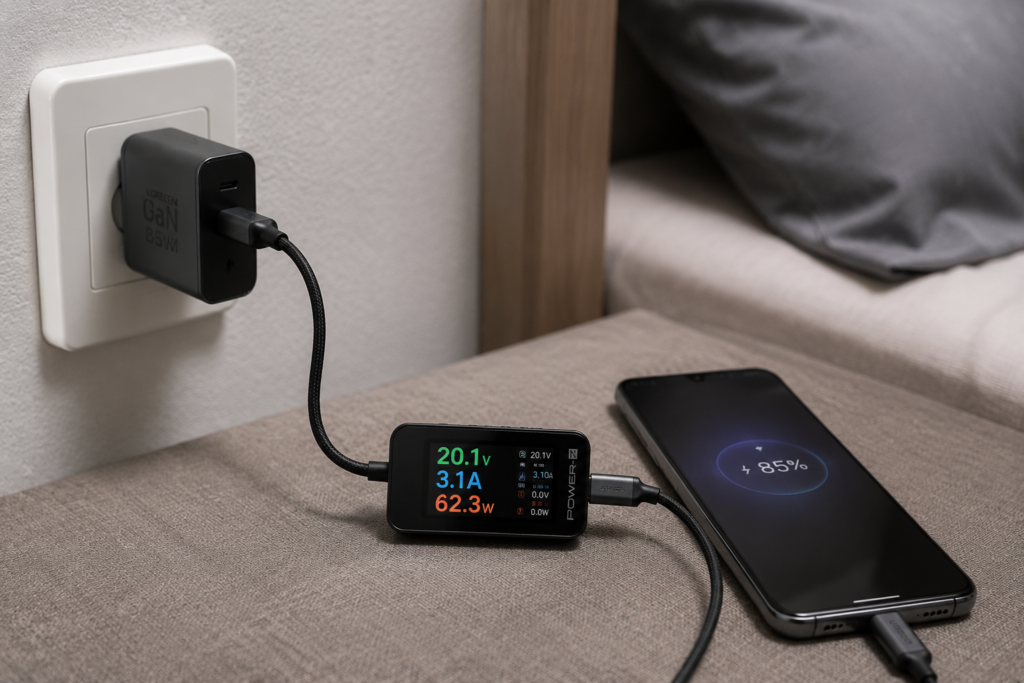
Wall outlet → Charger → USB Power Meter → Charging Cable → Device
6.1.2 Wait for Protocol Handshake & Stabilization
After plugging in, wait 30–60 seconds. You will see the voltage jump from 5V to the negotiated fast level (for example 9V or 20V) and the protocol label appear. Once numbers stop jumping by more than a small fraction, the reading is stable.
6.1.3 How to Take a Valid Reading
- Record voltage (V), current (A), and power (W) once stable
- Take your reading during the constant-current phase (20–50% battery)
- Ignore the split-second peak spike when you first plug in
- Ignore very low readings at 80%+ battery (that is normal charge taper)
6.1.4 Real Test Example
Testing a 65W GaN charger with a laptop at 30% battery:
Voltage: 20.1 V
Current: 3.1 A
Power:   62.3 W
Why not a perfect 65W? Small voltage drop across the cable, tiny losses in the meter itself, and normal unit-to-unit variation. This result is well within expected normal performance.
6.2 Method 2: Smart Plug Estimation
- Plug the charger into the smart plug, then plug the smart plug into the wall
- Connect your device and wait for stable charging
- Read the AC wattage from the plug display
- Multiply by 0.85–0.9 (typical real-world efficiency) to estimate DC USB output power
6.3 Method 3: Software Reference
- Install a trusted battery monitoring app or use system power reports
- Plug in the charger and wait 1–2 minutes for readings to settle
- Multiply reported voltage and current for an approximate device-side power figure
Remember: this is power arriving at the battery, not power leaving the charger. It will always be lower, and that is normal.
7. How to Read a USB Power Meter Display
When you run a USB-C power meter test, the screen will show several values. Here is what each one means:
| Screen Label | What It Means |
|---|---|
| Voltage (V) | The real-time output voltage supplied by the charger through the meter |
| Current (A) | The amount of current currently flowing to the connected device |
| Power (W) | Live calculated wattage (V × A), the most important number for speed |
| Energy (Wh) | Total energy delivered since the test started |
| Protocol Label (PD / PPS / QC) | The active fast-charging standard currently in use |
| PDO | Short for Power Data Objects — the fixed voltage/current profiles the charger supports |
8. Understanding PD Charger Output Profiles (PDOs)
A USB PD charger does not just output one voltage — it advertises a list of supported power options called Power Data Objects, or PDOs. The device picks the best match from this list.
A typical 100W PD charger will show a PDO list like this on an advanced meter:
PDO 1:  5V  3A  = 15W
PDO 2:  9V  3A  = 27W
PDO 3:  15V 3A  = 45W
PDO 4:  20V 5A  = 100W
Reading the PDO list tells you exactly what voltage and current levels the charger is capable of, and lets you confirm it matches the label specifications.
9. How Accurate Are USB Power Meters?
The accuracy of consumer USB power meters varies by price and build quality:
- Mid-range and name-brand meters: Typically ±1% accuracy for voltage and current, more than good enough for everyday testing and product comparison
- Budget / no-name meters: Usually ±3–5% accuracy, still useful for general checks and spotting obviously fake chargers, but not for lab-grade precision
Accuracy can be affected by:
- Tiny power consumption of the meter’s own screen and circuit
- Sampling speed for fast-changing power levels
- Operating temperature
- Operation at the very top or bottom of the meter’s rated current range
For normal home use, even a budget meter will give you far more reliable information than phone apps or marketing specs.
10. How Fast-Charging Protocols Control Real Output
10.1 USB PD Negotiation: No Default Full Power
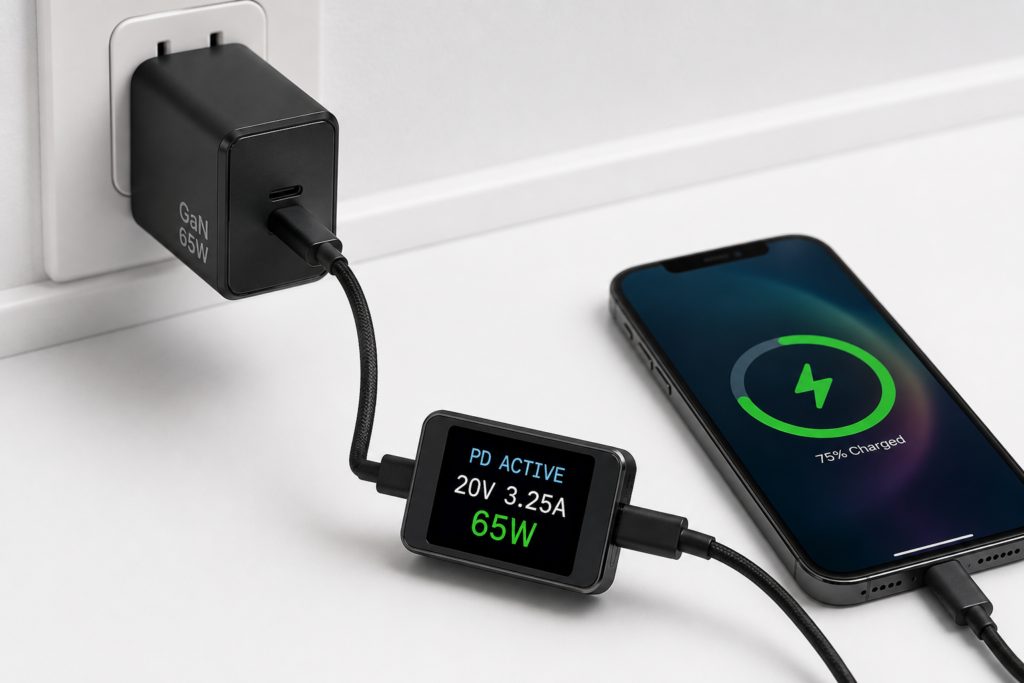
USB Power Delivery works like a restaurant menu. The charger provides a list of supported power options (called PDOs, or Power Data Objects), and the device selects the one it can safely use. The final result is the negotiated output — never the charger’s maximum unless the device specifically asks for it.
10.2 PPS: Fine-Tuned Voltage for Better Efficiency
Programmable Power Supply (PPS) lets devices request tiny voltage steps (20mV increments) instead of jumping between fixed levels. This reduces waste heat inside the phone and enables more efficient direct battery charging. PPS powers many flagship Android super-fast charging systems.
10.3 USB PD 3.1 EPR: The 240W Leap
Introduced by USB-IF, the Extended Power Range (EPR) standard pushed the official ceiling from 100W to 240W by adding higher fixed voltage levels: 28V, 36V, and 48V, all at up to 5A.
EPR also includes an Adjustable Voltage Supply (AVS) mode, which allows fine tuning across 15V to 48V in 100mV steps. Note that not all EPR devices support the full 48V range; different products use different AVS voltage bands to match their power needs. For example, a 140W laptop typically uses a 28V AVS range, while 240W gear operates at up to 48V.
To use EPR, you need all three: an EPR charger, an EPR 5A cable with E-Marker, and an EPR-compatible device.
10.4 Proprietary Protocols & Compatibility
Brands like Qualcomm (QC), Samsung (AFC), and others have their own fast-charging standards. If your charger supports PD but your phone only works with a different protocol, you will get basic 5V charging — this is a protocol mismatch, not fake wattage.
11. Reading the Results: Is My Charger Performing Normally?
11.1 Typical Real-World Output Ranges
| Charger Rating | Expected Real Output (good cable, low battery, room temp) |
|---|---|
| 20W | 18–20W |
| 30W | 27–30W |
| 65W | 58–65W |
| 100W | 90–100W |
| 140W | 125–140W |
| 240W | 220W+ |
Small drops from the label value are normal, caused by cable resistance, meter tolerance, and minor efficiency losses. A result does not need to hit 100% of the label to be a good, properly functioning charger.
11.2 The Four Stages of Battery Charging
- Constant-current fast charge (0–50%): Highest, steadiest power — the correct time to test maximum output
- Constant-voltage stage (50–80%): Voltage holds steady, current gradually falls
- Trickle charge (80–100%): Very low power to top off gently and protect battery health
- Full maintenance: Near-zero power, only compensating for self-discharge
Seeing power drop as the battery fills is not a bug — it is how lithium-ion batteries are designed to be charged safely.
11.3 Normal Low Power vs. Abnormal Low Power
Normal reasons for low readings:
- Device does not support higher wattage
- Cable is missing E-Marker or is only 3A rated
- Battery is nearly full
- Charger is warm and throttling
- Multiple ports are in use
Warning signs of a problem:
- Power is far below what the device and cable should support together
- Voltage jumps around erratically or drops sharply under even light load
- Power cuts in and out repeatedly for no obvious reason
11.4 How to Spot an Overrated / Fake Charger
If you use a known-good cable, a fully compatible device, a low battery, and room temperature — and the steady power is still well below 90% of the label claim — the charger is likely underbuilt or falsely advertised. Consistent large voltage sag under load is another strong red flag.
12. Cable Deep Dive: E-Marker Chips & Power Ceilings
12.1 3A vs. 5A: The Invisible Speed Limit
Most standard USB-C cables are rated for up to 3A current (roughly 60W at 20V), but not every USB-C cable guarantees this capability. Low-quality or older cables may fall below this rating.
Above 60W, you need a cable built for higher current. A 5A cable unlocks 100W at 20V; EPR-rated 5A cables go all the way to 240W at 48V.
12.2 What an E-Marker Chip Actually Does
Without an E-Marker chip, a USB-C cable is generally limited to 3A under standard USB PD rules. The E-Marker chip stores and communicates the cable’s full specifications — including maximum current, voltage rating, data transfer speed, and advanced feature support — so the charger can safely enable higher power levels.
12.3 Cable Ratings by Common Use Case
- 60W (3A): Phones, tablets, small power banks — fine for everyday mobile use
- 100W (5A, E-Marker): Ultrabooks, 13–16 inch laptops, fast-charging flagships — the most useful all-around rating
- 240W (5A EPR, E-Marker): Gaming laptops, workstations, high-power PD 3.1 gear — overkill for most phones
13. Device-Specific Testing Tips
13.1 Smartphone Testing
- Start at 20–40% battery, screen off, idle state
- Confirm which protocol and wattage the phone actually supports
- Note that many phones only hold peak power for a few minutes before stepping down for heat control
13.2 Laptop USB-C PD Testing
- Check the laptop’s official charging wattage requirement (45W, 65W, 96W, 140W, etc.)
- Test while the laptop is awake but idle; heavy CPU/GPU use will consume power that would otherwise go to the battery
- Verify the cable is 5A E-Marked for anything above 60W
13.3 Power Bank Testing
- Test both input (how fast the bank itself charges) and output (how fast it charges your devices)
- Calculate rough efficiency: output energy ÷ input energy. 85–90% is typical for a good quality power bank.
14. Common Testing Mistakes to Avoid
14.1 Mistake 1: Peak Wattage = Sustained Wattage
A charger may briefly hit its label number the moment you plug it in, then settle slightly lower. Sustained stable power, not split-second spikes, is what matters for real charging speed.
14.2 Mistake 2: No-Load Voltage = Real Output
Measuring voltage with nothing plugged in tells you almost nothing. Real voltage always drops a little under load — that is normal behavior, not a defect.
14.3 Mistake 3: Device-Side Power = Charger Output Power
The number your phone app shows is power after cable loss, conversion loss, and system consumption. It is always lower than the charger’s raw output.
14.4 Mistake 4: Any Cable Upgrade Will Make It Faster
Swapping cables only helps if the old cable was the bottleneck. If your phone maxes out at 25W, upgrading to a 240W cable will not charge it any faster.
14.5 Mistake 5: Multi-Port Chargers Always Deliver Full Single-Port Speed
Some chargers reshuffle power allocation as soon as a second cable is plugged in — even if nothing is connected to the other end. Always test with only one port active if you want maximum numbers.
15. Troubleshooting Slow Charging
15.1 Step 1: Check if the Charger Output Is Actually Low
Run a meter test first. If the charger is delivering its expected wattage but charging still feels slow, the problem lives inside your device, not the charger.
15.2 If Output Is Normal But Charging Is Slow
Look at device-side causes:
- Old or degraded battery
- High screen brightness or background apps using power while charging
- Software battery optimization or temperature limits kicking in
- Dirty or worn charging port contacts
15.3 If Output Is Below Expectations
Narrow down the bottleneck one by one:
- Try a different, known-good high-rated cable
- Test with only one port occupied
- Let the charger and device cool down fully
- Verify protocol compatibility between charger and device
- If still low, the charger itself is likely the issue
16. Buying Guide: Chargers, Cables & Meters
16.1 How to Pick a Reliable Charger
- Match wattage to your hungriest device (using a bigger charger will not damage anything)
- Look for UL, CE, FCC, PSE safety marks appropriate for your region
- Prefer USB-IF certified PD chargers when possible
- Check independent reviews for real-world sustained power, not just marketing numbers
16.2 Cable Buying Rules of Thumb
- Buy once, cry once: get a 5A E-Marked 100W cable even if you do not need 100W today — it future-proofs your setup
- For 140W+ and PD 3.1 gear, look for explicit EPR 240W rating
- Longer cables have more resistance; if you need extra length, pick a thicker, higher-quality cord
16.3 Choosing a USB Power Meter
- Beginner: Any model with clear V/A/W display and PD support will serve you well
- Intermediate: Look for protocol detection, PPS support, and basic energy logging
- Avoid: Ultra-cheap no-name meters with unknown accuracy and no over-voltage protection
17. Frequently Asked Questions
17.1 Can I get accurate charger output without special tools?
No. Phone and computer apps only estimate battery-side power. For true charger output, you need a hardware meter placed directly in the charging path.
17.2 Does a 100W charger always output 100W?
No. It only outputs near 100W when connected to a device that requests that level, with a cable that can carry it, under cool conditions, and at low battery. Most of the time, it outputs less.
17.3 Why do some USB-C ports not support fast charging?
USB-C is a physical connector shape, not a power standard. The port’s internal circuitry determines what protocols and wattage it supports. Many budget laptops, monitors, and hubs have USB-C ports limited to 15W or data-only operation.
17.4 How accurate are USB power meters?
Name-brand consumer meters are usually around ±1% accurate, while budget models are typically ±3–5%. Both are more than accurate enough for home testing, spotting fake chargers, and comparing products.
17.5 Is it normal for charging to slow down after 80%?
Yes. This is intentional battery protection. Topping off slowly reduces heat and wear, which helps your battery last through more charge cycles.
17.6 Will a better cable make my phone charge faster?
Only if your current cable is the bottleneck — for example, a 3A cable holding back a 65W+ device. If your cable is already adequate, upgrading further gives no speed gain.
17.7 Is testing charger output dangerous?
If you only use a plug-in USB power meter and never open the charger case, it is completely safe — you are dealing with low-voltage DC on the USB side. Only the mains-side internal circuitry carries hazard-level voltage.
18. Final Thoughts
18.1 Key Takeaways
- Charger labels tell you the maximum designed capability, not the everyday reality
- Real output is a team effort: charger, cable, protocol, and device all have to agree
- For regular people, a USB power meter is the single best investment for demystifying charging speed
- Most “slow charging” problems are not broken chargers — they are normal limits of batteries, cables, and charging protocols
18.2 The Best Approach for Most People
Grab one affordable USB-C power meter, learn to read three core numbers (V, A, W), and you will never again wonder if your charger is living up to its spec sheet. You will be able to spot overrated products, troubleshoot slow speeds, and build a charging setup that actually delivers on the promise of fast charging.
18.3 One Last Tip
Stop chasing the biggest wattage number. Buy a quality charger and a good cable matched to your device, then test it once to confirm it works as advertised. After that, just plug in and charge — the best charging setup is the one you never have to think about.