
Think of USB-C cables like highways. They all share the same on-ramp shape, but some are narrow one-lane roads capped at slow speeds, while others are 8-lane interstates built for 240W of power and 40Gbps of data. The plug looks identical — what’s inside makes all the difference.
A low-quality USB-C cable does more than charge slowly. It can throttle your external SSD, fail to drive your monitor, and in the worst cases, overheat and damage your phone or laptop. This guide walks you through every reliable testing method, from a 30-second visual check you can do right now to semi-pro tool measurements that reveal a cable’s true capabilities.
Quick Summary
- 30-second filter: Inspect the connector build, read the spec label, and confirm fast charging activates on your device.
- No tools needed: Test charging speed, transfer a large file, and plug in a monitor to spot USB 2.0 “charge-only” cables.
- Precision testing: An affordable USB power meter reveals real wattage, voltage drop, and E-Marker chip details.
- Red flag rule: If a cable gets hot at high wattage, works on only one side, or drops connection randomly, replace it immediately.
1. Why USB-C Cable Quality Actually Matters
1.1 Same shape, wildly different performance
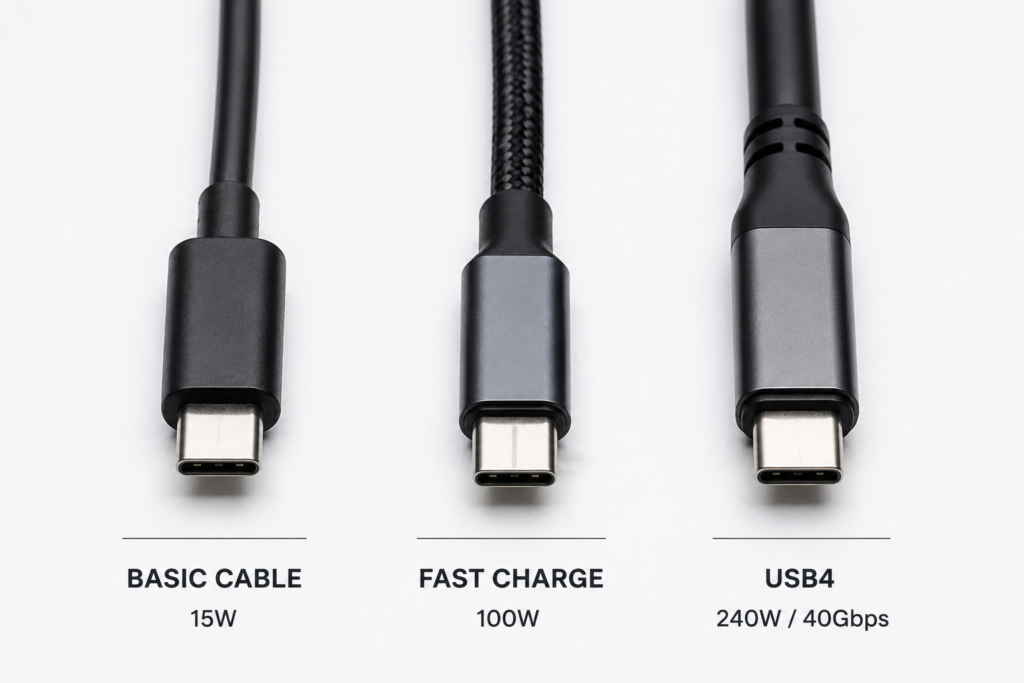
USB-C is only a connector shape — it tells you nothing about what the cable can do. A basic cable may only carry 15W of power and USB 2.0 data speeds, while a premium cable can handle 240W charging, 40Gbps data, and 8K video output all at once. You cannot tell them apart by looking at the plug alone.
1.2 Four real risks of bad USB-C cables
- Wasted charging speed: Pair a 100W laptop charger with a cheap 3A cable, and you’ll max out at only 60W.
- Hidden data downgrade: Many “fast charging” cables skip high-speed data wires entirely, so your fast SSD runs at USB 2.0 speeds.
- Device damage: Poorly wired cables can fry your phone’s charging IC or laptop motherboard via voltage spikes or internal shorts.
- Safety hazards: Thin, low-quality conductors overheat under load. Cheap cables often lack proper insulation and can melt or catch fire if shorted.
1.3 How this guide is structured
We start with the easiest, zero-cost tests and work up to precision tool measurements. You can stop at whatever level matches your needs — no engineering degree required.
2. Key Basics Before You Test
2.1 Three core capabilities of every USB-C cable
Every USB-C cable is defined by three separate abilities. A cable can excel at one and be terrible at another:
- Power delivery: How many watts it can safely carry (15W → 60W → 100W → 240W)
- Data speed: How fast it moves files (USB 2.0 480Mbps → USB 3.2 10Gbps → USB4 40Gbps+)
- Alternate modes: Extra features like DisplayPort video output or Thunderbolt compatibility
2.2 Key terms explained in plain English
- E-Marker chip: A tiny “digital ID card” inside the cable that tells chargers and devices exactly what the cable can handle. Per official USB-IF standards, an E-Marker is required for any cable carrying more than 3A (over 60W at 20V) and for all high-speed USB 3.2+, USB4 and Thunderbolt cables.
- CC pins: The configuration channel that negotiates power levels and detects which way you plugged the cable in.
- AWG gauge: The standard for measuring wire thickness. Lower numbers mean thicker wires, lower resistance, and more current capacity.
- PD 3.1 EPR: Short for Extended Power Range, the official USB standard for 240W charging via 48V/5A, requiring specially rated cables with E-Marker.
2.3 Common cable types and what they’re for
| Cable Type | Max Power | Typical Data Speed | Best For |
|---|---|---|---|
| Basic charging cable | ~15–60W (3A) | USB 2.0 / no data | Phone charging only |
| Fast charging cable | 60–100W (5A) | Often USB 2.0 | Laptop charging |
| High-speed data cable | 60–100W | 10Gbps (USB 3.2 Gen 2) | External SSDs |
| Full-featured / USB4 | 100–240W (EPR) | 20–40Gbps+ | Docks, monitors, eGPUs |
2.4 What’s actually inside a USB-C cable
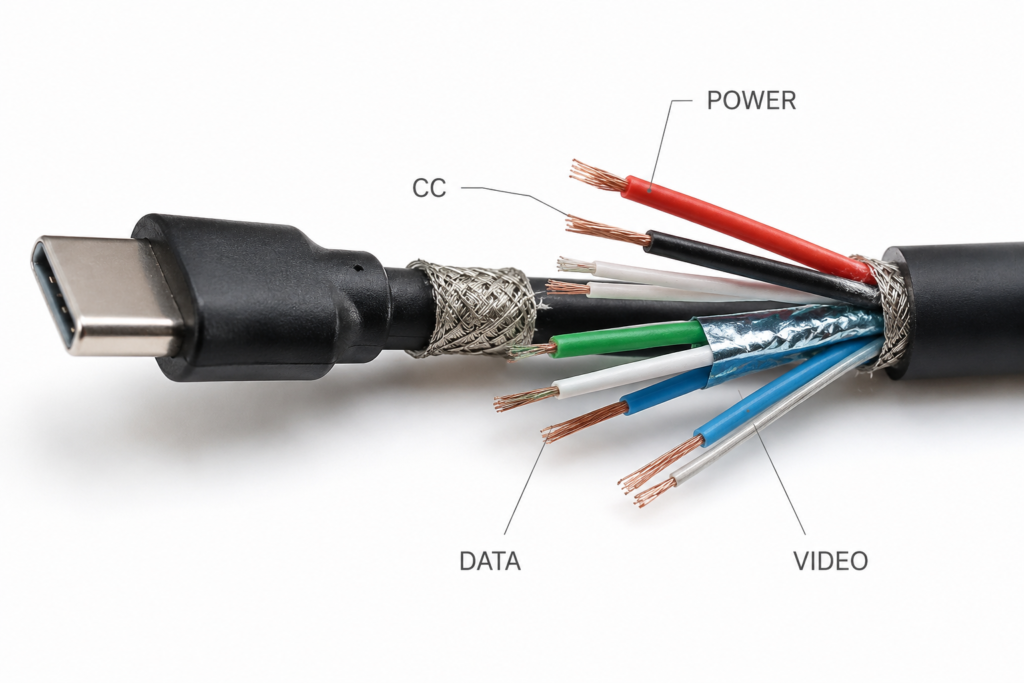
The reason cables perform so differently is that they don’t all have the same wires inside. A full-featured cable includes:
- VBUS + GND: Power conductors — thicker gauge = more current capacity
- CC pins: Negotiates power and detects plug orientation
- D+/D-: USB 2.0 data pair, present in almost all cables
- TX/RX differential pairs: High-speed data lanes required for USB 3.2+ and video
- SBU lines: Sideband channels that carry DisplayPort Alt Mode video signals
Cheap charge-only cables skip the high-speed TX/RX and SBU wires entirely. That’s why they charge fine but won’t connect a monitor or fast SSD.
2.5 Length, passive and active cables
- Length matters: Longer cables have higher electrical resistance and more signal loss. A 3m cable will never perform identically to a 0.5m cable of the same rating.
- Passive cables: No electronics inside besides an optional E-Marker. Cheaper, work well for short lengths — up to ~2m for USB 3.2 Gen1, and only ~0.8m for native 40Gbps USB4.
- Active cables: Built-in signal amplifiers (Redrivers or Retimers). Required for longer high-speed USB4/Thunderbolt cables to fight signal degradation, supporting lengths up to 5m.
3. 1-Minute Visual Inspection (Zero Cost)
You can eliminate the worst cables in 60 seconds without plugging anything in.
3.1 Check the connector build
- Metal shell: Should feel solid, with even gaps and no wiggling. A loose housing is a classic sign of cheap construction.
- Internal contacts: Look inside the plug. Contact points should be straight, shiny, and free of black burn marks or corrosion.
- Strain relief: The flexible “neck” where cable meets plug should be long and rubbery. Short, rigid necks crack and break quickly.
3.2 Read the cable label
Reputable cables print their specs on the jacket or packaging. Look for:
- Power rating: 60W, 100W, 240W EPR
- Data standard: USB 2.0, USB 3.2 Gen 2, USB4
- Certification logos: USB-IF Certified, Thunderbolt, MFi (for Apple cables)
- AWG wire gauge for power conductors
No label at all? Treat it as a low-quality unknown.
3.3 Simple physical tests
- Plug feel: Insertion should be smooth with a firm, consistent click. Too loose = bad contact; too tight = can damage your device port.
- Flip test: USB-C works both ways. If it only charges or transfers data on one side, the cable has broken CC pins or missing contacts — replace it.
- Wiggle test: Plugged in, gently wiggle the connector. If charging drops in and out, the internal wiring is already failing.
3.4 Magnet test (reference only, not a verdict)
A common trick is to hold a magnet near the connector shell. Strong attraction can mean cheap iron-based parts, but many quality cables use stainless steel shells that are slightly magnetic too.
Important: Magnet attraction alone does not prove a cable is bad. Use it only as a side clue, never as a pass/fail test.
4. No-Tool Functional Tests (Use What You Already Own)
You don’t need special gear to uncover 80% of cable problems. Just use your existing charger, laptop, and a file.
4.1 Charging performance test
- Use a charger and device you know support a specific wattage (e.g. 65W laptop charger).
- Plug in the test cable and watch your device’s charging info.
- Compare charge percentage gain over 30 minutes against a known-good cable under identical conditions.
- Note: if the cable gets warm near the plugs at anything over 30W, that’s a warning sign of high resistance.
If your laptop says “Slow charger” or your phone never shows fast charging, the cable is limiting power.
4.2 Data transfer speed test
- Connect a fast external SSD or flash drive to your computer using the test cable.
- Copy one large file (5GB+ video works great) and time the transfer.
- Calculate real-world MB/s and compare against these baselines:
- USB 2.0: ~30–40 MB/s
- USB 3.2 Gen 1 (5Gbps): ~400–500 MB/s
- USB 3.2 Gen 2 (10Gbps): ~800–1000 MB/s
Many “fast charging” cables are secretly USB 2.0 inside. This test catches them instantly.
4.3 Video output and accessory test
Plug the cable between your laptop and a USB-C monitor or USB-C-to-HDMI adapter. If you get no picture but the cable charges fine, it’s missing the SBU wires and high-speed lanes needed for DisplayPort Alt Mode.
You can also test USB-C headphones, docks, and card readers to check general connection stability.
4.4 Guessing E-Marker status without tools
Rough rule of thumb:
- If the cable reliably charges a 100W+ laptop at full speed, it almost certainly has a working E-Marker.
- USB4 and Thunderbolt cables always include an E-Marker by official specification.
However, you cannot confirm an E-Marker from data speed alone — many 3A USB 3.2 cables run fine without one. For confirmation, you need a tester.
5. Tool-Assisted Precision Testing (Semi-Pro Level)
If you want hard numbers instead of educated guesses, these tools are worth every penny.
5.1 USB-C power meter (most recommended)
A basic USB-C power tester costs $15–$30 and is the single best upgrade for testing cables. It shows you:
- Real-time voltage, amperage, and wattage
- PD/PPS protocol handshake details
- Voltage drop under load — the single best indicator of wire quality
- Full E-Marker chip info: current rating, data capability, and vendor data
Step-by-step 100W cable test:
- Plug the meter between a 100W charger and your device.
- Put the device under load (run a game, render a video, or use an electronic load).
- Confirm the current reaches close to 5A. If it caps at 3A, the cable has no E-Marker or can’t handle 5A.
- Compare charger-side voltage vs. device-side voltage. A large drop means high internal resistance.
5.2 Multimeter tests
For electrical hobbyists, a multimeter can reveal internal issues:
- Continuity check: Test VBUS, GND, and CC pins for broken wires. This is how you diagnose “one side works” failures (usually a dead CC pin).
- Loop resistance: Short VBUS to GND on one end, measure resistance on the other. Subtract your probe resistance.
As a general reference, a good 1m 5A cable will have very low loop resistance. A bad cable can measure 0.5Ω or more. Resistance scales with length — longer cables will naturally read higher.
5.3 Temperature rise test
Run the cable at full rated power for 10–15 minutes, then feel the connectors and mid-cable. Slight warmth is normal; anything too hot to hold comfortably means excessive resistance and is a fire risk at sustained high power.
5.4 Professional-grade tools
For engineers and serious testers:
- Cable continuity testers: Check every one of the 24 pins for opens, shorts, and miswiring.
- USB protocol analyzers: Capture full PD handshake packets and debug compatibility issues down to the byte level.
6. How to Spot a Bad USB-C Cable: Warning Signs
6.1 Seven red flags
- Charging cuts in and out for no obvious reason
- Claims 100W/240W but gets hot or throttles power
- Charges fine but external drives run extremely slow
- Monitor says “no signal” even though charging works
- Only functions when plugged in one orientation
- Your phone pops up “Accessory not supported” errors
- Outer jacket cracks, whitens, or feels sticky/melted
6.2 Common problems cheat sheet
| Symptom | Likely cause |
|---|---|
| Only slow charging, never fast charge | 3A max cable, missing E-Marker, or high resistance |
| Charges OK, but SSD is very slow | USB 2.0-only cable — no high-speed data pairs |
| Monitor shows no signal | No DP Alt Mode, missing SBU/high-speed lanes |
| 100W charger won’t go above 60W | No valid E-Marker chip in the cable |
| Works on one side only | Broken CC pin or missing contacts on one side |
6.3 Common fake cable scams
- Printing “100W” on a cable that has no E-Marker and only 3A wires
- Labeling as USB 3.2 when it’s actually USB 2.0 inside
- Printing fake certification logos with no real TID number
6.4 Long-term safety risks of cheap cables
- Overheating can melt insulation and cause short circuits
- Unstable voltage can damage charging circuits and USB controllers
- In extreme cases, faulty cables have caused thermal damage and fire hazards
7. Verify Certifications Like a Pro
Certifications are the most reliable shortcut to quality — if they’re real.
7.1 The gold standard: USB-IF Certification
USB Implementers Forum (USB-IF) certification means the cable passed official compliance testing for power, data, and safety. Certified products get a unique TID (Test ID) number you can look up in the official USB-IF Integrators List on usb.org.
Newer certified cables show clear ratings on the logo, such as “240W USB 40Gbps”.
7.2 Other trusted certifications
- Thunderbolt Certified: For USB4/Thunderbolt cables, verified for speed, power, and reliability.
- MFi (Made for iPhone/iPad): Apple’s compatibility program for USB-C to Lightning cables.
- Safety marks: UL, CE, FCC — indicate compliance with electrical safety and EMI standards.
7.3 The triple-check method
For any cable you’re counting on for high power:
- Check the printed specs on the cable/packaging.
- Read the E-Marker data with a power tester.
- Run a real-world load test and measure temperature.
If all three match, the cable is honest. If they don’t, it’s mislabeled.
8. Common Myths Debunked
- Myth: All USB-C cables are basically the same. Fact: They can differ by 16x in power capacity and 80x in data speed.
- Myth: Thicker cable = better cable. Fact: Cheap cables can have thick plastic jackets hiding thin copper-clad aluminum wires inside.
- Myth: If the brand is famous, it’s genuine. Fact: Counterfeit cables with fake branding are rampant online. Always buy from authorized sellers.
- Myth: If it plugs in, it’s safe. Fact: Miswired cables can destroy your device’s USB controller on the first plug-in.
- Myth: Fast charging cable = fast data cable. Fact: Most budget “fast charge” cables intentionally skip high-speed data wires to cut cost.
- Myth: Magnet test is a definitive quality check. Fact: Many legitimate cables use slightly magnetic stainless steel shells. Magnet results are hints, not verdicts.
9. How to Buy and Care for Reliable USB-C Cables
9.1 Pick the right cable for your use case
| Use case | Recommended spec | Key point |
|---|---|---|
| Phone charging only | 60W 3A USB-C PD | Inexpensive, sufficient for phones |
| Laptop charging | 100W–240W 5A with E-Marker | Must have valid E-Marker |
| External SSD / fast data | USB 3.2 Gen 2 or USB4 | Verify speed with a file copy test |
| Monitor / docking station | Full-featured USB4 / Thunderbolt 4 | Requires DP Alt Mode support |
| One cable for everything | USB4 / Thunderbolt 4 40Gbps + 240W | Most expensive but most capable |
9.2 Buying rules
- Prioritize USB-IF or Thunderbolt certified products.
- Avoid unbelievably cheap “240W 8K 40Gbps” cables from unknown brands — they are almost always lies.
- Buy from reputable retailers and authorized brand stores.
9.3 Make your cables last longer
- Grip the plug body to unplug — never yank the cable itself.
- Avoid tight bends right at the strain relief; this is where 90% of cables break.
- Don’t wrap high-power cables tightly in small coils for long-term storage.
- Periodically inspect connectors for dust, lint, and oxidation.
9.4 When to replace a cable immediately
- Cracked or peeling outer jacket
- Loose or wobbly connector shells
- Noticeable heat during normal use
- Intermittent connection or one-side failure
10. Frequently Asked Questions (FAQ)
Q: How can I tell if a USB-C cable supports fast charging without tools?
Plug it into a known fast charger and device. If your phone shows “Fast Charging” or your laptop charges at its full rated wattage, the cable supports at least that speed. Compare against a cable you know works to rule out charger/device issues.
Q: Why do some USB-C cables charge but not transfer data?
Charging-only cables only connect power wires (VBUS/GND) and the CC communication pins. They intentionally omit the data transmission pairs to reduce cost. They are fine for charging, but useless for external drives or monitors.
Q: Can a bad USB-C cable damage my phone or laptop?
Yes. Short circuits, incorrect resistor values, and overheating can damage charging circuits, USB controllers, or even the main motherboard. In extreme cases, faulty cables have caused thermal damage and fire.
Q: How do I tell USB 2.0 apart from USB 3.2 without a tester?
Copy a large file. If you only get 30–40 MB/s, it’s USB 2.0. If you see 400 MB/s or more, you have USB 3.x or better. Make sure both devices you’re testing actually support the higher speed first.
Q: My USB-C cable won’t drive a monitor — is it definitely broken?
Not necessarily. It may simply be a charging-only or USB 2.0 cable that lacks the wires required for video. Test the same cable with a different device, and test the monitor with a known-good full-featured cable to isolate the issue.
Q: How long should a good USB-C cable last?
With normal daily use, a quality cable typically lasts 2–3 years or more. The strain relief near the plug almost always fails first. Cables carried loose in a bag usually wear out faster.
Q: Does cable length affect performance?
Yes. Longer cables have higher electrical resistance (more voltage drop, more heat) and greater signal loss. High-speed USB4 cables in particular are much more expensive in 2m+ lengths because they require active signal boosting.
11. Final Thoughts + 1-Minute Test Checklist
USB-C cables are the unsung workhorses of modern tech — and the most underrated safety item you own. A cheap cable saves you $10 today but can cost you a $1000 laptop tomorrow.
You don’t need a lab to stay safe. Start with the visual check, verify charging and data work as advertised, and upgrade to a USB power meter if you test cables often. For high-value devices, always stick with certified cables.
✅ USB-C Cable 1-Minute Quick Test Checklist
- Connector is solid, pins are clean and straight
- Cable has clear wattage/speed labeling
- Works reliably when flipped both ways
- Fast charging activates on your device
- Data transfer matches the advertised speed
- No excessive heat during charging
- Carries a trusted certification (USB-IF / Thunderbolt / MFi)
References: USB-IF official specifications for USB Type-C, USB Power Delivery 3.1 EPR, and USB4; independent electrical testing data on cable resistance and voltage drop; industry compliance guidelines.