
Have you ever had this experience: you only brought one USB-C cable with you when going out, it triggers fast charging when charging your phone, super fast, but when you plug it into your laptop, a “slow charging” prompt pops up, and the battery even drops while using? Or it runs at full speed when connected to a portable SSD to copy movies, but is as slow as a snail when transferring photos to your phone?
Many people’s first reaction is “the cable is broken” or “the device has a problem”, but in fact, most of the time, this is neither a cable fault nor a device fault, but a normal result of the specification matching of the three parties: [device, cable, protocol] — just like the same water pipe, when connected to a tap and a mineral water bottle, the water output is definitely different.
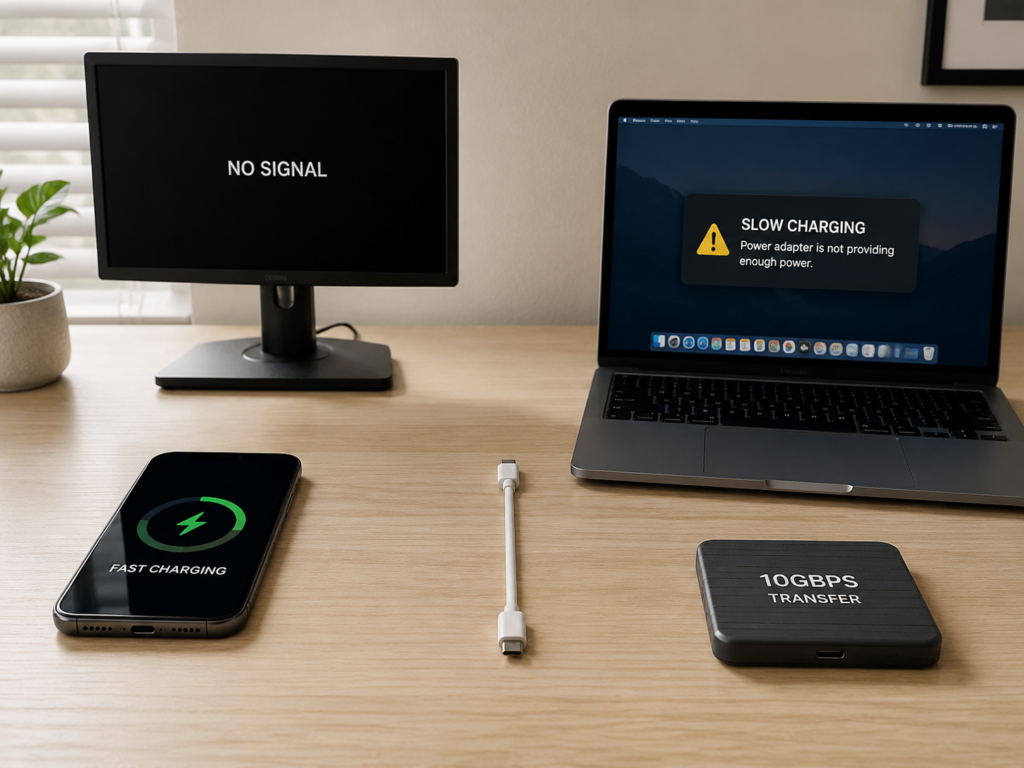
First, Match the Situation: What Kind of “Same Cable, Different Performance” Are You Encountering?
The “different performance” of USB-C cables usually falls into several categories, you can first compare with your own situation to make a preliminary judgment.
The most common is the difference in charging speed: the same cable can fast charge a phone, but prompts slow charging for a tablet or laptop, a speed difference of 2 to 10 times is very common, in severe cases, the battery even drops while charging, or small devices can be charged, but high-power devices cannot even maintain power supply at all.
The second category is the difference in data transmission: for example, it is fast when connected to a portable SSD, but slow when transferring files to a phone; some computers can recognize external hard drives, while some computers have no response at all when plugged in; some also disconnect frequently halfway through transmission.
The third category is the difference in expansion functions: for example, no signal when connected to a monitor, the USB flash drive on the docking station works but the HDMI port has no output, and some functions of external audio, network port, and card reader fail.
There is another category that requires special attention: if the cable or connector has abnormal heating, peculiar smell, loose plug, or different performance when inserted forward and reverse, this type of situation should be treated as a fault first, stop using it immediately to check for safety issues, don’t force it.
Before explaining the reasons in depth, first clarify two basic common senses, which can help you avoid a lot of detours.
First, “the same cable” is only physically the same, it does not mean that all devices will enable all its capabilities — the cable’s capabilities are fixed, but devices will “selectively use” them according to their own needs.
Second, USB-C is first of all the interface shape and connector specification, it does not mean that it automatically supports fast charging, high-speed data, video output, Thunderbolt or USB4. Many people think that as long as it is a C port, it can do everything, which is the biggest cognitive bias. In fact, after a USB-C device is plugged in, a round of “capability negotiation” will be carried out first, and the final performance is jointly determined by the device, cable, protocol, and system settings, not the cable alone.
These Common Misunderstandings Are Most Likely to Make You Judge the Problem Wrongly
First misunderstanding: being able to charge means the cable is completely fine. In fact, the wire cores inside the cable responsible for charging, data, and video are relatively independent. It is possible that the charging core is intact, but the data core or high-speed shielding layer has been damaged. At this time, it can charge but cannot transmit high-speed data or cast screen, which is easily mistaken for a device problem.
Second misunderstanding: USB-C ports look the same, so their functions are the same. Just like the same round power plugs, some are used for table lamps, some are used for air conditioners, the same appearance does not mean the same capabilities. The C ports of different devices may be charging-only ports, USB 2.0 data ports, USB 3.x high-speed ports, full-featured ports, or even faster USB4 or Thunderbolt ports. Different C ports on the same laptop may have different functions.
Third misunderstanding: different performance must mean the cable or device is broken. In fact, most differences are normal results of specification mismatch, just like you drive a car on a bicycle lane, you definitely can’t go fast, it’s not that the car is broken, it’s that the road doesn’t support it.
Fourth misunderstanding: expensive “all-in-one cables” can run at full speed on any device. In fact, the cable is only a transmission carrier, and the final upper limit is determined by the devices at both ends — if you use a 100W high-end cable to charge a phone that only supports 18W charging, it is impossible to achieve 100W speed.
Core Logic: The Essence of Same Cable Different Performance Is “Three-Party Matching”
To understand the essence of same cable different performance, it’s actually very simple, just remember the four words “three-party matching”.
The moment you plug in the USB-C cable, it doesn’t start working directly. Instead, the devices at both ends and the cable will first hold a “negotiation meeting”: the power supply side (such as charger, computer) first reports its own capabilities — how much voltage and current it can output, how fast data transmission it supports, and whether it can output video; the power receiving side (such as phone, hard drive, monitor) then reports the specifications it can accept; if it is a high-specification cable, there is a small chip hidden inside (equivalent to the cable’s “capability ID card”, called E-Marker), which will also report its own upper limit — how much current it can withstand and how fast it can run.
Finally, the three parties will select the highest specification that everyone can accept to operate, which is the actual performance you finally see. If the negotiation fails, it will automatically downgrade: for example, if the fast charging protocol does not match, it will downgrade to ordinary 5V slow charging; if high-speed data is incompatible, it will downgrade to USB 2.0; if video bandwidth is insufficient, it will downgrade to low resolution; if it really can’t be negotiated, it will simply not work.
The three parties here are the upstream device (the end that supplies power or initiates the connection, such as charger, computer), the downstream device (the power receiving or peripheral end, such as phone, hard drive, monitor), and the cable. In addition, system software (such as power saving strategies, driver permissions) also has a certain impact, equivalent to “traffic rules”, which will adjust the actual transmission efficiency.
The whole process fully conforms to the barrel effect: the item with the lowest capability among the three parties is the highest upper limit that can actually be achieved. Because the cable’s capabilities are fixed, the same cable performs differently on different devices basically because the specifications, protocols or settings of the devices at both ends are different. For example, a cable with a nominal power of 100W and a rate of 10Gbps, when connected to a phone that only supports 18W charging, will not become 100W fast charging just because the cable is good; when connected to a phone that only has USB 2.0 data capability, it cannot achieve 10Gbps transmission speed.
Don’t Default That All Device C Ports Are Full-Featured
Special reminder here: don’t default that all USB-C ports on devices are “full-featured”. Some C ports only support charging, and can’t even recognize USB flash drives; some support data, but only have USB 2.0 low speed; some support high-speed data, but cannot output video.
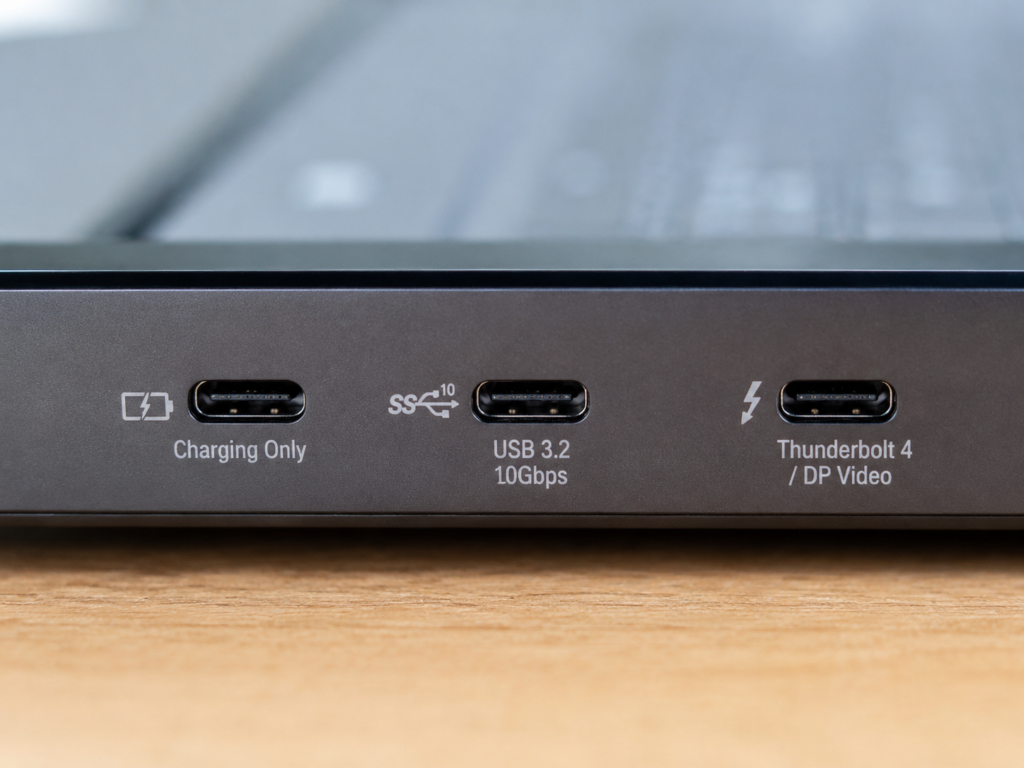
The so-called “full-featured C port” usually refers to supporting charging, high-speed data and video output at the same time, but the specific capabilities also depend on the model parameters, not all full-featured ports have the same specifications. If it is a laptop, even different C ports on the same machine may have different functions. If you want to figure it out, it is most accurate to look at the icon next to the port, the product manual or the official website parameters.
Comparison Table of Common USB-C Cable Types
There are many types of USB-C cables, and different types have very different uses. You can quickly distinguish them by comparing the table below:
| Cable Type | Main Use | Precautions |
|---|---|---|
| Charging cable | Daily charging for phones and tablets | Most only have USB 2.0 data capability, not suitable for high-speed transmission or screen casting |
| USB 2.0 data cable | Ordinary file transfer, connecting keyboard and mouse | Low speed, commonly found in cables included with phones |
| High-speed data cable (5/10/20Gbps) | Portable SSD, capture card, docking station | The higher the rate, the higher the requirements for cable quality and length |
| Full-featured cable | Charging + high-speed data + video screen casting | Still need to check specific power and rate ratings, specifications are not uniform |
| USB4/Thunderbolt cable | High-bandwidth docking stations, professional storage, eGPU docks | Prioritize officially certified products, higher price |
| Active high-speed cable | Long-distance high-speed transmission | Built-in signal amplification chip, may have directionality |
Ordinary users mostly use passive cables in daily use. Active cables are generally used for high-speed scenarios over 2 meters (such as desktop monitors connected to hosts), just read the instructions clearly before purchasing.
Different Charging Speeds: Matching Differences in Power, Protocol and Cable
Charging is the most common difference scenario people encounter. Why does the same cable charge different devices at such different speeds? We can analyze from three perspectives: upstream power supply, downstream power reception, and the cable itself.
Capability Differences of Upstream Power Supply End
The capabilities of different power supply devices vary greatly. For example, for common USB-A ports, old USB 2.0 defaults to only about 2.5W output, USB 3.x defaults to about 4.5W. Even USB-A ports that support BC1.2 (a common fast charging protocol for USB-A ports) or manufacturer’s fast charging have uneven power, everything is subject to the device’s labeling.
Even USB-C ports are not all high-power PD ports — many ordinary C ports on computers can only provide 5V/1.5A to 5V/3A output, that is, about 7.5W to 15W, which can’t even reach the fast charging of many phones.
Regular PD chargers provide multiple voltage and current combinations, such as common 5V, 9V, 15V, 20V. Devices supporting USB PD 3.1 EPR standard can reach up to 240W, mainly used for high-performance laptops. In addition, the fast charging protocol is also very important. If the protocols supported by the power supply end and the power receiving end do not match, it will revert to ordinary 5V charging, or can only run at lower power.
Among the current common fast charging protocols, USB PD is the universal standard for USB-C devices, PPS is a variable voltage protocol commonly used by brands such as Samsung, and there are also QC and each brand’s own fast charging protocols, different protocols are not necessarily compatible.
Capability Differences of Downstream Power Receiving End
The maximum charging power of different devices varies greatly — phones commonly have 20W to 120W, tablets generally 30W to 65W, laptops mostly 45W to 140W. The specific value must be checked according to the parameters of the corresponding model, cannot be generalized.
Moreover, the device itself will actively limit the charging power: for example, when the battery is above 80%, the body temperature is too high, the ambient temperature is too low, charging while using, or running under high load, the charging speed will be reduced. This is the normal protection mechanism of the device, not a problem with the cable or charger.
There are also some low-power devices such as wireless earbuds, old Bluetooth devices, and low-cost power banks, which themselves only support 5V slow charging, no matter how good the cable and charger are, they can’t charge fast. Laptops also have a minimum input power requirement. If your charger and cable power are below this threshold, they may only maintain standby, or even drain the battery while in use.
Impact of Cable Charging Capability
The charging capability of the cable itself is also critical. A compliant 3A current USB-C cable can generally carry a maximum power of about 60W (20V/3A); if it is a 5A cable, it must have the E-Marker chip mentioned earlier. Under the old USB PD SPR standard, it can reach up to 100W (20V/5A), and a 5A cable supporting USB PD 3.1 EPR can reach up to 240W (48V/5A).
Let me emphasize again here: the E-Marker chip is only used to tell the device the upper limit of the cable’s capability, it does not generate fast charging protocols itself, don’t be misled by publicity. Compliant devices will actively limit the current to within 3A if they do not recognize the 5A E-Marker — those cables that can run high power without E-Marker are basically non-compliant and have safety hazards.
In addition, if the cable core is too thin, the connector has poor contact, or the power is falsely labeled, it will cause obvious voltage drop, connector heating, power reduction or even charging interruption.
Why Does the Same Cable Charge Different Devices at Very Different Speeds?
Once you understand the capabilities of these three parties, it’s easy to understand the reason: if device A and the charger support the same fast charging gear, and the cable’s current is sufficient, it can naturally run at full fast charging speed; but if device B does not support this protocol, or its own maximum charging power is very low, no matter how high the cable specification is, it can only charge at low power.
The most common example is laptops and phones: the same 60W cable is completely sufficient to charge a 20W phone, and can even trigger fast charging, but when charging a 90W high-performance laptop, the power is insufficient, it can only charge slowly, or even drain while in use. In addition, many brands’ own fast charging requires original chargers and cables with specific chips to trigger. If you switch to a universal PD cable, you can only use standard PD charging, and the speed will be slower, which is also normal.
Quick Judgment: Is Slow Charging a Problem with the Cable or the Device?
First look at the charger, confirm that it supports the fast charging protocol and power required by the target device; then look at the cable, if the target power exceeds 60W, you need to confirm that it is a 5A cable with E-Marker, if it exceeds 100W, you need a 240W cable with PD 3.1 EPR; if the cable power is already higher than the device’s demand, then the speed upper limit is basically determined by the device and charger, and has nothing to do with the cable.
The most accurate method is cross-testing: with the same charger and the same device, if you can fast charge after replacing a known good high-specification cable, it means the original cable either has insufficient specifications or is already damaged.
Different Transmission Speeds: Matching of Interface Level, Cable Specification and Signal Quality
The difference in data transmission speed is also a problem many people often encounter. Essentially, like charging, it is also determined by the lowest capability of the three parties.
First, let’s give you a reference for the actual speed of different data levels. The nominal values are all theoretical link upper limits, actual use will be lower, and it is also related to file type and storage device performance:
| Data Level | Theoretical Link Upper Limit | Actual Common Speed | Suitable Use |
|---|---|---|---|
| USB 2.0 | 480Mbps | 30-40MB/s | Keyboard and mouse, small files, ordinary phone transfer |
| USB 3.2 Gen1 (5Gbps) | 5Gbps | 350-450MB/s | Ordinary portable hard drives, entry-level SSD enclosures |
| USB 3.2 Gen2 (10Gbps) | 10Gbps | 700-1000MB/s | High-speed portable SSD, large file transfer |
| USB 3.2 Gen2x2 (20Gbps) | 20Gbps | 1500-2000MB/s | Most computer C ports do not support it, relatively rare |
| USB4/Thunderbolt 3/4 (40Gbps) | 40Gbps | 2000-3200MB/s | Professional storage, docking stations, greatly affected by hard drive/heat dissipation |
Note: The nominal speed is the highest upper limit of the entire link, not the actual file copy speed — if there are a large number of small files, mechanical hard drives or low-speed USB flash drives, the actual speed will be much lower, and you cannot judge that the cable has a problem based on this.
Interface Levels at Both Ends Determine the Speed Upper Limit
No matter how good the cable is, as long as the interface level of one end of the computer, phone, hard drive enclosure, or docking station is low, the overall speed will be pulled down.
For example, the computer’s C port is 10Gbps, but the phone’s C port only has USB 2.0, then the same 10Gbps cable used to transfer phone files can only reach USB 2.0 speed; another example, the portable SSD enclosure supports 10Gbps, but the computer’s C port is only 5Gbps, then the speed test will definitely not exceed 5Gbps level. Some devices’ C ports are charging-only, with no data function at all, the computer can’t recognize the device at all when plugged in, which is also not a cable problem.
Impact of Cable Specifications on Data
Many brands include fast charging cables with their devices, which only retain USB 2.0 data capability to control costs, and will be very slow when transferring large files.
Regular high-speed data cables will mark the rate on the packaging or the cable body, such as 5Gbps, 10Gbps, 20Gbps, 40Gbps. If there is no mark, don’t default that it supports high-speed transmission. In addition, the longer the cable, the more obvious the attenuation of high-speed signals, so when connecting high-speed peripherals such as portable SSDs, capture cards, and docking stations, prioritize using shorter, certified cables for better stability.
If the cable’s shielding layer is of poor quality, or the internal high-speed wire core is damaged, there will be situations where the device can be recognized but the speed drops, the copy is interrupted halfway, and the peripheral is repeatedly disconnected.
Easily Overlooked Software and Device Limitations
There are also some easily overlooked software and device factors that can cause different transmission speeds. For example, after a phone is connected to a computer, it defaults to “charging only” mode, you need to manually pull down the notification bar and select “File Transfer (MTP)” mode to transfer files; for iPhone, iPad or some Android devices, you also need to click “Trust This Computer” to authorize before you can access photos and files.
Windows system power management, USB selective suspend settings, or enterprise system management policies may limit the speed and permissions of external storage. In addition, the main control performance of the portable hard drive enclosure, the exhaustion of SSD cache, and the device overheating and slowing down will all cause different speeds when the same cable is connected to different hard drives, don’t blame the cable right away.
Quick Judgment: Is Slow Data a Problem with the Cable or the Device?
Find a computer known to support high speed, plus a known good high-speed SSD enclosure, connect and test with this cable. If it can reach the expected speed, it means the cable is basically qualified; if even all high-speed devices can only reach USB 2.0 level, then it is very likely that the cable itself is USB 2.0, or the internal high-speed wire core has been damaged; if only one device is slow, prioritize checking the interface level, system settings, drivers, and the performance of the storage itself of this device.
When testing speed, it is recommended to use a single large file or a special disk speed test tool. Don’t use the copy speed of a large number of small files to judge the cable specification, the result will be inaccurate.
Screen Casting and Docking Station Not Working: Matching Differences in Video Capability and Bandwidth
Many people also encounter the situation of same cable different performance when using USB-C cables to connect monitors and docking stations, for example, it can cast screen when connected to a computer, but no signal when connected to a phone, or the USB flash drive on the docking station works but the HDMI port has no output. To understand this, you first need to know where USB-C video comes from.
Ordinary USB-C ports are mainly used for data transmission and power supply. If they support DP Alt Mode (Video Alternate Mode, simply put, switching part of the high-speed data channels to DisplayPort video signals), they can be used to connect monitors. If it is a USB4 or Thunderbolt interface, it can also carry signals such as PCIe, DisplayPort, and USB data at the same time through tunneling technology, which is suitable for connecting high-specification docking stations with complex functions.
There is a key misunderstanding here: it’s not that “the cable supports Alt Mode” can cast screen. First, your computer, phone or tablet must itself support video output, second, the bandwidth of the cable, docking station, and monitor must also be sufficient, all three are indispensable.
Differences in Video Support on the Device Side
The video output capabilities of different devices vary greatly. Among phones and tablets, only some flagship models, iPad Pro, some iPad Air, models supporting Samsung DeX, etc. support video output, most mid-range and low-end models do not.
On the laptop side, most business laptops and high-end laptops support USB-C video output, but many low-cost laptops or some C ports may only have charging and data functions, and cannot cast screen. Many USB-C ports on desktop motherboards only support data transmission, and are not necessarily connected to the video output of the graphics card, so plugging in a monitor may have no response.
In addition, the capabilities of monitors and docking stations also vary greatly. Some only support video input, some also support USB data expansion and reverse power supply to the computer. Pay attention to the parameters when using.
Different Bandwidth Requirements, Different Performance
Different bandwidth requirements for video and expansion are also important reasons for different performance. 1080p 60Hz video has relatively low bandwidth requirements, and most full-featured high-speed cables can handle it; but if it is 4K 60Hz, 4K 120Hz, HDR, high color depth, dual-screen output, the required bandwidth will be much higher. If the bandwidth is insufficient, it will automatically reduce the resolution or refresh rate in mild cases, and in severe cases, black screen, flickering, or no signal at all.
If you use a docking station to connect a monitor, portable hard drive, network port, and card reader at the same time, these devices will share the upstream bandwidth of the docking station, which is prone to bottlenecks — for example, after connecting a 4K monitor, the speed of the portable hard drive slows down, which is a normal bandwidth allocation limitation, not a fault.
Some laptops themselves only support one external screen, or do not support MST multi-screen transmission technology (outputting multiple screen pictures through one interface), no matter how good the cable is, it can’t solve it. In addition, too long cables and poor quality adapters will increase the probability of signal instability.
Quick Judgment: Is Screen Casting Failure a Problem with the Cable or the Device?
First, use the same cable to connect a computer and monitor known to support video output. If it works normally but not when connected to a phone, then basically the phone does not support video output; if the same device can normally output 4K60 after replacing a high-specification full-featured cable, it means the original cable has insufficient bandwidth or insufficient signal quality; you can open the monitor’s OSD menu to check the actual resolution and refresh rate, and distinguish whether there is no signal at all, or it has automatically downgraded to low-specification output.
If some functions of the docking station fail, test the display, USB peripherals, network port, power supply and other functions separately, don’t attribute all problems to cable damage.
Don’t Blame Randomly: These “Different Performances” May Be Faults, Settings or Environmental Problems
Not all performance differences are due to specification matching issues. Sometimes they are caused by physical contact, cable faults or system settings.
Physical Contact/Workmanship Issues
The most common is physical contact problems: the USB-C port of the device will get dust and foreign objects stuck after long-term use, resulting in poor contact. And the tightness of the ports of different devices is different, so the same cable works normally when plugged into this device, but may disconnect when plugged into that one. The cable connector will also wear, oxidize, and loosen after long-term use, resulting in situations where it works at a certain angle, disconnects with a light touch, or has different performance when inserted forward and reverse.
There are also some cheap unqualified cables that don’t even have all pins soldered, so charging is normal, but data and video functions cannot be used. When cleaning the port, be careful not to scrape with hard metal objects, which can easily damage the internal pins. It is best to clean with safe methods such as air blowers and soft brushes after power off.
Hidden Cable Faults
There is another situation which is hidden cable faults — it looks fine on the outside, but part of the inside is already broken. For example, several internal wire cores are broken. Low-power charging only needs two wires, so it looks normal, but high-power charging or high-speed data transmission requires more wire cores, which will fail.
If the shielding layer is damaged, ordinary charging will be fine, but when connecting high-speed or high-bandwidth devices such as portable hard drives, capture cards, and monitors, it will disconnect frequently. There is also the situation of excessive contact resistance, which will cause connector heating, unstable charging power, and the device prompting abnormal accessories.
If the cable has obvious heating, peculiar smell, deformation, or damaged outer sheath, be sure to stop using it immediately, especially when used to charge laptops or for high-power fast charging, there are safety risks.
Non-Specification Factors on the Device Side
Settings and software problems on the device side are also easily mistaken for cable faults. For example, Android phones default to charging-only mode after connecting to a computer, you need to manually switch to file transfer, photo transfer or MIDI mode to use the corresponding functions; iPhone and iPad need to click “Trust This Computer” to authorize before connecting to the computer. If you use a charging-only cable or adapter, you definitely can’t recognize data.
Windows system device drivers, power plans, and USB selective suspend settings will affect the recognition and stability of peripherals; after macOS or Windows system updates, or docking station firmware updates, compatibility may also change. Also, computers in enterprises and schools may disable peripherals such as external storage, cameras, and network cards through system management policies. It is normal that there is no response when plugged in, and it has nothing to do with the cable.
1 Minute to Distinguish Between “Specification Difference” and “Fault/Setting Problem”
You can use these small methods to quickly distinguish, it won’t take 1 minute:
First is the clean and re-plug method: clean the ports of the device and cable, re-plug in a different direction and angle. If it returns to normal, it is mostly a contact problem.
Second is the parameter check method: check the parameters on the device’s official website. If it clearly states that it does not support video output or high-speed data, then it is a specification limitation, not a fault.
There is also the replacement verification method: if the same device returns to normal after replacing a known good high-specification cable, it means the original cable either has insufficient specifications or is already damaged.
You can also try the port replacement method: on the same computer, if this C port doesn’t work but another C port does, prioritize checking the specification, driver of this port, or whether it is hardware damaged.
Finally, always remember the safety first method: as long as the cable has obvious heating, peculiar smell, or deformation, don’t check anymore, stop using it immediately, safety first.
Quick Troubleshooting: 3 Steps to Locate the Root Cause of USB-C Cable Problems
When encountering USB-C related problems, don’t guess randomly, follow these 3 steps, and you can basically quickly locate the root cause.
Step 1: Test Separately by Use, Don’t Judge Mixedly
Many people use “can charge” to prove that the cable is fine, which is completely wrong — charging, data, and video are relatively independent functions, one being normal does not mean the others are also normal.
When testing charging, check if the device shows a fast charging sign. If you have a USB power meter, you can check if the actual voltage, current, and power are close to the expected values; when testing data, transfer a single large file or use a speed test tool to observe speed and stability; when testing expansion functions, connect a monitor or docking station separately to check if the resolution, refresh rate, and USB peripherals are normal. Only by testing separately can you accurately find the problem.
Step 2: Check Three-Party Parameters, Find the “Barrel Short Board”
First check the cable: look at the markings on the packaging, cable body, connector or product detail page to confirm its power, current, rate, and certification information; then check the upstream power supply end or host end: for example, the output gear of the charger, the specification of the computer’s C port, whether it supports PD, USB4, Thunderbolt, DP Alt Mode, etc.; finally check the downstream power receiving end or peripheral end: for example, the maximum power, data level, and video capability of phones, tablets, laptops, hard drive enclosures, and monitors.
The lowest item among the three is the performance that should be achieved under normal circumstances. If the actual performance is lower than this, it may be a fault or setting problem. For cables without any markings, treat them uniformly as low-specification, don’t use them on high-power laptops, high-speed portable SSDs or important screen casting scenarios to avoid problems.
Step 3: Cross Replacement, Gradually Eliminate Faults
You can change the port: change to another C port on the same device to rule out specification limitations or hardware damage of a single port; change the device: change to a known good device of the same specification with the same cable, observe whether the performance is consistent, to rule out the problem of a single device; change the cable: change to a known good high-specification cable for the same device, to confirm whether the original cable has insufficient specifications or is damaged; change the charger/docking station: for charging and expansion problems, don’t just change the cable, the power supply end and the docking station itself may also be the short board, which can only be determined after replacement.
To make it easier for everyone to remember, here are a few simple mnemonics:
- Charging speed depends on power, protocol, and E-Marker
- Data speed depends on interfaces at both ends, cable rate, and storage performance
- Screen casting and expansion depend on device video capability, cable high-speed channels, and docking station bandwidth
- Frequent disconnection depends on contact, cable length, shielding, port dust, and power supply stability
You can also compare the common scenario table below to quickly judge the most likely cause:
| Common Phenomenon | Most Likely Cause |
|---|---|
| Phone can fast charge, laptop can’t charge | Cable or charger power is insufficient, or the laptop’s minimum input power is higher |
| Can charge but computer doesn’t recognize phone | Cable is charging-only, or phone hasn’t switched to file transfer mode |
| Portable SSD only runs at tens of MB/s | Cable or device port is USB 2.0, or connected to a low-speed C port |
| Monitor is black but phone can charge | Phone/computer C port does not support video output, or cable is not a full-featured high-speed cable |
| Hard drive slows down after docking station is connected to monitor | Video and USB data share upstream bandwidth, which is a normal bandwidth limitation |
Pitfall Avoidance Guide: Make Cables Work Stably on More Devices
If you want your USB-C cable to work stably on more devices and avoid pitfalls, just remember the following principles.
Choose Cables According to Needs, Don’t Blindly Buy the Highest Specification
Don’t blindly buy the highest specification cable, it’s a waste of money and not necessarily more practical. If you only charge phones and tablets, a PD/PPS cable that meets the device’s power is enough. If the device power exceeds 60W, confirm that the cable is a 5A cable with E-Marker; if charging a laptop, common choices are 100W or 240W USB-C PD cables, and at the same time confirm that the charger and computer also support the corresponding power; if mainly used for data transfer and connecting portable SSDs, choose at least 5Gbps or 10Gbps cables, and for high-speed SSDs, prioritize 10Gbps/20Gbps short cables; if you want to connect monitors and docking stations, choose full-featured USB-C cables, USB4 cables or Thunderbolt certified cables, focusing on whether video capability and bandwidth meet the needs; for professional scenarios such as 4K high refresh rate, dual-screen expansion, Thunderbolt hard drives, and eGPU docks, prioritize short cables with official certification for more guaranteed stability.
Understand Key Markings, Don’t Believe Vague Publicity
For charging products, look at specific parameters such as 3A, 5A, 60W, 100W, 240W, which is much more reliable than vague statements like “super fast charging cable”; for data products, look at rate markings such as 5Gbps, 10Gbps, 20Gbps, 40Gbps, which is more credible than “high-speed transmission”; for video products, look at information such as full-featured, DP Alt Mode adaptation instructions, USB4, Thunderbolt 3/4/5 certification; in terms of certification, products with USB-IF certification and Thunderbolt certification are much more reliable than products with only marketing words.
If a cable only says “Type-C fast charging cable” but does not mark the specific power and rate, you can basically default that it does not support high-speed data and video output, don’t have too high expectations.
Pitfall Avoidance in Daily Use
Don’t use low-specification charging cables to connect high-speed hard drives or docking stations. In mild cases, the speed is slow and disconnection occurs, in severe cases, they can’t be recognized; when using old cables with new devices, lower your expectations. Many old cables only support USB 2.0 or 60W power, which can’t meet the needs of new devices; it’s best to use a fixed cable for important devices to reduce the probability of taking the wrong cable and also reduce plugging wear; when charging at high power, don’t bend the connector, don’t wrap the cable too tightly, don’t put it in a high-temperature environment, to avoid accelerated aging or safety problems; if the cable has obvious heating, loose port, or damaged outer sheath, replace it in time, don’t make do with it.
Reminder About “All-in-One Cables”
High-specification cables are generally backward compatible. For example, a 100W cable can charge a 20W phone, and a 40Gbps cable can also run at USB 2.0 speed, but it cannot break through the device’s own specification upper limit. So don’t think that buying the most expensive all-in-one cable will make all devices run at full speed.
There are also cables that are extremely cheap but claim to support 100W, 40Gbps, 8K, and all Thunderbolt functions. They are most likely falsely labeled, with no guarantee of quality and safety, and are not recommended for purchase. In addition, some active high-speed cables or special-purpose cables may have directionality requirements or compatibility limitations. Be sure to read the product description clearly before purchasing.
For ordinary users, having a 100W/240W long charging cable plus a 10Gbps or USB4 full-featured short cable can basically cover most usage scenarios, which is much more practical than buying a bunch of vaguely advertised cables.
Final Summary
Overall, the same USB-C cable performs differently on different devices, most of the time it is a normal “three-party matching” result, not necessarily that the cable or device is broken.
Just remember three core points: charging depends on power and protocol, data depends on interface level and cable rate, screen casting depends on video capability and bandwidth. The final performance of any item is determined by the lowest capability among the three parties.
When encountering problems, use the method of “check parameters to find short boards + test separately by use + cross replacement verification”, and you can quickly distinguish whether it is a specification limitation, a setting problem, or a real fault.
One last reminder: if the cable has abnormal heating, peculiar smell, loose connector, or frequent disconnection, don’t continue to use it at high power. Prioritize replacing the cable or checking the device port. Safety always comes first.