
Have you ever encountered these situations: while charging your phone, the screen keeps turning on and off with charging prompts; halfway through transferring work files, the external hard drive suddenly ejects, wasting all your effort; the connected USB-C monitor flickers occasionally or even goes black entirely. Many people’s first reaction is: the cable is broken, hurry up and buy a new one. But after replacing the cable, the problem still isn’t solved.
In fact, the reasons for USB-C disconnection are far more than just “a broken cable” — it could be dust in the port, using the wrong cable specification, issues with the charger or docking station, or even just the system’s power-saving settings causing trouble. Don’t rush to replace the cable. Let’s start with the most basic judgments, and step by step figure out the causes of disconnection and how to quickly locate the problem.
First, Judge: Is This an Abnormal Disconnection of the USB-C Cable?
When many people encounter a disconnection, their first reaction is “the cable is broken”, but in fact, many “disconnections” are not cable faults at all, just normal phenomena or problems with usage habits. Take 30 seconds to check first to avoid wasting effort.
What Counts as Abnormal Disconnection?
If the connection is repeatedly interrupted under the premise of normal stationary use without obvious pulling or shaking, or charging, data transmission, and video output dropouts occur multiple times within a day, it is an abnormal situation that requires troubleshooting.
Common abnormal manifestations include: charging prompt sound repeatedly going off, phone screen turning on and off repeatedly, external hard drive ejecting without warning, USB-C monitor flickering occasionally or even going black, and all devices connected to the docking station going offline collectively.
These Situations Are Not Cable Faults, Don’t Misjudge
Some disconnections are normal, don’t blame the cable right away:
- The plug is not fully inserted, resulting in loose contact and disconnection;
- After the computer or mobile phone enters sleep or power-saving mode, the system automatically disconnects idle USB devices;
- Accidentally knocking off or pulling the cable during use causes disconnection;
- Short-term connection interruption during system update or restart.
Normal Boundaries of USB-C Ports
Many people don’t know that the USB-C port itself has no locking design, so a slight amount of play after insertion is normal, there’s no need to think it’s “loose”.
But if the following situations occur, they are abnormal signals: the plug is fully inserted, but power cuts off with a light touch; the plug obviously droops and can’t be fastened tightly; the plug must be placed at a specific angle to connect normally.
If You Encounter These Situations, Stop Using Immediately First
Before troubleshooting, you must first pay attention to safety. Don’t repeatedly plug and unplug to test if the following situations occur:
- The plug or port is obviously hot to the touch, or shows discoloration, burnt smell, or smoke;
- The cable’s outer sheath is cracked, the internal metal shielding layer is exposed, or the plug is deformed;
- If the device or cable has been in water or stained with liquid, do not repeatedly plug the cable to test;
- If an external hard drive or SSD frequently disconnects while writing files, stop the write operation first, back up important data before troubleshooting, to avoid file system damage.
First Match by Fault Type to Avoid Detours
USB-C disconnections have different manifestations, and the common causes vary greatly. You can first match your own situation, and then directly look at the relevant troubleshooting directions later:
- Charging-related disconnection: Fast charging icon appears and disappears, phone screen turns on repeatedly while charging, laptop charging icon flickers back and forth, battery level decreases instead of increasing under high load;
- Data-related disconnection: USB flash drives, mobile hard drives, SSDs eject suddenly, large file copy fails halfway, devices in Device Manager refresh repeatedly, photo import is interrupted midway;
- Audio and video-related disconnection: USB-C monitor flickers, goes black, resolution automatically decreases, HDMI/DP output of docking station is suddenly interrupted, USB-C earphone sound stutters;
- Peripheral-related disconnection: Keyboard, mouse, card reader, network card go offline randomly; after connecting a Hub, multiple devices fail at the same time.
Most Common Cause: Poor Physical Contact
In daily repairs and actual troubleshooting, poor physical contact is usually the first and most worthwhile direction to prioritize — many times it’s not a broken cable or a broken device, just the contacts not being tightly fitted.
First Check the Cable Plug End for Problems
The plug is the place where contact problems are most likely to occur. There are several common situations:
- Dust ingress or foreign object stuck: Dust, pocket lint, food crumbs from backpacks get stuck in the gaps of the plug contacts, causing the contacts to not fit tightly. Cables that are often placed in pockets, backpacks, or cars are particularly prone to this problem;
- Wear or deformation: For cables that have been used for a long time, the metal contacts of the plug will turn black, be scratched, or even the outer shell will crack and the metal shell will deform. If the same cable disconnects when plugged into multiple devices, prioritize suspecting a plug problem;
- Hidden break of the core at the root: This is the most easily overlooked situation — the outer sheath of the cable looks intact, but at a position 1-3 cm near the plug, the internal copper wire has broken due to repeated bending, with only a few thin filaments connected. The typical manifestation is: disconnection occurs when gently bending the position near the plug, and connection resumes when bent back to the original angle;
- Plug shell interference: The plug shells of some third-party cables are thicker. When a thick phone case, tablet protective case, or computer protective case is used, the plug cannot be fully inserted, so it is naturally easy to disconnect.
Then Check the Device Port End for Problems
If you have replaced several good cables and they all easily disconnect when plugged into the same device, it is most likely a problem with the device’s port:
- Dust accumulation at the bottom of the port: This is most common in mobile phones and tablets. When inserting the cable, dust is pushed to the bottom of the port. Over time, the dust is compacted and pads the bottom, preventing the plug from being fully inserted. Look at the port against the light; if you can see a layer of grayish stuff, that’s what’s causing the trouble;
- Decreased port clamping force: Frequent plugging and unplugging, long-term oblique insertion (for example, the cable is caught by the edge of the table and pulled in one direction all the time) will loosen the metal shrapnel of the port, and insufficient clamping force causes the plug to shake easily. If multiple normal cables are loose in this port and disconnect with a light touch, it is basically a clamping force problem;
- Contact oxidation or corrosion: Sweat, humidity, water ingress, and cleaning liquid residue will cause the metal contacts of the port to oxidize and rust, manifested as intermittent connection, plug heating during charging, and the need to adjust the angle to connect;
- Motherboard or flex cable problem: If the device has been dropped, exposed to water, or disassembled and repaired, it may cause the port flex cable to loosen or the motherboard solder joints to fall off. This situation cannot be solved by replacing the cable, and requires professional inspection and repair.
Easily Overlooked Contact Interference Factors
Some contact problems are not caused by a broken plug or port itself, but by external factors that many people don’t think of:
- The protective case is too thick, pressing against the plug shell and preventing it from being fully inserted;
- The edge of the table, chair wheels, stands, car mounts hold the cable, and long-term oblique force pries the plug loose;
- Using magnetic tips, adapters, extension cables — each additional connection point adds a fault point, and any loose one will cause disconnection;
- Small hard foreign objects (such as broken plastic, metal shavings) are stuck in the port, which are hard to detect with the naked eye, but can lift the plug so it can’t be fully inserted.
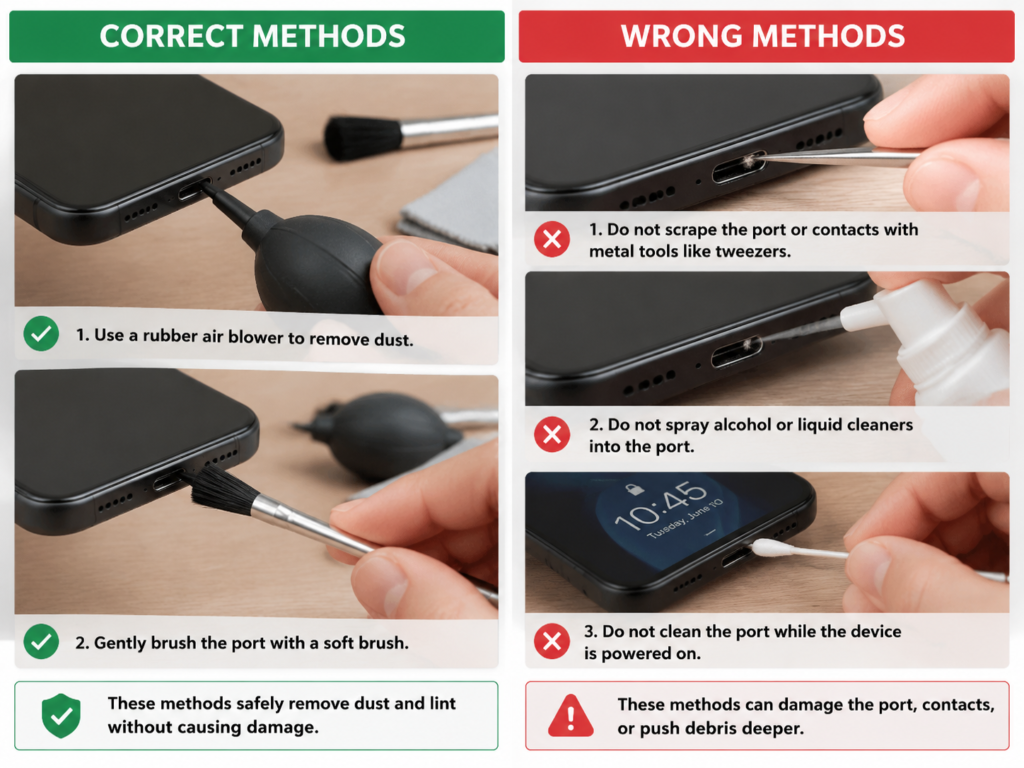
Boundaries of Cleaning and Handling
If it is a contact problem caused by dust accumulation, you can try to clean it yourself, but you must pay attention to the boundaries, don’t turn a small problem into a big fault:
- What you can do: First turn off the device, unplug all power sources, use a clean air blower (like the kind used for camera lenses) to blow into the port, or gently brush with a soft brush. You can also use a soft wooden or plastic tool (such as the edge of a clean plastic pry bar) to gently scrape off the compacted dust;
- What you must never do: Scrape the contacts with metal needles or tweezers (easy to damage the plating or even cause a short circuit), spray alcohol or cleaning liquid into the port (liquid inflow will corrode the motherboard), clean while powered on;
- What should be sent for repair: The port is obviously loose, contacts are deformed, corroded by liquid, or after cleaning, it still needs a specific angle to connect. Don’t tinker with it yourself, find a professional to handle it.
Hidden Causes: Internal Faults and Non-Cable Factors
Some disconnection problems are hidden deep. The cable looks fine and the specifications are correct, but it’s just unstable. At this time, internal faults or non-cable factors should be considered.
Hidden Faults Inside the Cable
- Cold solder joint or oxidation of the cable core: If the cable has been in water, used in a high-temperature environment for a long time, has poor workmanship, or is frequently pulled, it may cause the solder joints of the internal core to loosen and the copper wire to oxidize. It is manifested as intermittent connection even without obvious shaking, and the problem will gradually worsen;
- E-Marker chip abnormality: Another hidden fault is related to the E-Marker chip in the cable. This chip is equivalent to the “capability ID card” of the cable. High-power cables that support more than 3A current, 5A/100W/240W usually require it; some USB4/Thunderbolt cables also report speed and function limits through it. If the chip is abnormal, the device cannot read accurate cable information, which may cause problems such as fast charging failure, power jump, and speed negotiation failure;
- Shielding layer damage: High-speed data and video transmission rely heavily on the cable’s shielding layer to resist external electromagnetic interference. If the cable has been crushed by heavy objects or frequently twisted, the shielding layer may be broken, but it can’t be seen from the outer sheath. It is particularly easy to drop the connection in places with complex electromagnetic environments (such as near high-power electrical appliances, wireless charging pads);
- Increased contact resistance: Plug oxidation, poor solder joints, and core damage will all lead to increased contact resistance, causing heating and increased voltage drop when powered on. In severe cases, the device’s protection mechanism will be triggered, directly cutting off the power supply.
Problems with the Charger or Power Supply End
Many times the disconnection is not a problem with the cable at all, it’s the fault of the charger or power supply:
- Insufficient power: The nominal power of the charger is lower than the device’s demand. It may barely work under light load, but once the device is under high load (such as playing games on a mobile phone, editing videos on a laptop), insufficient current will cause disconnection or power reduction;
- Protocol incompatibility: There are many types of fast charging protocols, such as USB PD, QC, VOOC, SCP, etc. The compatibility between different protocols is poor, and they may only charge at ordinary 5V, or even repeatedly negotiate and disconnect;
- Power redistribution of multi-port chargers: When using a multi-port charger, plugging in or unplugging another device will cause the charger to redistribute the power of each port, and the original device will be briefly disconnected from charging, which is a normal phenomenon. But if it jumps frequently and repeatedly, you need to check whether the charger quality is up to standard, or whether the total power is insufficient to drive all devices.
Judging whether it is a power supply end problem is very simple: if the same cable and the same device work fine after changing to a different charger, socket, car charger, or power bank, then it is basically a power supply problem.
Problems with Docking Stations, Hubs, and Adapters
If you use intermediate devices such as docking stations, hubs, adapters, and magnetic tips, the probability of disconnection will be much higher — each additional intermediate link adds a fault point:
- A hub without independent power supply connected to too many devices will cause insufficient power supply, and peripherals will go offline randomly;
- The docking station undertakes multiple functions such as charging, monitor, network port, and hard drive at the same time, which has extremely high requirements for cables and power supplies. If any link can’t keep up, it will be unstable;
- Adapters, extension cables, and magnetic tips not only increase contact points, but may also affect protocol negotiation, leading to compatibility issues.
The judgment method is also very simple: remove all intermediate devices, connect the device directly with the cable. If the direct connection is stable, then the problem lies in the intermediate link — either insufficient power supply, poor compatibility, or a problem with the docking station firmware.
System, Driver, and Setting Problems
Sometimes all the hardware is fine, it’s just the system settings causing trouble:
- Windows system: USB selective suspend (automatically disconnects idle USB devices to save power), power management settings, chipset drivers, graphics card drivers, and outdated docking station firmware may all cause disconnection;
- macOS system: Energy-saving setting options, external monitor compatibility, docking station firmware, and short-term compatibility issues after major system version updates may all affect stability;
- Android/iPadOS: Port mode switching, OTG power supply limits, system permission pop-ups, and device overheating protection can also cause disconnection.
If the same set of cables and devices is stable when plugged into another computer, and only a certain computer or a certain system drops the connection, prioritize checking settings, drivers, firmware, and system logs.
Environmental Factors
There are also some environmental factors that affect stability. Although they are not the most common, they are worth considering:
- High temperature will increase resistance and make it easier to trigger the device’s overheating protection; humidity will accelerate contact oxidation, leading to poor contact;
- Bumps in car scenarios will amplify originally minor contact problems — cables that work fine when stationary will easily disconnect when shaken;
- Strong electromagnetic interference: for example, near poor-quality power supplies, high-power motors, wireless charging coils, and industrial equipment, electromagnetic interference is strong, and cables with poor shielding are prone to disconnection. Ordinary home routers and mobile phone signals generally do not cause USB-C disconnection, so there’s no need to suspect them first.
Quickly Locate Common Causes by Scenario
If you don’t want to troubleshoot step by step, you can directly match your usage scenario and check the most common causes first:
Frequent Disconnection When Charging Phones/Tablets
Prioritize checking: dust accumulation at the bottom of the port, protective case pressing against the plug, hidden break of the cable core at the root, incompatible fast charging protocol of the charger.
If the fast charging icon jumps repeatedly, confirm whether both the cable and charger support your phone’s fast charging power and protocol.
If disconnection only occurs with a car charger or power bank, prioritize suspecting unstable power output, car bumps, or loose port.
If you have to adjust the angle to charge after plugging in, it is basically a problem with the port contact, cable plug, or internal core.
Unstable USB-C Charging on Laptops
First test with original or certified cables and chargers that clearly support the corresponding power to rule out cable and charger problems.
If charging cuts off or battery drains under high load (playing games, editing videos), it may be that the charger power is insufficient, the cable does not support high power, or the docking station output power is not enough.
If it disconnects after closing the lid or entering sleep, it is mostly a system power management strategy, not a cable fault.
If only one USB-C port has a problem, first check whether that port supports charging input, then check if the port is worn.
Repeated Ejection of External Hard Drives/SSDs
Prioritize checking: whether the cable’s data specification is sufficient, whether the port is loose, whether the power supply is adequate, and whether the Hub’s power supply capacity meets the standard.
High-speed SSDs have much higher requirements for cables and power supplies than ordinary USB flash drives, and are more likely to expose problems.
If disconnection occurs during large file writing, stop using it first, back up important data before troubleshooting, to avoid damaging the hard drive’s file system.
If direct connection to the computer is stable, but connection via Hub is unstable, prioritize replacing with a Hub with independent power supply, or reduce the number of devices connected at the same time.
Flickering Disconnection of USB-C Monitors or Docking Stations
First confirm three things: whether the computer’s USB-C port supports video output, whether the cable supports video, and whether the monitor/docking station supports the corresponding mode.
For 4K, high refresh rate, HDR, multi-screen output, prioritize using clearly labeled USB4/Thunderbolt cables, or high-spec full-featured USB-C cables.
If it becomes stable after reducing the resolution or refresh rate, it means the link bandwidth or stability is insufficient, which may be a problem with the cable, docking station, or port.
If all peripherals drop together when connected to the docking station, check the docking station’s power supply, power adapter, firmware, as well as the cable’s power and data specifications.
Disconnection in Car, Public Charging Ports, and Mobile Scenarios
Many of the USB ports built into vehicles only support low-power charging or limited data functions, and do not necessarily support fast charging. Don’t judge that the cable is broken just because charging is slow or occasionally disconnects in the car.
Car bumps and the weight of the hanging cable will amplify the problem of loose contact. Try to choose a cable of appropriate length, don’t let the cable hang and sway in mid-air.
The quality and power supply of public USB ports are uneven, and there may be security risks. Don’t blame your own cable as soon as it disconnects. When privacy is involved, it is recommended to use public USB ports only for charging, and use charge-only cables or data blockers if necessary.
10-Minute Quick Troubleshooting Method: Locate the Responsible Party in Order
If you want to accurately find the problem, you can troubleshoot step by step in this order, starting with the simplest operations to avoid pointless tinkering.
Step 0: First Confirm Safety, Protect Devices and Data
As indicated by the safety signals mentioned earlier, first ensure there are no risks before troubleshooting: stop using immediately if there is heating, burnt smell, discoloration, or liquid ingress; if an external hard drive/SSD goes offline, stop writing first and back up important files; when the device has low battery and is under high load, turn off high-power-consuming programs before troubleshooting to avoid unexpected shutdown.
Step 1: Test with Another Device to Judge If It Is a General Cable Abnormality
Take the same cable and plug it into another confirmed normal USB-C device to test.
If it still disconnects after changing the device, the probability of a cable or charger problem is higher; if it becomes stable after changing the device, the problem is most likely with the original device — either a port problem, or a system or setting problem.
Step 2: Test with Another Cable to Establish a Control Group
Find a confirmed intact cable with the same or higher specifications, and test it with the same device and the same charger/docking station.
If it returns to normal after changing the cable, then the original cable is either broken or has insufficient specifications; if it still disconnects after changing the cable, continue to check the device, power supply, docking station, and system.
Step 3: Gently Shake the Plug and Cable Root to Troubleshoot Contact Problems
After the cable is stably inserted, gently shake the plugs at both ends, then gently bend the cable body 1-3 cm near the plug to see if it triggers disconnection.
If it disconnects when shaking a fixed position, it means there is poor contact at that position, or a hidden break of the internal core.
Note: Don’t forcefully bend the port, otherwise what was originally just a little loose will be completely damaged by you.
Step 4: Test Under Low Load and High Load Respectively
Test under low load and high load scenarios respectively:
- Low load: ordinary charging, connected to low-speed USB flash drive, low-resolution display output;
- High load: fast charging, transferring large files, connected to high-speed SSD, 4K/high refresh rate monitor, docking station with multiple devices working at the same time.
If it is stable under low load and only disconnects under high load, prioritize suspecting insufficient specifications, insufficient power supply, too long cable, poor shielding, or insufficient docking station capability.
Step 5: Reduce Intermediate Links
Remove intermediate devices such as magnetic tips, adapters, extension cables, Hubs, and docking stations, and try connecting the device directly with the cable.
If direct connection is stable, then the problem lies in the intermediate link — either insufficient docking station power supply, poor adapter compatibility, or too many contact points.
Step 6: Change the Power Supply and Usage Environment
Try a different charger, socket, car charger, or power bank, then try a different environment (for example, away from high-power electrical appliances, wireless charging pads, poor-quality power adapters).
If it recovers after changing the power supply, prioritize suspecting power output or protocol problems; if it recovers only after changing the environment, then consider electromagnetic interference, temperature, humidity, or cable shielding problems.
Corresponding Handling of Troubleshooting Results
After finding the cause, handle it accordingly:
- Recovers after changing cable: replace with a cable that meets power, data, and video requirements;
- Recovers after changing device: clean or repair the original device’s port, check system settings and drivers;
- Recovers after changing charger: replace with a charger with matching power and protocol;
- Recovers after removing Hub: replace with a Hub with independent power supply, upgrade docking station firmware, reduce the number of simultaneously connected peripherals;
- Disconnects only under high load: upgrade cable specifications, shorten cable length, reduce display parameters, or replace the docking station;
- There is heating or burn damage: stop using immediately, send for repair and inspection, don’t continue to test and make mistakes.
Common Misconceptions and Cable Selection & Maintenance Tips
Finally, let’s talk about a few common pitfalls, as well as how to select and maintain cables daily, to reduce disconnections from the root cause.
Common Misconceptions
- All USB-C cables are universal: Wrong. There are great differences in power, data, video, and Thunderbolt capabilities. Using them interchangeably will at best fail to achieve the desired effect, and at worst cause instability;
- If the cable’s skin isn’t broken, it’s not damaged: Wrong. Hidden breaks in the internal core, cold solder joints, chip abnormalities, and shielding layer damage may all have an intact appearance;
- Disconnection must be a cable problem: Wrong. Device ports, power supplies, docking stations, system settings, and the environment can all cause disconnection. Don’t buy a new cable right away;
- New cables must be high-spec: Wrong. Many new cables are just basic charging cables, and don’t even support USB 3.0. Be sure to check the parameters when buying;
- If it can fast charge, it can transmit video: Wrong. Charging capability and video capability are two independent paths. Being able to fast charge does not mean it can connect to a monitor;
- If it can transfer files, it can connect to a monitor: Wrong. Video output requires the device, port, and cable to jointly support the corresponding mode. Ordinary data cables do not necessarily support it;
- If a system pop-up prompts a cable abnormality, the cable must be broken: Wrong. Driver, firmware, and power management problems may also trigger similar prompts.
Daily Maintenance Tips
With good maintenance, a cable can be used for several years and is less prone to problems:
- When unplugging, hold the plug shell to pull, don’t yank the cable body, otherwise it’s easy to break the root;
- When storing, don’t fold it sharply, especially the root of the connector. The bending radius should be as much as possible 5-10 times the cable diameter (don’t bend it into an acute angle);
- Don’t let the weight of the phone, tablet, or mobile hard drive hang on the cable. For example, hanging the phone in mid-air while charging will easily break the root due to long-term stress;
- Don’t wrap the cable tightly around the charger for a long time, especially if the root of the connector is folded. Over time, the internal core will break;
- Avoid humidity, high temperature, exposure to the sun in the car, and liquid ingress, all of which will accelerate oxidation and damage;
- When cleaning the port, be sure to cut off the power first, use an air blower or soft brush, don’t use metal tools, and don’t spray liquid cleaner.
When to Replace the Cable
When the following situations occur, you can consider replacing the cable:
- The same cable disconnects when plugged into multiple different devices;
- The cable root is cracked, the plug is deformed, the contacts are blackened, or there is obvious heating;
- It must be placed at a specific angle to connect;
- It repeatedly drops the connection in high-load scenarios, and the device and power supply are confirmed to be normal;
- It has been used for a long time, and is frequently bent, pulled, used in the car, or crushed by heavy objects.
Select Cables by Use to Avoid Pitfalls
You don’t have to blindly buy the most expensive cable, just choose according to your needs:
- Only for ordinary phone charging: just choose a USB-C charging cable with matching power and reliable brand;
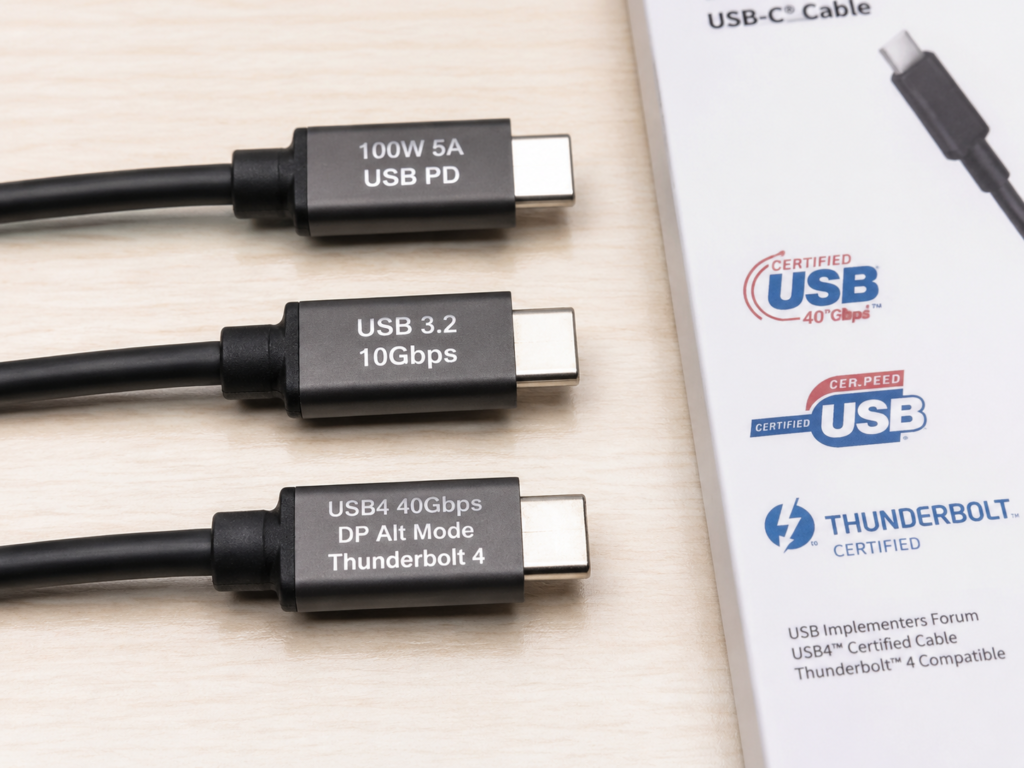
- For charging laptops or high-power devices: choose a cable clearly marked with 100W or 240W, supporting 5A current, and with an E-Marker chip;
- For connecting mobile hard drives/high-speed SSDs: choose short cables clearly marked with data rates (5Gbps/10Gbps/20Gbps/40Gbps), try to choose ones within 1 meter;
- For connecting monitors/docking stations: choose full-featured cables that support video output, DP Alt Mode, USB4 or Thunderbolt, and also confirm that the device port supports the corresponding mode;
- For car or mobile scenarios: choose cables with firm connectors, bend-resistant cable bodies, and appropriate length. Don’t buy too long ones to avoid hanging and swaying.
Look for These Keywords When Purchasing
When buying cables, don’t be fooled by vague publicity. Be sure to find products with clearly marked parameters, and prioritize those with formal certifications and brand warranties to avoid buying falsely labeled no-name cables. Focus on these types of keywords:
Summary: Three Core Questions to Quickly Judge Disconnection
Finally, we condense the core logic into three questions. When you encounter USB-C disconnection in the future, ask yourself these three questions first, and you can basically quickly judge the direction:
First question: Is it a cable problem, or a device/power/docking station problem?
If it works after changing the cable, it is mostly that the original cable is damaged or has insufficient specifications; if it works after changing the device, it is mostly a problem with the original device’s port, system, or settings; if it works with direct connection, it is mostly a problem with the Hub, docking station, or adapter.
Second question: Is it poor contact, or specification mismatch?
If it disconnects with a shake, prioritize checking the plug, port, hidden break at the root, and protective case interference; if it only disconnects under high load, prioritize checking power, data rate, video capability, cable length, and docking station power supply; if it only disconnects with a certain power supply, prioritize checking the charger’s power, protocol, and multi-port power distribution.
Third question: How to reduce disconnection from the root cause?
Choose cables clearly marked with power, speed, and video capabilities according to the use, don’t buy unbranded, uncertified generic products; reduce unnecessary adapters and extension cables, as each additional link adds a fault point; avoid bending the root, pulling, humidity, and high temperature in daily use; if there is heating, burnt smell, liquid ingress, or loose port, stop using and send for repair in time, don’t force it.
Although USB-C seems complicated, as long as you understand the basic logic, troubleshooting is actually very simple. There’s no need to rush to buy a new cable as soon as you encounter a disconnection.