
Have you ever had this experience: you spent a lot of money on a high-speed portable SSD, connected it to your computer with a USB-C cable, but had to wait over ten minutes to transfer a few gigabytes of video footage — the speed was even worse than a USB-A hard drive from years ago? Many people’s first reaction is “this USB-C cable is no good”, but the actual situation may be more complicated than you think: sometimes the cable isn’t the cause of the slow speed at all, and other times it is the cable, but not for the reason you think.
Before we start troubleshooting, let’s clarify the scope to avoid wasting your time: this article only discusses cases where the device is stably recognized, but the data transfer speed is significantly lower than expected, such as slow file transfer when connecting a computer to a portable hard drive, external SSD, card reader, camera, or mobile phone. It focuses on speed drops caused by low-spec, damaged, or overly long USB-C cables, and mismatches with Thunderbolt/USB4 devices. Slow charging, unrecognized devices, frequent disconnections, slow wireless transfer/cloud download/LAN file transfer are all outside the scope of this article. Put simply: you only need to consider cable issues when the device is stably connected and the speed is consistently and significantly below the rated level of the device and port.
First, Figure Out: Is Your Slow USB-C Transfer Really Caused by the Cable?
Often when you think the transfer is slow, it has nothing to do with the cable at all — it’s just “false slowdown”. Rule out these three most common cases first before checking further.
First Rule Out 3 Types of “False Slowdown”: Appears Slow But Unrelated to the Cable
The first type is slow transfer of small files. If you’re transferring thousands of photos, a bunch of small engineering files, or cache files, the speed will be much slower than transferring a single large file — because for every small file transferred, the system has to perform indexing, permission verification, and file system recording. These operations all take time, and it’s not a problem with the cable.
The second type is slow storage itself. Mechanical hard drives, low-speed USB flash drives, low-speed TF/SD cards, and MTP transfer on old mobile phones have inherently low speed limits — even the best cable won’t make them faster. For example, the sequential read/write speed of a regular 2.5-inch mechanical hard drive is usually only around 100MB/s, which can never fill the bandwidth of high-speed USB-C.
The third type is system state dragging down speed. If you have cloud sync running that’s syncing files on the external hard drive, or antivirus software doing a full disk scan, or your laptop is low on battery and in power-saving mode, or your computer is overheating and throttling, all of these will reduce copy speed and have nothing to do with the cable.
There’s another point that’s easy to misjudge: false speedup caused by caching. When you copy a file, the progress bar flies by in the first few seconds, showing a speed of several GB/s — that’s actually the system storing the file in memory cache first, not the real write speed. The stable value after the cache is full and the speed drops is the real performance of the external device.
1-Minute Quick Initial Check: Swap in a Known-Good Cable Under the Same Conditions
If you’ve ruled out the false slowdowns above and still think the speed is wrong, you can do a 1-minute quick initial check to directly verify if it’s a cable problem.
The premise of the test is completely consistent conditions: use the same USB-C port on the same computer, the same external device, the same single large file over 1GB, close heavy background tasks, and make sure the laptop is plugged in (power-saving mode will limit performance). Then swap in a high-speed USB-C cable that you know is good and clearly marked with its speed rating, and test again.
If the speed improves significantly after swapping the cable, and the negotiated speed shown by the system also increases, then the original cable is most likely low-spec, damaged, or too long. The “significant improvement” here is roughly over 30%, which is just a rule of thumb, not a strict standard; if the speed doesn’t change after swapping the cable, stop focusing on the cable, and prioritize checking the port, hard drive enclosure, storage medium, or system state.
Basic Knowledge You Must Know: USB-C Speed Is Never Determined by the Cable Alone
To understand why it’s slow, you first need to break a common misconception many people have: that USB-C is synonymous with high speed.
The Biggest Misconception: USB-C Is Just a Connector Shape, Not Equal to High Speed
USB-C only refers to the oval connector shape that can be plugged in either way, and has no direct relationship with transfer speed. Even with USB-C cables, some can only run at USB 2.0 speed, while others support 5Gbps, 10Gbps, 20Gbps, or even 40Gbps high speeds.
And you need to remember: charging power, video output capability, and data transfer speed are three independent capabilities of a USB-C cable — you cannot infer one from another. For example, a cable rated for 100W fast charging may only have USB 2.0 data speed; conversely, a 10Gbps high-speed data cable may not support 240W fast charging.
Bucket Effect: The Slowest Link in the Entire Chain Determines the Final Speed
USB-C transfer speed is never determined by a single component, but by the slowest link in the entire transmission chain, which is what we often call the “bucket effect”.
The complete transmission chain includes: USB-C port on computer/mobile phone → USB-C cable → adapter/docking station/monitor hub/hard drive enclosure → storage medium (e.g. SSD, SD card) → system state. If any of these links has a low upper limit, the overall speed will drop to the level of that link.
Here are some common examples:
- If you use a 10Gbps cable plugged into a C port on your computer that only supports 5Gbps, the maximum speed is only 5Gbps;
- If you use a 40Gbps Thunderbolt cable to connect a SATA hard drive enclosure, the upper limit of a SATA SSD is usually only around 500MB/s — no matter how expensive a cable you use, you can’t break through the SATA bottleneck;
- If both the computer and hard drive enclosure support 10Gbps, but a low-speed hub is connected in between, the actual speed may drop to 5Gbps or even USB 2.0.
Don’t Confuse Three Types of Speed: Nominal, Benchmark, and Real-World Copy Are Not the Same
Many people easily confuse three types of speed, leading to wrong judgments about “slowness”:
- Nominal bandwidth: This is the 5Gbps, 10Gbps, etc. written on product packaging, in units of Gbps, which is the theoretical maximum of the protocol. To roughly convert to the MB/s we commonly use, divide by 8 — but you also have to deduct the overhead of encoding, protocol, and controller, so the actual usable speed will be lower than the theoretical value, just like a truck marked with a 10-ton load capacity still has to account for packaging weight when actually loading goods.
- Disk benchmark score: This is the sequential read/write speed measured by software like CrystalDiskMark or Blackmagic Disk Speed Test. This is a relatively ideal state, usually a bit faster than real file transfer.
- File copy speed: This is the transfer speed we see in daily use, which is most affected by the number of files, read/write direction, file system, cache, antivirus software, and system background — and it’s also the scenario where “apparent slowness” is most likely to occur.
Also note: reading from an external drive to a computer, writing from a computer to an external drive, and copying between two external drives may have completely different speeds; also, some SSDs write very fast for the first few dozen GB, but will drop significantly in speed once the SLC cache is used up. This is the SSD’s own strategy, not a cable problem.
A Table to Understand USB Speed Naming: Don’t Get Confused by Merchants’ Mixed Old and New Names
Merchants often mix old and new USB names in their promotions, leaving many people confused. You don’t have to memorize them by rote — just check the table below. The most reliable way is to look for the clear Gbps number and certification logo.
| Official Name | Maximum Bandwidth | Common Former Names/Notes |
|---|---|---|
| USB 2.0 | 480Mbps | Common in charging cables, keyboard/mouse cables, bundled cables; actual transfer speed ~30-40MB/s |
| USB 3.2 Gen 1 | 5Gbps | Former names: USB 3.0, USB 3.1 Gen 1; actual transfer speed ~350-450MB/s |
| USB 3.2 Gen 2 | 10Gbps | Former name: USB 3.1 Gen 2; actual transfer speed ~700-1000MB/s |
| USB 3.2 Gen 2×2 | 20Gbps | Requires dual high-speed channel support from devices; poor consumer-level compatibility |
| USB4 | 20Gbps/40Gbps | Just marking “USB4” cannot determine the speed — you must check the specific tier; USB4 v2 80Gbps is currently rare in consumer products |
| Thunderbolt 3 | Up to 40Gbps | Actual speed affected by cable length, type, and device certification |
| Thunderbolt 4 | Minimum 40Gbps | More unified certification standards; still requires full chain support to reach full speed |
Plain-Language Explanations of Key Terms: Will Be Used for Later Troubleshooting
Several terms will be used in later troubleshooting. I’ll explain them in plain language first so you don’t get confused later:
- Data lanes: The “lanes” inside the cable used for high-speed data transmission. Low-speed charging cables may not have complete high-speed data lanes at all, only a few low-speed paths.
- Protocol: The transmission rules agreed upon by the devices at both ends, corresponding to different specifications such as USB 2.0, USB 3.2, USB4, and Thunderbolt — just like two people need to speak the same language to communicate.
- Negotiated speed: The highest common speed automatically agreed upon by both sides after you plug in the device. This is an important basis for judging the upper limit of the chain.
- E-Marker: A small chip in the cable plug that tells the device how much power and how high a speed the cable supports. But having this chip does not mean it definitely supports high-speed data — many fast-charging cables’ E-Markers are only used to report charging power, and have no high-speed data lanes at all.
- Alt Mode video mode: USB-C can output video. When some docking stations enable high-resolution, high-refresh-rate video, they will allocate high-speed data lanes to video, causing the USB data ports to directly slow down.
These Cases Are Indeed Caused by the USB-C Cable Itself
Having ruled out false slowdowns and understood the basic logic, let’s look at which cases of slow transfer are indeed caused by the USB-C cable itself.
Using a Charging Cable That Only Supports USB 2.0
The most common situation is that you’re not using a high-speed data cable at all, but a USB-C charging cable that only supports USB 2.0. This type of cable is extremely common: cables bundled with mobile phones, cables included with chargers, car charger cables, low-cost C cables, and cables that only promote fast charging/PD/100W/240W mostly fall into this category.
The design focus of this type of cable is charging, and it may only retain low-speed data cores, so data transfer can only run at USB 2.0 level. The typical performance is that the speed is consistently stable at around 30-40MB/s when transferring large files, even when connected to a high-speed SSD.
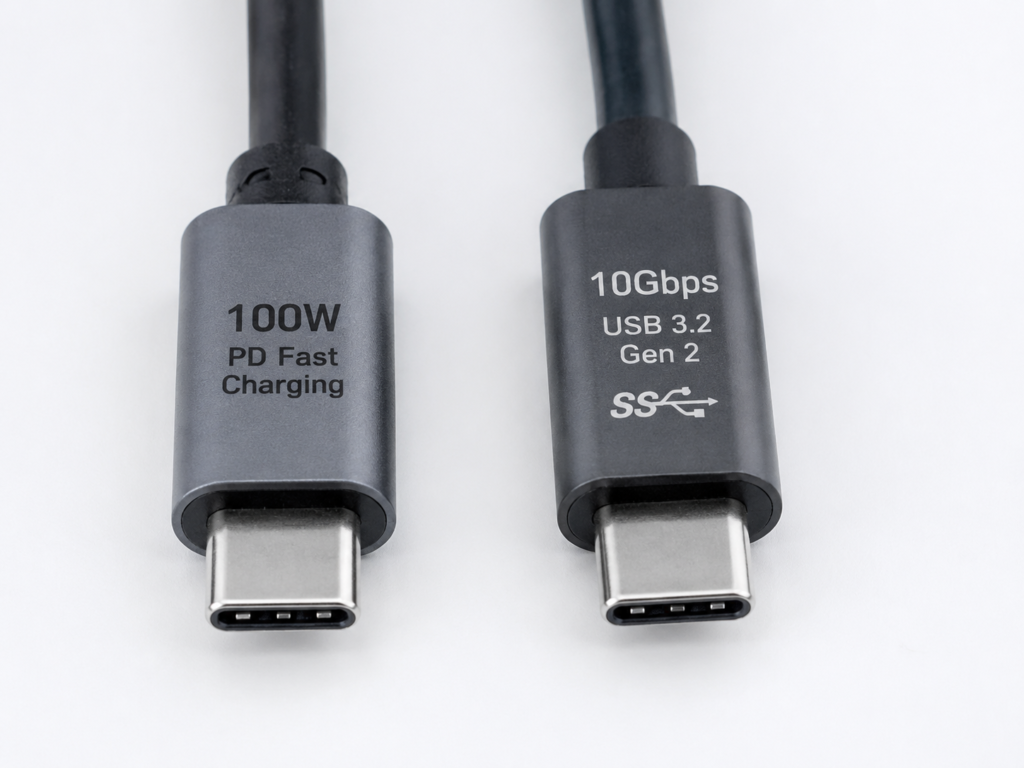
How to do an initial check? If the cable’s packaging or product page does not clearly state 5Gbps/10Gbps/20Gbps/40Gbps, and only mentions fast charging, durability, or suitability for mobile phones, then it’s most likely a USB 2.0 cable. Remember: just because a cable can fast charge your phone doesn’t mean it can transfer data at high speed.
Cable Data Spec Is Lower Than Computer and Peripherals
The second situation is that the speed specification of the cable is lower than the upper limit of the computer and external device. In plain language: both the computer and hard drive enclosure support 10Gbps, but the cable you’re using only supports 5Gbps — then the overall speed can only run at 5Gbps, and the short board of the bucket is the cable.
This often happens when the original cable of a high-speed SSD is lost and you randomly find a regular USB-C cable to replace it, or when a Thunderbolt hard drive enclosure is mistakenly used with a regular USB-C cable, or a USB4 docking station is used with a low-speed charging cable.
The initial check method is also simple: look up the rated speed of the computer port, external device, and cable respectively, and take the lowest one — that’s the theoretical upper limit you can reach. But there’s an exception: if your external device itself is a mechanical hard drive, SATA SSD, or low-speed card reader, then swapping to a higher-speed cable won’t bring significant improvement, because the short board is the storage itself.
Thunderbolt/USB4 Spec, Cable Length, and Certification Mismatch
If you’re using Thunderbolt or USB4 devices, a cable mismatch can also cause speed drops. Many people think Thunderbolt cables make everything faster, but that’s not true: when a Thunderbolt cable is connected to a regular USB device, it can only run according to the USB protocol supported by both sides, and won’t automatically make regular devices faster. Conversely, when a regular USB cable is connected to a Thunderbolt device, it may not enter Thunderbolt mode at all, and can only run in USB mode, with a much lower speed, or even fail to be recognized.
In addition, USB4 cables also depend on the specific tier — there are 20Gbps and 40Gbps versions. You can’t just see “USB4” on the packaging and assume it’s high-speed. Thunderbolt 3 cables also depend on length and type: some longer passive Thunderbolt 3 cables may only run at lower speeds; active Thunderbolt 3 cables have higher speed, but may have limited compatibility with regular USB devices. Relatively speaking, Thunderbolt 4 certified cables have more unified standards and usually support 40Gbps, but they still require the computer, docking station, and peripherals to all support the corresponding speed to reach full performance.
Physical Damage or Aging of the Cable
The fourth situation is that the cable is broken or aged after long-term use. For example, frequent plugging and unplugging of the plug causes wear and oxidation, or dust ingress, moisture, and corrosion cause poor contact — the performance is large speed fluctuations, occasional speed drops, or even drive disconnection. Also, damage to high-speed cable cores, such as the cable being sharply bent, stepped on, crushed, or having kinks or bulges on the cable body, will affect the integrity of high-speed signals.
In addition, damage to the shielding layer can also cause speed drops. For example, if the outer sheath is broken, or the cable is aged from long-term sun exposure, its anti-interference ability decreases, and speed abnormalities are more likely to occur when it is close to power adapters, monitors, or routers.
There’s a very easy-to-misjudge point here: normal charging does not mean the high-speed data lanes are good, because the charging cores and data cores are separate. Many cables have no problem with charging, but their data lanes are already broken. How to do an initial check? If the speed changes significantly when you wiggle the plug or change the bending angle of the cable, or if the same cable is slow on multiple devices, then it’s most likely that the cable is broken.
Excessive Cable Length or Poor Quality Causes Signal Attenuation
The last cable-specific problem is that the cable is too long or poorly made, leading to high-speed signal attenuation. High-speed signals have very high requirements for cable length, shielding, and impedance consistency. If the cable is too long or cut corners in manufacturing, the device will automatically reduce the transmission speed to maintain a stable connection.
Here’s a rule of thumb recommendation: for external high-speed SSDs, prioritize short cables of 0.5-1 meter; for speeds of 10Gbps and above, don’t blindly buy very long passive copper cables. If you need a length of over 2 meters and still want to maintain high speed, choose certified cables, active cables, or fiber optic cables that clearly mark the target speed. Note that there is no unified fixed upper limit for length — it depends on the speed, cable type, certification standard, and device compatibility. Everything shall be subject to the clear marking on the cable.
Don’t Blame the Cable Unfairly: These Slowdowns Have Nothing to Do with the Cable
Many people change the cable as soon as they encounter slow USB-C transfer, only to find that even an expensive cable is still slow — that’s because the bottleneck is not the cable at all. The following situations have nothing to do with the cable, so stop wasting money on new cables.
Port Specifications at Both Ends Are Lower Than the Cable
First and most common: the port specification of the computer or peripheral is lower than the cable, and the short board is the port, not the cable. For example, many computers have multiple USB-C ports with different speeds — some are Thunderbolt 4, some are 10Gbps USB, and some even only support USB 2.0 or are only used for charging; many USB-C ports on monitors are just low-speed hubs with very low speed; also, many mobile phones’ USB-C ports only have USB 2.0 data capability, so no matter how fast a cable you use, transferring photos won’t be faster.
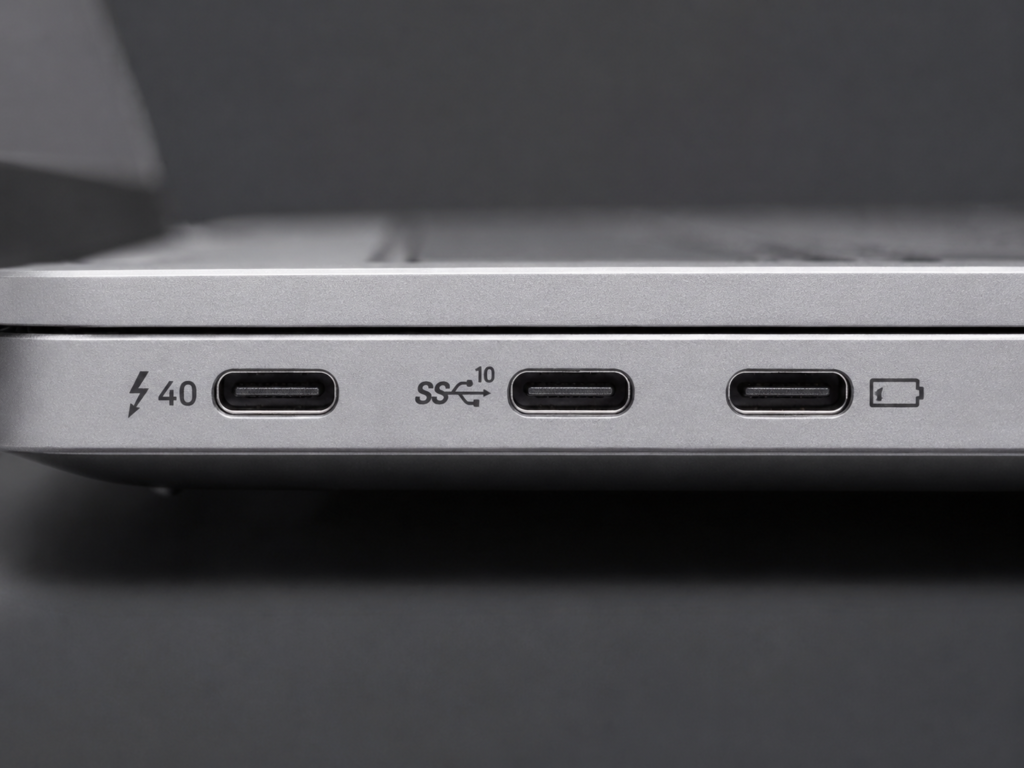
How to judge? Check the device’s manual, official website specifications, or the markings next to the port, such as SS, 5, 10, 20, 40, USB4, or the Thunderbolt icon — these all tell you the port speed. Also note: the USB-C ports on the left and right sides of the same laptop may be provided by different controllers, and their speeds and functions may not be exactly the same.
External Device Performance Cannot Reach the Cable’s Upper Limit
The second situation is that the performance upper limit of the external device itself cannot reach the cable’s speed, and the short board is the storage or the device itself. For example, mechanical hard drives usually have sequential read/write speeds of only tens to 200MB/s, which can never fill a 5Gbps link; SATA SSD hard drive enclosures, limited by the SATA interface, usually have an upper limit of around 500MB/s — connecting a 10Gbps or even 40Gbps cable won’t make them faster; NVMe hard drive enclosures’ speed depends on the controller specification, with different tiers of 5Gbps, 10Gbps, 20Gbps, USB4, or Thunderbolt.
There are also card readers and memory cards: the specification of the card reader, the UHS grade of the SD card, and the write speed of the memory card itself will all limit the overall speed. Not to mention MTP transfer on mobile phones, which is affected by the system, security policies, lock screen, heat, and file indexing, so the speed is usually less stable than external SSDs. In addition, there is the case of SSD cache exhaustion: when writing large files for a long time, the speed suddenly drops from a very high level — this is the SSD’s own cache strategy, not a cable problem.
Adapters, Docking Stations, and Monitor Hubs Slow Down Speed
The third situation is that the intermediate adapter device is holding back performance. If you don’t plug the external device directly into the computer, but connect it through an adapter, docking station, or monitor hub, then the specification of these adapter devices will determine the overall speed upper limit — no matter how fast the cable is, if the adapter only supports 5Gbps, the overall speed can only be 5Gbps.
If there are multiple layers of adapters, such as C to A, plus an extension cable, and then a daisy-chained hub, there will be more signal loss and compatibility issues, and the speed may be even lower. Also, when multiple devices are connected to the docking station at the same time, such as a hard drive, network card, camera, and capture card, they will share the bandwidth of the docking station, so the speed of a single device will naturally decrease.
Also, the Alt Mode video mode we mentioned earlier: after some USB-C docking stations enable 4K high-refresh-rate video, they will allocate high-speed lanes to video, causing the USB data ports to directly drop to USB 2.0 or 5Gbps. How to judge if it’s an adapter problem? It’s very simple: unplug all intermediate devices and connect the external device directly to the computer. If the speed recovers, then the bottleneck is in the adapter chain.
Speed Drops Caused by Power Supply, Heat, and System Policies
The fourth situation is speed drops caused by power supply, heat, or system power policies, which have nothing to do with the cable. For example, if the power supply of a portable hard drive or high-performance NVMe hard drive enclosure is unstable, it may experience speed drops, drive disconnection, or renegotiation to a lower speed. Also, when an NVMe hard drive enclosure writes for a long time, the controller or SSD will heat up, and the speed will drop significantly after thermal throttling is triggered — this is also one of the reasons many people encounter “fast at first, then slow”.
In addition, the laptop’s power-saving mode, USB selective suspend, and low battery state will all limit the performance of peripherals, leading to slower speed. How to troubleshoot? Plug the laptop into power, switch to high-performance mode, and cool down the hard drive enclosure. If the power supply is still insufficient, try a hub or hard drive enclosure with independent power supply.
Speed Drops Caused by Drivers, Firmware, and Port Sharing
The last non-cable cause is problems with drivers, firmware, or port sharing. For example, abnormalities in chipset drivers, USB controller drivers, or the firmware of the hard drive enclosure’s bridge chip may cause incorrect negotiated speed or unstable performance. Also, many computers have multiple USB ports connected under the same controller — if you use multiple high-speed devices at the same time, they will share bandwidth, and the speed of a single device will decrease.
In addition, old systems, old motherboard BIOS, and old hard drive enclosure firmware may have poor support for USB4, 20Gbps, and Thunderbolt docking stations, which can also cause speed drops. For troubleshooting, you can first update the system, motherboard BIOS/firmware, and chipset drivers, then unplug other high-speed devices under the same controller and test again.
5-Step Troubleshooting Method: Precisely Find the Real Cause of Slow USB-C Transfers
After talking about so many causes, you may still not know where to start. Don’t worry — I’ve organized a 5-step troubleshooting method. Follow it in order, and you can precisely find the real cause of slow transfer without guessing blindly.
Step 1: Standardized Testing to Eliminate False Slowdown Interference
The first step is to do a standardized test to eliminate all “false slowdown” factors and avoid wasting time.
For test files, prioritize using a single large file over 1GB — don’t use thousands of small files as the basis for the first round of judgment. The test environment should be unified: turn off background tasks that take up resources such as cloud sync, full-disk antivirus scans, large downloads, and video exports. Make sure the laptop is plugged in and power-saving mode is turned off. During the test, record three indicators: the speed during the stable phase of file copy (don’t count the initial cache peak), the sequential read/write result from speed test software, and the USB negotiated speed shown by the system.
How to interpret? If only small files are slow, and the results for large files and speed test software are normal, then it’s usually not a cable problem. You should optimize file packaging methods, file systems, or turn off programs that occupy background resources.
Step 2: Check Negotiated Speed First, Then Run Benchmark Tests
The second step is to check the negotiated speed first, then run disk benchmarks — these two are the core basis for judging the bottleneck.
The viewing method varies by system:
- Windows users can use the small tool USBTreeView to check the current connection speed, and use CrystalDiskMark to measure the sequential read/write speed of the external drive;
- macOS users can open “System Information” → “USB” to check the speed, and use Blackmagic Disk Speed Test or AmorphousDiskMark to test speed;
- Linux users can use
lsusb -tto check the link rate, and use fio or gnome-disks for simple testing.
If you don’t want to install software, there’s also a simple method: copy a large file, observe the stable speed in the middle and later stages, and ignore the initial cache peak.
There are three principles for interpretation:
- If the negotiated speed is only 480Mbps (that is, USB 2.0 level), prioritize checking whether the cable, port, or hub only supports USB 2.0;
- If the negotiated speed is normal but the benchmark score is very low, prioritize checking the hard drive enclosure, storage medium, heat dissipation, power supply, and system background;
- If the benchmark score is normal but the actual file copy is slow, prioritize checking the number of files, file system, antivirus scanning, and write cache of the target drive.
Step 3: Replace with a Qualified Cable to Determine If It’s a Cable Problem
The third step is to swap in a qualified cable for testing — this is the most direct way to judge whether it’s a cable problem.
The replacement cable must be a short cable that clearly marks the target speed and is confirmed to be in good condition, such as a 10Gbps cable, USB4 40Gbps cable, or Thunderbolt certified cable. During the test, keep the conditions exactly the same as before: the same port, the same device, the same test file, the same power state.
How to interpret?
- If the speed recovers significantly after swapping the cable, and the negotiated speed also increases, then the original cable is most likely low-spec, damaged, or too long;
- If the speed doesn’t change and the negotiated speed also doesn’t change, then the cable is most likely not the main bottleneck — continue to check other links;
- If the speed still fluctuates greatly after swapping the cable, then focus on checking problems such as port contact, hard drive enclosure heat, and power supply stability.
Step 4: Change Ports and Connect Directly to Troubleshoot Intermediate Adapter Links
The fourth step is to change to a different port and connect the device directly to the computer to troubleshoot intermediate adapter links.
When changing ports, prioritize using USB-C ports on the computer with SS, 10, 20, 40, USB4, or Thunderbolt markings — these are usually high-speed ports. Then unplug all intermediate devices, such as docking stations, adapters, extension cables, and monitor hubs, and connect the external device directly to the computer. If you used a docking station before, also temporarily unplug other high-speed devices on the docking station during the test, such as network cards, cameras, capture cards, and other hard drives.
How to interpret?
- If the speed recovers after direct connection, then the bottleneck is in the docking station, hub, adapter, or shared bandwidth;
- If only one specific port is slow, then that port may have a lower specification, share bandwidth with other ports, have driver abnormalities, or be physically damaged.
Step 5: Cross-Swap Devices to Confirm the Final Bottleneck
If you haven’t found the problem after the first four steps, do the fifth step: cross-swap devices to confirm the final bottleneck through controlled variables.
You can do three tests:
- Use the same cable and try it on a different computer to judge whether the original computer’s port, driver, or system policy is limiting the speed;
- Use the same computer and try a different external device to judge whether the external hard drive enclosure, card reader, SSD, or memory card is faulty;
- Use the same device and try different cables and ports to judge whether the cable and port are matched.
Finally, judge based on the results: if the speed increases after changing the cable, prioritize judging it as a cable problem; if the speed increases after changing the port or connecting directly, prioritize judging it as a port or adapter device problem; if the speed increases after changing the external device, prioritize judging it as a storage, hard drive enclosure, or card reader problem; if all combinations are slow, then prioritize checking system settings, the storage itself, or whether your test method is wrong.
Cable Buying Guide: How to Read Labels and Avoid Buying Low-Speed USB-C Cables
Many people easily step into pitfalls when choosing USB-C cables, spending high prices on low-speed cables, or buying high-speed cables they don’t need at all. Below I’ll teach you how to read labels so you don’t buy the wrong one and don’t waste money.
Core Principle: Only Trust Clear Data Speed Ratings, Don’t Believe Vague Promotions
There’s only one core principle for choosing cables: only trust clearly marked data speed ratings, don’t believe vague promotional terms.
What are reliable markings? Those that clearly state 5Gbps, 10Gbps, 20Gbps, 40Gbps, USB4 40Gbps, or Thunderbolt 3/4 certification — these are tangible speed promises. What are vague promotions? Only writing USB-C, Type-C, fast charging, PD 100W, PD 240W, full-featured, HD transmission, or suitable for mobile phones — none of these can prove that the cable supports high-speed data.
Remember: USB-C cables that do not clearly state the data speed are by default not suitable for connecting external SSDs, transferring large file footage, or connecting Thunderbolt/USB4 devices. When buying, don’t just look at the title — check the product details page carefully: data speed, charging power, cable length, certification logo, and whether it supports video output — all of these should be clearly checked.
Common Markings and Corresponding Buying Judgments
How to judge common markings? I’ve organized them for you:
- SS or SuperSpeed: Represents a USB 3.x high-speed cable, but be sure to check if there are numbers like 5, 10, 20 next to it — otherwise you won’t know the specific speed;
- USB 3.2 Gen 1: Corresponds to 5Gbps, not 10Gbps — don’t be fooled by the name;
- USB 3.2 Gen 2: Corresponds to 10Gbps, suitable for most 10Gbps portable SSDs and hard drive enclosures;
- USB 3.2 Gen 2×2: Corresponds to 20Gbps, but only makes sense if both the computer and hard drive enclosure support it; currently compatibility is average;
- USB4: Must check whether it’s 20Gbps or 40Gbps — just writing the three words “USB4” is not precise enough;
- Thunderbolt 3/4: Suitable for Thunderbolt hard drive enclosures, professional docking stations, and high-speed capture devices, but if the full chain does not support Thunderbolt, it won’t reach full Thunderbolt speed.
4 Common Cable Buying Misconceptions
There are also 4 very common cable buying misconceptions that you must avoid:
- Having an E-Marker means it’s a high-speed cable: Wrong. E-Marker is just a chip used to declare the cable’s capabilities. It may only serve high-power charging and have no high-speed data lanes at all. Many 100W fast-charging cables have E-Markers but only have USB 2.0 data capability.
- 100W/240W fast-charging cables must have fast transfer: Wrong. Power supply capability and data speed are independent. Fast-charging cables may only have USB 2.0.
- Full-featured cables must be high-speed: Wrong. “Full-featured” is not a unified certification term, and different merchants have different definitions. Some merchants’ “full-featured” may only mean charging + data transfer + video transfer, but the data may only be USB 2.0 — you still have to look at the specific Gbps rating.
- The thicker, shorter, and more expensive the cable, the faster it is: Wrong. Appearance and price cannot replace specifications. Speed must be based on clear ratings, certification, and actual testing.
Cable Selection Recommendations for Different Scenarios
Finally, here are cable selection recommendations for different scenarios. Buy according to these and you won’t go wrong:
- Regular photo transfer on mobile phones, keyboards/mice, low-speed peripherals: USB 2.0 or 5Gbps cables are sufficient; for transferring large amounts of 4K video, it’s recommended to choose 5Gbps or higher, and also confirm that your phone’s port is not USB 2.0.
- Portable mechanical hard drives: 5Gbps cables are usually sufficient. Focus on cable quality and power supply stability.
- SATA SSD hard drive enclosures: 5Gbps or 10Gbps short cables are sufficient. Cables faster than 10Gbps won’t bring significant improvement, because the SATA upper limit is there.
- NVMe portable hard drive enclosures: Choose 10Gbps, 20Gbps, USB4, or Thunderbolt cables according to the hard drive enclosure’s controller specification.
- Camera footage, video editing, external work drives: Prioritize short cables of 10Gbps or higher, and also confirm that the computer port, hard drive enclosure, and SSD are all matched — otherwise you’re wasting money.
- Thunderbolt/USB4 professional devices: Must choose brand-certified Thunderbolt or USB4 cables — don’t use regular fast-charging cables as substitutes.
- Long-distance high-speed transmission: Choose active cables or fiber optic cables that clearly mark the speed, and also confirm their compatibility range with regular USB, USB4, or Thunderbolt.
Daily Maintenance: Reduce USB-C Cable Slowdowns and Damage
USB-C cables are not consumables, but they can easily break or slow down if used incorrectly. Developing a few small habits can reduce many problems.
Correct Usage Habits
Pinch the plug when plugging and unplugging, don’t pull the cable body directly — otherwise it’s easy to break the cable cores; avoid sharp bends, stepping, crushing by heavy objects, and don’t use it in a tightly stretched state for a long time — otherwise it will damage the high-speed cable cores and shielding layer; stay away from high-temperature heat sources, avoid long-term sun exposure and humid environments — otherwise it will accelerate aging; when writing to an external SSD for a long time, pay attention to cooling the hard drive enclosure, and don’t misjudge speed drops caused by hard drive enclosure heat as cable problems.
Regular Inspection and Cleaning
Regularly check if the USB-C port and plug have dust, lint, oxidation, or looseness; be sure to cut off power before cleaning, use an air blower or special cleaning tools, don’t use sharp metal to scrape the port — otherwise it will damage the contacts; if the plug is blackened, the cable body is bulging, the outer sheath is damaged, or the plug is loose, don’t use it for high-speed transmission anymore — it’s very prone to problems; if the same cable has speed drops or drive disconnections on multiple devices, prioritize replacing the cable and don’t keep using it reluctantly.
When to Replace the Cable
You can consider replacing the cable in the following situations:
- Replacement testing proves that the original cable’s speed is significantly lower than a qualified high-speed cable;
- The negotiated speed stays at USB 2.0 for a long time, while both the computer port and peripherals support higher speeds;
- The cable has physical damage, unstable contact, and speed drops or drive disconnections when wiggled;
- The original cable has no clear speed rating, but you need to use it to connect a high-speed SSD, USB4 docking station, or Thunderbolt device.
But remember: if the bottleneck is the port, hard drive enclosure, storage medium, heat, or system policy, no matter how expensive a cable you change, it won’t solve the problem — don’t waste money.
Common Misconceptions and Quick Judgment
Finally, I’ve organized the most frequently asked misconceptions and a quick judgment comparison table for your initial screening.
Correction of High-Frequency Misconceptions
First, correct a few of the most frequent misconceptions:
- USB-C cables must be faster than USB-A: Wrong. USB-C is just a connector shape, and the speed depends on the protocol, cable, and device specifications. Many USB-C cables only have USB 2.0 speed, which is not as fast as USB-A 3.0.
- Fast-charging cables must have fast transfer: Wrong. Charging power and data speed are independent of each other, and there is no necessary connection.
- Thunderbolt cables make everything faster: Wrong. Only when the full chain supports the target specification of Thunderbolt/USB4 can it reach the corresponding speed.
- Slow external SSD must be a cable problem: Wrong. The hard drive enclosure controller, port, docking station, heat, power supply, and SSD cache may all be bottlenecks.
- The thicker and more expensive the cable, the faster it is: Wrong. Speed is based on clear speed ratings, certification, and actual testing. Thick cables may only have thick charging cores, and may not have data lanes.
- A 40Gbps rating means there must be 40Gbps file copy speed: Wrong. Gbps is the link bandwidth, and the real file speed also has to deduct protocol overhead, and is affected by SSD performance, file type, and system state.
Quick Judgment Comparison Table
The following comparison table can be used for initial screening. The final result shall still be based on negotiated speed and actual testing.
| Stable Transfer Speed Range | Priority Troubleshooting Direction (for initial screening only) |
|---|---|
| 30-40MB/s | USB 2.0 cable/port, phone MTP transfer, low-speed card reader, large number of small files |
| 350-450MB/s | 5Gbps link upper limit, SATA SSD bottleneck, 5Gbps hard drive enclosure/docking station limitation |
| 700-1000MB/s | Normal level for 10Gbps link |
| Nominal 20/40Gbps but actual only 10Gbps level | Insufficient cable tier, computer port not supported, hard drive enclosure controller limitation, docking station shared bandwidth, video output occupying lanes |
| Fast at first then slow, speed drop during long writing | SSD cache exhausted, hard drive enclosure thermal throttling, insufficient power supply, system background occupation |
Conclusion
By now, you should have a clear understanding of the common causes of slow USB-C transfer. To summarize, you should now be able to do these things:
First, you can distinguish whether it’s a cable problem, slow device itself, or system false slowdown, and won’t immediately think of changing the cable as soon as it’s slow;
Second, you can understand that USB-C speed is determined by the slowest link in the entire chain, and can also read common speed markings;
Third, you can use the 5-step troubleshooting method to locate the bottleneck step by step: standardized testing, checking negotiated speed, replacing with a qualified cable, direct connection and port change, and cross-swapping devices;
Fourth, you can judge when to change the cable: low specification, damage, excessive length, no clear speed rating, or mismatch with Thunderbolt/USB4 devices;
Fifth, you can choose the right USB-C cable according to your own usage scenario, avoiding pitfalls and not wasting money.
Next time you encounter slow USB-C transfer, don’t rush to change the cable — follow the method we talked about to troubleshoot step by step, and you’ll find the problem quickly.