
Using USB-C to connect external displays and docking stations is meant to handle charging, data, and video with a single cable, but users often encounter problems like the display showing “No Signal”, the docking station’s USB ports working but the HDMI port not turning on, or the display working but unable to run 4K60. Many people’s first reaction is “the cable is broken” or “the port is faulty”, but in reality, many cases are not caused by hardware damage. Instead, one link in the chain — your USB-C port, cable, or docking station — simply does not support DisplayPort Alternate Mode (DP Alt Mode for short), or the specifications of the entire chain do not match. You can locate the problem step by step starting from basic judgments in the following order. This will not only quickly resolve common faults but also help you understand the logic behind them, so you won’t have to blindly trial and error in the future.
First, Confirm: Is Your Issue a DP Alt Mode Fault?
Plain Language Explanation: What Is DP Alt Mode?
DP Alt Mode is a native video output capability of the USB-C interface — simply put, the host transmits the DisplayPort video signal from the graphics card directly to the display, adapter, or docking station via the high-speed lines inside the USB-C interface, without software transcoding or compression; the image is natively output by the graphics card.
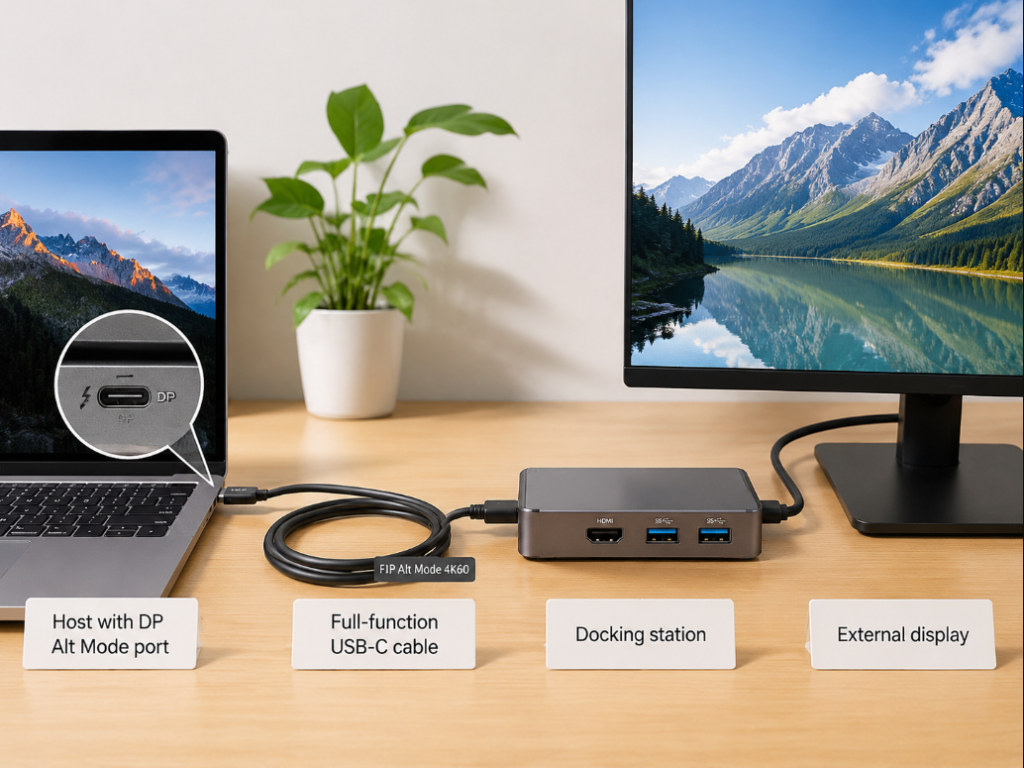
Most of our daily use cases rely on this mode: connecting a laptop directly to a USB-C display via USB-C, using a USB-C to HDMI adapter for a projector, connecting a screen to the HDMI port on a docking station, or plugging a phone into a portable display. The core prerequisite for it to work properly is simple: the entire chain — host USB-C port, cable, adapter/docking station, display input port, and system settings — must all support it and negotiate successfully; missing any link will cause failure.
Typical Fault Symptoms
If you encounter the following situations, it is most likely related to DP Alt Mode: the display shows “No Signal” or “No Input” and is completely black; the USB ports, Ethernet port, and card reader on the docking station work, but only the HDMI/DP port has no image; the system can recognize the second screen, but the display remains black, or flashes once and disconnects; the display turns on, but only supports low resolution and low refresh rate, and 4K60, HDR, or high refresh rate cannot be enabled no matter what; the screen flashes, shows artifacts, or disconnects intermittently from time to time, and works again after re-plugging; a phone or tablet only charges when connected, and does not cast the screen at all.
30-Second Quick Judgment Method
Don’t rush to disassemble your device. Spend 30 seconds doing a few simple tests first to eliminate more than half of misjudgments:
First, don’t test the port with a USB flash drive — many people plug a USB flash drive into a USB-C port, and if it can read and write, they think the port supports video. In fact, USB flash drives only use the USB data channel, while video uses another set of high-speed lines; being able to read a USB flash drive does not prove the port can output video at all.
Second, try switching to a labeled USB-C port on the host: if there is a port with a lightning (Thunderbolt), USB4, DP icon, or display icon, switch to it and test. If the problem is resolved after switching, it is most likely that the original port does not support video, or the port itself is faulty.
Third, try replacing it with a USB-C cable or adapter that is confirmed to transmit video. If the problem is resolved after replacement, the issue is basically with the cable.
Fourth, if the system can detect the external display but there is no image, prioritize checking resolution, refresh rate, HDR, graphics drivers, and the display’s input source settings.
Fifth, if all other functions of the docking station are normal and only the video does not work, prioritize checking whether the host port supports DP Alt Mode, whether the docking station supports video input, and whether the power supply is sufficient.
Common Cognitive Misconceptions for Beginners
Many people struggle for a long time without solving the problem, because their initial understanding is wrong. Here are the most common misconceptions clarified first:
- Not all USB-C ports can connect to external displays. Only USB-C ports that support DP Alt Mode, Thunderbolt, or USB4 video output can do this; many USB-C ports can only charge or transfer data.
- A USB-C cable that can charge can transmit video. Many fast-charging cables only have power supply lines or only support USB 2.0 data, and cannot carry video signals at all; PD charging power and video capability are two different things.
- A docking station with HDMI/DP ports will definitely work. This refers to native DP Alt Mode docking stations: the docking station must be able to receive video signals from the USB-C port, otherwise those video ports are just decorations; DisplayLink docking stations may output images through drivers and USB data even if they do not receive DP Alt Mode, but the troubleshooting logic is different.
- Labels like USB 3.2, 10Gbps, and 100W mean video support. USB data rate and power supply capability have no direct relationship with DP Alt Mode capability; they are not linked.
- DisplayLink and DP Alt Mode are the same thing. They are completely different: DisplayLink relies on drivers and USB data compression to transmit video, while DP Alt Mode is a native video channel of the graphics card, with completely different troubleshooting logic.
- Any cable paired with a Thunderbolt port can output video stably. Thunderbolt/USB4 devices also require compatible cables; long cables, low-quality cables, or mismatched active cables may cause specification downgrades or negotiation failures.
5-Minute Quick Troubleshooting: Start with the Easiest Universal Solutions
After clarifying the basic concepts, let’s first do universal troubleshooting that can be completed in 5 minutes, and most simple problems can be solved at this step.
Set Up a “Minimal Chain” Test
The first step is to build a “minimal chain” — unplug all unnecessary devices, leaving only three items: the host, a USB-C cable/adapter confirmed to support video, and a display. KVM switches, extension cables, capture cards, multiple adapters, HDMI switches, and multi-function docking stations should all be removed first.
If the simplest connection works normally, then reconnect peripherals such as the docking station, keyboard and mouse, mobile hard drive, and Ethernet cable one by one, and see at which step the fault recurs. You can immediately locate which device is causing the problem.
Re-plugging and Connection Order
Don’t underestimate plugging and unplugging; many faults are caused by poor contact or incorrect connection order. First, wake the display and computer from sleep, unplug the USB-C cable, display power, and docking station power, wait 10 seconds, then reconnect.
The recommended connection order is: first connect the display power and turn it on → manually select the correct input source → connect the cable or docking station → finally wake or turn on the computer. The USB-C plug must be fully inserted; thick laptop cases or phone cases that block the plug, or dust accumulated in the port, can cause poor contact. You can also try flipping the direction of the USB-C plug — although theoretically USB-C works both ways, some older devices or low-quality cables may have poor contact on one side.
Input Source and System Display Settings
Don’t rely entirely on the display’s automatic input source recognition; manually select the corresponding input option: USB-C, DisplayPort, HDMI1/HDMI2, and try them one by one.
For Windows systems, press the Win+P shortcut key to switch to “Duplicate” or “Extend” mode, then go to Settings → System → Display and click the “Detect” button. For macOS, go to System Settings → Displays, check if the external display is recognized, and verify whether mirroring mode is enabled and whether the screen arrangement is correct.
First lower the output parameters to the minimum: 1080p resolution, 60Hz refresh rate, 8-bit SDR, turn off HDR and variable refresh rate, first confirm that the basic video chain works, then gradually increase the specifications.
Power Supply and Peripheral Load Check
Active docking stations, Thunderbolt docking stations, and high-power USB-C displays must be connected to an original or sufficient-wattage power adapter, and should not rely solely on the computer’s USB-C port for power. In many cases, when the docking station is powered only by the host, the USB and Ethernet ports work, but the video is unstable, flashes, or disconnects — this is caused by insufficient power supply.
Temporarily unplug high-bandwidth or high-power peripherals such as high-speed mobile hard drives, capture cards, and USB network cards to eliminate the impact of bandwidth competition and insufficient power supply.
Full-Chain Hardware Identification: Find Which Link Is Unsupported or Malfunctioning
If quick troubleshooting does not resolve the issue, we will check link by link from the host to the display to find out which device is unsupported or faulty.
Host Side: Does the USB-C Port Support Video Output?
First look at the labels next to the port: a lightning icon usually represents Thunderbolt, and a USB4 label generally supports video; ports with a DP icon, display icon, or official labels such as “DisplayPort over USB-C”, “DP Alt Mode”, or “full-function USB-C” also usually support video output.
A USB-C port with only a battery icon most likely only supports charging; ports only labeled with USB data rate also cannot directly prove video support. Note that different USB-C ports on the same laptop may have different functions — for example, the left port supports charging + video + data, while the right port only supports data; don’t take it for granted.
The most accurate judgment method is to check official parameters: search for “DP Alt Mode”, “DisplayPort”, “USB-C video output”, “Thunderbolt”, or “USB4” on the brand’s official website, product manual, or specification sheet. Only official explicit support counts. The situation for desktops is more complex: front USB-C, motherboard built-in USB-C, USB-C on the graphics card, and USB-C led out by the case adapter cable have very different functions, so you must check the specifications of the motherboard and graphics card separately.
Mobile Devices: Do Phones/Tablets Support Wired Video Output?
Many mid-range and low-end Android phones have USB-C ports that only support charging and USB data, and do not support DP Alt Mode. Connecting to a display will only charge, and no matter how expensive the cable is, it won’t work. For Android devices that support wired video, some directly mirror the screen, and some also provide desktop mode, such as Samsung DeX and Huawei Desktop Mode. No desktop mode does not mean screen casting is impossible; some devices only support mirroring. The key is still whether the official parameters state USB-C video output, DP Alt Mode, or HDMI output.
The USB-C port of the iPhone 15 series supports DisplayPort video output, but adapter specifications, display compatibility, HDCP content protection, and power supply status will all affect the actual display effect. USB-C/Thunderbolt iPad models usually support external displays, but the mode and resolution of external displays are affected by chip model, system version, and app adaptation.
Cables: Is It a Real Full-Function Cable That Can Transmit Video?
USB-C cables that support video usually have clear labels such as “full-function”, “USB-C video output”, “4K60”, “8K”, “DP Alt Mode”, “USB4”, or “Thunderbolt” on the packaging or cable body. Cables only labeled “fast charging”, “100W”, or “240W” may not be able to transmit video; PD power capability and video capability are independent of each other.
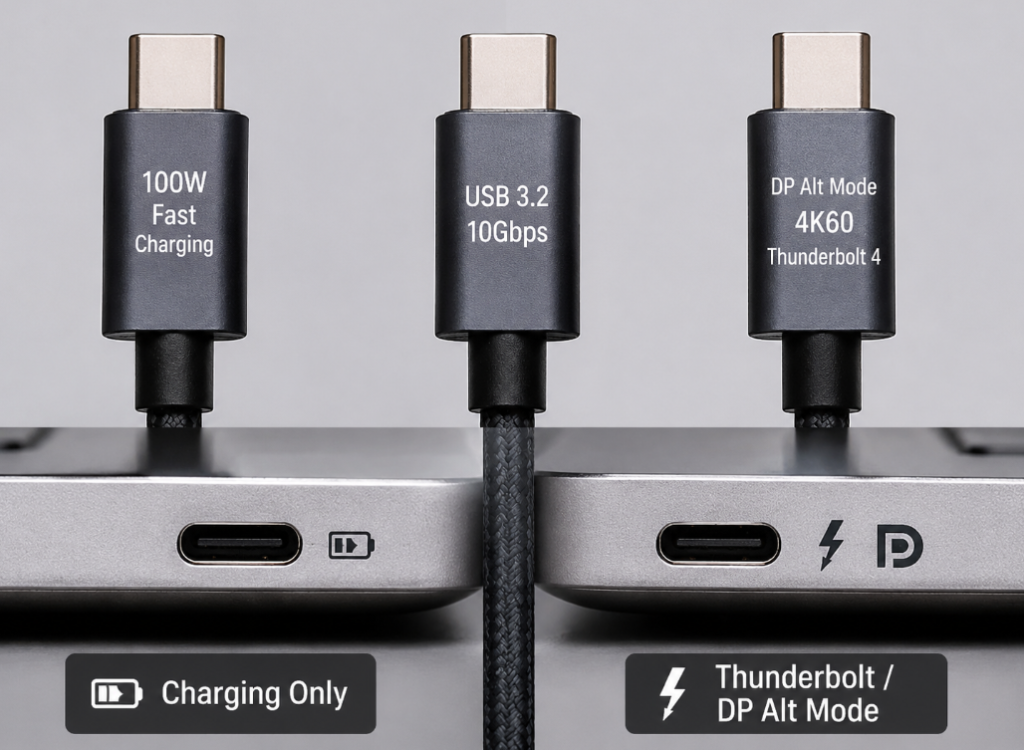
Data/charging cables that only support USB 2.0 cannot be used for DP Alt Mode video output at all. Also note that USB data specifications are not equal to DP version: for example, a label of USB 3.2 Gen 2 (10Gbps) only indicates the data rate, does not guarantee support for DP Alt Mode, and even less guarantees DP 1.4.
Cable length is also critical: passive full-function cables are recommended to be within 2 meters. For longer distances, choose active cables, fiber optic cables, or brand-certified cables that are clearly labeled to support the target resolution. Although Thunderbolt 3/4 and USB4 cables are usually more reliable, you also need to confirm whether they are compatible with ordinary USB-C DP Alt Mode scenarios, especially when active Thunderbolt cables are paired with older devices.
Docking Stations/Adapters: Do They Support DP Alt Mode Input?
When purchasing, be sure to check the product parameters; it must clearly state “USB-C video input”, “DP Alt Mode”, “DisplayPort Alt Mode”, or “supports USB-C to HDMI/DP video output”. Do not buy products without clear labeling.
USB-C to HDMI/DP adapters are directional: common ones have the USB-C end connected to the host and the HDMI/DP end connected to the display, and cannot be used in reverse — for example, if you want to connect an HDMI host to a USB-C display, ordinary adapters won’t work, and a dedicated active converter is required.
DisplayLink docking stations require driver installation and transmit video through USB data compression. They can solve the problem of external display for hosts that do not support DP Alt Mode, but they are not native DP Alt Mode solutions, and the troubleshooting logic is different.
Thunderbolt docking stations will downgrade when connected to ordinary USB-C ports. Whether they can still output video depends on whether the docking station is compatible with the USB-C DP Alt Mode fallback mode. For multi-port docking stations, also pay attention to the specification difference between single and dual displays — for example, a label of “single display 4K60” does not mean that two connected displays can both reach 4K60.
In addition, outdated docking station firmware, poor chip compatibility, and thermal throttling can also cause black screens, flashing screens, or sleep wake-up failures.
Display Side: Does the Display Input Port Support Video?
The USB-C port of a USB-C display is not necessarily a video input port; some are upstream data ports (used to connect to a computer for USB data transmission), and some are power-only ports. You can’t just plug in randomly based on the port shape.
In the display’s OSD menu, you may need to manually select USB-C input, and some can adjust options such as “DP version” or “high resolution priority / high-speed USB priority”, which will affect whether video can be output normally. If you are using a USB-C to HDMI/DP adapter, confirm that the input source selected on the display matches the actual port you plugged into — for example, if you plugged into HDMI1, select HDMI1, not HDMI2.
Devices such as TVs, projectors, and conference displays often have compatibility issues with HDMI version, HDCP, and resolution. When encountering such devices, you can first test with a low specification of 1080p60, and increase it after the display works.
System, Driver, and Firmware Troubleshooting
If the hardware is confirmed to be fine, next check for system, driver, and firmware issues. Different systems have different troubleshooting methods.
Windows System Troubleshooting Steps
First open Settings → System → Display, click the “Detect” button, and confirm that the multi-display mode is not “Show only on 1”. Enter “Advanced display” settings, first lower the refresh rate to 60Hz, turn off HDR, 10-bit color depth, VRR/G-Sync/FreeSync and other functions, and test the basic image first.
For updating graphics drivers, prioritize versions from Intel, NVIDIA, AMD, or the computer brand’s official website; third-party driver tools of unknown origin are not recommended. In addition to graphics drivers, also update the chipset drivers, BIOS/UEFI, USB4/Thunderbolt controller drivers of the motherboard/laptop, and the docking station firmware.
When connecting a Thunderbolt device for the first time, you may need to authorize it in the Thunderbolt Control Center; company-issued computers may also have external devices restricted by BIOS or security policies, in which case you need to contact the IT department.
Open Device Manager and check if there are any devices with exclamation marks under “Display adapters”, “Monitors”, “Universal Serial Bus controllers”, and “USB4 Host Routers/Thunderbolt Controllers”. If disconnection occurs after sleep wake-up, you can temporarily turn off USB selective suspend: go to Control Panel → Power Options → Advanced power settings → USB Settings, set USB selective suspend to disabled, for troubleshooting purposes.
Also check for software conflicts: virtual displays, remote control software, screen casting software, screen recording software, and enterprise security software may all affect the recognition of external displays.
macOS System Troubleshooting Steps
Open System Settings → Displays, check if the external display is recognized, and whether the mirror/extend mode and screen arrangement are correct. Hold down the Option key to bring up the “Detect Displays” option; the location varies slightly between different macOS versions.
First turn off HDR, lower the refresh rate and resolution to test, to rule out insufficient bandwidth or display EDID compatibility issues. Apple Silicon Macs do not have the traditional SMC/NVRAM reset process. For stubborn problems, you can first shut down and wait 30 seconds before turning on, update the macOS system, and reconnect the power of the docking station and display. For Intel Macs with external display abnormalities, you can reset SMC and NVRAM according to Apple’s official process.
The number of external displays supported by Apple Silicon Macs is limited by the chip model. For example, some entry-level M-series chips natively only support one external display, and ordinary MST docking stations cannot break this limit. In addition, macOS has very limited support for ordinary DP MST multi-display expansion; many MST docking stations can only mirror or only light up one screen under macOS. To achieve multi-display expansion, you need to use a DisplayLink solution, install drivers, and grant screen recording permission.
ChromeOS, Linux, and Other Systems
For ChromeOS devices, first check the official specifications to see if USB-C video output is supported. Managed devices issued by schools or enterprises may restrict external devices or display settings.
For Linux systems, you can first detect the external display in the system display settings, and switch between X11 and Wayland for testing if necessary; also check the kernel, Mesa/NVIDIA drivers, and the display manager of the desktop environment. Ordinary users don’t need to rush to use the command line for troubleshooting; start with basic operations such as replacing cables, adjusting ports, and lowering specifications. If you know how to use the command line, you can use xrandr to view display output, and use dmesg or journalctl to check USB-C/DP chain, graphics driver, or hot-plug errors; ordinary users should still prioritize troubleshooting from the graphical interface, cable replacement, and specification reduction.
Special attention should be paid to devices such as gaming handhelds, mini PCs, and industrial PCs. You need to confirm whether the USB-C port is connected to the graphics card’s video output; many of these devices have USB-C ports only for data transmission or power supply, and are not connected to the graphics card’s video lines at all.
Intermediate Advanced: Bandwidth, DP Version, and Multi-Display Limitations
At this point, most “whether it lights up” problems should be solved. If you are encountering “it lights up but the performance is poor”, such as being unable to enable 4K60, high refresh rate, HDR, or multi-display not working, you need to understand some basic knowledge of bandwidth and specifications.
Why “The Display Turns On But the Performance Is Poor”
Successful DP Alt Mode connection is only the first step. The final resolution and refresh rate depend on the link with the lowest specification in the entire chain, which is the cask effect. Typical manifestations of insufficient bandwidth include: 4K can only run at 30Hz, 144Hz can only be reduced to 60Hz, HDR cannot be turned on, 10-bit color depth cannot be selected, and the screen flashes black intermittently.
The verification method is simple: lower the output to 1080p60, turn off HDR and high color depth. If the image is stable, it means the basic chain is good, and the problem lies in bandwidth or compatibility.
DP Version and Number of Lanes: Key Judgment Criteria
DP version is the core factor affecting bandwidth: DP 1.2 can usually support single display 4K60 8-bit SDR, but the specific situation depends on the number of lanes, cable, and actual implementation of the device. DP 1.4 has higher bandwidth, and paired with DSC (Display Stream Compression, an almost lossless video compression technology used to save bandwidth), it can support higher resolutions, high refresh rates, or HDR scenarios. New DP 2.x/USB4 devices have stronger theoretical capabilities, but require the host, cable, docking station, and display to all support it, and currently there are large differences in implementation between different products.
What many people don’t know is that USB-C DP Alt Mode has two lane allocation modes: one allocates all 4 high-speed lanes to video, and the other uses only 2 lanes for video, leaving the remaining 2 reserved for USB 3.x high-speed data. When only 2 DP lanes are used, 4K60, high refresh rate, and HDR are prone to failure — this is why many displays have options like “high resolution priority / high-speed USB priority” in their menus: in most USB-C displays or docking stations, selecting “high resolution priority” will prioritize allocating more high-speed lanes to DP video, and the common result is that the USB Hub is downgraded to USB 2.0 or some high-speed functions are limited; selecting “high-speed USB priority” will retain USB 3.x data capability, but video output may have reduced resolution, reduced refresh rate, or cannot enable HDR. The specific implementation is subject to the device manual.
USB Data and Video Bandwidth Sharing
The high-speed line resources inside the USB-C interface are limited, and video and USB 3.x high-speed data share these lane resources. The high-speed lanes of USB-C are usually allocated to video or USB 3.x data during connection negotiation; if the device chooses to retain USB 3.x, the available lanes for video may be reduced. When high-bandwidth devices such as high-speed hard drives, capture cards, and 2.5G network cards are connected to the docking station at the same time, screen flashing or disconnection may also occur due to shared upstream bandwidth, insufficient power supply, heat, or controller load. These peripherals should be unplugged first during troubleshooting.
What to Do If DP Version Negotiation Fails
Older displays or older docking stations may only stably support DP 1.2, while new hosts enable DP 1.4 or DSC compression by default. If the two sides cannot negotiate, problems will occur. Typical manifestations are: low resolution works, but high resolution causes a black screen; direct connection to the display is normal, but a black screen occurs through the docking station; there is an image when booting, but the screen goes black after entering the system.
The solution is also simple: in the display’s OSD menu, the docking station’s management software, or the graphics control panel, switch the DP version to 1.2, turn off DSC, HDR, and high refresh rate, then test whether it works normally.
Multi-Display Output Limitations
Ordinary DP Alt Mode docking stations have a common specification of single display 4K60; when connecting dual displays, it may be reduced to 4K30, 1080p60, or even only one screen lights up. MST multi-display expansion technology requires the entire chain — host graphics card, system, docking station, and display — to support it. Windows systems have relatively universal support for MST, while macOS has limited support.
Thunderbolt/USB4 docking stations usually have stronger multi-display capabilities, but are still limited by the number of host video lanes, chip model, and system. The DisplayLink multi-display solution can bypass some of the limitations of native video lanes, but the disadvantages are increased CPU usage, higher latency, driver dependence, and may affect the playback of copyright-protected videos.
Quick Troubleshooting for Typical Scenarios
To help you quickly correspond to your own problem, here are 8 of the most common fault scenarios, just troubleshoot in order.
USB-C External Display Has No Signal At All
Common causes: host USB-C port does not support video, cable does not support video, wrong display input source selected, port not fully plugged in.
Troubleshooting order: manually select input source → replace with a cable confirmed to support video → switch to a port on the host with video/Thunderbolt/USB4 labels → check the official specifications of the host and display.
Judgment boundary: if the display works normally when connected to another computer, prioritize suspecting the current host’s port, cable, or system settings.
USB-C to HDMI/DP Adapter Has No Response
Common causes: adapter used in reverse direction, host port does not support DP Alt Mode, insufficient adapter specifications, abnormal HDMI cable or display input port.
Quick fix: confirm the adapter direction is “USB-C to host, HDMI/DP to display”; replace the HDMI/DP cable; first test with 1080p60.
Note: Connecting an HDMI host to a USB-C display requires a dedicated active converter; ordinary USB-C to HDMI cables cannot be used in reverse.
Docking Station USB Works But HDMI/DP Has No Image
Common causes: host USB-C port only has data and no video, docking station does not support DP Alt Mode input, insufficient docking station power supply, Thunderbolt docking station downgrade is incompatible.
Quick fix: use a minimal chain to bypass the docking station for testing; confirm the video input parameters of the docking station; connect the docking station’s original power supply; update the docking station firmware.
Judgment boundary: if the same docking station works normally when connected to another computer that supports DP Alt Mode, the probability of the current host’s port or system restriction is higher.
System Can Detect the Display But the Screen Is Black
Common causes: resolution/refresh rate exceeds the upper limit of the chain, HDR or high color depth occupies bandwidth, abnormal graphics driver, DP version negotiation failure.
Quick fix: lower to 1080p60 SDR → turn off HDR/10-bit/high refresh rate → switch DP 1.2/1.4 → update graphics driver.
Advanced judgment: if there is an image in Safe Mode or before login, but the screen goes black after entering the system, it is usually more likely a driver or display parameter problem.
Screen Flashing, Disconnection, or Artifacts
Common causes: cable is too long or poor quality, loose port, docking station overheating or insufficient power supply, bandwidth is close to the upper limit, sleep wake-up handshake failure.
Quick fix: replace with a full-function cable within 2 meters; connect an independent power supply; lower refresh rate and color depth; unplug high-speed USB peripherals; update docking station firmware.
Tip: Don’t just rely on repeated plugging and unplugging to maintain long-term flashing; it may further damage the port or cause work data loss.
Only Low Resolution or Low Refresh Rate Is Available
Common causes: low DP version, only 2 DP lanes allocated, USB high-speed data occupies lanes, mirror mode is limited by low-specification screen.
Quick fix: select “high resolution priority” mode; turn off high-speed USB devices on the docking station; cancel mirroring and switch to extend mode; confirm whether the entire chain supports the target specification.
Example: The same 4K display can run 4K60 when directly connected, but only 4K30 through the docking station. The common reason is insufficient lane allocation or specification upper limit of the docking station.
Phone/Tablet Only Charges But Does Not Cast Screen
Common causes: device does not support USB-C video output, cable does not support video, adapter requires external power supply, system does not enable external display/desktop mode.
Quick fix: check the official parameters of the device; replace with a full-function USB-C video cable; connect PD power to the adapter; try enabling desktop mode or screen casting mode.
Judgment boundary: if the official specifications do not label USB-C video output, DP Alt Mode, or HDMI output, it usually cannot be solved with ordinary cables.
No Image After Sleep Wake-Up
Common causes: USB-C power management, docking station firmware, graphics driver, or display deep sleep mode causes re-handshake failure.
Quick fix: turn off display deep sleep/auto power saving; update drivers and firmware; test by turning off USB selective suspend on Windows; re-plug the docking station power if necessary.
Long-term solution: fix the connection order, avoid frequent hot-plugging of multiple high-power peripherals, and keep the system and docking station firmware updated.
Pitfall Avoidance and Decision-Making: When to Replace Accessories, When to Send for Repair
After troubleshooting to this step, you should already know where the problem is. Next, we will talk about how to judge whether to replace accessories, change the solution, or send for repair.
Cross-Test to Locate the Faulty Component
To accurately determine which device is broken or incompatible, the most reliable method is cross-testing: replace the current cable with a known good full-function video cable for testing; connect the current display to another computer confirmed to support DP Alt Mode/Thunderbolt/USB4 for testing; connect the current host to another confirmed normal USB-C display or USB-C to HDMI/DP adapter for testing; connect the docking station to another confirmed normal computer, using the same display and the same HDMI/DP cable for testing.
The judgment rule is simple: whichever device the fault moves with, prioritize suspecting that device; if only a certain combination has a fault and all other combinations are normal, it is more likely a compatibility problem.
Situations Where You Should Replace the Cable
The cable is only labeled with fast charging, PD, or USB 2.0, with no relevant descriptions of video, full-function, 4K/8K, USB4, Thunderbolt, etc.; the cable is too long, too thin, unbranded and unspecified, with flashing, disconnection, or inability to enable 4K60; the fault disappears after replacing with a reliable short cable on the same device, which basically confirms that the original cable is inappropriate.
Situations Where You Should Replace the Docking Station/Adapter
The product parameter page does not clearly label DP Alt Mode input or USB-C video input; your needs are dual displays, high refresh rate, 4K60/HDR, but the docking station only supports single display 4K30, or does not label multi-display specifications; macOS users who need dual display expansion but purchased an ordinary MST docking station, resulting in only mirroring or only one screen lighting up; the docking station has long-term overheating, disconnection, firmware cannot be updated, and cross-testing confirms the problem is with the docking station.
Situations Where You Should Change the Solution
The host’s USB-C port is officially confirmed not to support video output: you can switch to native HDMI/DP ports, DisplayLink docking stations, wireless screen casting, or replace the device.
The phone/tablet is officially confirmed not to support wired video output: ordinary USB-C to HDMI cables cannot solve it, and you can only use wireless screen casting, a dedicated screen casting device, or replace with a supported model.
The target multi-display high refresh rate exceeds the host’s native external capability: you need to switch to a Thunderbolt/USB4 solution, DisplayLink solution, or upgrade the host.
When conference room/TV scenarios are severely affected by HDCP, HDMI version, and resolution compatibility, you can use stable HDMI direct connection or a professional conference docking station.
Situations Where You Need to Send for Repair
The USB-C port is obviously loose, has liquid damage, is deformed, has damaged pins, or has poor contact; there is no response after testing with multiple confirmed normal full-function cables, multiple displays, and multiple adapters; other USB-C ports on the same device are normal, only one port has been unable to output video for a long time and has been damaged by external force.
It is not recommended to disassemble and clean or repair the USB-C port by yourself during the warranty period; you should go through official after-sales service.
Pre-Purchase Parameter Checklist
To avoid buying the wrong product, be sure to check these parameters before purchasing, and don’t just look at vague marketing like “USB-C” or “multi-function”: whether the host supports DP Alt Mode, Thunderbolt, or USB4, how many external displays it supports, and what the maximum resolution and refresh rate are; whether the cable clearly supports video output, whether the length is appropriate, and whether it supports the target 4K60, 8K, or high refresh rate; whether the docking station supports DP Alt Mode input, single/dual display specifications, whether it requires external power, and whether it is compatible with Windows/macOS/ChromeOS; whether the display’s USB-C port supports video input, whether it supports PD reverse power supply, and whether it has high resolution priority / high-speed USB priority settings; finally, confirm your own needs: whether you need high-speed USB, Ethernet port, card reader, PD charging, multi-display expansion, HDR, and high refresh rate at the same time.
Common Misconceptions and Risk Warnings
Finally, here are a few common pitfalls to remind you to avoid detours:
First, don’t just look at the port shape. USB-C is just a physical interface form, and the internal capability combinations vary by device. When troubleshooting and purchasing, you must be based on official specifications, and don’t trust vague marketing like “Type-C multi-function” or “HD output”.
Second, don’t treat “not supported” as “broken”. If the host or phone is officially confirmed not to support USB-C video output, no matter how expensive the ordinary cable is, it cannot achieve DP Alt Mode output. DisplayLink docking stations can be used as an alternative solution, but they rely on drivers, are suitable for office multi-display scenarios, and may not be suitable for gaming, low-latency, or copyright-protected video playback.
Third, don’t ignore the system and firmware. Many docking station black screens, sleep wake-up failures, and intermittent disconnection problems are related to firmware and drivers. Enterprise computers may also be affected by BIOS, Thunderbolt security levels, and device management policies, and the troubleshooting methods for individual users may not apply.
After completing the above troubleshooting and learning, you should be able to independently make the following judgments: distinguish whether you are encountering a DP Alt Mode fault, a DisplayLink driver problem, an ordinary display setting problem, or the device simply does not support video output; locate the faulty link in the order of host, cable, adapter device, display, and system settings; use minimal chain and cross-testing to judge whether it is a damaged cable, unsupported port, incompatible docking station, incorrect display setting, or system driver problem; understand why the display turns on but 4K60/HDR/high refresh rate fails, and find the reason from DP version, number of lanes, USB bandwidth sharing, and multi-display limitations; correctly purchase USB-C video cables, adapters, DP Alt Mode docking stations, Thunderbolt/USB4 docking stations, or DisplayLink solutions according to your own usage scenarios, without wasting money.