
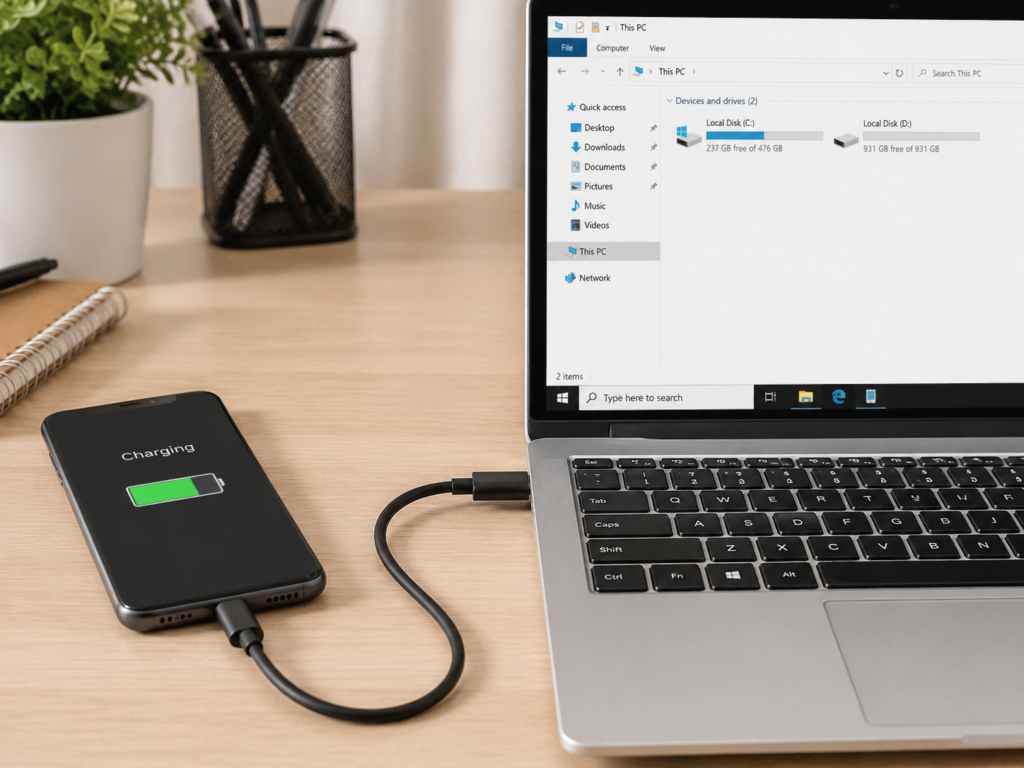
Have you ever had this experience: you connect your phone to a computer with a USB-C cable, the screen clearly shows it’s charging, but you can’t find the device icon anywhere on the computer, and you can’t even transfer a few photos? Many people’s first reaction is that the computer is broken, or the phone settings are wrong, but in fact, more often than not, the problem is not with the device itself, but with the ordinary-looking USB-C cable in your hand.
First Confirm: Is This the Type of Fault You Are Encountering?
Before starting troubleshooting, first clarify the scope of the problem to avoid wasting effort.
The typical symptoms of what we call “can charge but cannot transfer data” are very consistent: when a phone or tablet is connected to a computer, it shows a charging icon, but Android devices have no file transfer option, iPhones do not pop up the “Trust This Computer” prompt, and the computer cannot see the device; storage peripherals such as USB flash drives, mobile hard drives, and card readers have their indicator lights on or are slightly warm, but the system does not recognize them and does not display a drive letter; a USB-C dock can supply power to the computer normally, but there is no response when a USB flash drive, keyboard/mouse, or network port is plugged in; car infotainment systems, speakers, and printers can charge the phone, but cannot read files from the phone or USB flash drive.
If there is no response at all after plugging in and it does not charge at all, it is more likely a fault in the power supply path, charger, or interface hardware, which is not within the scope of this article; if data can be transferred but the speed is very slow, the focus is on the USB version, cable speed, or hard drive performance, which is not a “completely unable to transfer” problem; if the device is recognized but frequently disconnects, it is mostly a problem of poor contact, insufficient power supply, or system stability; if only screen mirroring/video output is not working, that is a problem with video output mode (DP Alt Mode), Thunderbolt, or USB4 support, which is not the same as ordinary file transfer; if it can be read but not written, it is most likely a problem of permissions, file system, or system policy, and there is no need to suspect the cable first.
Let’s first clarify three common cognitive misunderstandings that beginners easily fall into, to avoid getting more confused later:
First, the same interface appearance does not mean the same functions. USB-C is only the shape of the interface, just like a door of the same size may lead to a storage room or a highway behind it; the capabilities of the internal wiring vary greatly.
Second, fast charging capability does not mean data transfer capability. Charging and data are two completely independent capabilities; even a 240W high-power cable may only be able to charge.
Third, original cables are not necessarily full-featured cables. Many cables included with phones, chargers, and power banks only meet charging or USB 2.0 basic data needs, and do not necessarily support high-speed transmission or video.
This article will help you distinguish three core causes: the cable is inherently charge-only, the cable’s data path is damaged, and device/port/system setting issues. It will teach you to locate the problem with about 1 minute of cross-testing, and also learn to read cable parameters to avoid buying cables that “support fast charging but cannot transfer data”.
1-Minute Quick Troubleshooting: Fix 80% of Problems First
You don’t need to memorize a bunch of principles first. Follow these steps, and you can locate the general problem in 1 minute. In many cases, just changing the cable or adjusting a setting will fix it.
Step 1: Check Device Settings and Authorization (10 Seconds)
First unlock the phone, then connect it to the computer. For Android, pull down the notification shade and switch the USB mode to “File Transfer (also known as MTP mode)”; for iPhone/iPad, confirm whether the “Trust This Computer” prompt pops up and enter the lock screen password. On the computer side, check if there is a new device prompt, driver installation prompt, or if there are new device changes in Device Manager.
Step 2: Perform Cross-Testing (30 Seconds, Most Critical)
After completing four small tests, you can basically locate the problem:
- Use this suspicious cable to connect a set of device and computer that are confirmed to transfer data normally, and see if data transfer works;
- Use a confirmed good cable that can transfer data to connect the current phone/peripheral and current computer, and see if data transfer works;
- Test the current device on another computer or another USB-C port;
- If it is a peripheral device, test with another USB flash drive, hard drive, or card reader to rule out a fault in the peripheral itself.
Step 3: Check Physical Contact (20 Seconds)
Check if the cable connector is loose, deformed, or oxidized (black or green); check if the device interface has dust or lint, and if the plug can be fully inserted; gently flip the plug to the other side, change to another interface, and lightly wiggle the connector to observe if it is occasionally recognized. If there is obvious poor contact, it is not recommended to continue high-power charging; replace the cable or repair the interface first.
Quick Result Reference
| Test Phenomenon | Most Likely Conclusion |
|---|---|
| Data transfer resumes immediately after replacing with a good cable | The original cable is a charge-only cable, or its data path is damaged |
| The original cable can only charge on all devices | The original cable does not support data, or its data cores are damaged |
| The good cable still cannot transfer data on the current device, but works normally after changing the computer/port | The original computer’s port, system driver, permissions, or interface have problems |
| The good cable still cannot transfer data on the current phone, but works normally on other phones | The current phone’s settings, authorization, interface, or system policy have problems |
| The peripheral is not recognized on multiple computers and with multiple good cables | The peripheral itself is faulty, or its power supply requirements are not met |
| There is an unknown device in Device Manager but it is not displayed in File Explorer | There are already signs of data communication; prioritize checking drivers, authorization, and file system |
You can adjust the troubleshooting priority for different scenarios to save more time: if a phone connected to a computer only charges, first check the USB mode and trust authorization, then replace the data cable; if a USB flash drive/mobile hard drive has its light on but is not recognized, first replace it with a short cable confirmed to support data transfer, then check power supply and Disk Management; if a dock has normal power supply but USB peripherals do not respond, first confirm whether the upstream cable supports data, then check if the dock needs an external power supply; if a car infotainment system only charges but does not read the phone, first confirm whether the car’s USB port supports data, as many car charging ports only supply power.
Plain Language Principle: Why Is There “Power But No Data”?
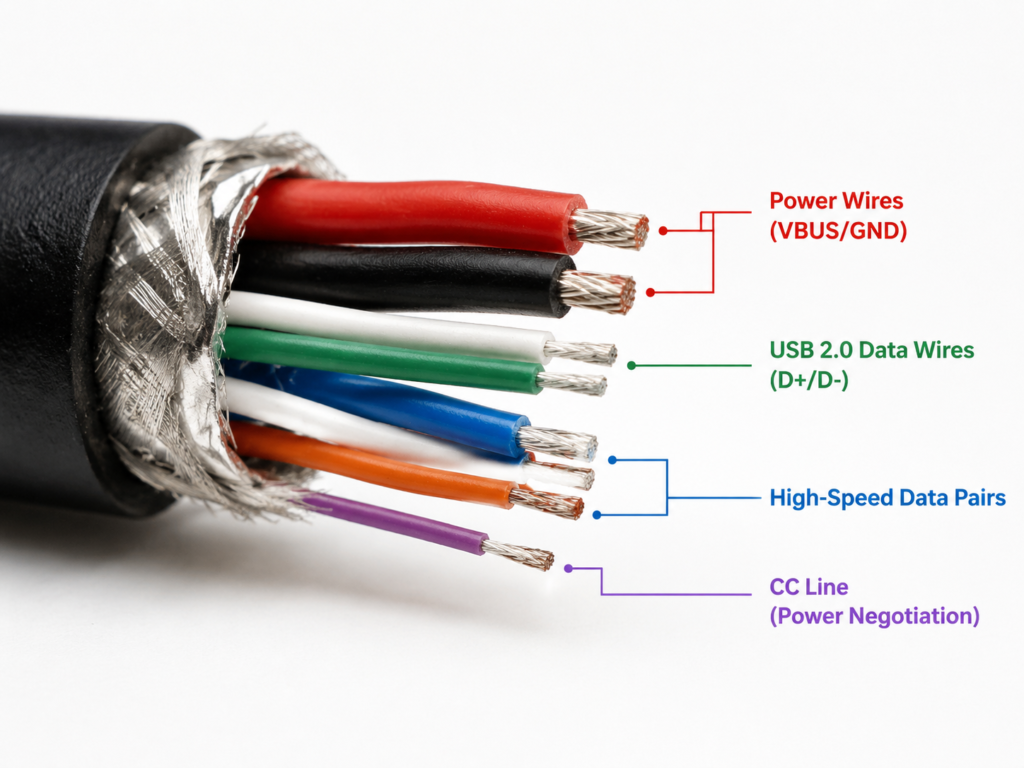
After troubleshooting, you may be curious: why does charging work fine but data cannot be transferred? In fact, there are several sets of wire cores inside a USB-C cable, each with its own function, and charging and data use completely different paths.
Charging Relies on “Power Cables”
Charging works normally mainly relying on two sets of thick wire cores, which can be understood as the positive and negative poles of the power supply (professionally called VBUS and GND). As long as these two sets of wires are connected and the charger and device interface are normal, the device will show charging. The power negotiation of USB-C PD fast charging relies on a separate CC line (a line specifically used to communicate voltage and power with the charger), for example, negotiating whether to use 5V, 9V, or 20V; this line is also not considered a data path.
It should be noted that some older QC or proprietary fast charging, especially USB-A port fast charging, may use the D+/D- pins of the data cable to identify voltage, but this does not mean that the cable has stable file transfer capability; do not confuse this.
Data Transfer Requires Additional “Signal Lines”
Data transfer also requires dedicated signal lines, and different USB speeds require different numbers of signal lines: USB 2.0 basic data only needs one pair of D+ and D- signal lines, with a speed of 480Mbps, which is sufficient for transferring photos, documents, connecting keyboards and mice, and performing ordinary phone synchronization; USB 3.x high-speed data requires additional high-speed differential line pairs, with common specifications of 5Gbps, 10Gbps, and 20Gbps, suitable for mobile SSDs, hard drive enclosures, and high-speed docks; USB4/Thunderbolt requires higher-specification cables and chip support, with speeds up to 20Gbps and 40Gbps, often used for high-speed peripherals, Thunderbolt docks, and monitors.
If there are no data cores in the cable at all, or the data cores are broken or have poor contact, the situation of “can charge but cannot transfer data” will occur.
A special reminder here: charging power and data capability cannot be inferred from each other. 65W, 100W, 240W only indicate that the cable may support higher charging power, and do not mean it has file transfer capability; a cable that only supports USB 2.0 data may also support high-power charging at the same time. To judge whether data can be transferred, focus on labels such as “Data Sync”, “USB version”, and “transmission speed”, not the charging wattage.
Common Capability Levels of USB-C Cables
Currently common USB-C cables can be divided into several levels according to their capabilities. You can compare them with the cable in your hand:
| Cable Type | Core Capability | Common Uses |
|---|---|---|
| Charge-only cable | Only has power supply lines, does not guarantee data transfer | Power banks, small home appliances, public charging scenarios |
| USB 2.0 data cable | Basic charging + 480Mbps data | Phone file transfer, keyboards/mice, headphones, printers |
| USB 3.x high-speed data cable | Charging + 5Gbps/10Gbps/20Gbps data | Mobile SSDs, hard drive enclosures, high-speed docks |
| USB4/Thunderbolt cable | High-speed data, some support video and higher-power charging; specific capabilities are subject to product labeling | Thunderbolt devices, high-speed docks, monitors |
As for the “full-featured cable” often mentioned by merchants, it is not a strictly unified specification name. You cannot judge capability solely by this term; you still need to check specific parameters such as charging power, data speed, and whether it supports video output separately.
Not Only Cables, USB-C Interfaces Are Also Not Necessarily Full-Featured
Many people overlook that not all USB-C ports have data functions, and the interfaces themselves are also graded: charge-only C ports are common in wall sockets, power banks, car chargers, and monitor power ports, and are only responsible for charging; USB 2.0 C ports can transfer files, but the speed is not high; USB 3.x C ports can connect high-speed peripherals, but may still not support video; USB4/Thunderbolt C ports usually have more complete capabilities, but it also depends on whether the computer, device, and cable all support it at the same time.
In one sentence: Data transfer will only succeed if the cable, interface, and device all support data; none can be missing.
The Most Common Cause: The Cable Itself Has a Problem
If cross-testing confirms that the problem is with the cable, there are generally two situations: either the cable is inherently a charge-only cable, or its data path is damaged.
Situation 1: The Cable Is Inherently a “Charge-Only Cable”
This is the most common cause, especially common with free gift cables and low-priced cables.
Why are there charge-only USB-C cables? The most direct reason is cost reduction: omitting data cores and related processes can lower production costs. Many free gift cables are originally only for single charging scenarios, such as cables included with power banks, wireless chargers, small home appliances, and Bluetooth earphone cases; it is assumed that users will only use them for charging, so there is no need for data functions. There are also some public charging scenarios that deliberately do not provide data paths to reduce the risk of data leakage, such as short cables in hotels and shared charging devices.
Charge-only cables appear in very fixed scenarios. Be cautious when encountering these cables: cables included with fast chargers, power banks, wireless chargers, and small home appliances; USB-C cables with extremely low prices and almost no parameters on the packaging; cables whose product pages only write “fast charging cable”, “charging cable”, “high current”, “100W/240W” and never mention “data transfer”; products whose packaging or instructions clearly state “Charge Only”, “charge only”, “does not support data transfer”; fixed short cables in public places, hotels, and shared charging devices.
To identify a charge-only cable, first check if there are data-related labels such as “data transfer”, “Data Sync”, “USB 2.0”, “480Mbps”, “USB 3.2”, “5Gbps/10Gbps”, “USB4”, “Thunderbolt” on the packaging or product page. Markings on the cable body can only assist in judgment: the USB trident logo, SS, speed markings, and Thunderbolt logo have reference value, but many cheap cables have no markings at all, so you cannot guess solely by appearance. The most reliable method is the cross-testing we mentioned earlier.
Situation 2: The Cable’s Data Function Is Broken, But Power Supply Is Still Normal
If this cable used to be able to transfer data but suddenly cannot now, it is most likely that the cable’s data path is damaged, but the thick power cores are not yet broken, so it can still charge.
Why does the data function always break first? Because data cores are usually much thinner than charging cores, and are more sensitive to bending, pulling, and squeezing; moreover, data signals have higher requirements for contact quality, and slight oxidation, looseness, or cold soldering may cause recognition failure. The thick power cores are much more durable; as long as they are still connected, the device will continue to charge, and users can easily mistakenly think the cable is not broken.
Data path damage is basically caused by bad usage habits: many people pull the cable body instead of pinching the connector when unplugging, and long-term pulling will break the internal cores; using the phone while charging causes the root of the connector to bend for a long time, which easily wears and breaks the internal wires; cables that are pressed by chairs, caught in doors, hit by heavy objects, or stored in tight folds for a long time will increase the probability of internal wire damage. In addition, dust or liquid entering the connector causing oxidation and blackening, or inferior cables with cold soldering or too-thin cores, will also have their data function fail first after a period of use.
If it meets these characteristics, it is most likely that the cable’s data path is damaged: with the same set of phone and computer, this cable used to be able to transfer files but suddenly cannot now; the cable body has obvious creases, skin breaks, bulges, hardening, or loose connectors; when wiggling the connector, flipping it to the other side, or pressing it at a certain angle, the computer occasionally recognizes the device; after replacing with a confirmed data-capable cable, file transfer resumes immediately; the same cable can only charge when used with multiple devices.
If the connector has abnormal heating, deformation, or ablation, the cable sheath is damaged exposing metal or shielding layer, charging is frequently interrupted and the device repeatedly pops up prompts, or there is odor, overheating, or interface discoloration during high-power charging, do not continue to use it, as it is prone to safety risks.
The Most Easily Misjudged: It’s Not the Cable’s Problem
Many people have replaced several cables but it still doesn’t work. In fact, the problem is not with the cable at all. This part is the most easily misjudged, and we sort it by frequency of occurrence.
Phone/Tablet Settings and Authorization Issues
This is the most common cause besides the cable. In many cases, you just haven’t enabled the right permissions.
After an Android phone is connected to a computer, it will default to “charge only” mode. You need to unlock it, pull down the notification shade, click USB usage, and select “File Transfer (MTP)” or “Photo Transfer (PTP)”. Some Android phones only show the USB usage option after the cable is plugged in; the menu is hidden when no cable is plugged in. If you want to change the default behavior, you can go to Developer Options and set “Default USB Configuration” to “File Transfer”.
For iPhone/iPad, you need to unlock the device first, click the pop-up “Trust This Computer” and enter the lock screen password; if you click “Don’t Trust”, or the prompt does not appear, the computer can only see charging. On iOS/iPadOS, USB data access may be disabled when the device is locked, accessory permissions are restricted, or when enterprises or schools restrict it through a device management system (MDM) or system policy. In this case, individuals cannot modify it and need to contact the administrator.
Computer System, Driver, and Permission Issues
Abnormal drivers or permissions on the computer side can also cause the device to only charge and not be recognized.
Windows systems may lack MTP drivers or have abnormal device drivers, causing File Explorer to not display portable devices. You can first check if there is a portable devices entry in File Explorer; if not, open Device Manager to check if there are MTP devices, unknown devices, or driver items with a yellow exclamation mark. Here is a practical tip: if there is a new device change in Device Manager when the cable is plugged in, it usually means that the cable has at least signs of data communication, and the problem is most likely with the driver, authorization, or system recognition, not a broken cable.
macOS usually cannot browse Android MTP devices directly in Finder like Windows; you usually need to install Android File Transfer, manufacturer assistant, or other MTP-supporting software; connecting iPhone/iPad requires trust authorization, and some system versions will also pop up a “Allow accessories to connect” permission prompt. Linux systems may need to install MTP-related components, file manager support, or adjust permission configurations.
The Plugged-In USB-C Port Itself Only Supplies Power
Not all USB-C ports have data functions. If you plug into the wrong port, you naturally cannot transfer data. USB-C ports on wall sockets, car chargers, and power banks usually only supply power and have no data function; some monitors’ USB-C ports are only used to supply power to the computer, and if you want the monitor’s USB-A ports to transfer data, you need to connect an additional upstream USB cable to the host; some computers’ USB-C ports only support charging or low-speed data, and do not support high-speed peripherals, video, or Thunderbolt.
Markings next to the port can be used as reference: those with only lightning, battery, or PD words are usually more focused on power supply; those with SS, 10Gbps, or Thunderbolt icons are more likely to support high-speed data. If you are not sure, use the same good cable and the same device, test on the USB port on the back of the desktop host, another USB-C port on the laptop, or another computer, and you can confirm immediately.
Poor Contact or Hardware Damage of the Device Interface
Dust and lint accumulation in the USB-C port of phones and computers will cause the plug to not be fully inserted. The thick power contacts can still make contact, but the thin data contacts are unstable, resulting in only charging but no data transfer. Oxidation, liquid ingress, deformation, or looseness of the interface contacts can also cause similar problems, with disconnection at the slightest touch. Not only phones, but also computer USB-C ports, dock interfaces, and USB flash drive ports may have such faults.
When cleaning the interface, be sure to cut off the power and turn off the device first. Prioritize using a air blower, soft brush, or a toothpick wrapped in a thin cloth to gently clean; do not use a metal needle to scrape the contacts hard, to avoid short circuits or scratching the interface; if the interface has liquid ingress, ablation, or obvious looseness, do not repeatedly plug and unplug for testing, and repair it in time.
Problems with the Peripheral or Dock Itself
Peripherals such as USB flash drives, card readers, mobile hard drives, cameras, and voice recorders with damaged data functions will also show as having the light on but not being recognized. Do not blame the cable first.
Dock problems are more hidden: it may be a model that only supports power supply, or the upstream cable connected to the computer is not a data cable; some docks require independent power supply, and when powered solely by the computer’s USB port, they can only light up the indicator light and cannot stably recognize hard drives or network cards. Especially for high-power-consumption peripherals such as mechanical mobile hard drives and some SSD enclosures, when power supply is insufficient, they may light up, spin, and repeatedly disconnect, but not be recognized by the system.
Protocol, Speed, and Compatibility Supplement
Most USB 3.x peripherals are backward compatible with USB 2.0, but the speed is greatly reduced; if they are not recognized at all, prioritize checking the cable, power supply, interface, and driver, don’t blame compatibility first. USB4/Thunderbolt dedicated devices, some high-speed docks, video capture or display devices have higher requirements for cables and ports, and even a slight deficiency will make them unusable. In addition, many USB-C adapters, extension cables, and magnetic heads only support charging or low-speed data, which are easily overlooked hidden fault points; extra-long cables and inferior extension cables may also cause signal attenuation, manifested as non-recognition or frequent disconnection.
Quick Solutions for Common Scenarios
If you encounter a problem in a specific scenario, you can directly look at the corresponding solution:
Android Phone Connected to Computer Only Charges
- After unlocking the phone, pull down the notification shade and switch to “File Transfer (MTP)”;
- Replace with a USB-C data cable that clearly supports Data Sync;
- On Windows, check if there is an MTP device or unknown device in Device Manager, and try updating the driver;
- To connect Android to macOS, use Android File Transfer, manufacturer assistant, or other MTP tools;
- If it is a managed device from a company or school, USB data may be disabled by policy, and you need to contact the administrator.
iPhone/iPad Connected to Computer with USB-C Cable Only Charges
- Unlock the device, confirm whether the “Trust This Computer” prompt pops up and enter the lock screen password;
- Use a USB-C cable that clearly supports data, do not judge only with the cable included with the charger;
- On Mac, check if the device appears in Finder; on Windows, confirm whether Apple Devices, iTunes, or Apple-related drivers are normal;
- If the trust prompt does not pop up for a long time, you can reset Location & Privacy settings and reconnect;
- If the device has accessory access restrictions enabled, or is a company/school managed device, USB data access may be restricted. You need to check the “Allow accessories to connect” setting, or contact the administrator to confirm permissions.
USB Flash Drive, Mobile Hard Drive, SSD Light On But Not Recognized
- First replace with a short cable confirmed to support data, avoid using charge-only cables, extension cables, and magnetic heads;
- Switch to the USB port on the back of the desktop host or another USB-C port on the laptop to rule out insufficient port power supply;
- Mechanical mobile hard drives should be connected to high-power-supply-capability interfaces first, and use a powered dock if necessary;
- On Windows, you can open Disk Management to confirm whether it is just an unassigned drive letter or abnormal file system.
USB-C Dock Has Normal Power Supply But Peripherals Do Not Respond
- Confirm that the upstream cable connected to the computer supports data and is not a pure charging cable;
- Confirm that the computer’s USB-C port supports data output and is not a power-only or display-only port;
- High-power-consumption peripherals require the dock to be connected to an independent power supply;
- If only video is normal but USB peripherals are not, focus on checking the dock’s USB upstream data path and system permissions.
How to Choose a USB-C Data Cable Without Pitfalls
To avoid the purchasing pit of “can charge but cannot transfer data”, or to choose a USB-C cable suitable for high-speed peripherals, you can refer to the following methods.
Prioritize These Keywords When Buying Cables
When choosing a cable, you don’t need to look at a bunch of flashy promotions, just find the corresponding parameters according to your needs: for basic file transfer, look for “data transfer, Data Sync, USB 2.0, 480Mbps”; for mobile hard drives/SSDs, look for “USB 3.2, 5Gbps, 10Gbps, 20Gbps”; for high-speed docks/Thunderbolt devices, look for “USB4, Thunderbolt 3/4, 20Gbps, 40Gbps”; for high-power charging, look for “60W, 100W, 140W, 240W, E-Marker smart identification chip”; for video output needs, look for “video output, DP Alt Mode, 4K/60Hz, 8K” or Thunderbolt/USB4 support.
What Cable to Buy for Different Uses
For only transferring photos and files on your phone, a USB 2.0 480Mbps data cable is usually sufficient and has the highest cost-performance ratio; for transferring large files to a mobile SSD, choose at least a USB 3.x 5Gbps or 10Gbps cable, otherwise the speed is too slow; for connecting a dock, choose a USB 3.x, USB4, or Thunderbolt cable according to the dock’s specifications, do not use a charging cable instead; for connecting a monitor or Thunderbolt device, choose a cable that clearly supports video/USB4/Thunderbolt; if it is only used for charging, you can choose a pure charging cable, but be clear that it may not be able to transfer data.
Principles for Avoiding Pitfalls When Buying Cables
Do not only look at charging-related keywords such as USB-C, fast charging, PD, 100W/240W; you must also confirm data capability labels such as Data Sync, USB version, or transmission speed; neither A-to-C nor C-to-C can judge function solely by interface shape, the key is data specifications and actual test results; if free gift cables and low-priced cables only mark charging power, they most likely do not support data transfer or only support low-speed transfer; when the use is uncertain, prioritize buying cables clearly marked “charging + data transfer”, and if you need to connect an SSD or dock, choose specifications above 5Gbps/10Gbps; do not treat “full-featured cable” as a unified standard, you still need to check specific parameters such as power, speed, video, Thunderbolt/USB4.
How to Read Cable Markings
Markings on the cable body can be used as auxiliary reference, but don’t just look at the icons: the USB trident logo usually indicates USB data capability, but the specific speed depends on whether there are markings such as SS, 5Gbps, 10Gbps next to it; the lightning icon may indicate charging, or it may be the Thunderbolt logo, which needs to be judged in combination with packaging and text; the Thunderbolt lightning logo usually indicates Thunderbolt capability, suitable for Thunderbolt devices, but the price is higher, and it may not be needed for ordinary file transfer; for cables without any markings, do not directly judge their capability, prioritize checking the product page or actual testing.
Daily Cable Use and Maintenance: Reduce Fault Probability
Many “can charge but cannot transfer data” faults are actually caused by bad cable usage habits. Changing a few small habits can greatly extend the cable’s lifespan.
Pinch the connector when unplugging, do not pull the cable body; avoid using the phone while charging, which causes the root of the connector to bend for a long time; do not wrap the cable too tightly, especially do not fold the root of the connector sharply; avoid the cable being pressed by chairs, table legs, door gaps, or suitcases for a long time.
When storing, long cables should be stored in large arcs, do not wrap tightly around the charger; for cables that are often carried, choose models with reinforced connectors and good flexibility; data cables and pure charging cables can be distinguished with labels to avoid taking the wrong cable during troubleshooting and wasting effort.
When the interface has liquid ingress, ablation, or obvious looseness, stop repeated plugging and unplugging tests and repair it in time.
Summary: Core Logic for Quick Judgment
Finally, we have sorted out the simplest judgment logic. Just follow the order when encountering problems:
First unlock the device, check the USB mode and trust authorization;
Then replace with a confirmed good cable that can transfer data;
If it still doesn’t work, change the port, computer, and peripheral for cross-testing.
The vast majority of cases fall into three conclusions: first, a problem with the cable, either it is inherently a charge-only cable, or the data cores/contacts are damaged; second, a problem with the device, such as the phone not being authorized, the computer lacking drivers, permission restrictions, or enterprise policy disabling; third, a problem with the port/peripheral, such as plugging into a power-only port, the interface being damaged by dust, the peripheral having insufficient power supply, or the peripheral itself being faulty.
When buying cables, remember the most critical point: do not judge “whether data can be transferred” by “how fast it charges”, but look at the data specifications and actual cross-testing. For ordinary phone file transfer, just buy a cable clearly marked “data transfer/Data Sync/USB 2.0”; for mobile SSDs and docks, buy a cable clearly marked “USB 3.x, 5Gbps/10Gbps”; for Thunderbolt devices, USB4 devices, and monitors, buy cables of corresponding specifications, and you won’t fall into pitfalls.