
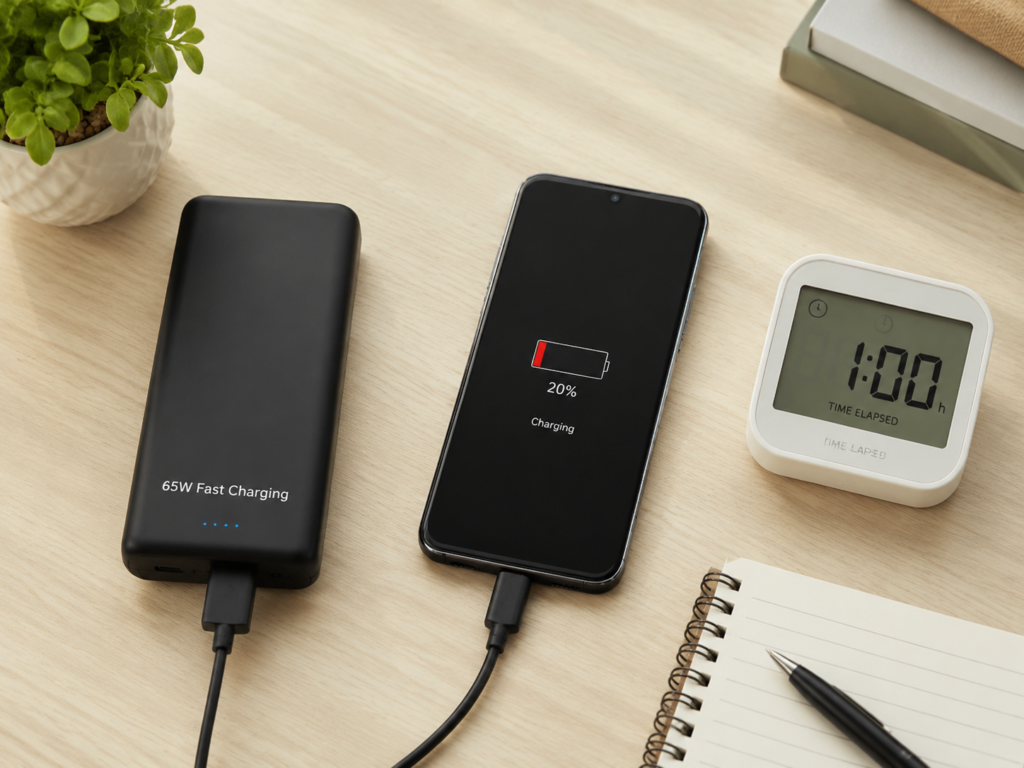
Have you ever had this experience: before going out, you specifically picked a power bank labeled “65W fast charging”, expecting it to charge your device significantly in half an hour, but after plugging it in for an hour, the battery only went up by 20% — even slower than your old charger at home? However, 65W is the upper limit of the power bank’s output capability, which does not mean the phone will definitely charge at 65W. The actual speed also depends on the protocols supported by the phone, its power limit, and whether the charging cable meets the standards. Many people’s first reaction is “I bought a fake” or “the power bank is broken”, but in fact, most fast charging failure issues are not caused by hardware damage, but by protocol mismatch, wrong cable, wrong port, or even just normal battery protection strategies.
To figure out where the problem lies, we don’t need to memorize complex circuit knowledge. As long as we follow the logic of “how fast charging is triggered” and troubleshoot step by step, ordinary people can quickly find the cause.
Don’t Panic First: What You’re Experiencing May Not Be a Real Fast Charging Fault
Before you start replacing accessories or taking apart devices, we need to clarify the boundaries of the problem first. Many people immediately say “the power bank’s fast charging is broken”, but there are two completely different types of “slowness”, with very different troubleshooting directions.
The first type is no fast charging when the power bank charges external devices such as phones, tablets, handheld consoles, and laptops. For this case, focus on checking the power bank’s output port, the charging cable, and the device being charged; the second type is the speed does not reach the labeled fast charging input when charging the power bank itself. In this case, you need to check the power bank’s input port, the charging cable, the charger, or the power outlet. Mixing the two scenarios together will only make troubleshooting more confusing.
Besides distinguishing scenarios, you also need to tell the difference between “fast charging not triggered” and “slowing down after being triggered”. The former means the protocol handshake never succeeded, and the whole process stays at the low-power state of 5V normal charging, just like two people who don’t speak the same language and can’t discuss cooperation at all; the latter means the handshake succeeded at first and entered fast charging mode, but after a while, the system actively reduces power due to battery level, temperature, load and other reasons, which is a normal protection mechanism. The key to judgment is simple: check if there was a fast charging prompt, fast charging icon, or power bank fast charging light, or if you remember the speed was fast at the beginning and then slowed down. If it’s slow the whole time, prioritize checking protocols, cables, and ports; if it’s fast first then slow, prioritize checking temperature, battery level, load, and protection strategies.
So how to accurately judge whether fast charging is triggered? The beginner method is very straightforward: check the prompts on the phone’s lock screen or battery settings, such as “Fast Charging”, “Super Fast Charging”, or check if the fast charging indicator light on the power bank is on. If you want to be more accurate, you can observe the charging amount for 30 minutes under the conditions of 20%-80% device battery, screen off, room temperature, and no high-power background apps, but this method is greatly affected by battery capacity, device model, and background power consumption, so it can only be used for a rough judgment.
If you want a definite result, you need to use a USB power meter to directly check voltage, current, and power. Ordinary PD high-voltage fast charging usually rises to 9V, 12V, 15V or even 20V levels. If it stays at only 5V and the power is very low, in most cases the high-voltage fast charging handshake is not completed. But note: some proprietary fast charging uses low-voltage high-current solutions (such as 5V6A 30W fast charging), where the voltage is still 5V but the current is very high. In this case, you can’t just look at the voltage, you need to look at the total power. In addition, only looking at the lightning icon, the animation when plugging in, or relying on the subjective feeling of “charging slowly” can easily lead to misjudgment.
Finally, it should be noted that this article does not cover issues related to wireless charging, magnetic exclusive fast charging, or in-car wireless fast charging, nor does it involve obvious hardware damage such as water ingress, drops, bulging, or burning, as well as manufacturer certification details and cracking solutions for proprietary protocols. If the device cannot charge at all, frequently disconnects and reconnects, or cannot turn on, especially accompanied by heat, odor, or port burning, do not continue testing according to this article. Stop using it immediately and contact the brand’s after-sales service; only slight contact instability can be used as a clue for troubleshooting ports and cables.
Beginner Basics: Why Does Fast Charging Need to Be “Triggered”?
Many people think that as long as the charger has enough power and the battery is large enough, fast charging should start automatically when plugged in, but that’s not the case. The essence of fast charging is that the power supply end, the power receiving end, and the charging cable first conduct a “handshake negotiation” to confirm the voltage, current, and protocols supported by each other, and only after confirming safety will they increase the power. It’s like three people doing business: they first need to confirm what the other party can provide, what they need, and whether the transportation route can bear the goods. Only after reaching an agreement do they dare to ship large quantities; if they can’t reach an agreement, they can only use the safest small batch (5V low power).
Therefore, there are three necessary conditions for triggering fast charging, none of which can be missing: the power supply end supports the corresponding protocol and sufficient power, the power receiving end supports the same or compatible protocol, and the charging cable can complete communication identification and carry the corresponding current.
There are many fast charging protocols on the market, you don’t need to memorize them by rote, just categorize them into these types:
- USB PD: Equivalent to the “common language” in the fast charging world, it is currently the most universal protocol. Apple, Samsung, Google Pixel, iPad, most thin and light laptops, and some handheld consoles/gaming devices support PD input, but dock mode, maximum power, and compatibility shall be subject to the device manual.
- PPS: The “enhanced version” of the PD protocol, full name Programmable Power Supply. Some Android phones require PPS to approach maximum power, such as some Samsung, Xiaomi, and Google models.
- QC, AFC, FCP/SCP, etc.: Commonly found in older Android devices and accessories, they are the “dialects” of various manufacturers, and compatibility depends on whether both ends of the device support them.
- Proprietary protocols (such as VOOC/SuperVOOC, etc.): Equivalent to the manufacturer’s “internal code”, they have very high certification requirements for cables, chargers, and power banks. If a third-party power bank does not have official certification, it usually can only use general PD or ordinary 5V charging.
The core logic is simple: as long as the power supply end and the device have a commonly supported protocol, fast charging is possible; if there is no common protocol, it can only downgrade to ordinary charging.
Here we also need to clarify two most easily confused concepts: First, USB-C is just the shape of the port, it does not mean it necessarily supports fast charging. What really determines fast charging is the protocol, voltage levels, current capability, and cable identification. Second, capacity in mAh is not equal to charging speed in W. mAh indicates how much electricity the power bank can store, and W indicates how fast the charging is. A power bank labeled “20000mAh large capacity” may only have an output power of 10W, which cannot provide fast charging for laptops at all. Whether it can fast charge a laptop depends on whether it supports 45W, 65W or even higher power, and whether it has a 20V voltage level.
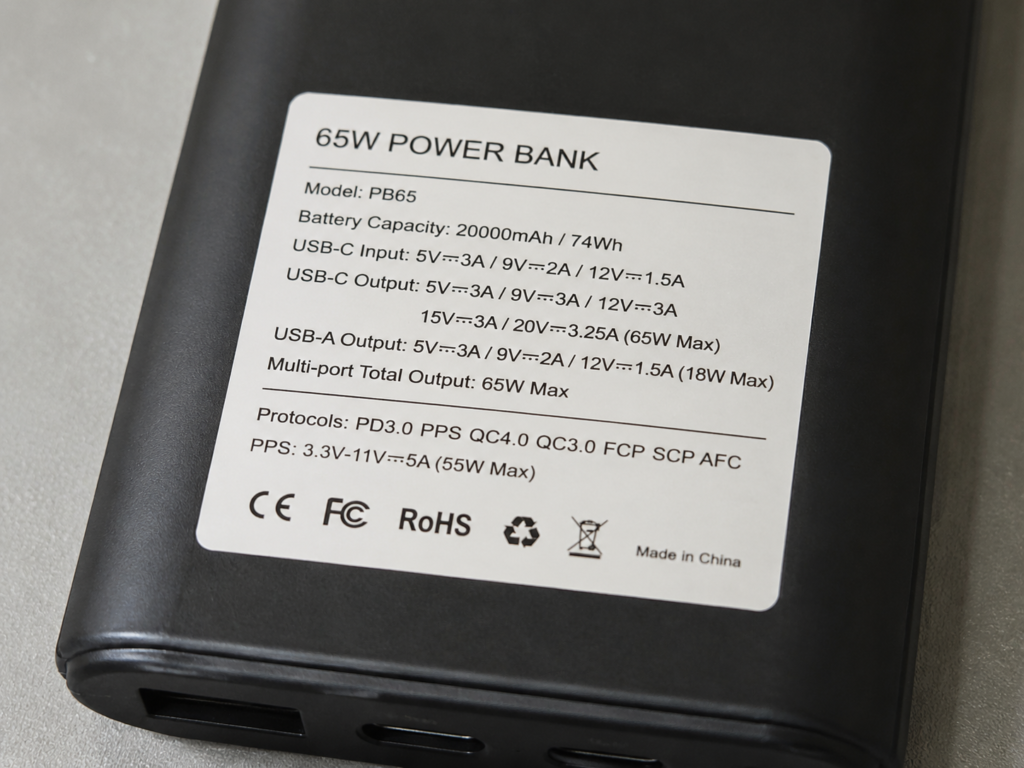
If you want to be more advanced, learning to read the parameter labels on power banks can help you avoid 90% of the pitfalls. The main parameters on the label to look at are:
- Input: Represents the ability to charge the power bank itself. For example, “USB-C Input 5V=3A / 9V=2A / 12V=1.5A” means this USB-C port supports up to 18W input fast charging.
- Output: Represents the ability of the power bank to supply power to external devices. For example, “USB-C Output 5V=3A / 9V=3A / 12V=2.5A / 20V=3.25A” calculates to a maximum output of 65W.
- Single-port power: For example, if it is labeled “USB-C single port 65W”, you can judge whether it is sufficient for thin and light laptops.
- Multi-port combined output: For example, “C1+C2=45W+20W” or “C+A=30W total output” means that when multiple ports are used at the same time, the total power is fixed. Not every port can reach the maximum power, nor is it simply evenly distributed.
- Protocol identifiers: Such as PD, PPS, QC, SCP, AFC, VOOC, etc. Compare them with the protocols supported by your device; only if there is an intersection can fast charging be possible.
- PPS levels: For example, “PPS 3.3-11V=3A”. Some Android phones require the corresponding PPS voltage range and current to achieve full fast charging speed.
These Are Not Faults: Normal Protection and Usage Restrictions
Many times when you think “fast charging is broken”, it’s actually just the normal protection mechanism of the device at work. Ruling out these situations first can save you a lot of detours.
First, the battery level is not in the main fast charging range. The high-power fast charging of most devices is concentrated in the 20%-80% battery range. Strategies vary by brand, but the general direction is the same: when the battery level is close to 80% or even above 90%, the system will actively reduce the charging speed to protect battery life; when the battery level is extremely low, some devices will first pre-charge with a small current, and then increase the power after the battery reaches a safe level. There are also devices that enter maximum power at the low to medium battery stage. Therefore, when testing fast charging, it is best to adjust both the device and the power bank to a medium battery level, and do not test with a full or nearly dead battery.
Second is the effect of temperature. Lithium batteries are very sensitive to temperature. The common suitable charging ambient temperature is about 0°C to 35°C, and the specific value shall be subject to the manufacturer’s settings. When the temperature is too low, the activity of lithium batteries decreases, which may limit fast charging or even suspend charging; when the temperature is too high, the system will actively reduce power, suspend fast charging, and in severe cases even stop charging. If your device has just finished playing a large game, been exposed to the sun, or has a very thick phone case, first return to a room temperature environment, remove the thick case, let it cool down for a while, and then test. It will most likely recover.
The third situation is that the device is running under high load. Playing games, navigating, making video calls, or turning on a hotspot while charging will all cause the device to heat up and trigger temperature control to reduce power; background downloads, synchronization, and backups will also consume part of the input power, causing the battery level to seem to rise slowly. At this time, even if the output power of the power bank is not low, the actual amount of electricity charged into the battery will be less. If you want to test, it is best to turn off the screen, close high-power apps, and let it sit for 10-15 minutes before observing.
The fourth is simultaneous charging with multiple ports. The total output power of the power bank is fixed. When you charge multiple devices at the same time, the power and supported protocols of each port may change. For example, a USB-C port that originally had 65W single-port power may become 45W after a second device is plugged in, or even re-negotiate the handshake. Not all power banks support simultaneous fast charging with multiple ports, so when troubleshooting, it is best to connect only one device and plug it into the USB-C port labeled with the highest power for testing.
Finally, note that displays and subjective feelings are often misleading. Some devices only display the fast charging prompt at the moment of plugging in, and then no longer display it; some system status bars only show “Charging” without distinguishing between fast charging and ordinary charging; if background power consumption is high, even if the input power is not low, the battery percentage may rise very slowly. The most reliable way to judge is to observe the peak and sustained power with a power meter under stable conditions.
Cause 1: Problems with the Power Bank Itself
After ruling out normal protection mechanisms, let’s look at possible problems with the power bank itself, still divided into two scenarios.
When Charging External Devices: Output Port Problems
The most common is a fast charging protocol mismatch. If the power bank does not support the protocol required by your device, for example, it only supports the QC protocol but is used to charge an iPhone or MacBook that mainly relies on PD, then fast charging will definitely not be triggered. Some devices’ maximum power depends on PPS, but if the power bank only has ordinary PD, it may only trigger basic PD fast charging and cannot reach the labeled maximum speed. As for proprietary protocol fast charging, if a third-party power bank does not have official certification, it usually can only use general PD or ordinary 5V, and cannot trigger full-speed fast charging. The judgment method is also very simple: compare the protocol list of the power bank with the charging parameters on the device’s official website to see if there are any commonly supported protocols.
The second common situation is plugging into the wrong port, or different ports have different capabilities. Some power banks only have one USB-C port that supports maximum power, and other USB-C or USB-A ports are low-power output; some older USB-C ports only support input, not output; USB-A ports usually do not support the USB PD protocol, but may support older protocols such as QC, SCP, or proprietary protocols. Before plugging in, it is best to check the labels next to the ports, such as OUT (output), IN/OUT (bidirectional), PD, and maximum W number. Prioritize using the USB-C port labeled with the highest power.
The third is insufficient output power or voltage levels. A phone may only need 20W-45W, but laptops and high-performance handheld consoles usually require 45W, 65W or even higher power, and many laptops require a 20V voltage level. If the power bank only has 5V, 9V, and 12V levels, even if the total power is sufficient, it may prompt “Charging but insufficient power”, or even fail to charge at all. It should be noted that the 20V level mainly affects laptops, some handheld consoles, and high-power devices; phones and tablets mostly work within 9V, 12V or PPS ranges, so you should not judge that a phone cannot fast charge just because there is no 20V. Also note that the labeled total power is not equal to single-port power. For example, a power bank with a total of 65W may have 45W for the USB-C port plus 20W for the USB-A port, not every port can reach 65W. Specifically, check the voltage levels and single-port maximum power in the Output parameters.
The fourth is power reduction caused by the power bank’s own protection. When the power bank’s own battery level is very low, some models will limit high-power output to avoid over-discharge; after continuous high-power output for a period of time, the temperature rises, which will also trigger over-temperature power reduction; if over-current, short-circuit, or over-voltage protection is triggered, you may need to unplug and re-plug the cable, press the power button, or let it sit for a short time to recover. In this case, you can first charge the power bank to a higher battery level, let it cool down, and then test with a single port.
Finally, poor port contact or battery aging. Dust, lint, oxidation, or looseness in the USB-C port will affect the stability of CC communication and power supply, leading to handshake failure or inability to increase power; if the power bank has been used for many years, the internal resistance will increase after the battery ages, and the peak output capability will decrease, which may not be able to maintain high power. If after cleaning the port and replacing the cable, all devices cannot fast charge, it is most likely a hardware problem with the power bank.
When Charging the Power Bank Itself: Input Port Problems
If the power bank itself charges slowly, first check whether its input specifications are inherently limited. The maximum input power of a power bank is fixed. No matter how high-power a charger you use, it will not exceed its upper limit. For example, if a power bank only supports 20W PD input, even if you use a 65W charger to charge it, the maximum speed can only be close to 20W. So don’t just look at the total power on the packaging, check the Input parameters on the body or in the manual.
The second situation is using the wrong input port. Some power banks only have a USB-C port that supports fast charging input, and Micro-USB or Lightning input ports can only charge slowly; if it is a power bank with multiple USB-C ports, only a specific USB-C port may support the maximum input power. Prioritizing the USB-C port labeled IN/OUT and with the highest power is definitely correct.
The third is input protection or hardware abnormality. A loose or dirty input port will cause handshake failure or repeated disconnection; if the battery temperature is too high or too low, or the battery is aged, it will limit the power bank’s own input power. If after replacing a qualified fast charger and fast charging cable, it is still obviously slow, and the power bank is abnormally hot or disconnects, it is best to stop using it and contact after-sales service for inspection.
Cause 2: The Fault of Charging Cables and Adapter Accessories
The charging cable is the most easily overlooked and also a very common point of failure. Many people think “as long as it can charge it’s fine”, but in fact, even if the cable can still charge normally at 5V slow charging, it may not be able to trigger fast charging.
Several Situations Where USB-C Cables Do Not Meet Requirements
First is abnormal protocol communication or identification capability. USB-C fast charging needs to complete identification and negotiation through the CC channel. Inferior or damaged cables may have a broken CC channel, or a faulty identification chip, leading to handshake failure. At this time, the cable may still be able to charge 5V ordinary electricity, but just cannot trigger fast charging. So “able to charge” is not equal to “able to fast charge”, and “able to transfer data” is also not equal to necessarily supporting high-power fast charging. When you suspect the cable, the simplest method is to replace it with a short C-C cable confirmed to support PD fast charging for testing.
Second is insufficient current and power specifications. Fast charging of different powers has different requirements for the current carrying capacity of the cable. Here is a simple comparison table you can refer to:
| Fast Charging Power Range | Common Cable Requirements | Typical Applicable Devices |
|---|---|---|
| 60W and below | C-C cable with 3A or higher (ordinary PD cables are usually sufficient) | Phones, tablets, small handheld consoles |
| Over 60W to 100W | In general PD scenarios, a 5A C-C cable with E-marker identification chip is usually required | Thin and light laptops, high-performance handheld consoles |
| Above 100W (such as 140W, 240W) | Special C-C cable supporting PD 3.1 EPR | High-performance laptops, workstations |
Note: The above are common requirements for general PD scenarios. A few devices or manufacturer-customized solutions may have differences. The final standard shall be subject to the official labels of the device, power bank, and cable.
For example, for 20W iPhone fast charging, an ordinary 3A PD cable is enough, no need to buy a 5A cable; but for 65W laptop fast charging, a qualified 5A E-marker cable is usually required, and for devices above 100W, you need to pay more attention to the cable’s label.
Third, the port type determines the upper limit of the protocol. C-C cables are the mainstream choice for USB PD and high-power fast charging; A-C cables usually do not support USB PD, but may support protocols such as QC, SCP, and AFC, and often downgrade when charging devices that rely on PD; older iPhones with Lightning ports require a compliant USB-C to Lightning cable to trigger fast charging, while iPhones with USB-C ports can use ordinary C-C cables. Also note that the built-in cable of a power bank with an attached cable may not support the maximum power. In many cases, the built-in cable is only for emergency convenience, and the maximum power still requires using your own C-C cable plugged into the USB-C port.
Finally, the cable is damaged, too long, or of poor quality. Internal wire breakage, plug oxidation, or loose ports will cause the power to fail to rise, or intermittent handshakes; cables that are too long, too thin, or of poor quality have higher resistance, which is prone to voltage drop, leading to fast charging downgrading. When doing replacement testing, prioritize using short, thick, clearly labeled fast charging cables. If fast charging recovers after replacement, it means the original cable has a problem.
Adapters, Docking Stations, and Car Chargers May Also Hold You Back
Besides the cable itself, intermediate adapter accessories may also affect fast charging. Many adapters such as C to Lightning, C to Micro, and A to C do not support the complete fast charging protocol and can only transmit ordinary 5V electricity; the USB ports of docking stations, monitors, and computers usually have relatively low power, and many do not support fast charging protocols. Testing with these cannot indicate that there is a problem with the power bank or device; the power supply in the car environment fluctuates greatly, and the car charger itself must also support the corresponding protocol and power to trigger fast charging.
Therefore, when troubleshooting, be sure to remove all intermediate devices such as adapters, docking stations, and car chargers, and connect the power bank, cable, and device directly, so as to eliminate the interference of intermediate links.
Cause 3: Problems with the Device Being Charged or the Charger
If both the power bank and the cable are fine, then you need to check the device or charger on the other end.
Scenario A: The Device Being Charged Has a Problem
First, confirm whether your device itself supports the corresponding fast charging protocol. Many small devices such as old phones, Bluetooth headsets, and e-readers only support 5V slow charging and do not have fast charging at all; some devices support relatively special fast charging protocols, and ordinary PD power banks can only trigger lower power, which cannot reach the speed of the original charger. If you are not sure, you can check the parameters on the device’s official website, focusing on the supported protocols, maximum power, and whether PPS or a proprietary charger is required.
The second situation is an abnormality in the device’s port or system. Dust, looseness, or oxidation in the charging port will affect CC communication or contact stability, leading to failure to trigger fast charging; system bugs may also cause abnormal fast charging identification. In this case, you can try restarting the device, updating the system, and re-plugging the cable. If the same device cannot fast charge with several qualified power banks and cables, it is most likely a port or system problem on the device side.
The third is that system settings limit the charging strategy. Many devices now have functions such as “Optimized Battery Charging”, “Smart Charging”, and “Battery Protection”, which may actively slow down the charging speed at night or when the battery is high; some Android models also have switches for “Fast Charging” and “Super Fast Charging”, so you need to confirm whether they are turned on; although power saving mode and low power mode do not necessarily directly limit fast charging, they may change background power consumption and temperature control strategies, indirectly affecting charging speed. You can temporarily turn off these restrictions, test with the screen off and the device sitting still. If it recovers, it means it’s a setting problem. Whether to keep it on for a long time depends on whether you value charging speed or battery life more.
Finally, there are still temperature and load issues. If the body is too hot or too cold, the device will actively limit the input power; when using under high load while charging, the device will prioritize temperature control rather than maintaining the maximum charging power. In this case, just return to room temperature and let it sit with the screen off for a while.
Scenario B: The Charger/Outlet Charging the Power Bank Has a Problem
If the power bank itself charges slowly, you also need to check the charger and outlet that supply power to it.
First is a charger protocol mismatch. For example, if the power bank supports PD input, but the charger only supports the old QC protocol or ordinary 5V, then fast charging input will definitely not be triggered. It is relatively rare for power banks to require PPS input, but it shall still be subject to the manual. When judging, look at the output parameters on the charger’s casing to confirm whether there is PD/PPS and the corresponding voltage levels.
The second is insufficient charger power, or multi-port shunting. If the maximum output of the charger is lower than the input upper limit of the power bank, the maximum speed can only reach the charger’s capability upper limit; for multi-port chargers, after plugging in a second device, the power may be redistributed, leading to slower input to the power bank. In this case, you can test with single-port output, or check the multi-port combined power table of the charger.
The third is an unstable power supply environment. Most USB ports on computers, monitors, and docking stations have limited power, and many do not support fast charging, so they are not suitable for testing fast charging; poor contact of power strips or wall outlets may also cause intermittent power supply, affecting fast charging. When troubleshooting, you can change to a wall outlet or a qualified power strip, and use an original or certified fast charger for testing.
10-Minute Troubleshooting Process: Find the Problem Step by Step from Easy to Difficult
After talking about so many possible causes, you may still not know where to start. Don’t worry, follow this process from easy to difficult, and you can roughly locate the problem in 10 minutes without guessing blindly.
Step 1: Rule Out Normal Protection (2 minutes)
- Adjust the battery level of the power bank and the device being charged to the 20%-80% range
- Place in a room temperature environment, turn off the device screen, and close high-load apps such as games, navigation, hotspots, and video calls
- Only keep one device connected to the power bank
- Result judgment: If fast charging recovers after adjustment, it is caused by protection strategies or usage conditions, not a fault
Step 2: Check Ports and Plugging Method (1 minute)
- Confirm that you are plugging into the USB-C port labeled with the highest output/input power, avoid input-only ports, low-power USB-A ports, or secondary USB-C ports
- Plug the cable tightly, and slight shaking should not cause disconnection
- Dust in the port can be cleaned with a soft brush, air blower, or dry tool. Do not scrape hard with sharp metal objects
- For power banks with a power button, press it to wake up the output
- Result judgment: If it recovers after cleaning or changing the port, it means it is a port selection or contact problem
Step 3: Replace Cables and Adapter Accessories (3 minutes)
- Replace with a short C-C cable confirmed to support fast charging; for high-power devices, prioritize 5A E-marker cables, and for devices above 100W, use cables supporting EPR
- Remove all intermediate links such as adapters, docking stations, car chargers, and monitor USB ports, and connect the device directly
- Result judgment: If it recovers after changing the cable or connecting directly, it means the original cable or adapter accessory does not support fast charging or is damaged
Step 4: Cross-verify the Opposite Device/Charger (3 minutes)
- Scenario A (power bank charges the device slowly): Replace with a device confirmed to support general fast charging such as PD/PPS to test the power bank’s output
- Scenario B (power bank itself charges slowly): Replace with a charger confirmed to support PD and with sufficient power to test the power bank’s input
- Note: During cross-verification, replace only one variable at a time to avoid being unable to locate the problem
- Result judgment: If it recovers after replacement, the problem lies with the replaced device, charger, or the compatibility between the two
Optional Advanced: Quick Location with a USB Power Meter
If you have a USB power meter, you can directly connect it in series in the circuit to check parameters and locate the problem faster:
- Maintains 5V low power for a long time: Prioritize suspecting protocol mismatch, abnormal cable communication, wrong port plugging, or poor port contact
- Has risen to 9V/12V/20V high voltage but power is not high: Most likely due to device-side restrictions, such as battery level, temperature control strategy, or low own power limit
- Voltage resets and power drops after plugging in a second device: This is a normal strategy for multi-port power redistribution
For easy comparison, here are the possible causes of several common phenomena:
- Only 5V low power throughout: Protocol mismatch, abnormal cable communication, wrong port plugging, poor port contact
- Labeled 65W power bank only charges the phone at 15W-25W: The phone’s own power limit is low, the power bank lacks PPS, battery level and temperature restrictions, the phone itself does not support higher power
- Fast charging disappears after plugging in a second device: Multi-port power shunting or protocol re-negotiation, which is normal
- Charging speed is fast and slow: Changes in temperature, battery level, load, or unstable port/cable contact
- Laptop prompts “Charging but insufficient power”: Insufficient power bank power, lack of 20V level, cable does not meet 5A standard, laptop has high minimum input requirement
- Power bank itself charges slowly: Input specifications are inherently limited, charger does not support PD, cable specifications are insufficient, wrong input port plugged in
Pitfall Avoidance Guide: Common Fast Charging Misconceptions and Usage Suggestions
Common Fast Charging Misconceptions
- Misconception 1: A USB-C port equals supporting fast charging. USB-C is just the port shape; fast charging capability depends on the protocol, voltage levels, current carrying capacity, and cable identification.
- Misconception 2: The higher the power bank’s power, the faster the charging. Charging speed is determined by the highest level commonly supported by both ends, and will not exceed the device’s own power limit.
- Misconception 3: The larger the capacity, the stronger the fast charging. mAh is a unit of stored electricity, representing how much electricity can be stored; W is a unit of power, representing charging speed. There is no necessary connection between the two.
- Misconception 4: Labeled PD means full-speed fast charging is guaranteed. The PD protocol is divided into different power levels, and some Android devices also require PPS function to reach the maximum charging power.
- Misconception 5: Labeled total power equals single-port power. Total power may be the upper limit of multi-port combined output, and the single-port maximum power needs to be checked separately in the parameter description.
- Misconception 6: All fast charging requires a 5A cable. For 20W, 30W and other phone fast charging, ordinary 3A PD cables are usually sufficient; for general PD scenarios exceeding 60W, 5A E-marker cables are mostly required.
- Misconception 7: Third-party power banks definitely cannot trigger fast charging. As long as the protocol, power, and certification meet the requirements, third-party accessories can also trigger fast charging normally.
- Misconception 8: Failure to trigger fast charging is a normal design to protect the battery. Regular fast charging has complete temperature control and battery management mechanisms; when it cannot be triggered, you still need to troubleshoot the cause according to the process.
Purchase and Usage Suggestions
Before buying a power bank, first confirm the protocols and maximum power supported by your device, paying special attention to PD, PPS, 20V levels, and proprietary protocol requirements. Phone users should prioritize PD/PPS support and the 20W-45W power range; laptop and high-performance handheld console users should focus on 45W, 65W, 100W levels and 20V output capability.
For daily charging, prioritize using clearly labeled USB-C to C fast charging cables, and choose 5A E-marker cables for high-power scenarios; minimize the use of adapters of unknown origin, overly long cheap cables, and cables without parameter labels. Before charging with multiple ports at the same time, first check the power bank’s combined output table, and plug the device that needs fast charging the most into the highest power port.
Regularly clean dust and lint from the ports. If you find loose ports, abnormal heat, or frequent disconnection, stop using and check in time.
Safety Boundary: Stop Using Immediately in These Situations
When the following situations occur, please stop using immediately and do not continue testing:
- The power bank is bulging, leaking, has an odor, or is abnormally hot
- The port is burnt or blackened, and frequently disconnects and reconnects after plugging in
- The cable’s outer sheath is damaged, the plug is obviously loose, or the plug is hot
- The device prompts an accessory abnormality, and charging is repeatedly interrupted accompanied by heat
When cleaning the port, never scrape hard with a metal needle to avoid short circuit or damage to the contacts.
Final Summary: Judge with One Logical Line
In fact, troubleshooting fast charging faults doesn’t require memorizing too much complex knowledge. Just follow this logical line, and ordinary people can judge independently:
Step 1: First distinguish scenarios: Is the power bank charging external devices slowly, or is the power bank itself charging slowly? The troubleshooting directions for the two are completely different.
Step 2: Then distinguish the nature: Is fast charging not triggered the whole time, or does it slow down after being triggered due to protection strategies? For the former, check protocols, cables, and ports; for the latter, check temperature, battery level, and load.
Step 3: Then check the three parties: What does the power supply end support, what does the power receiving end need, and can the cable communicate and carry current? All three are indispensable.
Step 4: Troubleshoot according to the process: First rule out normal situations such as battery level, temperature, and load, then check port plugging method, then replace cables and adapters, then replace the opposite device or charger, and verify with a power meter if needed.
The last step: Always prioritize safety first: If there are situations such as bulging, burning, abnormal heat, or frequent disconnection, do not continue testing. Prioritize stopping use and contacting after-sales service.
Troubleshooting in this order can usually locate the problem to one of the categories: protocol, port, cable, device settings, or safety fault, so you don’t have to guess blindly or waste money replacing accessories.