
Have you also run into this common pitfall: you buy a multi-port USB-C charger rated at 100W, thinking one charger will handle your laptop, phone, and wireless earbuds, avoiding cluttering outlets with multiple chargers. But when you actually use it, you find that—when only the laptop is plugged in, it fast charges normally; when you plug in your phone, it prompts “insufficient power supply” and the battery drains while in use; your phone originally showed super fast charging, but when you plug in a watch, it switches to regular charging; when you plug or unplug a new device, all devices briefly stop charging for a moment. Many people’s first reaction is that they bought a counterfeit product or the charger is broken, but in 90% of cases, it is not a fault—it is determined by the design characteristics of multi-port chargers.
First, Distinguish: Is Your “Slow Charging” Normal or a Real Fault?
Before starting troubleshooting, we need to clarify what we mean by “multi-port USB-C charger”—it refers to products with 2 or more output ports built into a single charger body, whether it is an all-USB-C port configuration or a mixed USB-C and USB-A configuration. The core difference between it and “plugging multiple single-port chargers into a power strip” is that multi-port chargers usually share a single internal power module, and the total output power of the entire unit is shared across all ports; not every port can deliver its full rated power independently. Common forms include 65W dual-port chargers, 100W triple-port chargers, 140W/200W desktop multi-port chargers, all of which fall into this category.
The “slow charging” people often talk about has a wide variety of manifestations: some devices trigger fast charging when only one device is plugged in, but the fast charging indicator disappears and power drops significantly when a second device is plugged in; some phones or laptops directly pop up prompts like “Slow Charging” or “Insufficient Power Adapter Wattage”; some laptops’ battery levels don’t rise while charging and using the device, or even drain slowly; some people find that when all ports are filled, low-power devices like earbuds, watches, and power banks don’t fully charge overnight; when plugging or unplugging a new device, all devices briefly stop charging for 1-2 seconds before resuming; even one specific port is obviously slower than others, and speed returns to normal when switching to a different port.
But among these manifestations, many are actually normal, not real faults. To avoid misjudgment, you first need to do a baseline test, and the test method must be correct. First, the comparison baseline must be unified: the same device, the same cable, the same charging port, first test the single-port charging speed as a reference. Second, choose the right testing range: try to test when the device battery is between 20% and 60%—this range is the most stable stage for device fast charging. The vast majority of digital devices enter protective speed reduction when the battery is above 80%, which is a normal battery protection mechanism and has nothing to do with the charger. Third, test conditions should be stable: try to keep the device screen off, close unnecessary background tasks, do not play games or make video calls, and the ambient temperature should not be too high—high temperature itself will cause the device to slow down. Finally, don’t just look at the momentary fast charging icon; charge for 10-15 minutes and check the actual battery level increase, which is more reliable; if possible, using a USB-C power meter or checking the power input wattage displayed in the laptop’s system settings will be more accurate.
Only when the power or battery level increase during multi-port simultaneous charging is significantly lower than the single-port test result, and factors such as high battery level, high temperature, and charging while using are ruled out, can it be considered a “real slowdown” that requires further troubleshooting.
So what is the core dividing line between normal slowdown and real fault? Simply put: if single-port charging speed can reach the rated level, the speed drop during multi-port charging matches the power combinations listed in the manual, and there is no abnormal overheating, burning smell, or frequent charging interruptions, then it is normal. If speed returns to normal after changing a cable, changing a port, or removing an adapter, it is usually an issue with the cable, adapter, or port contact, not a broken charger. If the slow charging is caused by the device’s own low maximum power, high battery level, high temperature, battery aging, or system charging strategy, the problem lies with the device. Only when single-port charging also clearly fails to reach normal speed, has frequent charging interruptions, abnormal overheating of the charger casing or prongs, burning smell, deformation, abnormal noises, or loose, wobbly ports, is it a real hardware fault.
Core Logic: The Underlying Reason Multi-Port Chargers Naturally Slow Down
Now that we understand how to distinguish normal from abnormal, let’s talk about why multi-port chargers naturally slow down—essentially, it’s “dividing a cake”.
The 65W, 100W, 140W marked on the charger is usually the total output limit of the entire unit, that is, the size of the entire “cake”. The “up to 100W per single port” advertised by many merchants means that when only one device is plugged in, this port can get the entire cake; but if multiple devices are plugged in, the cake has to be split up, and the power allocated to each device naturally decreases. For example, a triple-port charger rated at 100W can output 100W to a laptop when only the C1 port is used; when two devices are plugged in, it may become 65W + 30W; when three devices are plugged in, it may become 45W + 30W + 18W—the total power added up will not exceed the 100W limit.
Different multi-port chargers have different rules for dividing the cake, which can be roughly divided into three categories: the first is fixed allocation, that is, after inserting multiple devices, power is allocated according to preset fixed combinations, regardless of the actual power demand of the devices, for example, C1 + C2 is always 45W + 20W, with a total power of 65W. The second is dynamic allocation, which automatically adjusts based on the devices’ actual demand and load changes, for example, if a laptop needs 65W and a phone needs 27W, both will get enough power if the total power is sufficient; if both devices require high power, it will adjust proportionally. The third is semi-dynamic allocation, that is, some ports have fixed power limits, while the remaining ports adjust dynamically, which is the most common approach in current consumer-grade multi-port chargers.
To find out which allocation rule your charger uses, don’t just look at the large-font rated values on the product homepage—be sure to find the multi-port simultaneous output parameter table in the packaging, manual, or product detail page—this is the most accurate basis. Many people only look at total power when buying chargers, but in fact, this table is the key that determines how fast you can charge multiple devices simultaneously.
Let’s take a common 100W 2C1A charger as an example. Its parameter table is roughly like this, you can compare it with your manual to find the same table:
| Usage Scenario | Power Allocation | Approximate Total Output |
|---|---|---|
| Single device on C1/C2 | Up to 100W | 100W |
| Single device on USB-A port | Up to 22.5W | 22.5W |
| Two devices on C1 + C2 | 65W + 30W | 95W |
| Two devices on C1 + USB-A | 65W + 22.5W | 87.5W |
| Two devices on C2 + USB-A | 45W + 22.5W | 67.5W |
| Three devices on C1 + C2 + USB-A | 45W + 30W + 18W | 93W |
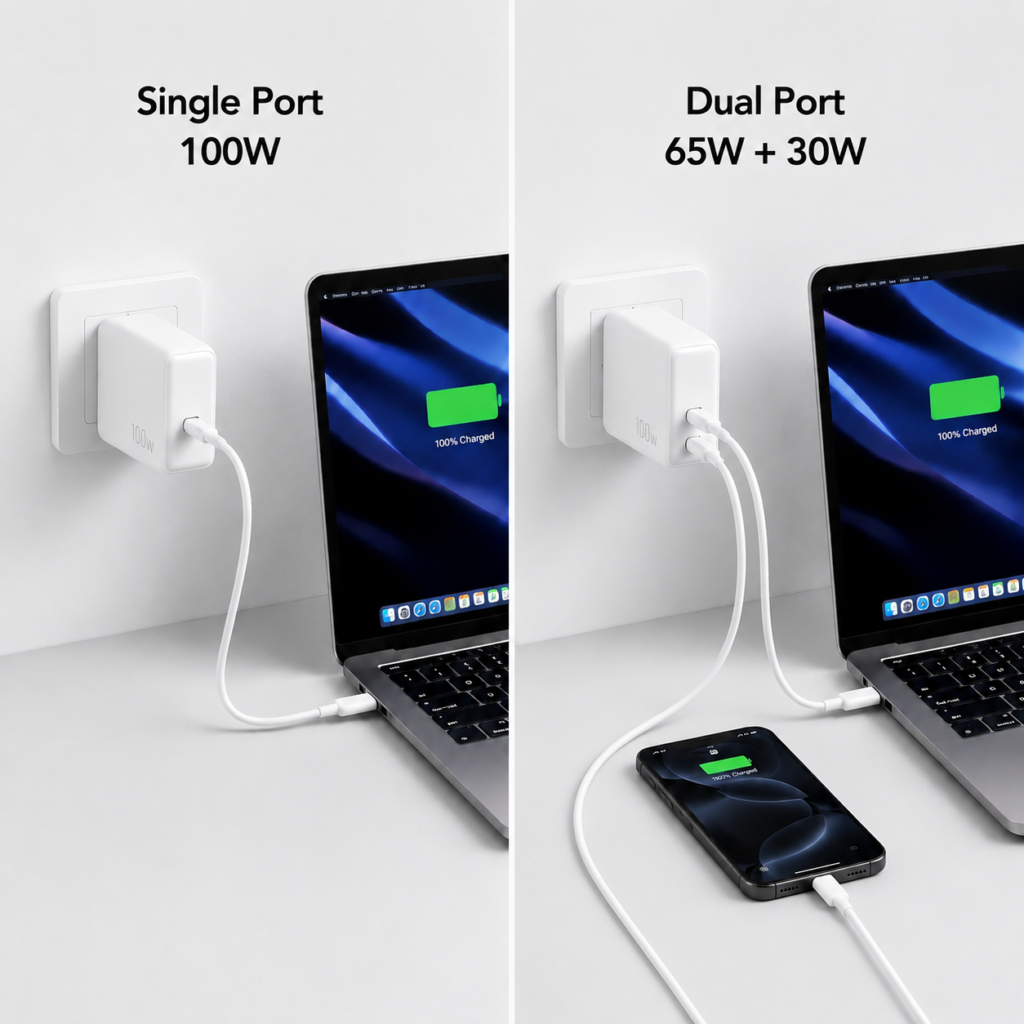
When reading this table, pay attention to several key points: first is single-port output, that is, the maximum power of each port when only one port is used. For example, in the above example, both C1 and C2 can reach 100W when used alone, but this does not mean they can do so when dual ports are used. Second is the power of multi-port combinations—when using dual or triple ports simultaneously, how much each port can get is clearly written. Third is the priority of USB-C ports. Generally, the one marked C1 or PD1 is the primary port, usually with the highest power, and secondary ports like C2 and C3 may have lower power. For example, in the above example, when C2 and the USB-A port are used together, C2 can only reach 45W, which is lower than C1’s 65W. Finally, there are limitations of USB-A ports. The maximum power of USB-A ports is usually only 18W, 22.5W, or lower, and for many chargers, as long as a USB-A port is used, the USB-C ports will also have an additional downshift.
Simply put: to judge whether multi-port slowdown is normal, compare your current plugging setup with this table. If it matches, it is normal; if it does not match, there may be a problem.
Different port combinations have different speed reduction rules, you can have a general impression: if two USB-C ports are charging simultaneously, if the total power is sufficient, the speed drop is usually relatively small. For 100W-class products, common combinations are 65W+30W or 60W+40W. If it is a mixed USB-C and USB-A port usage, because the USB-A port has lower protocol and power limits, it may cause the USB-C port to downshift additionally, and the speed drop will be larger. If three or more ports are all in use, per-port power will be significantly diluted, and low-power ports may only have 5W-18W, which can only be used for small devices like earbuds and watches. If it is a laptop + phone combination, plugging the laptop into the C1 primary port and the phone into a secondary port will be more stable. There is also a question many people have: “my phone fast charges alone, but slows down when I plug in earbuds”—it’s not that the earbuds consume a lot of power, but that the insertion of the earbuds triggers the charger’s power reallocation, and the phone drops from the highest fast charging tier. Even if the earbuds only need a few watts, this situation can occur.
There is another common small question: when plugging or unplugging devices, all devices briefly stop charging for 1-2 seconds, and the fast charging icon also disappears for a moment. This is actually normal, because when adding or removing devices, the charger has to renegotiate voltage, current, and fast charging rules with all devices, which is equivalent to re-checking a “secret code”, so there will be a brief interruption. Some new multi-port chargers now have smooth power reallocation, which may not have an obvious charging interruption sensation. But if there are frequent disconnections without plugging/unplugging, repeated fast charging icon pop-ups, or disconnections at the slightest touch of the cable, it is most likely poor contact, overheating, or a hardware fault, which is not a normal situation.
Hidden Speed Limits: It’s Not Always a Broken Charger—These Factors Can Also Slow Things Down
In addition to the inherent power sharing, there are many easily overlooked factors that can also slow down charging, even more than the impact of power sharing, and many people mistakenly think the charger is broken.
The first and most common is charging cable mismatch. Many people think all USB-C cables look the same and any one will work, but in fact, different USB-C cables have very different current and power limits. If the cable is mismatched, the device will actively drop to a lower tier to avoid overload. We can roughly categorize them by power:
| Cable Type | Common Maximum Power | Applicable Scenarios |
|---|---|---|
| Standard USB-C 3A Cable | Approx. 60W | Daily charging for phones, tablets, and thin-and-light laptops under 65W |
| 5A USB-C Cable with E-Marker Chip | Approx. 100W | Full-speed fast charging for 65W-100W laptops and Android flagships |
| USB-C Cable Supporting USB PD 3.1 EPR (labeled 140W/240W) | 140W/240W | High-performance laptops over 140W |
| USB-A to USB-C Cable | Mostly low-power tiers | Regular slow charging, low-power devices; not suitable for high-power PD fast charging |
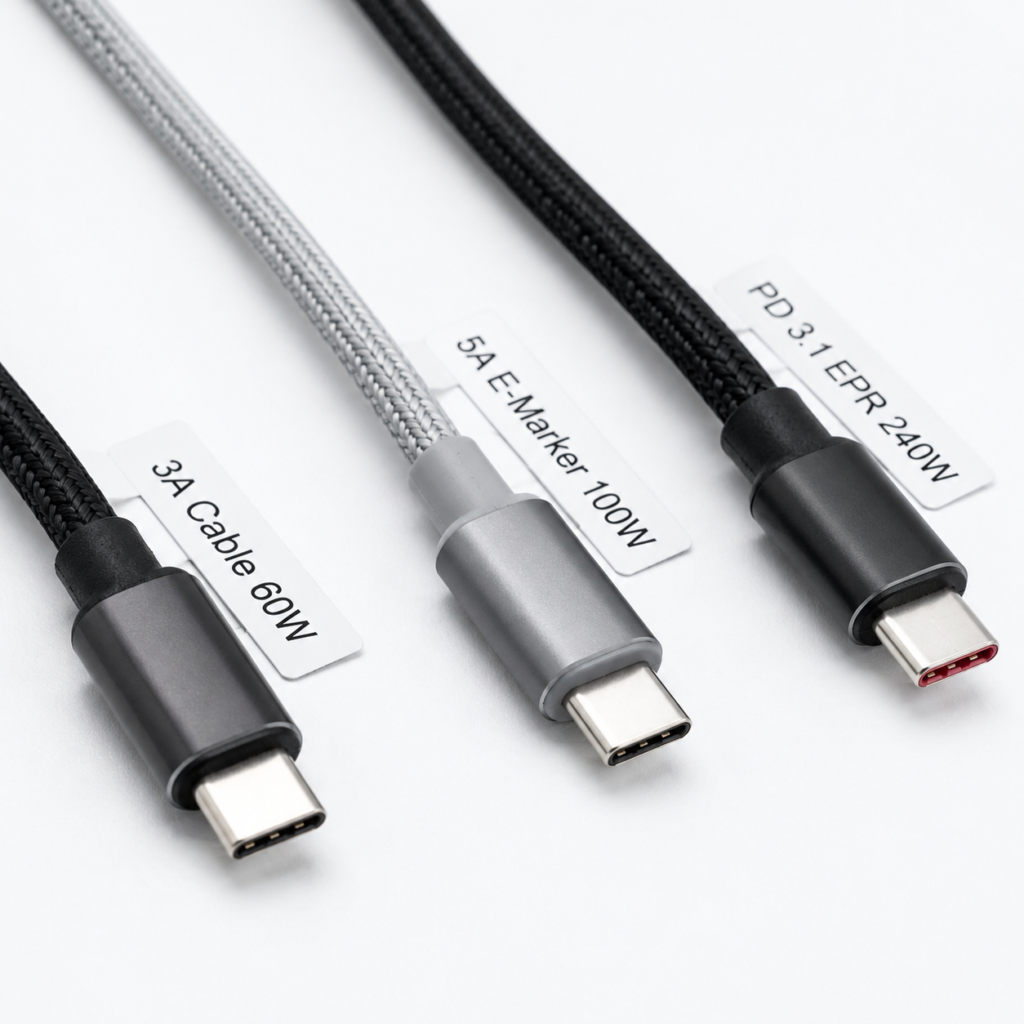
The “identity chip” mentioned here is known in the industry as an E-Marker chip, housed in the cable’s connector, which can actively tell the charger and device the maximum current and power it can handle. PD fast charging above 60W (i.e., 20V/3A) usually requires a 5A cable with this chip to reach full speed. For higher power like 140W or 240W, the charger, device, and cable all need to support the USB PD 3.1 EPR standard—this is the current mainstream high-power fast charging standard, and if any one is missing, the rated power cannot be achieved.
As for USB-A to USB-C cables, they generally do not support high-power PD fast charging. In most cases, they can only run at lower tiers like 5W, 10W, 15W, 18W, etc. Some cables and devices supporting proprietary protocols can reach higher power, but overall they are not suitable for high-power PD fast charging, and the actual speed depends on the protocols supported by the charger, device, and cable.
How to judge if it is a cable problem? If the same device can’t trigger fast charging even on single-port charging, and speed returns to normal after switching to a cable confirmed to support fast charging, then it is basically a cable problem.
The second hidden speed-limiting factor is mismatched “common language”—you can think of the rules for negotiating charging speed between the charger and the device as a “common language”. Only when both sides understand the same language can they negotiate the highest charging power; if the language is不通, they can only drop to the lowest tier that everyone understands, that is, slow charging. This common language is called fast charging protocol in the industry.
Currently the most universal fast charging protocol is USB PD (USB Power Delivery), equivalent to the “common language” of the fast charging world, supported by the vast majority of phones, tablets, and thin-and-light laptops. But for Android flagship phones, to reach the highest fast charging power, they often also need to understand an exclusive “dialect” called PPS (Programmable Power Supply)—it is a subset of the USB PD protocol, optimized specifically for high-power fast charging on phones. Without PPS, it may only reach regular PD tiers. For example, a phone that can normally reach 65W may only charge at 27W. It should be noted that even if the charger is marked as supporting PPS, you also need to check whether the voltage and current ranges it provides match the phone’s requirements; if the ranges do not correspond, the phone may still fall back to regular PD tiers and fail to reach the rated maximum fast charging power.
In addition, there are some brand proprietary fast charging protocols. For example, some brands’ ultra-high-power fast charging above 100W must use original or officially certified chargers and cables to trigger, and third-party chargers may only run at universal PD speeds.
Also note: slow charging is not a fixed 10W. Depending on port type and device strategy, it may be 5W, 10W, 15W, or other low tiers—don’t generalize. In addition, older multi-port chargers paired with newly released phones or laptops may also have unstable protocol negotiation or low power, which is also a compatibility issue, not a breakdown.
The third easily overlooked factor is the device’s own power limit. Many people think the higher the charger’s wattage, the faster the charging, but that’s not true—each device has its own maximum input power, which is determined by the device’s internal charging circuit, and no matter how big the charger is, it cannot exceed this limit. For example, a phone that only supports up to 27W fast charging, even if you plug it into a 200W charger, it can only reach a maximum of 27W, no faster. The peak fast charging power of iPhones is inherently not very high, and high-power charging only lasts for a relatively short time; it does not charge at full speed the entire time. Thin-and-light laptops generally need 45W or 65W to charge while in use. For gaming laptops or high-performance creator laptops, even 100W may not be enough for full-load use, and it is normal for the battery to drain while in use. As for low-power devices like earbuds, watches, and fitness bands, they naturally only require a few watts of charging power, and slow charging is normal—don’t blame the charger.
The fourth is normal speed reduction caused by battery protection and usage status. In addition to the high-battery speed reduction above 80% mentioned earlier, there are several situations that can also slow down charging: for example, high temperature—whether it’s a phone, laptop, or charger, they will actively reduce charging power when overheated to avoid damaging the battery or internal components; when charging while using, if you are gaming, editing videos, in a video conference, or running large software, these high loads consume a large amount of the incoming power, causing the battery level to rise very slowly, or even drain; for old devices that have been used for several years, as battery health declines, they will also actively reduce charging power to protect the battery; there are also system charging strategies, such as Optimized Charging, overnight charging protection, and even minor system bugs, which can affect charging speed.
The fifth is external accessories and contact issues. If you use intermediate accessories like docks, adapters, and magnetic charging tips, they may limit the power of PD fast charging, or cause unstable protocol negotiation, slowing down charging. If the device’s charging port has dust buildup, oxidation, or loose ports, it can also cause poor contact—at best, it only charges at low power; at worst, it causes frequent charging interruptions. In addition, cables that are too long, have damaged insulation, run hot, or are of unknown origin should be replaced first—they not only affect speed but may also pose safety hazards. As for poor contact in wall outlets or low-quality power strips, they can also cause unstable charging, but for regular wide-voltage chargers, general mains voltage fluctuations will not have much impact, and this probability is relatively low.
Real Fault Identification: Slowdowns Caused by Abnormal Charger Issues
Of course, not all slowdowns are normal. Although the probability of real faults is low, you also need to know how to identify them. If you encounter the following situations, there may be a problem with the charger itself.
The first is overheating triggering protective speed reduction. This situation usually occurs when charging multiple high-power devices like laptops, tablets, and phones simultaneously via multiple ports. The charger itself has a high load, and if it is placed under blankets, in storage boxes, in enclosed desk cavities, or in direct sunlight, with poor heat dissipation conditions, it is very easy to trigger overheating protection and actively reduce output power. This problem will be more obvious when summer room temperatures are high and the area around the outlet is poorly ventilated. Its typical symptom is: charging speed is normal at first, but slows down after 10+ minutes or half an hour, and returns to normal after unplugging the charger and letting it cool down at rest. It should be noted that chargers of different brands and models have different temperature control thresholds, and there is no unified temperature standard. As long as speed recovers after cooling down, it is basically a heat dissipation issue, not a hardware failure.
The second is hardware aging or damage. For chargers that have been used for several years, internal components like capacitors, ports, and solder joints will naturally age, and output capacity will gradually decrease. If single-port charging is also clearly slower, and there is no improvement after changing cables, devices, or outlets, it is most likely that the charger has aged. If only one specific port is very slow, or disconnects at the slightest touch, while other ports work normally, it may be a hardware failure of that individual port. If the charger has casing deformation, discolored prongs, buzzing or crackling noises, burning smell, or even smoke, this is a clear safety risk and must be stopped immediately—do not attempt repair or continued use.
The third is false-rated or low-quality products. Some small-brand products with opaque specifications only print “up to 100W” in the most prominent place on their promotional pages, and do not provide a multi-port simultaneous output parameter table at all. The actual total power is far lower than the rated value, and the speed drop is extremely severe when charging via multiple ports simultaneously. The temperature control of such products is usually very poor, prone to repeated power reduction or charging interruptions under long-term high load, and most do not have reliable safety compliance and after-sales support. When problems arise, troubleshooting costs are high, and they may also pose safety risks.
Typical Scenarios: Causes and Quick Judgments for Common Slowdowns
After reading this, you may still be a bit confused and not know which situation you are encountering. We have sorted out 6 of the most common slowdown scenarios, you can directly match them to quickly judge the cause.
Laptop + Phone Charging Simultaneously: Laptop Slows Down or Drains
Cause: The power allocated to the laptop is lower than its power consumption during operation.
Quick Judgment: If the laptop charges normally on a single port, slows down immediately when the phone is plugged in, and matches the power combination in the charger’s parameter table, this is normal design.
Solution: For temporary adjustment, plug the laptop into the C1 primary port and the phone into a secondary port; when in a hurry, charge the laptop alone first; if you have long-term dual-charging needs, replace the charger with a higher total power and a dual-port combination that meets the laptop’s power requirements.
Phone Fast Charges Alone, Fast Charging Disappears When Earbuds/Watch Are Plugged In
Cause: Plugging in a small device triggers the charger’s power reallocation, and the phone drops from the highest fast charging tier to a regular tier—it is not that the small device consumes a lot of power.
Quick Judgment: If the phone’s fast charging resumes immediately after unplugging the small device, the charger and phone are not faulty.
Solution: Charge the phone alone when you need it fast; plug small devices into the USB-A port or a low-power port, or plug them in after the phone has charged to a higher battery level.
100W Charger Cannot Fast Charge Two Laptops Simultaneously
Cause: 100W is the total power of the entire unit, not 100W per independent port; common combinations for 100W-class dual USB-C port products are 65W+30W, 60W+40W, 45W+45W, and very few can deliver over 65W on both ports simultaneously.
Quick Judgment: Compare with the multi-port output parameter table—if actual performance matches the combinations in the table, this is normal design.
Solution: If you frequently need to fast charge two laptops simultaneously, prioritize 140W/200W-class products with dual USB-C port power combinations that clearly meet your needs.
140W Charger Cannot Deliver 140W to a Laptop
Cause: It may be that the laptop itself does not support 140W input, the cable does not support USB PD 3.1 EPR, or the primary port downshifts when multiple ports are charging simultaneously.
Quick Judgment: Confirm by using the C1 primary port with a cable clearly supporting the corresponding power for single-port charging, and check the adapter power recognized by the laptop’s system.
Solution: For 140W and higher power, the device, charger, and cable must all support the corresponding specification—none can be missing, and you cannot only look at the charger’s rated power.
Plugged in All Devices Overnight, Some Devices Still Not Fully Charged in the Morning
Cause: Either there are too many devices, causing per-port power to be diluted, or a certain cable, port, or adapter only triggers slow charging.
Quick Judgment: Plug the uncharged device alone into the C1 primary port to charge—if speed recovers, it is a power allocation or port issue.
Solution: Prioritize plugging high-power-consumption devices into the primary port; low-power devices can be charged in batches, don’t crowd them all on low-power ports.
All Devices Briefly Disconnect When Plugging/Unplugging Devices
Cause: This is mostly a normal phenomenon of the charger renegotiating power.
Quick Judgment: If charging resumes after 1-2 seconds and remains stable afterward, this is normal; if there are frequent disconnections without plugging/unplugging, or disconnections at the slightest touch, this is abnormal.
Solution: Normal negotiation requires no handling; for abnormal situations, first try changing the cable, changing the port, cleaning the charging port, then troubleshoot for overheating or hardware failure.
Step-by-Step Troubleshooting: 4 Steps to Find the Exact Cause of Slowdowns at Home
If the above typical scenarios do not cover your situation, don’t panic. Follow these four steps step by step, and you can locate the problem at home.
Step 1: First Rule Out Normal Speed Reduction
First check the device’s battery level—if it is already above 80%, the slowdown is usually normal battery protection. Then check the device’s usage status—if you are gaming, in a video conference, using a mobile hotspot, or running large software, slow charging is normal. Next, touch the casings of the device and charger—if they are obviously hot, move them to a ventilated place to cool down first, then test again after the temperature drops. Finally, do a single-port test: unplug all other devices, leave only the one you want to test, charge for 10-15 minutes, and check if the speed is normal. If speed returns to normal on single-port charging and only slows down with multiple ports, it is most likely caused by normal power sharing or allocation rules, not a fault.
Step 2: Try Adjusting Ports and Plugging Order
First plug high-power devices (such as laptops, tablets) into the C1/PD1 primary port, devices like phones and tablets into secondary USB-C ports, and small devices like earbuds, watches, and fitness bands into the USB-A port or low-power ports. You can try a different USB-C port to rule out low power or poor contact of a specific port. Then unplug all low-power devices like earbuds, watches, and power banks, and check if the main device’s fast charging resumes. It is best to find the charger’s manual or parameter table, and compare the power combination corresponding to your current plugging setup to get a clear picture.
Step 3: Troubleshoot Cables, Adapters, and the Device Itself
First switch to a USB-C cable confirmed to support the target power; for over 60W, prioritize a 5A cable with an E-Marker chip; for 140W/240W scenarios, confirm the cable supports USB PD 3.1 EPR and is labeled with the corresponding power. Then remove all intermediate accessories like docks, magnetic tips, and adapters, and connect the charger directly to the device to rule out the impact of intermediate accessories. Next, clean the device’s charging port and check for dust, oxidation, or looseness. If you have another device that supports fast charging, try that to rule out battery aging or system strategy issues with the original device. If necessary, restart the device or update the system—sometimes it’s just a minor protocol negotiation bug that a restart fixes.
Step 4: Confirm the Conclusion Against the Parameter Table
First find the charger’s “multi-port simultaneous output parameter table” and confirm the theoretical power corresponding to your current plugging setup. If possible, use a USB-C power meter to measure actual input power, or check the power information in the laptop’s system. Keep test conditions consistent: battery level between 20% and 60%, device screen off, normal ambient temperature, using the same cable.
After testing, you can basically draw a conclusion: if single-port charging is normal and multi-port power matches the parameter table, this is normal power allocation—either adjust your plugging setup or upgrade to a higher-power charger; if speed recovers after changing the cable, the original cable was mismatched or damaged; if speed recovers after changing the port, the original port had low power, poor contact, or a single-port hardware fault; if speed recovers after cooling down, overheating protection was triggered, and you need to improve heat dissipation or reduce the number of devices charging simultaneously; if single-port charging is still clearly abnormal after changing cables, devices, and wall outlets, and is accompanied by overheating, frequent disconnections, burning smell, etc., it is recommended to stop using it immediately and replace the charger.
Optimization and Decision-Making: Practical Ways to Keep Multi-Port Chargers Fast Charging
After understanding the causes, whether you want to make your existing charger run faster or avoid pitfalls when buying next time, you can refer to the following methods.
Daily Usage Speed-Up Tips
First, keep high-power devices permanently plugged into the C1/PD1 primary port—don’t let small devices like earbuds and watches occupy the primary port and waste high-power resources. When in a hurry, charge only the most urgently needed device alone for the fastest speed. When charging multiple devices simultaneously, plug in high-power devices like laptops first, then phones and small devices—this will be more stable for some dynamically allocated chargers. Also pay attention to the charger’s heat dissipation: don’t place it under blankets, in storage boxes, in enclosed corners, or in direct sunlight; good ventilation makes it less likely to trigger overheating speed reduction. Finally, don’t use cables with damaged insulation, that run hot, are too long, or are of unknown origin—they not only affect speed but may also pose safety hazards.
Core Judgment Criteria for Buying Multi-Port Chargers
If you are planning to buy a new multi-port charger, remember these core judgment criteria and you’ll basically avoid pitfalls:
First, don’t just look at total power—be sure to check the multi-port simultaneous output parameter table—this is the key that determines your multi-device charging speed; no matter how high the total power is, it’s useless if the allocation is unreasonable.
Second, leave a 20%-30% margin in total power. For example, if your commonly used devices require a total of 90W, choose one around 120W; with a margin, charging is more stable, less prone to overheating, and has a longer service life. For example, if you have a 65W laptop and a 27W phone, it is recommended to choose a charger above 100W, and confirm that the primary port can deliver around 65W when dual ports are charging simultaneously, otherwise the laptop still won’t have enough power. If you frequently need to charge two laptops simultaneously, prioritize checking whether the dual USB-C port combination can meet specifications like 65W+65W or 100W+65W that fit your needs—don’t just look at total power.
Third, Android flagship users should pay attention to whether the charger supports the PPS protocol, as well as the corresponding voltage and current ranges—otherwise, it may not reach the phone’s maximum fast charging power.
Fourth, for high-power devices above 140W, confirm that the charger, device, and cable all support the USB PD 3.1 EPR standard—none can be missing.
Finally, try to choose products with transparent specifications, locally recognized safety certifications (e.g., UL/ETL for North America, CE/UKCA for Europe, TÜV/GS for Germany), reliable temperature control performance, and brand after-sales support. Don’t buy cheap products with vague specifications—they have high troubleshooting costs when problems arise, and may also pose safety risks.
When to Replace Your Charger or Cable
Consider replacing your charger if these situations occur: multi-device simultaneous charging consistently fails to meet your needs, such as a laptop draining while in use, and the existing parameter table cannot meet your device combination; or single-port output is also clearly abnormal and cannot be recovered after ruling out cable, device, and temperature issues.
It is recommended to replace your cable if these situations occur: high-power devices cannot trigger fast charging, the cable has damaged insulation, loose connectors, or obvious overheating, or you are still using a standard 3A cable to charge a 100W device. For 100W, 140W, 240W high-power devices, be sure to use USB-C cables clearly labeled with the corresponding power specifications and supporting the relevant fast charging standards—don’t skimp on this.
If the charger has a burning smell, casing deformation, smoke, discolored prongs, abnormal noises, frequent disconnections and obvious overheating, don’t hesitate—stop using it immediately. This is no longer a matter of speed, but a safety risk; just replace it directly.
Common Misconceptions to Avoid
Many people have several common misconceptions about multi-port chargers, so let’s clarify them all at once:
First, thinking that if it’s labeled 100W, every port can deliver 100W. In fact, the rated power is the total limit of the entire unit, and multi-port simultaneous charging depends on the power allocation table.
Second, thinking that all USB-C ports are the same speed because they look the same. In fact, different USB-C ports on the same charger may have primary and secondary designations, with obvious power differences.
Third, thinking that slow charging must mean the charger is broken. In fact, most cases are caused by power sharing, cable mismatch, protocol incompatibility, or device protection strategies.
Fourth, thinking that higher wattage means faster charging. In fact, the device’s own maximum input power is the limit; power exceeding the device’s needs will not take effect.
Fifth, thinking that a disappearing fast charging icon must mean a fault. In fact, multi-port reallocation, high-battery speed reduction, and excessive temperature all cause changes to the fast charging icon.
Sixth, thinking that small devices consume little power and won’t affect a phone’s fast charging. In fact, small devices themselves have low power consumption, but plugging them in triggers power reallocation, which may cause the phone to drop out of the highest fast charging tier.
Seventh, thinking that buying a higher-power charger will definitely solve the problem. In fact, it also needs to match the multi-port allocation table, fast charging protocol, cable specifications, and device limits—high power alone is useless.
Summary
After reading this article, you should be able to independently judge three things:
First, judge whether it is a normal phenomenon. If single-port charging is normal and multi-port charging slows down and matches the parameter table, that is normal power sharing; if the slowdown is caused by high battery level, high temperature, or charging while using, that is the device’s protection strategy—no need to panic, it’s not a fault.
Second, judge which link is causing the problem. If speed recovers after changing the cable, it’s a cable issue; if it recovers after changing the port, it’s a port power or contact issue; if it recovers after cooling down, it’s overheating protection; if single-port charging is also slow, continue troubleshooting the device, protocol, and charger hardware; if only one specific device is always slow, it is most likely the device’s own limit, battery status, or protocol compatibility issue.
Third, judge whether to adjust usage or upgrade equipment. If adjusting the plugging setup can solve it, such as fixing the primary port, reducing the number of devices charging simultaneously, or charging in batches, then you don’t need to spend money; if the cable is wrong, replace it with a cable of the corresponding specification; if the existing multi-port power combination really can’t meet your multi-device simultaneous fast charging needs, then consider replacing the charger; if there are safety risks like burning smell, deformation, abnormal high temperature, or frequent disconnections, stop using it immediately and replace it.
The core advantage of multi-port chargers is saving outlets and accessories. As long as you understand the power sharing rules and arrange your plugging setup reasonably, you can find a suitable balance between convenience and speed.