
Have you ever had this experience: you plug your phone in for fast charging right before rushing out, and when you come back ten minutes later, the battery has barely charged, the charging notification sound keeps popping up repeatedly, and the fast charging icon flickers on and off, like someone is constantly plugging and unplugging the charging cable? This intermittent USB-C fast charging issue has happened to almost everyone, but many people either immediately blame a bad battery, or randomly buy a bunch of new accessories, only to find out in the end that it’s just some lint stuck in the port.
In fact, intermittent fast charging is usually not a major fault. As long as you understand the basic logic and troubleshoot in order, you can mostly find the cause yourself. In this article, we’ll start with how to distinguish between real and false faults, walk you through locating the problem step by step, and help you understand why fast charging cuts out, so you won’t panic when you encounter it again.
First, Distinguish Real from False: Is What You’re Experiencing a Real Fast Charging Interruption Fault?
Many people think it’s a fault as soon as they see the charging power change or the fast charging icon flicker once, but in fact, many cases are normal adjustments of the device, and randomly changing accessories is a waste of money. Let’s first clarify the scope, then teach you a 1-minute self-test.
Troubleshooting Scope of This Article
This article specifically addresses the problem of intermittent USB-C fast charging, including repeated jumps in fast charging power, flickering charging icons, repeated charging notifications, and stop-start charging progress. It applies to devices including mobile phones, tablets, laptops, handheld game consoles, earbud charging cases, smart bands, electric shavers, power banks, and also covers in-car USB-C charging scenarios.
If your device completely fails to charge, consistently slow charges without interruption, only has abnormal data transmission, or has wireless charging issues, these are not within the key troubleshooting scope of this article.
The core logic for judging fast charging faults is simple: first confirm that “charging works normally”, then check “whether the fast charging state is stable”, and finally step by step locate whether the problem is with contact, accessories, temperature/software, or hardware.
Typical Symptoms of Real Fast Charging Interruption Faults
A real charging interruption fault generally has several obvious characteristics: the fast charging indicator repeatedly jumps between “fast charging/super fast charging/PD fast charging” and normal charging, not gradually slowing down but directly switching states; the phone or tablet repeatedly emits charging notification sounds, vibrates, or the charging animation on the lock screen appears repeatedly, just like constantly plugging and unplugging the charging cable; when charging while stationary, the battery level doesn’t change for a long time, then suddenly jumps 1%-3% after a while, or the estimated remaining charging time keeps fluctuating longer and shorter; if you have a USB-C power meter, you can see the power fluctuates greatly periodically, even briefly dropping to zero before rising again; it easily cuts out when you lightly touch the charging cable end, move the device, or change the angle — this is mostly a contact problem with the port or cable.
Normal Fluctuations Easily Misjudged as Faults
There are several situations that look like charging interruptions, but are actually normal adjustments of the device, and do not need to be treated as faults:
Power jumping in the first 5-15 seconds after plugging in is the charger and device “exchanging passwords” to match the fast charging protocol and power level, which is a normal handshake process.
Charging slowing down after the battery level reaches above 80% is a protective speed reduction for the vast majority of devices, also known as trickle charging, which aims to reduce battery wear and extend battery life.
Charging slowing down while playing games, recording 4K videos, navigating, or using a hotspot is because the device heats up under high load, triggering temperature-controlled current limiting, which is a safety protection.
If features like optimized charging, overnight charging, or battery protection are enabled, the system may intentionally pause charging or slow down the full charging speed based on your usage habits.
There’s also laptops “losing power while plugged in” under high load — this is likely because the input power cannot keep up with the overall power consumption of the machine, not a charging interruption.
1-Minute Self-Test: Distinguish Real from False Faults
If you’re not sure whether it’s a real fault, you can do a simple self-test in just 1 minute:
First meet several prerequisites before testing: the device battery level is between 20%-80% (preferably 20%-60%, as devices generally run full fast charging in this range), the ambient temperature is between 10℃-35℃ (too cold or too hot will trigger protection), turn off large apps, leave the screen off and stationary, and only connect one charging device.
The operation is very simple: connect the charger directly to a wall outlet, and observe continuously for 2 minutes after plugging in, do not touch the device or cable during this time.
If you observe that the fast charging indicator disappears and then recovers, the charging notification sound repeats, or the power briefly drops to zero then rises again, that is a real charging interruption fault.
If the power only gradually decreases from high to low, the fast charging icon stays on, and the charging connection state is stable, that is normal power regulation, no need to worry.
Don’t underestimate this self-test: treating normal speed reduction as a fault will waste money on new accessories; treating a real charging interruption as normal and ignoring it may continue to wear the port and cable, and even pose a risk of overheating.
Plain Language Principle: Why Does Fast Charging Cut In and Out?
Many people think that as long as it has a USB-C port it will definitely support fast charging, but that’s not the case at all. Understanding the basic logic of fast charging will help you understand why it cuts out, and find the problem faster.
USB-C Does Not Equal Fast Charging
USB-C is just a port shape and connection standard, it does not mean that plugging it in will definitely enable fast charging. Fast charging requires three components to all support the corresponding power and protocol, none can be missing: the charger, the charging cable, and your device.
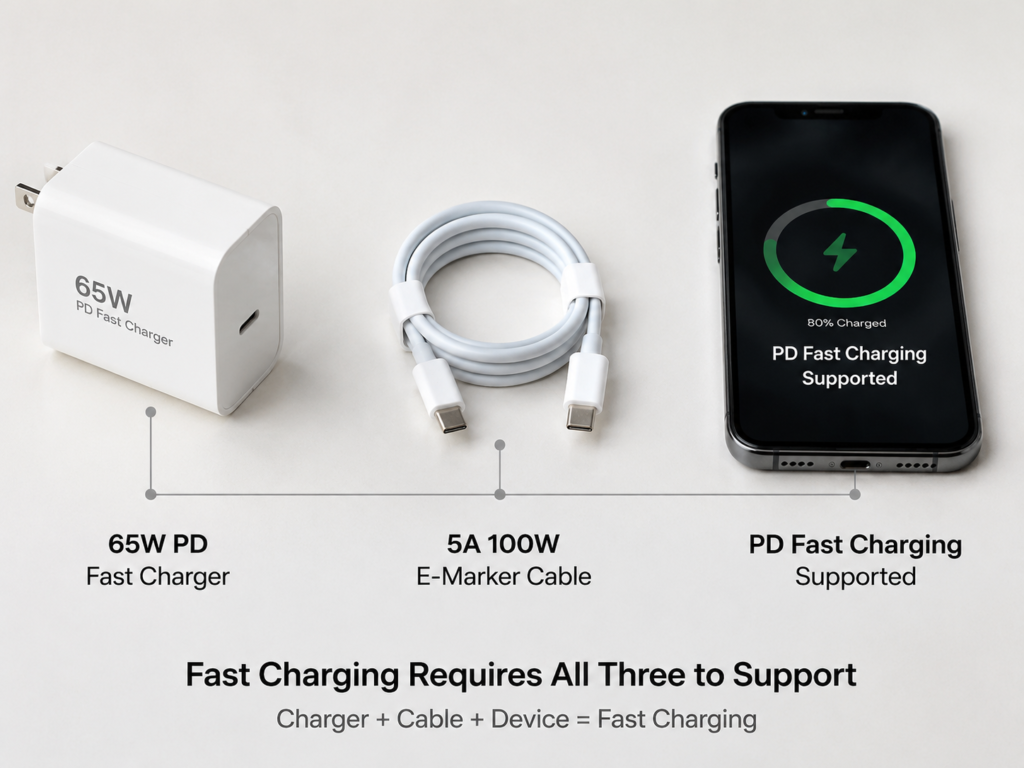
There are several common fast charging protocols currently: USB PD (USB Power Delivery, the most widely used universal fast charging standard, supported by most phones and laptops), USB PD PPS (an advanced version of PD that supports more precise voltage regulation; many Android brands’ fast charging is based on this standard, for example some Samsung models rely on PPS), QC (Qualcomm’s fast charging standard), and some manufacturers’ own proprietary fast charging protocols.
Here we need to correct a common misconception: not all brands’ fast charging uses “exclusive protocols”. For example, Apple’s iPhones use standard USB PD fast charging, and many Samsung models use PD PPS. As long as the charger supports the corresponding protocol, you can fast charge even without the original accessory.
The Core of Fast Charging: The Three Parties “Exchange Passwords” First
After you plug in the USB-C cable, it doesn’t start high-current charging directly. Instead, the charger and device first “chat” through the communication pins in the port, discussing the voltage, current, and power levels supported by both parties — this process is professionally called protocol negotiation, and can also be understood as “exchanging passwords”.
The charging cable also participates in this negotiation: different cables can carry different currents, and ordinary USB-C cables, 3A cables, and 5A cables have very different power capacities. High-power cables also have an E-Marker chip (simply put, a small chip hidden in the connector, used to tell the charger and device how much current and power this cable can carry). Fast charging over 60W generally requires a cable with this chip.
Only when the negotiation is successful will the fast charging state be entered; if the negotiation fails, or the conditions change midway, the system will drop to normal charging, or restart the negotiation. The “intermittent” cutting in and out we see is actually the external manifestation of connection interruptions, repeated protocol negotiations, and repeated triggering of power protection.
Three Key Roles in the Charging Chain
To find the cause of charging interruptions, you first need to know what each of the three roles is responsible for:
The charger is responsible for providing supported protocols, voltage and current levels, determining the maximum output power per port, and how to distribute power when multiple ports are used simultaneously.
The charging cable is responsible for carrying current while ensuring stable communication; the higher the power of fast charging, the higher the requirements for the cable.
The device side determines the maximum power it can accept, and also adjusts the charging power in real time based on battery level, temperature, load, battery status, and system strategy.
Core Causes of Triggering Disconnection or Repeated Gear Downshifting
In summary, charging interruptions are essentially caused by “the conditions for stable fast charging being broken”. Common causes fall into several categories: Protocol mismatch — if the charger and device cannot stably negotiate to the target fast charging gear, they will try repeatedly, manifesting as gear jumping; Power conditions not met — for example, the cable cannot carry enough current, the charger’s single-port power does not meet the device’s requirements, or a multi-port charger has a second device plugged in and needs to redistribute power; Poor contact — dust in the port, loose plug, or worn port can cause power supply or communication to cut in and out; Device protection — too high temperature, poor battery status, detected port moisture, or triggered system security policies will actively limit current or temporarily disconnect charging; Unstable external power supply — for example, insufficient power from in-car USB ports, poor contact of low-quality sockets, faulty travel adapters, or insufficient power from docking stations, all of which can be mistaken for fast charging faults.
Renegotiation Does Not Necessarily Equal a Fault
We need to emphasize again here: not all power changes are charging interruptions. Normal renegotiation is very common. For example, when just plugged in, when the device temperature changes, when the load changes, or when a second device is plugged into a multi-port charger, the power will adjust briefly, which is normal.
A truly suspicious charging interruption is when the charging icon directly disappears, the notification sound repeats, the power drops to zero, or it cuts out with a light touch of the cable end. The core of judgment is to see whether the connection state is disconnected, not just whether the wattage changes.
Quickly Locate the Problem by the Stage of Charging Interruption
You can also roughly guess the cause first based on when the charging interruption occurs: If it repeatedly jumps gears right after plugging in, first check if there is dust in the port, if the phone case is blocking it, if the cable connector is loose, or if the protocol is compatible; If it starts jumping repeatedly in the middle of charging (20%-80%), first check if the temperature is too high, if you are using high-load apps while charging, if there are high-power-consuming programs in the background, or if the cable or charger is overheating severely; If it starts jumping after plugging in a second charging device, it is basically caused by power redistribution of the multi-port charger; If it slows down significantly above 80% but does not disconnect, it is mostly normal battery protection, no need to treat it as a fault; If it only cuts out when in the car, using a docking station, or using an adapter, first check the power supply and protocol passthrough capability of the intermediate link.
Common Causes of Charging Interruptions
Now that we understand the principle, let’s break down the common causes, from the most common to the least common, and explain them one by one.
Poor Contact: Most Common, Prioritize Troubleshooting
Out of ten charging interruptions, six or seven are caused by contact problems, and most are easy to solve.
The most common is dust or foreign objects in the port: phones are put in pockets every day, so lint and dust can easily get into the USB-C port. When enough accumulates, it will push against the plug, preventing it from being fully inserted, causing power supply or communication to cut in and out.
Next is a loose plug: a normal USB-C plug will have a slight click when fully inserted. If it’s inserted shallowly and cuts out with a light touch, that’s definitely not normal.
There’s also obstruction by protective cases or covers: thick phone cases, or cases with misaligned openings, will push against the charging cable end, causing a loose connection — it looks plugged in, but the contacts aren’t fully aligned.
If the device is more than 3 years old, or used in a humid environment for a long time, or frequently plugged and unplugged, the USB-C port contacts may oxidize, wear, or deform, and the spring pieces inside the port may loosen, which can also cause poor contact.
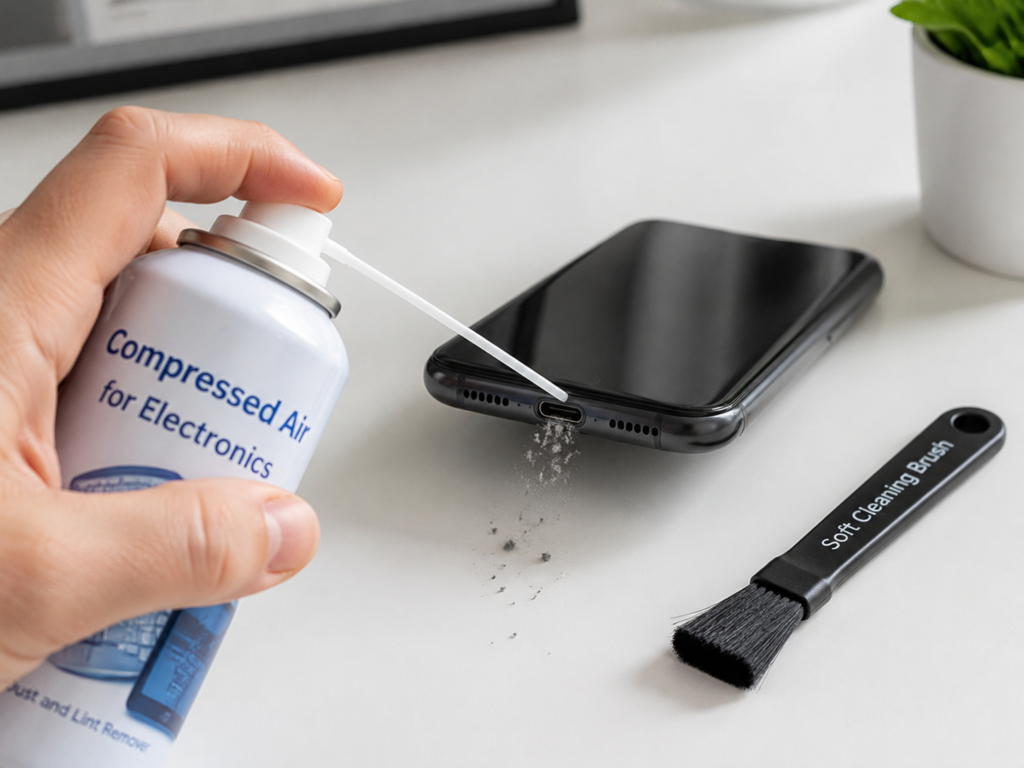
Pay attention to safety when cleaning the port: be sure to disconnect the power first, clean with a dry soft brush or compressed air can. When using compressed air, keep it more than 10 cm away from the port, and don’t blow hard at one spot. Never use metal needles or paper clips to dig inside, and don’t pour alcohol or liquid cleaners directly, as this can easily cause a short circuit or scratch the contacts.
Charging Cable Problems: Being Able to Charge Doesn’t Mean Stable Fast Charging
Many people think that as long as the cable can be plugged in and the charging light turns on, it’s good — this is a very common misconception. Being able to charge and being able to stably carry high-power fast charging are completely different things.
First is insufficient cable power: ordinary 3A USB-C cables can only stably carry a maximum of 60W of power (20V/3A). If you charge a 100W laptop or a device above 65W, the current exceeds the cable’s carrying capacity, and the device will reduce power, or even negotiate repeatedly, manifesting as charging interruption. USB PD fast charging over 60W generally requires cables that support 5A current and have an E-Marker chip.
If the E-Marker chip of a high-power cable is broken, or the information is abnormal, the device cannot recognize the cable’s capability, so it won’t dare to enable high power, and will also negotiate repeatedly.
Internal core breakage of the cable is also common: many people pull the cable when charging, or fold the cable in a bag for a long time, the root of the connector is repeatedly bent, the outer sheath looks fine, but the inner core wires are already broken, manifesting as charging at a specific angle and cutting out when moved.
There’s also the problem of poor cable quality: cheap cables have thin copper cores, many impurities, high resistance, large voltage drop during charging, and also heat up. When the device detects an abnormality, it will reduce power, or even disconnect for protection.
When choosing cables for high-power devices like laptops and handheld game consoles, you can’t just look at whether it’s a USB-C port — you must clearly check the supported power, current, and certification information.
Charger Problems: Protocol, Power, and Stability All Matter
The probability of charger problems is not low either. Many people only look at total power when buying chargers, but there are actually a lot of details inside.
The most common is protocol mismatch: for example, your phone needs PD PPS to reach full fast charging, but the charger only supports ordinary PD, then it may only charge slowly, or repeatedly switch between normal charging and fast charging.
Next is insufficient single-port power: many multi-port chargers have a very high total power rating, for example 100W four-port, but the maximum output of a single C port may only be 65W. If you use it to charge a 96W laptop, the power is insufficient, and unstable situations will occur.
There’s also power redistribution of multi-port chargers: for example, you were originally using a single port to charge a laptop at 65W, and suddenly plug in a second phone — the charger has to redistribute the power of the two ports, which will cause a brief charging interruption and re-handshake. If you frequently plug and unplug other devices, it will cut out repeatedly.
Aged or low-quality chargers can also cause charging interruptions: these chargers have unstable output, severe heating, and rough protection strategies, they will disconnect and reconnect with even a slight fluctuation.
There’s also an easily overlooked point: problems with sockets and adapters. Loose wall sockets, poor contact of cheap travel adapters, can also cause intermittent charging, and many people will mistakenly think it’s a problem with USB-C fast charging.
Problems with Intermediate Links Like Adapters and Docking Stations
If you don’t charge directly, but add intermediate devices like adapters, docking stations, or magnetic connectors, the problem is likely in these intermediate links.
For example, some adapters only support data transmission or low-power power supply, and do not support fast charging protocol passthrough — when plugged in, they cannot fast charge normally, or repeatedly jump gears.
Docking station problems are more common: when a laptop charges through a docking station, the docking station itself consumes part of the power. For example, a docking station rated for 100W input may actually only deliver 85W or even lower power to the laptop. If the docking station also has peripherals like hard drives, monitors, or network cards plugged in, they will also draw power, causing power supply fluctuations.
There are also magnetic adapters: many people find them convenient for plugging and unplugging, but low-quality magnetic connectors have small contact areas, easily dirty contacts, and are prone to heating, making them completely unsuitable for high-power fast charging.
The principle for troubleshooting such problems is simple: first remove all intermediate devices, test with the charger, cable, and device directly connected. If direct connection works fine, then the intermediate link is to blame.
Device Protection Mechanisms and Software Settings
Many times charging interruption is not because accessories are broken, but because the device actively triggers protection. In this case, just adjust the settings or environment.
The most common is temperature protection: lithium batteries are very sensitive to temperature. Generally, when the body temperature reaches 40℃-45℃, different brands will start to limit fast charging power, and if the temperature is higher, they may directly suspend charging. Charging while playing games in summer, or leaving a phone in a car in the sun, can easily trigger this protection.
There’s also low-temperature protection: when the ambient temperature is below 0℃, the charging capacity of lithium batteries will drop significantly, and the device will also slow down or suspend charging noticeably. This is common when charging outdoors in winter.
We mentioned battery level protection before: slowing down above 80% is normal, and the power will get lower and lower as it approaches full charge, which is not a fault.
If the battery is aged, for example, the battery health is relatively low (80% is a common industry reference value, different brands may have different strategies), the internal resistance increases, and the device will also limit the peak charging power, which may cause unstable situations.
There’s also the situation of high background power consumption: when playing games, navigating, using a hotspot, recording videos, or updating the system, the device itself consumes power quickly, and the input power may all be used up, making it look like it’s not charging, or even losing power — this is not a real charging interruption.
If features like optimized charging, smart charging, or overnight charging are enabled, the system may suspend charging at specific times or battery levels, for example, stopping at 80% when sleeping at night, and then fully charging before you wake up.
There’s also moisture detection: many phones and tablets have a liquid detection function in the USB-C port. If it gets wet with water, sweat, or other liquids, it will prompt “liquid detected” and then limit charging. At this time, don’t plug and unplug repeatedly, as it can easily burn out the port.
Finally, system abnormalities: for example, charging bugs that appear just after upgrading the system, or programs with abnormal power consumption in the background — restarting, updating the system, or closing the abnormal app may fix it.
Hardware Faults: Rare but Important
The probability of hardware faults is not high, but once they occur, you can’t ignore them, and must deal with them in time.
For example, devices that have been dropped, exposed to water, or repaired may have loose port flex cables, manifesting as charging only at a specific angle and cutting out when moved.
There’s also damage to the USB-C female port: if the plug wobbles significantly when inserted, can’t be plugged in tightly, or the contacts are blackened or deformed, this means the port itself is broken.
If you’ve replaced the cable and charger with good ones, cleaned the port, ruled out temperature and software problems, and still have frequent charging interruptions, accompanied by abnormal heating or erratic battery level display, it may be a problem with the power management chip or motherboard power supply.
There’s also the battery itself fault: if the battery is swollen, abnormally hot, has a sudden drop in battery life, or the charging percentage jumps very drastically, stop fast charging immediately and replace it as soon as possible.
If there are danger signs such as burning smell, smoke, sparks, port deformation, or abnormal hotness during charging, be sure to disconnect the power immediately, stop using it, send it to official after-sales for inspection, and do not disassemble or repair it yourself.
From Easy to Difficult: 5-Step Standardized Troubleshooting Process
After talking about so many causes, you might not remember them all. Don’t worry, follow these 5 steps from easy to difficult to troubleshoot, and you can find the answer to most problems without guessing blindly.
Step 1: First Rule Out False Faults
First, use the 1-minute self-test method we mentioned earlier, and observe for 2 minutes under the conditions of 20%-80% battery level, room temperature environment, screen off and stationary, and single device direct connection.
If it’s just high-battery speed reduction, or a brief jump when just plugged in, you don’t need to treat it as a fault, just use it normally.
If there are indeed cases where the fast charging indicator repeatedly disappears, the notification sound repeats, or the power drops to zero, then continue troubleshooting below.
Step 2: Troubleshoot Contact Problems
Contact problems are the most common and easiest to solve, so prioritize checking them:
First unplug the plugs from both the device side and the charger side, re-plug them tightly, and confirm that there is a click when fully inserted.
Then remove the phone case, tablet protective cover, and laptop port dust plug to rule out obstruction problems.
Check if there is dust or lint in the USB-C port, if there are traces of moisture, if there is any peculiar smell or deformation.
After disconnecting the power, clean the port in the correct way, then plug it in and test while stationary.
Finally, gently shake both ends of the cable. If it cuts out as soon as you move it, first suspect a problem with the cable connector or the device port.
Step 3: Troubleshoot Accessories with the Minimum Replacement Method
If there’s no problem with contact, use the “minimum replacement method” to check accessories. The core is to change only one variable at a time, keeping the same device, same battery level range, and same ambient temperature, otherwise you won’t know which one is the problem.
First remove all adapters, docking stations, magnetic connectors, and in-car extension cables, and switch to direct charger-to-device connection. If the direct connection is stable, then it’s a problem with the intermediate link.
Then replace with a confirmed good fast charging cable of the same or higher specification. If it becomes stable after changing the cable, then the original cable is the problem.
Finally, replace with a fast charging head that is confirmed to support the corresponding protocol and has sufficient single-port power. If it becomes stable after changing the head, then the charger is the problem.
If conditions permit, you can use a USB-C power meter to observe the power state, to see if it drops to zero or renegotiates, but ordinary users don’t need to buy this specifically — observing the icon and notification sound is enough.
Step 4: Troubleshoot Temperature, Load, and System Settings
If it still cuts out after changing accessories, check the device-side factors:
First remove the thick case, put the device in a cool and ventilated place, wait for the temperature to drop before testing again.
Stop high-power-consuming tasks such as gaming, navigation, video recording, hotspot use, and system updates, then test with the screen off and stationary.
Restart the device — sometimes the system’s charging management is stuck, and a restart fixes it.
Temporarily turn off features like optimized charging, smart charging, and battery protection, then test with the screen off to see if it’s a problem with system strategy.
If the abnormality appears just after upgrading the system, check if there are new system updates, and try updating to the latest version.
If there is a prompt for liquid detection or unsupported accessory, stop charging first, place the port in a ventilated place to dry completely, and if it still doesn’t work, send it for repair.
Step 5: Determine Whether Repair Is Needed
If you’ve done all the previous steps, replaced the cable and charger with confirmed good ones, cleaned the port, ruled out temperature and software problems, and still have charging interruptions, then it’s most likely a hardware problem that requires repair.
If the port is obviously loose, the plug needs a specific angle to charge, or the device has been dropped or exposed to water before, first check the port and flex cable.
If there are danger signs such as burning smell, smoke, swelling, abnormal hotness, or port deformation, stop using it immediately, send it directly to official after-sales, and do not continue trying to charge.
Before sending for repair, it’s best to record several pieces of information: device model, system version, charger power and supported protocols, cable specification, battery level when the charging interruption occurs, ambient temperature, and whether you used a docking station or car charger — this way after-sales can locate the problem faster.
Troubleshooting Focus for Different Devices
Different types of devices have different common causes of charging interruptions. You can directly correspond to your device and focus on checking the most prone areas.
Mobile Phones and Tablets
The most common problems with mobile phones and tablets are dust accumulation in the port (easily getting lint from being put in pockets every day), obstruction by protective cases, body heating, and incompatible accessories.
The quick verification method is simple: use an original or reliable PD/PPS charger and cable, leave it with the screen off for 10 minutes, and see if it’s stable.
Common scenarios include: heating and speed reduction from using while charging, pocket lint blocking the port, low-price cables only supporting slow charging, and stopping charging at around 80% after enabling battery protection.
Special note: If the system prompts that the port is damp or liquid is detected, do not repeatedly plug and unplug to try fast charging, as it can easily burn out the port.
Laptops
The key troubleshooting direction for laptops is whether the charger’s single-port power is sufficient, and whether the cable supports the target power (such as 60W, 100W, 140W, etc.).
The most common misjudgment is: losing power while plugged in under high load, thinking it’s a charging interruption — in fact, the whole machine’s power consumption is greater than the input power in high-performance mode, which is not a charging problem.
Pay special attention to the scenario of charging through a docking station: a docking station rated for 100W input may actually deliver lower power to the laptop, because the docking station itself consumes power and also supplies power to other peripherals.
The judgment method is also simple: turn down the screen brightness, turn off high-performance mode, stop high-load tasks like gaming or rendering, and see if normal charging resumes.
There’s a typical clue: if it charges normally when sleeping or shut down, but cuts in and out or loses power when booted under high load, it’s basically a problem of insufficient input power or temperature limitation.
Small Devices: Earbud Cases, Smart Bands, Electric Shavers, etc.
These small devices inherently have low power. Focus on checking whether the charging contacts are dirty, whether the C-to-C cable has good compatibility, and whether the charging base has good contact.
Many small devices are designed for A-to-C cables or low-power chargers. Connecting to a high-power USB PD charger may instead result in poor negotiation and intermittent charging.
Judgment method: replace with the original cable, A-to-C cable, or ordinary 5V/2A charger for testing — as long as it charges stably, there’s no problem.
Don’t use wattage to judge whether the fast charging of small devices is normal. These devices themselves have low power, and stability is the key.
In-Car USB-C Scenarios
Intermittent charging problems with in-car charging are also very common. Focus on checking whether the car’s USB port has sufficient power, whether the cabin temperature is high, whether the car charger is of good quality, and whether the cigarette lighter port is loose.
Many people have a misconception: if the car’s USB port can connect to CarPlay or a USB drive, it must support fast charging — that’s not true. Many car USB ports only have 5W/10W, are used for data transmission, and simply cannot meet the power requirements for fast charging.
It is recommended to use a regular independent in-car fast charging head, the kind that plugs into the cigarette lighter, and confirm that it supports the PD/PPS/QC protocols required by your device.
There’s another common situation: in summer, the temperature inside the car is very high, and the phone placed on the dashboard gets hot from the sun, which will trigger temperature-controlled current limiting, making it look like a charging interruption. At this time, cool down the phone first, then judge whether it’s a fault.
Power Banks and Portable Power Stations
If charging cuts out when using a power bank or portable power station, focus on checking whether the single-port output power is sufficient, how much remaining battery there is, low-battery protection, and whether the bidirectional fast charging protocol is matched.
Common scenarios: using a power bank to charge a laptop with insufficient power, or the power bank itself has low battery, triggering low-battery protection and output downshifting.
When judging, be sure to first test with direct wall charging to confirm that the device itself is fine, then compare with the power bank scenario, to avoid misjudging it as a device fault.
Common Misconceptions and Pitfall Avoidance Tips
Finally, let’s talk about a few pitfalls that people most easily fall into, and how to use fast charging daily to reduce the probability of interruptions.
Common Cognitive Misconceptions
We’ve compiled 7 of the most common misconceptions, see if you’ve fallen for any:
- As long as it’s a USB-C port it will definitely fast charge? Wrong. USB-C is just the port shape; whether it can fast charge depends on whether the protocol, power, and cable are all matched.
- The higher the power of the charger, the easier it is to damage the device? Wrong. Regular chargers output through negotiation, and the device only draws the power it allows. For example, using a 100W charger to charge a 27W phone won’t damage it.
- Intermittent fast charging means the battery is broken? Wrong. More common causes are the port, cable, charger, temperature, and load; the probability of a bad battery is actually not high.
- A cable that lights up the charging light is a qualified fast charging cable? Wrong. Being able to charge and being able to stably carry high power are two different things. Many cheap cables can only handle low power, and will heat up and downshift when high power is applied.
- If a multi-port charger has enough total power, any single port will be enough? Wrong. It depends on the maximum output per single port, and the power distribution rules when multiple ports are used simultaneously.
- If the progress bar doesn’t move, it’s a charging interruption? Wrong. It may be that high load uses up all the input power, or system statistics are delayed, or it’s high-battery protection.
- Using an adapter doesn’t affect fast charging? Wrong. Docking stations, magnetic connectors, and adapters may all affect protocol communication and current stability, especially low-quality products.
Daily Pitfall Avoidance Tips
As long as you pay attention to these points, you can greatly reduce the probability of fast charging interruptions:
Buy chargers and cables from regular brands, confirm they support the protocols and power required by your device, and don’t buy too cheap unbranded products.
For USB PD fast charging over 60W, prioritize cables that clearly mark 5A current, support 100W/140W/240W power, and have an E-Marker chip.
Avoid bending the cable connector area for a long time, don’t pull the device while charging, and don’t fold the cable too tightly when storing.
Check and clean the dust from the USB-C port once a month, especially for phones that are often put in pockets, which can reduce many contact problems.
Try not to fast charge in environments below 0℃ or above 45℃, as it’s bad for the battery and easily triggers protection leading to charging interruptions.
When using a multi-port charger to charge high-power devices, try to only plug in one device to reduce brief charging interruptions caused by power redistribution.
If the plug or adapter is already obviously loose, hot, discolored, or has a burning smell, stop using it and replace it immediately.
It is not recommended to use magnetic adapters of unknown origin or cheap docking stations for high-power fast charging, as the risk is very high.
Quick Reference Table: Symptoms Corresponding to Causes
For your quick reference, we’ve compiled the priority troubleshooting directions and first steps corresponding to common symptoms. You can check directly when you encounter problems:
| Symptom | First Suspected Cause | First Action to Take |
|---|---|---|
| Repeatedly disconnects right after plugging in | Port dust accumulation, loose cable connector, protocol mismatch, abnormal charger | Remove the protective case, clean the port, change the cable, change to a charger that supports the same protocol |
| Starts cutting in and out only halfway through charging | Body heating, high background load, excessive temperature rise of cable/charger | Cool down with screen off, stop high-power-consuming tasks, replace with more reliable cable and charger |
| Slows down or pauses above 80% | Normal battery protection, optimized charging/overnight charging strategy | Check battery settings, retest in the 20%-60% battery level range |
| Only cuts out in car/docking station/adapter scenarios | Insufficient car port power, poor quality car charger, abnormal docking station power supply/protocol passthrough | Switch to direct wall charging for comparison, or replace with a regular in-car fast charging head |
| Still cuts out after changing cable and charger | Device USB-C female port, port flex cable, power management, or battery abnormality | Stop repeated plugging attempts, record the symptoms then send to official after-sales |
Overall, intermittent USB-C fast charging may seem troublesome, but in most cases it’s a minor problem — either poor contact, mismatched accessories, or normal device protection. As long as you first distinguish between real and false faults, then troubleshoot in order from easy to difficult, you can mostly solve it yourself. If you encounter danger signs such as burning smell, smoke, or abnormal hotness, don’t hesitate — stop using it immediately and send it for repair, safety always comes first. Usually paying more attention to maintaining the port and cable, and choosing regular accessories, will help you avoid a lot of charging interruption troubles.