
Have you ever had this experience: you bought a USB flash drive or portable hard drive labeled USB 3.0, plugged it into your computer to transfer files, but the speed was only 20 to 30 MB/s, not much different from old USB flash drives from several years ago? Or you see the port is blue, but the system prompts “This device can perform faster”, and even when transferring large files, the connection suddenly drops halfway and the speed falls to zero?
Many people’s first reaction when encountering this situation is “I bought a fake product”, but in fact, most of the time, the problem lies in a small detail you didn’t notice — it could be a cable, a port, or even just a deviation in your understanding of USB speed. First, remember the three most common pitfalls: first, being labeled USB 3.0 does not mean the device is necessarily fast; second, a blue port or Type-C appearance does not equal high speed; third, slow transmission does not necessarily mean the device is broken, the slowest link in the entire chain is the key that determines the speed.
1. Problem Boundaries: What This Content Can Solve and What It Cannot
Before officially starting, let’s clarify the scope first, so you don’t waste time with wrong expectations.
This content is specifically for solving slow USB transmission and speed drop issues of external storage devices: whether it’s a USB flash drive, portable hard drive, external SSD, mobile phone, camera, or card reader with slow file transfer, as long as a device labeled USB 3.0/3.2 Gen1 actually runs at USB 2.0 level of 20-40MB/s, or the system prompts that the device can improve performance, runs only in low-speed mode after insertion, or is fast at first then slow, suddenly drops to zero, disconnects and retries during large file transfer, you can find troubleshooting ideas here.
But there are several types of issues we will not focus on: first, content related to charging protocols such as fast charging power and PD negotiation — this article will still mention the problem of unstable data transmission power supply caused by external hard drives, hubs, and long cables, which is within the scope of transmission fault troubleshooting; second, the full bandwidth mechanism of USB4 and Thunderbolt ports, we will only briefly explain the boundaries where naming is easily confused; third, laboratory-level compliance testing such as chip-level electrical certification and oscilloscope testing, which ordinary users do not need.
After reading this content, you can judge by yourself which speed level your current USB connection is running at, distinguish whether the device is inherently this slow, the link is degraded, or there is a problem with system settings, and you will no longer be misled by blue ports, Type-C appearance, and complex USB 3.x naming. Most common USB speed drop issues can be located by yourself in order.
2. What Is the Difference Between USB 2.0 and USB 3.0
You can understand USB transmission as a road for transporting goods: the USB interface version determines the width of the road — USB 3.0’s road is much wider than USB 2.0’s, allowing a higher traffic upper limit; the storage device itself is the truck on the road, low-end USB flash drives and slow mechanical hard drives are like small trucks, even if they drive on a wide road, they can’t achieve the transport volume of large trucks; and intermediate devices such as cables, hubs, and docking stations are the connecting sections in the middle of the road, as long as one section narrows, the traffic speed of the entire road will be pulled down.
Core Specification Differences
From the perspective of actual use, the speed gap between the two is very obvious:
- USB 2.0’s high-speed mode (officially called High Speed) has a nominal bandwidth of 480Mbps, and daily file transfer speed is mostly 20-40MB/s, which is sufficient for low-speed scenarios such as keyboards, mice, printers, and small file transfer;
- USB 3.0’s SuperSpeed mode (officially called SuperSpeed) has a nominal bandwidth of 5Gbps, and daily file transfer speed is between 80-450MB/s, which is more suitable for scenarios with high speed requirements such as portable hard drives, external SSDs, and large file backup.
In addition, USB 2.0 is usually half-duplex mode — just like a single lane, it can only go in one direction at the same time; USB 3.0 supports full-duplex, and bidirectional transmission can be carried out simultaneously. However, in daily life, we mostly copy files in one direction, so this difference is not very noticeable, and the speed mainly depends on the performance of the storage device itself.
USB 3.x Naming Pitfalls: Version Number Does Not Mean Faster
Many people think that USB 3.1 is faster than 3.0, and 3.2 is faster than 3.1, but this is not necessarily the case. The USB official organization has made multiple adjustments to the naming later, and many versions just changed their names without speed improvement:
- USB 3.0, USB 3.1 Gen1, and USB 3.2 Gen1 are essentially 5Gbps level, belonging to the same speed standard;
- USB 3.1 Gen2 and USB 3.2 Gen2 are 10Gbps level, with doubled speed;
- USB 3.2 Gen2x2 is 20Gbps level, but it requires the device, cable, and computer-side Type-C link to all support dual-channel to run at full speed, not all high-speed Type-C ports support it.
This article focuses on the speed difference and speed drop troubleshooting between USB 2.0 and USB 3.0/3.2 Gen1 (5Gbps). To judge the speed, prioritize clear speed identifiers such as 5Gbps, 10Gbps, and SuperSpeed, don’t just look at the number size of USB 3.x.
The True Meaning of Backward Compatibility
The backward compatibility of USB interfaces means that devices and interfaces of different versions can be connected and recognized normally, but it does not mean automatic speed increase — just like a large truck can drive on a small road, but the speed will definitely not be fast:
- When a USB 3.0 device is plugged into a USB 2.0 port, it can be used but the speed will drop to USB 2.0 level;
- When a USB 2.0 device is plugged into a USB 3.0 port, it can be used but the device itself can still only run at USB 2.0 speed;
- If a USB 3.0 device uses a USB 2.0 cable or a low-speed hub, the entire link will also run at low speed.
In short, compatibility only guarantees “usable”, not “faster”.
Appearance Preliminary Judgment: Only for Initial Screening, Not Final Conclusion
Many people are used to judging speed by port color, for example, the blue plastic core of USB-A and the “SS” logo usually represent USB 3.0, and black or white plastic cores are mostly seen in USB 2.0, but color and logo are not mandatory standards, and manufacturers may have non-standard designs.
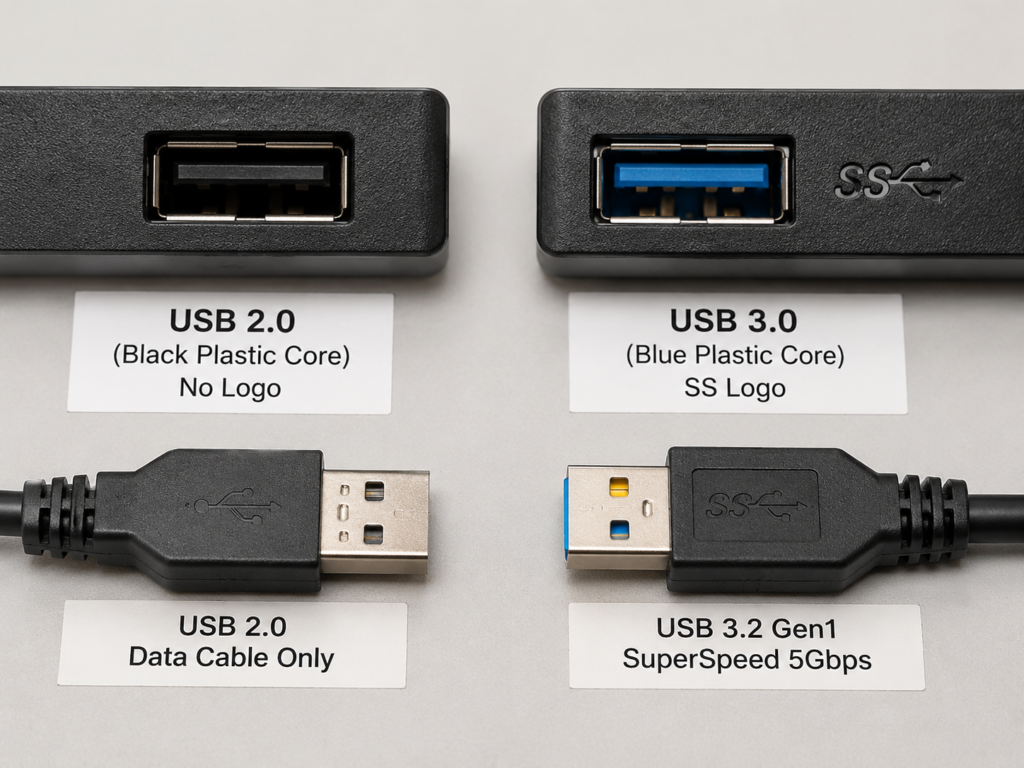
In terms of cables, USB 3.x cables are usually thicker, with additional high-speed contacts in the connector; even if they have a Type-C appearance, charging-only cables and ordinary USB 2.0 data cables do not have high-speed data channels and cannot carry SuperSpeed transmission.
As for Type-C, it is just the interface shape, it may only support USB 2.0, or it may support USB 3.x, USB4 or Thunderbolt, you must check the parameters or see the system negotiation result. Appearance can only be used to quickly narrow down the scope, and absolutely cannot be used as the final judgment basis.
3. How to Read Speed: Don’t Get Confused by Mbps and MB/s
Many people don’t understand the relationship between the “5Gbps” advertised by manufacturers and the “30MB/s” displayed in the system copy window. In fact, the core is that the units are different — just like fruit sellers quote prices by jin, and you calculate the total price by number, you have to convert first to match.
Unit Conversion: First Understand Bits and Bytes
The Mbps and Gbps we usually see are bit rates, which are generally used in protocol specifications and manufacturer promotions; while MB/s is byte speed, which is the actual speed displayed in the system copy window and speed test software. The conversion rule is very simple: 8 bits = 1 byte, so:
- USB 2.0’s 480Mbps, theoretically converted to 60MB/s;
- USB 3.0’s 5Gbps, theoretically converted to 625MB/s.
But note that this converted value is the theoretical upper limit in a completely ideal state, and in actual use, various overheads have to be deducted, so it can never reach such a high level.
Why Is the Actual Speed So Much Lower Than the Theoretical Value?
Many people think “the 5Gbps device I bought should run at 625MB/s”, which is completely unrealistic. When data is transmitted on the line, some additional information for verification and synchronization is also added, just like when sending a courier, you have to fill out the waybill and pack it, these “packaging” also take up bandwidth, so the effective bandwidth actually used to transfer files will be smaller than the nominal value:
- USB 2.0 has a nominal 480Mbps, after deducting various protocol and file system overheads, the actual file transfer speed is mostly 20-40MB/s, and being able to run above 40MB/s is already considered a very good 2.0 device;
- USB 3.0/3.2 Gen1 has a nominal 5Gbps, because it uses 8b/10b encoding (for every 8 bits of valid data transmitted, 2 bits of check bits are added, about 20% encoding overhead), after deducting this part, the effective data bandwidth is about 500MB/s, plus the overhead of protocol stack, file system, etc., the daily file transfer speed is about 80-450MB/s, and the specific value depends on the performance of the device itself;
- As for 10Gbps USB 3.2 Gen2, the theoretical upper limit is higher, but the device, cable, and interface must all support 10Gbps in the entire link, as long as one link does not meet the standard, it will drop to the next lower speed level.
So it is completely normal for the stable speed to be lower than the theoretical value, the key is to judge whether it is as low as USB 2.0 level.
Reference for Real Speed of Common Devices (When the Link Is Not Degraded)
For your convenience to compare, we have sorted out the real speed range of common external storage devices, all of which are actual performances when the link runs normally under the corresponding version:
| Device Type | Common Read Speed | Common Write Speed | Remarks |
|---|---|---|---|
| Ordinary USB 2.0 USB Flash Drive | 15-35MB/s | 5-25MB/s | Limited by USB 2.0 interface |
| USB 2.0 Portable Mechanical Hard Drive | 25-40MB/s | 25-40MB/s | Completely stuck by USB 2.0 bandwidth |
| Low-end USB 3.0 USB Flash Drive | 80-150MB/s | 20-50MB/s | Fast read, slow write, sufficient interface but poor flash memory |
| USB 3.0 Portable Mechanical Hard Drive | 80-160MB/s | 80-160MB/s | Limited by platter rotation speed, cannot fully utilize 3.0 bandwidth |
| SATA External SSD (USB 3.0) | 300-450MB/s | 100-450MB/s (large fluctuation) | Best reflects the speed gap between 2.0 and 3.0, write speed is greatly affected by SSD model, hard drive enclosure, and cache |
| Large Number of Small Files (Any Device) | Far lower than the above values | Far lower than the above values | Bottleneck is random read/write and file system overhead |
Always Remember: Speed Is Determined by the Shortest Board of the Entire Link
USB transmission speed is never determined by a single device, but by the slowest link in the entire chain, just like the water output of a water pipe is determined by the thinnest section. This link includes:
- Computer-side ports: the specifications of the motherboard rear port, front panel port, laptop side port, and docking station port may all be different;
- Cables: whether they support the corresponding speed, whether the length is too long, whether the connector is loose;
- Intermediate devices: speed specifications of hubs, docking stations, adapters, hard drive enclosures, card readers;
- External device itself: flash memory of USB flash drive, platter of hard drive, controller of SSD, speed class of memory card;
- System environment: drivers, protocols, file system, background tasks, power supply and temperature.
If any link does not meet the standard, the final speed will be pulled down to the same level as it.
4. Why Do USB 3.0 Devices Run at USB 2.0 Speed?
Many people’s first reaction when they find that their USB 3.0 device only has 20-30MB/s is “I bought a fake product” or “the device is broken”, but the actual situation is much more complicated — some are really link failures that drop to 2.0, some are just the device’s own performance limit, and some are even just the type of files you transfer, which is a completely normal situation.
In general, common causes can be divided into five categories, understanding these, you won’t try randomly when troubleshooting later.
4.1 The Link Is Really Degraded to USB 2.0 Mode (The Most Common Fault Cause)
This situation is a real problem: both the device and the interface originally support 3.0, but due to a problem in a certain intermediate link, the SuperSpeed high-speed channel is not connected, and the system can only negotiate at USB 2.0 speed, so the speed naturally cannot go up.
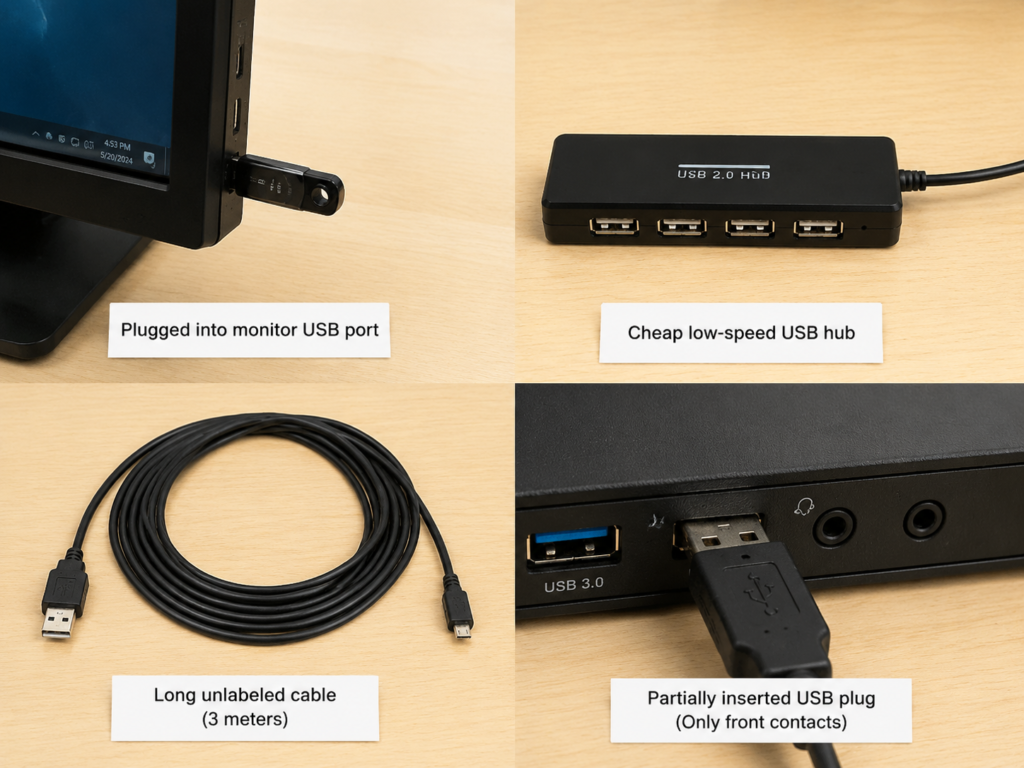
Common situations include: the device is plugged into a USB 2.0 port, a USB port built into the monitor, an old docking station or a low-speed hub; the internal cable of the front USB 3.0 port of the desktop computer is not connected correctly, or the front panel is only connected to the USB 2.0 pins, it looks like a blue port on the outside, but actually has 2.0 speed; using a USB 2.0 cable, charging-only cable, inferior no-name cable or too long passive cable, high-speed signals cannot be transmitted; the USB-A plug is not fully inserted, only contacting the front 2.0 contacts, and the rear 3.0 dedicated contacts are not connected; there is also dust, oxidation, looseness in the port, or poor quality adapter, leading to unstable high-speed signals, and the system automatically drops to 2.0 mode.
4.2 The Storage Device Itself Is Slow, Which Is a Normal Performance Upper Limit (The Most Easily Misunderstood “False Fault”)
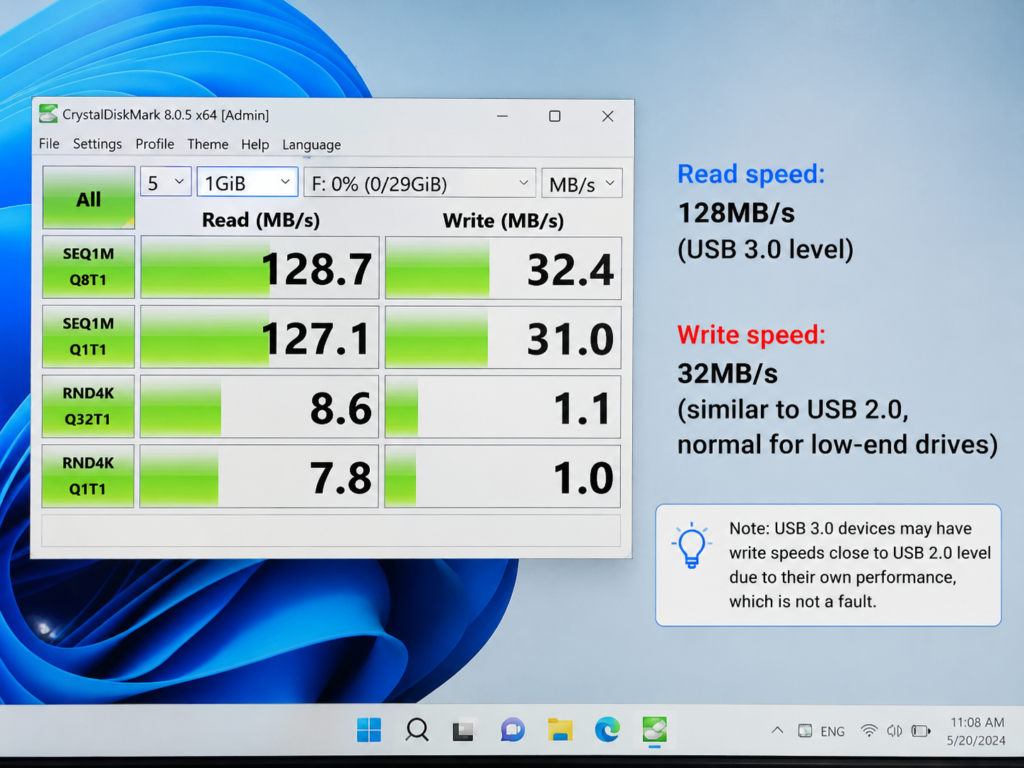
In this case, the link is actually normal USB 3.0, but the storage performance of the device itself cannot keep up, so the speed looks similar to 2.0, which is not a fault at all.
For example, many low-priced USB 3.0 flash drives only support 3.0 at the interface, and the flash memory and controller inside are very poor, the write speed is originally only 20-50MB/s, not much different from 2.0 flash drives; also, the speed advertised by manufacturers is mostly read speed, read speed can reach more than 100MB/s, but write speed may only be dozens of MB/s, if you compare the write speed with the advertised read speed, you will naturally feel it is slow; the sustained write speed of mechanical hard drives is originally only 80-160MB/s, although faster than 2.0, it also cannot fully utilize the 3.0 bandwidth; there are also external SSDs and USB flash drives, the first few GB are very fast, and then suddenly drop to dozens of MB/s, mostly because the SLC cache is full, which is a normal performance fluctuation, not a speed drop fault; not to mention some old devices themselves only have USB 2.0 controllers, even if plugged into a 3.0 port, the speed is still 2.0 level.
4.3 Protocols, Drivers and System Settings Hold Back the Speed
Sometimes, the link and device are fine, but system-level settings or driver abnormalities will cause the speed to not be fully utilized.
For example, external hard drive enclosures use the traditional BOT transmission mode, which does not support the UASP protocol, when paired with an SSD, the random read/write and multi-task transmission speed will be much worse, and the CPU usage will also be higher; if there is a problem with the driver of the USB 3.0 controller or motherboard chipset, it may cause unstable device recognition, abnormal speed, and even repeated reconnection; many people will regard power options such as “USB selective suspend” and “Allow the computer to turn off this device to save power” as the cause of speed drop, but in fact, these settings mainly affect hibernation, wake-up and disconnection issues, and rarely cause stable USB 2.0 speed drop; there are also background antivirus full disk scans, cloud sync, file indexing, download tasks, which will seize disk and CPU resources, leading to lower copy speed, which also has nothing to do with the USB version itself.
4.4 “False Slowness” Caused by File Type and File System
Sometimes you feel the speed is slow, but in fact, it is neither the device’s problem nor the interface’s problem, but the files being transferred are wrong.
A single large file (such as a movie, compressed package) best reflects the real speed of the interface and device, but if there are thousands of small files (such as photos, documents, program installation packages), it will generate a lot of directory updates, metadata writing, random read/write, and real-time scanning by antivirus software, the speed will be much slower than large files, even for USB 3.0 devices, it may only run at a few MB/s to dozens of MB/s, looking similar to 2.0.
In addition, the file system also has an impact: FAT32 does not support single files larger than 4GB, exFAT is suitable for cross-platform use but has fewer functions, NTFS is the most stable under Windows but cross-platform writing requires additional support; there are also too low remaining disk space, too many file fragments, cache sorting of SMR shingled mechanical hard drives, which will cause speed fluctuations, making people mistakenly think that the interface speed is dropped.
4.5 Disconnection and Retry Caused by Insufficient Power Supply or Unstable Signal
Another type of problem is not stable slowness, but the speed suddenly drops to zero, the device disappears, reconnects repeatedly during transmission, and in severe cases, it will prompt file damage, which is mostly related to power supply or signal stability.
This situation is common when 2.5-inch portable hard drives, large-capacity USB flash drives, and external SSDs are connected to front panel ports, passive hubs, or too long cables — these devices require relatively large current, and if the front port or passive hub has insufficient power supply, there will be disk drop and retry situations. It should be noted that insufficient power supply rarely manifests as stable USB 2.0 speed, more often it is intermittent disk drop and failure, when encountering this situation, especially for hard drives storing important data, be sure to back up data first, then slowly troubleshoot the problem, do not repeatedly force writing.
After understanding the common causes of slowness, next we will start with the simplest method to judge step by step which situation your device is in.
5. Beginner Practice: How to Judge Whether It Is Currently Running at USB 2.0 or USB 3.0?
When encountering a slow speed problem, the first step is not to rush to change the device, but to first figure out: what speed level is the current connection running at? We will talk about several methods from simple to complex.
Quick Preliminary Screening by Appearance (Can Only Narrow Down the Scope)
First, refer to the appearance method introduced in the previous chapter for quick preliminary screening — look at the port color, logo, cable specification, device packaging parameters, to roughly judge whether there is a condition to support USB 3.0. Reminder again: appearance can only narrow down the scope, the final result must be based on the system negotiated speed and actual measured speed.
Check System Negotiated Speed (The Most Accurate Judgment Method)
After a USB device is plugged into the computer, it will negotiate with the host the highest speed supported by both parties, this negotiation result is the most accurate, more reliable than appearance and nominal value. The viewing methods are different for different systems:
- Windows: You can find “Universal Serial Bus controllers” in Device Manager, view the corresponding USB Root Hub, xHCI controller and device properties, but the information displayed in different Windows versions may not be direct; it is more recommended to use the free small tool USBTreeView, after finding your device, look at “Device Bus Speed”, displaying High-Speed means USB 2.0 of 480Mbps, displaying SuperSpeed means USB 3.0 Gen1 of 5Gbps.
- macOS: Click the Apple icon in the upper left corner → About This Mac → System Report (or System Settings → General → About This Mac → System Report), find “USB” on the left, select your device, the “Speed” column on the right will display the specific value, 480 Mb/s is USB 2.0, 5 Gb/s is USB 3.0 Gen1.
- Linux (can be skipped by ordinary users): You can enter
lsusb -tin the terminal to view the USB device tree and corresponding speed, for example, displaying 480M means USB 2.0, 5000M means USB 3.0.
There is only one judgment principle: look at the current actual negotiated speed, don’t look at the device nominal value, port color or Type-C shape.
Large File Actual Measurement Method (The Easiest for Ordinary Users to Get Started)
If you don’t want to look for system settings, test with a single large file, you can also roughly judge the situation. Pay attention to several conditions when testing:
- Prepare a single large file of more than 1GB, preferably about 10GB, such as a movie, compressed package, don’t use thousands of small files for speed testing — just like testing road traffic capacity, you need continuous traffic, not a bunch of non-motor vehicles that stop from time to time, the result has very low reference value;
- Turn off programs that obviously occupy the disk, such as antivirus full disk scan, cloud sync, download, cache tasks of editing software;
- Test the speed of “writing from computer to external device” and “reading from external device to computer” respectively, because the read and write speeds may be very different;
- Don’t look at the peak speed in the first few seconds, wait until the speed stabilizes before recording the value.
How to judge the result? If the stable speed is continuously lower than 50MB/s, it is probably USB 2.0 mode, or the device itself has slow write speed, or is affected by system factors; if the stable speed is continuously higher than 100MB/s, it can be basically determined that the link is not a USB 2.0 bottleneck, but it may not have reached the best level of the device.
Use Speed Test Software to Verify the Device Upper Limit
If you want to know the real performance of the device more accurately, you can use special speed test software, all of which are free, and ordinary users can use the default settings:
- CrystalDiskMark is commonly used on Windows, select the drive letter of the external disk, and test sequential read/write;
- Blackmagic Disk Speed Test is commonly used on macOS, also select the external disk to test sustained read/write.
The measured result should be judged in combination with the device type: for example, it is normal for low-end USB flash drives to have slow write speed, which does not mean that the USB link is faulty; but if it is an external SSD, and the sequential write speed is still lower than 50MB/s, it is very suspicious that the link is degraded to 2.0.
6. Intermediate Troubleshooting: Locate More Than 80% of USB Speed Drop Issues in Order
If you have confirmed that the speed is abnormal, then troubleshoot in this order, which can solve most common speed drop problems without blind attempts.
Step 1: First Troubleshoot the Connection Link (The Most Common Problem, Prioritize Handling)
80% of USB speed drop problems occur on the link, so the first step is to remove all intermediate links and directly test the most basic connection:
- Plug the device directly into the USB 3.0/3.2 port on the rear of the computer motherboard, temporarily bypass the front panel port, monitor USB port, docking station, hub and adapter, these are the intermediate links that are most prone to problems;
- Replace with a short cable clearly marked USB 3.0, 5Gbps or SuperSpeed, preferably within 1 meter — too long passive USB 3.0 cables are prone to signal attenuation and unstable recognition;
- If it is a USB-A device, confirm that the plug is fully inserted, otherwise it only contacts the 2.0 contacts, and naturally cannot run at 3.0 speed;
- Clean the dust in the port, check whether the port is loose, oxidized, or deformed.
If after changing the port and cable, the system negotiated speed changes from 480Mbps to 5Gbps, or the speed increases from 30MB/s to more than 100MB/s, it means that the original link has degradation or signal problems, then you can slowly troubleshoot which intermediate link is the problem.
Step 2: Confirm the Real Capability of the Device Itself
If it is still slow after directly plugging into the rear port and replacing a good cable, then you need to confirm whether the device itself only has this speed:
- Go to the official website of the device to check the parameters, find the clear USB speed, read speed, write speed, don’t just look at the words “USB 3.0”, many low-priced USB flash drives only mark the interface version, not the write speed;
- Connect this device to another confirmed normal USB 3.0 computer for testing, if it is still slow, then it is mostly the performance upper limit of the device itself, not a fault;
- Be sure to distinguish between read and write: many USB flash drives advertised with 400MB/s read speed may only have dozens of MB/s write speed, this is normal, not a speed drop;
- For external SSDs, you can observe whether the first few GB are very fast, and then drop significantly later — if so, it is probably that the SLC cache is full. This is a small piece of high-speed cache in SSDs and USB flash drives, just like a temporary sorting area for couriers, the files just transferred are put here first, so the speed is very fast in the first few seconds, and when the cache is full, it will drop to the normal speed, which is a normal phenomenon;
- For portable mechanical hard drives, if there is abnormal noise, bad sectors, frequent disk drops, back up data first, then check the hard drive health status, do not continue to force use.
Step 3: Troubleshoot Intermediate Devices and Transmission Protocols
If you usually need to use intermediate devices such as hubs, docking stations, hard drive enclosures, card readers, then you need to troubleshoot the specifications of these devices:
- Confirm that both the upstream port and downstream port of the hub or docking station support USB 3.0/5Gbps, don’t just look at one of the ports — many cheap docking stations have 2.0 upstream, even if the downstream is a blue port, it is useless;
- When multiple high-speed devices are connected to the same hub, they will share bandwidth, when testing, first unplug other USB devices to avoid slow speed due to bandwidth competition;
- For external hard drive enclosures or adapter cables, prioritize models that support the UASP protocol, especially when paired with external SSDs. The traditional transmission mode is called BOT, which can also transmit data normally, but UASP is like changing from an ordinary road to a direct dedicated line, when encountering random read/write of SSDs and simultaneous copying of multiple files, the speed is faster and the computer CPU usage is lower; if it is an ordinary mechanical hard drive, the difference between the two modes is usually not large.
- The speed of the card reader is also limited by the level of the memory card itself, such as UHS-I, UHS-II, V30, V60 and other specifications, which will affect the final speed, if the card is slow, no matter how fast the card reader is, it is useless;
- Many cheap Type-C adapters only support USB 2.0 data, or even only charge, be sure to see the specifications clearly when buying.
Step 4: Troubleshoot System, Driver and Power Management
If the link and device are fine, then you need to look at the impact at the system level:
- First pause antivirus scanning, cloud sync, download, file indexing and cache tasks of large software, then retest, many times the slow speed is just because the background is seizing resources;
- Update the motherboard chipset driver, USB controller driver and system patches, prioritize using the system’s own update, or download from the official website of the motherboard/computer manufacturer, do not use third-party driver tools;
- Options such as “USB selective suspend” and “Allow the computer to turn off this device to save power” in Windows are mainly used to troubleshoot disconnection and hibernation problems, if your problem is frequent disk drops, you can try to turn them off, but if it is stable slow speed, changing these has little effect;
- When testing on a laptop, it is best to connect the power supply, when the battery is low, in power saving mode, or the docking station has insufficient power supply, it may affect the stability of USB devices;
- For devices with frequent disk drops, prioritize replacing with rear ports, short cables, and independently powered hubs, do not repeatedly force writing important data to avoid file loss.
Step 5: Cross-verify to Lock the Final Bottleneck
If the previous steps have not found the problem, you can use the cross-validation method to narrow down the scope:
- The same device is slow on multiple computers: prioritize judging that it is the problem of the device itself, the included cable or the included hard drive enclosure;
- Multiple USB 3.0 devices on the same computer can only run at USB 2.0: prioritize checking the computer’s port, driver, motherboard basic settings (BIOS/UEFI), and the front panel wiring of the desktop computer;
- The same device returns to normal after changing the cable: it is the problem of cable specification or contact;
- It is slow only when connected to a docking station or hub: it is the problem of the docking station or hub itself, or shared bandwidth, insufficient power supply;
- Only slow when transferring small files, normal for large files: it belongs to file type and file system overhead, not a USB version fault;
- Transmission is fast at the beginning, then slowly drops later: prioritize checking that the SLC cache of the USB flash drive/SSD is full, the cache sorting of the mechanical hard drive, or the speed drop caused by too high temperature.
Quick Decision Logic
For your convenience to judge quickly, you can quickly locate the direction according to the following logic:
- If the system displays 480Mbps/High Speed: first change to USB 3.0 port, change to 5Gbps short cable, bypass hubs and adapters, prioritize troubleshooting link degradation;
- If the system displays 5Gbps/SuperSpeed but the speed is still low: check the device’s write capability, whether it has UASP support, file type, cache, temperature and background tasks;
- If the speed is stable at 20-40MB/s: it may be a USB 2.0 link, or it may be the write upper limit of a low-end USB flash drive, it must be judged in combination with the system negotiated speed;
- If the speed is higher than 100MB/s but does not reach the advertised value: in most cases, it is not a USB 2.0 degradation, but a difference in the device itself, protocol, cache or test conditions;
- If the transmission is interrupted, the disk drops, or the speed drops to zero: prioritize checking power supply, cable, loose port and hard drive health status.
7. Scenario-based Judgment: Is the Speed of Different Devices Normal?
Different types of devices have different normal speed ranges and common causes of slowness, we will pick a few of the most common ones to talk about.
USB Flash Drive
The USB 3.0 logo only represents the interface channel, not the write speed of the flash memory. It is normal for low-priced 3.0 USB flash drives to have fast read and slow write, and 20-50MB/s write speed is not uncommon at all. The first few seconds of large file writing are very fast, then drop, usually because the built-in small cache is full. Slow writing of a large number of small files such as photos and documents is also a common phenomenon. But if the negotiated speed displayed in the system is 480Mbps, you should still first troubleshoot the cable, port and hub problems.
Portable Mechanical Hard Drive
The sustained speed of mechanical hard drives is commonly 80-160MB/s, the main function of USB 3.0 is to prevent the interface from becoming a bottleneck, not to make the mechanical hard drive faster. 2.5-inch portable hard drives are very sensitive to power supply, and are prone to disk drops when connected to front ports, passive hubs, and long cables. If it is an SMR shingled disk (a mechanical hard drive technology with larger capacity but slower speed during long-time writing), the speed may drop significantly in the later stage of long-time writing. If there is frequent disconnection, abnormal noise, or read/write freeze, be sure to back up data first, then check the hard drive health.
External SSD
External SSDs are the devices that best reflect the gap between USB 2.0 and 3.0 — under USB 2.0, they are basically limited to dozens of MB/s, while under 3.0, SATA-spec external SSDs can reach 300-450MB/s read speed. If the system shows that the negotiation is 5Gbps but the speed is low, focus on checking the hard drive enclosure protocol, whether it has UASP support, whether the cache is full, whether the temperature is too high, and the cable quality.
If you bought a 10Gbps or 20Gbps NVMe hard drive enclosure, the computer port and cable must also support the corresponding speed, otherwise it will drop to 5Gbps or even lower. Among them, 20Gbps USB 3.2 Gen2x2 also requires the computer side to clearly support Gen2x2 mode, you can’t just look at the appearance of Type-C, Thunderbolt or USB4 — many high-speed Type-C ports do not support the dual-channel of Gen2x2, and after insertion, they usually negotiate to 10Gbps, 5Gbps or lower speed.
Mobile Phones, Cameras, Tablets
Many Type-C mobile phone interfaces only support USB 2.0 data transmission, the Type-C appearance does not mean high speed. When transferring a large number of photos in MTP or PTP mode, the speed fluctuation will be very large, usually much slower than directly reading the memory card with a card reader. Some devices need to manually select “File Transfer Mode” after insertion, otherwise they will only charge or work in low-speed mode. If you are transferring camera video materials, as long as the device supports removing the card, using a high-speed card reader to directly read the memory card is usually more stable and faster than connecting directly with the camera.
Card Readers and Memory Cards
The card reader must support USB 3.0, and the memory card itself must also have a sufficient speed level, both are indispensable. UHS-I cards and UHS-II cards need to be matched with corresponding card readers, otherwise high-speed cards will also read and write in low-speed mode. The nominal speed of memory cards is mostly ideal read speed, and the write speed may be much lower, so pay attention to the sustained write level when buying. If the camera lags when shooting high-bitrate video, don’t just look at the USB interface, but also look at the card’s sustained write level, such as V30, V60, V90, if the card’s write speed is not enough, no matter how fast the card reader is, it is useless.
8. Pitfall Avoidance Guide: 8 Most Easily Misunderstood USB Speed Cognitions
Finally, we have sorted out several of the most common cognitive misconceptions, avoiding these, you basically won’t be misled by USB speed promotions.
- Don’t just look at the version number of USB 3.x: USB 3.0, 3.1 Gen1, 3.2 Gen1 are all 5Gbps level, only those clearly marked 10Gbps, 20Gbps, Gen2, Gen2x2 are higher specifications.
- Don’t judge speed by appearance: port color, logo, Type-C shape can only be used for initial screening, the final result is subject to the system negotiated speed and actual measured result.
- Advertised speed is not equal to actual copy speed: Gbps should be divided by 8 to get the theoretical value of MB/s, and encoding and protocol overhead should also be deducted; manufacturers often mark read speed, and write speed is usually much lower.
- Backward compatibility does not mean automatic speed increase: as long as one link in the chain is USB 2.0 specification, the overall speed will drop to 2.0 level, compatibility only guarantees usable, not faster.
- Don’t just look at the peak speed in the first few seconds: the peak may come from the system cache or the device’s SLC cache, to judge performance, look at the stable speed, it is recommended to test with large files of more than 10GB, don’t use a large number of small files to test USB version differences.
- Long cables are not necessarily suitable for high-speed transmission: passive USB 3.0 long cables are prone to signal attenuation, unstable recognition or degradation, for high-speed transmission, prioritize using qualified cables within 1 meter and clearly marked with speed.
- Interface version does not represent the overall performance of the device: USB 3.0 only indicates the interface channel capability, not the performance of storage components such as flash memory, controller, memory card, etc., low-end devices may be slow even if the interface is 3.0.
- The system displaying 5Gbps does not mean the speed must meet the standard: 5Gbps only means that the link negotiation is normal, subsequent need to troubleshoot the impact of device performance, file type, protocol, cache, temperature, power supply and background tasks.
9. Troubleshooting Checklist: From Fastest Actions to In-depth Location
If you are encountering a problem right now, you can follow this order step by step, starting with the fastest troubleshooting actions:
1-minute Quick Troubleshooting
Do these things first, and you can probably find the general direction: move the device to the rear USB 3.0 port of the computer, bypass hubs, docking stations, monitor USB ports and adapters, replace with a short cable that clearly supports USB 3.0/5Gbps, test the stable speed with a single large file, then go to the system to check whether the negotiated speed is 480Mbps or 5Gbps.
5-minute Bottleneck Location
If the 1-minute troubleshooting does not solve it, spend another 5 minutes doing cross-validation: connect the same device to another computer for testing to judge whether it is the problem of the device itself; replace another confirmed normal high-speed USB device on the same computer for testing to judge whether it is the problem of the computer port or driver; test the read and write speeds respectively to avoid comparing the write speed with the advertised read speed; then check whether it is a large number of small files being transferred, whether there is background scanning, cloud sync, or insufficient disk space.
Risk Signals That Need Further Handling
If you encounter the following situations, do not continue to repeatedly write important data, prioritize handling the risk: portable hard drive frequently drops disk, has abnormal noise, read/write freezes, back up data first, then detect hard drive health; external SSD speed drops sharply after long-time high temperature, first improve heat dissipation or replace the hard drive enclosure; all USB 3.0 devices can only connect at 480Mbps, check drivers, motherboard basic settings (BIOS/UEFI), motherboard ports or front panel wiring of desktop computers; data transmission fails repeatedly, do not continue to force writing important files, first troubleshoot cables, power supply and disk health.
10. Finally: Form Your Own USB Speed Troubleshooting Idea
In fact, USB speed problems are complex if you say they are complex, and simple if you say they are simple, the core is three judgment steps:
First, look at the negotiated speed: the system displays 480Mbps/High Speed, indicating that the current is a USB 2.0 link, if the device and interface should support 3.0, prioritize troubleshooting cables, ports, hubs and adapters; displaying 5Gbps/SuperSpeed is the USB 3.0 Gen1 link.
Second, look at the real speed: the common stable speed of USB 2.0 is 20-40MB/s, under USB 3.0, depending on the device, it may be from dozens to hundreds of MB/s, not all 3.0 devices must run at high speed.
Third, low speed is not necessarily a fault: low-end USB flash drives, a large number of small files, mechanical hard drives, full cache, MTP transmission, may all be normal slowness, don’t think the device is broken as soon as you see the speed not meeting expectations.
When troubleshooting, follow the order: first check the link and cable, then check the device’s own performance, then check intermediate devices and transmission protocols, then check system drivers and power supply, and finally consider the impact of file type and cache.
Always remember: USB transmission speed is determined by the shortest board of the entire link, any link that does not meet the standard will pull down the overall speed. After understanding this, next time you encounter the problem of slow USB file transfer, you can completely narrow down the fault scope by yourself.