
Many people using thin-and-light laptops or Macs have encountered this frustrating situation: a USB-C portable SSD you spent a lot of money on, plugged into a docking station to copy footage or travel photos, suddenly throws an error halfway through transfer, the drive icon disappears out of nowhere, and the computer keeps playing the connection notification sound — you clearly didn’t touch the cable, nor did you click eject. Many people’s first reaction is “the drive is broken, wasted money”, but in reality, the vast majority of USB-C portable SSD disconnection issues are not caused by the SSD itself being damaged, but by minor problems with cables, docking stations, power supply, or system settings, which can be fixed for a few dollars or even just by adjusting a setting.
First, Figure Out: Is What You’re Encountering Really “Frequent Disconnection”?
Many people think it’s a malfunction as soon as the drive disappears, but actually you need to distinguish the situation first, don’t waste your effort for nothing.
The frequent disconnection that really needs troubleshooting has several typical symptoms: the drive icon in Windows File Explorer or macOS Finder disappears repeatedly, an error prompt pops up mid-transfer, the system actively prompts “Hardware was not safely removed”, the computer repeatedly plays the device connection notification sound, and the drive enclosure indicator light flickers on and off. The core judgment standard is simple: you didn’t unplug the cable, nor did you actively eject the device, but the device disconnects on its own, and may even be automatically re-recognized after a while.
If it only happens when you accidentally bump the cable, on first use after a system update, or only once after waking the computer from sleep and never recurs after that, it’s an occasional situation and there’s no need to worry too much. But if it can be reproduced without external force, or inevitably occurs in fixed scenarios — such as when transferring large files, after being idle for a few minutes, after closing the laptop lid, when plugged into a docking station, or when connected to only one specific USB-C port — then it’s a frequent malfunction that needs troubleshooting. When encountering this situation, it’s recommended to first jot down a few details: whether it was reading or writing when it disconnected, roughly how long it took to disconnect, whether the drive casing feels hot, whether a docking station was used, whether the computer is plugged in or running on battery, and whether only one specific computer has the problem — this information can save you a lot of detours.
There are two other situations that are easily mistaken for malfunctions, don’t mix them up. One is false disconnection: the drive letter or mount point in Finder disappears, but the system can still recognize the device at the underlying level. This is usually caused by file system errors, permission issues, mount failures, or being occupied by some background software, not a real hardware disconnection. The other is normal hibernation: many drive enclosures enter a low-power state after being idle for a period of time, and can wake up immediately when accessed normally. This is a power-saving design, not a problem; if wake-up fails, an error occurs every time it wakes up, or it disconnects after only a few tens of seconds of idling, then it’s a problem that needs troubleshooting. Simply put, a temporary disconnection of the drive when the computer sleeps or the lid is closed doesn’t necessarily mean the hardware is broken; you need to judge based on whether data is lost, whether there are errors, and whether it recurs every time.
Don’t think disconnection is just a nuisance; its risk is much higher than “slow speed”. If it disconnects mid-write, it may cause file corruption, abnormal directory structure, and even logical errors in the partition table or file system. An SSD will trigger internal self-test and recovery processes after abnormal power loss; long-term repeated abnormal power loss will significantly increase the risk of file system damage and data loss. If you frequently remount without safe ejection, Windows’ disk scan and repair and macOS’ Disk First Aid will get slower and slower, and in severe cases, the drive may even fail to mount at all.
Don’t rush to disassemble the device, do a few simple tests first, you can roughly narrow down the problem direction in 30 seconds:
- Disconnects when you wiggle the cable or touch the port: prioritize suspecting the cable, loose port, or poor contact of the adapter.
- Only disconnects when transferring large files or under high load: prioritize suspecting insufficient power supply, overheating, or poor stability of the drive enclosure controller.
- Only disconnects after idling, hibernation, or closing the lid: prioritize suspecting system power-saving settings or the firmware strategy of the drive enclosure’s auto-hibernation.
- Only disconnects on one specific computer or one specific port: prioritize suspecting problems with the host port, drivers, system settings, or the docking station.
- Disconnects on multiple computers, with multiple cables, and on multiple types of ports, and also frequently has file corruption or recognition failures: then focus on considering a malfunction of the drive enclosure or the SSD itself.
Why Do USB-C SSDs Disconnect More Easily? First, Understand Some Underlying Logic
Many people have the most common misconception: as long as it’s a USB-C port, it must be high-speed, must be stable, or even be Thunderbolt. In fact, USB-C is just the shape of the plug, just like the shape of a power socket; how much speed, how much power supply, and what protocols it supports all depend on the specific specifications of the device. For example, even with the same USB-C port, some only support USB 2.0 low-speed transmission, some are 5Gbps USB 3.2 Gen 1, some are 10Gbps USB 3.2 Gen 2, and some are USB4 or Thunderbolt, with bandwidth differing by several times. Remember the two most common pitfalls: a cable that can charge doesn’t necessarily support high-speed data transmission, and being able to recognize the drive doesn’t mean it can run stably under high load.
The working chain of a USB-C portable SSD has 4 key links; if any one has a problem, it will manifest as drive drop-out. The first is the host USB-C port, which determines the supported protocols, power supply limit, and driver compatibility. The second is the data cable, responsible for transmitting signals; its shielding ability, length, and contact quality all affect stability. The third is the drive enclosure bridge controller (also called drive enclosure controller), which is equivalent to a “translator”, converting the NVMe or SATA signals inside the SSD into USB signals; this is one of the links where drive drop-out occurs most frequently. The fourth is the SSD itself, including storage chips, controller, firmware, and health status. Simply put, the essence of disconnection is that in one of these four links, there is unstable contact, poor signal quality, power supply fluctuation, overheating protection, or firmware compatibility problem, which ultimately manifests as the device disconnecting and reconnecting.
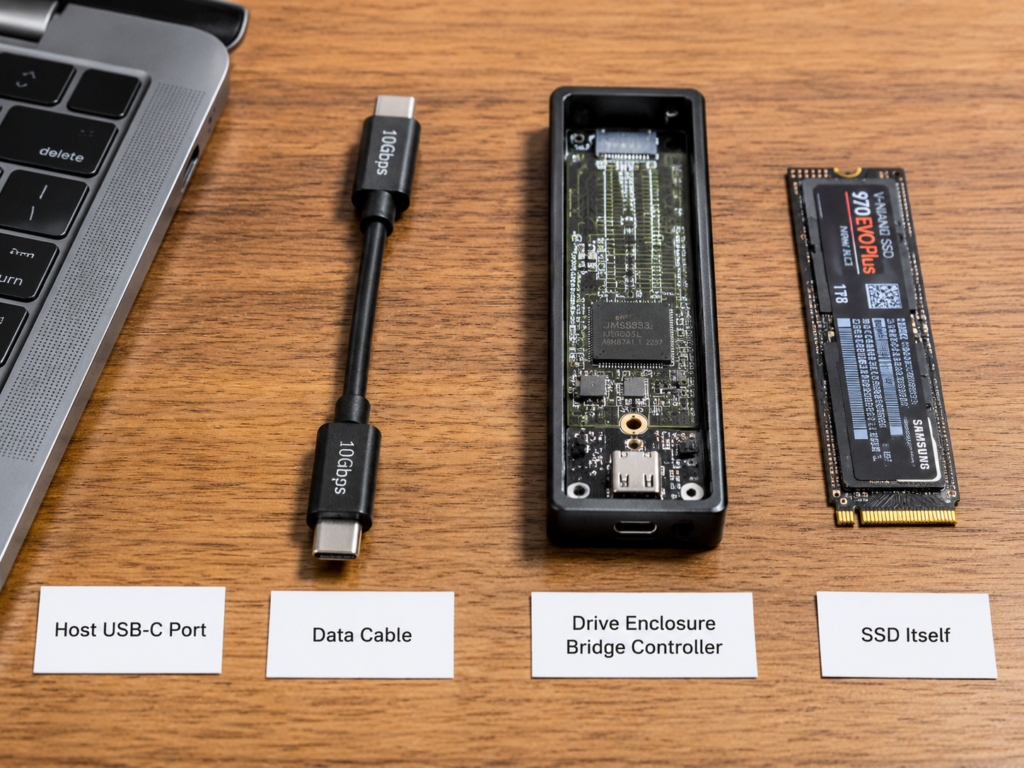
Many people wonder: I used to use regular USB flash drives fine, why do I get frequent drive drop-outs after switching to a faster portable SSD? There are four main reasons:
First is higher power consumption: regular USB flash drives usually have very low power consumption, while NVMe portable SSDs have significantly increased power consumption during continuous read/write, encryption, and cache flushing, which puts higher demands on the power supply of ports and cables.
Second is more sensitive signals: high-speed USB has much higher requirements for cable shielding, port contact, and number of adapters than low-speed devices; cheap cables may work fine at low speeds, but become unstable when running at high speeds.
Third is more concentrated heat generation: both M.2 NVMe SSDs and bridge chips generate heat; if the drive enclosure has poor heat dissipation, it’s very prone to speed reduction, controller reset, or even direct disconnection.
Fourth is greater load fluctuation: when transferring small files, power consumption is low and heat generation is small, so everything may be normal, but when continuously transferring tens of GB of large files, power consumption and temperature rise, and the problem is exposed.
Several terms will be used in the troubleshooting later, here they are explained in plain language first:
- Bridge controller / Drive enclosure controller: The “translator” that converts the internal signals of the SSD into USB signals, directly affecting compatibility, hibernation strategy, temperature control, and stability.
- NVMe: A protocol commonly used in high-speed SSDs now, with fast speed, but power consumption and heat generation are usually higher than ordinary SATA solutions.
- SATA portable SSD: Speed is usually lower than NVMe, but power consumption and heat generation pressure are smaller; whether it’s stable also depends on the drive enclosure and cable.
- UASP: A transmission mode that speeds up USB storage; compatibility issues may occur with old systems, old drive enclosures, or abnormal drivers.
- SMART: A system where the drive records its own health status; you can check temperature, number of abnormal power losses, error counts, and health level; but when reading through a USB drive enclosure, it may not be fully readable because the enclosure does not support passthrough.
- Firmware: A small program running inside the SSD or drive enclosure; old versions of firmware may have bugs related to hibernation, compatibility, or drive drop-out.
Finally, we need to distinguish the difference between pre-built portable SSDs and DIY M.2 drive enclosures: Pre-built portable SSDs are made by manufacturers, with matched controllers, heat dissipation, and firmware; ordinary users don’t need to worry about the internal combination, and the focus of troubleshooting can be placed on cables, ports, power supply, and the system. The stability of DIY M.2 drive enclosures depends more on the enclosure controller, how well the thermal pad is installed, SSD power consumption, firmware version, and the heat dissipation effect of the casing. Common problems include overheating of the enclosure controller, loose thermal pad, overly aggressive hibernation strategy of the enclosure, and NVMe drive power consumption exceeding the stable power supply limit of the port. If a DIY drive has frequent drop-outs, prioritize trying to replace the drive enclosure, or test the SSD by plugging it directly into the M.2 slot of a desktop motherboard, which is more effective than blindly formatting.
Start with the Most Common Causes to Avoid Detours
When troubleshooting disconnections, you must follow the order from highest to lowest probability: first check the lowest-cost, most common causes, then check rare hardware malfunctions, which can save a lot of time and money.
The Most Common Culprit: Unqualified Data Cables
This is the cause that most deserves priority troubleshooting: low cost, fast verification, and many drive drop-outs are fixed just by changing the cable. Many people grab any USB-C cable to use, not knowing that the cable may only support charging, or only have USB 2.0 speed.
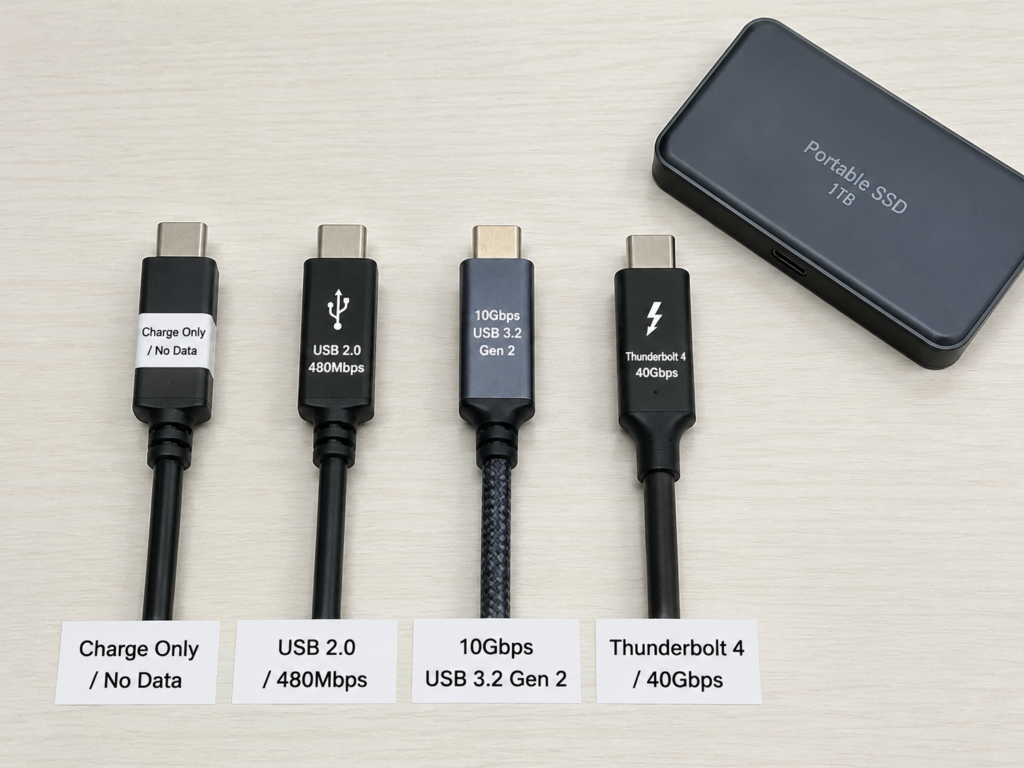
Cables that are prone to problems include: charge-only cables, data cables that only support USB 2.0, random bundled cables without clear speed markings, overly long ordinary passive cables, cheap unshielded cables, and cables that look intact but have broken internal copper cores. In addition, magnetic adapters, angled extension cables, USB-C extension cables, and multi-layer adapters all increase contact points and signal attenuation, further increasing the probability of disconnection.
Typical symptoms are: disconnects when the cable is gently wiggled, returns to normal after changing the cable, the system only recognizes the device at low speed, and the same SSD is very stable when using the original short cable. The quick judgment method is very simple: find a short cable clearly marked 5Gbps/10Gbps/20Gbps or Thunderbolt-compatible, prioritize using the original cable or a brand-certified cable, and test by plugging directly into the computer’s native port. Note that interruptions in large file transfers are not necessarily all cable problems; they may also be caused by power supply or overheating. When testing with a new cable, be sure to plug directly into the computer’s native port, don’t use a docking station, to avoid interference from multiple variables.
Second Most Common: The Fault of Docking Stations and Adapter Chains
Many thin-and-light laptops have few ports, so people are used to connecting a bunch of devices via a docking station, which is precisely a high-incidence area for drive drop-outs.
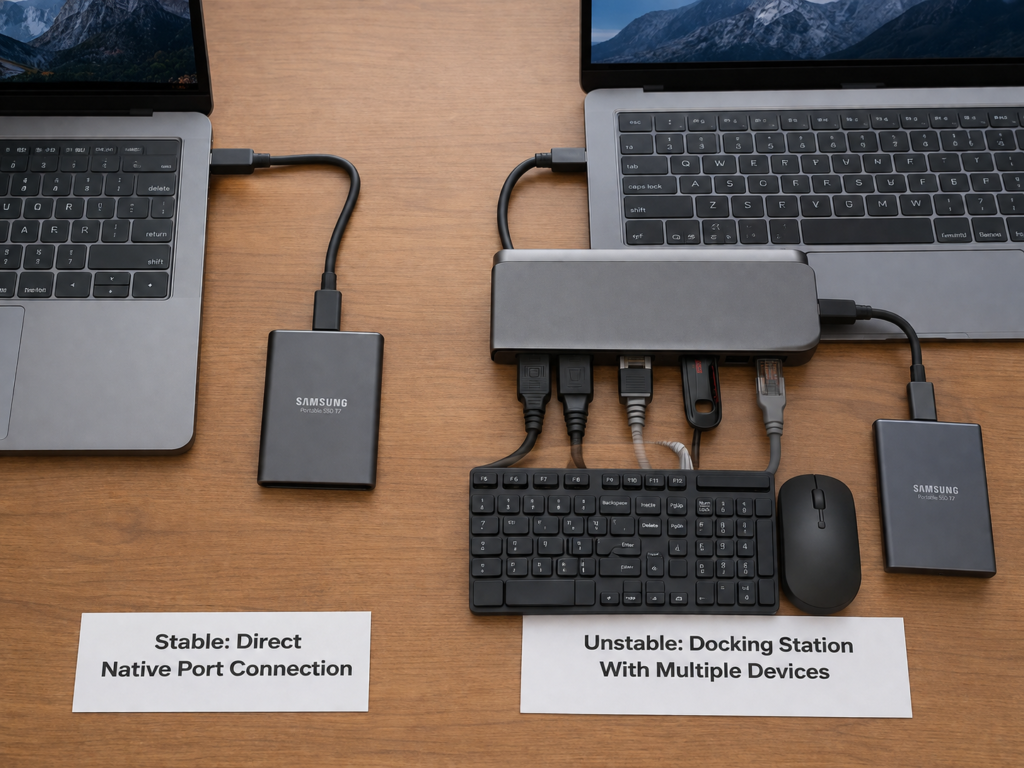
Common scenarios include: a passive docking station (a docking station that doesn’t need to be plugged in) is connected to a keyboard, mouse, network card, monitor, and drive at the same time, so bandwidth and power supply are both divided; the power supply or internal cable quality of the front USB-C port on a desktop is weaker, not as stable as the rear port on the motherboard; ports are dusty, oxidized, or loose; the quality of a USB-A to USB-C adapter is too poor. It should be specially noted here: a docking station claiming to support high speed does not mean every port is suitable for connecting an external SSD; you especially need to look at the single-port power supply capacity, and whether multiple ports share bandwidth.
Typical symptoms are: becomes stable when plugged directly into the computer; becomes stable when switched to the rear port of the desktop motherboard; only drops out when connected through a docking station; disconnects when the port is gently touched. The quick judgment method is also very straightforward: skip all docking stations, adapters, and extension cables, and plug directly into the computer’s native USB-C port; for desktops, prioritize testing the rear ports of the motherboard. If it works fine when plugged directly in, then the problem is in the adapter chain, and there’s no need to rush to replace the drive.
Easily Overlooked Power Supply Issues
USB-C portable SSDs have much higher power supply requirements than USB flash drives; insufficient power supply or fluctuations are common causes of high-load drive drop-outs.
Common triggering scenarios include: laptops reduce power consumption when in battery mode, reducing power supply margin; the USB ports of thin-and-light laptops themselves have limited power supply capacity; a passive docking station is connected to multiple devices, so current is divided; the external SSD or drive enclosure has additional power-consuming components such as lighting effects or fans; when connecting an SSD with a mobile phone or tablet, the device’s own OTG power supply is insufficient. Remember: a USB-C port does not automatically equal high-power output; some devices’ USB-C ports are mainly used for charging, connecting monitors, or connecting low-power peripherals, and their power supply capacity is not strong.
Typical symptoms are: normal when transferring small files, disconnects when transferring large files or continuous writing; the situation improves significantly after the computer is plugged into power; becomes stable after unplugging other USB peripherals; gets better after switching to a docking station with independent power supply. Quick judgment method: plug the laptop into power, turn off power-saving mode, unplug all other USB peripherals, and test the SSD by plugging it directly into the native port. For example, many thin-and-light laptops are prone to drive drop-outs when copying 100GB of footage in battery mode, but become stable when plugged into power and connected directly, which is a typical power supply problem.
Overheating: The Hidden Driver of High-Load Drop-Outs
Whether it’s the SSD controller, storage chips, or the bridge chip of the drive enclosure, all generate heat. When the temperature is too high, the device usually reduces speed first; if the controller or bridge chip has poor stability, it may directly drop out or reconnect.
Common triggering scenarios include: continuously transferring tens to hundreds of GB of large files, using in high-temperature environments in summer, the drive enclosure being placed in a bag or covered by cloth with no ventilation, and the thermal pad of the M.2 drive enclosure not being tightly attached, causing heat to not dissipate.
Typical symptoms are: disconnects only after more than ten minutes of use, the casing feels obviously hot to the touch, returns to normal after cooling down, and recurs when used under high load again. Two points should be noted here: first, 60-70°C is a common warning temperature range, but the overheating thresholds of different SSDs and drive enclosures are different; second, the temperature read by software is usually only the SSD’s temperature, not the bridge chip’s temperature — sometimes the bridge chip is already overheated, but the SSD temperature still looks normal.
Many people confuse SLC cache fullness with overheating: a full SLC cache usually only manifests as speed reduction, and does not directly cause disconnection; if the drive drops out after the cache is full, it is often accompanied by overheating, insufficient power supply, or controller compatibility issues. Quick judgment method: place the SSD in a ventilated place, put a heat sink under it or blow it gently with a small fan, and repeat the same transfer task after cooling for 10 minutes.
Minor Troubles at the System and Software Level
If the previous hardware-related causes are all ruled out, it’s time to consider problems at the system and software level.
Common triggering factors include: Windows’ USB selective suspend function, power-saving settings of the USB Root Hub; macOS’ drive sleep function; system version or chipset drivers are too old; antivirus software, sync software, or backup software continuously occupy the drive; file system corruption occurs.
Typical symptoms are: disconnection after idling or waking from sleep; only one specific computer has the problem; the drive can be recognized but files cannot be opened; the system pops up a prompt saying “You need to repair the disk” or “Disk was not ejected properly”. It should be specially noted here: file system errors may be the result of disconnection, or the cause of subsequent failure to mount; be sure to back up readable data before repairing.
Quick judgment method: test with another computer with a different system; if only one computer is abnormal, prioritize checking that computer’s settings, drivers, and system logs.
Consider Last: Hardware Malfunction of the Device Itself
If all the previous causes are ruled out, then you need to consider a malfunction of the hardware itself. This situation is relatively rare, but carries higher risk.
There are three common hardware problems: the first is drive enclosure firmware issues, such as disconnection after tens of seconds of idling, inability to wake from sleep, or drive drop-out when large files reach a fixed size. If the manufacturer provides firmware tools or hibernation settings, it may be improved by updating the firmware or extending the hibernation time; if there are no public tools, the actual solution is often to replace the drive enclosure or contact after-sales support. The second is poor compatibility of the drive enclosure controller: cheap controllers or those with poor heat dissipation design are prone to crashing and drive drop-out under high load, high temperature, or when paired with specific SSD models. The third is SSD itself malfunction: if the drive drops out on multiple computers, with multiple cables, and on multiple types of ports, and is accompanied by bad blocks, abnormal health status, a surge in abnormal power loss counts, file corruption, or complete failure to be recognized, then it is very likely that the SSD itself has a problem.
Never conclude that an SSD is broken just based on one drive drop-out; be sure to first rule out cable, port, power supply, overheating, and system problems before considering a hardware malfunction.
Troubleshoot in This Order to Avoid Wasting Money
The core principle of troubleshooting disconnections is: from low cost to high cost, replace variables one by one, avoid changing several things at the same time so that you don’t know which one fixed the problem in the end.
Do This Before Troubleshooting: Save Your Data
This is the prerequisite for all operations, and must be placed first. First, pause high-risk operations such as large file writing, formatting, partition adjustment, and repeated repairs to avoid worsening the problem. As long as the drive can still be recognized, immediately copy important files to another stable disk or the cloud. Prioritize reading out important data before doing stress tests; a drive with frequent disconnections must never be used as the only storage. If the data on the drive is extremely important and can no longer be stably recognized, stop repeated attempts to copy, repair, format, or stress test, to avoid further increasing file system damage and data recovery difficulty; seek professional data recovery services if necessary.
First, Figure Out the Pattern of Disconnections
First remove all irrelevant things, keep only “host + one cable + SSD”, turn off irrelevant peripherals, docking stations, sync software, and high-load background tasks. Then test and record: whether it disconnects when idle or during read/write, whether it disconnects with small files or large files, roughly how long it takes to disconnect, whether the casing is hot, whether the computer is in battery mode or plugged in, and whether only one specific port causes disconnection. The purpose of this is to avoid the coexistence of multiple variables leading to misjudgment of the cause.
Step 1: Check Cables and Ports First
Replace one by one in order, don’t change several things at the same time: first replace with a qualified high-speed short cable, then plug directly into the computer’s native USB-C port; for desktops, prioritize testing the rear ports of the motherboard, and avoid all docking stations and adapters throughout the process.
- Stable after changing the cable: the problem is mostly with the cable.
- Stable after changing the port: the problem is mostly with the original port or docking station.
- Still disconnects when plugged directly into the native port: continue troubleshooting power supply, temperature, and system issues below.
Step 2: Test Power Supply
Next test the power supply: plug the laptop into power, turn off energy-saving mode, unplug all other USB devices; if using a docking station, connect independent power to the docking station; if testing with a mobile phone or tablet, switch to a docking station with external power supply. If it becomes stable after plugging in power or reducing peripherals, it means it is most likely caused by insufficient power supply or power fluctuation.
Step 3: See If It’s Overheating
Test small files (hundreds of MB to 1GB) and large files (10GB or more) separately, record the continuous usage time before disconnection, touch the casing temperature after disconnection, then cool for 10 minutes and retest. If conditions permit, on Windows you can use CrystalDiskInfo and HWiNFO to check temperature and SMART information, and on macOS you can use DriveDx and smartmontools, but some USB drive enclosures do not support SMART passthrough, so it’s normal if you can’t read it.
If it only disconnects under high load and high temperature, and recovers after cooling, then the probability of overheating or controller stability issues is very high. Note that you should not only use “hot to the touch” as the judgment standard: a hot metal casing may mean that heat dissipation is working normally, or it may mean that the internal temperature is too high; you must judge in combination with the recurrence pattern.
Step 4: Rule Out System and Software Problems
Test with another computer, preferably with a different system, such as one Windows and one Mac. If only one specific computer has disconnections, prioritize handling that computer’s settings: turn off USB power-saving functions, update the system and chipset/USB controller drivers, pause antivirus and sync software, and run file system repair after backing up data. If multiple computers have disconnections, the probability of a system factor is very low.
Advanced users can check system logs for clues: in Windows Event Viewer, you can look at Disk, Ntfs, Kernel-PnP, and USB-related errors; in macOS Console, you can search for disk, USB, I/O error; beginner users don’t need to struggle with logs, just follow the previous steps to replace and test.
Step 5: Check the Drive Enclosure and SSD Itself Last
Only at this step do you need to consider problems with the drive enclosure or the SSD itself. If it’s a pre-built portable SSD, first go to the manufacturer’s official website to see if there are firmware updates, use the manufacturer’s tool to check the health status, and confirm whether it is still under warranty.
If it’s a DIY M.2 drive enclosure, you can first update the enclosure firmware, check whether the thermal pad is tightly attached to the controller and the casing, then test with another drive enclosure, or test the SSD by plugging it directly into the M.2 slot of the desktop motherboard. When looking at SMART information, focus on health level, temperature, number of abnormal power losses, media errors, reallocation-related counts, and CRC/interface error counts; field names vary by brand, don’t just look at a single indicator.
- Stable after changing the drive enclosure: the problem is mostly with the drive enclosure or bridge controller.
- SSD is still abnormal when plugged directly into the motherboard: then it is closer to an SSD itself malfunction.
Quick Troubleshooting Result Comparison Table
| Test Result | Most Likely Cause |
|---|---|
| Stable after changing cable | Insufficient cable specification, damage, or poor contact |
| Stable when plugged directly in, unstable with docking station | Docking station power supply, bandwidth, or compatibility issues |
| Stable when plugged into power, unstable in battery mode | Power supply strategy or power fluctuation issues |
| Stable after cooling, recurs at high temperature | Overheating, poor heat dissipation, or controller thermal stability issues |
| Stable after changing computer | Original computer system, driver, port, or power-saving setting issues |
| Still disconnects with multiple cables, ports, and computers | Increased probability of drive enclosure, firmware, or SSD itself malfunction |
When Can You Stop Troubleshooting?
To what extent can you stop troubleshooting? There are three clear standards:
- Can be solved by yourself: After changing the cable, plugging directly in, turning off power saving, connecting to power, and improving heat dissipation, the device returns to stability, no more fuss needed.
- Need to replace accessories: Confirm that the disconnection is caused solely by a certain cable, a certain docking station, or a certain drive enclosure, just replace the corresponding accessory.
- Need to send for repair or replacement: If it disconnects in tests with multiple cables, multiple ports, and multiple computers, and is accompanied by file corruption, failure to recognize, abnormal health status, rapid increase in abnormal power loss counts, or increase in media errors, don’t fuss anymore, go through warranty or replace with a new drive.
Quick Fix Tips by System
If the troubleshooting finds it’s a system setting problem, you can quickly fix it using the following methods:
Windows System
- Turn off USB selective suspend: Windows turns off power to USB devices when idle by default to save power, but some drive enclosures’ wake-up mechanisms are incompatible with the system, causing disconnections. You can find “Power Options” in Control Panel or Settings, enter “Advanced power settings”, expand “USB settings” → “USB selective suspend setting” in order, and set it to Disabled.
- Turn off USB Root Hub power saving: Open Device Manager, find USB Root Hub or Generic USB Hub under “Universal Serial Bus controllers”, right-click to enter Properties, and uncheck “Allow the computer to turn off this device to save power” in the “Power Management” tab.
- Update drivers: Prioritize installing chipset drivers, USB controller drivers, and stable BIOS/UEFI updates officially provided by the computer or motherboard manufacturer; do not use third-party driver tools.
- Repair file system: Back up readable data before repairing, then right-click the drive letter, select “Properties” → “Tools” → “Check” → “Scan and repair”.
macOS System
- Adjust sleep settings: Open System Settings, enter the “Battery” or “Energy Saver” panel, and turn off options that may cause external drives to sleep. For long transfers, try to connect to power and avoid automatic sleep, to reduce variables from lid closing and docking stations.
- Repair file system: Back up readable data before repairing, open Disk Utility, click “View” → “Show All Devices” in the upper left corner, select the corresponding volume or physical disk, and click “First Aid”.
- Prioritize direct connection: For Apple Silicon Macs or new Mac models, try to connect directly to Thunderbolt/USB4 ports to reduce variables brought by docking stations.
- File system note: exFAT format is convenient for cross-platform use, but is more prone to needing repair after abnormal power loss; APFS is suitable for the Mac ecosystem, but Windows requires additional drivers to read and write.
Notes for Other Devices
- Linux: You can use dmesg, lsusb, and journalctl to check USB reset, I/O error, and UAS-related errors; if necessary, you can test disabling UAS, but it is not recommended for beginner users to modify kernel parameters at will.
- iPadOS/Android: Focus on power supply, OTG support, file system support, and background hibernation restrictions; NVMe portable SSDs with higher power consumption may require a docking station with external power supply for stable use.
- Game consoles/TVs/routers: The USB port power supply and file system support of these devices are very limited, and cannot be used as the only test platform for judging whether an SSD is good or bad.
Avoid These Pitfalls to Reduce Disconnection Probability
Mastering a few practical habits can help you greatly reduce the disconnection probability of USB-C portable SSDs, and also avoid many common cognitive misconceptions.
Practical Pitfall-Avoiding Habits
Choose the Right Cables and Ports
When choosing a cable, don’t just look at “Type-C fast charging cable”; be sure to choose one clearly marked with data speed, such as 5Gbps, 10Gbps, 20Gbps, USB4, or Thunderbolt-compatible. For daily use with portable SSDs, it is recommended to choose a short cable of 0.3-1 meter; if long-distance high-speed transmission is really needed, choose an active cable or high-specification cable, and pay attention to compatibility. For important transfer tasks, prioritize plugging directly into the computer’s native USB-C port, and minimize the use of passive docking stations, cheap adapters, magnetic connectors, and extension cables. Regularly clean dust from ports with an air blower or dry brush; do not wipe with wet things, nor scratch the ports with hard metal objects.
Pay Attention to Power Supply and Heat Dissipation
When transferring large files on a laptop, try to plug it into power and turn off extreme power-saving mode. When using a docking station to connect a portable SSD, prioritize models with independent power supply, and avoid connecting too many high-power devices to the same docking station at the same time. When continuously transferring a large amount of footage, game libraries, or backup images, place the SSD in a ventilated place, don’t stuff it in a bag, press it under bedding or heat insulation pads. For DIY drive enclosures, be sure to check whether the thermal pad is in contact with both the SSD controller and the casing; if necessary, replace with a drive enclosure with better heat dissipation.
Data Safety First
After reading and writing are complete, be sure to safely eject before unplugging the cable: on Windows, click “Safely Remove Hardware” in the taskbar; on macOS, click the eject button next to the drive in Finder. When the drive indicator light is flashing, the copy window is not finished, or the backup software is still running, never forcefully unplug the cable. Keep at least two copies of important data; do not use a portable SSD as the only storage location, you can pair it with local hard drives, NAS, or cloud backups. After frequent disconnections, back up readable data first before troubleshooting; do not repeatedly format, write repeatedly, or perform long-term stress tests to avoid worsening damage.
Common Misconceptions Clarified
Misconception 1: All USB-C cables are universal
Wrong. Many USB-C cables are only suitable for charging, or only support USB 2.0 low-speed data transmission, and simply cannot run high-speed SSDs. The correct approach is to look at the packaging and cable body markings, and choose a cable clearly marked to support high-speed data transmission.
Misconception 2: Disconnection means the SSD is broken
Wrong. SSD itself malfunctions can of course happen, but the more common causes of portable SSD drop-outs are cables, ports, docking stations, power supply, power-saving settings, and overheating. The correct approach is to first rule out external factors in low-cost order, then judge problems with the drive enclosure or the SSD itself.
Misconception 3: The longer the cable, the more convenient it is
Wrong. High-speed USB and Thunderbolt signals have very high requirements for length, shielding, and active chips; ordinary long cables are more prone to signal attenuation and instability problems. The correct approach is to prioritize short cables for portable SSDs, and choose compliant active cables or high-specification cables when long cables are really needed.
Misconception 4: Hot-swappable means you can unplug whenever
Wrong. Hot-swappable means the device supports plugging and unplugging in a non-read/write state, it does not mean you can unplug directly during transmission. The correct approach is to wait for the read/write to finish, and safely eject before unplugging the cable.
Misconception 5: Formatting will definitely fix disconnections
Wrong. Formatting can only handle some file system problems, and cannot solve cable, power supply, overheating, controller compatibility, or SSD hardware malfunctions. The correct approach is to back up readable data first when there are frequent disconnections, then judge the cause; only when it is confirmed that the file system is damaged, consider repairing or reformatting.
Misconception 6: The more expensive the drive enclosure, the more stable it is
Wrong. Stability depends on the bridge controller, firmware, heat dissipation, power supply design, and compatibility with the SSD; it’s not that the higher the price, the more stable it will be. The correct approach is to read real user feedback for the same model before purchasing, focusing on whether anyone mentions problems like drive drop-out, overheating, sleep/wake failure, or firmware updates.
When Should You Replace Accessories, Send for Repair, or Recover Data?
At the end of troubleshooting, you may need to decide whether to replace accessories, send for repair, or do data recovery. You can judge according to the following standards:
- Recommend changing the cable first: Disconnects when wiggling the cable or port; you are currently using a charging cable, unmarked cable, overly long cable, or adapter cable; the situation improves significantly after changing to the original short cable.
- Recommend replacing the docking station or switching to direct connection: Stable when plugged directly into the computer, unstable when connected through a docking station; the docking station is connected to multiple devices such as a monitor, network card, keyboard/mouse, card reader, and SSD at the same time; the docking station has no independent power supply, or the manual does not indicate the power supply capacity of the USB ports.
- Recommend replacing the drive enclosure: DIY M.2 portable SSD drops out under high load, and changing cables or ports doesn’t help; the drive enclosure has abnormal heat generation, cannot wake from sleep, or has not had firmware updates for a long time; the same SSD becomes stable when plugged directly into the motherboard or after changing to another drive enclosure.
- Recommend sending for repair or replacing the SSD: Frequent disconnections in tests on multiple computers, with multiple qualified cables, and on multiple native ports; abnormal SMART health status, increased media errors, rapid rise in abnormal power loss counts; accompanied by a large number of file corruptions, inability to copy, inability to initialize, or sometimes recognized and sometimes completely unrecognized.
- Recommend stopping fuss and considering data recovery: The data on the drive is unique and very important; the device’s recognition time is getting shorter and shorter, and a large number of I/O errors occur during copying. As long as recognition becomes more and more difficult and there are a large number of read/write errors, don’t repeatedly try to power on, to avoid worsening damage.
Note: The focus of this article is USB-C solid state drives; if you are troubleshooting an external mechanical hard drive and have already heard abnormal noises, knocking sounds, or abnormal spin-up/stop, you should immediately stop powering it on and seek data recovery, do not apply the repeated testing process for SSDs.
Summary
When encountering frequent disconnections of a USB-C portable SSD, don’t rush to replace the drive; following this approach is the most stable: first back up your data to avoid secondary losses caused by disconnection; then reproduce the fault with minimal variables and clearly record the pattern of disconnections; next, start checking from the lowest-cost, most common causes: first change the cable and plug directly in to rule out cable and docking station problems, then test power supply and heat dissipation, then troubleshoot the system and software; finally consider hardware malfunctions of the drive enclosure and the SSD itself.
In most cases, you don’t need to replace the drive; adjusting accessories or system settings can solve the problem. As long as you can distinguish whether the problem is with the link, power supply, overheating, system, or hardware, you can avoid wasting money and better protect data security.