
Before starting to troubleshoot slow charging issues, let’s put safety first: if any of the following situations occur, please unplug the power immediately and stop using it. Do not continue trying to charge or disassemble it by yourself. Prioritize contacting official after-sales service or professional maintenance personnel.
- The device or charger has a strange smell, burning smell, smoke, bulging casing or obvious deformation: this indicates that internal components may be damaged, and there is a fire risk if you continue to use it.
- The battery itself is abnormal: for example, the back cover of a mobile phone or tablet is lifted, the screen is pushed up and bulged, or the touch fails accompanied by severe heating. This is most likely a swollen battery, and it must not be charged again.
- The USB-C port is blackened, has burn marks, or has been exposed to water and is not completely dry, and the port is too hot to hold after plugging in the cable: continuing to use it may burn the device motherboard.
- The outer sheath of the charger or cable is damaged, the metal contacts are deformed, and sparks or charging interruption occur when touched lightly: this indicates that there is a problem with insulation or contact, so do not continue to use it reluctantly.
As long as any of the above situations occurs, do not replace the high-power charging head, change the cable or repeatedly plug and unplug for testing. You should first cut off the power and send it to official after-sales/professional maintenance for inspection.
After eliminating these safety hazards, let’s talk about the core issue: why are some USB-C ports charging very fast, while others are as slow as a snail? Many people think that “USB-C” is equivalent to fast charging, but in fact this is the most common misunderstanding — USB-C is just a shape of the port, just like a socket is two-hole or three-hole, it does not represent how much power it can supply. The charging speed is jointly determined by six links: the charging head, the data cable, the upper limit of the device itself, the fast charging protocol, the ambient temperature, and the operating load of the device, and it follows a very simple “lowest principle”: the weakest link among the six determines the final charging speed. Just like the thinnest part of a water pipe determines the water flow, even if your faucet is large-caliber, if a thin pipe is connected in the middle, the water flow still cannot be fast.
From maintenance and daily troubleshooting experience, slow charging is usually prioritized in the following order: mismatched charging head power or protocol, data cable not supporting high power, charging while using or excessive temperature, shunting when multiple devices are plugged into a multi-port charger at the same time, and finally the battery or port problem of the device itself. So before troubleshooting, let’s do a set of standard tests to exclude normal slow charging scenarios — we will uniformly call this set of rules standard test conditions later: use the original or confirmed fast-charging charging head and data cable, set the device to screen-off standby state, place it in a normal temperature environment of 10°C to 35°C, keep the battery level between 20% and 60%, turn off high-power consumption background tasks such as games, navigation, live streaming, hotspots, and system updates, then measure the battery level increase for 10 to 15 minutes. This result can be used to judge whether there is a real fault.
First, Clarify: What Kind of “Slow” Are You Experiencing?
You can first compare your own usage scenarios to roughly lock the troubleshooting direction:
- Slow throughout, no fast charging prompt → Prioritize checking charging head, cable and protocol matching: if it is slow from the moment you plug it in, there is no fast charging prompt in the status bar, and the battery level increases very little, it is most likely that the accessory specifications or protocols do not match.
- Fast in the first half, significantly slower after 80% → Mostly normal battery protection: when it is almost fully charged, it will enter the constant voltage trickle stage. Slowing down is to extend battery life and is not a fault.
- The same set of accessories used to be fast, but now it is slow → Prioritize checking aging or system strategy: it may be due to aging of the data cable, dust in the port, power attenuation of the charging head after long-term use, or decreased battery health, or it may be that the charging strategy has been adjusted after a system update.
- Intermittent, charging cuts off when touched lightly → Prioritize checking contact problems: if the charging prompt pops up repeatedly, it is most likely that the cable, port, magnetic head or adapter has poor contact.
- Cannot reach the advertised peak power → Usually a normal phenomenon: the advertised peak power will only appear for a short period of time under extreme conditions of low battery, normal temperature, screen off, and fully matched accessories, and will not be maintained throughout the process.
How to Judge If Charging Is Actually Slow
If you don’t have a professional power meter, you can roughly test with the device itself: record the battery level change for 10 to 15 minutes under standard test conditions, and convert it to the hourly increase. The most reliable comparison is to test with the original or officially recommended fast charging kit under the same conditions as the normal speed baseline for this device. Note that this value can only be compared for the same device, the same battery level range, and the same environment. It is meaningless to compare percentages for devices with different battery capacities — for example, a mobile phone with a 6000mAh large battery will definitely have a lower percentage increase per hour than a 4000mAh one, but the actual charged power may be more.
You can also use system prompts as assistance: some Android phones will display “Fast Charging” or “Super Fast Charging” on the lock screen or status bar; Windows laptops, macOS System Information or manufacturer power management software may display adapter power, low power/slow charging prompts. iPhone/iPad usually do not directly display wattage, and need to be judged in combination with the actual charging speed. If possible, you can also use a USB-C power meter to directly check the real-time voltage, current and power, but note that the instantaneous peak does not count, you need to look at the stable power and the actual battery level growth over a period of time. Laptop users can also check the charging status, battery health or cycle count in the system or manufacturer’s power management software; different systems have different display items, subject to the actual support of the device.
Here is a rough reference for slow charging, only for initial screening, not an absolute standard:
- For mobile phones with fast charging above 18W, if the 1-hour charging increase under standard test conditions is significantly lower than the normal level of the same model, or lower than about 40%, it can be initially regarded as slow;
- For 45W to 100W PD thin and light laptops, if the 1-hour charging increase in screen-off standby is lower than 25% to 30%, or the system prompts low power, it can be initially regarded as slow;
- High-performance gaming laptops using 65W to 100W USB-C chargers may only maintain the battery level or even slowly drain under high load. It is necessary to judge against the original adapter power, and cannot be directly counted as a fault;
- Small devices such as earphones, bracelets, keyboards and mice have a charging power of only 2.5W to 10W, and it is a normal design to take 2 to 3 hours to fully charge, subject to the manual.
There are several scenarios that absolutely cannot be directly judged as faults: battery level higher than 80%, charging while playing, device overheating or in direct sunlight/low temperature environment, using public USB ports or ordinary computer USB ports, power supply through docking station or monitor adapter. Slow charging in these cases is normal.
Core Logic: What Determines Charging Speed
After figuring out how to judge whether it is slow or not, and understanding a little underlying logic, troubleshooting will be smoother, and you don’t have to memorize by rote.
As mentioned earlier, there are six links in charging and it follows the lowest principle. Here are two details that many people don’t know: first, no matter how high the power of the charging head is, the device will only draw power according to its own allowed power. Regular high-power chargers will not “force feed” power and damage the battery, so you can rest assured about this; second, if the data cable, port or adapter cannot carry high current, or cannot correctly transmit protocol information, the system will automatically drop to a lower power level to ensure safety. Fast charging does not automatically reach full speed as soon as you plug it in. Instead, the charger and the device first “talk” through the “fast charging protocol”, negotiate a voltage and current combination that both support and is safe, and then enter high-power charging.
Here are a few commonly heard terms explained in plain language, which will be used in later troubleshooting:
- Power (W): the core indicator of charging speed, equal to voltage × current, the higher the power, the faster the charging;
- Voltage (V): can be understood as the “thrust” of charging. Most fast charging increases power by increasing voltage, and more power can be transmitted without a particularly thick cable;
- Current (A): can be understood as “flow rate”. Data cables, ports, and contacts all have current carrying limits, and exceeding them will cause heat or even burn out;
- Fast charging protocol: the “common language” of chargers and devices. They must speak the same language to negotiate a high-power level, otherwise they can usually only drop to a lower general compatible level;
- USB-C: just the shape and connection specification of the port, does not mean it necessarily supports PD fast charging, video output, Thunderbolt or high-speed data;
- E-Marker: a small chip built into some USB-C data cables, equivalent to the “ID card” of the cable, which tells the device the current, power and functions it supports, and it is needed for confirmation during high-power charging.
The normal fast charging power ranges of different devices vary a lot, you can have a general idea: mobile phones commonly have 15W to 65W, some Android brands’ private protocols can reach 80W or even 120W or more, and iPhones are generally around 20W to 30W; tablets commonly have 18W to 65W, and large-size high-performance models may be higher; thin and light laptops commonly have 45W, 65W, 90W, 100W, and new models supporting USB PD 3.1 EPR can reach 140W or more; gaming laptops or mobile workstations mostly rely on dedicated adapters, and USB-C may only support low-power supplementary charging, off charging or light load use; small devices have low power themselves, and slow charging is a normal design.
Differences Between Common Fast Charging Protocols
You don’t need to memorize common fast charging protocols. If you just want to troubleshoot first, you can remember three points: Apple devices and most laptops prioritize PD; Android high-power fast charging depends on PPS or brand private protocols; for more than 60W, focus on whether the cable supports 5A/E-Marker or EPR. It is enough to know the general classification and function:
- USB PD: the most versatile fast charging standard at present, commonly found in mobile phones, tablets, laptops, power banks and some monitors supporting reverse power supply; but not all USB-C devices support PD, and it is still subject to the parameters of the device and charger.
- PD 3.0/SPR: the most common PD standard level, with a maximum power of 100W (typically 20V/5A). To reach this power, a 5A specification cable is required.
- PD 3.1/EPR: EPR is the extended range for higher power in USB PD 3.1. Common finished products may support 140W, 180W, 240W and other levels; whether it can be triggered depends on the charger output level, EPR cable and device input limit. Note that marking “PD 3.1” does not mean it necessarily supports EPR high power. You also need to check whether the output level has 28V/36V/48V and whether the cable is marked with the corresponding power.
- PPS: the programmable power supply extension function of USB PD. Many Android mobile phones’ high-power fast charging requires PPS support to approach the peak speed.
- Semi-universal protocols such as QC: supported by some mobile phones and chargers, can provide medium-level fast charging capability, and are less versatile than PD.
- Brand private protocols: for example, the high-power fast charging of brands such as Huawei, Xiaomi, OPPO, and vivo mostly relies on original or officially certified accessories to trigger full speed, and third-party chargers may only reach the medium speed level.
- Apple devices: mainly compatible with the USB PD protocol. You can choose a PD charger with appropriate power and a C-C cable, and no additional private fast charging protocol is required.
- Result of protocol mismatch: it does not necessarily revert to the slowest 5V/1A, it may drop to general compatible levels such as 5V/2A and 9V, but the speed will be significantly lower than expected.
- Display misunderstanding: the status bar showing “Fast Charging” does not mean reaching the peak power, and not showing the specific wattage does not mean slow charging. The final result shall be subject to the actual battery level increase.
Common Cause 1: Mismatched or Faulty Charger
Insufficient Power
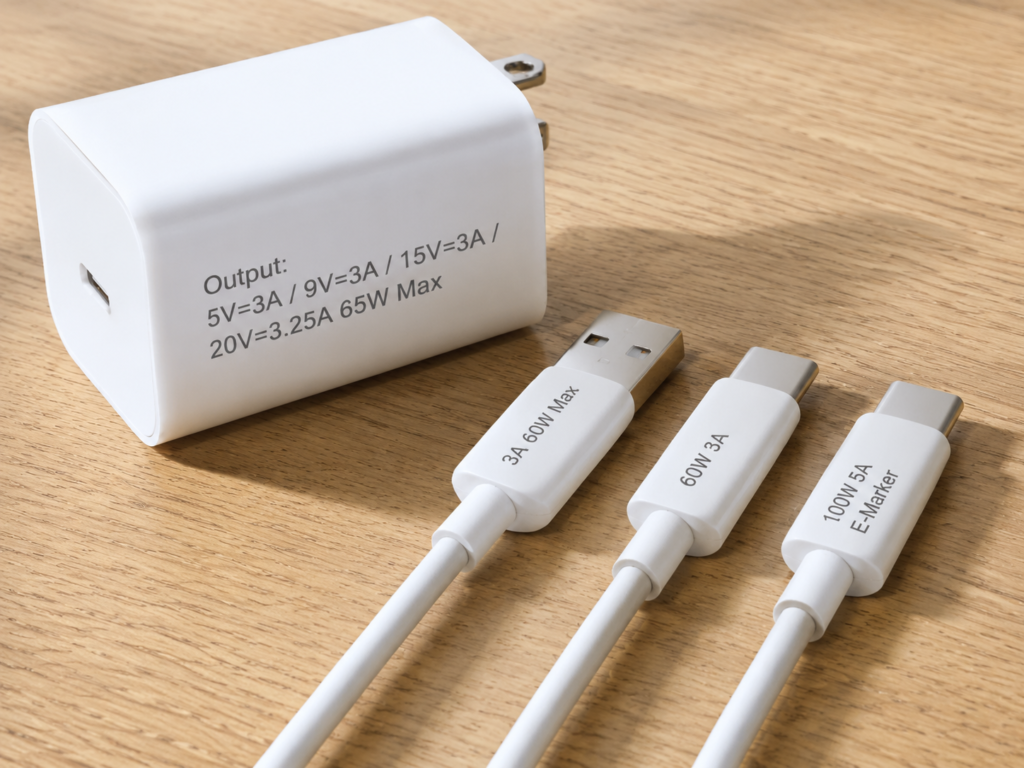
How to check the power of the charging head? Look at the shell or manual of the charging head, find the “Output” parameter, and the power of each level = voltage × current. For example, if it is marked “5V=3A / 9V=3A / 15V=3A / 20V=3.25A”, the highest level is 20V×3.25A=65W.
Special attention should be paid to multi-port chargers: the nominal total power is not equal to the power that each port can output individually. For example, for a charger with a nominal total power of 100W, the C1 port is 100W when used alone, and when C1+C2 are used at the same time, it is 65W+30W. When two devices are plugged in at the same time, the high-power port will automatically downgrade. Different ports may also have different upper limits. For example, the C1 port supports 100W, the C2 port only 30W, and the USB-A port only 18W. Plugging into the wrong port will also cause slow charging. To judge whether it is a shunting problem, just plug only the target device into the USB-C port with the highest nominal power for testing. If the speed recovers, it can be confirmed.
Common power mismatch scenarios include: using a 5W/10W old charging head to charge a fast-charging mobile phone, using a 20W mobile phone charging head to charge a 65W laptop, and using a low-power car USB port to charge a tablet or laptop. In such cases, charging is still possible, but the speed is significantly slow; the laptop may prompt low power, and even drain while charging under high load.
Protocol Mismatch
It is manifested as the third-party charging head can charge, but there is no fast charging prompt, and the speed is significantly improved after replacing the original or certified charging head. For example, many Android mobile phones’ high-power fast charging requires a brand private protocol or PPS. If you use a charging head that only supports ordinary PD, it may only reach medium-speed charging and cannot reach the advertised peak. Apple devices are much simpler, as long as it is a charging head that supports USB PD and has sufficient power, no private protocol is required. For laptops, focus on whether the PD power level matches. For example, a laptop with an original 65W PD will usually be slower with a 45W PD head; when replaced with a 90W charger that supports the same or higher PD level and paired with a compliant cable, it can generally meet the demand, but the final result is still subject to the input level supported by the device.
The selection suggestion is: Apple and laptops prioritize PD chargers; for Android high-power fast charging, confirm that the charging head supports PPS or the corresponding brand protocol.
Aging, False Labeling or Damage
If the charging head has been used for a long time, or has been dropped or exposed to water, the aging of internal components may cause it to fail to reach the nominal power. Typical manifestations are abnormal heating, shell deformation, frequent disconnection, and the same cable and same device will resume fast charging after changing the charging head.
Many counterfeit or unbranded cheap charging heads have falsely labeled power, and have insufficient protection circuits and poor temperature control performance. Not only can they not charge fast, but they also have safety hazards. If the safety signals listed at the beginning appear, handle them according to the safety section, and do not continue troubleshooting.
Common Cause 2: Substandard or Damaged Data Cable
Data cables are the hardest hit area for slow charging. Many people think that as long as the cable can conduct electricity, it is fine. In fact, cables of different specifications have very different capabilities.
Cable Types and Power Limits
First, let’s talk about the power range corresponding to common cables:
- USB-A to USB-C cable (one big end and one small end): suitable for low to medium power charging. Some brand private protocols can achieve higher power, but they are usually not suitable for standard PD high-power laptop charging;
- USB-C to USB-C cable (both ends are C ports): the mainstream of PD fast charging now, and this type is preferred for high-power charging of mobile phones, tablets and laptops;
- 3A C-C cable: supports up to about 60W (20V/3A), suitable for most mobile phones, tablets and some low-power thin and light laptops;
- 5A C-C cable with E-Marker: supports PD SPR up to 100W (20V/5A). For 90W, 100W and most laptop scenarios exceeding 60W, 100W/5A cables should be preferred; if only an ordinary 60W/3A cable is used, the device will usually drop to 60W or lower, instead of being unable to charge at all;
- PD 3.1 EPR cable: supports high power levels such as 140W, 180W, 240W, etc., and requires the charger and device to also support EPR to reach;
- Thunderbolt/USB4/full-featured cable: the advantages are fast data transmission and support for video output, but the charging speed still depends on the power marked on the cable body. It is not that the more expensive the cable, the faster the charging. If it is only used for charging, there is no need to buy expensive Thunderbolt cables, which is a waste of money.
Function of E-Marker Chip
Many people have heard of E-Marker but don’t know what it does. In fact, it is an identity recognition chip in the cable, which is used to tell the charger and the device the current, power and function upper limits supported by this cable. When do you need to pay attention to it? For scenarios exceeding 3A/60W, 100W PD, PD 3.1 EPR high power, and cable scenarios that need to identify Thunderbolt/USB4 capabilities, you should confirm that the cable has the corresponding identification chip and power/function markings; for ordinary 3A C-C charging within 60W, you don’t need to worry about E-Marker. If the cable does not have E-Marker or the specification is insufficient, the system cannot recognize it, and will negotiate at a lower power, so charging will naturally be slow.
Don’t Confuse Charging Capability and Data Capability
This is a pitfall that many people easily fall into: high-power cables do not necessarily support high-speed data (may only be USB 2.0 speed), and high-speed data/video cables do not necessarily support high-power charging. When choosing a cable, you should check the power marking, data rate, video/Thunderbolt/USB4 capabilities separately. Don’t think that it must be suitable for you just because you see the words “full-featured”. You need to look at the specific parameters.
Damage or Poor Contact
Intuitive damage is easy to identify: blackened, deformed, loose ports, cracked, bulging, and obviously creased cable bodies. These can be replaced directly. There is also a kind of hidden damage, which looks normal in appearance, but the internal wire is broken and the contact resistance becomes larger, so it can only charge slowly or intermittently.
Typical manifestations are that the cable needs to be placed at a certain angle to charge, the charging cuts off when touched lightly, the charging prompt pops up repeatedly, and the cable head is locally heated. It is very simple to judge whether it is a cable problem: use the same charging head and the same device, replace with a cable that has been confirmed to support fast charging for testing. If the speed recovers, it is the problem of the original cable.
In addition, adapter devices such as magnetic heads, extension cables, and inferior adapters may increase contact resistance or not support protocol passthrough, resulting in charging speed reduction. During troubleshooting, it is best to remove all of them first and test by directly connecting to the device.
Common Cause 3: Device-Side Restrictions or Hardware Issues
Device’s Own Power Limit and Special Restrictions
The maximum charging power of each device is jointly determined by hardware, battery, system and temperature control strategy, and will never exceed its own upper limit, even if you use a 200W charger, it is useless. You can check the official website parameters, manual, original charger specifications, official support documents, and it can also be seen in the power management software of some laptops.
There are several common special situations to note: when a laptop is running under high load, the input power will be prioritized for system operation, and the rest will be used for battery charging, so the battery level may not increase or even slowly drain. This is normal and not a fault; if the charger power is lower than the minimum input requirement of the laptop, the system will prompt “low power charger” and even limit performance to save power; the power of wireless charging on mobile phones is usually lower than that of wired charging, and is more susceptible to temperature, so it is normal to charge a little slower; if the device has multiple USB-C ports, also note that not every port supports charging input, and some ports only support data or video, so you need to plug into the port officially marked as supporting charging.
Battery Aging Triggers Protection
After lithium batteries are used for a long time, the internal resistance will increase, the capacity will decrease, and the heating will intensify. The system may reduce the charging speed for safety and to extend battery life. Many people have heard that “battery health below 80% will limit speed”, but in fact this is just a common maintenance reference line, and not all brands will fix the speed limit at exactly 80%. Whether the speed is limited depends on the brand strategy, battery temperature, cycle count, battery status and system version, and cannot be generalized.
Battery aging is usually accompanied by these manifestations: significantly shorter battery life, hotter charging than before, more obvious speed reduction at high battery levels, and faster power drain at low temperatures. If the safety signals listed at the beginning appear, handle them according to the safety section, and do not continue troubleshooting.
Impact of Software Load and System Settings
If you run large games, live streaming, navigation, video recording, hotspots, editing while charging, or the system is updating or cloud syncing, these high-power consumption applications will consume most of the input power, leaving less for battery charging, so it will naturally be slow.
Power saving mode or low power mode mainly limits performance and background activities, and there is no unified active speed limit rule for charging speed. In daily use, you don’t have to turn off the power saving mode fixedly for charging speed; but when troubleshooting faults, it is recommended to temporarily restore the default power/performance settings, and turn off high-load tasks before retesting, to avoid system strategy interfering with judgment. And optimized charging/battery protection functions, such as Apple’s Optimized Battery Charging, Android’s smart charging, and laptop charging threshold settings, may slow down charging at night, near full charge, or when plugged in for a long time, and even limit charging to 80% and stop. These are normal protection strategies, not faults.
In addition, system updates may also change the charging speed: manufacturers sometimes adjust the charging curve, temperature control threshold or battery protection strategy, and it is normal to feel a change in speed after the update. If it is a laptop, you also need to additionally check the charging threshold, protection mode, and performance mode settings in the BIOS, power management software, and manufacturer control center, which may all affect the charging speed.
It is very simple to judge whether it is a software or settings problem: restart the device, close background high-power consumption applications, pause system updates and sync, and retest under standard test conditions. If the speed recovers, it is a software problem.
Charging Port Dust Ingress or Damage
The ports of mobile phones and tablets are plugged and unplugged every day, and it is easy to accumulate dust and lint. Over time, they will block the contacts, causing the plug to not be inserted in place, resulting in slow charging, disconnection or single-sided recognition. If the port is damaged, it will manifest as loose plugging, hot port, needing to be placed at an angle to charge, and the plug cannot be fully inserted.
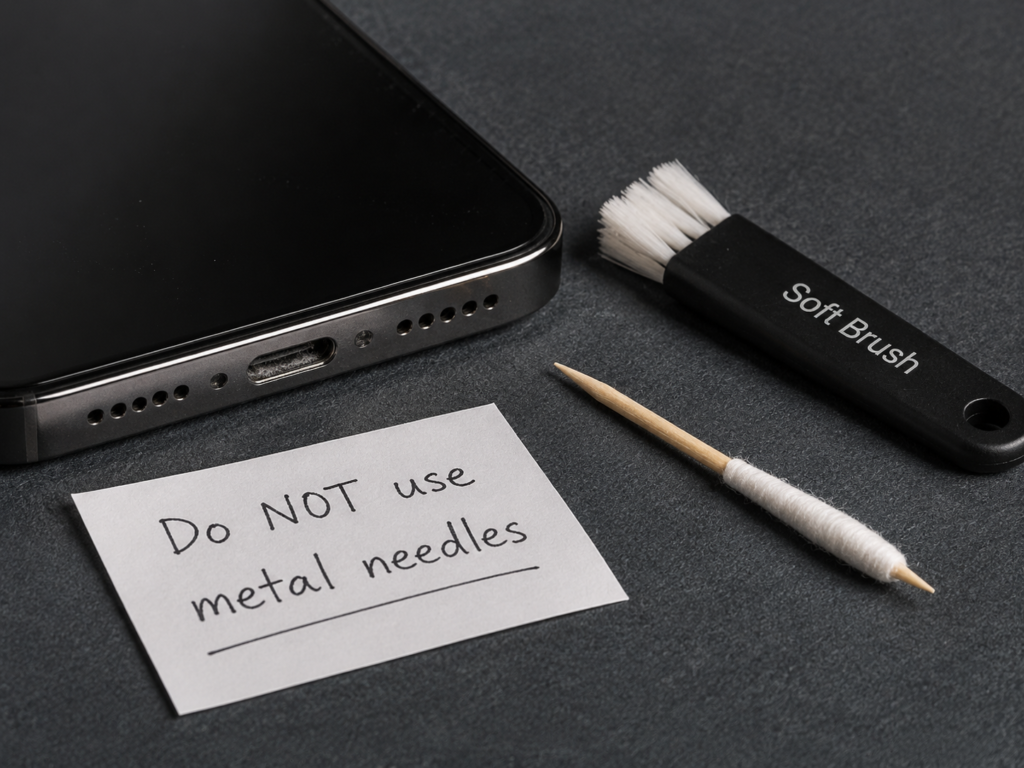
When cleaning the port, be sure to turn off the device first, use a dry soft brush, or a toothpick wrapped in absorbent cotton to gently wipe. Never use a metal needle to scrape hard, and do not directly drop liquid or rinse with water, otherwise it is easy to burn the port. If the charging is still disconnected after cleaning, or the safety signals listed at the beginning appear, handle according to the safety section, do not continue troubleshooting, and it is recommended to contact official after-sales for inspection.
Common Cause 4: Impact of External Environment and Power Supply Path
In addition to accessories and the device itself, the external environment and power supply path also affect the charging speed, which many people easily overlook.
Too High or Too Low Temperature
Lithium batteries are very sensitive to temperature. When the temperature is too high or too low, they will actively reduce speed to prevent damage, bulging or safety problems. Generally speaking, the charging performance is relatively stable between 10°C and 35°C, and when it is lower than 0°C or higher than 40°C, the speed will be significantly reduced or even charging will be suspended.
Common scenarios include: leaving the device in a car exposed to the sun in summer, playing high-load games while charging causing the device to overheat, thick phone cases with poor heat dissipation, and charging in outdoor low-temperature environments in winter. These will all cause slow charging. The solution is also very simple: move to a room temperature and ventilated environment, take off the thick phone case, wait for the device to cool down or warm up to the normal range before charging, and the speed will recover.
Insufficient Power of the Power Supply End Itself
Ordinary USB ports on computers generally only have 5W to 15W. Unless they are clearly marked to support PD power supply, Thunderbolt power supply or high-power output, charging mobile phones is slow, let alone tablets and laptops. Most USB ports in public places, such as airports, hotels, airplane seats, and car native USB ports, are low-power, only suitable for emergency supplementary charging, and it is normal not to charge fast.
The charging speed of a power bank depends on the output power and protocol, and has nothing to do with the capacity — a 20000mAh power bank is not necessarily faster than a 10000mAh one, it depends on its output level. And power banks may also automatically reduce speed when low on power, at low temperature, or when multiple ports output at the same time.
There are also problems with power strips or sockets: inferior power strips, loose sockets, and multiple high-power electrical appliances plugged into the same power strip may cause unstable power supply, and regular chargers will trigger protection, reduce power or even suspend charging.
Impact of Adapter Devices Such as Docking Stations and Monitors
Many people like to connect a docking station or monitor when using a laptop, and supply power to the laptop reversely through them. However, the docking station itself needs to consume power, and also needs to supply power to connected peripherals such as USB drives, mice, and hard drives. Therefore, the nominal “100W input” is not equal to 100W output to the laptop. A common situation is that a docking station with 100W input may only output 85W or even lower to the computer, and the rest of the power is used for itself and peripherals. If the laptop needs more than 65W of power, it may prompt slow charging.
The same is true for the reverse power supply of monitors, which are commonly 45W, 65W, and 90W. If it is lower than the demand of the laptop, it will prompt slow charging.
It is very simple to judge whether it is a problem with the adapter device: bypass all intermediate devices and connect the charger directly to the device. If the speed recovers, the problem lies in the adapter link.
Practical Guide: 3 Steps to Locate the Cause of Slow Charging
Step 1: Rule Out Normal Slow Charging Scenarios
First check these things:
- Is the battery level higher than 80%? If yes, the speed reduction after 80% is mostly normal constant voltage trickle protection, and no treatment is required;
- Is the ambient temperature too high or too low? Is the device obviously overheating? If yes, first move to a room temperature environment, wait for the temperature to return to normal before testing;
- Are you running high-load tasks such as games, live streaming, navigation, hotspots, video recording, and system updates? If yes, turn them off first, and test in screen-off standby;
- Have you enabled strategies such as optimized charging, battery protection, night smart charging, and laptop charging upper limit? If yes, you can temporarily turn them off for testing to confirm whether it is affected by this function.
After ruling out these, use the original or verified fast charging kit and retest under standard test conditions. If the speed is normal, it is a normal scenario, not a fault.
Step 2: Troubleshoot Accessories with Replacement Method, Change Only One Variable at a Time
If it is still slow under standard test conditions, start changing accessories. Remember to change only one at a time, otherwise you won’t know which one is the problem.
- First replace with a verified fast charging charger, preferably an original or certified charger with the same power and protocol, and only plug the target device into the highest power C port; if the speed recovers after changing the charger, it means the original charger has a problem: it may be insufficient power, protocol mismatch, multi-port shunting or aging damage.
- If changing the charger is still slow, then replace with a verified USB-C to USB-C fast charging cable; if the speed recovers after changing the cable, it means the original cable has a problem: it may be insufficient power, no E-Marker, aging or poor contact.
- If you usually use devices such as docking stations, magnetic heads, extension cables, and adapters, first remove all of them, and test by connecting the charger directly to the device; if the speed recovers after direct connection, it means the adapter link has a problem.
Step 3: Troubleshoot the Device Itself
If it is still slow after changing accessories and direct connection, troubleshoot the device itself.
- Software troubleshooting: restart the device, close all background high-power consumption applications, pause system updates and sync, check battery protection settings, then retest under standard test conditions;
- Battery troubleshooting: check the battery health and cycle count in the system, and observe whether there are manifestations such as sudden drop in battery life, abnormal heating during charging, and fast power drain at low temperatures;
- Port troubleshooting: check whether the port is dusty, loose, blackened, whether the plug can be inserted tightly, and whether it needs to be placed at an angle to charge. If there is dust, clean it according to the previous method;
- Port check: for devices with multiple USB-C ports, switch to the port officially marked as supporting charging input and try again.
If it is still slow when directly connected with the original kit under standard test conditions, and accompanied by disconnection, abnormal heating, loose port or system warning, it is mostly a device hardware problem (battery, port or charging circuit fault), and it is recommended to contact official after-sales for maintenance.
For your convenience, here is a decision table of common phenomena, which you can directly correspond to find:
| Phenomenon | Primary Suspect | Verification Method | Solution |
|---|---|---|---|
| Slow throughout, no fast charging prompt | Charger power/protocol mismatch, insufficient cable specification | Compare with original or verified fast charging kit | Replace matching charger/cable |
| Slows down after plugging in a second device | Multi-port charger shunting | Test with single device plugged into highest power port | Use single port or replace multi-port charger with higher total power |
| Resumes fast charging after changing cable | Insufficient cable power, aging, poor contact, no E-Marker | Replace with verified fast charging cable | Replace compliant cable |
| Only slows down at battery level above 80% | Normal charging curve | Test under same conditions at 20%-60% battery level | No need to handle, it’s normal protection |
| Slows down after overheating | Temperature control protection | Retest after cooling down and screen off | Move to room temperature environment, remove thick case, avoid using while charging |
| Disconnects when touched lightly/repeatedly recognized | Poor contact of cable, port, adapter | Change cable, clean port, remove adapter | Replace accessories, clean or repair port |
| Laptop prompts low power | Insufficient charger power, insufficient docking station output, cable does not support high power | Directly connect high-power PD charger and compliant cable | Replace matching power PD/EPR device link |
| Still slow with original direct connection and accompanied by abnormalities | Battery, port, charging circuit fault | Cross-test with multiple sets of compliant accessories, still slow after cleaning port | Contact official after-sales for maintenance |
Pitfall Avoidance Guide: Accessory Purchase and Daily Use
Key Points for Charger Purchase
- Power: it is enough if it is not lower than the recommended power of the device. There is no need to blindly buy models much higher than the demand. Regular high-power chargers will not damage the device and will only output according to the device’s demand.
- Protocol: Apple devices and laptops prioritize PD chargers; for Android high-power fast charging, confirm that the charger supports PPS or the corresponding brand private protocol.
- Multi-port: don’t just look at the total power. You need to confirm the maximum single-port power and the power distribution rules when multiple ports are used at the same time, to avoid speed reduction when multiple devices are used at the same time.
- Safety: choose products with brands, clear parameters, certification marks and after-sales service, and avoid cheap products with no parameters, false labeling, and abnormal overheating.
Key Points for Data Cable Purchase
Prioritize USB-C to USB-C cables, which are compatible with mainstream PD fast charging, and then choose the corresponding specification according to your device power and needs:
- Devices within 60W: just choose a qualified 3A C-C cable, no need to pursue high specifications additionally.
- 65W-100W devices: to avoid downgrading, prioritize C-C cables marked 100W, 5A, and with E-Marker chip.
- 140W and above devices: choose cables clearly marked to support USB PD 3.1 EPR and with matching power.
- Choose functions as needed: if it is only used for charging, there is no need to buy expensive Thunderbolt/USB4 cables; when you need high-speed data transmission, external monitor or docking station, then additionally check the parameter specifications of USB4/Thunderbolt/full-featured.
The cable specification is only the upper limit, and the final speed still depends on whether the charger, device and protocol are jointly supported; buying a 240W cable will not make a device that does not support EPR faster.
Daily Usage Habits
Try to charge with the screen off to reduce heating and operating power consumption; avoid charging in a sun-exposed car, under the covers, or in low-temperature outdoor; remove thick phone cases or keep ventilation during high-power charging; when using a laptop plugged in for a long time, turn on the manufacturer’s battery protection or charging upper limit function; do not use damaged cables, loose adapters and abnormally heating chargers.
Clarification of Common Misconceptions
Here are a few of the most easily misunderstood misconceptions clarified:
- “USB-C port equals fast charging” — wrong, USB-C is just the port shape, and the speed depends on the power, protocol and device limit of the whole link;
- “The higher the charger power, the more it damages the battery” — wrong, regular chargers will negotiate power with the device, and the device only draws the allowed power. The risk mainly comes from inferior or damaged accessories;
- “You must use original accessories for fast charging” — wrong, third-party accessories can also fast charge as long as the power, protocol and cable specifications match, and high-power private protocols may require certified accessories;
- “As long as the cable can charge, there’s no problem” — wrong, cables have current and power limits, and internal damage can also cause slow charging;
- “Showing fast charging means full speed throughout” — wrong, the fast charging peak only appears under specific conditions, and high battery level, high temperature, screen on, and high load will all reduce the speed;
- “100W charger can make all laptops charge at full speed” — wrong, the device needs to support the corresponding PD level, and the cable also needs to support the corresponding current. High-performance laptops may require higher power or dedicated adapters;
- “The larger the power bank capacity, the faster the charging” — wrong, capacity determines how much power can be charged, and output power and protocol determine how fast the charging is.
Summary
After reading this, you should already be able to troubleshoot most USB-C slow charging problems by yourself. You can distinguish which are normal slow charging (such as protection speed reduction after 80%, speed drop when charging while playing) and which are real faults; you can read the output parameters of the charging head, the 3A/5A/100W markings of the cable, and the differences between basic protocols such as PD and PPS; you can also use the simple replacement method to find out step by step whether the problem is in the charging head, cable, adapter device, port or battery.
Most importantly, you can judge when you just need to change an accessory or adjust your usage habits, and when you should stop using immediately and find a professional to repair. When it comes to charging, safety is always the first priority. Don’t use inferior accessories just for a little faster speed, and don’t force use when the device is abnormal.