
If you just bought a 65W USB-C charger, but when you plug it into your phone, you find the charging speed is no different from the old slow charging, and there’s not even a “Fast Charging” prompt, don’t rush to conclude your phone is broken — the vast majority of fast charging failures are not hardware faults, but mismatched accessories, incorrect settings, or even just mistaking normal battery protection speed reduction for a malfunction.
Before starting troubleshooting, let’s take 2 minutes to confirm: are you experiencing a “real fast charging failure”, or a normal charging strategy adjustment? Figuring this out will save you a lot of detours.
First, Confirm: Is It a Real Fast Charging Failure or Normal Speed Reduction
Plain-Language Definition of Fast Charging and Speed Reference
Many people judge “fast charging” entirely by feel, but you can first have a rough reference:
- Normal charging: Common power is 5W-10W. It usually takes several hours to fully charge a 4000mAh-5000mAh phone battery, and the actual speed is also affected by battery capacity and the phone’s power consumption state.
- Fast charging: Significantly faster than traditional 5V slow charging. Common power ranges from 18W, 20W, 25W, 30W to 65W, 80W, 100W and above, and power levels vary greatly between different brands.
When judging, do not directly compare charging percentages across brands — for example, the charging speed of Brand A’s 30W and Brand B’s 65W is inherently different. As long as it is close to the experience of your own original set, it is normal. A more reliable reference is: use the original or officially recommended fast charging set, charge with the screen off for 30 minutes when the battery is between 20%-60%, and there will usually be a noticeable increase in battery level.
Here we need to first distinguish three easily confused situations:
- No fast charging at all: The whole process is only at normal slow charging speed, without any fast charging prompt, and the amount of electricity charged in the same time is significantly low. This is most likely a fault or mismatch.
- Not reaching the highest peak: Fast charging has been triggered, but it does not reach the maximum power advertised by the manufacturer. This usually does not equal a fault — peak power only appears for a short time under specific conditions.
- Slower in the second half: Most phones will actively reduce speed after the battery reaches 80%. This is a normal battery protection strategy, not a fast charging failure.
3 Tool-Free Methods to Determine If Fast Charging Is Triggered
You don’t need to buy professional tools, you can roughly judge with these three methods:
- Check system prompts: If the lock screen, status bar, or charging animation displays words like “Fast Charging”, “Super Fast Charging”, etc., you can basically confirm that fast charging is triggered. But note: when using a third-party PD/PPS charger, some phones may not display the brand-exclusive fast charging animation, but they have actually entered the fast charging level. You can’t judge solely by the prompt text.
- Measure actual speed: Use the phone until the battery is between 20%-60%, charge it with the screen off and the phone idle for 10-30 minutes, record the amount of electricity charged, and compare it with the daily experience of the original set. If the speed is close, it means fast charging is normal; if there is a big difference, it may not be triggered.
- Observe charging behavior pattern: If the charging speed is obviously fast when the battery is low, and gradually slows down when it approaches 80%, it usually means that fast charging has been successfully triggered, but the system actively reduces speed later to protect the battery; if the speed is very slow throughout the process, it is more likely a protocol handshake failure or accessory problem.
4 Normal Phenomena That Are Easily Misjudged as Faults
What many people think of as “broken fast charging” is actually the phone’s normal protection strategy. First check and rule these out:
- Speed reduction after 80% battery: When a lithium battery is nearly fully charged, it enters a constant voltage protection phase, reducing the charging current to reduce heat generation and aging. The closer it is to 100%, the slower the charging. This is a common industry design.
- Slower charging while using the phone: The power input from the charger is first supplied to the phone’s operation, and the rest is charged into the battery. When watching videos, playing games, using navigation, or turning on a hotspot, power consumption is high, so the power left for the battery naturally decreases, making it look like charging is slower.
- Speed reduction when temperature is abnormal: Overheating or overcooling of the phone will limit charging power, or even pause charging — using the phone while charging in summer, direct sunlight, or outdoor low-temperature environments in winter may cause slower charging.
- Slower charging at night: Many phones’ “Optimized Charging” or “Smart Charging Protection” functions will delay the full charging time according to your sleep habits. For example, it pauses when it reaches about 80% at night, and continues to fully charge when it’s almost time to wake up. This is to reduce battery aging caused by being in a fully charged state for a long time, and is normal protection, not a fault.
Scope and Goals of This Troubleshooting Guide
This article only discusses wired USB-C charging, including USB-C to C and USB-A to C chargers and cables; wireless charging, magnetic charging, complex power supply from laptop docking stations, and development and debugging issues are not within the scope of troubleshooting.
Our goals are: ordinary users can follow the steps to locate whether the problem is with accessories, settings, environment, or hardware; friends who want to understand the principle can also understand the meaning of common terms such as PD, PPS, and e-Marker.
Why USB-C Fast Charging Requires “Negotiation” First
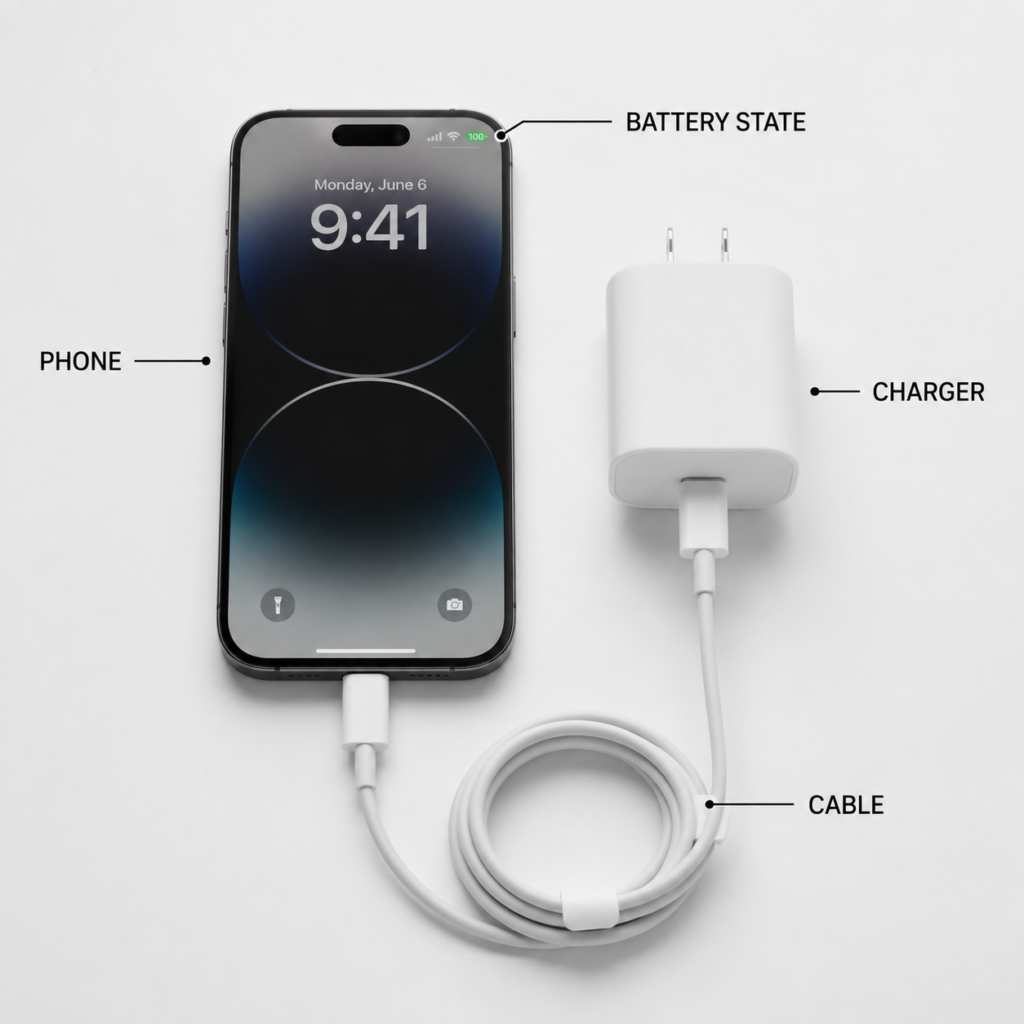
Many people think that as long as the charger has enough power and the interface matches, fast charging is possible, but that’s not the case — the core of USB-C fast charging is that the phone, charger, and cable first “exchange a code”. This process is called protocol negotiation, also known as “handshake”.
The moment you plug in the charging cable, the three parties will first exchange the fast charging rules they support: if they can match a common “language”, the charger will output according to the voltage and current allowed by the phone, entering fast charging or super fast charging; if they can’t match, it will fall back to the most basic 5V normal charging, or only trigger a lower level of fast charging.
From a troubleshooting perspective, the causes of the two situations are completely different: if it is a handshake failure, it usually manifests as slow charging throughout the process and no fast charging prompt. The focus should be on checking protocol matching, cable specifications, and interface contact; if it is speed reduction after handshake, that is, fast at the beginning and slow later, it is mostly related to battery level, temperature, background load, or battery protection, not an accessory problem.
4 Necessary Conditions for Triggering Fast Charging
To successfully trigger fast charging, all four conditions are indispensable. If any one is not met, full speed may not be achieved:
- The phone supports the corresponding fast charging protocol: The phone itself must have the corresponding fast charging rules, such as PD, PPS, or brand proprietary protocols. If the phone does not support it, no matter how powerful the charger is, it’s useless.
- The charger supports the same or compatible protocol: Only marking “high power” or “65W” does not mean it supports your phone’s fast charging. It must clearly mark the corresponding protocol.
- The cable meets current and identification requirements: The cable must not only be able to carry a sufficiently large current, but also transmit protocol negotiation signals. Ordinary USB-C cables may only support low-level fast charging.
- The phone’s state allows high power: The current battery level, temperature, battery health, and system settings will all affect whether the phone accepts high-power input. When the state is inappropriate, the phone will actively reduce speed.
Key Terms Explained Clearly at Once
When talking about fast charging, you always see a bunch of English abbreviations. Here they are explained clearly in plain language once, so you don’t have to look them up repeatedly during troubleshooting later:
- Fast charging protocol: It is the “common language” of the phone and charger. Universal protocols include USB PD, PD PPS, QC, etc. Brand proprietary protocols include Huawei SCP/FCP, OPPO/OnePlus/realme VOOC/SuperVOOC, Xiaomi proprietary fast charging, vivo FlashCharge, etc. If the language doesn’t match, fast charging is impossible.
- USB PD: The most versatile universal fast charging standard. iPhones, Samsung, and most Android models support different levels of PD fast charging.
- PPS: The “Programmable Power Supply” function in the PD protocol, which can fine-tune voltage and current. High-end fast charging on Samsung and many Android models requires PPS support.
- Power: The core indicator to measure charging speed. The calculation formula is “power = voltage × current”, and the unit is watt (W). For example, 9V × 2.22A is approximately 20W.
- e-Marker chip: The “ID chip” hidden in the USB-C cable, used to tell the devices at both ends the cable’s carrying capacity; ordinary 3A C to C cables generally support up to 60W PD. PD fast charging exceeding 60W usually requires a 5A cable with e-Marker, and some proprietary fast charging also requires dedicated high-current cables.
- Peak power: The highest power advertised by manufacturers, which only appears for a short time under the conditions of low battery, appropriate temperature, screen off, and use of original/certified sets. It cannot run at full speed throughout the process.
4 Key Boundaries of Protocol Compatibility
Before starting troubleshooting, remember these common compatibility rules first, which can avoid many misjudgments:
- Supporting PD does not mean supporting PPS: A charger without PPS levels, when used with a phone that requires PPS, can only trigger basic PD fast charging and cannot reach the highest level.
- High charger power does not mean the phone can run at full speed: For example, a 100W charger used with a phone that only supports 25W can only run at a maximum of 25W, and the phone will negotiate output according to its own upper limit.
- Most brand proprietary super fast charging requires original/certified sets: Replacing with a universal PD charger usually only triggers universal levels of around 18W, 20W, 25W, or 30W, and cannot reach the advertised peak.
- USB-C is just the interface shape, it does not mean automatic support for fast charging: The USB-C ports on many computers, power strips, and monitors only have basic power supply capabilities and no fast charging protocol, so plugging in can only charge slowly.
Step 1: Troubleshoot External Accessories, Most Problems Are Here
In actual troubleshooting, chargers, cables, and interface contact are the most common and easiest to verify causes, so we start here.
Charger Troubleshooting: Don’t Just Look at “How Many Watts”
The core of choosing a charger is to look at the protocol and output levels, not the total wattage on the package. Turn to the charger’s label or product detail page, first confirm whether it clearly states support for the fast charging protocol corresponding to your phone — for example, most Samsung models that support Super Fast Charging require PD PPS. If the charger you bought only says PD and not PPS, it is very likely that it cannot trigger the highest level of super fast charging; if you pursue higher levels such as 25W/45W, you also need to check the charger’s PPS output current, the upper limit of your phone model, and cable specifications.
Second, look at the output levels. The “Output” column on the charger will clearly state the specific voltage and current combinations. These are the parameters that truly determine the charging speed, and are more important than the total wattage. Common output levels can refer to the table below:
| Example Output Level | Approximate Power | Common Uses |
|---|---|---|
| 5V⎓3A | 15W | Basic power supply/low-level fast charging, usually not high-level fast charging |
| 9V⎓2.22A | 20W | Common level for iPhone PD fast charging |
| 9V⎓3A | 27W | Mid-to-high level universal PD |
| PPS 3.3-11V⎓3A | Up to approx. 33W | Common level for super fast charging on Samsung and other models, whether it is triggered depends on the PPS range required by the phone |
| 11V⎓6A / 20V⎓6A | 66W/120W, etc. | Mostly found in proprietary high-power or dedicated cable scenarios, requires simultaneous matching of phone, charger, and cable |
If you use a multi-port charger, be sure to look at the “single-port output power” instead of the total power marked on the package. Many 65W dual-port chargers deliver 65W when using a single port, but when two devices are plugged in at the same time, the power will be redistributed (for example, 45W + 20W). At this time, charging the phone may fall out of the fast charging level.
There are several common pitfall scenarios: car USB ports, built-in USB ports on power strips, computer USB ports, and monitor USB ports. Most of them have insufficient power or mismatched protocols, and can only charge slowly. Do not use these to test fast charging. If you are using it overseas, also confirm that the charger supports 100-240V wide voltage. Otherwise, the mains voltage varies in different countries, and it may not work properly; inferior adapters and loose sockets can also cause unstable power supply, affecting fast charging.
The method to test the charger is very simple: find a confirmed normal fast charger with the same protocol, plug it directly into a wall socket with a single port, do not go through a docking station, adapter, or USB port on a power strip, and try whether it can fast charge.
USB-C Cable Troubleshooting: Same Appearance, But Capabilities May Vary Greatly
Many people ignore the role of cables — USB-C cables that look exactly the same may have vastly different capabilities. Common cables are divided into several categories:
- C to C cable: Both ends are USB-C interfaces, and it is a common cable type for PD fast charging. Compliant 3A cables support up to 60W PD. For PD fast charging exceeding 60W, 5A cables with e-Marker are required (such as cables marked 100W or 240W).
- A to C cable: A cable with USB-A on one end and USB-C on the other. It usually does not support PD high-power negotiation. Only some brands’ proprietary fast charging can achieve high power through an original A-port charger plus a dedicated A to C cable.
- Proprietary fast charging cable: For many brands’ high-power proprietary fast charging, the cable has special contacts, wire cores, or authentication chips. Ordinary USB-C cables cannot be used and can only trigger low-level fast charging.
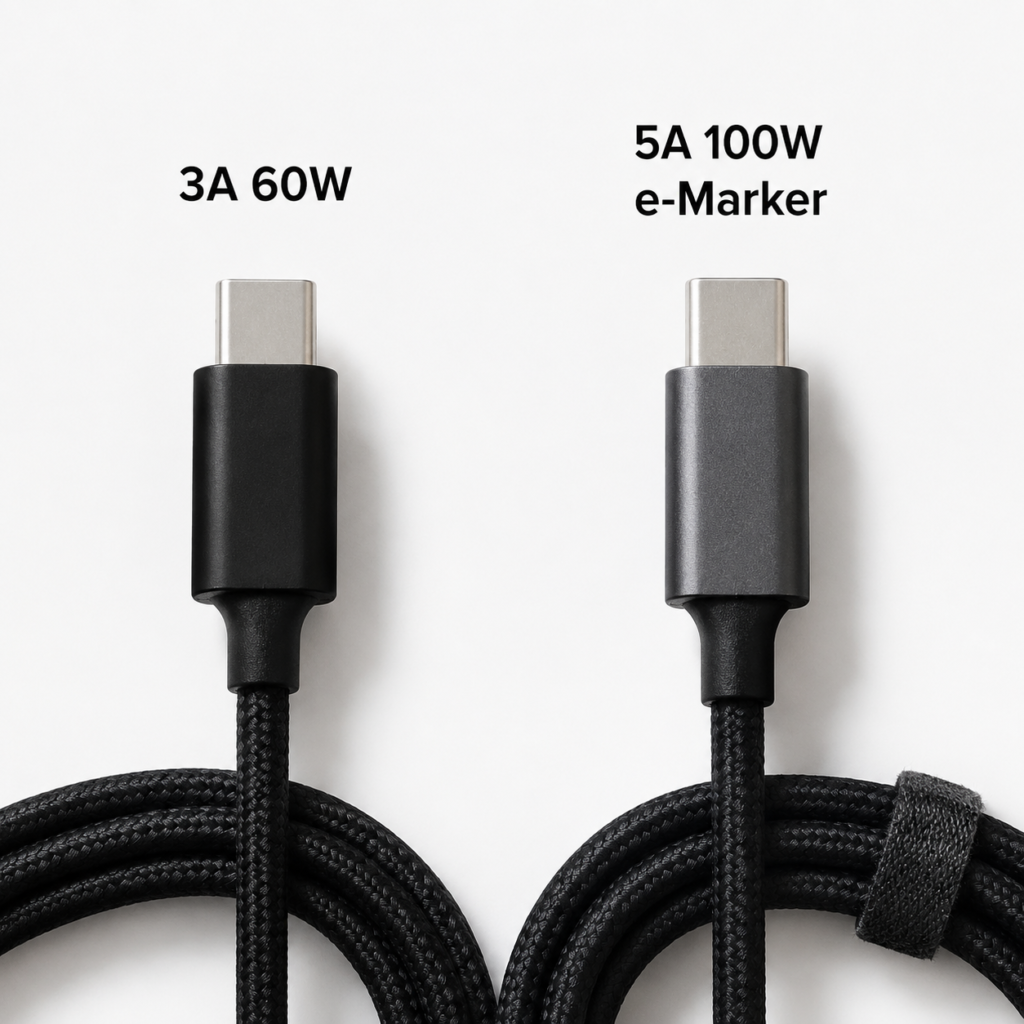
If your cable has loose interfaces, damaged cable body, severe bending, oxidized interfaces, or intermittent charging, it is most likely aged, which will cause handshake failure or downshifting. When buying a cable, don’t just look at the title “USB-C cable”, look at the current/power marked on the package or cable body (such as 3A, 5A, 60W, 100W), and whether there is official certification.
Method to test the cable: Replace it with an original cable, an officially certified cable, or a confirmed normal short cable (short cables have lower resistance and fewer contact problems), and see if fast charging can be restored.
Interface and Contact Troubleshooting: Dust and Phone Cases May Affect Fast Charging
The phone’s USB-C port is kept in a pocket for a long time, so it is easy for lint and oil to get in, causing the plug to not be fully inserted, resulting in only slow charging or intermittent charging. When cleaning, note: after turning off the phone, gently clean with a dry soft brush, air blower, or non-metallic tool. Never use metal needles, liquid cleaners, or scrape the pins vigorously, as this can easily damage the interface.
Thick phone cases, poorly cut protective cases, and magnetic adapters may also prevent the plug from being fully inserted, resulting in poor contact. The power supply end should also be checked: loose charger prongs, aged wall sockets, and poor adapter contact will all cause unstable power supply. You can rule this out by trying a different wall socket.
If the phone prompts that the interface is damp, or charging is repeatedly interrupted, be sure to stop charging, place it in a ventilated and cool place to dry naturally, and do not blow it with hot air, as this can easily damage internal components.
Step 2: Troubleshoot Phone Settings and State Restrictions
If the accessories are all fine, then you need to see if the phone’s own state or settings are limiting fast charging.
Battery and Charging Settings Check
Some phones have separate fast charging and super fast charging switches in “Settings – Battery” or “More Battery Settings”. If they are accidentally turned off, fast charging will naturally not be triggered.
Functions such as optimized charging, smart charging, and 80% charging limit (the night protection strategy mentioned earlier) can be temporarily turned off during testing. Long-term turning off is not recommended for daily use to protect battery life. In addition, functions such as super power saving, low power mode, and temperature control mode will also reduce charging power, so it is recommended to turn them off during testing.
After adjusting the settings, unplug and replug the charger once to let the phone and charger renegotiate.
Fast Charging Restrictions Caused by Abnormal Temperature
Temperature is a common variable affecting fast charging power. Most phones can stably trigger fast charging in an environment of 10°C-35°C. Overheating or overcooling will trigger speed reduction or even pause charging.
If it is overheating caused by using the phone while charging in summer, direct sunlight, or wearing a thick case, or overcooling in outdoor winter or low-temperature cars, just remove the thick case, leave it idle with the screen off, close high-power-consuming apps, and place it in a cool and ventilated place to warm up/cool down before testing.
“False Slow Charging” Caused by Using the Phone While Charging
If the system shows fast charging, but the battery level increases very slowly when watching videos or playing games, or even just stays the same, it is most likely false slow charging caused by load consumption. The judgment method is very simple: with the same set of accessories, leave it idle with the screen off for 10-20 minutes, and compare the charged amount with that when using the phone while charging, then you can clearly distinguish.
Impact of Battery Health and Aging
Batteries will age after long-term use, with increased internal resistance and more prone to heat generation. To protect the battery, the system may reduce charging power. Clues to judge battery aging include: battery health below 80%, battery life significantly worse than when new, severe heat generation during charging, easy automatic shutdown at low battery, and jumping charging percentage.
Not all phones will directly limit fast charging when battery health is below 80%, but this is an important risk signal. If the battery is swollen, the back cover is raised, the screen is pushed up, or the gap of the phone body becomes larger, be sure to stop using it immediately and send it for repair right away. This is a safety red line.
System and Software Interference
Sometimes it is just a temporary system abnormality that causes charging identification failure. Restarting the phone and unplugging and replugging the charger can solve it. If you have installed third-party power-saving or charging management apps, they may modify the charging strategy or temperature control. It is recommended to close or uninstall them before testing.
In addition, after a system update, manufacturers may adjust the charging strategy, temperature control thresholds, or even modify the text of fast charging prompts. If it becomes significantly slower after the update, you can pay attention to official subsequent patches. Restoring factory settings is the last step, and you must back up your data first — if it is a hardware or accessory problem, restoring factory settings will not solve it.
Step 3: Advanced Judgment of Whether It Is a Phone Hardware Fault
If you have troubleshooted the accessories, settings, and environment mentioned above and still cannot fast charge, then it may be a problem with the phone’s hardware. Ordinary users cannot repair it themselves, but they can make a preliminary judgment based on symptoms.
USB-C Interface Hardware Damage
Common causes are drops, liquid ingress, long-term rough plugging and unplugging, and use of inferior or deformed plugs. Fault manifestations include: the plug is very loose when inserted, charging cuts off with a slight movement, only one side is recognized (it doesn’t work when plugged in reverse), data transmission is also abnormal, and there is a burning smell or signs of ablation at the interface.
If after replacing reliable chargers and cables, cleaning the interface, and adjusting all settings, the charging is still unstable, the interface problem is the first suspect. In this case, do not disassemble the phone yourself, and do not continue to plug and unplug vigorously. Just find official after-sales service or a reliable repair shop for testing.
Fast Charging Chip, Power Management, or Motherboard Fault
Common causes are liquid ingress, drops, voltage surges, and problems left by informal repairs. Manifestations include: all reliable accessories cannot trigger fast charging, even slow charging is intermittent, the phone heats up abnormally, restarts frequently, and cannot be recognized when connected to a computer.
Ordinary users cannot confirm chip faults just by visual inspection. They can only confirm through inspection after eliminating all external factors. In this case, prioritize official testing, and do not continue to use charging combinations that generate abnormal heat to avoid danger.
Safety Red Lines That Require Immediate Stop of Troubleshooting
There are several safety signals that must never be ignored. If you encounter them, please stop troubleshooting immediately, cut off the power, stop using, and send for repair:
- The phone or charger is hot to the touch, has a strange smell, smokes, or is deformed;
- The battery is swollen, the back cover is raised, or the screen is lifted;
- Frequent crashes, restarts, or flash interruptions during charging, and sparks or burn marks at the interface.
Safety is always more important than charging speed. Do not take chances.
10-Minute Standardized Troubleshooting Process: Change Only One Variable at a Time
If you don’t want to guess step by step, you can follow this standardized process. The 10 minutes here refers to the initial screening time for completing environment checks, setting adjustments, and variable replacement; if you want to accurately verify the charging speed, it is recommended to extend the idle test to 10-30 minutes for more reliable results. The core principle is change only one variable at a time, otherwise you will never know which link has the problem.
Step 1: Establish a Clean Test Baseline
First eliminate all interference and create a test environment that is most likely to trigger fast charging:
- Accessories: Use the original or confirmed normal charger with the same protocol, plus an original/officially certified short cable;
- Environment: Single port directly connected to a wall socket, do not use adapters, docking stations, or USB ports on power strips;
- Phone state: Battery level between 20%-60%, idle with screen off, moderate temperature, close high-power-consuming apps;
- Record: Whether there is a fast charging prompt, the amount of electricity charged in 10-30 minutes, body temperature, and whether there is intermittent charging.
Step 2: First Rule Out Easily Fixable Problems
Try the simplest solution first, and many times it can be done in one step:
- Plug all interfaces tightly, remove the phone case and magnetic adapter;
- Check if there is dust or lint in the phone’s USB-C port, and if there is a damp prompt, clean it if necessary;
- Turn off power saving mode, turn on the fast charging switch, and pause the optimized charging function;
- Restart the phone and unplug and replug the charger to trigger negotiation.
If fast charging is restored at this step, it is a minor problem and no further investigation is needed.
Step 3: Use the Replacement Method to Locate Accessory Faults
If it still doesn’t work, use the replacement method to troubleshoot accessories one by one, you can only change one thing at a time:
- Only replace the charger: If fast charging is restored after replacement, it means the original charger has a mismatched protocol, insufficient single-port power, or quality problems;
- Only replace the cable: If it is restored after replacement, it means the original cable has insufficient specifications, aging, or poor contact;
- Test with another phone of the same protocol: You can judge whether the charger and cable themselves are good.
Advanced Tool: How to Use a USB Power Meter
Ordinary users don’t need to buy a power meter specifically, but if you have one, you can judge the problem more intuitively:
- If it stays at 5V low current all the time, it means the protocol handshake was not successful, and it is most likely a problem with the charger, cable, or contact;
- If it starts at 9V, PPS, or higher power, and then slowly decreases, it means the handshake was successful, and the speed reduction is due to battery level, temperature, or system strategy.
Note that power fluctuates in real time. Don’t draw conclusions just by looking at the value of a certain second. Observe the changes over a period of time.
Final Judgment of Fault Type
Based on the test results, you can roughly determine where the problem lies:
- Under baseline conditions, slow charging even at low battery: First check protocol matching, cable specifications, and interface cleanliness, then consider hardware faults;
- Original set works normally, third-party accessories don’t: Focus on checking whether third-party accessories support the protocol required by the phone, and whether the cable specifications are sufficient;
- There is a fast charging prompt but the speed does not reach the peak: Mostly due to limitations of battery level, temperature, background load, or battery health, which is normal;
- All reliable accessory combinations cannot fast charge: Consider phone interface, battery, or motherboard faults, and it is recommended to send for repair.
Common Fast Charging Misconceptions to Avoid
Here are 7 of the most common fast charging misconceptions to help you avoid detours:
- All USB-C interfaces can fast charge: USB-C is just the interface form. Fast charging requires simultaneous matching of protocol, power, and cable. The USB-C ports on many devices only have basic power supply capabilities.
- The higher the charger power, the faster the phone charges: The phone will negotiate power according to its own protocol and upper limit. Regular chargers will not burn the phone due to high wattage, but inferior products have risks of false labeling and heat generation.
- Fast charging is only triggered when the word “fast charging” is displayed: Some phones do not display brand-exclusive animations when using third-party PD/PPS chargers, and need to be judged in combination with the actual charging speed.
- Fast charging should maintain the highest speed throughout the process: Peak power only appears for a short time under the conditions of low battery, moderate temperature, screen off, and original/certified accessories. Fast at the beginning and slow later is normal logic.
- Third-party accessories cannot trigger fast charging: Regular third-party accessories that support the same protocol and have sufficient power can trigger universal fast charging. Only brand proprietary super fast charging usually requires original/certified sets.
- A cable that can transmit data must be able to fast charge: Data transmission has nothing to do with high-power charging capability. When buying a cable, you need to look at the marked current, power, and certification.
- Slow charging must mean the battery is broken: Mismatched accessories, substandard cables, dusty interfaces, and high temperatures are all more common than battery aging. Troubleshooting should start from the outside and then the inside.
Accessory Purchase Suggestions: Avoid Being Unable to Trigger Fast Charging Again
To avoid the embarrassment of buying accessories but not being able to use fast charging, just remember a few purchase principles:
First, find out what protocol your phone supports:
- iPhone: Focus on USB PD. Most recent models can usually get the main fast charging experience in the 20W-30W range; higher power chargers will negotiate output according to the phone’s upper limit, with limited actual improvement. The specific speed varies slightly depending on the model, temperature, and battery state.
- Samsung: Focus on PD chargers with PPS. Most models that support Super Fast Charging require PPS levels. If you pursue higher levels such as 25W/45W, you also need to check the charger’s PPS current, the upper limit of the phone model, and cable specifications.
- Domestic Android (OnePlus, realme, Xiaomi, Huawei, etc.): Pay attention to both PD/PPS universal protocols and brand proprietary protocols. If you pursue the original factory’s maximum power, prioritize official or officially certified sets. Third-party PD chargers generally can only trigger basic fast charging.
Then are the key points for charger purchase:
- Prioritize protocol matching, don’t just look at wattage;
- For multi-port chargers, look at single-port output power, don’t just look at total power;
- If you often charge multiple devices together, clearly understand the power distribution rules to avoid falling out of the fast charging level when using multiple ports at the same time;
- Choose products from regular brands, with certifications, and complete parameter labeling. Do not buy no-name chargers without any parameters.
Finally, the key points for cable purchase:
- PD fast charging within 60W: Compliant 3A C to C cables are sufficient;
- PD fast charging exceeding 60W: Choose 5A cables with e-Marker chip, marked with 100W or higher specifications;
- Brand proprietary super fast charging: Prioritize original or officially certified cables, especially high-current solutions;
- Cables with loose interfaces, damaged cable bodies, or abnormal heat generation during charging should be replaced in time, do not make do with them.
Summary
When you encounter a situation where your phone cannot trigger fast charging, don’t rush to replace accessories or repair the phone. Troubleshooting in this order saves the most time:
Step 1: First judge whether it is normal speed reduction — check if the battery has reached 80%, if the temperature is too high or too low, if you are using the phone while charging, and if optimized charging is turned on;
Step 2: Check external accessories — whether the charger’s protocol and single-port power are correct, whether the cable specifications are sufficient, and whether the interface has dust or poor contact;
Step 3: Check the phone state — whether the fast charging switch is turned on, whether power saving mode is turned on, whether there is a temporary system abnormality, and how the battery health is;
Step 4: If all reliable combinations don’t work, then consider hardware faults, and send for repair if necessary.
In the final analysis, fast charging is never just a matter of “the charger has enough power”. It requires the simultaneous satisfaction of four conditions: phone, charger, cable, and phone state, to achieve the fastest speed. Once you understand this logic, you basically won’t fall into fast charging pitfalls again.