
When buying a laptop, docking station, or USB-C cable, do you often get confused by a bunch of similar terms: USB 3.2, USB4, Type-C, Thunderbolt, PD fast charging… They all look like the same C port, but some can transfer a large video file of about 10GB in just 3 seconds, while others take half a minute; some can connect to a display, charge the computer, and connect to a network cable at the same time, while others can only charge when plugged in.
Many people default to “Type-C = high speed = USB4”, only to find out after spending a lot of money on a USB4 docking station and plugging it into their computer that their C port is only USB 3.2 specification, which can’t Bring out its full potential at all; others think USB4 is just a “faster USB 3.2”, but can’t feel any difference when using a keyboard and mouse or transferring files with a USB flash drive daily, feeling like they wasted money.
Most of these confusions come from the chaotic USB naming rules, coupled with some merchants deliberately blurring parameters to mislead consumers. Before formally comparing the core differences between the two, let’s first clarify a few most easily confused basic concepts, to help you establish the most basic judgment framework and avoid being misled by merchants’ vague promotions.
I. Clarify Before Comparing: Why USB Naming Often Leads to Pitfalls
1.1 First, Distinguish Three Things: USB Version, Interface Shape, Charging Protocol
Many people can’t figure out USB-related terms, essentially because they mix three completely independent things together:
- USB version: Determines the data transmission capability and some expansion capabilities of the interface. For example, the commonly mentioned USB 3.2 and USB4 both fall into the version category; the higher the version, the higher the upper limit of data bandwidth usually is.
- Interface shape: Refers to the physical appearance of the plug. Common types such as Type-A (traditional large USB port), Type-C (oval small port that can be inserted either way), and Micro-B (trapezoidal port commonly used in older mobile hard drives) all belong to shape categories. Among them, Type-C is just an interface form; it does not represent high speed by itself, nor is it equivalent to USB4.
- Charging protocol: Mainly refers to the USB PD (USB Power Delivery) fast charging protocol, which determines whether the interface can negotiate high-power charging. It and the USB data version are two independent sets of standards with no necessary binding relationship.
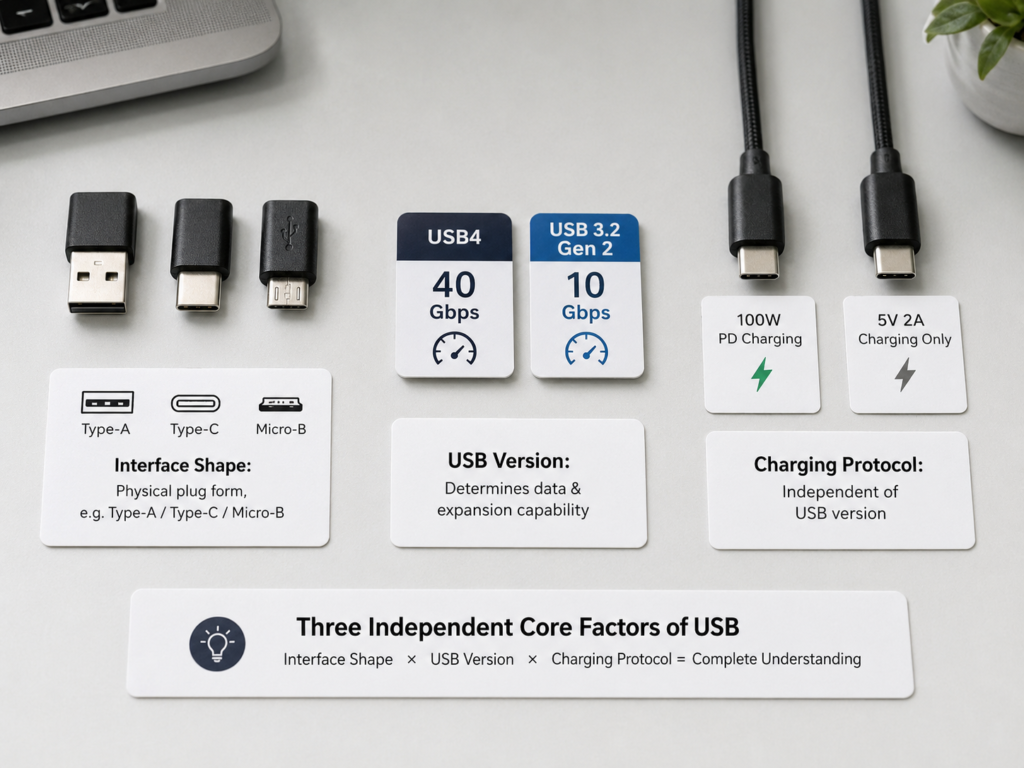
The combination of these three is very flexible, which also leads to many common cognitive misunderstandings:
- The same Type-C port may only support USB 2.0, or it may be USB 3.2, USB4, or even Thunderbolt;
- USB 3.2 can be made into a Type-A interface or a Type-C interface; it is not only C ports that are USB 3.2;
- USB4 only uses Type-C interfaces, but conversely, a Type-C interface is not necessarily USB4;
- Cables marked as supporting 100W/240W high-power charging do not necessarily support high-speed data transmission, nor do they necessarily support video output.
For entry-level users, the most practical judgment method is: don’t just look at the interface shape; first check the clear parameters on the product’s official website specification page, including speed (Gbps), whether it supports DP/video output, PD charging power, and whether it is marked USB4/Thunderbolt. Second, you can refer to the printed markings next to the interface, and finally look at the merchant’s promotional description.
1.2 USB 3.2 Naming Tricks: Old and New Name Comparison Table
The reason why USB 3.2 is easy to cause pitfalls is directly related to the renaming rules of the USB-IF (USB Implementers Forum): the official has incorporated all old USB 3.0 and USB 3.1 into the USB 3.2 product family, only distinguishing tiers by the “Gen” suffix. This has led many merchants to only mark “USB 3.2” without writing the specific tier, deliberately blurring the parameters.
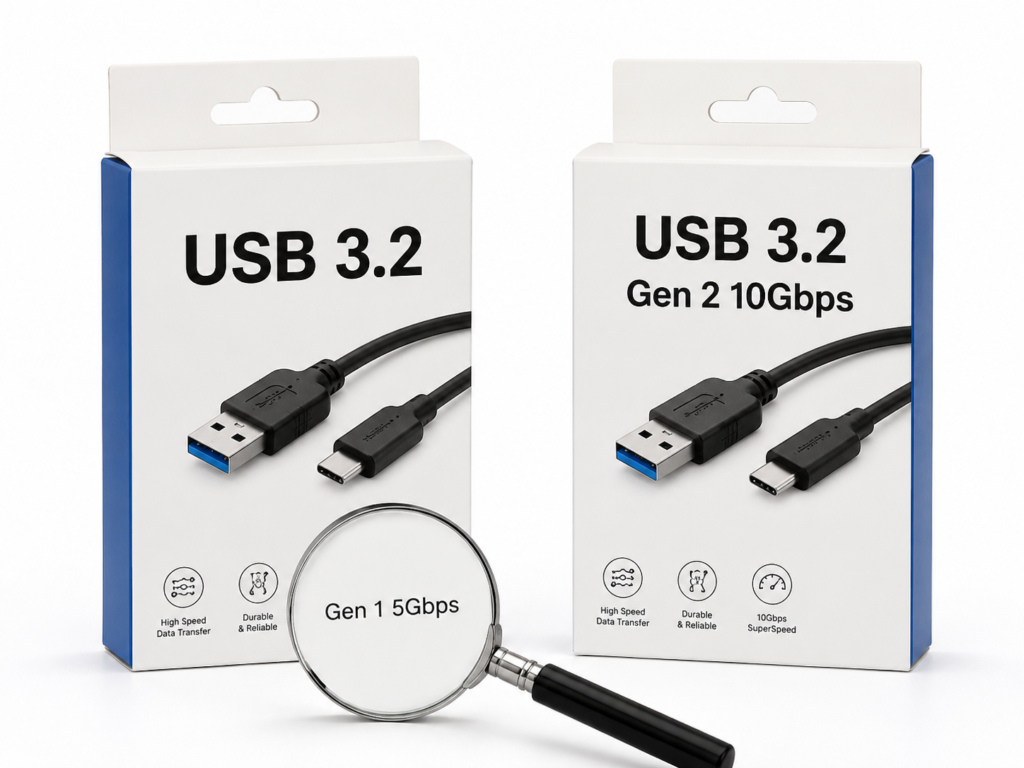
The core rule is very simple: to judge the speed of USB 3.2, you must look at the “Gen” suffix or the clear Gbps speed number; if only “USB 3.2” is written without marking Gen or speed, you usually cannot assume it is a high-speed tier, and it is safer to expect the lowest tier first.
For easy comparison, we have organized the old and new names of the USB 3.x series into a table:
| Old Name | New Unified Name | Theoretical Link Speed | Common Interface Forms | Buying Tip |
|---|---|---|---|---|
| USB 3.0 | USB 3.2 Gen 1 | 5Gbps | Type-A, Type-C, Micro-B | The most common tier, actual file transfer is about 400-500MB/s |
| USB 3.1 Gen 1 | USB 3.2 Gen 1 | 5Gbps | Type-A, Type-C, Micro-B | Essentially the same specification as USB 3.0, just renamed |
| USB 3.1 Gen 2 | USB 3.2 Gen 2 | 10Gbps | Type-A, Type-C, Micro-B | Commonly used for external SATA SSDs and entry-level NVMe mobile hard drives |
| New USB 3.2 Specification | USB 3.2 Gen 2×2 | 20Gbps | Type-C only | Extremely low popularity on the host side, especially rare in laptops |
Simply put, when you see the “USB 3.2” label, be sure to look for the specific Gen model or Gbps number below, and don’t assume it is the highest 20Gbps tier. For ordinary users, directly looking at clear speed numbers like “5Gbps, 10Gbps, 20Gbps, 40Gbps” is much more reliable than memorizing version names.
1.3 Positioning of USB4: More Than Just a “Faster USB”
Many people understand USB4 as a “speed-up version of USB 3.2”, but in fact, the positioning of the two is completely different. The USB4 specification was released in 2019, and its technical foundation was developed with reference to the open specification of Thunderbolt 3, but the standard formulation and certification systems of the two are completely independent: USB4 is regulated and certified by the USB-IF, while Thunderbolt is certified under the leadership of Intel.
In the consumer market, USB4 mainly has two common tiers: USB4 20Gbps and USB4 40Gbps. The higher-specification USB4 Version 2.0 can support up to 80Gbps symmetric links and 120Gbps asymmetric links for scenarios such as displays, but this is not the default capability of ordinary USB4. When purchasing, you must check whether the product has a clear mark, and you cannot assume that all USB4 supports 80Gbps.
The core value of USB4 is to integrate multiple capabilities such as high-speed data transmission, DisplayPort video output, docking station connection, and USB PD power negotiation in a single Type-C cable, which is equivalent to integrating functions that previously required multiple cables into one channel.
To explain the positioning difference between the two in plain language: USB 3.2 is more like a “high-speed channel dedicated to USB data transmission”, while USB4 is more like a “multifunctional comprehensive channel that can coordinately schedule data, video, expansion, and power supply”. Also note: USB4 is not equivalent to Thunderbolt 3/4, nor does it guarantee support for all Thunderbolt-exclusive devices; it depends on whether the manufacturer has made compatible designs.
1.4 Comparison Scope of This Article
To avoid ambiguity, first clarify the comparison premises of this article:
- Interface scope: The comparison is defaulted to the Type-C form, because USB4 only supports Type-C interfaces, while USB 3.2 has multiple interface forms.
- Speed scope: Three types of speed will be distinguished: theoretical link layer speed, actual file transfer speed, and effective bandwidth in docking station multitasking scenarios; we will not only talk about theoretical numbers.
- Function scope: All functional conclusions will distinguish between “capabilities defined by the specification”, “mandatory capabilities required by certification”, “actual implementation by manufacturers”, and “hardware limitations of specific devices”; optional functions in the specification will not be treated as default configurations for all devices.
- Content focus: Focus on speed, video, charging, docking stations, cables, compatibility, and purchase judgments that ordinary users can actually perceive, without involving too low-level technical implementation details.
II. Underlying Logical Differences: Why USB4 Is Not a “Faster USB 3.2”
To understand the experience difference between the two, you must first understand that they work differently.
2.1 USB 3.2: Centered on USB Data Transmission
The core task of USB 3.2 is to transmit data of the USB protocol. For example, USB flash drives, mobile hard drives, card readers, keyboards and mice, printers, and capture cards are all the core work of USB 3.2.
Many people don’t know that USB 3.2 itself is not a video standard at all—the Type-C port video output we commonly use is actually implemented through the DP Alt Mode (DisplayPort Alternate Mode) of the Type-C interface, which is an additional capability of the Type-C ecosystem and has nothing to do with the USB 3.2 data protocol itself.
As for the highest 20Gbps tier of USB 3.2 (Gen 2×2), its popularity is actually very low: it requires the host, device, and cable to all support dual channels to reach full speed. Currently, very few laptops on the market support Gen 2×2, and most only go up to 10Gbps Gen 2.
In actual use, USB 3.2 is very efficient when transferring files alone, but if one cable has to undertake tasks such as high-speed storage, display, network port, and charging at the same time, it is easy to have a “bandwidth competition” situation—for example, transferring large files while connecting to a 4K display may affect the speed of both.
2.2 USB4: Multi-Protocol Tunneling and Dynamic Bandwidth Allocation
The core of USB4 is tunneling technology and dynamic bandwidth allocation. Simply put, USB4 can “package” different types of signals such as USB data, DisplayPort video, and even PCIe data into the same high-speed channel for transmission, and can dynamically adjust the bandwidth ratio occupied by different signals according to current task requirements.
The PCIe tunnel here can be understood as leading the high-speed expansion channels inside the computer used for graphics cards and solid-state drives to the outside through a Type-C cable. High-performance peripherals such as Thunderbolt storage, professional capture cards, and eGPUs (external graphics card docks) rely on this capability; eGPUs can add extra graphics performance to thin and light laptops, and have very high requirements for channel speed and protocol. These capabilities are not available in all USB4 interfaces; they are optional functions, completely depending on whether the manufacturer has implemented them. You must check the clear product description when purchasing.
For example, if you are watching a video on an external display, USB4 usually reserves or allocates the required bandwidth for the video stream, but whether the output is stable still depends on the display specification, cable, docking station chip, host implementation, and total bandwidth margin; the remaining bandwidth is then allocated to devices such as USB flash drives and network ports. If you don’t connect a display and just transfer large files, almost all the bandwidth can be given to data transmission, resulting in faster speeds.
Although the USB4 specification ecosystem supports carrying video through DisplayPort tunneling/related modes, this does not mean that any USB4 interface can output any display specification. The final supported resolution and refresh rate still depend on the host graphics card capability, actual interface configuration, DP version, whether DSC (Display Stream Compression) is supported, cable specification, and the overall support of the docking station and display. It’s not that a USB4 logo can run 8K.
To use a more vivid metaphor: USB 3.2 is like an ordinary road with fixed lanes, only allowing “USB data” vehicles to pass, and the number of lanes is fixed; USB4 is like an urban expressway with variable lanes, where data, video, and expansion vehicles can all pass, and the number of lanes in each direction can be adjusted according to real-time traffic flow, making it less likely to be congested during peak hours.
2.3 Differences Perceivable by Users
So how much difference can ordinary users feel in actual use?
- If you only transfer a single large file and the speed tiers of the two are the same (for example, both are 20Gbps), the experience difference between USB 3.2 Gen 2×2 and USB4 20Gbps is actually very small, and you can barely feel it;
- But if multiple tasks are running at the same time, for example, one cable connects to a docking station, which is simultaneously connected to a 4K display, a high-speed NVMe mobile SSD, a Gigabit Ethernet cable, and also charges the computer by the way, then the advantage of USB4 will be more obvious—dynamic bandwidth allocation can schedule resources according to task priority, making it easier to maintain a stable multitasking experience than USB 3.2, reducing situations such as display stuttering when transferring files and hard drive speed reduction when using the network; however, since the total bandwidth still has an upper limit, if multiple devices are fully loaded at the same time, resource competition may still occur, and the specific performance depends on the docking station chip and the specifications of the downstream interfaces;
- As for low-load scenarios such as ordinary keyboards and mice, USB flash drives, and charging mobile phones, the perceived difference between the two is almost zero, and the advantages of USB4 cannot be exerted at all.
III. Item-by-Item Comparison of Core Capabilities
3.1 Speed Comparison: How Much Difference Between Theoretical Speed and Actual Speed
Many people think that the nominal 5Gbps and 10Gbps are the file transfer speeds, but that’s not the case. These numbers are the theoretical link layer speeds of the interface, equivalent to the designed maximum speed limit of a road. The actual file transfer speed has to deduct the additional overhead of encoding and protocols, and is also affected by many factors such as the hard drive’s own controller, flash memory particles, cache size, even the file system, device heat dissipation, host controller, whether it is split through a docking station, and cable quality. The actual speed is usually lower than the theoretical link speed.
We have organized the theoretical speeds of each tier and the common range of actual continuous read/write for large files into a table for easy comparison:
| Specification Name | Theoretical Link Speed | Common Range of Continuous Read/Write for Large Files | Remarks |
|---|---|---|---|
| USB 3.2 Gen 1 | 5Gbps | About 400-500MB/s | The most common entry-level high-speed tier |
| USB 3.2 Gen 2 | 10Gbps | About 900MB/s-1GB/s | Commonly used for external SATA SSDs and entry-level NVMe |
| USB 3.2 Gen 2×2 | 20Gbps | About 1.6-2GB/s | Extremely low popularity on the host side |
| USB4 20Gbps | 20Gbps | About 1.6-2GB/s | Entry-level tier of USB4 |
| USB4 40Gbps | 40Gbps | About 2.8-3.2GB/s | Mainstream high-speed tier for external NVMe SSDs; a few optimized devices can be higher, but ordinary consumer-grade should not default to exceeding 3.5GB/s |
| USB4 Version 2.0 | Up to 80Gbps symmetric, 120Gbps asymmetric in some display scenarios | No unified common consumer-grade range yet | Not a default capability of ordinary USB4, requires clear product marking |
We can intuitively feel the difference with two common scenarios: if transferring a single large video of about 10GB, a USB 3.2 Gen 2 interface can finish the transfer in about 10 seconds; switching to USB4 40Gbps with a high-speed NVMe mobile hard drive, it may only take 3 to 5 seconds. But if transferring thousands of photos or a bunch of scattered small engineering files, the speed gap of the interface will be offset by factors such as the hard drive’s random read/write performance, file system overhead, and system index occupation, and the gap will not widen according to the theoretical ratio like when transferring large files.
Many people think USB4 must be faster than USB 3.2, but that’s not necessarily the case. In these situations, the speeds of the two may be similar, or even USB4 may be slower:
- The USB4 interface only has a 20Gbps tier, while the USB 3.2 device is full-speed Gen 2×2, so the pure data transfer speed will be very close;
- The cable used only supports 5Gbps, 10Gbps, or even just a USB 2.0 charging cable; no matter how fast the interface is, it will be slowed down by the cable;
- The mobile hard drive itself is a mechanical hard drive, SATA SSD, or ordinary low-speed USB flash drive; the upper speed limit of these devices is not high to begin with, and they simply cannot utilize the full bandwidth of the high-speed interface;
- A docking station is connected, but the internal chip, downstream interface specifications, or heat dissipation of the docking station have limitations, which will reduce the speed;
- If the USB4 device uses a normal USB data channel instead of a PCIe tunnel, the speed will be similar to USB 3.2 of the same speed, showing no advantage.
3.2 Charging Comparison: USB Version Does Not Directly Determine Charging Power
Many people bind USB version with charging power, thinking that USB4 must charge faster, but that’s not the case at all. Charging power is mainly determined by the USB PD fast charging specification, charger, cable, and the power design of the device itself, and there is no necessary corresponding relationship with whether it is USB 3.2 or USB4.
The charging logic of different interfaces is also different:
- Type-A interfaces of USB 3.2 usually do not support high-power PD fast charging, and are mostly only used to power low-power peripherals or output the traditional 5V voltage;
- Type-C interfaces of USB 3.2 may support USB PD, or may not support it at all; it completely depends on the manufacturer’s product design, and you must check the parameter page to confirm;
- Type-C interfaces of USB4 rely on the USB-C interface and USB PD protocol negotiation to enter USB4 mode, but this is only a condition for mode triggering. The actual input or output power is still determined by the device manufacturer, and not all USB4 interfaces support high-power charging.
In daily devices, common USB-C charging input tiers for laptops are 45W, 65W, 100W, and 140W; if the interface powers peripherals such as mice and USB flash drives, common ones are 7.5W and 15W, and higher power also depends on the nominal value of the specific product.
To achieve full high-power charging, the charger, cable, interface, and device all need to support the corresponding PD tier, and none is dispensable. For scenarios with current exceeding 3A, or high-power scenarios of 100W or 240W, compliant cables with E-Marker chips are usually required to normally negotiate the highest power.
Two common misunderstandings should be avoided here: first, USB4 does not mean default support for 100W or 240W fast charging; second, high-power charging cables do not necessarily support high-speed data transmission, and the two are independent parameters.
3.3 Video Output Comparison: High-Specification Display Does Not Necessarily Require USB4
Video output capability is also a point that people care about when choosing interfaces, but many people mistakenly think that the higher the USB version, the stronger the video capability. In fact, the logic of the two is completely different.
USB 3.2 itself is not a video standard at all. Whether a USB 3.2 Type-C port can output video depends on the DP Alt Mode (DisplayPort Alternate Mode) of the Type-C interface, which is an additional capability of the Type-C ecosystem and has nothing to do with the USB 3.2 data protocol itself.
USB4 can carry video signals through DisplayPort tunneling or related modes, but this does not mean that as long as there is USB4, it can support any high-specification display. The final resolution and refresh rate that can be output depend on the host graphics card capability, actual interface configuration, DP version, whether DSC (Display Stream Compression technology, which can reduce bandwidth occupation with almost no loss of image quality) is supported, cable specification, and the overall support of the docking station and display.
We can judge the performance of the two according to common display scenarios:
- Ordinary 1080P or 2K 60Hz displays: as long as they are USB 3.2 Type-C and USB4 interfaces with video output function, they can basically meet the requirements, and there is no difference in experience;
- 4K 60Hz displays: many USB 3.2 Type-C ports that support DP 1.2 and above can also achieve this, and USB4 is not necessarily required;
- High-specification display needs such as 4K high refresh rate, dual 4K, and 8K: USB4 usually has more advantages because of its higher total bandwidth, but it is not only USB4 that can do this—if the USB 3.2 Type-C port supports DP 1.4 plus DSC compression, it is also possible to achieve some high-specification displays.
Don’t fall into two pitfalls when buying: first, don’t assume that a Type-C port supports video output can connect to dual 4K or 8K displays; second, don’t assume that all display specifications can run at full speed just because you see the USB4 logo. Be sure to check the specific DP version and display parameters.
3.4 Expansion Capability Comparison: Small Difference for Single Device, Big Gap for Multitasking
The difference in expansion capability between the two is mainly reflected in scenarios where multiple devices are used at the same time; there is little difference when connecting a single peripheral.
USB 3.2 is more suitable for connecting single or low-load peripherals, such as ordinary USB flash drives, mobile hard drives, card readers, keyboards and mice, printers, etc. It can fully function and there will be no performance waste.
The advantage of USB4 lies in multitasking expansion scenarios. For example, using one cable to simultaneously connect a display, high-speed NVMe SSD, network cable, sound card, card reader, and also power the computer. In such scenarios where multiple devices work at the same time, USB4’s dynamic bandwidth allocation can better schedule resources, resulting in a more stable experience.
Two boundaries should also be noted here: first, daisy chaining (that is, expanding by connecting multiple devices in series) is more common in the Thunderbolt ecosystem. Whether USB4 devices support daisy chaining depends on the description of the specific product, and you cannot assume that all USB4 support it; second, a USB4 docking station does not mean that every downstream interface can run at full speed. When buying, you must check the speed of downstream USB interfaces, video output upper limit, network port speed, and power supply item by item, not just look at the title of “USB4 docking station”.
Take two very common examples: if you just connect a keyboard, mouse, and USB flash drive to your computer, USB 3.2 is completely sufficient, and there is no need to spend extra money on USB4; but if you want to use only one cable to connect your laptop, while connecting a 4K display, mobile SSD, network cable, and also charge the computer, then prioritizing a USB4 or Thunderbolt docking station would be more reliable.
IV. Interfaces and Cables: If You Buy the Wrong Cable, No Matter How Fast the Interface Is, It’s Useless
Many people spend a lot of money on USB4 devices, but the speed doesn’t reach full capacity, and finally find that they bought the wrong cable—cables are the most easily overlooked and most prone to pitfalls in the entire link.
4.1 Interface Form and Identification
First, let’s talk about the basic common sense of interface forms:
- USB 3.2 has many interface forms, common ones are Type-A, Type-C, Micro-B (such as the one commonly used for mobile hard drives);
- USB4 only has one interface form, Type-C; there is no USB4 with Type-A.
It is impossible to judge the actual capability of a Type-C interface only from its physical appearance—it may only support USB 2.0, or it may be USB 3.2, USB4, or Thunderbolt; similarly, a Type-C port marked as supporting high-power charging does not necessarily support high-speed data or video output.
The priority of identifying interface capabilities from high to low is:
- Check the official website specification page: The product specification page on the brand’s official website will clearly write the parameters of each interface, such as Gbps speed, DP/video support, PD power, and whether it is marked USB4/Thunderbolt. This is the most reliable method;
- Look at the markings next to the interface: Now the new USB-IF marking recommends directly marking the speed number, such as “5Gbps”, “10Gbps”, “20Gbps”, “40Gbps”; older devices may mark “SS” (SuperSpeed), which means it is the USB 3.x series; the lightning icon is the certification mark of Thunderbolt, which is not equal to USB4, and conversely, a Type-C port without a lightning mark may also be USB4;
- Refer to e-commerce promotions: Only as an auxiliary reference, do not easily believe vague statements in promotional images.
Also note: if the merchant only marks “USB 3.2” without writing the Gen suffix or Gbps speed, do not assume it is a high-speed tier; be sure to find the clear speed parameter.
4.2 Cables Depend on Four Independent Indicators, Don’t Just Look at “USB-C Cable”
Many people only look at “whether it is a USB-C cable” or only “how many W of charging it supports” when buying cables, which is the easiest way to fall into a pit. A qualified high-speed USB-C cable has four mutually independent indicators, none of which is dispensable:
- Data speed: For example, 5Gbps, 10Gbps, 20Gbps, 40Gbps or even higher, which determines the upper limit of file transfer speed;
- Charging power: For example, 60W, 100W, 240W, which determines the maximum supported charging power;
- Video capability: Whether it supports DP Alt Mode, USB4 video, or Thunderbolt video output, which determines whether it can connect to a display;
- Certification and structure: Whether it has USB-IF certification, Thunderbolt certification, whether it has an E-Marker chip, and whether it is a passive or active cable.
Remember a core misunderstanding: high-speed cables do not necessarily support high-power charging, and high-power cables do not necessarily support high-speed data. Just writing “USB-C cable” does not mean it can connect to a display—these four indicators are independent, and all must meet your needs.
4.3 Differences Between USB 3.2 Cables and USB4 Cables
- Common USB 3.2 cables are 5Gbps, 10Gbps, 20Gbps, with relatively cheap prices and lower sensitivity to length;
- Common USB4 cables are 20Gbps and 40Gbps, which have higher requirements for cable quality and length, and are more expensive.
Let’s explain passive and active cables here: passive cables are cables without additional signal amplification chips. They are easy to reach full speed over short distances (usually 0.5-1 meter) and are cheap; active cables have signal processing chips, suitable for longer-distance high-speed transmission. For example, 40Gbps cables over 2 meters are basically active cables, but they are more expensive, and compatibility also depends on the specific specifications.
There is also a general rule: the maximum capability of the entire link is determined by the weakest one among the host, cable, device, and docking station—that is, the barrel effect. For example, if you use a USB4 40Gbps interface, match it with a 10Gbps cable, and connect a 20Gbps hard drive, the maximum speed you can get is only 10Gbps.
When choosing a cable, you can judge according to the purpose like this:
- If it’s only for charging: focus on PD power, whether there is an E-Marker chip, and whether there is formal certification, don’t care about data speed;
- If used to connect a high-speed NVMe SSD: focus on data speed and cable length. For short distances, passive cables are fine; for long distances, choose active cables;
- If used to connect a display or docking station: check data speed, video capability, charging power, and certification at the same time; all four indicators must be met;
- If wiring for USB4 devices: prioritize cables clearly marked with USB4 40Gbps or Thunderbolt 4 certification for more stable compatibility.
Finally, a reminder about the pitfall of Thunderbolt cables: not all cables marked with “Thunderbolt” can be used as high-speed USB4 cables—older active Thunderbolt 3 cables may only support a data speed of USB 3.2 10Gbps. Be sure to check the parameters clearly when buying, don’t just look at the words “Thunderbolt cable”.
V. Compatibility Rules: Being Able to Plug In Does Not Mean It Works, Let Alone Runs at Full Speed
Many people think that as long as it can be plugged in, it works. In fact, the compatibility of USB-C is far from that simple—being able to plug in is only the first step. Whether it works and what specification it can run at depends on the support of the entire link.
5.1 Core Logic of Function Degradation: Operates According to the Weakest Link
The final performance of the entire link is determined by the link with the lowest capability among the host, cable, device, docking station, and display.
Take a few common examples of degradation:
- Speed degradation: Your computer has a USB4 40Gbps port, but it is connected to a USB 3.2 Gen 2 mobile hard drive. Then the maximum speed can only reach 10Gbps, and it will not be faster just because the interface is USB4;
- Video degradation: If a USB4 interface is connected to a docking station that only supports DP 1.2, then it definitely cannot run 8K or dual 4K high refresh rate;
- Charging degradation: A 100W charger matched with a 60W cable to charge a 100W computer can only negotiate up to 60W in the end.
The general rule is: old devices plugged into new interfaces will not automatically become faster; new devices plugged into old interfaces will automatically degrade to be compatible.
5.2 Common Function Losses and Causes
Several of the most common functional problems, you can check against them when encountered:
- Can charge but cannot transfer data: most likely the cable you are using is a charge-only cable, or a low-speed cable with only USB 2.0 data capability;
- Can transfer data but cannot connect to a display: it may be that the computer’s interface does not support video output, or the cable does not support video, or the docking station does not have video function;
- Some interfaces of the docking station cannot be used: it may be that the computer’s interface capability is insufficient (for example, only data but no video), or the docking station’s chip has functional limitations, or it may be a driver or firmware problem;
- Speed does not reach full capacity: there are more reasons, such as insufficient cable speed, poor SSD controller, poor heat dissipation, insufficient interface speed, docking station chip speed limit, or system driver problems, all possible;
- Thunderbolt devices cannot be used when plugged into a USB4 port: it means your USB4 interface does not support Thunderbolt compatibility, or does not have PCIe tunnel function, and Thunderbolt-exclusive devices cannot be used;
- Another easily overlooked point: the same docking station may perform differently under Windows, macOS, and Linux. For example, functions such as video output, network card, and sleep/wake may have different compatibility with different systems. It is best to check the compatibility list before buying.
5.3 Compatibility Relationship Between USB4 and Thunderbolt
What everyone cares about most is whether USB4 and Thunderbolt are interoperable. Let’s make it clear once and for all:
The two have technical origins, but their standard and certification systems are completely different:
- USB4 is a standard formulated by the USB-IF, with a minimum of 20Gbps. PCIe tunneling and Thunderbolt compatibility are optional functions; manufacturers can implement them if they want, or not if they don’t want to;
- Thunderbolt is a standard and certification led by Intel. For example, Thunderbolt 4 has strict certification requirements, must support functions such as 40Gbps, PCIe tunneling, video output, wake-up, and security, with higher consistency, but the specific charging power still depends on the device design.
The compatibility rules are as follows:
- If your USB4 interface is clearly marked as supporting Thunderbolt compatibility, then most Thunderbolt 3/4 devices can be used;
- If your USB4 interface does not support Thunderbolt compatibility and does not have PCIe tunneling, then Thunderbolt-exclusive devices (such as Thunderbolt eGPU, professional Thunderbolt capture cards, high-end Thunderbolt storage) will most likely not work, or can only run in normal USB mode.
So if you plan to buy high-demand devices such as eGPUs and professional capture cards, be sure to confirm that the interface supports Thunderbolt 3/4, or is clearly marked with PCIe tunneling. Don’t buy the wrong one.
5.4 How to Check the True Capability of Computer Ports
Don’t be fooled by merchant promotions. Here are a few ways to check the true parameters of the interface:
- Most reliable: check the official website specification page: The product specification page on the brand’s official website will clearly write the parameters of each Type-C port, such as whether it is USB4, whether it has Thunderbolt, whether it supports DP video, what the PD power is, and how many Gbps the speed is, none will be missing;
- Auxiliary reference: look at the icons next to the interface: The digital speed mark, DP icon, and lightning icon next to the interface can be used as a quick reference, but cannot be fully trusted—some manufacturers print the marks very blurry, or only mark some functions;
- Check in the system: For macOS, you can open “System Information” and view detailed parameters in the USB or Thunderbolt section; for Windows, you can check Device Manager, or use the manufacturer’s own control center, Thunderbolt Control Center (if there is Thunderbolt) to view;
- For docking stations, read the manual: Focus on the speed of the upstream interface, the specifications of each downstream interface, the upper limit of video output, power supply, and system compatibility list. Don’t just look at the promotional words on the cover.
VI. Selection for Real Scenarios: Should You Choose USB 3.2 or USB4?
After talking about so many parameters, many people may still ask: which one should I buy? Actually, there’s no need to overthink it; just look at your usage scenarios.
6.1 Scenarios Where USB 3.2 Is Sufficient
When encountering these daily usage scenarios, choosing USB 3.2 is completely sufficient, and there’s no need to spend extra money:
- Daily office use: that is, basic needs such as processing documents, viewing photos, watching videos, connecting keyboards and mice, and connecting printers;
- Ordinary storage devices: such as mechanical mobile hard drives, SATA mobile SSDs, ordinary USB flash drives, these devices themselves cannot reach higher speeds;
- Basic display needs: for example, only connecting a 1080P or 2K 60Hz display, which can be met by a USB 3.2 Type-C port with DP Alt Mode;
- Limited budget: USB 3.2 devices, cables, and docking stations are generally much cheaper than USB4 ones, with higher cost performance;
- Many old devices: if your computer and peripherals are relatively old models, they simply cannot exert the advantages of USB4, and there’s no need to upgrade separately just for USB4.
6.2 Scenarios Where USB4 Is Recommended First
Users with these needs are recommended to prioritize USB4, as the experience improvement will be more obvious:
- Frequent transfer of large files: for example, doing video editing, photography post-processing, engineering design, often needing to transfer tens or hundreds of gigabytes of materials and virtual machine images;
- Using high-speed NVMe mobile SSD: if you want a stable continuous read/write speed exceeding 2GB/s, close to 3GB/s or even higher, you should usually prioritize USB4 40Gbps or Thunderbolt interfaces; although USB 3.2 Gen 2×2 can reach 1.6-2GB/s under the condition of full link support, its popularity on the host side is currently extremely low, making it difficult to exert full performance;
- High-specification display needs: for example, needing to connect dual 4K displays, 4K high refresh rate displays, 8K displays, or multi-screen expansion;
- Want one-cable desktop setup: that is, using one cable to connect the laptop, while handling display, network port, peripherals, storage, and charging, making the desktop cleaner;
- Already have or plan to buy Thunderbolt devices: such as Thunderbolt docking stations, Thunderbolt storage, professional capture cards, eGPUs, etc.;
- Buying a new high-end laptop or motherboard: USB4/Thunderbolt has stronger expansion capability, will not become obsolete in the next few years, and it is better to leave enough headroom.
6.3 Judgment Differences for Different Devices
For different types of devices, the focus of judgment is also different:
- Laptops: need to pay the most attention to USB4/Thunderbolt, because laptops have fewer interfaces, and the needs for one-cable connection, charging, and display expansion are the most concentrated. With USB4, the expandability will be much better;
- Desktop motherboards: it depends on whether the motherboard natively supports USB4/Thunderbolt, or if you need to buy an expansion card additionally. Also note that if you want video output, you need to connect the motherboard’s DP input interface to the graphics card, otherwise it won’t work;
- Mobile phones and tablets: even if they have Type-C interfaces, they may only be USB 2.0 or USB 3.x specifications. Whether they can output video and whether they can transmit at high speed depends on the specific model. Don’t assume that a C port is high-speed;
- Displays: having a USB-C port does not mean it is USB4. Many monitors’ C ports are mainly used for video input and powering the computer, and the downstream USB ports may only be 5Gbps or even USB 2.0. Check the parameters clearly before buying.
6.4 Quick Judgment for Vague Scenarios
If you’re still unsure, you can use the following quick judgment methods:
- Only charging a laptop: just look at the PD power, don’t overthink the USB version;
- Occasional file transfer: first look at your hard drive speed, ordinary USB flash drives and SATA SSDs don’t need USB4 at all;
- Buying a docking station: first find out the capability of your computer’s interface, then buy a docking station of the corresponding tier. Don’t buy a higher one that’s wasted, or a lower one that’s insufficient;
- Connecting an ordinary display: first confirm whether the interface can output video, then check if the resolution and refresh rate are sufficient;
- Connecting professional devices (such as eGPU, capture card): prioritize devices with USB4 40Gbps, Thunderbolt 4, or clearly marked PCIe tunneling.
6.5 5-Question Checklist Before Buying
Before buying, you can ask yourself 5 questions, and after answering them, you’ll know what to choose:
- Do I need a file transfer speed exceeding 1GB/s or even 2GB/s?
- Do I need to connect 4K high refresh rate, dual 4K, 8K, or multi-screen displays?
- Do I need one cable to simultaneously connect display, storage, network port, and charging?
- Do I already have Thunderbolt devices, or plan to buy devices such as eGPU or Thunderbolt storage in the future?
- Do my host, cable, docking station, and terminal devices all support the same tier of speed, video specification, and charging power?
6.6 One-Minute Memory Mnemonic
Finally, here’s an easy-to-remember mnemonic for everyone. Recite it silently when buying and you won’t fall into pitfalls:
Choose 3.2 for daily office work, choose USB4 for high-speed expansion.
Just looking at the C port will lead to pitfalls; look at Gbps, PD, video, and certification.
Speed depends on the weakest link, video depends on DP capability, charging depends on PD power, Thunderbolt depends on certification and PCIe tunneling.
VII. Common Misconceptions and Troubleshooting
Finally, we have sorted out the most common pitfalls and problems that people encounter, which you can directly refer to when you meet them.
7.1 9 Most Common Conceptual Misconceptions
See how many you have fallen for:
- Is Type-C USB4? Wrong, Type-C is just the interface shape, has nothing to do with the version;
- Is USB4 always faster than USB 3.2? Wrong, 20Gbps USB4 is not necessarily faster than 20Gbps USB 3.2 Gen 2×2;
- Does USB 3.2 not have Type-C? Wrong, USB 3.2 can use multiple interfaces such as Type-A and Type-C;
- If it says USB 3.2, is it 20Gbps? Wrong, you must look at the Gen suffix or Gbps number, otherwise it is defaulted to the lowest tier;
- Is USB4 always compatible with all Thunderbolt devices? Wrong, it needs clear support for Thunderbolt compatibility or PCIe tunneling;
- Do high-speed cables always support high-power charging? Wrong, data speed and charging power are two independent indicators;
- Will old devices become faster when plugged into a USB4 port? Wrong, the upper speed limit of the old device itself will not change;
- Can you connect dual 4K if there is video output? Wrong, it depends on DP version, DSC, bandwidth, and docking station specifications;
- Do USB4 interfaces always support eGPU? Wrong, eGPU usually requires Thunderbolt or clear PCIe tunnel support.
7.2 6 Buying Pitfall Avoidance Reminders
- Don’t just look at the words “Type-C”; you must check the three core parameters of speed, power, and video capability;
- If your USB4 device only has 20Gbps, you don’t necessarily have to buy a 40Gbps cable, unless you plan to upgrade the device in the future;
- When buying a docking station, check the parameters item by item: upstream interface speed, video specification, downstream USB speed, network port specification, power supply. Don’t just look at the title of “USB4 docking station”;
- When buying a new computer, don’t just count the number of Type-C ports; look at the specific parameters of each port—some computers have four C ports, two are USB4, two are USB 3.2, and some only have charging without video;
- When buying a high-power charging cable, look for the clear 60W/100W/240W marking, and it’s best to confirm that it has an E-Marker chip;
- When buying USB4 cables, prioritize those with USB-IF certification or Thunderbolt 4 certification. Don’t just look at the words “Thunderbolt cable”; older Thunderbolt cables may have very low data speeds.
7.3 Troubleshooting Ideas for Common Problems
When encountering problems, check step by step, and you can basically find the cause:
- USB4 device not reaching full speed: Check in sequence whether the cable speed is sufficient, whether the host interface is 20G or 40G, the controller and speed of the device itself, whether the heat dissipation is good, and whether the bandwidth is split through a docking station;
- No response when connecting to display: First check whether the computer interface supports video output, then check whether the cable supports video, then check if the display’s input source is correct, and then check the graphics driver and the docking station’s video specification;
- Can charge but cannot transfer data: Replace with a USB-C cable that clearly supports high-speed data transmission; most likely you used a charge-only cable;
- Docking station overheats or frequently disconnects: Check whether the power supply is sufficient, whether the cable is compliant, whether the docking station’s firmware is updated, whether the system driver is the latest, and whether the load is too high;
- Thunderbolt device cannot be used when plugged into USB4 port: Check whether your USB4 port supports Thunderbolt compatibility or PCIe tunneling. If not, Thunderbolt-exclusive devices cannot be used;
- Old device cannot be recognized: Check whether the adapter is good, whether the corresponding driver is installed, whether the power supply is sufficient, and whether the interface has poor contact.
VIII. Core Parameter Quick Reference Table
For your convenience to check at any time, we have organized the core comparison items of USB 3.2 and USB4 into a table:
| Comparison Item | USB 3.2 | USB4 | Key Points When Buying |
|---|---|---|---|
| Common Speeds | 5Gbps/10Gbps/20Gbps | Mainstream 20Gbps/40Gbps, USB4 v2 requires clear marking | Directly look at the Gbps number, don’t just look at the version name |
| Interface Forms | Type-A, Type-C, Micro-B, etc. | Type-C only | Type-C is not equal to USB4 |
| Core Positioning | Cost-effective USB data transmission | Integration of high-speed data, video, expansion, and power supply | See if you need one-cable multitasking |
| Video Capability | Depends on Type-C DP Alt Mode | Carried via DP tunnel, specifications depend on specific implementation | Look at DP version, DSC, display upper limit |
| Charging Capability | Depends on USB PD and device design, unrelated to version | Depends on USB PD and device design, unrelated to version | USB version is not equal to charging power |
| Thunderbolt Compatibility | Does not support Thunderbolt-exclusive capabilities | Optional, requires clear marking | Must check for eGPU/professional Thunderbolt devices |
| Cable Requirements | Look at 5/10/20Gbps, power, certification | Look at 20/40Gbps, power, video, certification, active/passive | Wrong cable will cause speed reduction or no video |
| Suitable For | Ordinary office, basic peripherals, ordinary mobile hard drives | High-speed NVMe, multi-screen, one-cable setup, professional expansion | Choose by scenario, not by name |
Summary
Actually, USB 3.2 and USB4 are not in a relationship of one replacing the other, but two standards for different needs:
- USB 3.2 is a mature, cost-effective choice that can meet the basic needs of the vast majority of ordinary users. It is sufficient for daily office work, ordinary storage, and basic display, and is also cheap;
- USB4 is a more future-oriented comprehensive connection standard, suitable for users with needs for high-speed storage, multi-screen expansion, one-cable desktop setup, and professional peripherals, with obvious experience improvement.
After reading this article, you should be able to distinguish the three easily confused concepts of USB version, Type-C interface, and PD charging, understand the actual meaning of numbers like 5Gbps and 10Gbps, judge whether you really need USB4, distinguish the difference between USB4 and Thunderbolt, and troubleshoot problems with speed, video, and charging by yourself.
When finally purchasing, first confirm the true capability of the host port, then check the Gbps speed, DP/video capability, PD power, and Thunderbolt/PCIe tunnel markings of the cable, docking station, and terminal devices. Only when the entire link is matched can the advantages of USB4 truly be exerted.