
You’re rushing an early flight at a foreign airport, phone sitting at 8% battery, and a wall USB port right by your gate looks like a lifeline. Or you’re staying at a small boutique hotel and forgot your charger, and the USB port on the nightstand feels like a lucky break. But have you ever paused mid-plug and wondered: if I plug in here, could someone siphon off my photos, work emails, or even payment info?
If you’ve had that worry, you’ve probably heard of USB data blockers — also called USB condoms, charge-only adapters, or data-blocking dongles. Do they actually work? Will they ruin your fast charging? How do you pick a model that isn’t a scam? We’ll break down everything from basic principles to real-world use, so you can decide if one is right for you and pick the best option for your needs.
2. Why You Might Need One: Real Risks of Public USB Charging
You might be thinking: I’ve used public USB ports for years and never had a problem. Do I really need one? To answer that, we first need to understand what the actual risk is.
2.1 The Core Risk of Public USB Ports
USB ports are designed to handle both power delivery and data communication — that’s why plugging your phone into a computer both charges it and lets you transfer files. The problem is, you can never tell what’s on the other end of a random public USB port. Is it a simple dumb charging module? A hidden computer built into the wall? A tampered charging station? A device built to collect data?
Data blockers aren’t about assuming every public port is malicious. They’re about reducing your exposure when you can’t verify what you’re plugging into — like carrying an umbrella not because you know it will rain, but so you don’t get soaked if it does.
2.2 Risk Profile: Low Probability, High Impact
How big is the risk, realistically? Public USB data attacks are not a daily threat for most users, and large-scale public cases are relatively rare. But they fall into the “low probability, high impact” category: one incident could leak your private photos, work files, or financial information, costing far more than a $10–$20 blocker.
Value varies by user:
- Casual users who mostly charge at home don’t need to rush out and buy one.
- Frequent travelers, people who carry work devices, and privacy-sensitive roles (journalists, lawyers, government staff, developers, business professionals) get extremely high value from keeping one on hand.
The core logic is simple: you can’t see what’s behind a USB port. Adding a cheap layer of hardware protection is the lowest-cost way to guard against the worst-case scenario.
2.3 What Is Juice Jacking? Don’t Panic, But Understand It
When talking about public USB charging risks, you’ll often hear the term “juice jacking”: “juice” is slang for electricity, and “jacking” means hijacking or stealing. It refers to attacks where bad actors use public USB ports to steal data, trick users into granting access, install malware, or exploit system vulnerabilities via the USB data channel.
There’s no need to panic — large-scale juice jacking attacks are rare in the real world. But at conventions, conferences, hotels, airports, or when borrowing a stranger’s computer to charge, using a blocker eliminates a lot of unnecessary hassle and risk.
2.4 High-Risk Scenarios to Watch For
These are the most common situations where a data blocker is worth using:
- Public USB charging ports in airports, train stations, hotels, cruise ships, and shared lounges
- USB ports in rental cars, ride-shares, long-distance buses, and airplane seats (many are wired to the infotainment system, not just power)
- Unused USB ports at conventions, meeting rooms, co-working spaces, libraries, and internet cafes
- Charging from a stranger’s laptop, front desk computer, or store checkout USB port (higher risk)
- Shared power banks, rental charging cables, and public charging lockers — especially if you use a cable provided by the venue
2.5 Risk Level Reference Table
| Scenario | Risk Level | Recommendation |
|---|---|---|
| Your own charger plugged into a wall outlet | Low | Best, most reliable option |
| Your own portable power bank | Low | Top pick for on-the-go use |
| Charging your device from a trusted computer | Low-Medium | Still fine to use a blocker if you don’t need data transfer |
| Public USB charging port | Medium to High | Recommended to use a data blocker |
| USB port on an unknown computer | High | Always use a blocker; never tap “Trust” |
| CarPlay / Android Auto | Data required | Do not use a blocker (it will break connectivity) |
2.6 Why Built-In Phone Protection Isn’t Foolproof
You might be wondering: modern iPhones and Android phones all show a “Trust This Computer?” prompt. If I just don’t tap it, I’m fine, right?
Built-in system protections are a good first line of defense, but they’re not perfect:
- Accidental taps happen. You might be distracted, half-asleep, or in a hurry and tap “Allow” without reading the prompt.
- Older, long-unupdated devices have much weaker protection, and may have vulnerabilities that bypass prompts entirely.
- If you’ve previously trusted a computer, reconnecting won’t show a prompt, and data access works automatically.
- While rare, USB vulnerabilities exist that can bypass some system prompts entirely.
- Rooted/jailbroken devices, or devices with developer mode/USB debugging enabled, face significantly higher risk.
The advantage of hardware blocking is that it doesn’t depend on your attention or your system settings. If the data lines are physically cut, data can’t transfer — period. It’s a fail-safe layer of protection.
2.7 Who Needs One (and Who Doesn’t)
Great candidates for a data blocker: Frequent travelers, people who charge work devices on the go, people in privacy-sensitive professions, users with older devices, and anyone who regularly uses unknown USB ports for emergency charging.
Low need: People who almost only charge at home with their own charger, carry their own power bank everywhere, and never plug into random USB ports.
3. How They Work: Why They Let Power Through But Not Data
Once you know if you need one, it helps to understand how they work — it’s not complicated, and knowing the basics will help you spot fake or low-quality products.
3.1 Core Principle in 3 Sentences
- USB cables don’t just have power wires — they have dedicated data wires too, and USB-C has extra wires specifically for negotiating charging speed.
- A data blocker’s core job is to disconnect all data wires while leaving the power wires fully connected.
- You can’t just cut every extra wire in USB-C: the CC negotiation wire is required for PD fast charging, plug orientation detection, and even basic charging to work.
3.2 Key Wires Inside a USB Port
You don’t need to memorize these, but a basic understanding helps when shopping:
- Power lines: VBUS (positive power) and GND (ground), responsible for delivering electricity. Every USB port has these, and all blockers leave them connected.
- USB 2.0 data lines: D+ and D-, used for data transfer, device recognition, and many older fast charging protocols. Basic blockers mostly cut these two.
- USB 3.x high-speed data lines: Also called SuperSpeed differential pairs, used for much faster data transfer on USB 3.0 and later. If you’re using a USB 3.x port or full-feature Type-C cable, make sure your blocker cuts these too.
- USB-C CC line: Unique to USB-C, this wire handles plug orientation detection, device role (power provider vs power receiver), and charging power negotiation. PD fast charging relies almost entirely on the CC line, so a good USB-C blocker will always keep the CC line intact.
- USB-C full-feature ports also have auxiliary/extension paths like SBU and Alt Mode (used for video output, for example). Look for “full data blocking” rather than just “cuts D+/D-” when shopping for USB-C blockers.
3.3 Common Blocking Methods
There are two main design approaches, each with pros and cons:
3.3.1 Physical Cutoff Type
These are the simplest design: during manufacturing, the D+/D- and other data pins are simply not soldered, so data can’t pass because there’s no physical connection.
- Pros: Simple design, low cost, intuitively reliable — if the wire isn’t connected, data can’t move.
- Cons: Many older fast charging protocols (like QC on USB-A ports) rely on D+/D- to identify the charger, so cutting them means you’ll be stuck at basic 5V slow charging.
- Best for: Emergency slow charging from public USB-A ports, when you don’t need fast charging.
3.3.2 Protocol-Compatible / Active Chip Type
These have built-in circuits or dedicated chips that handle charging recognition, PD/QC negotiation, electrical protection, or even power displays — while still blocking actual data transfer paths. They may support PD, QC, Apple 2.4A charging, overvoltage/overcurrent/short circuit/ESD protection, or even a toggle between charge and data modes.
Important note: A chip doesn’t automatically mean it’s safer. The key is whether the product explicitly states it blocks all data paths — some shady sellers market regular fast charging adapters as data blockers when the data lines are fully intact.
- Pros: Much better fast charging compatibility, especially for USB-C PD fast charging.
- Cons: More expensive, and poorly designed models may have compatibility issues or false advertising.
3.4 Blocking Priorities by Port Type
| Port / Version | Key Data Paths to Block | Shopping Tip |
|---|---|---|
| USB-A 2.0 | D+, D- | Basic models usually work, but may only support slow charging |
| USB-A 3.x | D+, D-, and all SuperSpeed pins | Confirm it explicitly blocks all data pins, not just USB 2.0 |
| USB-C | USB 2.0 data pins, high-speed differential pairs, all data/auxiliary paths; CC line must remain intact | Prioritize products labeled PD-compatible and “No Data” |
| Lightning | Subject to Apple ecosystem and certified cable rules | Check for MFi certification, compatibility warnings, and fast charging limits |
| Micro-USB | D+, D- | Common for older devices; prioritize cable quality |
3.5 Fast Charging Compatibility: Why Some Blockers Are Fast, Some Are Slow
The short answer to “will it break fast charging?” is: fast charging only works if all four parts of the chain (charger, cable, blocker, device) support the same fast charging protocol. If any one doesn’t, it drops to the slowest supported speed.
Breakdown of common scenarios:
- USB-C PD Fast Charging: Relies almost entirely on the CC line for negotiation. A well-made USB-C blocker will keep the CC line and block data paths, so PD fast charging usually works fine — 20W, 30W, 60W, even 100W if the blocker is rated for it.
- USB-A QC / Older Fast Charging: Many of these protocols use voltage changes on D+/D- to identify the charger. If you use a basic physical-cutoff blocker, D+/D- are cut, so the device can’t recognize the fast charger and falls back to 5V slow charging.
- Brand-Exclusive Fast Charging: Some phone makers use proprietary fast charging protocols that require special cables and recognition chips. These may slow down with a blocker — always test with your specific device.
- Basic 5V Charging: Supported by almost all blockers, though cheap, poorly made models or bad cables can still cause slow charging or no charging at all.
3.6 How It’s Different From Your Phone’s “Charge Only” Software Setting
Software “charge only” settings rely on the operating system, lock screen state, and your choices — if you accidentally tap “Allow file transfer”, the setting is useless. Hardware blocking cuts the data path at the physical layer, so it doesn’t depend on what you tap or how your phone is set up.
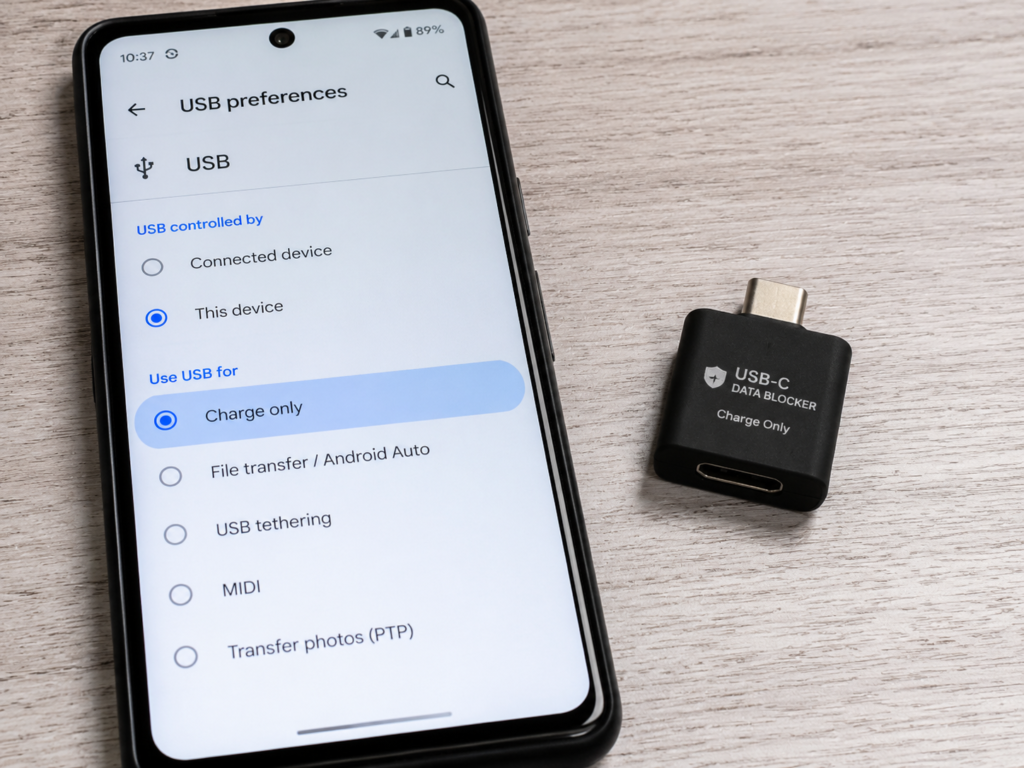
Best practice is to use both: keep your OS updated with default security settings, and add a hardware blocker when charging from unknown USB ports.
4. Types and Use Cases: Pick by Port, Feature, and Form Factor
There are dozens of blocker models on the market, sorted by port type, features, and physical design. Here’s how to match them to your needs.
4.1 By Port Shape
- USB-A Male to USB-A Female: The classic design, made for traditional public USB-A ports. Plug it into the port, then plug in your charging cable. Most basic models are this type.
- USB-A to USB-C: For charging USB-C devices from public USB-A ports. Note that since it’s USB-A, fast charging is usually limited, and QC may not work — you’ll get standard charging at best.
- USB-C to USB-C: The fastest-growing type, made for modern USB-C charging ports. The key things to check are PD power rating and full data blocking. When well-made, fast charging works almost as if the blocker isn’t there.
- USB-C to USB-A: Less common, used for specific cable conversions. Double-check the port direction and charging role so you don’t buy the wrong one.
- Lightning-Compatible Models: For older iPhones and iPads. Check for MFi certification, whether it causes “unsupported accessory” popups, and fast charging limits, since Apple’s ecosystem has stricter rules.
- Micro-USB Models: For older Android phones, e-readers, action cams, and other legacy devices. Less common now — just make sure the build quality is solid.
4.2 By Feature Tier
- Basic Pure Blocking: Only blocks data, no extra features. Small, cheap, great for emergency slow charging. The most hassle-free option if you don’t need fast charging.
- Fast Charging Compatible: Explicitly supports PD, QC, or a specific power rating. Great for frequent travelers who need fast charging. A bit more expensive than basic models, but much more convenient.
- Switchable Models: Let you toggle between “charge only” and “data transfer” mode. Good for offices where you sometimes need to charge and sometimes transfer files. The catch: if you forget to flip it back to blocking mode after using data, you have no protection next time you plug into a public port.
- Display Models: Show voltage, current, and wattage. Looks fancy, but remember: a power display only tells you about the power supply — it does NOT prove data is blocked. Don’t pay extra for this thinking it’s a security feature.
- Electrical Protection Models: May include overvoltage, overcurrent, short circuit, and ESD protection. Adds a second layer of safety beyond data blocking, for users who want extra peace of mind. Always check the product specs, though — not all “protection” labeled models actually have all these features.
4.3 By Physical Form Factor
- Small Dongle Style: The most portable — fits in a pocket, wallet, or pouch. The downside: it’s tiny, so it’s easy to lose, especially if you leave it plugged into a public port when you leave.
- Short Cable Style: A short, stubby adapter cable. Doesn’t block adjacent ports, puts less stress on wall/car ports, and is less likely to break. Slightly bulkier than a dongle, though.
- Multi-Port Travel Kit: A set of adapters for different port types, great for traveling with multiple devices. Quality varies a lot between kits, though — make sure every adapter in the set explicitly states data blocking.
- Fixed Desktop Model: Larger, made for permanent use on an office desk or lab bench. Not portable at all, and unnecessary for most regular users.
4.4 Scenario Selection Cheat Sheet
| Use Case | Recommended Type | Avoid |
|---|---|---|
| Quick top-up at airport / train station | Compact USB-A or USB-C blocker | Unlabeled generic adapters |
| Frequent business travel | Fast-charging compatible model + trusted short cable | Cheap slow-charge only budget models |
| Travel with multiple devices | Multi-port kit + portable power bank | No-name kits with unclear specs |
| Permanent office use | Switchable model or short cable style | Switchable models with no clear status indicator |
| Car CarPlay / Android Auto | Do not use a blocker | Using a blocker will disable data features |
| Only charge at home | Not necessary | Wasting money on high-end models you don’t need |
5. Buying Guide: How to Pick a Blocker That Actually Works
Don’t fall for flashy marketing — focus on these key factors to find a blocker that actually does what it claims.
5.1 Ask Yourself 6 Questions Before You Buy
Narrow down your needs first, and you’ll eliminate 80% of unsuitable products:
- Do you mostly encounter USB-A or USB-C public charging ports?
- What port does your device use: USB-C, Lightning, or Micro-USB?
- Do you need fast charging? If yes, how many watts, and what protocol?
- Will you ever use it to connect to a car, computer, or debug your device? If yes, do you need a switchable model?
- Do you want extra features like a power display or electrical protection, or just basic data blocking?
- What matters most to you: portability, charging speed, security guarantees, brand support, or price?
5.2 Must-Check Specs on the Product Page
Don’t just look at pretty product photos — dig into the details:
- Does it explicitly say Data Blocker, No Data, Charge Only, or Data Sync Disabled? If it never mentions blocking data, it’s probably not a real data blocker.
- Is the port type and direction correct? For example, if you need USB-A male to USB-C female, don’t accidentally buy USB-C male to USB-A female — it won’t work.
- What’s the supported power rating? 5V/2A, 9V/2A, 20W, 30W, 60W, 100W — make sure it’s enough for your device. If you have a 65W laptop, a 20W blocker won’t cut it.
- What fast charging protocols does it support? PD, QC, Apple 2.4A, Samsung AFC — match it to your device.
- What data paths does it block? Does it only cut D+/D-, or does it also block USB 3.x high-speed data pins? For USB-C models, does it keep the required CC line while blocking all data and auxiliary paths? This is critical for USB 3.x and Type-C products — only cutting D+/D- isn’t enough.
- Quality clues: Is there a real brand? Are specs complete? Does it come with instructions? What’s the warranty like? How’s the build quality? Do user reviews include real-world data blocking tests?
5.3 How to Interpret Certifications and Marketing Claims
A lot of people look for CE, FCC, UKCA, RoHS certifications — but these are compliance markers, not “data blocking effectiveness” certifications.
FCC is mostly about electromagnetic compatibility and RF compliance. CE is the EU’s compliance mark, which may cover EMC, electrical safety, RoHS, etc., depending on the product category and the manufacturer’s declaration. None of these marks prove the data pins are disconnected, or that the blocking works well.
What actually matters: explicit “No Data” claims, blocking design matched to the port version, verifiable test results, and brand reputation.
Any product that claims “military-grade”, “bank-level security”, “blocks all hackers”, or “prevents location tracking/listening” is a hard pass — those are just marketing buzzwords. A real security product won’t make those overblown claims.
5.4 Red Flags for Unreliable Products
Avoid any product with these traits:
- Only says “safe charging” or “fast charging adapter” and never mentions No Data, Data Blocker, or data blocking. It’s almost certainly a regular adapter with no data blocking.
- Extremely cheap, no brand, no specs, no instructions. Don’t expect it to actually block data — it might even be unsafe for charging.
- Product photos only show the outside, with no mention of port type or power specs. These are almost always low-quality knockoffs.
- Claims to block viruses, hackers, location tracking, or surveillance — way beyond what a data blocker can do, and false advertising.
- USB-C models with no mention of PD power rating, CC compatibility, or full data blocking scope. It’s probably just a regular adapter, or only cuts D+/D- while leaving high-speed data paths intact.
- Switchable models with no clear labeling for which mode is active. You’ll never know if you’re in charge-only or data mode, and it’s easy to use wrong.
- Markets metal casing, power display, or fast charging logos as “proof of security”. Those features have nothing to do with data blocking — it’s a marketing trick.
5.5 Port and Protocol Compatibility Cheat Sheet
| Public Charging Port | Device Port | Common Protocols | Recommended Blocker | Key Pitfall to Avoid |
|---|---|---|---|---|
| USB-A 2.0 | Any | 5V / QC | Basic USB-A blocker + your own cable | Basic models may disable QC fast charging |
| USB-A 3.x | Any | 5V / QC | USB-A model with explicit full data pin blocking | Don’t assume USB 2.0 blocking is enough |
| USB-C | USB-C | PD | USB-C to USB-C PD blocking model | Verify CC line is kept, PD power rating, and full data blocking |
| USB-A / USB-C | Lightning | Apple 2.4A / PD | Matching blocker + your own certified cable | Watch for MFi certification and popup compatibility |
| USB-A | Micro-USB | 5V / QC | Basic USB-A blocker + your own cable | No need to pay for high-power models for old devices |
5.6 Use Case Buying Cheat Sheet
| Need | Recommended Pick | Key Check |
|---|---|---|
| Cheap emergency use | Basic USB-A blocker | Explicit “No Data” label, normal 5V charging |
| iPhone on the go | USB-A/C blocker + your own certified cable | MFi compatibility, PD / Apple 2.4A support |
| Android USB-C fast charging | USB-C PD blocker | PD power rating, CC line intact, full data blocking |
| Car charging only (no CarPlay) | Matching port blocker | Remember it will disable CarPlay / Android Auto |
| Office use (switch between charge/data) | Switchable model | Clear mode labels, visible status indicator |
| High security needs | Reputable brand + full data pin blocking + self-test | Don’t rely on marketing buzzwords |
5.7 Your Cable and Charger Matter Too
Fast charging is a system — it’s not just the blocker. The charger, cable, blocker, and device all have to be compatible. Cheap cables can cause no charging, slow charging, overheating, or bad connections. Always use your own trusted cable, not random public cables.
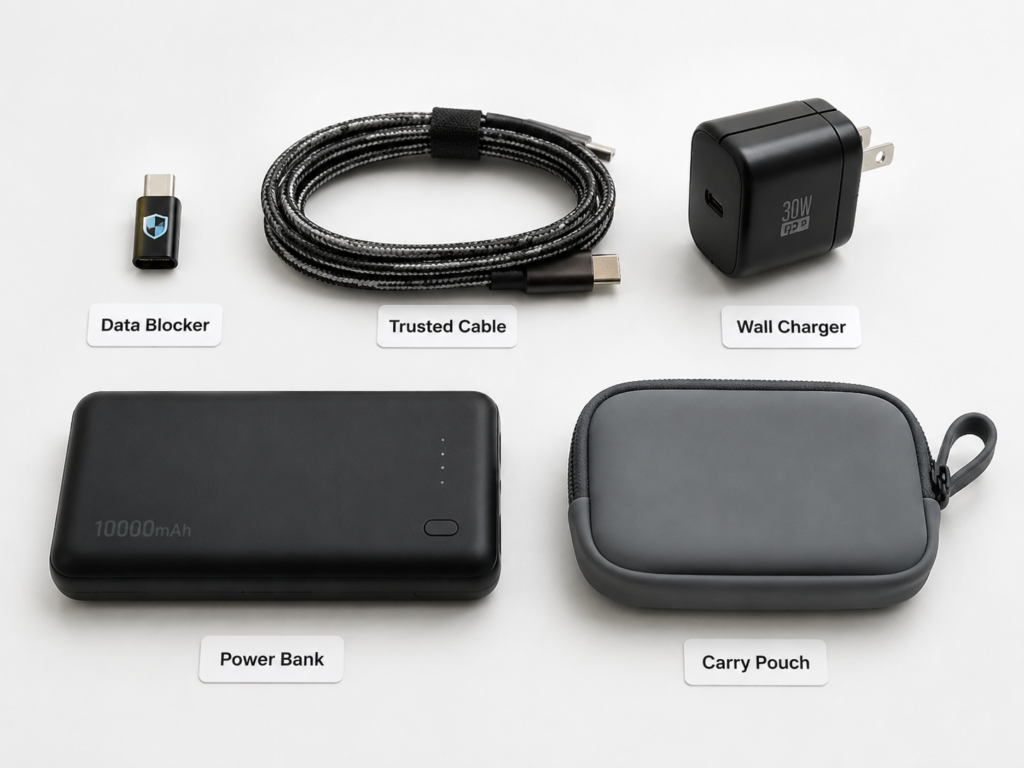
Also, when traveling, bring a trusted short cable, a small reputable charger, and a power bank. Minimize the number of adapters in the chain — don’t stack a blocker, hub, and dock all together. The more adapters you use, the higher the chance of issues, or even bypassing the blocker entirely.
6. Proper Use and How to Test If It Works
Buying a good blocker is only half the battle — you also have to use it correctly, and verify it actually works.
6.1 Standard Use Steps
The correct process is simple, and only takes 5 steps:
- Plug the data blocker into the power source first — the public USB port, computer USB port, car USB port, etc.
- Plug your own charging cable into the blocker.
- Connect the cable to your phone or device.
- Confirm the device starts charging normally.
- Check if any “Trust This Computer?”, “File Transfer”, or “USB Debugging” popups appear. If none show up, it’s most likely working correctly.
Why plug the blocker in first? It adds the layer of protection before you connect your device to the unknown port, which is slightly safer.
6.2 Use Tips for Different Scenarios
- Public charging stations / hotel wall USB: First choice is always a wall outlet + your own charger, that’s the safest. Only use the USB port with a blocker if you have no other option.
- Unknown computer USB port: Even if you’re just borrowing power for 5 minutes, use a blocker, and never unlock your phone to tap “Trust” if a popup appears.
- Car USB port: Using a blocker will disable CarPlay, Android Auto, USB music, and other data-dependent features. If you need car connectivity, don’t use a blocker.
- Shared power banks / rental cables: Always use your own cable first. If you have to use a venue-provided cable, add a blocker for extra safety.
- Office / home: If you’re using a trusted device and need to transfer files, you don’t need a blocker. If you’re just charging, you can still use one to avoid accidental auto-sync.
6.3 3-Minute Self-Test for Regular Users
Test your blocker when you get it to make sure it’s not a fake. All you need is a computer, a known good data-transfer USB cable, the blocker you want to test, and your phone.
- Test 1: Computer Recognition Test: First, plug your phone directly into the computer with the data cable. You should see a “Trust This Computer?” popup on your phone, or the computer should recognize your phone as a device. Then add the blocker between the cable and computer, and reconnect. If the computer doesn’t recognize your phone, and no trust popup appears, basic blocking is working.
- Test 2: File Transfer Test: Without the blocker, you should be able to open your phone’s storage or transfer files to/from it. With the blocker connected, if you can’t find your phone’s storage or transfer any files, blocking is working.
- Test 3: Charging Test: With the blocker connected, your phone should charge normally. If your device supports fast charging, check for the fast charging indicator to confirm it’s working.
Important note: “It charges” does NOT mean “data is blocked”. You have to do the comparison test with a known data cable to be sure.
6.4 Advanced Self-Test for More Thorough Checks
If you want to be extra sure, try these methods to check the full blocking scope:
- Windows users: Open Device Manager and check if any new phone, MTP, ADB, HID, or unknown USB devices appear when you plug in the blocker + phone. If nothing new shows up, the data path is almost certainly cut.
- macOS users: Check Finder, the Photos app, and the USB device list in System Information. If your phone doesn’t appear anywhere, blocking is working.
- Android users: Pull down the notification shade and check the USB connection menu. If it only shows “Charging” or doesn’t show a USB menu at all, the data path is blocked. If you still see options like File Transfer, USB Debugging, or MIDI, the blocker may not be working properly.
- iPhone / iPad users: If no “Trust This Computer?” popup appears when you connect, the data path is almost certainly cut.
For extra confidence, test with multiple data cables, multiple computers, and multiple ports. Also remember: a USB power meter can only measure voltage, current, and wattage — it cannot prove data is blocked on its own.
Note that regular user tests have limits: no popups and no file transfer is a good sign, but it can’t 100% prove every USB-C high-speed or Alt Mode path is disconnected. If you have very high security needs, stick to trusted brands with clear specs or professional third-party test reports.
6.5 Troubleshooting Common Issues
If you run into problems, try these fixes:
- No charging at all: First check if the power port works, if your cable is good, if your charger works, and if the port is plugged in the right direction. Then test if the blocker itself is faulty by trying a different port or cable.
- Slow charging: It might be that the blocker doesn’t support your fast charging protocol — for example, a basic USB-A blocker cuts D+/D-, so QC fast charging won’t work. It could also be that your cable or charger doesn’t have enough power, or the public USB port is current-limited.
- Data still transfers: First check if a switchable model is flipped to data mode. Then check if you’re using a hub or dock that bypasses the blocker. If neither is the case, the product probably only blocks partial data paths (like only D+/D-, not high-speed pins). Stop using it and get a better one.
- Trust popup appears: Never tap “Trust”. Test with a different blocker to confirm. If it still pops up, there’s still a data path in the chain — either the blocker is bad, or you wired it wrong.
- Abnormal heating: Slight warmth is normal, since current is flowing. But if it gets too hot to touch, smells weird, warps, or keeps disconnecting, stop using it immediately — safety first.
6.6 Public Charging Safety Priority Order
From safest to least safe:
- Wall outlet + your own reputable charger
- Your own trusted portable power bank
- Trusted charger + your own cable
- Public USB port + reputable USB data blocker + your own cable
- Avoid charging directly from an unknown computer’s USB port, and never unlock your device while connected
- Never tap “Trust This Device” or enable file transfer on an unknown USB connection
7. Limits and Common Myths
For all their benefits, USB data blockers aren’t magic. They have clear limits, and there are a lot of common myths you need to avoid.
7.1 Common Myths
- Myth 1: Using a data blocker makes you 100% safe. Wrong. It only reduces risk from the USB data channel. It can’t fix bad power issues or problems with your phone itself. No product gives 100% security.
- Myth 2: Anything labeled “safe charging” is a data blocker. Wrong. A lot of “safe charging” products just have current limiting, filtering, adapters, or power displays — they don’t cut data lines at all. Always look for an explicit “No Data” or “Data Blocker” label.
- Myth 3: A USB 2.0 blocker plugged into a USB 3.x port will leak high-speed data. Wrong. A USB 2.0 blocker doesn’t have the physical pins for USB 3.x high-speed data, so it can’t connect to those paths at all. The real risk is products labeled USB 3.x or full-feature Type-C that only cut D+/D- and leave high-speed data paths intact.
- Myth 4: If it charges, the protection works. Wrong. Charging only means the power lines are connected — it says nothing about the data lines. You have to do a data transfer test to confirm.
- Myth 5: It blocks viruses and online scams. Wrong. It’s not antivirus software, and it can’t tell if a text, website, or app is malicious. It has nothing to do with online fraud.
- Myth 6: More expensive / more features = safer. Wrong. Safety depends on design, specs, testing, and brand trust. Some expensive products just add a bunch of useless features and skimp on actual data blocking.
7.2 What It Actually Protects Against
All risks tied directly to the USB data channel:
- Unknown USB ports probing your device model via the data channel
- Unnecessary file transfers, photo access, or auto-sync
- Risk of accidentally enabling file transfer mode
- Some USB data-link attack attempts, like malicious HID (fake keyboards), MTP (fake storage devices), and ADB (debugging connections)
7.3 What It Cannot Protect Against
- Power-related risks: cheap power supplies, USB Killer-style overvoltage attacks, voltage ripple, overcurrent, overheating — unless the product explicitly lists overvoltage, overcurrent, temperature control, or ESD protection features
- Malicious apps or viruses already installed on your phone
- Attacks over Wi-Fi, Bluetooth, NFC, or cellular networks
- Phishing texts, scam calls, malicious QR codes
- Social engineering attacks that trick you into entering passwords or verification codes
- Wireless charging and other non-USB data channel risks
7.4 Common Reasons Protection Fails
- You bought a fake or low-quality product where the data pins aren’t actually disconnected — it’s just a regular adapter.
- A switchable model is accidentally flipped to data transfer mode and you forget.
- A Type-C or USB 3.x product only blocks partial data paths (e.g., only D+/D-, not high-speed pins).
- You use a hub, dock, or complex adapter chain that bypasses the blocker entirely.
- You plug it in the wrong direction, or use the wrong cable/port combination.
- Your device already trusted the connected computer previously, and the connection isn’t actually isolated — though this is almost only a risk with your own devices, not public ports.
7.5 Scenarios Where You Should NOT Use a Blocker
- When you need to transfer photos, files, or back up data
- When you need CarPlay, Android Auto, ADB debugging, or device flashing
- When using USB peripherals that need data, like USB network adapters, audio interfaces, or MIDI devices
- When connecting to a computer for system recovery or device management
In these cases, data transfer is required, so a blocker will break functionality — just remove it.
8. Practical Checklists for Buying and Using
Save these checklists for reference when shopping, packing, or using your blocker.
8.1 Buying Checklist
✅ Product page explicitly says Data Blocker, No Data, Charge Only, or similar
✅ Port direction matches your device and cables
✅ USB-C users: confirm PD power rating, CC compatibility, and full data blocking
✅ USB 3.x / Type-C users: confirm all data-related paths are blocked
✅ If you need fast charging: confirm supported protocols and power match your device
✅ Has a real brand, complete specs, and customer support
✅ No overblown claims like “blocks all hackers” or “military-grade security”
8.2 Travel Packing Checklist
✅ One reliable USB data blocker
✅ One trusted short charging cable
✅ One small, reputable wall charger
✅ One portable power bank with appropriate capacity
✅ For multi-device travel: bring matching port adapters, but minimize the number of adapters in use
8.3 Pre/Post-Use Checklist
✅ Blocker is plugged between the power source and your own charging cable
✅ If switchable, it is set to charge-only mode
✅ Device has no “Trust This Device” or file transfer popups
✅ Charging works normally, with no abnormal heating
✅ In high-risk scenarios: avoiding unlocking your device or tapping authorization prompts
9. FAQ: Common USB Data Blocker Questions
Do USB data blockers actually work? Can they prevent data theft while charging?
Yes, they work — as long as the product is genuine, matches your port type, and you use it correctly. It’s not a universal security tool, but it’s a low-cost, highly effective precaution for public USB charging, with excellent value for most frequent travelers.
My iPhone already shows a “Trust This Computer” prompt — do I still need one?
If you only ever charge at home, you probably don’t. But if you regularly use public USB ports or charge from unknown computers, it’s still a good idea. Everyone taps the wrong button by accident sometimes, and an extra layer of hardware protection never hurts — plus it eliminates annoying random connection prompts.
Will a data blocker break fast charging?
Not necessarily — it depends on the fast charging protocol and the blocker’s design.
For USB-C PD fast charging, a well-made blocker will usually support full speed with no issues. For USB-A QC or brand-exclusive fast charging, basic physical-cutoff blockers may slow charging down to 5V by cutting the D+/D- lines. Just check the product’s supported protocols before you buy.
Which is better: a data blocker or a charge-only cable?
They each have pros and cons, depending on your needs.
A charge-only cable has no data wires, so it can only charge — it’s simple and cheap, but you’re limited to that one cable.
A blocker is more flexible: you can use it with any of your own trusted cables, and many models support fast charging and extra protection features.
For maximum security, you can use both together, but watch for compatibility issues or overheating.
Can I leave it plugged in all the time?
Yes, for charge-only setups like a desk charger at work, it’s fine to leave it plugged in permanently. If you need to transfer files, back up your device, connect to CarPlay, or debug, you’ll need to remove it or switch to data mode.
Can a data blocker stop BadUSB attacks?
Most BadUSB attacks rely on USB data communication — for example, pretending to be a keyboard, storage device, or network card. A genuine full-data blocker will block all of these, reducing BadUSB risk significantly.
Note that it cannot stop USB Killer-style overvoltage attacks, bad power supplies, or replace a good charger and regular system updates.
Do I need one for shared power banks?
Shared power banks are generally lower risk than unknown computer USB ports, but it depends on the power bank design and what cable you use. If you use your own charging cable, the risk is very low. If you have to use a built-in unknown cable from the power bank, adding a blocker is a smart extra precaution.
How do I pick a good USB-C data blocker without getting scammed?
Stick to these rules:
- Pick products explicitly labeled “No Data”, “full data blocking”, and PD fast charging compatible.
- Check that the maximum power rating matches your device — if you have a 65W laptop, don’t buy a 20W blocker.
- Confirm it keeps the CC negotiation line intact, and blocks USB 2.0, high-speed data, and all related data paths.
- Avoid cheap products that only say “safe charging” with vague specs.
Will a data blocker affect CarPlay or Android Auto?
Yes. Both CarPlay and Android Auto require USB data communication to work. With a blocker connected, you’ll almost certainly only get charging, with no screen mirroring or car infotainment connectivity. If you need car connectivity, don’t use a blocker.
Is public USB charging safe? What’s the most reliable way to charge on the go?
Public USB isn’t automatically dangerous, but you can never be 100% sure what’s on the other end of the port. There’s no need to panic, but it’s smart to take basic precautions.
The safest charging options, in order: your own charger plugged into a wall outlet > your own portable power bank > public USB port with a reputable data blocker and your own cable. Avoid charging directly from unknown computer USB ports, and never tap “Trust” on a random connection.
Final Summary: A Simple Framework for Choosing and Using
At the end of the day, a USB data blocker is one of those small accessories you might not use every day, but when you need it, it can stop a major headache. To go from beginner to confident user, just remember these simple rules:
- Start with your use case: If you regularly plug into unknown USB ports, it’s worth buying. If you almost never use public charging, you don’t need to rush out and get one.
- Match the port type: Don’t mix up USB-A, USB-C, Lightning, and Micro-USB — pick the one that fits your most common charging scenarios.
- Check fast charging support: PD fast charging uses the CC line, so good USB-C blockers almost always support it. QC or proprietary fast charging may slow down with basic physical-cutoff models, so pick a model that supports your protocol.
- Evaluate the product properly: Look for explicit “No Data” labeling, full data blocking scope, port-matched design, and clear specs from a real brand. Don’t treat CE/FCC compliance marks as proof of data blocking, and ignore overblown marketing claims.
- Test it when you get it: Use a known data cable and a computer to confirm your device isn’t recognized, files can’t transfer, and charging works normally — that’s how you know it’s good.
And always remember the golden rule of on-the-go charging: use your own charger in a wall outlet when you can, then your own power bank, and if you have to use a public USB port, add a reliable data blocker with your own cable, and never tap “Trust” on a prompt you don’t recognize.
It’s not some fancy high-tech gadget — just a low-cost safety accessory. For most people, spending a few dollars for peace of mind when charging away from home is well worth it.