
We’ve all been there: you’re mid-commute, waiting for a flight, or grabbing dinner out, and your phone battery drops to that dreaded red 1%. You spot a free public USB charging port on the wall, reach for your cable, and then pause — you’ve heard warnings that these ports can steal your photos, passwords, and even payment info.
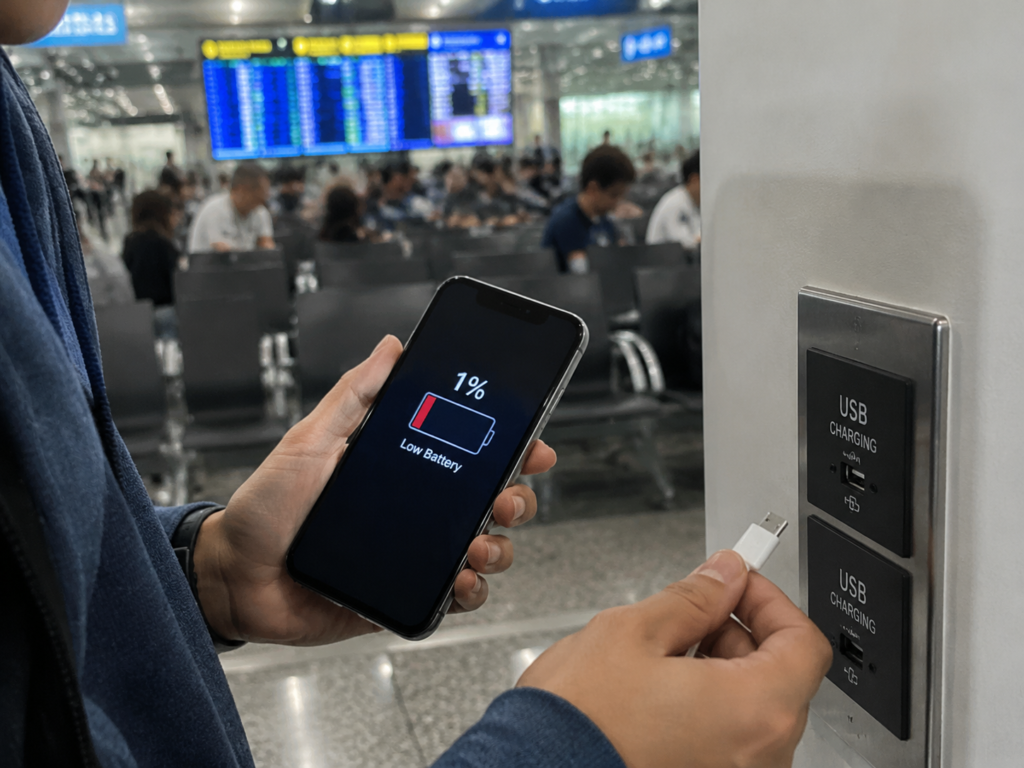
This type of attack is called juice jacking, and it’s been the subject of public advisories from agencies like the U.S. FBI and FCC, which recommend avoiding untrusted public USB ports and carrying your own charger, power bank, or USB data blocker instead. But official warnings don’t mean this attack is happening to every person who plugs into a coffee shop port. So what exactly is juice jacking? Can it really drain your phone of all your sensitive data? And what do regular users actually need to do to stay safe?
We’re breaking this down in plain language, from basic risk boundaries to actionable protection steps you can use today.
Which Devices Face the Highest Risk? Ranked by Data Exposure
Plugging into an unknown USB port doesn’t put every device at equal risk — the amount of data that could be accessed varies widely by device type:
- High risk: Smartphones, tablets
These devices store massive amounts of sensitive data: photos, contacts, text messages, chat app access, email accounts, payment apps, and identity documents. Unauthorized access can lead to severe privacy and financial harm. - Medium-high risk: Laptops
Laptop USB ports have higher system-level permissions. Malicious charging devices can disguise themselves as flash drives, keyboards, network adapters, or debugging tools to read files or install malware. That said, modern desktop operating systems have built-in permission controls and do not default to trusting unknown devices. - Medium risk: E-readers, action cameras, voice recorders, dash cams
Many people overlook these devices, but a lot of models automatically enter USB storage mode (like a flash drive) when plugged in, exposing internal photos, recordings, videos, and documents. The risk is lower than with phones simply because these devices usually store less sensitive data. - Lower risk: Wireless earbud charging cases, some smartwatches
These devices generally don’t expose large amounts of user files, so the data attack surface is very small. They may still leak basic information like device model or serial number, or have hidden firmware debugging ports, so they are not 100% risk-free. - High-risk exception for all devices
Any device that is jailbroken, rooted, running a severely outdated system, has USB debugging/developer mode enabled, or has misconfigured enterprise management policies will have drastically weaker protection and far higher risk than a standard device.
How It Works: Why Can a Charging Port Steal Data?
A lot of people assume a USB cable is just two wires for power — that’s not true. You can think of a standard USB cable as a combination of a power cord and an ethernet cable: it has wires for delivering power and separate pins for transferring data. That’s why the same cable can charge your phone and connect it to your computer to transfer photos.
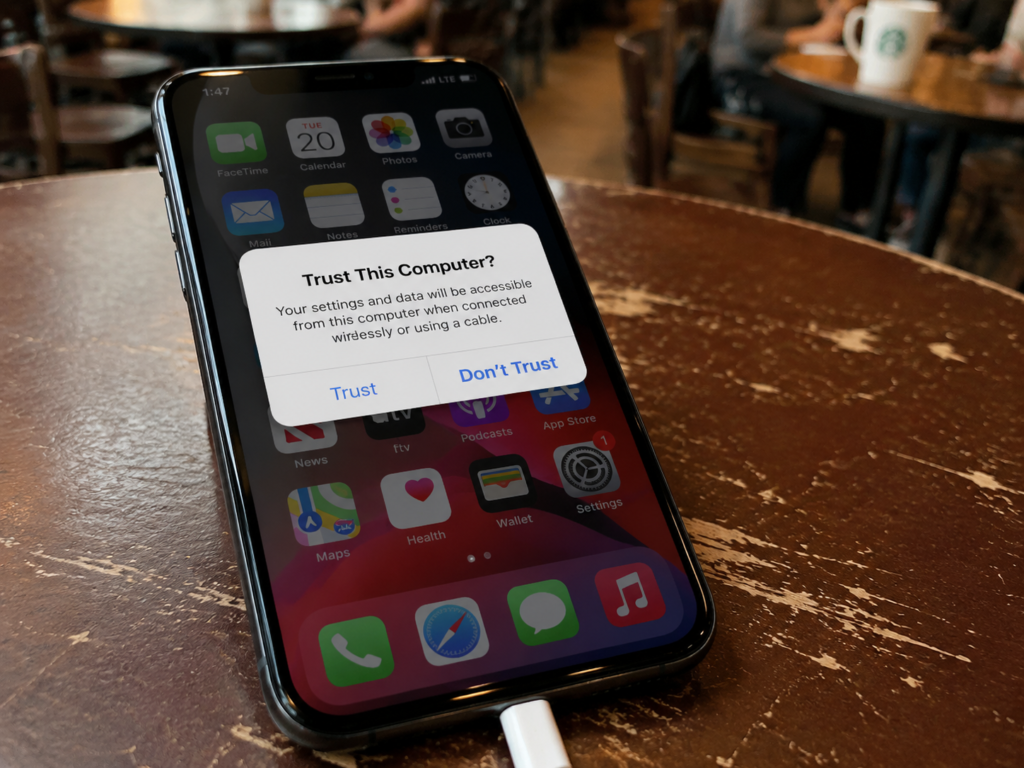
Because USB ports have built-in data functionality, plugging one in doesn’t always mean “charging only.” If the device on the other end tries to initiate a data connection, and your cable supports data transfer, your device will trigger a permission prompt.
There’s a common myth here: many people think official brand charging cables are safer. The opposite is actually true. Most official cables are full-featured data cables that support both charging and data transfer, which leaves a data channel open. The accessories that actually reduce data risk are “charge-only cables” (which have no data pins at all) or USB data blockers that cut the data channel entirely.
3 Core Conditions Required for Juice Jacking to Work
You won’t get your data stolen every time you plug into an unknown USB port. The attack almost always requires all three of these conditions to be met:
- The charging end is capable of data interaction. Modified public USB ports, malicious power banks, unknown computers, and fake charging stations are all examples of devices that can actively initiate data connections. Legitimate power-only charging ports have no data modules at all.
- The connection chain supports data transfer. If you use a charge-only cable or a certified USB data blocker, the data channel is physically cut off. Even if the charging end tries to send data, it can’t reach your device.
- Your device system allows access, or there is an exploitable vulnerability. Modern phone systems default to distrusting new devices — you have to manually tap “Trust” or “Allow file transfer” to open up data permissions. The only exceptions are rare cases like extremely outdated unpatched systems, previously trusted devices, enabled USB debugging, an unlocked device, or a jailbroken/rooted device, which may bypass some prompts.
Typical Attack Flow (No Tech Degree Required)
You don’t need to understand complex engineering to grasp how juice jacking works. This is the standard process:
- You plug your phone into an unknown public USB port, or use an unknown charging cable.
- The malicious device on the other end delivers power while also trying to establish a USB data connection with your phone.
- Your phone detects the data connection request and pops up a prompt like “Trust this computer?” or “Allow file access?”
- If you accidentally tap allow, the attacker can access whatever data you granted permission for, and may even try to trick you into granting more permissions.
- In extremely rare cases, attackers may use old system vulnerabilities to bypass prompts entirely. These attacks are very costly to develop, almost always target specific high-value individuals, and are extremely unlikely to affect regular users.
Common Attack Methods (You Just Need to Know the Types)
You don’t need to dive deep into the technical details — just knowing the categories of attacks will help you spot risks:
- File transfer access: Uses your phone’s media transfer feature to treat it like a storage drive, letting attackers view photos, videos, and some downloaded files. This only works if you tap allow.
- USB debugging/ADB: A debugging channel built into Android for developers, with very high permissions. If you have developer mode enabled and grant a debugging request to an unknown device, attackers can run commands, read accessible data, install or uninstall apps, and pull system logs. Risk is even higher on rooted devices or devices with system vulnerabilities.
- Keyboard emulation (BadUSB): Malicious devices disguise themselves as a keyboard to automatically type commands and operate your device. This is a bigger risk for laptops; on phones, system restrictions limit what attackers can do.
- Malicious configuration profiles: Tricks you into installing certificates, VPNs, or device management profiles to secretly change your network settings or gain admin access. Apple device users should be especially careful with unknown configuration profiles.
- Vulnerability exploits: Uses bugs in the system or drivers to bypass permissions entirely. These are very expensive to develop, only work on specific system versions, and can be almost entirely prevented by keeping your system updated.
How Different Operating Systems Defend Against Juice Jacking
Each device system has its own built-in protection logic — understanding it will help you assess risk faster:
- iOS/iPadOS: Apple’s systems have strict permission controls, and default to distrusting all new computers. Most data access requires you to unlock your phone and manually tap “Trust This Computer” to establish a connection. There is also a setting to restrict USB accessory access when the device is locked, which reduces the risk of unknown USB devices connecting while your phone is locked. Note that effectiveness varies by system version, user settings, and historical trust relationships — a locked phone is not 100% immune to data connections.
- Android: Exact menus vary by brand, but almost all Android devices show a “USB Preferences” notification when plugged in, where you can manually select “Charge only.” Risk increases dramatically if USB debugging is enabled, so regular users should keep it turned off.
- Windows/macOS/Linux laptops: Laptop USB ports have higher system permissions, so be extra wary of unknown USB devices disguised as charging cables, flash drives, or keyboards. Company-owned devices usually have USB peripheral management policies — follow your workplace’s rules.
Scenario Risk Rankings: Where Are You Most Likely to Encounter Risk?
Risk levels vary by setting. We’ve sorted common scenarios into high, medium, and low risk so you can make quick decisions when you’re out:
| Risk Level | Common Scenarios | What to Do |
|---|---|---|
| High Risk (Avoid direct use if possible) | Unsupervised free USB ports in airports, train stations, or mall corners; unbranded/damaged/spliced fixed charging cables; power banks, cables, or adapters offered by strangers; temporary free charging stations at conventions, festivals, concerts, or trade shows; USB ports on public printers, self-service kiosks, or unknown computers; used unbranded/modified/opened charging devices | Avoid using entirely if you can. If you absolutely must use one, always pair it with a USB data blocker or charge-only cable. |
| Medium Risk (Can use with protection) | Built-in USB ports on hotel/Airbnb/hostel bedside tables or desks; desktop USB ports in coffee shops, restaurants, libraries, or internet cafés; car USB ports on planes, buses, rental cars, or ride-share vehicles; USB ports on co-working space docks, meeting room displays, or public monitors; shared power banks from small or unknown brands | Prioritize using your own wall charger plugged into a standard outlet. If using a public port, set your device to charge-only mode and deny all permission prompts. |
| Low Risk (Preferred options) | Your own wall charger plugged into a standard electrical outlet; your own reputable power bank, car charger, or charging cable; shared power banks from well-known brands with intact, undamaged exteriors; personal charging devices in your home or trusted office | Use normally, but still deny any unexpected permission prompts. |
Risk levels aren’t fixed, though — you can’t assume a five-star hotel’s USB ports are safe. Even high-end venues may have third-party modified devices installed without management knowledge, or may have internal staff tamper with ports. Don’t judge risk by venue quality alone. Instead, check four key things: does the port look damaged or tampered with? Are you using your own cable? Did any permission prompts pop up? Did you grant any access?
Wireless charging overall has no classic juice jacking risk, since it uses electromagnetic induction instead of USB data pins. But avoid damaged, overheating, or no-name wireless chargers, which can pose electrical hazards or lead to phishing scams via QR codes or Bluetooth prompts. If you have no choice but to use a public USB port, pairing it with a data blocker or charge-only cable to physically cut the data channel is the safest approach.
Practical Protection Tips: From Zero-Cost Fixes to Upgrades
Protecting yourself doesn’t require expensive gear. Pick the options that fit your habits:
Zero-Cost Basic Protection (No Money Needed)
- Prioritize using your own wall charger plugged into a standard electrical outlet — this is the single safest way to charge.
- Bring your own power bank when you go out. If you have enough battery, you never need to look for a public port, eliminating risk entirely.
- If you do plug into an unknown charging device, deny all permission prompts immediately, no matter what they say.
- Keep your phone locked while charging in public. Don’t use your unlocked phone while plugged into an unknown USB port, as this increases the risk of accidentally tapping allow.
- Never use charging cables, adapters, or power banks given to you by strangers — you have no way of knowing if they’ve been modified.
- Never enable file transfer, photo transfer, or USB debugging on an unknown USB port, even if you just need to move a single file.
Low-Cost Hardware Protection (Cheap Peace of Mind)
If you travel often or regularly use public charging ports, pick up one of these small accessories:
- Charge-only cables: These cables have no data pins physically connected, so they can only charge and can’t transfer data. They’re small, lightweight, and perfect for travel or hotel stays.
- USB data blocker (sometimes called a USB condom): This tiny device plugs between the public USB port and your regular charging cable, cutting the data channel while leaving power delivery intact. The biggest benefit is you don’t have to swap cables — you can use your usual charging cord.
Keep these tips in mind when buying:
- Buy from reputable brands and authorized sellers. Avoid no-name generic products, which may even have power safety issues.
- Check the port type: make sure you get the right combination (USB-A to USB-C, USB-C to USB-C, Lightning, etc.).
- USB-C data blockers may interfere with PD fast charging, CarPlay, Android Auto, and data sync. If you need these features, look for a model that explicitly supports the protocols you use.
- Don’t confuse “fast charging cables” with “charge-only cables.” Most fast charging cables support data transfer — only cables explicitly labeled “charge-only” or “no data transfer” cut the data channel.
Long-Term System Setting Tweaks
Adjust these settings once, and you’ll reduce risk even if you accidentally plug into a bad port.
All devices:
- Keep your system and security patches up to date. Most vulnerabilities are fixed via regular updates.
- Set a lock screen password, fingerprint, or face recognition. Never use a device with no lock screen security — anyone who picks up your phone could plug it in and access data.
- Don’t install apps, certificates, VPNs, or configuration profiles from unknown sources, especially ones that ask you to download from a browser or grant excessive permissions.
iOS/iPadOS specific:
- Restrict USB accessory access when your device is locked. Go to Settings > Face ID & Passcode (or Touch ID & Passcode), scroll to “Allow Access When Locked,” and toggle USB Accessories to off.
- If you suspect you accidentally trusted a malicious device, go to Settings > General > Transfer or Reset [Your Device] > Reset > Reset Location & Privacy. This will clear all previously trusted computer records.
- Regularly check your settings for unknown VPNs, configuration profiles, or device management entries. Delete any you don’t recognize immediately.
Android specific:
- Turn off USB debugging and unnecessary developer options — most regular users never need them.
- In Developer Options, set “Default USB configuration” to “No data transfer / Charge only” so every USB connection defaults to charging only, no manual selection needed.
- Revoke all unknown USB debugging authorizations and clear old debugging records regularly.
- Regularly check accessibility permissions, device admin permissions, and unknown app install permissions for suspicious apps. Revoke access and uninstall any apps you don’t recognize.
Laptops:
- Follow your company’s USB peripheral management policies for work devices, and never plug in personal unknown devices.
- Default to distrusting unknown USB devices on personal computers. If you’re unsure about a device, don’t plug it in. You can also use a USB data blocker, or only connect your own power adapter.
Protection Tips for Common Travel Scenarios
Follow these simple rules, no guesswork required:
- Airport/station layovers: Use your own power bank first. If you have to use a public port, always use a data blocker.
- Hotel stays: Use a wall outlet + your own charger. Don’t use built-in bedside or desk USB ports, even at luxury hotels.
- Conventions/concerts/festivals: Avoid free public charging cables entirely — crowded events are the most common targets for modified gear. Bring your own power bank.
- Rental cars/ride-shares: Use your own car charger plugged into the cigarette lighter. Don’t plug into the car’s USB data port, especially in an unfamiliar vehicle.
- International travel: Pack a universal travel adapter, your own charger, a power bank, and a data blocker to minimize your need to use unknown USB ports in places you’re unfamiliar with.
What to Do If You Suspect Your Data Was Compromised
If you plug into an unknown USB port and something feels off — you get a weird prompt, or your phone acts unusual — don’t panic. Follow these steps:
Immediate First Steps
- Unplug the charging cable immediately.
- If you didn’t tap any “allow,” “trust,” or “install” prompts, you have very little to worry about. Switch to your own power bank or wall charger to finish charging.
- If you did accidentally grant permission, disconnect right away and turn on airplane mode to reduce the risk of further remote access or data exfiltration, then work through the self-check steps below.
Device Self-Check Checklist
Start by checking your device for signs of compromise:
Universal checks (all devices):
- Look through your recently installed apps for any you don’t recognize. Uninstall them immediately.
- Check your settings for unknown VPNs, certificates, configuration profiles, or device management entries. Delete any you didn’t install yourself.
- Review sensitive permissions (photos, contacts, location, text messages) to see if any unknown apps have access. Revoke access for suspicious apps.
- Check your file manager’s recent files and download folder for unknown or suspicious files. Delete them.
Android extra checks:
- See if USB debugging was turned on without your knowledge. If you never use it and it’s enabled, that’s a red flag.
- Check your USB debugging authorization list for unknown device entries. Revoke them.
- Review accessibility permissions, device admin permissions, notification access, and unknown app install permissions for suspicious apps. Revoke access and uninstall any unrecognized apps.
iPhone/iPad extra checks:
- Look for unknown configuration profiles, VPNs, or device management entries in settings, especially enterprise-level profiles. Delete any you don’t recognize immediately.
- If you suspect you trusted a malicious device, reset your location and privacy settings to clear all trusted computer records.
Follow-Up Steps to Protect Your Accounts & Privacy
If you’re worried data was stolen, take these steps to secure your accounts:
- Change passwords for your most important accounts first: email, social media, payment apps, bank accounts, and cloud storage.
- Enable two-factor authentication (2FA) on all critical accounts. Even if your password is stolen, attackers won’t be able to log in.
- Review login history for all important accounts. If you see logins from unknown devices or locations, sign them out immediately and change your password.
- Check email forwarding rules, cloud storage share links, and social media linked devices for anomalies. Disable any you don’t recognize.
- Monitor your payment accounts and bank cards for unusual transactions for 1–2 weeks. If you see unauthorized charges, contact your bank immediately to freeze your account.
When to Seek Professional Help
You don’t have to handle every situation on your own. Get professional help right away if:
- Your phone has persistent weird popups, obvious signs of remote control, or unremovable management permissions you can’t fix yourself.
- Important accounts have been hacked, or you’ve already experienced financial loss.
- The device is a work, school, or organization-managed device — contact your IT or security team immediately instead of trying to fix it yourself, to avoid violating company policies.
- You suspect identity theft or financial fraud — contact your bank, platform support, and local law enforcement.
Note: If you only plugged in for a second, your phone was locked, you didn’t tap any prompts, and there are no unusual popups, you almost certainly have nothing to worry about. You don’t need to factory reset your device immediately — just run through the checklist above to be sure.
Common Myths & Real-World Facts About Juice Jacking
There are a lot of widely shared misconceptions about charging port data theft. Let’s set the record straight:
10 Persistent Myths, Debunked
- Myth: Plugging into a public charging station will definitely steal your data.
Fact: Most legitimate public charging facilities are power-only with no data modules. Risk comes from modified devices, untrusted ports, or users manually granting permission. - Myth: Using an official brand charging cable keeps you safe from data theft.
Fact: Official cables are almost always full-featured data cables that support both charging and data transfer, which leaves a data channel open. For public use, charge-only cables or data blockers are safer than official cables. - Myth: iPhones can never have data stolen via USB.
Fact: iOS does have strict permission controls, but you’re still at risk if you manually trust a device, run an outdated unpatched system, or install a malicious configuration profile. Risk is just lower than on Android. - Myth: Android phones are always dangerous to plug into public USB ports.
Fact: New Android versions have strict USB mode and permission controls. If you select charge-only, keep USB debugging off, and don’t tap allow, risk is very low. Only old, severely outdated Android phones carry high risk. - Myth: All shared power banks are unsafe.
Fact: Shared power banks from well-known brands with clear operators, intact exteriors, and traceable supply chains are relatively low risk. Risk can come from supply chain issues, poor maintenance, third-party modifications, or damaged devices, not just brand intent. If a device is cracked, has a weird fixed cable, or prompts for data access, stop using it immediately. - Myth: No popup means no risk.
Fact: Most of the time, no popup means you’re safe. But if you’ve trusted the device before, have USB debugging enabled, run an old vulnerable system, or your phone is always unlocked, you may get fewer or no prompts. Don’t rely solely on popups to judge risk. - Myth: Wireless charging is 100% safe.
Fact: Wireless charging uses electromagnetic induction and has no USB data pins, so it has no classic juice jacking risk. But cheap wireless chargers may overheat, cause electric shocks, or use scam QR codes/Bluetooth prompts to lead you into phishing schemes. - Myth: Fast charging cables only carry power, so they’re safe.
Fact: Most fast charging cables support data transfer — they just handle higher power levels. Only cables explicitly labeled “charge-only” or “no data transfer” cut the data channel. - Myth: Plugging in for just a few seconds can’t do any harm.
Fact: Risk depends on whether a data connection is established, if you granted permission, and if there are vulnerabilities — not how long you’re plugged in. If your phone is unlocked and has debugging enabled, data can be accessed in seconds. - Myth: Slow charging, overheating, or intermittent connection means data is being stolen.
Fact: These issues are almost always caused by low power output, bad cable quality, loose ports, or an old battery — not data theft.
Real-World Boundaries: Don’t Panic, But Don’t Be Careless
A few honest, practical notes to keep in mind:
- There’s no universal percentage of public USB ports that are compromised. Risk depends on a combination of setting, port condition, cable, prompts, and your device’s security state.
- Most online attack demos are run in ideal lab conditions, and don’t reflect what regular users will encounter in the real world. Don’t stop using public charging entirely because of a viral demo video.
- Regular users can’t tell if a USB port has been modified just by looking at it. Physically blocking the data channel is far more reliable than assuming a nice venue must have safe ports.
- Follow this protection priority order: own charger + power bank > charge-only cable/data blocker > direct public USB use. Pick the highest-priority option you have available, and only use lower-priority options with proper protection.
There are also cases where you shouldn’t automatically blame juice jacking: if your accounts have been hacked, you have unknown apps, or your battery is draining unusually fast, treat it as a full device security incident — it’s far more likely to be caused by phishing, malicious apps, or other common attacks. For work or school managed devices, always follow your organization’s USB use policies. Other devices like cars, smart home gear, cameras, and voice recorders follow similar USB logic, but have different risk levels and data exposure depending on the device type.
Key Takeaways for Everyday Users
You don’t have to memorize every detail in this guide. Remember these 7 simple rules, and you’ll avoid almost all juice jacking risk:
- Juice jacking (charging port data theft) is a security risk that uses USB ports’ dual power/data capability to try to access your device data without permission. It’s not about stealing power or damaging your battery.
- The biggest risk isn’t charging itself — it’s the combination of an unknown USB port, a data-capable cable, and you clicking “allow” or “trust.”
- Public USB ports aren’t always dangerous, but they’re never as safe as a wall outlet + your own charger.
- Any prompt that says “Trust this computer?”, “Allow file transfer?”, “USB debugging?”, or “Install configuration profile?” should always be denied on unknown devices.
- The most practical travel protection kit: your own power bank + your own wall charger + a charge-only cable or USB data blocker. It’s cheap and gives you total peace of mind.
- Keeping your system updated, turning off USB debugging, and regularly cleaning up old authorizations and profiles will drastically reduce your risk.
- If something feels off, unplug first, don’t click any prompts, and run through the device and account checklists — no need to panic blindly.