
You know those videos where you see a product flying down a factory line and a camera takes a picture of it in a split second to check for scratches or missing pieces? That’s an industrial camera at work.
But here’s the thing—it’s nothing like the camera on your phone.
Your phone camera is made to take nice pictures of people, food, and vacations. An industrial camera is made to help machines “see” products so they can check if something is broken, missing, or in the wrong place.
Why should you care? Because every time you buy a bottle of water, order a phone, or get a package from Amazon, an industrial camera probably helped check that product before it reached you. They work behind the scenes in things you use every day.
So what makes them different? Let’s break it down.
1. What Is an Industrial Camera?
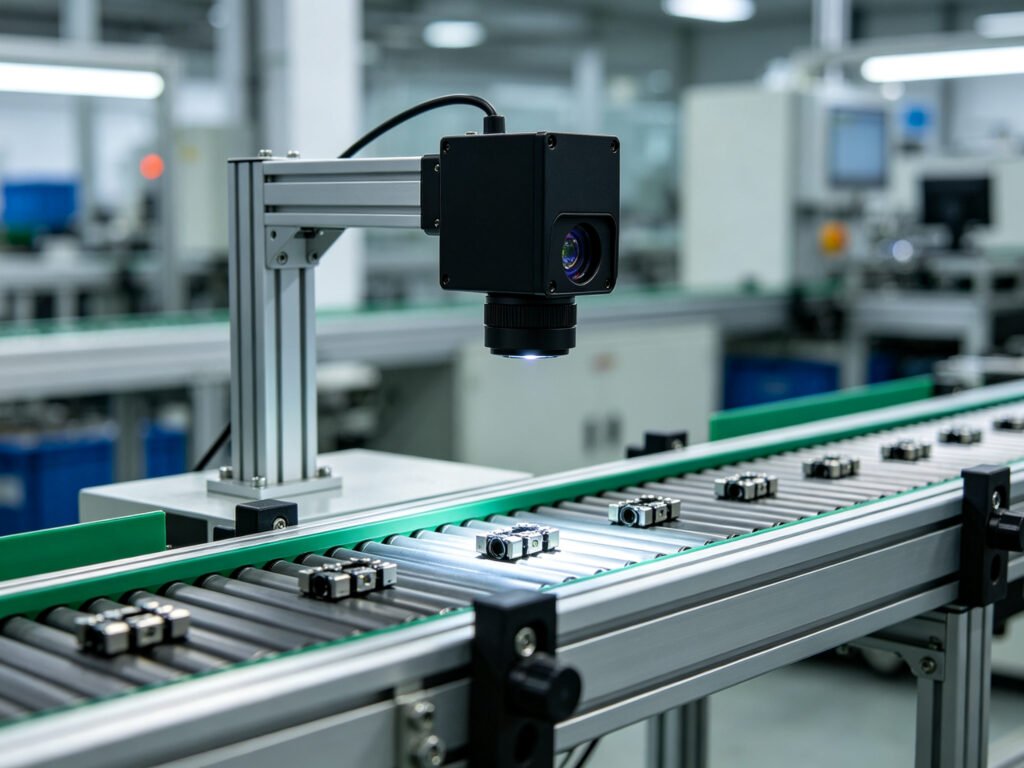
An industrial camera is simply a camera that connects to a computer through a USB cable. It’s used in factories, warehouses, and labs to help machines inspect products.
But it’s not the same as a webcam or your phone camera.
- Phone camera: takes nice-looking pictures for humans to enjoy
- Industrial camera: takes pictures for computers to analyze and make decisions
USB is the most common way to connect these cameras because it’s cheap, it’s everywhere, and it works with almost any computer.
Why you should care: These cameras are everywhere behind the scenes. That water bottle you bought at the store? An industrial camera checked that the label wasn’t crooked. That phone you ordered online? An industrial camera looked for scratches on the screen before it went into the box.
2. How Is It Different from a Phone Camera?
| Phone Camera | Industrial Camera | |
|---|---|---|
| What it’s for | Taking nice pictures | Helping machines inspect products |
| Capturing fast motion | Scans line by line from top to bottom. If something moves fast, the top and bottom don’t line up—things look bent or wobbly. | Grabs the whole picture in one instant. Everything stays sharp, even at high speed. |
| Speed | About 30 frames per second | 100+ frames per second |
| Long-term use | Gets hot and slows down after a while | Runs 24/7 without issues |
| Setup | Plug it in, it just works | Need to install software and configure settings. You may even need to write code to control it. |
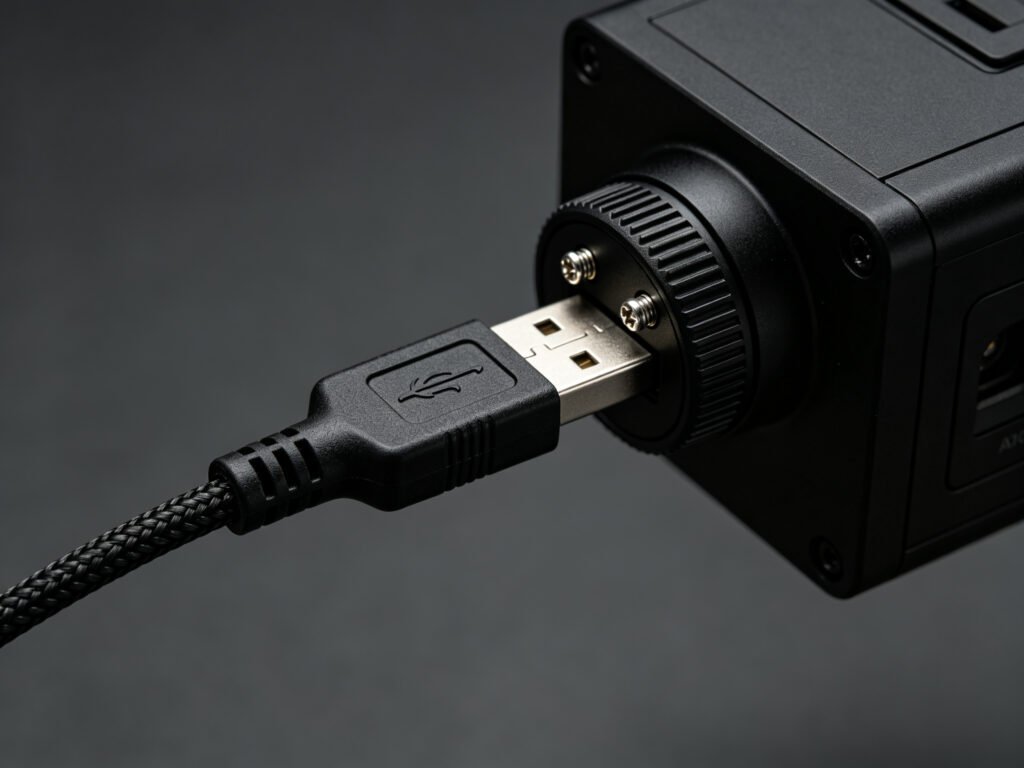
| Connection | Regular USB plug—falls out if pulled | USB plug with screws to lock it tight—won’t come loose from shaking |
The biggest difference most people don’t think about is how these cameras capture motion. Imagine taking a picture of a fan spinning. A phone camera scans the image line by line from top to bottom—so by the time it gets to the bottom, the fan blades have moved, and everything looks bent or wobbly. An industrial camera takes the whole picture in one instant, so the fan blades freeze perfectly in place. That’s why they can catch tiny defects on products moving at high speed down a production line.
3. What Makes These Pictures Special?
Industrial cameras aren’t designed to take pictures that look “good” to human eyes. They’re designed to take pictures that are easy for computers to analyze.
Here’s what makes them different:
- They see bright and dark areas at the same time. Think of looking out a window from a dark room. You either see the bright outside (and the room looks black) or the dark inside (and the window looks white). An industrial camera can see both in the same picture, so a computer can spot details everywhere.
- They’re fast. Some industrial cameras take hundreds of pictures per second. That lets them catch tiny defects on products flying down the line at high speed.
- They sync with machines. Instead of just taking pictures continuously, an industrial camera can wait for a signal—like a part passing by on a conveyor belt—and take exactly one picture at the right moment. No wasted frames, no missed shots.
4. What Are They Used For? (Real-Life Examples)
Industrial cameras are everywhere. Here are some everyday examples:
- Checking for defects – Scratches on a phone screen, dents on a car door, missing chips in a bag of snacks, or the wrong label on a bottle.
- Reading barcodes and QR codes – Tracking packages through delivery centers, scanning tickets at events, or checking serial numbers on electronics.
- Guiding robots – Helping a robot arm pick up the right part and place it in the right spot on an assembly line.
- Reading text – Checking expiration dates on food packages or batch numbers on medicine bottles.
- Measuring size – Making sure a metal part is the right thickness or that gaps between components are within tolerance.
- Science and research – Capturing high-speed events like a balloon popping or taking pictures through microscopes.
5. Which USB Version Should You Choose?
Not all USB is the same. Here’s what you need to know:
USB 2.0 (the older standard)
- Good for lower-quality images or slower motion
- Works with almost any computer
- Cable can go up to 5 meters (about 16 feet)
USB 3.0 (the most common today)
- Good for high-quality, fast images
- Cable works best under 3 meters (about 10 feet)
- Most industrial cameras use this now
USB 3.1 Gen2 / USB3 Vision (faster, newer)
- For very high quality and very fast images
- Requires newer computers and better cables
Important: Don’t always pick the fastest option. If you only need low resolution and slow speed, USB 2.0 is fine—and actually more stable. If you need high resolution and high speed, go with USB 3.0 or higher. Choose what fits your actual needs, not what sounds the most impressive.
6. Cables and Connections
Cables matter more than you might think. Here’s what to know:
Cable types
- Regular USB cable: Works for setups where nothing moves
- Heavy-duty flexible cable: For setups where the cable bends repeatedly (like on a moving robot arm)
- Screw-lock cable: Necessary for environments with shaking or vibration—it screws into the camera so it won’t fall out
Cable length
- Under 3 meters (10 feet): standard cable works fine
- 3 to 10 meters: may need a powered cable with a signal booster
- Over 10 meters: needs special fiber optic extenders
- General rule: shorter is more reliable
Shielding
Industrial cables have extra layers of shielding to block electrical interference. Without it, you might see noise in the picture or the camera could lose connection. This is especially important in factories with lots of motors and power equipment.
Power
Most cameras get power through the USB cable itself. But some high-power models need a separate power plug.
7. Setup Tips
Setting up an industrial camera isn’t complicated, but a few things matter:
- Mount it solid. The camera needs to be bolted down on a stable stand. Once you’ve adjusted the focus, lock it in place.
- Keep cables away from power. Run USB cables away from thick power cables to avoid electrical interference.
- Ground the camera and mount. This stops electrical noise that can mess up the picture.
- Watch the environment. Check the camera’s temperature limits—some can’t handle extreme heat or cold. If there’s lots of dust, add a protective case. If there’s water or oil, look for a camera with an IP65 or higher rating.
- Multiple cameras: Use separate USB ports for each camera. USB bandwidth is shared, so don’t overload one port with multiple high-speed cameras—they’ll compete for speed and cause problems.
8. Common Problems and Simple Fixes
Camera not showing up on the computer
- Check the cable is plugged in and screwed tight
- Try a different USB port
- Reinstall the driver and software
Camera keeps disconnecting
- Check that the screws on the cable are tight
- Might not be getting enough power—try a powered USB hub
- Cable might be too long or poor quality
Picture is laggy or dropping frames
- Other devices might be using up USB bandwidth
- Try a shorter or better-shielded cable
- Lower the resolution or frame rate
Picture has static or wavy lines
- Electrical interference—move the cable away from motors and power sources
- Check grounding
- Add a ferrite choke (a small magnetic clamp you put on the cable)
Camera won’t trigger at the right time
- Check trigger cable connections
- Use hardware trigger instead of software trigger
- Check that the trigger signal voltage is correct
Picture is blurry
- Refocus the lens and lock it in place
- Check if the lens is loose
- Check that the distance from the object is correct
9. Common Misunderstandings
“USB 3 is always better than USB 2.”
Not necessarily. For simple, low-quality setups, USB 2 is more stable and uses cheaper cables. Pick what fits your actual needs.
“A regular USB cable is fine.”
It works… for a while. But regular cables don’t lock in place, have poor shielding, and break from bending. In a factory environment, they’ll fail quickly. Industrial cables exist for a reason.
“A good camera means good pictures.”
Only half the story. Lighting and lenses matter just as much. A great camera with bad lighting takes bad pictures. A cheap camera with good lighting can take great ones.
“Just plug it in and it works.”
Not with industrial cameras. You need to install drivers, configure software, and often write some code to control them. They’re not plug-and-play webcams.
“I can plug multiple cameras into one USB port.”
Not recommended. USB bandwidth is shared. Two high-speed cameras on one port will compete for speed and cause problems. Check your total bandwidth before connecting multiple cameras.
One more thing: Industrial cameras typically last 5 to 8 years with basic care. Keep them clean and cool, and they’ll serve you well for a long time.