
Introduction
Tablets have become essential tools in modern classrooms. From elementary schools to universities, students use tablets for research, assignments, collaborative projects, and digital textbooks. A typical classroom today might have 20, 30, or even 40 tablets shared by different students throughout the day.
But managing all those devices presents a real challenge. Teachers need to keep them charged, organized, and secure. Without a proper system, you end up with cables spread across desks, tablets mixed up and lost, and students wasting class time hunting for their assigned device. Someone has to collect every tablet at the end of the day and find a safe place to store them overnight. It’s time-consuming, chaotic, and frustrating.
A tablet charging cabinet solves all of these problems at once. It’s a single, dedicated device that charges, stores, and protects dozens of tablets simultaneously. This guide explains what tablet charging cabinets are, how they work, and how to set one up in your classroom or training environment.
1. What Is a Tablet Charging Cabinet?
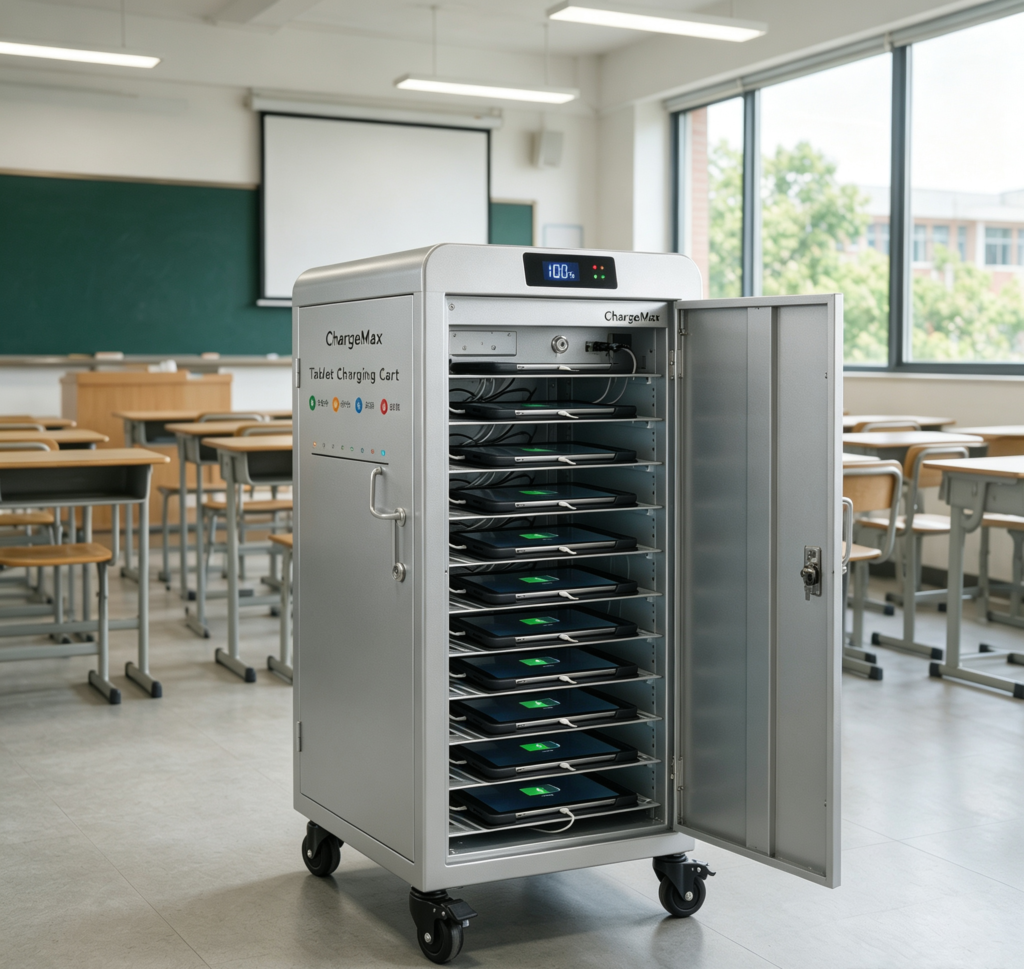
A tablet charging cabinet (also called a charging cart, charging trolley, or charging station) is a dedicated device designed to charge and store multiple tablets or laptops at the same time. It’s commonly found in classrooms, training centers, conference rooms, and corporate offices where many devices need to be managed together.
One cabinet can charge and store anywhere from 10 to 60 tablets at once. Each tablet has its own designated slot with a built-in charging cable, so every device gets power simultaneously without creating a tangle of wires.
2. Core Functions
Centralized Charging
Instead of hunting for wall outlets for every single tablet, you plug the cabinet into one wall socket and it charges all the devices inside. This eliminates the chaos of cables running across desks and floors, and makes it easy for teachers to ensure every tablet is ready for the next class.
Storage and Organization
Every tablet has a fixed slot inside the cabinet, so devices don’t get lost or mixed up. Each slot can be numbered, making it easy for students to find their assigned tablet and return it to the correct place after use. This reduces the time teachers spend handing out and collecting devices.
Data Synchronization (Some Models)
Certain charging cabinets also include data sync capabilities. This allows teachers to install apps on all tablets at once, transfer lesson materials in bulk, or update the operating system across every device simultaneously. What would take an entire class period to do individually can be completed in minutes.
Security Protection
The cabinet includes multiple layers of electrical protection so devices can be left charging safely for extended periods. It also has a lockable door (key or combination lock) to prevent theft, making it safe to leave tablets in the classroom overnight or during breaks.
3. Common Types
By Physical Form
Floor-Standing Cabinets
These are stationary, floor-based units that stay in one place. They offer large capacities (commonly 30 to 60 ports) and are ideal for permanent classroom setups where devices stay in the same room.
Mobile Charging Carts
These come with wheels and a handle, making them easy to move between rooms. They’re useful when multiple classrooms share a single set of tablets, or when devices need to be wheeled to a central charging area. Some models include laptop compartments as well.
Desktop Charging Stations
These are smaller units designed to sit on a table or podium. With 10 to 16 ports, they’re suitable for small classes, training groups, or meeting rooms where only a few devices need to be charged.
By Function
- Basic Charging Only: Charges devices without additional features. Simple and cost-effective.
- Charging + Data Sync: Can both charge devices and transfer files/apps to all connected tablets simultaneously.
- Charging + Disinfection: Includes UV-C lights inside the cabinet to sanitize device surfaces during charging.
4. Key Features
Multi-Port Simultaneous Charging
Common capacities range from 10, 20, 30, 40, to 60 ports. Each port operates independently — if one port or cable fails, the others continue working normally.
Smart Power Distribution
The cabinet automatically detects how much power each connected tablet needs. Tablets that are nearly full receive less power, while tablets with lower battery levels get more. This ensures all devices reach full charge as quickly and evenly as possible.
LED Status Indicators
Each slot has a corresponding LED light that shows the charging status at a glance:
- Red (or orange) = Charging in progress
- Green (or blue) = Fully charged
- Flashing or off = Fault or no device connected
Teachers can quickly scan the cabinet and see which tablets are ready for the next class without opening the door.
Cable Management
Cables are routed through built-in channels so they don’t hang loosely or get tangled. Some cabinets come with shorter cables designed specifically for the slot layout, eliminating the need to purchase extra cables.
Lockable Door
A key lock or combination lock secures all devices inside. After school hours, teachers can lock the cabinet and leave tablets safely in the classroom without worrying about theft.
5. Safety Protection Mechanisms
- Overvoltage Protection: Automatically cuts power if voltage suddenly spikes to unsafe levels.
- Overcurrent Protection: Limits current output if it exceeds safe thresholds, preventing overheating of cables and ports.
- Short-Circuit Protection: If one device develops a short circuit, that port is isolated and cut off so the issue doesn’t affect other devices in the cabinet.
- Thermal Protection: Reduces charging speed or temporarily pauses charging if internal temperature gets too high, preventing damage to both the cabinet and devices.
- Lightning Protection: Built-in surge suppression designed for school environments where electrical circuits may be subject to fluctuations.
- Flame-Retardant Enclosure: Cabinets use metal housings and flame-retardant materials to meet higher safety standards required for public spaces like schools.
- Grounding Protection: Prevents static buildup and reduces the risk of electric shock, especially important when charging many devices simultaneously.
6. Power and Charging Efficiency
Common Per-Port Power Levels
- 5V/2A (10W): Entry-level models, suitable for older tablets with slower charging requirements.
- 18W–20W PD: Mainstream models, compatible with most modern tablets that support Power Delivery fast charging.
Total Power Reference
- 20-port cabinet: Approximately 200W – 400W total
- 40-port cabinet: Approximately 400W – 800W total
- 60-port cabinet: Approximately 600W – 1200W total
Charging Speed
When all ports are occupied, the cabinet’s smart distribution system prevents any single device from hogging power. Tablets that reach full charge automatically release their allocated power to devices that still need it. A full batch of tablets typically takes 2–3 hours to reach 100% charge from empty.
Circuit Requirements
High-power cabinets need to be plugged directly into a wall outlet. Avoid sharing the same outlet or power strip with high-power equipment like air conditioners or projectors, as this can trip circuit breakers or reduce charging efficiency.
7. Specs and Features Overview
Port Counts
Capacities range from 10 to 60 ports depending on the model. The right size depends on the number of tablets in use. Leaving a few spare slots is always practical for device rotation or maintenance.
Power and Protocols
Entry-level models typically provide 5V/2A (10W) per port — sufficient for older or low-power tablets.
Mainstream models support 18W–20W PD fast charging, which is compatible with most modern tablets.
Different devices may have different charging requirements — some support PD, some don’t. The charging cabinet’s protocol determines which devices it can charge most efficiently.
Feature Configurations
- Charging-only: Provides power without data capabilities. Simple and reliable.
- Charging + Data Sync: Can push files, apps, and system updates to all connected devices simultaneously. A significant time-saver for IT administrators.
- Charging + Disinfection: Includes UV-C lights inside the cabinet to sanitize device surfaces during charging. Adds an extra layer of hygiene management.
- Charging + Mobility: Includes wheels and handles for easy relocation between rooms.
Safety Certifications
Legitimate products carry mandatory local safety certifications (such as CCC in China, UL in the United States, CE in the European Union). Some products also hold education-specific certifications, which indicate they have been tested for school environments.
Materials and Thermal Design
Metal enclosures generally dissipate heat more effectively than all-plastic designs. Good ventilation — whether passive (vents) or active (fans) — is important for maintaining stable performance during long charging sessions.
8. Installation and Placement
Choosing the Right Location
Place the cabinet in a corner of the classroom or near the teacher’s podium where it doesn’t block walkways. The area should be dry, well-ventilated, and away from direct sunlight or heat sources.
Power Requirements
Plug the cabinet directly into a wall outlet whenever possible. Avoid using extension cords or power strips, especially for high-power models. Large cabinets may require a dedicated circuit to avoid overloading the room’s electrical system.
Ventilation Clearance
Leave at least 5–10 cm (2–4 inches) of space around all sides of the cabinet. Do not push it directly against a wall or place it inside a closed cupboard — trapped heat can reduce charging efficiency and shorten the lifespan of both the cabinet and the devices.
Securing the Cabinet
For mobile carts, lock the brake wheels after positioning to prevent accidental rolling. In lower-grade classrooms, place the cabinet against a wall to prevent it from being knocked over by active students.
Grounding
Use a three-prong outlet with a proper ground connection. This prevents static buildup and reduces the risk of electric shock, especially important when many devices are connected simultaneously.
9. Common Problems and Troubleshooting
One Port Won’t Charge
Start by trying a different cable — cables are the most common point of failure. Next, check if the port itself has dust or debris inside. Finally, test with a different tablet to determine whether the issue is with the port, the cable, or the device itself.
Overall Charging Is Slow
When many tablets are charging at once, the cabinet distributes power across all ports, which can extend total charging time. This is normal. As tablets become full and stop drawing power, the remaining devices will speed up.
Unusual Sounds
A gentle fan noise is normal for cabinets with active cooling. However, any buzzing, crackling, or popping sounds are warning signs — unplug the cabinet immediately and have it inspected.
Indicator Lights Not Working
First confirm the cabinet is plugged in and the main power switch is on. Check if the outlet has power (try plugging in another device). If the cabinet has a separate reset switch or circuit breaker, check that as well.
Cabinet Feels Hot to the Touch
Some warmth is normal, especially in warm rooms with a full cabinet. However, if the cabinet is uncomfortably hot to touch, unplug it and allow it to cool down. Contact the supplier or manufacturer for inspection — sustained overheating is not normal and indicates a potential safety issue.
10. Usage and Maintenance
Daily Use
Place tablets in their assigned slots by number — don’t force them in if the fit feels wrong. Route cables through the built-in organizers and close the door gently without pinching cables.
Cleaning
Regularly clean dust from ports using a dry cotton swab — never use metal tools or wet cleaners. Wipe the exterior with a dry cloth. Avoid liquid cleaners.
Cable Inspection
Check cables for wear or damage at least once per semester. Frayed or cracked cables should be replaced immediately. Don’t patch or tape damaged cables — they’re a fire risk.
Long-Term Storage
If the cabinet won’t be used for an extended period, unplug it from the wall, store it in a dry, ventilated location, and remove all tablets for separate storage.
Things to Avoid
- Don’t store food, paper, or other materials inside the cabinet — they block airflow and create fire hazards
- Keep liquids away from the cabinet
- Don’t place heavy objects on top of the cabinet — this can damage the structure and reduce ventilation
Summary
A tablet charging cabinet is a practical solution for schools, training centers, and any environment where multiple tablets need to be charged and stored together. It replaces the chaos of individual chargers and scattered cables with a single, organized, secure system.
Key concepts to remember:
- Centralized charging keeps all devices powered without cable clutter
- Smart power distribution ensures efficient charging across all ports
- Safety features — overvoltage, short-circuit, and thermal protection — make long-duration charging safe
- Lockable storage prevents theft and keeps devices organized
- Proper installation (ventilation, grounding, circuit capacity) is essential for safe and reliable operation
Whether you’re managing tablets for one classroom or an entire school, a charging cabinet simplifies the process, protects the devices, and ensures they’re always ready when students need them.