
Have you ever had this experience: you bought a USB flash drive or portable hard drive labeled USB 3.0, but when backing up thousands of photos, transferring work files, or copying a several-GB movie, the progress bar crawls along for over ten minutes. When you check the speed, it’s only 20-40MB/s, no different from USB 2.0 from over a decade ago? Many people’s first reaction is that they bought a counterfeit product or the device is broken, but in reality, most cases are not hardware failures — it might just be that you plugged it into the wrong port, used a charging cable as a data cable, have an incompatible docking station, or even the “slowness” you think is actually normal. This article will start with basic judgment methods, explain the underlying logic of USB transmission in plain language, and give you a troubleshooting process that can be completed in 10 minutes. It will help you find the cause of the slowness step by step, and let you know when to change the cable, when to contact after-sales support, and when you don’t need to bother at all.
First, Clarify: Is Your “Slow Speed” a Real Fault, or a Normal Phenomenon?
Many people think there’s a problem as soon as the speed doesn’t meet their expectations, but there are many pitfalls in USB 3.0 naming, speed standards, and the performance of different devices. Clarifying these first can save half of your wasted effort.
First, don’t be fooled by the name or interface shape. The official name of USB 3.0 is SuperSpeed USB, a generation of transmission standard about 10 times faster than USB 2.0, but its naming is particularly confusing: USB 3.0, USB 3.1 Gen 1, and USB 3.2 Gen 1 you see on product pages are essentially the same 5Gbps-level standard. The industry association just changed the name twice, and the speed level is exactly the same — equivalent to the same road with three different street signs over time, with no difference in essence.
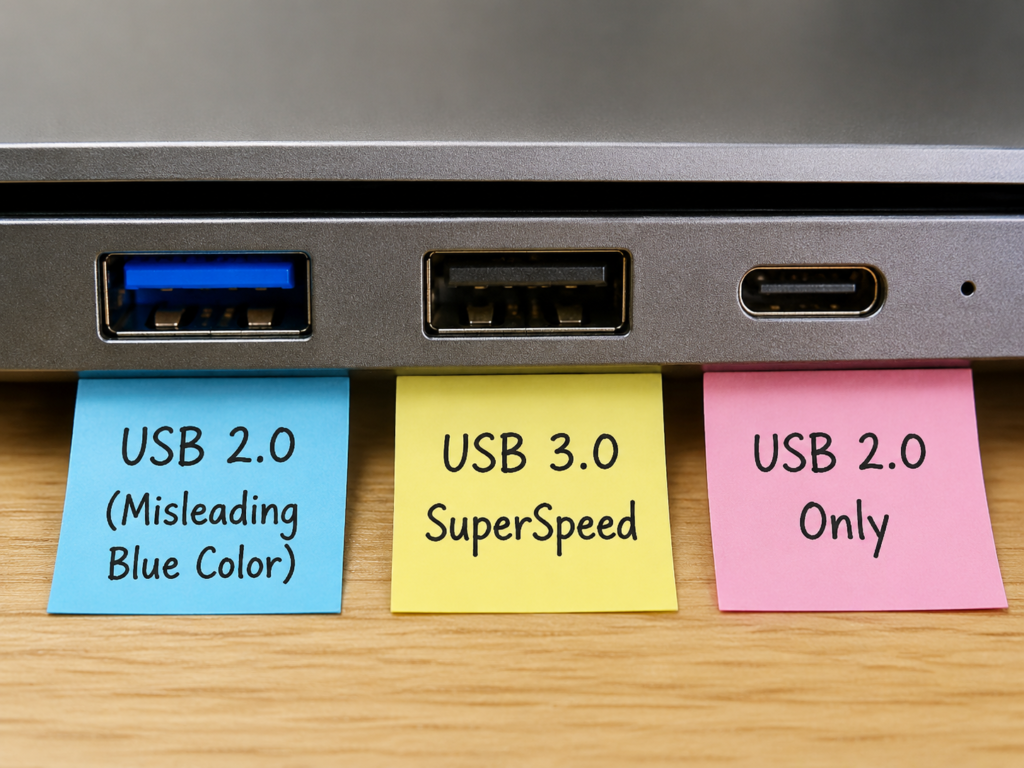
There is also the most common misunderstanding: interface shape equals speed. USB-A and USB-C are just the shape of the plug, and have no necessary connection to speed — many cheap USB-C port devices or cables only support USB 2.0 speed; conversely, old-fashioned USB-A ports can fully meet the USB 3.0 standard. As for the common saying that “a blue plastic insert means USB 3.0”, this is just a common identification method used by manufacturers, not a mandatory standard. Some merchants will also make USB 2.0 ports blue to mislead consumers. The most reliable judgment method is always to check the actual connection speed recognized by the system, not the interface color, cable appearance, or product title.
Next, don’t take theoretical speed as daily performance: 5Gbps does not equal 500MB/s. Many people think that the 5Gbps标称 of USB 3.0 equals 500MB of file transfer per second, which is actually a double misunderstanding of units and transmission overhead. The bandwidth unit标称 by USB is bit, while the file transfer speed we usually talk about is Byte. 8 bits make up 1 Byte, so to convert 5Gbps to MB/s, you first divide by 8, which is about 625MB/s. But this is only the theoretical peak at the physical layer, and does not count transmission overhead at all. During USB 3.0 transmission, part of the bandwidth is used for signal verification, just like filling out a waybill takes up space when sending a courier. Only 8 out of every 10 bits are used to transmit actual data (that is, 8b/10b encoding). After deducting this part, the effective link bandwidth is about 4Gbps, equivalent to about 500MB/s. This is still only the upper limit at the link level. When it comes to the actual file copying stage, additional overhead from transmission protocols, file systems, controllers, and storage media must also be deducted. For the best-performing USB 3.0 portable SSDs or solid-state flash drives on the market, sequential read/write speeds for large files can only reach 350-450MB/s, which is already the practical speed upper limit under the USB 3.0 interface. Also note: the “maximum speed” marked by manufacturers is almost always maximum sequential read speed. Write speed, small file speed, and long-term continuous write speed are usually much lower than the.
The normal speeds of different devices vary greatly, and you cannot use the standard of portable SSDs to require ordinary USB flash drives. Below is the normal speed range for a single large file, directly connected to the computer’s native USB 3.0 port, for your reference:
| Device Type | Common Read Speed | Common Write Speed | Remarks |
|---|---|---|---|
| Standard USB 3.0 Flash Drive | 80-150MB/s | 30-100MB/s | Budget drives may have write speeds of only 10-30MB/s |
| High-End Solid-State Flash Drive | 150-400MB/s | Varies greatly | Depends on flash memory particles and cache design |
| USB 3.0 Portable Mechanical Hard Drive | 80-160MB/s | 80-160MB/s | Affected by rotational speed, platter density, and SMR/CMR technology type |
| USB 3.0 Portable Solid-State Drive (PSSD) | 200-450MB/s | 200-450MB/s | Limited by USB 3.0 bandwidth, cannot reach the full performance of the SSD itself |
| USB 2.0 Device (Plugged into 3.0 Port) | ~20-40MB/s | ~20-40MB/s | The device itself is 2.0, so plugging into a faster port is useless |
These three types of “slowness” are normal phenomena and do not need to be repaired at all: The first is slow transfer of a large number of scattered small files. If you are transferring thousands of photos, a pile of documents, code, or chat history backups, a speed of only a few MB/s to 20MB/s is completely normal. The core reason is that each small file needs to create a directory and allocate space separately, resulting in particularly large additional overhead. The second is that the device itself is a low-speed model. The bottleneck of cheap USB flash drives, old portable hard drives, and low-end card readers is the internal storage medium, not the USB 3.0 interface. Even if the interface is 3.0, it cannot run fast. The third is a sudden speed drop after continuous writing. Many USB flash drives and portable SSDs write very fast at first, but after a while they drop to tens of MB/s. This may be because the built-in high-speed cache is exhausted, or the device temperature is too high and triggers protection. The speed will partially recover after cooling down or pausing the transfer.
So how do you judge if there is a real fault? The test method is very important. Don’t judge by the instantaneous peak at the start of copying or small file speed: find a single large file of 1GB or more, preferably 5GB or more (such as a high-definition movie), and copy it back and forth with the computer’s built-in SSD to check the average speed of the entire process. If the speed is stuck at 20-40MB/s for a long time, first suspect that the device is not running in USB 3.0 mode at all, but has dropped to USB 2.0; if the speed is far lower than the normal range of similar devices in the table above, and it remains the same after changing the port, cable, and computer, there may be a problem with the device, hard drive enclosure, or storage medium itself; if the speed is fast and slow, often drops to 0, or even prompts that the device is disconnected, first suspect cable, power supply, poor port contact, bad hard drive sectors, or system background occupation.
Plain-Language Principle: Speed Is Determined by the Slowest Link in the Entire Chain
Why is the speed not increasing even though the interface is USB 3.0? You can think of USB transmission as a tap water system: the final water flow rate is determined by the narrowest section of the entire pipeline, and has nothing to do with the thickest part.
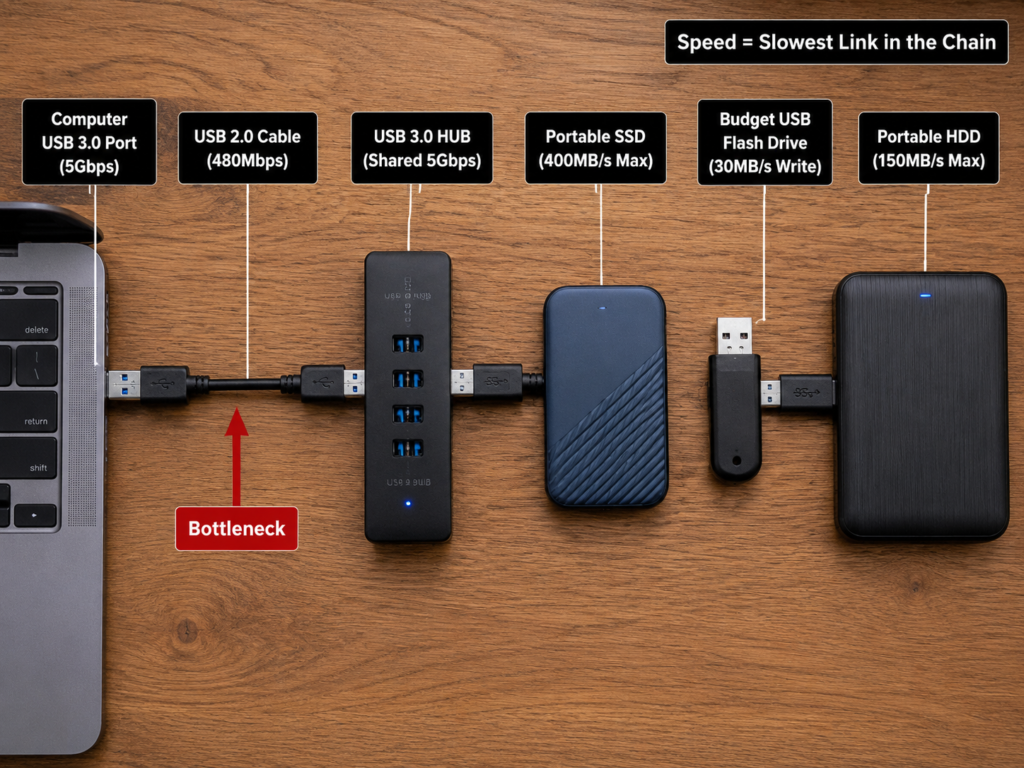
The complete path of a USB transmission corresponds to each part of the water pipe system: the computer’s USB controller and port are the main water supply pipe of the community, which determines the maximum water supply capacity; USB cables, adapters, docking stations, and HUBs are the water pipes in the home, through which water flows; the controller of the USB flash drive, portable hard drive enclosure, or card reader is the faucet, which determines the maximum speed at the water outlet; and flash memory particles, mechanical hard drives, and the computer’s local hard drive are the water tank. The water inlet/outlet speed of the water tank itself will also affect the overall flow. The complete path of data from the computer to the USB device is: computer hard drive/memory → USB controller → port → cable/adapter → device controller → storage medium. If any link in the middle is slow, the final speed will be dragged down.
A few of the most common examples will make you understand immediately: the computer port is USB 3.0, but you use a USB 2.0 cable, so the final speed can only be USB 2.0; both the computer and cable are USB 3.0, but you plug in an old USB 2.0 flash drive, so the final speed is still USB 2.0; the portable SSD itself is fast, but you copy files to the computer’s old mechanical hard drive, so the speed will be dragged down by the mechanical hard drive; if several high-speed devices are plugged under a USB 3.0 HUB, they will share the same upstream 5Gbps bandwidth, and the speed of each device will decrease when transferring files at the same time.
You don’t need to memorize all the causes. You can roughly guess where the problem is by looking at the speed performance: if it’s always only 20-40MB/s, it’s very likely that the connection speed has dropped to USB 2.0, so first check the port, cable, HUB, and adapter; if it starts at several hundred MB/s and drops to tens of MB/s after a while, it is commonly caused by exhausted high-speed cache, overheating speed reduction, insufficient remaining space, or continuous writing to an SMR mechanical drive; if large files are fast but small files are extremely slow, it is mostly a normal phenomenon caused by the number of files and additional overhead of the file system; if reading is fast but writing is slow, it is commonly caused by poor write performance of the USB flash drive/SSD itself, exhausted cache, slow target drive, or system write cache policy restrictions; if it is slow only on a certain computer, focus on checking the computer’s port, driver, power policy, background programs, and local hard drive; if it is slow only through a certain docking station, focus on checking the docking station’s specifications, power supply, chip quality, and shared bandwidth; if copying within the same USB device is slow, it is because the same device is reading and writing at the same time, so the speed will naturally drop significantly, which does not mean the USB interface is broken.
Most Common Cause: Actually Running in USB 2.0 Mode
If your speed is stuck at 20-40MB/s for a long time, a very common reason is that the device actually negotiates to USB 2.0 mode, not that the device is broken. Below are the most common causes of this type of connection problem, ranked by probability of occurrence from high to low.
The first and most common: plugged into the wrong USB 2.0 port. Many people just plug into any random port when inserting, not paying attention to whether it is a USB 3.0 port. Don’t judge only by the interface color. Two particularly easy pitfalls to note: first, the blue port on the front panel of a desktop computer may not work. Some chassis front USB 3.0 ports are not connected to the USB 3.0 pins on the motherboard at all, or the connection is loose, so they actually run at USB 2.0; second, the expansion ports on monitors and keyboards are mostly 2.0. The USB ports built into many monitors and keyboards are either USB 2.0 or have particularly severe shared bandwidth, so high-speed devices cannot run at full speed when plugged in. If you are unsure of the actual speed of the port, Windows users can use Device Manager or USB Tree View to check if it is in SuperSpeed mode. Mac users can check the Speed field in the USB section of System Report/System Information. Don’t judge only by the blue plastic insert.
The second easy to overlook: using a non-compliant USB cable. The cable is the most easily overlooked bottleneck. Many people just grab a random phone charging cable to transfer data, and then don’t know why the speed can’t go up. Common pitfalls include these: USB 2.0 cables can only support USB 2.0 transmission capacity, so the speed is naturally stuck at 20-40MB/s; some USB-C cables or charging cables included with phones are “charging-only cables”, which only have power wires and no data pins, so they do not support high-speed data transmission at all, and may even only charge and cannot recognize the device; there are also many cheap USB-C cables that only support USB 2.0 data, even if the interface is Type-C, the speed can’t go up. In addition, USB 3.0 has much higher requirements for signal quality than 2.0. The longer the cable, the higher the requirements for shielding and core wires. Inferior cables longer than 2 meters are very prone to speed reduction or instability. Prioritize using the original cable or a short cable of about 1 meter for testing. If your cable has these conditions: large speed fluctuations, frequent drive disconnection, disconnection when the cable is lightly touched, or the system prompts a device abnormality, it is most likely a cable problem. Replace it with a data cable confirmed to support USB 3.0/5Gbps and connect directly to the computer’s native port for testing. If the speed recovers, it means the cable is faulty.
The third common: docking stations, HUBs, and adapters hold back performance. If you use a docking station, HUB, or adapter, they may also become a bottleneck: all devices connected under a USB 2.0 HUB can only run at USB 2.0 speed; all downstream devices of a USB 3.0 HUB share the upstream 5Gbps bandwidth, and when multiple high-speed devices transfer files at the same time, the speed of each device will decrease; inferior docking stations have poor chips, insufficient power supply, and poor cable shielding, which may cause speed reduction, drive disconnection, or unstable connection; passive HUBs without independent power supply are very prone to insufficient power supply when connected to 2.5-inch mechanical portable hard drives, causing stuttering or drive disconnection. The judgment method is very simple: remove all docking stations, HUBs, and adapters, and plug the device directly into the computer’s native USB 3.0 port. If the direct connection speed is normal, it means the problem is with the intermediate device.
Fourth: insufficient power supply leads to unstable connection. Insufficient power supply is also a common problem, but it usually does not stably reduce speed to a certain level, but manifests as unstable connection. High-incidence scenarios include portable hard drives connected to the front port of a desktop computer, passive HUBs connected to multiple devices, laptops in battery mode, and decreased power supply capacity of USB ports on old computers. Common manifestations are fluctuating speed, interruption halfway through copying, abnormal noise from the hard drive, repeated appearance and disappearance of the device, and sudden drop of transmission speed to 0. The verification method is very simple: plug the device into the native motherboard port on the back of the desktop computer (which has the most stable power supply), replace it with a dual-head power supply cable or a HUB with independent power supply, and plug the laptop into the power supply before testing. If it becomes stable, it is a power supply problem.
There is also a problem that is often exaggerated: 2.4GHz wireless interference. Many people have heard that USB 3.0 interferes with wireless, but it is important to clarify: the electromagnetic noise of USB 3.0 devices and cables mainly interferes with 2.4GHz Wi-Fi, Bluetooth, and wireless mouse/keyboard receivers, and is usually not the main reason for slow USB storage transmission itself. If your USB speed is also abnormal, accompanied by stuttering of the wireless mouse and Wi-Fi speed reduction, it is mostly because the cable has poor shielding and poor port contact causes frequent retransmissions, which incidentally interferes with wireless signals. The solution is very simple: keep the wireless receiver 10-30 cm away from USB 3.0 portable hard drives and cables, use an extension cable, or plug the wireless receiver into a USB 2.0 port or the other side of the chassis.
In a few cases, there will be compatibility issues between the device and the computer, such as old USB 3.0 hard drive enclosures plugged into new USB-C/USB 3.2 ports, new devices plugged into particularly old computers, and poor firmware compatibility of old controllers. Common manifestations are that the device can only be recognized as USB 2.0 on a certain computer, but works normally on other computers, or a certain port often has speed reduction and drive disconnection. In this case, you can switch to a port of another USB controller on the computer (such as ports in different areas on the back of a desktop computer), update the chipset/USB driver, update the firmware of the hard drive enclosure, and replace the hard drive enclosure or adapter if necessary.
At this point, you must be wondering: how do I confirm the actual USB connection speed in the system? The method is very simple:
For Windows users, you can start with Device Manager, find your USB storage device, and see which USB controller it is connected to. If there is “SuperSpeed” related text, it is USB 3.x mode; for more accuracy, you can use the free USB Tree View tool, find your device, and look at the “Device Bus Speed” field. “High-Speed” means USB 2.0 (480Mbps), and “SuperSpeed” means USB 3.x (5Gbps or higher).
For Mac users, click the Apple icon in the upper left corner → About This Mac → System Report/System Information → select USB on the left, select your device, and look at the “Speed” field on the right. 5Gb/s means USB 3.0 level, and 480Mb/s means USB 2.0.
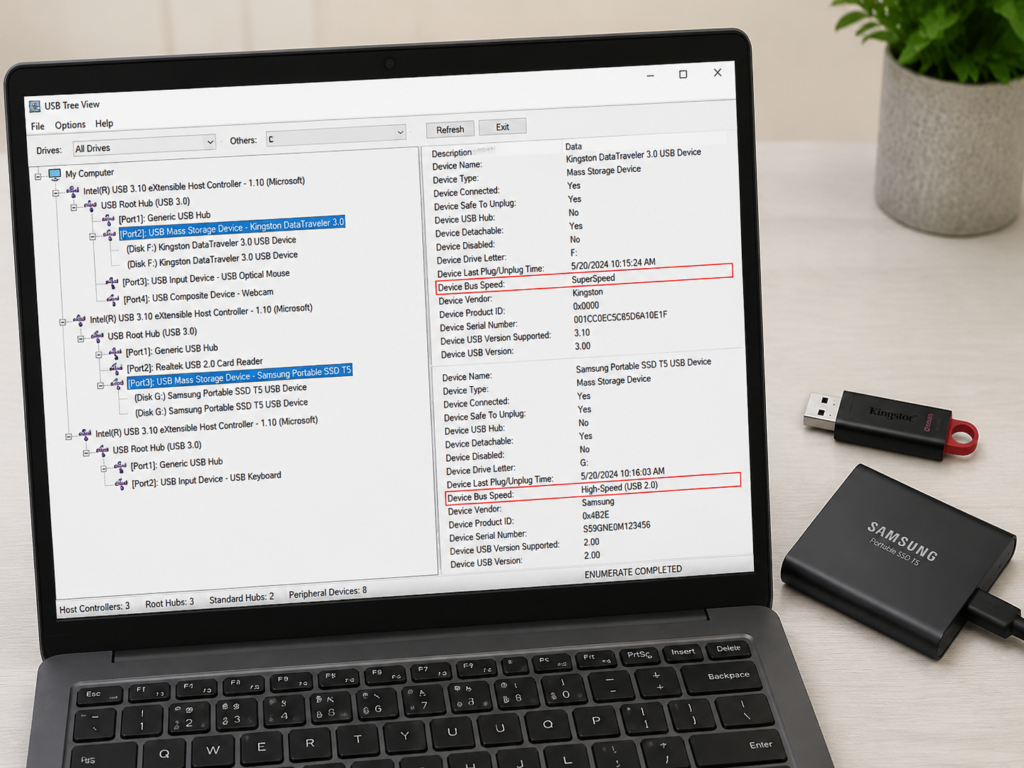
Remember: as long as the system shows High-Speed/480Mb/s, even if the interface is blue, it is actually running in USB 2.0 mode.
Easy to Misjudge: It’s Not That USB 3.0 Is Slow, It’s That the Device’s Own Performance Has Reached Its Limit
Many times you think USB 3.0 is slow, but in fact, the storage performance of the device itself has reached its limit, which has nothing to do with the USB interface — USB 3.0 is just a wide road. If the car itself can’t run fast, no matter how wide the road is, it’s useless.
The internal storage performance of different devices varies greatly, and many times the bottleneck is not the USB interface at all:
- Old USB flash drives, old card readers, old portable hard drive enclosures and other USB 2.0 devices can only run at USB 2.0 speed even if plugged into a USB 3.0 port;
- Cheap USB 3.0 flash drives have a USB 3.0 interface, but the internal flash memory and controller have weak performance, and the write speed is usually only 10-50MB/s, which is not much different from USB 2.0;
- Portable mechanical hard drives are limited by their mechanical structure, and sequential read/write speeds are usually only 80-160MB/s, which is impossible to approach the 400MB/s USB 3.0 upper limit;
- A USB 3.0 card reader is just a transmission channel, and the final speed depends on the grade and actual write capability of the SD card or TF card itself. Many cheap memory cards have write speeds of only a dozen MB/s;
- Also be wary of counterfeit expanded-capacity drives. These drives have extremely slow write speeds, and even files may be corrupted after writing. If you encounter abnormal capacity, immediately stop storing important data and replace it as soon as possible.
The slow small file transfer mentioned earlier is essentially an overhead problem of the device and file system. Each small file needs to create a directory record, allocate storage space, and write metadata. The more fragmented the files, the higher the proportion of additional overhead. For example: a single 10GB large movie may run at over 100MB/s when copied; but 100,000 small photos of 100KB each, with a total size of also 10GB, may only run at a few MB/s to twenty-something MB/s when copied. The judgment method is very simple: pack the small files into a zip or 7z compressed package and then copy. If the speed increases significantly, it means the bottleneck is mainly the additional overhead of small files, not a broken USB or device. Of course, packing cannot exceed the hardware speed limit of the device itself.
If the speed is fast at the beginning when transferring large files, and then suddenly drops after a while, it is mostly due to these reasons:
First, SLC cache exhaustion. Many USB flash drives and portable SSDs set aside a small piece of high-speed flash memory as a “temporary sorting area” (that is, SLC cache). When writing starts, data is first stored in the sorting area, so the speed is very fast; after the cache is full, it will drop to the actual write speed of the flash memory, which may drop directly from 300MB/s to tens of MB/s. Second, overheating speed reduction. Solid-state flash drives, portable SSDs, and hard drive enclosures will heat up during long-term large file writing. When the外壳 is hot to the touch, overheating protection may be triggered, automatically reducing speed. Third, insufficient remaining space. When an SSD/USB flash drive is nearly full, the available cache space decreases, and the cost of space organization increases, so the write speed will drop significantly. There is also the problem of SMR mechanical hard drives. Many large-capacity portable mechanical hard drives use SMR (Shingled Magnetic Recording) technology (a design to increase capacity and reduce cost, which sacrifices long-term continuous write speed). After the cache area is full, the speed will drop significantly. The solution is also very simple: leave enough remaining space for the device, transfer large files in batches, and improve heat dissipation; if you often need to write a large amount of data for a long time, it is recommended to choose a well-reputed portable SSD or CMR (Conventional Magnetic Recording) mechanical drive.
If your device used to have normal speed but suddenly slows down, you should also be alert to health issues. Risk signals for mechanical hard drives include abnormal noise, frequent stalling during copying, periodic speed drops to 0, and system prompts of I/O errors; risk signals for SSDs/USB flash drives include suddenly becoming read-only, abnormal capacity display, frequent drive disconnection, file corruption, and speed far lower than the previous normal level. In case of abnormal health, the first principle is to back up important data first, then consider speed testing, repair, or formatting. Inspection tools are also easy to find: Windows can check SMART information, use Disk Management or the chkdsk command; Mac can use the “First Aid” function of Disk Utility to check the SMART status.
Another easily overlooked factor is the file system format. The file system is the “storage rule” of the hard drive. Different formats have different characteristics, but usually they do not directly reduce the USB 3.0 connection speed to USB 2.0. They mainly affect small file efficiency, compatibility, and single file size limits: exFAT format can be directly read and written by both Windows and Mac, supports large files, and is suitable for scenarios where you often move between Windows and Mac, but its small file performance and reliability after abnormal power failure are not as good as journaled file systems; NTFS is the native Windows format, suitable for drives used only on Windows for a long time. Mac can only read by default, and additional drivers are needed for writing; FAT32 has particularly strong compatibility and is supported by almost all devices, but the maximum single file cannot exceed 4GB, so it is not suitable for large files and large-capacity portable drives; APFS/HFS+ are formats suitable for the Mac ecosystem, and Windows does not support them by default. Reminder: formatting will erase all data, so be sure to back up before operating. If the problem is with the cable, port, power supply, or hardware damage, formatting cannot solve it at all.
Finally, a semi-professional knowledge point: even for USB 3.0 hard drive enclosures, the transmission efficiency may be different, and the gap will be more obvious when using an SSD. This is because of different transmission protocols. The old BOT (Bulk-Only Transport) protocol is like a single-lane road, which can only process one command at a time, and has poor random read/write and multi-task performance; the new UASP (USB Attached SCSI Protocol) is like multiple lanes, which can process multiple commands at the same time, has lower latency, and is more suitable for high-speed SSDs. The gap between the two may not be obvious when transferring a single large file, but in scenarios such as multi-file copying and external system drives, the gap will be much larger. You can check the parameter description of the hard drive enclosure to see if it supports UASP. Windows Device Manager may show UASPStor related drivers.
Easy to Overlook: The Problem Is With the Computer Itself
If the speed is still slow after changing the device, changing the cable, and connecting directly to the native port, the problem may be with the computer.
The first common reason is abnormal USB driver or chipset driver. This situation is more common in old Windows computers after reinstalling the system, after a major system version update, or when the motherboard chipset driver is missing. The judgment method is very simple: open Windows Device Manager, and see if there is a yellow exclamation mark under “Universal Serial Bus controllers”, or if the device is repeatedly reconnecting. When solving the problem, prioritize going to the computer brand’s official website or the motherboard’s official website to download the chipset driver, USB driver, and BIOS/firmware update for the corresponding model. Do not use third-party driver tools to update randomly. Mac usually has built-in drivers, so there are generally no driver problems: if an Intel-based Mac encounters USB abnormalities, you can try resetting the SMC; for Apple Silicon Macs, usually just shut down and wait a few dozen seconds then restart, no need to specifically reset NVRAM.
The second reason is that system energy-saving settings reduce stability. To save power, the system enables some energy-saving settings by default, which may affect the stability of USB devices. For example, Windows’ USB selective suspend function will automatically suspend idle USB devices to save power. Some devices may stutter or become unstable when recovering. You can disable it in “Power Options → Change Plan Settings → Change Advanced Power Settings → USB Settings → USB Selective Suspend Settings”. In Windows, you can also set “Better Performance” in the device properties to enable write caching and improve speed, but you must develop the habit of “safely ejecting”, otherwise directly pulling out the drive may cause data loss. Mac users can uncheck the option “Put hard disks to sleep when possible” in Battery/Energy Saver settings. In addition, be sure to plug in the power supply when testing on a laptop, and turn off low power mode, otherwise battery mode may limit performance.
The third reason is that background programs抢占 resources. Many times slow USB transmission is not a problem with USB itself, but background programs that take up all CPU, memory, or local disk read/write resources, especially when copying small files, the impact is particularly large. Common background programs include real-time scanning of antivirus software, cloud synchronization software, download tools, backup software, photo indexing, and system updates. Judgment method: Windows checks CPU and disk usage in Task Manager; Mac checks CPU and disk activity in Activity Monitor. For temporary verification, you can pause cloud synchronization, antivirus real-time scanning, and download tasks, then copy the same large file to compare the speed.
The fourth easy pitfall: the computer’s local hard drive will also slow down the speed. You think the USB device is slow, but in fact, the computer’s local hard drive cannot read or write fast enough. For example, if you copy files from a USB device to a nearly full mechanical hard drive, an old system drive, or a drive that is being occupied by background tasks, the speed will definitely not be fast. Judgment method: first put the large test file into the computer’s built-in SSD, then copy it back and forth with the USB device. If the speed becomes significantly faster, it means the bottleneck is the local hard drive. You can also test “computer SSD → USB device” and “USB device → computer SSD” separately to distinguish whether the USB device has slow write or slow read.
Another easily overlooked point: multiple USB interfaces on the computer may be connected under the same USB controller or the same internal HUB, sharing the total bandwidth. If you plug in multiple high-speed devices at the same time (such as portable hard drives, capture cards, cameras, USB network cards, docking stations), the bandwidth allocated to each device will be less. Judgment method: unplug other USB high-speed devices, leave only the target device for testing; or switch to the interface on the other side of the computer, or ports in different areas on the back of the desktop computer. If the speed becomes faster, it means it is a shared bandwidth problem. In high-load scenarios, you can consider adding a PCIe USB expansion card, or分散 devices to different controllers.
10-Minute Step-by-Step Troubleshooting Process: From Easy to Hard, No Need to Memorize All Causes
You don’t have to memorize all the above reasons. Follow this process from easy to hard, and you can find the general problem direction in 10 minutes.
Step 1: Confirm If It’s a Real Fault (2 Minutes)
Use a single large file of 5GB or more, copy it back and forth between the computer’s built-in SSD and the USB device, and record the average speed of the entire process (don’t look at the instantaneous peak at the very beginning). Compare with the normal speed table above to judge: for 20-40MB/s, first check for USB 2.0 downgrade issues; 80-160MB/s may be normal for a portable mechanical hard drive; 200-450MB/s is usually normal for a USB 3.0 portable SSD.
Step 2: Troubleshoot External Connections (3 Minutes)
Do three operations, and test the speed after each one: first, plug the device into the native USB 3.0 port on the back of the desktop motherboard, or another port on the laptop that clearly supports USB 3.x; then replace it with an original short data cable confirmed to support USB 3.0/5Gbps; finally, remove all docking stations, HUBs, adapters, and monitor USB ports, and let the device connect directly to the computer. If the speed recovers, it means the problem is with the port, cable,转接 device, or power supply link.
Step 3: Cross-Test to Locate the Problem Side (2 Minutes)
Do two tests: plug the same USB device into another normal computer for testing; plug another known normal USB 3.0 device into the same computer for testing. If the problem follows the device (still slow after changing the computer), focus on checking the USB flash drive/portable hard drive/hard drive enclosure/card reader/memory card itself; if the problem follows the computer (still slow after changing the device), focus on checking the computer’s port, USB controller, driver, system settings, local hard drive, and port shared bandwidth; if the problem only follows a certain cable or a certain HUB, directly replace the corresponding accessory.
Step 4: Rule Out Software, Power, and System Interference (2 Minutes)
Pause background tasks such as antivirus scanning, cloud synchronization, downloading, and backup; plug the laptop into the power supply, turn off low power mode, and Windows users can temporarily disable USB selective suspend if necessary; portable mechanical hard drives should优先 be connected to the rear motherboard port or an independently powered HUB; open Task Manager/Activity Monitor to confirm that CPU and disk are not under long-term full load. If the speed recovers, it means it is a system or power supply problem.
Step 5: Confirm Negotiated Speed and Device Limit (1+ Minutes)
Check the USB negotiated speed recognized by the system according to the method mentioned earlier, confirm whether it is SuperSpeed (5Gb/s) or High-Speed (480Mb/s), and at the same time check whether there is a yellow exclamation mark on the USB controller or storage device in Windows Device Manager; for more accurate testing, you can use professional speed testing tools: Windows uses CrystalDiskMark, Mac uses Blackmagic Disk Speed Test or AmorphousDiskMark (sequential read/write reflects large file speed, random read/write reflects small file experience). If you still can’t find the problem, you can do advanced processing: update the chipset/USB driver, check the hard drive SMART health status, and update the hard drive enclosure firmware or replace the hard drive enclosure if necessary.
Common Misconceptions and Practical Decision Guide
First, let’s talk about the 6 most common cognitive misconceptions to help you avoid detours:
- Misconception 1: A blue interface must be USB 3.0. In fact, color is just a common标识 used by manufacturers, and the actual connection speed recognized by the system shall prevail.
- Misconception 2: USB 3.0 must run above 500MB/s to be normal. In fact, most USB flash drives and mechanical hard drives cannot reach this speed at all. For top USB 3.0 devices, large file sequential read/write speeds of 350-450MB/s are already close to the upper limit.
- Misconception 3: USB-C must be faster than USB-A. In fact, USB-C is just the plug shape, and many Type-C devices and cables only support USB 2.0 speed.
- Misconception 4: Slow small file transfer means the USB is broken. In fact, slow transfer of a large number of small files is normal additional overhead, not a fault.
- Misconception 5: Formatting will definitely solve the problem of slow USB 3.0. In fact, formatting cannot solve problems with cables, ports, power supply, or hardware health. It is only useful for small problems caused by the file system.
- Misconception 6: The read speed标称 by the manufacturer equals the daily copy speed. In fact, what the manufacturer marks is the maximum sequential read speed, and the speed of writing, small files, and long-term continuous transmission is usually much lower.
Several practical tips to avoid pitfalls: when buying a cable, be sure to confirm that it supports USB 3.0/5Gbps or higher data transmission. Don’t just look at descriptions like “fast charging cable” or “65W cable”. Many fast charging cables only have charging function; prioritize using short cables, original cables, and branded cables, and avoid overly long unshielded inferior cables; portable hard drives should优先 be directly plugged into the computer’s native USB 3.0 port, and try to use fewer docking stations and front panel ports; for speed testing, use a single large file or professional speed testing tools to see the average speed, don’t stare at the instantaneous peak at the beginning of the copy window; when portable SSDs and solid-state flash drives are writing a large amount of data, don’t stuff them in a bag or stick them to a heat source to avoid overheating speed reduction; don’t put wireless mouse and keyboard receivers close to USB 3.0 devices and cables.
Finally, let’s talk about when to replace accessories, contact after-sales support, or upgrade the device: if the speed jumps between USB 2.0 and USB 3.0, disconnects when the cable is touched, and the speed returns to normal after changing the cable, just replace the cable directly; if the device works normally when directly connected to the computer, but slows down or disconnects when passing through a docking station or HUB, replace the HUB/docking station; if the SSD itself has normal speed, but the external hard drive enclosure does not support UASP, frequently disconnects, has poor heat dissipation, or has poor compatibility, replace the hard drive enclosure; if the speed is far lower than the normal range of similar devices when tested on multiple computers, with multiple cables, and directly connected to the native port, contact the device’s after-sales support; if all USB 3.0 ports on the computer are slow no matter what device is plugged in, and it is still invalid after driver updates and system troubleshooting, find a computer repair service; if a portable mechanical hard drive runs at around 100MB/s which is close to the normal upper limit, and you need faster speed, upgrade to a portable SSD or a device with a higher interface standard.
Summary
There seem to be many reasons for slow USB 3.0 transmission, but as long as you judge according to the logic of “speed performance → link troubleshooting → device limit”, you won’t be confused: if the speed is stuck at 20-40MB/s for a long time, first judge whether it is actually running in USB 2.0 mode, and check the port, cable, and docking station first; if large files are fast but small files are slow, it is mostly the normal overhead of file quantity and file system, not necessarily a fault; if it is fast at first and then slow, focus on checking high-speed cache, temperature, remaining space, SMR mechanical drives, and device health; if it is slow only on a certain computer, focus on checking the computer’s USB port, driver, power policy, background programs, and local hard drive; if direct connection is normal but slow through a docking station, the problem is mostly with the HUB, adapter, shared bandwidth, or power supply.
The most practical troubleshooting order is always: test large files → change to native port → change to USB 3.0 short cable → remove HUB → cross-test → check system negotiated speed → check device health. Finally, remember: anything that can be recovered by changing the port, changing the cable, or modifying settings is a connection or system problem; if tests with multiple devices and multiple computers are abnormal, prioritize backing up important data before considering after-sales support or replacing the device.