
Have you ever encountered this situation: your external monitor suddenly goes black mid-meeting, your portable hard drive disconnects without warning when transferring large files, your keyboard and mouse stop responding out of nowhere—unplugging and replugging the dock fixes it, but the problem comes back later, with no discernible pattern, like some kind of “mystery glitch.”
Many people’s first reaction when this happens is “the dock is broken,” so they immediately buy a new one, only to find the disconnection still happens after replacing it. In fact, most random disconnections of USB-C docks are not actually “broken”—it’s just that a small link happens to hit the critical point of stability. We’ll start with the easiest-to-troubleshoot small issues and help you locate the cause step by step, even complete beginners with no technical knowledge can follow along.
First, Figure Out: Is What You’re Experiencing True Random Disconnection?
Not all “disconnections” are faults; many are normal system responses. Don’t rush to mess with things yet.
Three Criteria for a True Fault
Random disconnections that truly need troubleshooting usually meet these three characteristics:
First, there is no fixed trigger pattern—it doesn’t only happen every time you plug in a hard drive or start a video conference, but disconnects randomly during normal use;
Second, the disconnection actually affects use—you either have to unplug and replug the dock to recover, or even if it reconnects automatically, it frequently interrupts display, network, or file transfer;
Third, the recurrence frequency is high enough—it disconnects several times a day, or problems occur as soon as there is high load, which has already affected normal use.
If it only occasionally disconnects once every ten days or half a month, it’s most likely a sporadic system fluctuation, so don’t worry too much about it.
These Situations Are Actually Normal, Don’t Misjudge Them as Faults
There are several situations that look like “disconnections” but are actually normal system mechanisms:
- After waking from sleep or lock screen, external devices take 1-2 seconds to reconnect: this is the system re-identifying all external devices. It’s completely normal if it happens occasionally; it’s only a problem if recognition fails every time you wake the device;
- Brief black screen when switching resolution, refresh rate, HDR, or display mode: this is the display link resynchronizing signals, and it usually recovers within a few seconds;
- Brief reconnection the moment a high-power peripheral (such as a portable hard drive, capture card) is plugged in: this is the dock reallocating power, which is a protection action. You only need to troubleshoot power supply issues if the power drops repeatedly;
- Slow recognition of external devices after the first restart following a system update: this is drivers and permissions reloading. It’s fine if everything works normally afterward.
First Distinguish the Type: Whole Dock Disconnection vs Single Function Abnormality
Different types of disconnections have completely different troubleshooting directions. Take 10 seconds to judge first:
If it’s whole dock disconnection—monitor, keyboard/mouse, network port, and hard drive all drop offline at the same time—then prioritize checking power supply, cables, interface contact, and the dock’s own firmware and hardware;
If it’s single function abnormality—only the monitor goes black, or only the network port disconnects, while other devices work normally—then prioritize checking the link of the corresponding function, no need to mess with the entire dock;
If it’s just occasional lag, but the device never actually disconnects, it may be due to crowded bandwidth, driver power-saving strategies, or problems with the peripheral itself, not necessarily the dock’s fault.
Note These 3 Things in 30 Seconds to Cut Troubleshooting Time in Half
Before starting troubleshooting, simply record three pieces of information, which will make locating the problem much faster later:
- Trigger scenario: Is it more likely to disconnect when touching the cable, overheating, connecting a hard drive, the computer is under high load, waking from sleep, starting a video conference, or plugging/unplugging the charger?
- Scope of impact: Which devices have problems? Are the monitor, keyboard/mouse, network port, external drive, camera, and charging function working or not?
- Simple verification: Will the peripheral disconnect if plugged directly into the computer? Will it work better if you plug the dock into another USB-C port on the computer?
Safety reminder: If your dock is connected to a portable hard drive or SSD, first pause write tasks such as large file copying, editing cache, and system backup, and back up important data to other stable storage before troubleshooting. Frequent disconnections can easily cause hard drive data damage. Also, do not upgrade the dock firmware or flash the computer BIOS at this time—if it disconnects halfway, it will cause even bigger problems.
Plain Language Introduction: Why Do USB-C Docks “Work Intermittently”?
Many people think “it’s all a USB-C port, it should work when plugged in”—this is actually the biggest misunderstanding.
USB-C Is Just the Interface Shape, It Doesn’t Mean All Functions Are the Same
Even with the same USB-C shape, whether it’s the port on the computer or the connecting cable, the capabilities can be vastly different:
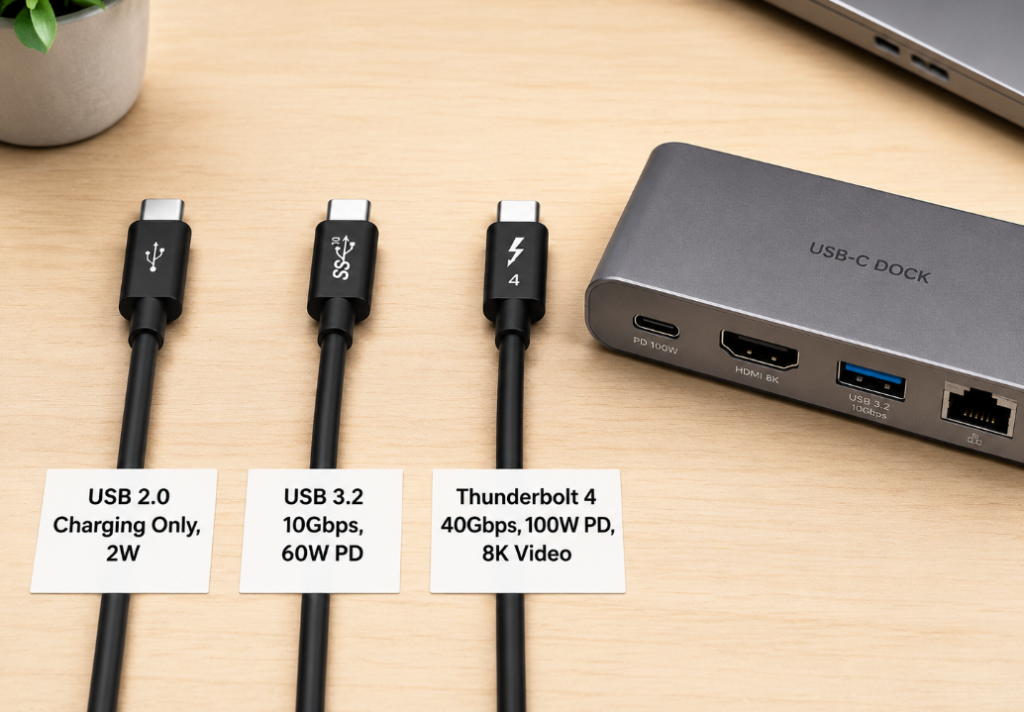
- Some USB-C ports on computers can only charge, some can only transfer USB data, and some support video output, high-speed data, and fast charging at the same time (commonly known as “full-featured C port”);
- The same goes for USB-C cables: some are just USB 2.0 cables that can charge, some support USB 3.x high-speed data, and some support USB4, Thunderbolt, video output, and high-power PD fast charging;
- Put simply, “can plug in, can charge” is not at all the same as “can stably transmit video and high-speed data”, which is why many cheap cables are prone to disconnection during use.
Here’s a small knowledge point: some high-spec USB-C cables have a built-in E-marker chip, which is equivalent to the cable’s “ID card”, used to identify the current, power, and high-speed transmission capabilities it supports. It is commonly found in cables that support 5A high-power PD, USB4/Thunderbolt. Cables without clear specification markings are not recommended for connecting docks, but they cannot be simply equated with “poor-quality cables”—many ordinary low-power charging cables are not designed for high-speed data or video transmission in the first place, they just have different uses. If you use a cable with mismatched specifications, the device may misjudge the cable’s capabilities, leading to instability.
A Dock Is Essentially “One Cable Handling Multiple Things at the Same Time”
A dock looks like it turns one C port into several interfaces, but in fact all functions are transmitted through that one connecting cable:
- It has to transmit power: charge the laptop on one side, and power the connected USB devices on the other;
- It has to transmit video: output the display picture to an external monitor, and may also support multiple screens;
- It has to transmit data: keyboard/mouse, network port, hard drive, card reader, camera—all data goes through this cable.
With so many tasks crowded on one link, any failed negotiation in any link, insufficient power, insufficient bandwidth, or driver problem may manifest as random disconnection—it’s not that the dock is “broken”, it’s just that a certain condition is not met.
Plain Language Explanations of Several Key Terms
Several terms will be mentioned in later troubleshooting. Let’s translate them into plain language first. You don’t need to memorize them, just come back and check when you encounter them:
- PD (Power Delivery): The fast charging protocol of USB-C. Simply put, it’s the rule for devices to “discuss” how much power to use for charging;
- DP Alt Mode (DisplayPort Alternate Mode): A mode for transmitting DisplayPort video signals through the USB-C interface, which is the most common USB-C video output method;
- Thunderbolt/USB4: Higher-bandwidth USB-C transmission standards, with bandwidth several times larger than ordinary USB-C, capable of handling multi-screen display, high-speed storage, and more peripherals at the same time. Most professional docks use this standard;
- DisplayLink: A solution for transmitting pictures through USB data compression, commonly found in multi-screen docks. It can extend the screen without the computer’s native support for video output, but it still relies on a stable USB data link, official drivers, and corresponding system permissions. Its stability is also affected by driver version, USB bandwidth occupation, and host load;
- Firmware: The dock’s own “small system”, which manages compatibility, sleep wake-up, PD negotiation, and stability. Just like a computer’s system, updating firmware can sometimes solve many strange problems.
Why Is It “Random” Disconnection, Not Always Broken
Many people think “if it’s a cable problem, it should always be broken, why does it work sometimes?” In fact, random disconnection is essentially “a certain condition just triggers the critical point of stability”:
- When the temperature rises, the chip in the dock will downclock or trigger overheat protection, and it will work normally when cold;
- When multiple devices work at the same time, power consumption and bandwidth both increase, while they are sufficient under light load;
- The cable is a little loose, several internal cores are broken, or the interface is dusty, so the contact state is intermittent;
- Sleep wake-up, system updates, and changes in power-saving strategies will change the order in which the system recognizes devices, and occasionally it will fail to recognize them.
So it’s not a mystery at all—you just haven’t found the trigger condition yet.
Detailed Explanation of Common Causes: From Easiest to Find to Most Hidden
We sort them by the difficulty of troubleshooting, starting with problems that don’t cost money and can be tested in 1 minute.
1. Physical Connection and Cable Problems: Check First
This is the most common cause, and also the most easily overlooked.
Typical manifestations: Immediate disconnection when touching the cable, moving the computer, or bending the cable; only some devices can be recognized; the monitor occasionally goes black; the portable hard drive prompts “was not properly ejected”.
Common triggers:
- Using a low-speed charging-only cable, or an unmarked USB-C cable of unknown origin to connect the dock, which simply cannot handle high-speed data and video;
- The cable is too long, especially in scenarios of high-resolution display, high-speed hard drives, and Thunderbolt/USB4. The longer the cable, the more severe the signal attenuation, and the higher the probability of instability. Generally speaking, high-speed cables are best no longer than 1 meter;
- The cable is frequently bent, several internal wire cores are broken, resulting in intermittent contact;
- The USB-C port of the computer or dock is dusty, oxidized, or worn due to frequent plugging and unplugging, resulting in poor contact;
- A direct-plug dock is directly plugged into the side of the computer, it has its own weight, and it pulls the interface for a long time, resulting in loose contact;
- In a few cases, being close to strong interference sources such as wireless chargers, cheap power strips, and high-power power adapters, electromagnetic interference will affect high-speed signals, leading to random disconnections.
Quick verification methods: - Replace with an original or clearly marked full-featured/USB4/Thunderbolt short cable, prioritize specifications within 1 meter. Long cables will significantly increase attenuation of high-speed signals;
- Place the dock flat on the desktop and fix it, to avoid the cable and interface being suspended under stress. For direct-plug docks, you can use a short extension cable to reduce pulling;
- Use compressed air or a dry brush to clean the interfaces of the computer and dock. Do not scrape with hard objects such as metal needles, to avoid damaging the internal reeds;
- Move the dock to a position more than 30 cm away from strong interference sources such as wireless chargers, cheap power strips, and high-power power adapters for testing.
For example: many people buy direct-plug docks, hang them on the side of the computer, and they easily disconnect when touched. Placing the dock flat and connecting it to the computer with a short full-featured cable immediately makes it stable—this is poor contact caused by stress on the interface.
2. Insufficient Power Supply and Unstable PD Negotiation: Invisible Common Cause
Many people think “the charger is marked 65W, that’s enough”, but in fact the power of the dock needs to be “calculated”, which is also the most easy-to-step-in invisible pit.
Typical manifestations: Disconnection after connecting high-power peripherals such as portable hard drives, cameras, and capture cards; when the computer is under high load, the charging icon flickers back and forth; it is more likely to drop offline when multiple devices are used at the same time; when plugging or unplugging the power adapter, the entire dock restarts.
Core logic: The available power of the dock is not as much as the charger’s marked value—the dock’s own main controller, network card, and video chip all consume power. The self-consumption must be deducted first, and the rest is distributed to the computer and external peripherals.
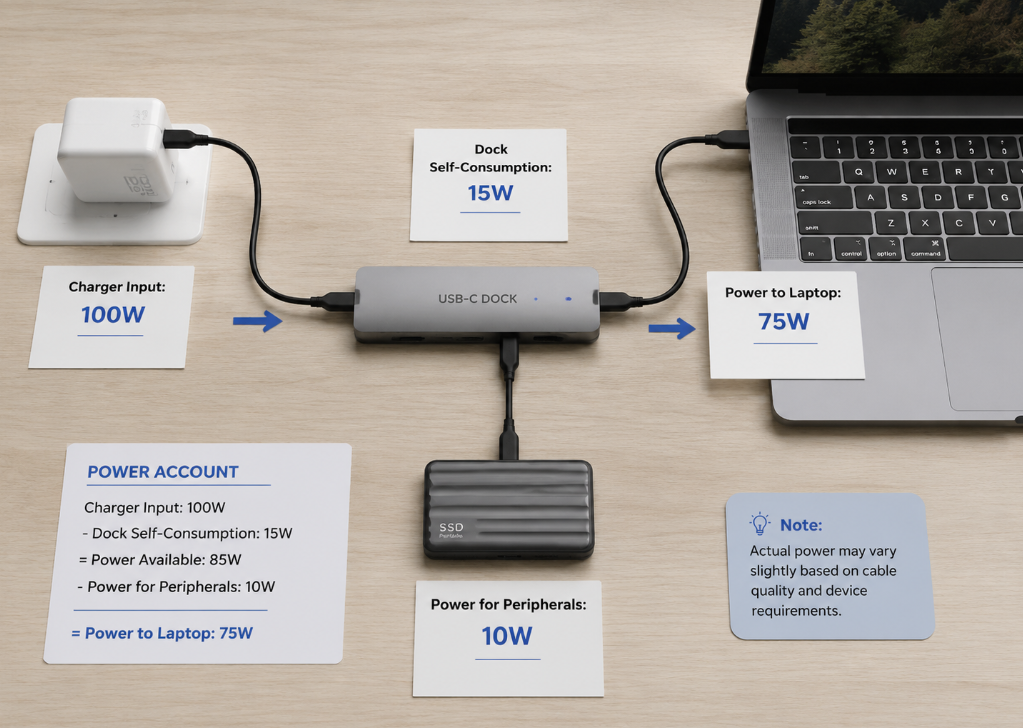
We can simply calculate a “power account”:
- Charger input power: for example, common 65W, 100W, 140W;
- Dock’s own power consumption: varies greatly by model, from a few watts to more than twenty watts. It depends on the main controller solution, number of interfaces, and display chip configuration. The actual available power needs to deduct this part of self-consumption first;
- Actual output power to the computer: input power minus the dock’s self-consumption, the rest is for the computer;
- Available power for USB peripherals: devices such as external hard drives, cameras, and capture cards need to share part of the power from it.
For example, if you use a 65W charger to connect a dock with 10W self-consumption, the maximum power to the computer is only 55W. If your laptop itself needs 60W under high load, and then you plug in a 10W portable hard drive, the power will be insufficient, and naturally disconnection will occur. This is just a simplified example to help understand power distribution, actual values vary by device model.
Common triggers: - Using a low-power or unstable-quality PD charger;
- The dock has no independent power supply, relying entirely on the computer’s USB-C port for reverse power supply, which cannot drive too many peripherals;
- Poor contact of power strips, plugs, and adapters, resulting in intermittent power supply;
- High-power peripherals are all plugged into the dock, exceeding the power supply capacity;
- The laptop itself requires relatively high power, and the dock’s power margin is insufficient.
Quick verification methods: - Replace with the computer’s original or higher-power compliant PD charger, leaving sufficient power margin;
- Temporarily unplug high-power peripherals such as portable hard drives, cameras, and capture cards, and observe whether disconnection still occurs;
- For high-power hard drives, use a hard drive enclosure with its own power supply, or connect it separately to a USB Hub with independent power supply;
- Observe whether the computer’s charging icon switches repeatedly. If this happens, it is most likely unstable power supply negotiation.
For example, someone was in a video conference, connected a camera, microphone, and external hard drive at the same time, and the keyboard/mouse and network port all disconnected halfway. After replacing with a 100W PD charger, the problem never happened again—essentially, the original charger had insufficient margin, and the power was not enough under high load.
3. Bandwidth Overload and Function Incompatibility: Common in Display and Multi-Device Scenarios
If only the monitor has problems and other devices work normally, it is most likely a bandwidth or compatibility issue.
Typical manifestations: Only the monitor has black screen/flicker, other USB devices are normal; disconnection when using dual screens, normal when using single screen; instability after turning on HDR with 4K60; more display abnormalities when transferring files with high-speed hard drives.
Core logic: The total bandwidth of the dock is fixed, and the monitor, USB devices, network port, and card reader all share the bandwidth. The “supports 4K” “supports 10Gbps USB” advertised by many products are the maximum capacity of a single interface, and do not mean that all interfaces can reach full load at the same time.
Common triggers:
- The computer’s USB-C port does not support video output at all, or only supports low-spec USB data, so naturally it cannot be used stably when plugged in;
- Plugged into the wrong interface: many computers only have specific USB-C ports that support Thunderbolt, USB4, or DP video output, other C ports can only charge or transfer data. Plugging into the wrong one will result in being able to charge but unstable display;
- Resolution, refresh rate, HDR, and color depth are too high, exceeding the upper limit of the dock or computer;
- Dual-screen output exceeds bandwidth, especially in scenarios of dual 4K60, 4K high refresh rate, and multi-screen HDR, which have very high bandwidth requirements;
- DisplayLink solution docks do not have drivers installed, or system permissions are not enabled, resulting in unstable display;
- Special mention for Mac users: ordinary USB-C MST dual-screen extension has limited support on macOS. The specific performance varies by Mac model, chip level, system version, and dock solution. Some models only support mirror display, and some may experience instability. If you need stable dual-screen extension, first confirm whether the dock is a Thunderbolt native multi-screen solution, DisplayLink solution, or ordinary MST solution that only supports mirroring.
Quick verification methods: - First lower the display specification for testing, for example, change 4K60 to 4K30, turn off HDR, appropriately lower the refresh rate or color depth;
- First test stability with a single screen, and then gradually add a second screen after confirming there is no problem;
- Temporarily unplug devices that occupy a lot of bandwidth such as high-speed storage and capture cards, and observe whether the display becomes stable;
- Plug the dock into the full-featured USB-C port on the computer with Thunderbolt, USB4, or DP markings;
- DisplayLink docks must have official drivers installed, and check whether system permissions such as screen recording and accessibility are enabled.
Take a common example: a user connected two 4K monitors plus a portable SSD to transfer materials at the same time, the monitor frequently went black, and it became stable after changing to a single 4K60 screen—this is a typical bandwidth overload, where multiple devices used at the same time filled up the total bandwidth.
4. System Settings, Driver and Firmware Abnormalities: Invisible Causes on the Software Side
If the same dock works fine on other computers and only has problems on your computer, it is most likely a software-side cause.
Typical manifestations: Disconnection after a few minutes of idling; must disconnect after waking from sleep; problems suddenly start after a system update; company-issued computers are more prone to problems.
Common causes vary by system:
- Windows system: The most common is USB selective suspend, where the power-saving strategy automatically turns off the device; in Device Manager, USB root hubs, network cards, and Thunderbolt controllers are set to “Allow the computer to turn off this device to save power”; chipset drivers, graphics card drivers, and Thunderbolt controller drivers are too old; Fast Startup, Modern Standby, and enterprise security policies may also affect the wake-up and recognition of peripherals.
- macOS system: Peripheral re-recognition fails after waking from sleep; DisplayLink driver or permission abnormalities; system version is incompatible with dock firmware; when using with the lid closed, if the conditions for power supply, external monitor, and Bluetooth keyboard/mouse are not met, it may also cause disconnection.
- Linux/Chromebook: Incomplete support for kernel version, graphics driver, USB4/Thunderbolt authorization, and DisplayLink; overly aggressive power management strategies are also prone to random disconnections.
Quick verification methods:
First update the system, chipset drivers, graphics card drivers, network card drivers, Thunderbolt/USB4 drivers, and the dock’s firmware to the latest versions. However, note that if the current external storage frequently drops offline, the charging icon flickers repeatedly, or the dock often restarts as a whole, do not upgrade firmware, drivers, or BIOS through this dock first. First replace with a stable power supply, connect the device directly to the computer, or remove external storage before operating, to avoid more serious problems caused by mid-way disconnection.
Temporarily turn off the USB power-saving strategy and try; connect the dock to another computer for testing to distinguish whether it is a system problem or the dock itself; if you want to further confirm, you can check the system’s device status and logs: for Windows, check if Device Manager refreshes repeatedly, and whether there are records of USB, display, and network disconnections in Event Viewer; for Mac, check whether USB/Thunderbolt devices in “System Report” disappear and reappear; for Linux, check dmesg logs for information related to USB reset, disconnection, over-current, and Thunderbolt authorization.
5. Dock Body Hardware Defects and Aging: Judge After Cross-Verification
If you have tried all the above and it still disconnects, then consider whether it is the dock’s own problem. Don’t blame the product quality right away.
Typical manifestations: After 1-2 hours of continuous use, the casing is abnormally hot to the touch, and then frequent disconnections occur; after changing the cable, power supply, and computer, it still disconnects randomly; a certain interface drops off with a light touch; an old dock that has been used for several years and is out of warranty has increasingly poor stability.
Common triggers:
- Low-priced docks use poor-quality main controller chips, which are prone to crashing under high load;
- Poor heat dissipation design, when using multiple screens or high-speed transmission for a long time, the temperature is too high and triggers overheat protection;
- Worn USB-C female port, fatigued reeds, loose internal solder joints, resulting in poor contact;
- The product itself has design defects, and the manufacturer does not provide firmware updates to fix them;
- Long-term use in high-temperature environments, or frequent plugging and unplugging, leading to component aging.
Quick verification methods:
First cool down the dock, place it on a ventilated hard desktop, or try blowing it with a small fan; use the same cable and same power supply to connect the dock to another confirmed compatible computer for testing; then use a known stable dock to connect to your computer and peripherals for comparative testing; if after cross-verification, the problem follows the dock, then it is basically the dock’s own problem.
Practical Troubleshooting Process: Step by Step from Easy to Difficult to Locate
The most taboo thing when troubleshooting is changing several settings at the same time—for example, changing the cable, changing the power supply, and modifying system settings all at once. Even if it gets better, you don’t know which step worked, and you will step into the pit again next time. Remember a core principle: change only one variable at a time. After each change, observe for 10-15 minutes, or deliberately perform the operation that most easily triggered disconnection before, then record what you changed, whether it recurred, how long it took to recur, and which devices went offline. This way you can quickly find the root cause.
5-Minute Quick Troubleshooting: First Rule Out Small Problems That Don’t Cost Money
First spend 5 minutes trying these things, many problems can be solved directly:
- Plug all interfaces tightly: unplug and re-plug firmly at the computer end, dock end, power end, peripheral end, and display cable end;
- Switch to another USB-C port on the computer, prioritize the full-featured port with Thunderbolt, USB4, or DP markings;
- Use compressed air or a dry brush to clean the USB-C interfaces of the computer and dock. Dust accumulation can also cause poor contact;
- Restart the computer, then reconnect the dock. Sometimes it’s just a temporary system glitch;
- If it’s a direct-plug dock, don’t let it hang and pull the interface, place it flat on the desktop, and connect to the computer with a short cable.
15-Minute Step-by-Step Isolation: Find the Specific Trigger Source
If the 5-minute troubleshooting doesn’t work, use the “gradually add devices” method to locate, and you can find which link has the problem in about 15 minutes:
First build a minimum system: only connect the power supply, dock, and low-power keyboard/mouse, do not connect devices such as monitors, hard drives, and cameras, and see if it still disconnects.
If the minimum system is stable, add devices one by one: first connect the monitor, observe whether there is black screen or flicker disconnection; then add network port, card reader, camera; finally connect high-speed storage devices. After adding each device, observe for 10 minutes, or perform the operation that easily triggered disconnection before. Whichever device you add that starts the disconnection, focus on checking the power consumption, bandwidth, driver, and cable of that device.
If the minimum system still disconnects, then prioritize checking the USB-C cable, power adapter, computer interface, and the dock itself, no need to mess with peripherals.
30-Minute In-Depth Cross-Verification: Narrow Down the Fault Range
If step-by-step isolation still can’t find a clear trigger source, you can spend 30 minutes doing cross-verification, which can usually narrow the fault range to cables, power supply, computer, display specifications, or the dock itself:
- Change the cable: Use original cable, USB4 cable, or Thunderbolt cable, do not use unmarked long cables;
- Change the power supply: Use the computer’s original one, or a higher-power compliant PD charger;
- Change the computer: Connect the dock to another confirmed compatible computer for testing;
- Change the dock: Use a known stable dock to connect to your computer and peripherals for comparison;
- Change display specifications: Lower resolution, refresh rate, HDR, reduce the number of screens, see if it becomes stable.
At the same time, you can check the system’s device status and logs to further confirm the disconnection pattern:
- Windows: Check whether Device Manager refreshes devices repeatedly, and whether there are relevant records of USB, Kernel-PnP, Display, and network disconnections in Event Viewer;
- macOS: Check whether USB/Thunderbolt devices in “System Report” disappear and reappear. For DisplayLink docks, also additionally check whether system permissions such as screen recording and accessibility are normal;
- Linux: Check dmesg or system logs for information related to USB reset, disconnect, over-current, and Thunderbolt authorization.
Finally, remember to keep evidence: take videos of the disconnection, record device models, cable specifications, charger power, system version, firmware version, which can be used for subsequent warranty or return and exchange.
Quick Conclusion Reference
After completing the above tests, you can refer to this template to quickly draw a conclusion:
- Stable after changing the cable: the original cable had insufficient specifications, or poor contact;
- Stable after unplugging high-power peripherals: insufficient power supply, or the peripheral’s power consumption is too high;
- Stable after lowering display specifications: insufficient video bandwidth, or compatibility problems with the display link;
- Stable after turning off the power-saving strategy: caused by system power management;
- Still disconnects after changing the computer, but becomes normal after changing the dock: the dock itself has a problem;
- Only disconnects on a certain computer: there is a problem with the computer’s interface, driver, BIOS/firmware, or system policy.
Advanced Judgment: Scenario-Based Quick Check, Pit Avoidance, and Repair/Replacement Decision
If you don’t want to troubleshoot step by step, you can also directly correspond to the most likely cause based on your fault scenario. We have also sorted out common misunderstandings and judgment standards for repair and replacement, to help you spend less money wrongly.
Scenario-Based Quick Troubleshooting Table
You can directly compare your own situation and prioritize checking the corresponding direction:
| Fault Scenario | Priority Troubleshooting Direction |
|---|---|
| Only monitor has black screen/flicker disconnection, other devices are normal | Video bandwidth, display cable, graphics driver, HDR/refresh rate, DP Alt Mode or DisplayLink driver |
| Only external hard drive/SSD drops offline | USB power supply, hard drive enclosure cable/main controller, USB power-saving strategy, data cable specification (back up data first) |
| Only keyboard/mouse/ordinary USB peripherals drop offline | USB Hub link, power-saving strategy, peripheral receiver interference, dock USB port power supply |
| Only network port disconnects | Network card driver, network cable, router/switch port, network card power saving, enterprise network policy |
| Disconnection always occurs after sleep/wake-up | System power-saving settings, Fast Startup/Modern Standby, dock firmware, Thunderbolt/USB4 driver |
| Intermittent charging | PD charger power, charging cable specification, dock PD input/output specification, computer original power requirement |
| Frequent disconnection only after overheating | Dock heat dissipation, long-term high load, main controller chip stability |
| Disconnection when touching the cable/moving the computer | Cable contact, loose interface, stress on direct-plug dock, computer USB-C port wear |
Common Misconceptions and Pit Avoidance
Many people have misunderstandings about USB-C docks, spending money wrongly and still not solving the problem. These pits must be avoided:
| Common Misconception | Actual Situation |
|---|---|
| All USB-C cables and interfaces have the same functions | The capabilities of interfaces and cables depend on specifications. The same shape does not mean the same functions. Some can only charge, some support full functions |
| A USB-C cable that can charge can transmit video | Charging-only or low-spec cables cannot stably transmit video and high-speed data. They need to support DP Alt Mode, USB4, or Thunderbolt |
| A dock marked “supports 4K” can run all interfaces at full load at the same time | Advertised parameters are usually the maximum capacity of a single interface. Multiple devices used at the same time will share bandwidth and power |
| A dock that heats up is broken | Slight heating of high-speed docks is normal. It is only a fault signal when it is hot to the touch, with speed reduction, black screen, and dropped connections at the same time |
| Disconnection must be due to poor dock quality | Cables, power supply, system settings, drivers, and insufficient computer interface capabilities can all cause disconnection |
| Docking a cheap Hub in series with the dock can also be used stably | Multi-level adapters will increase power loss, bandwidth competition, and compatibility risks, making problems more likely |
| Buying a more expensive dock will definitely solve the problem | The dock needs to match the computer’s interface capabilities and usage load. Ordinary USB-C computers cannot become Thunderbolt/USB4 specification by relying on the dock |
Repair or Replace? Clear Judgment Boundaries
Not all problems require replacing the dock, and not all problems can be solved by settings. You can judge according to this standard:
Situations that can be fixed by yourself:
- Wrong cable specification or poor contact, just replace the cable;
- Insufficient PD charger power, replace with a high-power compliant charger;
- Caused by the system’s USB power-saving strategy, just change the settings;
- Drivers, firmware, BIOS, chipset drivers are too old, and it becomes stable after updating;
- The display specification exceeds the bandwidth, and it can be used normally after lowering the refresh rate or turning off HDR.
Situations that can be avoided by adjusting usage:
- Insufficient dual-screen bandwidth, change to single screen or lower specifications to use;
- Too many high-power peripherals, change to independent power supply;
- The dock heats up a bit, but becomes stable after being placed in a ventilated place to cool down;
- Occasional sleep wake-up failure, just manually re-plug, does not affect critical tasks.
Situations where replacement or repair is recommended:
- After cross-verification, it is confirmed that the problem follows the dock;
- The USB-C interface is obviously loose, and it disconnects with a light touch;
- The casing is abnormally hot, accompanied by frequent dropped connections, peculiar smell, or abnormal sound;
- External storage repeatedly prompts “was not properly ejected”, there is a risk of data damage;
- Cannot meet daily simultaneous load requirements, such as long-term need for dual 4K60 + high-speed SSD, but the dock specification is insufficient;
- The manufacturer has no firmware updates, and there are a lot of compatibility feedback for the same model.
Core Judgment Dimensions for Choosing a Replacement
If you really need to replace the dock, don’t just look at marketing terms like “supports 4K”, “all-in-one”, “100W”. Focus on these dimensions, and the one you choose will be stable:
- First look at your computer’s interface capabilities: Is it ordinary USB-C, USB4, Thunderbolt 3/4/5? Does it support DP Alt Mode? No matter how high the dock’s specification is, it’s useless if the computer’s interface doesn’t support it;
- Look at display requirements: Single screen or dual screen? What are the resolution, refresh rate, and HDR requirements? If Mac users want dual screens, prioritize Thunderbolt docks or DisplayLink solution docks;
- Look at power supply requirements: What is the dock’s PD input power? What is the output power to the computer? Is the power supply capacity for USB peripherals sufficient? Be sure to leave enough margin, don’t buy one that just matches the computer’s power;
- Look at cable configuration: Is there a standard full-featured short cable? Does it clearly support USB4/Thunderbolt/video output/high-power PD? Many cheap docks are equipped with cables of insufficient specifications, which are prone to problems during use;
- Look at firmware and driver support: Is there an official firmware update tool? Does it support the Windows/macOS/Linux version you use? Products with firmware updates have much better compatibility;
- Look at heat dissipation and interface layout: A metal casing is not necessarily good, but for long-term multi-screen and high-speed transmission, there must be a reliable heat dissipation design, otherwise it will overheat and disconnect after long use;
- Look at simultaneous load capacity: Don’t just look at individual maximum parameters, be sure to look at the specifications of “when connected at the same time” in the product description, for example, “supports 4K30 when dual screens are used at the same time” or “single screen 4K60, dual screen 4K30″—this is the performance you can actually use.
Overall, the random disconnection of USB-C docks is essentially caused by the characteristic of “a single link carrying multiple tasks of power supply, video, and data”. Most problems can be narrowed down to cable contact, power margin, bandwidth matching, system drivers, and the dock itself. When troubleshooting, first distinguish whether it is a whole dock disconnection or a single function abnormality, then verify step by step in order from easy to difficult. When involving external storage, remember to prioritize protecting data. If you really need to replace the dock, as long as it matches the computer’s interface capabilities and actual usage load, you can greatly reduce the probability of subsequent problems.