
When buying a laptop, docking station, or portable hard drive, you may have seen a bunch of identical oval USB-C ports labeled with names like USB4, Thunderbolt 4, etc., with prices differing by several times, but you don’t know what the difference actually is. Spending a lot of money on a Thunderbolt 4 device only to find it works no differently from a regular USB-C one; or buying a cheap USB4 docking station only to find it can’t connect to dual monitors—these are pitfalls many people have fallen into.
This article will start from the actual use of ordinary users, and clearly explain the essential differences, speed differences, video capabilities, expansion scenarios, cable selection, and purchase pitfalls between USB4 and Thunderbolt 4. From beginner to semi-proficient, after reading this, you won’t have to stare at the parameter table blankly, and you can choose the product that suits you.
First, the Beginner Conclusion: Core Differences That Ordinary Users Can Understand at a Glance
Many people confuse these concepts, essentially treating “interface shape”, “transmission standard”, and “certification system” as the same thing. Let’s first explain the essence of the three in the most straightforward terms:
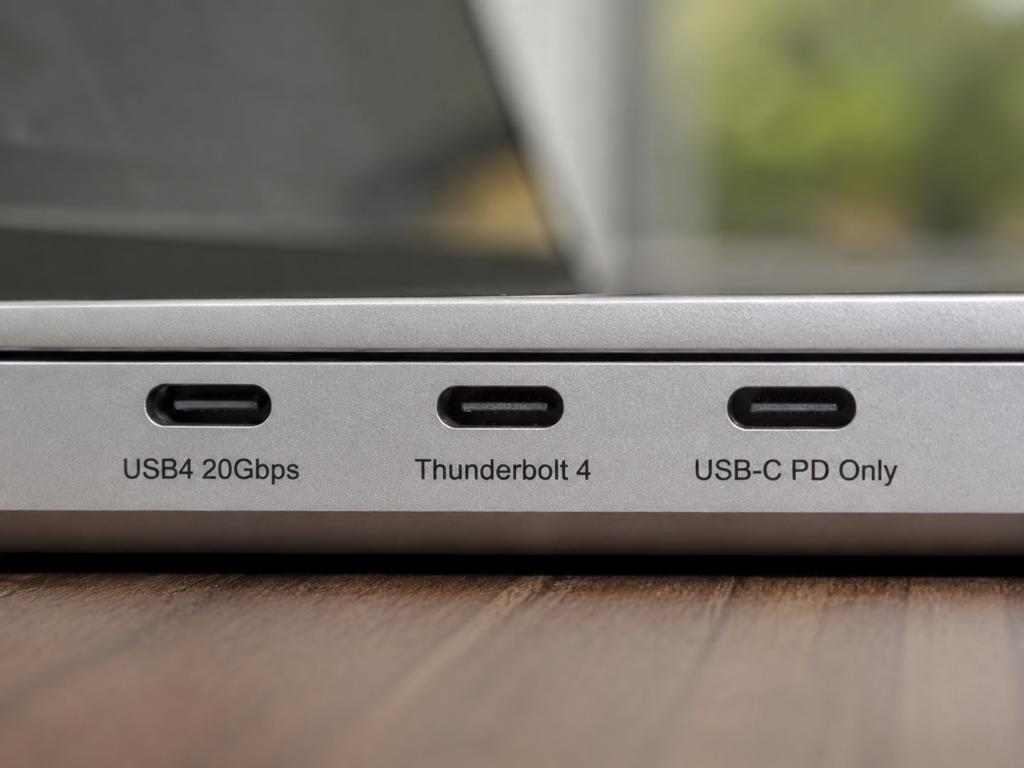
USB-C is just the shape of the interface, that is, the oval “socket” that can be plugged in either way. It may contain the slowest USB 2.0 or the fastest Thunderbolt 4. You can’t judge speed, video, charging, or Thunderbolt capabilities by the shape alone.
USB4 is an open high-speed transmission standard launched by the USB-IF organization, uniformly using the USB-C interface. Consumer-grade common speed grades are 20Gbps and 40Gbps. But it is more like a “customizable package”—functions such as video output, PCIe high-speed expansion, Thunderbolt 3 compatibility, and power supply can be added or not by manufacturers according to cost and positioning. Therefore, devices also called USB4 may have very different actual capabilities.
Thunderbolt 4 is an Intel-led certification ecosystem, developed based on the USB4 technical system, but sets higher minimum thresholds for products such as hosts, cables, and docking stations, and also enforces backward compatibility with Thunderbolt 3. For example, if USB4 is a “buffet where you can choose low or high configuration”, Thunderbolt 4 is a “strictly selected package that must meet five-star standards”. As long as it passes certification, the basic capabilities are guaranteed.
If you’re in a hurry, you can first look at the 30-second comparison table below to quickly find the right one for you:
| Comparison Item | USB4 20Gbps | USB4 40Gbps | Thunderbolt 4 |
|---|---|---|---|
| Physical Interface | USB-C | USB-C | USB-C |
| Nominal Bandwidth | 20Gbps | 40Gbps | 40Gbps for hosts and certified cables |
| Video Output | Depends on whether the host/device supports DP output, resolution, refresh rate, multi-screen | Depends on whether the host/device supports DP output, resolution, refresh rate, multi-screen | Certified hosts usually require dual 4K 60Hz or single 8K capability |
| PCIe High-Speed Expansion | Needs verification, may not be available | Needs verification, may not be available | Mandatorily supported on the host side, with higher minimum expansion capability |
| Thunderbolt 3 Compatibility | Optional, needs verification | Optional, needs verification | Mandatory backward compatibility with Thunderbolt 3 ecosystem |
| Cable Requirements | Qualified USB4 20G cable | Qualified USB4 40G cable | Thunderbolt 4 certified cable is more reliable |
| Suitable For | Ordinary office work, low-cost expansion | High-speed hard drives, single-screen high-specification needs | Multi-screen, docking stations, professional peripherals, those seeking hassle-free use |
If you don’t want to look at parameters and just make a rough selection based on needs, you can first refer to this logic:
- For daily file transfer, charging, connecting to a single 1080P/2K/partial 4K monitor, with a limited budget and willingness to check parameters, USB4 is enough;
- If you often use high-speed NVMe portable hard drives and want data speed close to Thunderbolt 4 but don’t need peripherals of the Thunderbolt ecosystem, USB4 40Gbps is more cost-effective;
- If you need dual 4K office work, use a Thunderbolt docking station, high-speed disk array, professional capture card, or want a stable experience that “basically meets standards when plugged in”, prioritize Thunderbolt 4;
- If you want to use an external graphics card (eGPU), it is only limited to Windows platforms that explicitly support Thunderbolt/PCIe high-speed expansion. Apple Silicon Mac does not support eGPU at all, and Linux requires confirmation of kernel, driver, and manufacturer support;
- If you already have Thunderbolt 3 or Thunderbolt 4 peripherals, prioritize Thunderbolt 4 hosts, docking stations, and certified cables for more stable compatibility.
However, note that the above conclusions are not absolute. There are four core premises that directly affect the actual experience: First, not all USB4 is 40Gbps, and not all USB4 supports video, multi-screen, or Thunderbolt compatibility; second, the speed, power, length, and certification of the cable will hold back performance; third, low-speed peripherals such as ordinary USB flash drives and mechanical hard drives cannot even reach the speed of USB4 40G or Thunderbolt 4; fourth, Windows, macOS, iPadOS, and Linux have completely different support logics for multi-screen, docking stations, and eGPU.
In addition, let’s first explain the comparison scope of this article: we mainly talk about the most common consumer-grade USB4 20Gbps, USB4 40Gbps, and Thunderbolt 4 40Gbps. Higher-specification USB4 Version 2.0 and Thunderbolt 5 will only be briefly mentioned at the end because their current popularity, price, and peripheral ecosystem are not yet mature. All experiences follow the “lowest specification of the entire link” principle—computer, cable, docking station, peripherals, system, driver, any link that falls short will result in the final experience being determined by the worst one. Price, speed, and compatibility will also vary by brand, region, and model, and the final information shall prevail on the official specification page and certification information.
Basic Cognition: First Distinguish the 4 Most Easily Confused Concepts
Many people buy the wrong device because they confuse several similar but completely different concepts. Let’s explain them one by one so that the subsequent comparison will not be confusing.
USB-C: Just the Interface Shape, Does Not Represent Speed and Function
USB-C is the oval interface shape that can be plugged in either way, equivalent to “the shape of the socket”. It has no inevitable connection with what protocol runs inside, how fast it is, or whether it can connect to a monitor.
It can carry many functions: from the slowest USB 2.0, USB 3.2, to high-speed USB4, Thunderbolt, to DisplayPort video, USB PD charging, all can be carried by the USB-C interface. But it can also be very weak—some USB-C ports on devices can only be used for charging, or even only have USB 2.0 data speed.
Therefore, to judge the capability of a USB-C port, you must never only look at the shape. You must check the supported protocols, speed, video output, and power supply instructions on the official parameter page. The most common misunderstanding is “seeing USB-C and thinking it must be able to connect to an external monitor, run 40Gbps, or support a Thunderbolt docking station”. A lot of people fall into this pit.
USB4: An Open, Flexible High-Speed Standard with Large Capability Differences
The core significance of USB4 is that a single USB-C cable can carry high-speed data, video channels, and power negotiation at the same time, eliminating the need to plug in data cables, video cables, and charging cables separately. But it is an open and flexible standard, and manufacturers can choose different configurations according to cost, so the actual capabilities vary greatly.
Consumer-grade USB4 commonly has two speed grades: 20Gbps and 40Gbps, and the higher 80Gbps USB4 Version 2.0 is currently gradually gaining popularity. Although the USB4 specification itself includes mechanisms such as USB data and DisplayPort video tunneling, whether consumers can finally connect an external monitor, how many screens are supported, and what resolution and refresh rate are supported still depends on the specific implementation of the host graphics card, system, port wiring, cables, and peripherals. You cannot infer video capability solely from the word “USB4”.
More importantly, key functions such as PCIe high-speed expansion, Thunderbolt 3 compatibility, specific video specifications, multi-screen capability, and power supply are optional for manufacturers, and not all USB4 devices have them. For example, two laptops both labeled USB4 may have 40Gbps, support video output and high-speed hard drives, while the other may only have 20Gbps basic data and charging capabilities.
So when buying a USB4 device, never just look at the word “USB4”. Be sure to read the specific parameters further: is it 20Gbps or 40Gbps? Does it support DisplayPort output? How many watts is the PD power supply? Is there Thunderbolt compatibility? Does it support PCIe tunneling? These are the keys that determine the experience.
Thunderbolt 4: A Strict Certification Ecosystem Based on USB4 and Backward Compatible with Thunderbolt 3
Thunderbolt 4 is the Intel-led Thunderbolt 4 certification system, developed based on USB4-related specifications, but through unified testing standards, it raises the minimum capability threshold of all certified products, and also enforces backward compatibility with the Thunderbolt 3 ecosystem.
The significance of certification is that certified Thunderbolt 4 hosts, docking stations, and cables usually have much better functional consistency and compatibility than ordinary USB4 products—you don’t have to check parameters one by one. As long as you see the Thunderbolt 4 certification logo, you know that its basic capabilities meet a certain standard.
Of course, certification requirements for different categories of Thunderbolt 4 products are different, and you cannot directly apply the requirements for hosts to all peripherals. For example, a Thunderbolt 4 certified host must meet requirements such as 40Gbps bandwidth, Thunderbolt 3 compatibility, PCIe data channel, dual 4K 60Hz or single 8K-level video output, and support for one-cable connection with a docking station; but a Thunderbolt 4 certified hard drive enclosure does not need to support dual 4K output, as long as it meets the standards of the corresponding category.
Nowadays, Thunderbolt 4 interfaces, or interfaces labeled Thunderbolt/USB4, are very common on high-end business laptops, creator laptops, some Mac models, and professional docking stations.
Quick Sorting of the Relationship Between Thunderbolt 3, USB4, and Thunderbolt 4
The relationship between the three is actually very simple, and can be clarified in one sentence:
- Thunderbolt 3 is the previous generation 40Gbps high-speed solution, one of the technical sources of USB4, but its minimum capability requirements are looser than Thunderbolt 4;
- USB4 absorbs some of the technical ideas of Thunderbolt 3 and becomes an open industry standard, but allows manufacturers to choose different grades and function combinations;
- Thunderbolt 4 is closely related to USB4, but improves minimum capability and compatibility consistency through stricter certification.
You can remember a simple mnemonic: USB-C is the shell, USB4 is the flexible standard, Thunderbolt 4 is the strict certification ecosystem, and Thunderbolt 3 is the previous generation high-speed foundation.
Comparison Calibration Description: Unified Premises and Variables for All Conclusions
In order to avoid mixing conclusions of different situations, let’s first clarify the basic premises of this comparison, and list the variables that will directly affect the results, so that you can adjust your judgment according to your actual situation.
The unified basis of this comparison is: all three use the USB-C physical interface; USB4 is discussed in two grades of 20Gbps and 40Gbps separately, without confusing low-config and high-config USB4; Thunderbolt 4 is discussed separately for certified hosts, certified peripherals, certified docking stations, and certified cables, without confusion across categories; we default to discussing products with real parameters, formal certification, no false labeling, and matched with qualified cables, docking stations, and peripherals of corresponding specifications.
In actual use, there are 6 key variables that will directly change the comparison conclusion, and are also the core reason why many people feel “it works well for others, but not for me”:
First is the interface configuration, such as whether USB4 is 20G or 40G, whether it supports DisplayPort output, PCIe expansion, Thunderbolt 3 compatibility—missing one function makes a big difference in experience;
Second is the cable specification: the speed supported by the cable, power supply, length, whether it is active or passive design, and whether it is certified will affect the final effect;
Third is peripheral performance: for example, if you use an ordinary USB flash drive or SATA portable hard drive, even if plugged into a Thunderbolt 4 port, the speed will not increase, the bottleneck is the peripheral itself;
Fourth is the display link: whether the monitor, graphics card, docking station, cable, and system can support the corresponding resolution and refresh rate, all are indispensable;
Fifth is platform differences: Windows, macOS, iPadOS, Linux, and different chip platforms have different supported capabilities;
Sixth is concurrent scenarios: if you transfer large files, connect to a monitor, plug in a network port, and charge the computer at the same time, the total bandwidth is shared, and the available bandwidth for a single function will decrease.
Our subsequent comparison will focus on the dimensions that people care about most: speed, display, power supply, expansion, compatibility, and cost. Each dimension will clearly explain the core differences and applicable scenarios.
Item-by-Item Comparison of Core Performance and Functions: Real Differences Under the Same Calibration
Comparison of Bandwidth and Data Transmission Speed
Many people care about speed. We can compare bandwidth to the number of lanes on a highway. The more lanes there are, the more “data cars” can run at the same time. But how fast they can actually run depends on how good the cars (peripherals) are, how smooth the road (cable) is, and whether there is traffic control (protocol overhead, system scheduling).
From the perspective of nominal bandwidth, USB4 20Gbps is the lowest, while USB4 40Gbps and Thunderbolt 4 hosts and certified cables are all 40Gbps. But nominal bandwidth is not equal to the speed at which you actually copy files, because the nominal unit is bit, while the file size unit we usually talk about is Byte. 1 Byte equals 8 bits, and we also have to deduct the loss of protocol overhead, link negotiation, and system scheduling.
In actual use, with a high-speed NVMe portable hard drive, the common continuous read/write speed of USB4 20Gbps is about 1.5GB/s to 2.0GB/s; the common speed of USB4 40Gbps and Thunderbolt 4 is between 2.7GB/s and 3.2GB/s. To approach 4GB/s, you need a very good controller, SSD, heat dissipation, and ideal link conditions, which ordinary users rarely achieve.
If you are transferring small files such as photos, documents, and small project files, the speed bottleneck is usually in the file system, random read/write performance, and system scheduling, and the difference in interfaces is almost imperceptible. If you use low-speed peripherals such as ordinary USB flash drives, SATA portable hard drives, or mechanical hard drives, there is almost no difference in experience between plugging into USB4 or Thunderbolt 4, because the speed limit of the peripheral itself is very low.
Also note a boundary: 40Gbps is definitely not equal to 5GB/s file copy speed, and video output and other functions of the docking station will occupy link resources. If you connect dual 4K monitors while transferring files, the available speed of the hard drive will decrease. In addition, writing large files for a long time may also cause speed reduction due to overheating of the SSD or hard drive enclosure, failing to reach the nominal peak speed.
Comparison of Video Output Capability
Video capability determines how many monitors you can connect, how high the resolution is, how high the refresh rate is, and whether the docking station can stably support multi-screen office work. This is also the core demand for many people to buy high-speed interfaces.
Regarding the video capability of USB4, the most accurate statement is: USB4 has the mechanism to carry DisplayPort video channels, but whether you can finally connect an external monitor, how many screens are supported, and what resolution and refresh rate are supported cannot be inferred solely from the “USB4” label. You must look at the full link configuration of the host, graphics card, system, docking station, cable, and monitor.
When buying, be sure to check these parameters: DisplayPort version, whether it is DP Alt Mode or DP tunnel, maximum resolution, maximum refresh rate, number of external screens, whether it supports MST multi-stream transport, and whether it uses a DisplayLink solution. Missing any of these parameters may cause the device you bought to fail to connect to the monitor you want.
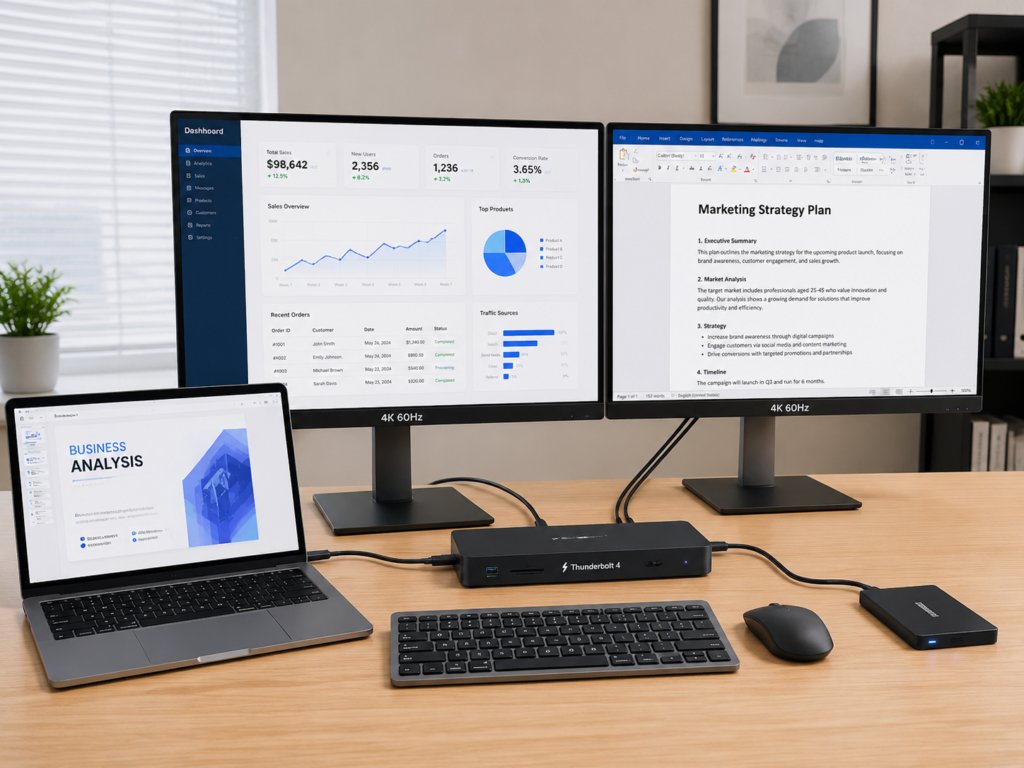
For Thunderbolt 4 certified hosts, they are usually required to have dual 4K 60Hz or single 8K-level video output capability. Therefore, using a Thunderbolt 4 docking station for multi-screen office work is generally more hassle-free, and you don’t have to check too many parameters one by one.
In actual scenarios, a single 1080P or 2K monitor can be satisfied by most USB4 and Thunderbolt 4 devices; a single 4K 60Hz requires confirmation of the DP version and link specification; for dual 4K 60Hz, prioritize Thunderbolt 4, or a USB4 solution clearly marked to support dual 4K 60Hz; if it is an 8K or high refresh rate monitor, you must check every link of the full link item by item.
In addition, different systems have different multi-screen logics: Windows multi-screen expansion usually relies on MST multi-stream transport technology, with good compatibility; but macOS has limited support for extended desktop with ordinary MST. Many third-party USB4 docking stations using MST solutions may only allow two screens to display the same content when connected to a Mac, and cannot be expanded into different desktops. At this time, you need to choose a docking station that supports DisplayLink, but you need to install additional drivers. The number of external screens of Mac is also limited by the chip model, it’s not that more interfaces mean more screens can be connected.
Comparison of Power Supply and Charging Capability
Power supply capability determines whether you can charge your laptop with a single cable, and whether the docking station can reverse charge the computer, which is commonly referred to as the “one-cable connection” experience.
Whether it is USB4 or Thunderbolt 4, power supply is negotiated through the USB PD protocol, but the specific power that can be achieved is jointly determined by the device, cable, and charger, and is not directly bound to the name of the interface—it is not that Thunderbolt 4 must charge faster than USB4, nor is it that labeled USB4 must support high-power charging.
Among common power grades, 60W is suitable for basic charging of mobile phones, tablets, and thin and light laptops; 100W is the most common grade for current laptops and docking stations; higher powers of 140W, 180W, and 240W require the USB PD 3.1 EPR specification, and can only be achieved if the charger, cable, and device all support it.
USB4 power supply may be very low, or may support 100W or even higher, completely depending on the manufacturer’s design. Labeled USB4 does not mean it can charge a laptop with high power. Thunderbolt 4 devices commonly support one-cable charging, but Thunderbolt 4 itself is not equal to 240W, and the specific power still depends on the PD specification of the product.
Also note that for devices with high power consumption such as gaming laptops and mobile workstations, the power supply of USB-C or Thunderbolt ports may only be used for supplementary charging, and cannot replace the original high-power power supply. Even 240W PD may not meet the demand for full-load operation.
Comparison of Expansion Functions: External Graphics Card, Daisy Chain, Docking Station
In addition to data and video, another very important capability of high-speed interfaces is whether they can support high-speed expansion—equivalent to leading the high-speed slots inside the computer to the outside, allowing external devices to get speeds close to built-in ones. This capability is professionally called PCIe tunneling.
Whether a USB4 device supports PCIe tunneling needs to be checked separately. Many low-config USB4 do not have this function; while Thunderbolt 4 certified hosts mandatorily require support for PCIe tunneling. Therefore, when using high-speed docking stations, professional capture cards, and high-speed storage devices, Thunderbolt 4 is a more reliable choice.
The external graphics card (eGPU) that people care about very much relies heavily on PCIe tunneling, and is only suitable for Windows platforms that clearly support Thunderbolt/PCIe expansion—even if there is a Thunderbolt 4 port, it also depends on BIOS settings, Thunderbolt security level, graphics card driver, and compatibility of the graphics card dock, it’s not that it works as soon as you plug it in. Apple Silicon Mac does not support eGPU at all, so don’t consider it; Linux requires confirmation of kernel version, bolt authorization tool, security policy, and graphics card driver, which has a relatively high cost of tinkering. In addition, the performance of an external graphics card is definitely worse than the same graphics card plugged into the PCIe x16 slot on the motherboard. The more high-end the graphics card, the more obvious the performance loss.
There is also the daisy chain function, that is, one device is connected in series with another, without having to plug all into the computer. Whether USB4 supports it depends on the specific product. The Thunderbolt ecosystem has more mature support for daisy chaining, but in actual use, it is still limited by the number of devices, power supply, and total bandwidth.
The experience of docking stations also varies greatly: USB4 docking stations have a large price span and uneven parameters. Cheap ones may only have basic functions, and expensive ones may not achieve the advertised effect; Thunderbolt 4 docking stations have more unified functions, suitable for fixed workstations, but when multiple devices work at the same time, they still share the 40Gbps upstream bandwidth. For example, when transferring large files while connecting to dual 4K monitors, the hard drive speed will decrease.
Certification Requirements and Cost Differences
The USB4 specification and certification system are formulated by the USB-IF organization, but many products in the consumer market do not clearly display complete certification information, and the functional configuration varies greatly. Therefore, you need to check many parameters yourself when purchasing.
Thunderbolt 4 certification is much stricter: hosts must pass Thunderbolt certification, mandatorily meeting requirements such as 40Gbps bandwidth, Thunderbolt 3 compatibility, PCIe tunneling, dual 4K/single 8K video capability, and one-cable docking station connection; peripherals and docking stations have different certification standards according to category, usually emphasizing 40Gbps link and compatibility with the Thunderbolt ecosystem; Thunderbolt 4 certified cables mandatorily support 40Gbps, and must pass strict signal integrity tests. The power supply is divided into different grades such as 100W and 240W according to cable specifications.
In terms of cost, Thunderbolt 4 hosts, docking stations, and cables are usually more expensive than ordinary USB4 products. This price difference comes from more expensive controller chips, certification costs, signal integrity design, and compatibility testing. Of course, the specific price will vary with brand, length, certification, promotion, and region. You can’t judge cost-effectiveness only by the interface name, you still have to look at the specific parameters.
To facilitate your comparison, we have sorted out the core differences into the following table:
| Comparison Item | USB4 20Gbps | USB4 40Gbps | Thunderbolt 4 Certified Host | Thunderbolt 4 Certified Peripherals/Cables |
|---|---|---|---|---|
| Physical Interface | USB-C | USB-C | USB-C | USB-C |
| Nominal Bandwidth | 20Gbps | 40Gbps | 40Gbps | 40Gbps for cables, peripherals determined by category |
| Video Capability | Depends on specific implementation | Depends on specific implementation | Dual 4K 60Hz or single 8K level | Depends on product type and specification |
| PCIe Tunneling | Needs verification | Needs verification | Mandatorily supported | Peripherals determined by category, cables not involved |
| Thunderbolt 3 Compatibility | Optional | Optional | Mandatory | Verify by certification type |
| Power Supply Capability | Depends on PD design | Depends on PD design | Common one-cable charging, no unified power | Cables labeled as 100W/240W etc. |
| Experience Consistency | Low | Medium | High | High |
| Suitable Scenarios | Daily office work | High-speed storage | Multi-screen, professional expansion | Matching Thunderbolt ecosystem |
Compatibility and Cables: Most Usage Pitfalls Come From Here
Many people encounter “interface not working”, “slow speed”, “monitor not turning on”, which are actually not problems with the interface itself, but problems with compatibility or cables. This part has the most pitfalls, so be sure to read carefully.
Backward Compatibility and Interplug Rules
First of all, ordinary USB devices, such as keyboards, mice, USB flash drives, card readers, and mobile phones, can usually be used whether plugged into USB4 or Thunderbolt 4 ports, but the speed will run according to the lowest protocol in the entire link—for example, a USB 2.0 USB flash drive plugged into a Thunderbolt 4 port still only has USB 2.0 speed, and will not be faster. USB-A devices can be used through adapters, but similarly, they will not become faster just because they are connected to a high-speed interface.
USB PD chargers can usually be plugged in and negotiate power supply, but the actual power may not reach the maximum value of the device, depending on the support of the charger, cable, and device.
Thunderbolt 4 hosts are mandatorily compatible with Thunderbolt 3 devices. So if you have old Thunderbolt 3 hard drives, docking stations, and capture cards, connecting them with a Thunderbolt 4 host is more reliable, and they can basically be recognized. But USB4’s compatibility with Thunderbolt 3 is optional, not all USB4 devices support it. Some Thunderbolt devices plugged into USB4 ports may only be used at a degraded level, some functions cannot be used, or even cannot be recognized at all.
There is also a common situation: it can charge but cannot transmit data, or can transmit data but cannot display images. This is usually because the negotiation results of different functions are different, not necessarily that the interface is broken. First check the cable and the functional support of the device.
Cross-Platform and Device Support Differences
The support for USB4 and Thunderbolt 4 varies greatly across different platforms, and you cannot apply the experience of one platform to another.
Among Windows laptops, USB4 and Thunderbolt 4 coexist. Even for different models of the same brand, the interface configuration may vary greatly. For example, the low-config model of the same series may only have USB4 20Gbps, while the high-config model has Thunderbolt 4. To confirm, you need to check the specification page on the official website, or look at the device manager, Thunderbolt control center in BIOS/firmware.
The interface labels of macOS devices may have different statements such as Thunderbolt 3, Thunderbolt/USB4, Thunderbolt 4, Thunderbolt 5, etc. You must check the official parameters according to the specific model, and cannot generalize. Apple Silicon Mac does not support eGPU at all, and the number of external screens is limited by the chip model, which has no direct relationship with the number of Thunderbolt ports. For example, a basic M1 chip Mac, even with two Thunderbolt ports, can only connect to one external monitor.
Among iPads and tablets, M-series iPad Pro and iPad Air are usually labeled Thunderbolt/USB4, with high-speed data and video output capabilities, but should not be simply equated with Thunderbolt 4 computers—iPadOS’s system expansion capability, multi-window support, and peripheral drivers are still different from desktop computers.
For mobile phones, the vast majority of USB-C mobile phones still have USB 2.0 or USB 3.x speed. A few flagships support high-speed interfaces, but video output and docking station capabilities are greatly limited by the system, so you don’t need to buy according to the logic of USB4 or Thunderbolt 4.
USB4 and Thunderbolt support on the Linux platform is gradually improving, but the kernel version, bolt authorization tool, security policy, manufacturer firmware, and drivers will all affect the experience. It is suitable for users with hands-on ability, and ordinary users are not recommended to tinker with it.
Cable Specifications and Selection: The Most Easily Overlooked Pitfall
USB-C cables look the same, but the internal wire cores, chips, certification, and length may be completely different. This is the most easily overlooked and most problematic link.
You can look at the capability of a USB-C cable as three independent parts: data rate, power supply, and video/Thunderbolt support. There is no inevitable binding relationship between the three—for example, some cables can support 240W charging, but the data speed is only USB 2.0; some cables can run 40Gbps data, but the power supply is only 60W.
Common cable grades from low to high are roughly: ordinary charging cable (only charging, data may only be USB 2.0), USB 3.x cable (5G/10Gbps data, supports basic charging), USB4 20G cable, USB4 40G cable, Thunderbolt 4 certified cable. The power supply has different grades such as 60W, 100W, 140W, 240W, etc. Cables above 100W usually need a built-in E-marker chip and support the PD 3.1 EPR specification.
Length also affects the stability of high-speed transmission: passive high-speed cables, the longer they are, the harder it is to reach full speed. For example, USB4 40G passive cables are usually stable at short distances (such as 0.5 meters, 1 meter). For longer distances, it is recommended to choose certified active cables, or cables clearly marked to run full 40Gbps at the corresponding length. Active cables are more expensive, and some active cables have special restrictions on USB 2.0 compatibility, power supply, and support for low-speed devices. Be sure to read the instructions carefully before buying.
The principle of choosing cables is actually very simple: if you only use it for charging, just choose according to the required power; if you connect a high-speed NVMe hard drive, choose according to the 40Gbps standard; if you connect a monitor or docking station, you need to see clearly whether it supports video output; if you use Thunderbolt devices, prioritize Thunderbolt 4 certified cables for more stable compatibility.
How to Quickly Identify Interface and Cable Specifications
Many people don’t know how to judge the capability of an interface or a cable. Here is a priority order for judgment, from the most credible to the least credible: official specification page > official certification database/certification logo > product packaging and cable printing > e-commerce title > customer service verbal description.
Specifically, Thunderbolt 4 interfaces and cables usually have a lightning-shaped logo with the number 4 next to it, or the official clearly states “Thunderbolt 4 certified”. USB4 products may be labeled USB4, 20Gbps, 40Gbps, or the corresponding USB speed logo. If it only says “Type-C” or “USB-C”, it can only indicate the shape of the interface, and cannot indicate speed and function at all. Just treat it as the lowest specification by default.
When checking product parameters, be sure to focus on these fields: interface name, data rate, video capability, PD input/output power, PCIe tunneling support, Thunderbolt compatibility, daisy chain support. Parameter pages missing these are not complete.
Matching Real Scenarios: Which One is More Cost-Effective for Different Needs
After talking about so many parameters, you may still not know which one to choose. We have listed common usage scenarios, and you can directly match them.
Scenarios Where USB4 is Sufficient
If your needs are daily office work, such as connecting a keyboard and mouse, USB flash drive, network port, card reader, ordinary docking station, USB4 is completely sufficient, even lower-specification USB 3.x can meet it, there is no need to spend more money on Thunderbolt 4.
If you only need to connect one monitor, 1080P, 2K, or a clearly supported single 4K monitor, choosing USB4 that supports video output is enough, and the experience is no different from Thunderbolt 4.
For daily charging, as long as the power is sufficient, whether it is USB4 or Thunderbolt 4, the charging experience is the same, there is no need to buy Thunderbolt 4 specifically for charging.
For light creation users, such as occasionally transferring video materials, backing up photos, using ordinary NVMe portable hard drives, USB4 20G or 40G can meet the needs, there is no need to pursue Thunderbolt 4.
If your budget is limited and you are willing to spend some time checking the parameters of interfaces, cables, and docking stations, choosing USB4 products with clear specifications will have much higher cost-effectiveness.
Scenarios Where Thunderbolt 4 is Prioritized
If you need dual 4K 60Hz office work, a single 8K monitor, or want a more stable multi-screen experience with a docking station, prioritize Thunderbolt 4. Certified products have better consistency, and you don’t have to check a bunch of parameters one by one, saving a lot of trouble.
For professional creation users, such as those who use high-speed disk arrays, professional capture cards, audio and video equipment, and Thunderbolt docking stations, Thunderbolt 4’s PCIe expansion capability and compatibility are more stable, which can avoid many compatibility problems.
For those who want a one-cable connection experience at a fixed workstation, that is, one cable completes charging, monitor, network port, keyboard and mouse, and hard drive connection at the same time, Thunderbolt 4’s overall experience is more unified, and the probability of problems is lower.
If you already have a Thunderbolt 3 or Thunderbolt 4 peripheral ecosystem, such as old Thunderbolt hard drives, docking stations, monitors, and capture devices, prioritize Thunderbolt 4 hosts and certified cables for more stable compatibility.
Users who need an external graphics card (eGPU), limited to Windows platforms that clearly support eGPU, prioritize Thunderbolt 4; Linux users should first confirm kernel and driver support; Apple Silicon Mac users don’t need to consider eGPU.
If you often switch between different devices, such as having multiple sets of docking stations at the company, home, and business trips, and want a more unified compatible experience, Thunderbolt 4 certified products have better consistency, and you don’t have to adjust parameters every time you change places.
Scenarios Where the Experience of the Two is Almost the Same
There are many scenarios where the experience of USB4 and Thunderbolt 4 is almost the same, and there is no need to spend extra money: for example, connecting low-speed devices such as mice, keyboards, ordinary USB flash drives, printers, headphone sound cards; charging low-power devices such as mobile phones and tablets; using SATA portable hard drives, mechanical hard drives, or ordinary card readers; only connecting a single 1080P or 2K monitor; transferring small files or low-bitrate materials, when the bottleneck is the peripheral rather than the interface.
The Most Common Situations of Wasting Money
Here are a few of the most common money-wasting situations, you can check if you have encountered them:
- Only using ordinary USB devices, but spending a lot of extra budget for Thunderbolt 4, resulting in completely unused high-speed capabilities;
- The computer only has USB4 20Gbps or USB 3.x, but buying an expensive Thunderbolt 4 high-speed hard drive, which cannot reach full speed at all;
- Buying a high-speed docking station, but using the included ordinary charging cable to connect, resulting in no image output or only low-speed transmission;
- Only looking at the number of interfaces of the docking station, not looking at the upstream bandwidth and multi-port concurrent limits, thinking that more interfaces mean stronger performance;
- Mistakenly thinking that Thunderbolt 4 can make low-speed peripherals faster, and matching a Thunderbolt 4 cable for an ordinary USB flash drive, which is completely useless.
Common Misconceptions and Basic Troubleshooting: Essential for Semi-Proficiency
At this point, you can already cope with most purchase and usage scenarios. Next, we will talk about some common cognitive misconceptions and troubleshooting methods to help you go from beginner to semi-proficient, and you can solve problems yourself when you encounter them.
8 Most Common Cognitive Misconceptions
The first misconception, which is also the one most people fall into: USB-C interface equals USB4 or Thunderbolt 4. Correction: USB-C is just the shape, the function depends on the internal protocol and hardware implementation, ranging from only charging to full-speed Thunderbolt 4.
Second misconception: labeled 40Gbps equals exactly the same experience. No, 40Gbps is just the maximum bandwidth of the link. It also depends on video capability, PCIe support, power supply, compatibility, and heat dissipation. Missing one function makes a big difference in experience.
Third misconception: Thunderbolt 4 is faster than USB4 in all scenarios. No, in scenarios such as low-speed peripherals, small file transfer, and ordinary charging, there is almost no experience difference between the two. Only high-speed devices and professional scenarios can reflect the gap.
Fourth misconception: USB4 must support Thunderbolt devices. No, USB4’s compatibility with Thunderbolt is an optional function, depending on the implementation of the specific product. Many USB4 interfaces do not support Thunderbolt devices.
Fifth misconception: having Thunderbolt 4 means you can definitely connect an external graphics card. No, it also depends on the platform, system, driver, BIOS, and manufacturer restrictions. For example, Apple Silicon Mac does not support eGPU at all.
Sixth misconception: buying high-priced cables can solve all compatibility problems. No, the cable is only one link of the entire chain. If the computer interface itself does not support it, no matter how good the cable is, it is useless.
Seventh misconception: the more interfaces a docking station has, the stronger it is. No, the total upstream bandwidth of the docking station is fixed. When multiple ports are used at the same time, bandwidth is shared. No matter how many interfaces there are, the total speed cannot go up.
Eighth misconception: Thunderbolt 4 can only be used by Apple devices. No, many Windows high-end laptops, business laptops, and creator laptops support Thunderbolt 4, and many third-party docking stations and hard drive enclosures also have Thunderbolt 4 certification.
Basic Troubleshooting Sequence for Common Faults
If you encounter problems such as the interface not working, slow speed, or the monitor not turning on, you can troubleshoot step by step in this order, and most problems can find the cause:
First step, first replace with a cable that you are sure is qualified and of the corresponding specification. Many seemingly interface problems are actually caused by substandard cables—for example, using an ordinary charging-only cable to connect the docking station, naturally it can’t transmit data or display images. Prioritize using the original cable, a cable clearly marked USB4 40Gbps, or a Thunderbolt 4 certified cable for testing.
Second step, bypass the docking station and adapter, connect the peripheral directly to the computer’s interface for testing, to rule out problems with the docking station or adapter.
Third step, try another USB-C/Thunderbolt port on the computer, because different ports on the same computer may have different specifications. For example, one is Thunderbolt 4, and the other may only be USB 3.2 or only for charging.
Fourth step, check the official parameters of the computer, peripherals, and docking station to confirm whether they really support the function you want—for example, if the computer’s USB-C port does not support video output at all, then no docking station can display images.
Fifth step, reduce the number of concurrently connected devices, for example, unplug the monitor and test the hard drive speed alone to see if the speed decrease is caused by bandwidth sharing.
Sixth step, update the system, BIOS/firmware, docking station firmware, and related drivers. Many compatibility problems are caused by old firmware or driver versions.
Seventh step, if it is a Thunderbolt device on a Windows system, go to the Thunderbolt Control Center or Device Manager to see if the device is not authorized, or the security level is set too high.
Eighth step, if none of the above works, write down the device model, cable model, system version, and connection method, and consult the manufacturer’s technical support.
Typical Fault Cases
Let’s give a few of the most common fault examples, you can compare with your own situation:
First case: the hard drive enclosure is labeled 40Gbps, but the actual speed is only about 1GB/s. There are many possible reasons: the cable only has a 10Gbps rate, the SSD overheats and reduces speed, the controller performance of the hard drive enclosure is weak, or the computer’s interface itself is not 40Gbps. You need to troubleshoot one by one.
Second case: the docking station can charge the computer, but the monitor does not turn on. Possible reasons are: the computer’s USB-C port does not support video output, the cable does not support video transmission, or the video specification of the docking station does not match the monitor.
Third case: dual monitors can only mirror display, cannot be expanded into different desktops. If it is a Mac computer, it is likely that the docking station uses an ordinary MST solution, and macOS has limited support for extended desktop with this solution. You need to replace it with a docking station with a DisplayLink solution.
Fourth case: the Thunderbolt hard drive does not respond when plugged into a USB4 port. It is likely that this USB4 port does not support Thunderbolt compatibility or PCIe tunneling, so it cannot recognize Thunderbolt devices.
Purchase Decision Path: Choose According to Needs, Don’t Blindly Buy Expensive Ones
Finally, we have sorted out a clear purchase decision path. Follow it step by step, and you won’t buy the wrong one or waste money.
Step 1: List Rigid Needs First, Don’t Start from the Interface Name
Before buying, don’t rush to look at “USB4 or Thunderbolt 4”, first list your real needs:
- Do you need to connect 2 or more monitors?
- Do you need 4K 60Hz, 8K, high refresh rate, or professional color monitors?
- Do you need to use high-speed disk arrays, professional capture cards, Thunderbolt sound cards, or external graphics cards?
- Do you need one cable to complete charging, video, data, network port, and keyboard/mouse connection at the same time?
- Do you often transfer small files, photos, or large-volume video materials, project files, or full-disk backups?
- Among your budget priorities, which is more important: saving money, stability, hassle-free, or future expansion?
Think through these questions first, then look at the interface, not the other way around, spending more money for the name “Thunderbolt 4” but not using it.
Step 2: Check the Interface Capability of Your Computer/Tablet
After determining your needs, first check the interface capability of your own device (computer, tablet). Don’t just look at the USB-C port on the body, be sure to check the official specification page.
Parameters that must be checked include: protocol name of the interface, data rate, video capability, power supply capability, expansion capability, certification logo. Also note that different USB-C ports on the same computer may have different specifications. For example, one is Thunderbolt 4, and the other is only USB 3.2 or only for charging. Don’t confuse them.
If you want to verify, you can confirm through channels such as the official website specification page, product manual, Intel Thunderbolt certification logo, USB-IF certification logo, system information, device manager, and Thunderbolt Control Center. Don’t just look at the promotion on the e-commerce page.
Step 3: Choose the Minimum Qualification Line for Peripherals and Cables
When choosing peripherals and cables, you don’t need to pursue the highest configuration, as long as it meets the minimum qualification line for your needs, which is the most cost-effective:
- For portable hard drives, USB 3.x is enough for SATA or mechanical hard drives; for ordinary NVMe hard drives, choose USB4 20G or USB 3.2 20G; for high-speed NVMe or RAID arrays, then choose USB4 40G or Thunderbolt 4.
- For docking stations, for single-screen office work, just check whether it can support the resolution you want; for dual 4K office work, prioritize Thunderbolt 4, or a USB4 docking station clearly marked to support dual 4K 60Hz; when Mac users choose multi-screen docking stations, be sure to confirm whether the chip and docking station solution are compatible.
- For cables, choose according to the four standards of “data rate + power supply + length + certification”; when using Thunderbolt devices, prioritize Thunderbolt 4 certified cables; if you need 240W charging, confirm support for USB PD 3.1 EPR.
Step 4: Example of Reading Product Parameter Pages
Many people can’t read product parameter pages and are easily fooled by vague promotions. Let’s give you a few examples:
Clear and credible writing is generally: “Thunderbolt 4 certified, 40Gbps, supports PD 100W reverse charging, supports dual 4K 60Hz, compatible with Thunderbolt 3”, or “USB4 40Gbps, supports DisplayPort 1.4 output, supports PD 100W, supports PCIe tunneling”, each parameter is written very clearly.
Vague and risky writing is generally: “full-featured Type-C”, “high-speed transmission”, “supports 4K”, “supports fast charging”, “Thunderbolt 4 compatible”. These statements have no specific parameters and may hide pitfalls. For example, “supports 4K” may only be 4K 30Hz, not 60Hz, and “high-speed transmission” may only be 10Gbps.
If you encounter vague descriptions, be sure to ask the merchant for specific parameters: what is the rate in Gbps? What is the DP version? What is the refresh rate? How many watts is the PD power? Is there official certification? Does it support Thunderbolt 3/4 devices? Ask clearly before buying.
Finally, here is a simple decision mnemonic, easy to remember:
For hassle-free, stable, multi-screen or Thunderbolt peripherals, choose Thunderbolt 4 certified products;
For saving money, clear needs, and willingness to check parameters, choose USB4 products with clear specifications;
If you just want to leave room for the future, prioritize USB4 40Gbps or Thunderbolt 4, avoid buying only low-config USB-C;
When you are not sure about the merchant’s description, anything that only labels Type-C and does not write the protocol and rate shall be treated as low speed.
Limitations and Exceptions: Conclusions Cannot Be Directly Applied in These Cases
The above are all common situations, but there are some special scenarios where conclusions cannot be directly applied. We list them separately to avoid you making wrong judgments.
USB4 Has Great Individual Differences, Cannot Be Generalized
USB4 is a very flexible standard, and the configuration of different manufacturers may range from the most basic 20Gbps to an experience close to Thunderbolt 4. Many products only write “USB4”, but do not write the rate, video, power supply, Thunderbolt compatibility. This kind of purchase has high risk, so be sure to find products with clearly written parameters. When comparing, you must be based on the official specifications of the specific model, and cannot draw conclusions just by looking at the name “USB4”.
Thunderbolt 4 Is Not a Universal Interface Either
Thunderbolt 4 has a high lower limit, but it is not omnipotent: it cannot make low-speed peripherals faster, ordinary USB flash drives plugged into Thunderbolt 4 ports still have the original speed; it does not automatically equal 240W charging, the specific power depends on the PD specification of the product; it does not guarantee that all platforms support eGPU, for example, Apple Silicon Mac does not work at all; when Thunderbolt 4 docking stations have multiple ports concurrent, they still share the 40Gbps upstream bandwidth, not every interface can run at full speed.
Special Boundaries of Mac, iPad, and Mobile Devices
Apple devices have many special restrictions, and cannot be judged according to the logic of ordinary Windows computers: the number of external screens of Mac is limited by the chip model, it’s not that more Thunderbolt ports mean more screens can be connected; Apple Silicon Mac does not support eGPU at all; even if M-series iPads have Thunderbolt/USB4 interfaces, the system-level window management, multi-screen support, and peripheral driver capabilities are different from desktop computers, and cannot be simply equated with Thunderbolt 4 computers; the USB-C interfaces of mobile phones are even more different, and the vast majority are not suitable for purchase according to the logic of USB4/Thunderbolt 4.
Additional Conditions for High-Refresh Monitors and Professional Monitors
If you use professional or high-refresh monitors such as 4K 144Hz, 5K, 6K, 8K, high color depth, HDR, the requirements will be higher. You may need higher versions of DisplayPort, DSC compression technology, or specific docking station solutions. You can’t just look at vague descriptions like “supports 4K”. Especially for “supports 4K”, you must look at the refresh rate. The experience of 4K 30Hz and 4K 60Hz is very different. When using multiple screens, you also need to look at the concurrent limit of each display output port.
Exceptions of Enterprise Security Policies and System Authorization
Some company office computers restrict the access of Thunderbolt devices to prevent data leakage. Even if there is a Thunderbolt 4 port, Thunderbolt peripherals cannot be used; in Windows systems, Thunderbolt devices may need to be manually authorized in the Thunderbolt Control Center before use; Linux systems may need to configure the bolt tool, adjust the security level, and upgrade the kernel to use Thunderbolt devices normally; settings in BIOS or firmware may also affect the stability of PCIe tunneling, peripheral recognition, and sleep wake-up. These special situations should be adjusted according to your own device environment.
Future Trends and Final Summary
Finally, let’s briefly mention future standards to help you judge whether to wait for new products: higher-specification USB4 Version 2.0 and Thunderbolt 5 are mainly oriented to higher bandwidth, higher display specifications, and stronger expansion capabilities. For example, Thunderbolt 5 can support 80Gbps bidirectional bandwidth, as well as higher-specification display and storage scenarios. But currently, the popularity of hosts and peripherals of these two new standards is not high, and the price is relatively expensive. For ordinary users, buying 40Gbps USB4 or Thunderbolt 4 now is still a mature choice with good cost-effectiveness and compatibility.
We have sorted out the recommendations for different needs into the final table for your reference:
| User Needs | Recommended Choice | Reason |
|---|---|---|
| Ordinary office work, low-speed peripherals | USB4 or USB 3.x is sufficient | Thunderbolt 4 has limited improvement |
| Single 4K 60Hz screen | USB4 40G or Thunderbolt 4 with clear video support | The key depends on DP specifications |
| Dual 4K 60Hz office work | Thunderbolt 4 is preferred | Certified hosts and docking stations are more hassle-free |
| High-speed NVMe portable hard drive | USB4 40G or Thunderbolt 4 | 20G will limit speed |
| Old Thunderbolt 3/4 peripherals | Thunderbolt 4 is preferred | More stable compatibility |
| eGPU | Windows Thunderbolt platform with clear support | USB4 does not necessarily support PCIe tunneling |
| Charging only | Choose cables and chargers according to USB PD power | Has little to do with the name USB4/Thunderbolt 4 |
Overall, although both USB4 and Thunderbolt 4 use USB-C interfaces, the experiences they bring are completely different. The advantages of USB4 are openness, low price, and many choices, while the disadvantage is that the configuration varies greatly, requiring you to know how to read parameters; the advantages of Thunderbolt 4 are strict certification, unified compatibility, and more hassle-free multi-screen and professional expansion, while the disadvantage is that the price is usually higher.
What really determines the experience is never the name of the interface, but the lowest specification of the entire chain composed of the computer, cable, docking station, peripherals, and system. The most reliable purchase principle is actually very simple: for ordinary needs, USB4 with clear specifications is enough; for professional expansion and multi-screen office work, prioritize Thunderbolt 4 certified products. Don’t blindly pursue the most expensive one, the one that suits you is the best.