
If you’ve recently switched phones, bought charging cables, or rummaged through your home’s electronic accessories, you’ve most likely encountered two familiar yet unfamiliar names: USB-C and Lightning. Both are small, reversible connectors, so why are some cables cheap while others are much more expensive? Why do some people say USB-C is definitely faster, while others think Lightning works just fine?
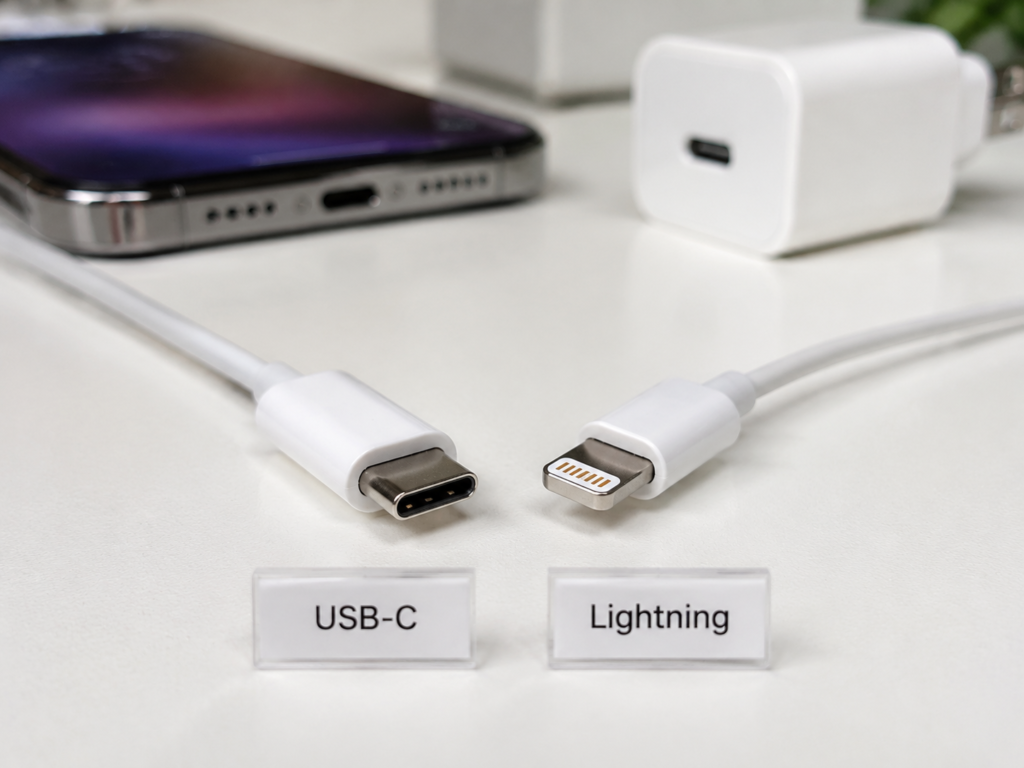
The most common pitfall many people fall into is equating “connector shape” with “actual capability” — when they see USB-C, they automatically assume fast charging, high speed, and monitor connectivity; when they see Lightning, they think it’s outdated and useless. In reality, these two are just “plug shapes”. What actually determines charging speed, file transfer speed, and whether you can connect a monitor is the device’s own design, cable specifications, charger protocol, and even system limitations.
This article will thoroughly explain the differences between USB-C and Lightning from the perspective of daily use: from basic knowledge and core comparisons to cable buying tips to avoid pitfalls and troubleshooting. Whether you’re a long-time user with an older iPhone or a new user preparing to switch to USB-C devices, you’ll be able to use, choose, and judge correctly after reading.
First Understand 7 Key Terms: Don’t Confuse Ports, Protocols, and Cables
You don’t need to memorize these terms — understanding them will keep you from being tricked by Merchant marketing slogans.
Port Shape ≠ Actual Capability
You can think of a port as the “shape of a door”: whether the door is round or square doesn’t determine how wide the road behind it is or how many cars can pass through. The USB version, fast charging protocol, chip inside the cable, and the device’s own design are the key factors that determine “how fast it can run, how much power it can deliver, and how many devices it can connect”.
The most common misconception is that USB-C automatically means fast charging/high speed, and Lightning automatically means completely outdated.
The way to judge is simple: when buying devices or cables, don’t just look at what the plug looks like. Look for specific labels in the parameters such as “USB version”, “transfer rate”, “charging power”, and “video output/DisplayPort Alt Mode” — these are the real indicators of capability.
MFi Certification (Made for iPhone/iPad)
In plain terms, this is Apple’s “official compatibility certification” for third-party accessories, most commonly found in Lightning cables, adapters, and dedicated accessories for the Apple ecosystem.
Its practical impact is: Lightning accessories without MFi certification may pop up a “This accessory is not supported” prompt during use, or even suddenly stop working after a phone system update.
Of course, that doesn’t mean non-MFi cables are completely unusable — some cheap cables can be used for temporary charging, but for long-term use, stability, lifespan, and after-sales support are less guaranteed.
The buying advice is straightforward: for Lightning cables used long-term with iPhones or older iPads, prioritize products with MFi certification to avoid trouble later.
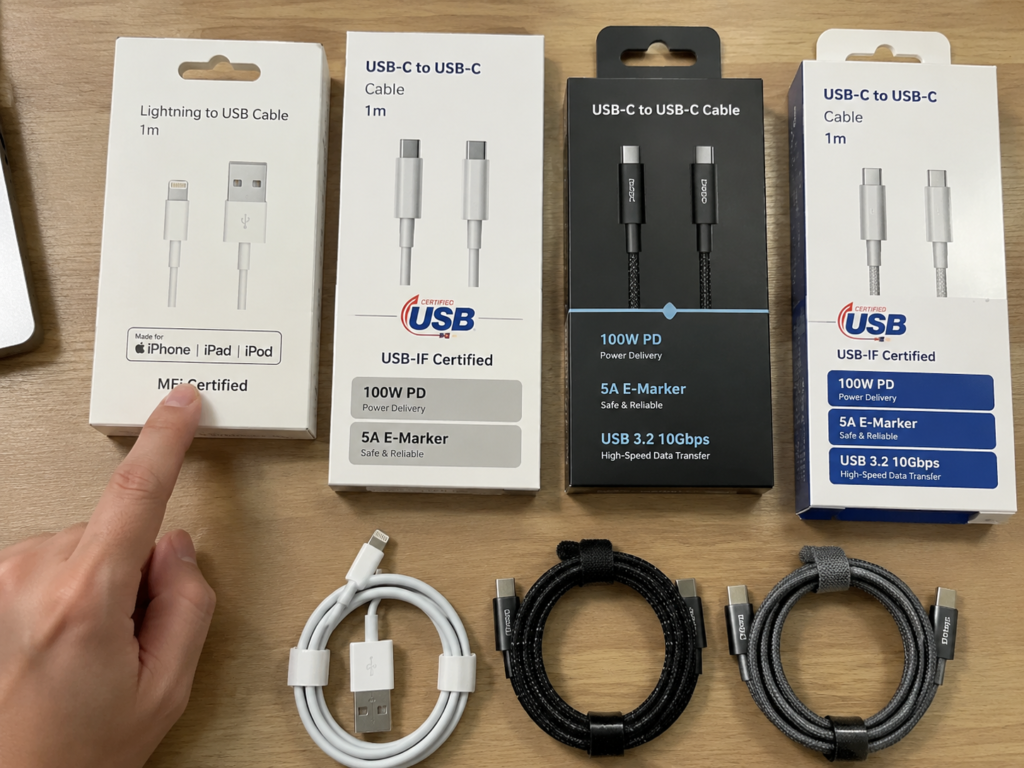
USB-IF Certification, E-Marker, and USB-C Cable Specifications
For USB-C accessories, you generally don’t need to look for MFi, but rather check whether they comply with the specifications of the official USB organization (USB-IF) and whether they clearly label power and transfer rate.
Here’s a term you might see on packaging: E-Marker chip. High-power USB-C cables, especially those supporting 5A current and 100W or even 240W power, usually have this small chip inside. Its function is to tell the device “how much current I can handle and how fast I can run” to avoid overload problems.
Many people think that as long as a cheap USB-C cable can plug in, it can deliver full 100W or high-speed transmission — this is completely wrong. If the cable is for laptops, high-speed hard drives, or monitors, be sure to buy products that clearly label power, rate, and video capability. Don’t leave it to chance.
PD Fast Charging (USB Power Delivery)
PD is currently the most universal USB fast charging protocol. In plain terms: after a device and charger are connected, they first “negotiate” and select a voltage and current that both support, instead of forcing power through.
There are three necessary conditions for fast charging: device support, charger support, and cable support. If any one is missing, the speed may drop to normal charging levels.
For Lightning devices, older iPhones usually require a USB-C to Lightning cable paired with a PD-supported charger to achieve fast charging; for USB-C devices, the device itself must also support PD or the corresponding fast charging protocol — just having a USB-C port doesn’t guarantee fast charging.
There’s another common misconception: if you use a 100W charger to charge a 20W phone, will it damage the phone? Will it charge faster? The answer to both is no. The device only draws power according to its allowed power limit; it won’t take extra power, so it won’t be damaged, nor will it charge faster.
USB Versions and Transfer Speed
The USB version determines data transfer capability, which is completely separate from connector shape.
Common tiers are roughly as follows: USB 2.0 is suitable for transferring photos, small files, and regular backups — it’s sufficient but not fast; USB 3.x (usually labeled 5Gbps, 10Gbps, 20Gbps) is suitable for transferring large videos and connecting external solid-state drives, with much faster speeds; USB4/Thunderbolt is a higher-end standard, suitable for professional high-speed expansion, and not commonly used by average users.
The way to judge speed is simple: look for terms like “USB 2.0”, “USB 3.2”, “10Gbps”, “40Gbps”, “USB4”, and “Thunderbolt” in the product parameters — these are the basis for speed, don’t use connector shape as the standard.
A quick reminder: the theoretical speed in the parameters is not equal to your actual copy speed. Real speed is also affected by the speed of the storage chip, computer port specifications, number of files, and cable quality. For example, transferring 10,000 small photos will definitely be slower than transferring a single video of the same size.
Charging-Only Cables, Data Cables, and Full-Featured Cables
Don’t think all cables that can plug in are the same. By function, there are at least these categories:
- Charging-only cables: Can only charge, or only support very low-speed data transfer. Suitable for use with power banks and bedside sockets, usually very cheap.
- Regular data cables: Can transfer photos and regular files, but don’t necessarily support high-speed transmission. Sufficient for daily file transfers to phones.
- High-speed data cables: Packaging will be labeled with rates like 5Gbps, 10Gbps, 20Gbps, 40Gbps. Suitable for connecting external solid-state drives and transferring large video footage.
- Full-featured cables: Usually support high-power charging, high-speed data transfer, and video output at the same time. They are more expensive and may have thicker cable bodies.
There’s only one principle to avoid pitfalls: if the packaging doesn’t state data rate, video output, or power limit, don’t assume it has these functions. Don’t listen to sellers’ empty claims.
DP Alt Mode, Thunderbolt, and Video Output
Many people think that any USB-C port can connect to a monitor — this is another common misconception.
Let’s first explain two terms: DP Alt Mode means the USB-C port can use DisplayPort signals to output video. Only devices that support this function can directly connect to a monitor or TV with a USB-C cable; Thunderbolt/USB4 is a higher-end high-speed port capability that can connect more expansion devices in addition to video, commonly found in Macs and some high-end Windows computers.
The truth is: the USB-C ports on many entry-level phones and tablets only support charging and data transfer, and do not support video output at all.
The way to judge is not difficult: check if the device parameters have labels like “DisplayPort”, “DP Alt Mode”, “Thunderbolt”, “USB4”, or “video output” — only then is it supported.
Semi-Proficient Decision-Making: How to Choose for Different Scenarios
Now that you know the differences, the next step is how to choose, buy, and transition. The answers vary completely depending on your needs.
Port Selection Logic When Buying New Devices
- If you’re just an average user, when buying a new phone or tablet, prioritize USB-C devices. For long-term use, accessory compatibility is better, and you don’t need to stock a bunch of special cables separately.
- If you’re currently using an older iPhone that still runs smoothly, and you usually just browse social apps, make calls, and charge overnight, there’s absolutely no need to switch phones just for a USB-C port — it’s a waste of money.
- If you have many devices: Android phone, iPad, Mac/Windows computer, camera, portable hard drive, handheld game console, unifying with USB-C can significantly reduce the number of cables and chargers you need to carry, making going out much less hassle.
- If you’re a content creator who often shoots 4K/ProRes videos, imports footage, and edits with external solid-state drives, prioritize USB-C devices clearly labeled with USB 3, USB4, or Thunderbolt. Don’t buy just because it has a C port.
- If you often work on the go and need to connect external monitors, Ethernet ports, card readers, and docking stations, prioritize USB-C devices that support video output — efficiency will be much higher.
- Users on a budget should note: don’t buy low-end devices just for the “USB-C” name. Many cheap entry-level phones, even if they use USB-C, may only have slow charging and USB 2.0 transfer, no different from Lightning.
Pitfall Avoidance Tips for Buying Lightning Accessories
If you’re still using Lightning devices, remember these points when buying accessories:
- For cables, for long-term use, prioritize Lightning cables with MFi certification to avoid compatibility prompts popping up during use, or the cable stopping working after a system update.
- If you want fast charging, choose an MFi USB-C to Lightning cable paired with a PD-supported charger. Old USB-A chargers can’t do fast charging.
- You don’t need to buy a charger with especially high power. The fast charging limit of older iPhones is just over 20W; buying a 100W charger won’t make it faster, it’s a total waste.
- When buying adapters (such as HDMI, card readers, audio adapters, car accessories), prioritize official Apple or reliable MFi-certified products. Especially for scenarios with high stability requirements like in-car CarPlay and external audio, cheap adapters are very prone to problems.
- Those extremely cheap uncertified cables, cables that get hot during use, and adapters with loose connectors are not recommended for long-term use. At best, they’ll disconnect; at worst, they pose safety hazards.
Pitfall Avoidance Tips for Buying USB-C Accessories
USB-C accessories are more of a minefield than Lightning ones, because their functional differences are huge. Before buying, be sure to check the parameters according to your use case:
- If you only charge your phone, focus on whether the charger supports PD/PPS, and that the power matches your phone’s fast charging limit. Average users can basically get by with 30W to 65W, depending on device support.
- For charging laptops, check if the charger’s power is sufficient for the laptop. For cables, look for 100W/240W labeling, 5A current, and E-Marker chip — otherwise, it may not charge or charge slowly.
- If you need to transfer large files or connect external solid-state drives, be sure to check if the cable is labeled with rate values like 5Gbps or 10Gbps. Don’t buy cables that only say “fast charging” — those most likely only charge or only have USB 2.0 speed.
- If you want to connect an external monitor, first confirm that your device supports DP Alt Mode/Thunderbolt/USB4 video output, then confirm that the cable supports video output. Otherwise, it’s normal for there to be no response when plugged in.
- When buying a docking station, don’t just look at how many ports it has. Confirm whether the power supply is sufficient, the resolution and refresh rate supported by HDMI/DP, the speed of the USB ports, whether the Ethernet port is 100Mbps or 1Gbps, and whether it’s compatible with your device’s system.
The general principle is just one sentence: connector shape is only the first step; functional labeling is the basis for your purchase.
Transition Methods When Both Port Types Coexist
Many people now use a mix of old and new devices: they have older iPhones with Lightning, as well as computers or earbuds with USB-C. You don’t need to rush to throw away all your old accessories; you can transition as follows:
- Charging transition: Use an MFi USB-C to Lightning cable for older iPhones, paired with a USB-C PD charger. This way, the charger can also be used for new USB-C devices, so you don’t need to buy multiple chargers.
- Connecting new USB-C iPhones to old Lightning accessories: You can buy a reputable USB-C to Lightning adapter, but note that not all functions of all Lightning accessories can be implemented through an adapter. For example, the special functions of some dedicated accessories may be limited. It’s best to check compatibility clearly before buying.
- Audio/car transition: Compatibility for scenarios like CarPlay, wired earbuds, and microphones is more complex, especially for accessories with data transfer. Don’t randomly buy no-name adapters; before buying, be sure to check if the product description says it supports your device and scenario.
- Data transition: For important data transfers, use direct cables as much as possible, and avoid multi-stage adapters (such as adapter connected to another adapter). Otherwise, not only will speed decrease, but disconnections are also more likely.
- Video transition: Lightning already has many video output limitations, and after adaptation, it may be even more unstable. If you need to connect an external monitor long-term, it’s more hassle-free to directly use a USB-C device that supports video output.
There are several scenarios where adapters are not recommended, as they are prone to problems: high-power laptop charging, high-speed external solid-state drives, scenarios with frequent plugging and unplugging, important live streams or meetings, and occasions requiring stable video output.
Quick Decisions for Different Users
If you don’t feel like reading the details above, you can directly find the category that fits you:
- Single-device users with only one older iPhone: Continuing to use Lightning is completely sufficient. If the cable breaks, just buy a reliable MFi cable — no need to fuss.
- Users preparing to get a new iPhone: You can slowly transition to the USB-C ecosystem. For example, first switch your charger to a USB-C PD one, which you can still use after changing phones later. You don’t need to discard all old accessories at once.
- Multi-device mixed users: Try to unify your main accessories to USB-C, and keep just a few Lightning cables for old devices — that’s enough.
- Users who travel/go on business trips frequently: USB-C saves more space in your bag, and it’s easier to borrow cables and chargers when you’re out — less hassle.
- Student/dorm users: USB-C is more convenient to share with roommates, but if you use an older iPhone, it’s still recommended to have your own Lightning cable — don’t always borrow from others.
- Creator/photography users: Don’t just look at whether the port is USB-C. Focus on the USB 3/USB4 specifications, support for external solid-state drives, and the device’s own storage speed — these are much more important than connector shape.
Practical Skills: Common Troubleshooting Methods
No matter which port you use, you’ll always encounter small problems like slow charging, inability to connect to a computer, or no response from a monitor. Don’t rush to send it for repair; follow the steps below to check one by one, and most problems can be solved by yourself.
Troubleshooting Order for Slow Charging or No Charging
- First replace with a confirmed working charger or socket to rule out power supply issues — many times it’s actually a broken socket, or the charger isn’t plugged in tightly.
- Then replace with a confirmed working cable to see if the cable is broken, or if its specifications are insufficient (for example, using a charging-only cable with a slow charger will of course not charge fast).
- Check if the device port has dust, can’t be plugged in all the way, is loose, or has liquid traces — if there’s a lot of dust, clean it as previously mentioned; if there’s liquid damage, don’t use it, let it dry first.
- Check if the device is overheating, or if the battery is already close to 80% or even full — many devices actively slow down charging when the temperature is high or the battery is high to protect the battery. This is normal, not a malfunction.
- Restart the device and update to the latest system. If it’s still abnormal, then consider whether it’s a problem with the port hardware, battery aging, or the motherboard. It’s not too late to send it for repair then.
Safety reminder: If the cable gets hot, the port has a burnt smell, is deformed, or has liquid damage, stop using it immediately — don’t force it.
Troubleshooting Order for Not Connecting to Computer or Slow Data Transfer
- First confirm that you’re using a data cable, not a charging-only cable that can only charge — many people grab a power bank cable casually, and of course can’t connect to the computer.
- Try another USB port on the computer. Plug directly into the computer as much as possible, don’t connect to a docking station first — sometimes docking stations have compatibility issues.
- If an iPhone or iPad is connecting to the computer, remember to unlock the device and tap “Trust This Computer” when it pops up on the screen — otherwise the computer won’t be able to read the device.
- Check the USB version of your device and cable. If it’s USB 2.0 specification, slow transfer of tens of GB of video is normal, not a malfunction.
- If you’re transferring a large number of small files (such as thousands of photos), the speed will naturally be slower than a single large file. Photo library export is also affected by software processing speed — this is also normal.
- If you’re connecting an external portable hard drive or solid-state drive, confirm whether the power supply is sufficient. Some 2.5-inch hard drives or high-speed solid-state drives need to be plugged into a port with stronger power supply, or require additional power to work properly.
Troubleshooting Order for No Response from External Monitor
- First confirm that your device’s USB-C port supports video output. Not all USB-C phones and tablets support this function; if it’s not supported, of course there will be no response when plugged in.
- Confirm that the cable you’re using supports video output. Don’t use a charging-only cable to connect to a monitor.
- Switch the monitor’s input source, replace the HDMI/DP cable, or try another port on the docking station. Sometimes the input source is selected incorrectly, or the cable is broken.
- Try lowering the monitor’s resolution and refresh rate a bit, for example, start testing with 1080p/60Hz. Sometimes the device doesn’t support too high a resolution, so there will be no signal.
- If you’re using a Lightning device with an adapter to connect to a monitor, also confirm whether the app you’re using restricts wired screen mirroring — some video apps, due to copyright reasons, don’t support wired output and only support wireless screen mirroring. This is a software limitation, not a broken port.
Quickly Determine Where the Problem Lies
Here’s the simplest cross-test method to quickly find the source of the problem: use the same charger with a different cable, use the same cable with a different device, use the same device with a different charger. See which accessory the problem follows — whichever accessory the problem follows is the one with the issue.
- Can only charge but can’t transfer data: First suspect the cable is a charging-only cable, then check the device’s trust authorization and port contact issues.
- Fast charging isn’t fast: First check if the charger supports PD/PPS and if the cable’s power is sufficient, then check the device’s battery level and temperature.
- Accessories disconnect occasionally: First suspect a loose adapter, bent/damaged cable root, or dust in the port.
If the device has liquid damage, burning, severe deformation, or obvious strange smells, don’t test it — stop using it immediately and send it for repair to avoid danger.
Common Misconceptions Clarified and Industry Trends
10 Most Common Cognitive Misconceptions
Finally, let’s clarify a few of the most commonly heard wrong statements — don’t be fooled anymore:
- Misconception: USB-C means fast charging — Truth: USB-C is just a shape. Fast charging depends on the PD/PPS protocol, device, and cable. Many low-end USB-C devices only have slow charging.
- Misconception: USB-C means high speed — Truth: Many USB-C devices and cables still have USB 2.0 speed, no different from Lightning iPhones.
- Misconception: Lightning can’t do fast charging at all — Truth: Older iPhones can fully achieve fast charging with a USB-C to Lightning cable and PD charger.
- Misconception: All Apple devices use Lightning — Truth: New iPhones, Macs, iPad Pros, and the charging case of the new AirPods Pro already use USB-C.
- Misconception: The higher the charger power, the faster the charging — Truth: The device only draws power according to its own power limit, and won’t break through hardware and battery protection strategies. Higher power won’t make it charge faster.
- Misconception: If it plugs in, it can transfer data — Truth: Many cheap cables only support charging, or only have very low-speed data transfer capability.
- Misconception: If it plugs into USB-C, it can connect to a monitor — Truth: Both the device and cable must support video output. The C port on many entry-level devices has no video function.
- Misconception: Non-MFi Lightning cables will definitely break — Truth: They won’t definitely break, but compatibility, stability, and lifespan are less guaranteed, so they’re not cost-effective for long-term use.
- Misconception: Adapters can solve all compatibility problems losslessly — Truth: Adapters may limit speed, power, audio, and video capabilities, and may also add instability factors.
- Misconception: Lightning is completely useless now — Truth: There are still a large number of older iPhones and existing accessories in normal use; it’s just that new devices have basically switched to USB-C.
Industry Trend: USB-C Becomes Mainstream, Lightning Enters Transition Period
The current industry trend is very clear: USB-C is becoming the universal port for consumer electronics. Phones, computers, tablets, earbuds, cameras, and gaming devices are all converging to USB-C.
Apple switched to USB-C starting with the iPhone 15 series, on the one hand due to the need for unification of its own ecosystem, and on the other hand related to regulations promoting a unified charging port in regions like the European Union — the EU stipulates that starting from autumn 2024, portable electronic devices such as phones, tablets, and earbuds sold in the EU must use a USB-C charging port.
In terms of performance, USB-C is also more capable of supporting high-power charging, high-speed data transfer, video output, and the docking station ecosystem — something Lightning can’t match.
As for the future of Lightning, it will decrease as older iPhones and old accessories are gradually phased out, but it will still exist in existing devices in the short term. As long as your old devices and accessories are working properly, you can continue to use them. There’s no need to rush to replace all of them at once; just transition slowly according to your own device update rhythm.
Buying Checklist: Check by Use Case Before Buying
Finally, we’ve compiled buying check items for different use cases. Check against them before buying, and you won’t make a wrong purchase:
Just Want to Charge Your Phone
- iPhone 14 and earlier (Lightning): USB-C to Lightning MFi cable + PD charger
- iPhone 15 and newer / Android phones (USB-C): USB-C to USB-C cable + PD/PPS-supported charger
- Key points to check: power supported by the device, charger power, cable power — don’t just look at connector shape
Want to Charge Laptops and Tablets Together
- Choose a 65W, 100W, or higher power charger, specifically determined by the laptop’s needs
- For cables, look for 100W/240W, 5A, and E-Marker labels
- For multi-port chargers, look at “power distribution when multiple ports are used simultaneously”, not just total power. Many multi-port chargers have reduced power when used simultaneously.
Want to Transfer Large Videos or Connect Portable Hard Drives
- The device must support high-speed USB, and the cable must also be labeled with a rate of 5Gbps or higher
- For external solid-state drives, also check the speed of the hard drive enclosure, the SSD itself, and the computer’s port speed
- Note for iPhone 15 Pro users: The cable included in the phone box is USB 2.0 specification. To transfer high-speed data, you need to buy a high-speed USB-C cable yourself.
Want to Connect External Monitor or Docking Station
- For the device, check if it has DP Alt Mode, USB4, Thunderbolt, or official video output instructions
- For the cable, check if it supports video output, and the corresponding resolution and refresh rate
- For the docking station, check the HDMI/DP specifications, power supply, USB port speed, Ethernet port specifications, and whether it’s compatible with your device’s system
Quick Answers to Common Questions
Which is better, USB-C or Lightning?
If daily use is just charging, scrolling on your phone, and transferring a few photos, there’s not much difference between the two — just keep using whichever one your current device uses. If you’re a multi-device user, buy new devices long-term, or need external expansion, USB-C is better. If you already have many Lightning accessories and an older iPhone, continuing to use Lightning is completely reasonable.
After iPhones switch to USB-C, will charging definitely be faster?
Not necessarily. Charging speed depends on the specific iPhone model, battery condition, temperature, charger, and cable — it’s not a given that switching ports will result in a significant improvement.
Why are some USB-C cables cheap and others expensive?
The price difference mainly comes from power level, transfer rate, whether it supports video output, whether it has an E-Marker chip, workmanship, certification level, and after-sales support. It’s not that the more expensive the better, but extremely cheap ones most likely have reduced functionality.
How much longer can Lightning be used?
For the old devices you have, as long as the devices and accessories aren’t broken, you can keep using them. But new devices and accessories will increasingly lean towards USB-C, so the selection of new accessories will decrease in the future.
What parameters are most important to look at when buying USB-C cables?
If only used to charge phones, look at power and PD/PPS support; if transferring files, look at transfer rate; if connecting to a monitor, look at video output support; if charging laptops, look at 100W/240W power and E-Marker labels.
Final Summary
- USB-C isn’t inherently faster, but it has a higher ceiling, stronger universality, and better future compatibility
- Lightning isn’t unusable, but it mainly belongs to Apple’s old device and existing accessory ecosystem
- For daily slow charging and small file transfers, the experience gap between the two is actually very limited
- For multi-device mixing, external monitors, large video transfers, and buying new devices, prioritizing USB-C is definitely the right choice
- When buying cables, don’t just look at connector shape — look at power, rate, video output, certification, and device support
- When encountering problems, first troubleshoot in the order of “replace cable, replace charger, clean port, check specifications, restart/authorize” — most small problems can be solved by yourself