
Laptop USB-C Charging: The Complete Guide to USB PD, Chargers, Cables & Battery Health
If you’ve ever stared at a pile of USB-C cables and wondered why your 100W charger still refuels your laptop at a snail’s pace, you’re not alone. Most slow-charging headaches don’t come from a broken laptop — they come from mismatched accessories, misunderstood specs, and widespread myths about how USB-C power actually works.
This guide breaks down everything you need to know in plain language: how USB PD protocols set charging speed, why cables matter more than chargers, how to pick a safe and reliable USB-C laptop charger, and how to protect your laptop’s battery for years of use. Whether you own a thin ultrabook, a creator laptop, or a gaming machine, you’ll walk away with clear, actionable rules to get the fastest, safest USB-C fast charging possible.
Quick Takeaways: 5 Rules You Can Memorize Right Now
- USB-C is just a port shape. The USB Power Delivery (PD) protocol is what actually determines charging speed and power limits.
- Higher-wattage chargers are completely safe. Your laptop only draws the exact power it needs — it will never “overcharge” or burn out from a more powerful adapter.
- Fast charging above 60W requires an E-Marker 5A cable. No chip = your system locks power to 60W max, no matter how powerful your charger is.
- Laptops prioritize system power over battery charging. If your adapter can’t keep up with CPU/GPU load, your battery will drain even while plugged in.
- Heat, permanent full charge, and deep discharge damage batteries. Proper, certified fast charging causes almost no extra wear.
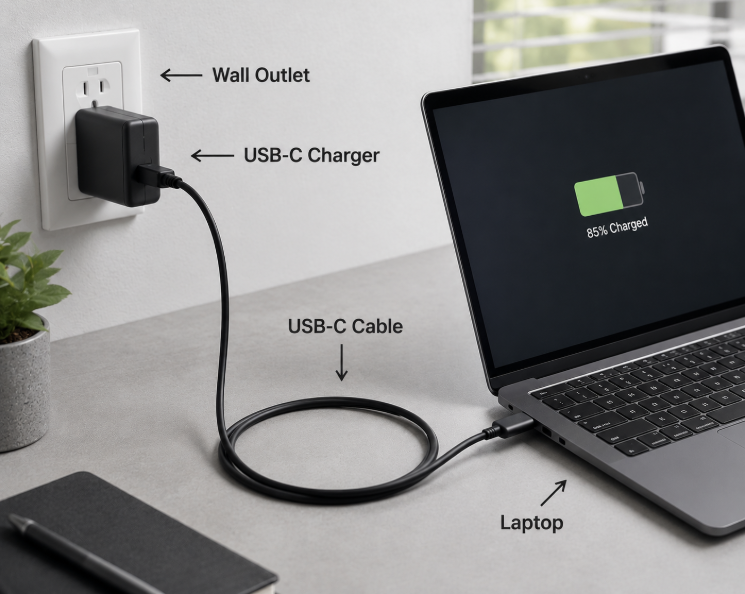
1. Why USB-C Became the Standard for Laptop Charging
1.1 What Makes Laptop USB-C Different From Your Phone
USB-C’s oval, reversible design is instantly recognizable. The USB-C standard is designed for at least 10,000 insertion cycles, although real-world durability varies by manufacturer and build quality — far more robust than older proprietary charging ports.
But laptop USB-C works much harder than the port on your phone. On top of charging, it often handles high-speed data transfer (up to 40Gbps with USB4/Thunderbolt), 8K video output via DisplayPort Alt Mode, and connections to docks, external drives, and peripherals. For many modern laptops, a single USB-C port replaces three old-fashioned jacks: power, display, and data.
1.2 A Short History of Laptop Charging Ports
Not long ago, every laptop brand used its own proprietary charging port: round barrels, square connectors, and custom pins meant a Dell charger would never work with a Lenovo, and vice versa. Traveling with multiple devices meant carrying a bag full of power bricks.
Magnetic connectors like Apple’s original MagSafe and Microsoft’s Surface Connect improved on this by preventing trip damage, but they remained closed, brand-locked ecosystems.
The USB-C specification was released in 2014, and began appearing widely in consumer laptops between 2015 and 2016. What started as a premium feature quickly became the industry default, replacing dozens of proprietary ports with one universal standard.
1.3 Global Rules Are Pushing USB-C Even Further
Regulators around the world are accelerating the shift to unified charging, most notably in the European Union:
- Smartphones, tablets, headphones, and small portable devices have been required to use USB-C since December 28, 2024
- Laptops placed on the EU market from April 28, 2026 will be required to support USB-C charging, though higher-power systems may still use additional charging solutions depending on their design
- India and other regions are rolling out similar policies to cut electronic waste
Important note: A unified port does not mean universal charging speed. Different power ratings, protocols, and manufacturer limits still apply — you won’t charge a 200W gaming laptop at full speed with a basic phone charger. But the shared physical standard makes cross-device charging far more practical than ever before.
1.4 The Real-World Benefits For You
For everyday users, the USB-C transition delivers tangible wins:
- One charger works for your laptop, phone, tablet, and earbuds
- Compact GaN (gallium nitride) chargers can achieve significantly smaller, more compact designs compared with traditional silicon-based chargers at similar power levels, perfect for travel
- A single USB-C dock cleans up your desk: power, display, keyboard, mouse, and Ethernet all run through one cable
- High-wattage power banks and car chargers can top up your laptop on the go
2. How USB-C Laptop Charging Actually Works
2.1 The Full Charging Path, Step by Step
Electricity follows a clear, controlled journey from your wall outlet to your battery:
- Wall outlet supplies alternating current
- USB-C charger converts AC to safe DC power at the correct voltage
- USB-C cable carries power and negotiation signals
- Laptop USB-C port receives power and data
- PMIC (Power Management IC) acts as the smart control center: it adjusts voltage, distributes power between system components and the battery, and monitors temperature
- BMS (Battery Management System) protects the battery pack from overcharging, overheating, and deep discharge
- Lithium-ion battery cells store the final energy
You don’t need to memorize all those acronyms. The key takeaway: your laptop has multiple layers of built-in safety — charging is actively managed by the power management system, not just a raw flow of electricity.
2.2 Power Basics: Watts, Volts, and Amps
You only need one simple formula to understand charging specs:
Power (Watts) = Voltage (Volts) × Current (Amps)
Watts are the number that matters most for real-world speed. Here’s what common power ratings actually support:
| Power Range | Typical Laptop Type | Examples |
|---|---|---|
| 30–45W | Ultra-portable 2-in-1s | MacBook Air, Surface Go |
| 65W | Mainstream business ultrabooks | ThinkPad X1, Dell XPS 13, MacBook Pro 13” |
| 100W | High-performance creator laptops | MacBook Pro 14”, Dell XPS 15 |
| 140–240W | Flagship workstations & gaming laptops | MacBook Pro 16”, ASUS ROG Zephyrus |
2.3 The “Handshake”: Why High-Wattage Chargers Are Safe
This is the single most important concept to understand.
Inside every USB-C port are small communication pins that allow the charger and laptop to negotiate power safely. When you plug in a charger, the two devices don’t just dump power — they have a conversation:
- The charger announces which voltage and current levels it supports
- Your laptop picks the best matching profile
- Power delivery begins at the negotiated level
Your laptop is always in control. It never takes more power than it’s designed to handle. A 100W charger connected to a 65W laptop will only deliver the power level requested by the laptop. There is no such thing as “too powerful” when it comes to certified USB PD chargers.
2.4 The Laptop-Exclusive Quirk: Power Priority
This is why your laptop might charge slowly or even lose battery while plugged in — and it’s completely normal.
Unlike phones, which put charging first when plugged in, laptops prioritize running the system. Power from the adapter first feeds the CPU, GPU, screen, and other active components. Whatever is left over goes to the battery.
If you’re gaming, rendering video, or running heavy software, your laptop might use 80W of power. Plug in a 65W charger, and the battery will make up the 15W gap — your charge level will drop, even with the cable connected. Many gaming and workstation laptops will also throttle performance if they detect an underpowered adapter.
2.5 The Standard Charging Curve
All modern lithium-ion laptops follow roughly the same charging pattern:
- 0–70%: Fast constant-current charging — this is where you get the advertised fast charge speeds
- 70–100%: Slower trickle charging — voltage tapers off to protect battery health
- Full charge: Automatic cutoff — the system stops supplying large current once full
Extreme heat or cold will also trigger thermal protection and slow charging down. This is a safety feature, not a bug.
3. What Actually Determines Your Charging Speed?
Slow charging is almost never a laptop defect. It’s almost always a mismatch in one of these four areas: protocol, port capability, cable rating, or charger output.
3.1 USB PD: The Universal Charging Language
USB Power Delivery (PD) is the official standard that governs USB-C fast charging. There are two main generations you’ll encounter:
USB PD 3.0 (Standard Power Range / SPR)
- Top output: 100W (20V × 5A)
- Supported by over 95% of USB-C laptops on the market
- Covers nearly all ultrabooks and mainstream thin-and-lights
USB PD 3.1 (Extended Power Range / EPR)
- Released in 2021, adds three higher voltage levels: 28V, 36V, and 48V
- Top output: 240W (48V × 5A)
- Built for high-end creator laptops, gaming machines, and monitors
- 140W charging (28V × 5A), used by Apple’s MagSafe 3 system, is one common EPR power level
You may also see references to PPS (Programmable Power Supply), which allows fine-grained voltage adjustment for cooler, more efficient charging. It’s common on phones but rarely used on x86 Windows laptops. You don’t need to seek out PPS specifically for laptop charging — standard PD 3.0+ compatibility is all that matters.
A Note on Apple MagSafe 3
MagSafe 3 is a magnetic physical connector, not a separate charging protocol. The 140W fast charging on 14” and 16” MacBook Pro models runs on the USB PD 3.1 EPR standard at 28V/5A — the same underlying protocol used by other high-power USB-C laptops.
Third-party USB-C chargers will work with MagSafe 3 MacBooks, but they’ll be limited to 100W max over standard USB-C. To get the full 140W speed, you need both a PD 3.1 EPR charger and an official or EPR-certified MagSafe 3 cable.
3.2 Not Every USB-C Port Can Charge (Or Output Video)
The oval shape is the same, but internal wiring varies wildly between ports. There are three common tiers:
- Basic charging-only ports: Handle power and basic USB 2.0 data — no video output
- Full-feature USB-C: Support PD charging, USB 3.2 high-speed data, and DisplayPort Alt Mode video
- Thunderbolt / USB4 ports: The top tier — 40Gbps data, multi-display output, 100W+ charging, and even external GPU support
You can usually tell by the icons printed next to the port: a battery icon means charging support, a lightning bolt means Thunderbolt, and a DP icon means video output. When in doubt, check your laptop’s official spec sheet.
3.3 Cables: The Most Overlooked Charging Bottleneck
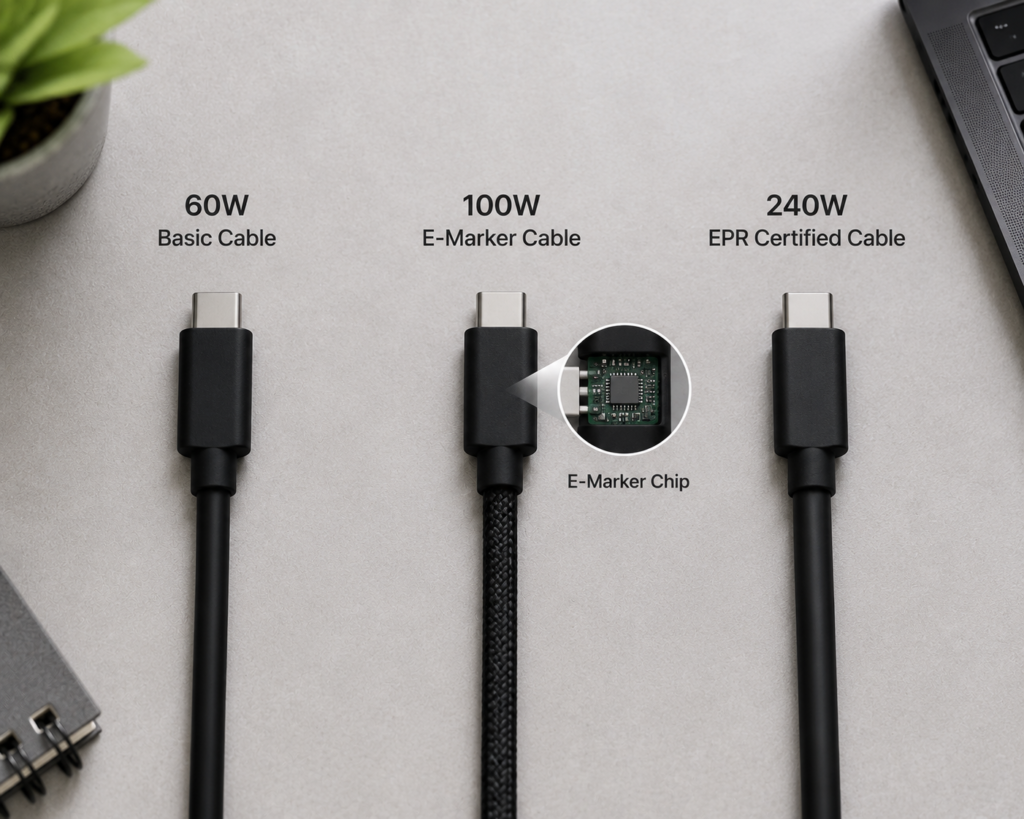
Most people buy a fancy 100W charger and wonder why it still charges slowly. 9 times out of 10, the cable is the problem.
Think of a charging cable like a water pipe. A narrow pipe can only carry so much water, no matter how strong the pump is.
Cable Power Ratings
| Cable Type | Max Power | Key Requirement | Best For |
|---|---|---|---|
| 3A basic cable | 60W (20V/3A) | No special chip needed | Phones, tablets, emergency laptop charging |
| 5A E-Marker cable | 100W (20V/5A) | Must have built-in E-Marker chip | All mainstream ultrabooks and creator laptops |
| EPR-certified cable | 240W (48V/5A) | E-Marker + EPR voltage support | 140W+ gaming and workstation laptops |
What Is an E-Marker Chip?
Per USB-IF rules, any cable carrying more than 3A (above 60W) must include a tiny E-Marker chip inside the connector. Think of it as the cable’s electronic ID card — it tells the charger and laptop exactly how much power it can safely handle.
If there’s no E-Marker chip, the system will automatically lock charging speed to 60W maximum. This is the #1 hidden cause of “slow 100W charging” complaints.
Charging Speed ≠ Data Speed
Here’s another common money-waster: you don’t need an expensive Thunderbolt cable just for charging.
Plenty of USB 2.0-speed cables support full 100W charging perfectly well. You only need a high-speed USB4 or Thunderbolt cable if you’re connecting external drives, docks, or displays. For pure charging, a basic 5A E-Marker cable works exactly as well as a premium full-feature one.
How Length Affects Charging
Longer cables have higher electrical resistance, which causes voltage drop and slower charging.
- 0.5m: Lowest loss — great for desk use with power banks
- 1m: The best all-around balance of speed and convenience
- 2m: Works fine with high-quality, thick-gauge cables; avoid cheap thin ones
- 3m+: Not recommended for high-power charging — speed loss becomes significant
3.4 How to Pick the Right USB-C Laptop Charger
The Golden Rule: Buy Slightly More Than You Need
A higher-wattage charger runs cooler, lasts longer, and gives you headroom for heavier workloads. Since laptops only draw what they need, there’s no downside to having extra wattage.
General recommendations:
- Ultra-portable 2-in-1s: 45–65W
- Mainstream ultrabooks: 65W (the sweet spot for most users)
- Creator and high-performance laptops: 100W
- Flagship gaming/workstation laptops: 140W+ PD 3.1 EPR, or the official adapter
GaN vs. Traditional Chargers
Gallium Nitride (GaN) chargers use newer semiconductor technology that switches power faster. The result: smaller size, less heat, and better efficiency. For travel and daily carry, a 65W or 100W GaN charger is almost always the best choice.
For 140W+ high-power models, some chargers use Silicon Carbide (SiC) for even better efficiency at high voltages.
Single-Port vs. Multi-Port Chargers
- Single-port: Full power goes to one device. Most compact, most reliable for dedicated laptop charging.
- Multi-port (2C1A, 3C1A, etc.): Charge your laptop, phone, and earbuds from one brick. Perfect for travel.
Critical buying tip: Always check the single-port maximum output, not just the total wattage. Many 100W multi-port chargers only deliver 65W to the laptop port when other devices are plugged in.
Safety Certifications That Matter
Stick to products with these official certifications, and skip no-name bargain brands:
- USB-IF certification: The official USB standard stamp — guarantees proper protocol and power behavior
- UL / ETL: North American electrical safety certification for fire and shock protection
- CE: European Union safety and environmental compliance
Emergency Charging: Power Banks & Car Chargers
You can charge a laptop from a power bank or car charger, but it has to meet two requirements:
- Supports 45W+ USB PD output
- Includes a 20V voltage profile
Cheap power banks that only output 5V/9V/12V won’t charge most laptops at all.
3.5 How To Check Your Laptop’s Power Requirements
If you’re unsure what wattage your laptop needs, use one of these four simple methods:
- Check the original charger label: Look for the “Output” line — it will list voltage and current (e.g., 20V ⎓ 3.25A = 65W)
- Check the manufacturer’s website: Find your exact model’s technical specifications page, and look under “Power” or “Battery & Charging”
- Check system information: On Windows, view battery and power details in Device Manager; on Mac, open System Report → Power
- Test with a USB power meter: A small inline tool can show you exact voltage, current, and negotiated protocol in real time
When in doubt, a 65–100W USB PD charger will work safely with nearly all modern thin-and-light laptops.
3.6 USB-C Docks & Charging Performance
Many users notice slower charging when their laptop is connected through a docking station. This is extremely common, and there are three main causes:
- The dock uses power for itself: Most docks consume 5–15W just to run their internal circuits, which is deducted from the total incoming power
- Insufficient PD input: If your dock only accepts 65W input, your laptop will get even less after the dock’s own power use
- High peripheral load: Multiple displays, external drives, and accessories add extra strain
For reliable full-speed charging through a dock, choose a model with at least 100W PD pass-through, and pair it with a charger powerful enough to cover both the dock and your laptop.
4. Battery Health: What Actually Shortens Battery Life
4.1 Myth Busting: Does Fast Charging Hurt Batteries?
No — not when done properly with certified equipment.
Modern laptop batteries have sophisticated battery protection systems, and the charging process is tightly controlled. The extra wear from standard PD fast charging is minimal and barely noticeable over the life of the device.
What does noticeably age batteries:
- Sustained high temperatures — this is one of the biggest factors accelerating battery aging
- Permanent 100% full charge — keeping cells at maximum voltage long-term accelerates degradation
- Deep discharge to 0% — draining completely and leaving it dead for weeks can permanently damage cells
- Cheap, uncertified chargers — unstable voltage can wear out power management circuits and cells faster
Laptops actually have an advantage over phones here: larger bodies mean more cooling space, so batteries run cooler during charging.
4.2 Built-In Battery Protection Features (Use Them!)
Every major laptop brand includes battery health tools — most people just never turn them on.
- Apple macOS: Optimized Battery Charging (learns your schedule) + optional 80% charge limit
- Lenovo Vantage: Battery Conservation Mode, caps charging at 55–60% for all-day plugged-in use
- Dell Power Manager: “Primarily AC Use” mode and custom charge thresholds
- ASUS MyASUS: Battery Health Charging, limits to 60% or 80%
- HP Adaptive Battery Optimizer: Automatic adjustment based on your usage pattern
If you keep your laptop plugged in 24/7 as a desktop replacement, turn on a charge limit immediately. Keeping the battery floating at 100% day after day is the single fastest way to reduce its long-term capacity.
4.3 6 Practical Habits For Longer Battery Life
- Enable a charge threshold (50–80%) for permanently plugged-in setups
- If storing the laptop for weeks or months, charge it to ~50% first, and top it up every 3 months
- Use your laptop on a hard, flat surface during heavy workloads — don’t block vents on a bed or couch
- Stick to certified chargers and cables. Dirty, unstable power wears out battery management circuits
- Don’t leave your laptop in a hot car in direct sunlight — extreme heat damages cells permanently
- Overnight charging is electrically safe, but leaving it plugged in 24/7 at 100% will speed up aging slightly
4.4 International Travel Tips
Virtually all USB-C chargers support 100–240V wide input voltage. That means they work in North America, Europe, Asia, and most of the world.
You only need a physical plug adapter for the local wall outlet. You do not need a separate voltage converter. Always double-check the input rating printed on your charger before traveling — budget no-name units sometimes skip wide-voltage support.
5. Common Charging Myths, Debunked
- Myth: A higher-wattage charger will fry my laptop.
Fact: Your laptop controls how much power it draws. More headroom is safer, not more dangerous. - Myth: Any USB-C cable can do 100W charging.
Fact: Cables above 60W require an E-Marker chip. Most cheap cables don’t have one and cap out at 60W. - Myth: I can use my phone charger as my main laptop charger.
Fact: It will work in an emergency, but the low wattage means very slow charging — and under load, your battery will still drain. Long-term use at very low power can also add extra cycling wear. - Myth: If it’s USB-C, it can connect to an external monitor.
Fact: Video output requires DisplayPort Alt Mode or Thunderbolt support. Basic charging-only ports can’t drive displays. - Myth: Charging while gaming will make the battery explode.
Fact: Modern systems have layers of thermal and electrical protection. Explosion risk is effectively zero with genuine equipment. It will run hot and the fans will spin loud, but that’s normal. - Myth: Wireless charging will soon replace wired USB-C for laptops.
Fact: Laptop power demands are too high for efficient wireless charging. Wired USB-C will remain the practical standard for the foreseeable future.
6. Troubleshooting Common Charging Problems
6.1 Laptop Won’t Charge At All
- Confirm the wall outlet works, and the charger’s indicator light is on
- Try a different known-good 5A E-Marker USB-C cable
- Test with a different PD charger to rule out a dead adapter
- Gently clean out the USB-C port with compressed air — dust and lint are surprisingly common culprits
- Make sure you’re plugging into a charging-capable port, not a data-only one
- Restart your laptop. On Macs, reset the SMC; on Windows, update BIOS and chipset drivers
6.2 Charging Is Unusually Slow
- Is your charger powerful enough for your laptop model?
- Are you using a 5A E-Marker cable? Basic 3A cables limit you to 60W
- Is the battery above 80%? Charging naturally slows down past that point
- Are you running heavy software? The system uses most of the power for performance, leaving little for the battery
- Is the laptop very hot or very cold? Thermal protection will intentionally slow charging
6.3 Charging Cuts In And Out Repeatedly
- Most often caused by a dirty or slightly worn port, or a cable with internal wire damage
- Clean the port, try a different cable, and plug the charger directly into the laptop (not through a dock) to isolate the issue
6.4 Charging Slows Down Or Stops When Using A Dock
Docking stations consume 5–15W of power just to run their own circuits. That power comes out of your charger’s total output.
For reliable pass-through charging, use a dock that supports at least 100W PD input, and pair it with a charger that has enough wattage to cover both the dock and your laptop.
6.5 Charger Or Cable Feels Very Hot
- A warm surface (40–50°C) is completely normal under load
- If it’s painful to touch, smells burnt, or the plastic warps, stop using it immediately
- Cheap, uncertified accessories are far more likely to overheat and fail
7. What’s Next For Laptop USB-C Charging?
USB PD 3.1 EPR will keep rolling out to more high-performance laptops over the next few years, gradually replacing proprietary barrel chargers even on gaming machines. GaN and SiC technology will keep shrinking charger sizes while power ratings go up.
AI-powered power management will also get smarter, dynamically shifting power between CPU, GPU, and battery charging based on what you’re actually doing. And as global regulations take effect, the “one charger for everything” vision will keep getting closer to reality.
FAQ: Most Asked Questions
Q: Can USB-C charge a laptop?
A: Yes, nearly all modern laptops support USB-C charging via the USB Power Delivery (PD) protocol. Older laptops with proprietary charging ports do not, but almost every new ultrabook, creator laptop, and even many gaming models include USB-C PD charging.
Q: Can any USB-C charger charge any laptop?
A: Physically, yes — the plug will fit. But chargers under 45W usually can’t provide enough power for normal laptop charging. You’ll get very slow speeds or no charging at all.
Q: 65W vs 100W USB-C laptop charger: Which do I need?
A: For most 13–14 inch ultrabooks, 65W is perfectly sufficient for full-speed charging. For 15–16 inch creator laptops, gaming models, or if you want extra headroom for heavy workloads, 100W is the better choice. Both will work safely — the 100W model will just run cooler and handle high-load charging better.
Q: Is a 65W charger okay for a 100W laptop?
A: Yes, it will charge safely — just slower. Under heavy workloads, the battery may still drain slowly. For full-speed charging and full performance, match or exceed the laptop’s original wattage.
Q: Why is my brand new 100W charger still charging slowly?
A: 90% of the time it’s the cable. Make sure you’re using a 5A E-Marker cable, not a basic 3A phone cable. Also check that you’re using the correct port on a multi-port charger.
Q: Can I use a third-party USB-C charger with my MacBook?
A: Yes, any certified USB PD charger will work safely. Standard USB-C charging tops out at 100W; the full 140W MagSafe 3 speed requires a PD 3.1 EPR charger and cable.
Q: Is it bad to leave my laptop plugged in all the time?
A: It won’t cause immediate damage, but permanent 100% charge will slowly reduce long-term battery capacity. Turn on your system’s charge limit feature if you mostly use it plugged in.
Q: Can a USB-C power bank charge my laptop?
A: Yes — as long as it supports 45W+ USB PD output and includes a 20V voltage profile. Basic phone power banks won’t work.
Final Action Plan: Simple Rules To Follow
For 90% of Ultrabook & Laptop Users
Get a 65–100W GaN PD charger and a 1m 5A E-Marker USB-C cable. This setup will work with nearly every mainstream laptop, plus your phone and tablet, and will last you for years.
For High-Power Creator / 16” MacBook Pro Users
Step up to a 140W PD 3.1 EPR GaN charger paired with an EPR-certified cable or official MagSafe 3 cable for full-speed charging.
For Gaming Laptop Users
Keep a 100W USB PD charger for travel and light use — it’s great for web browsing and office work. Keep your original high-wattage adapter for full-performance gaming and rendering.
Non-Negotiable Rules
- Check for protocol support, not just wattage numbers
- Always leave a little power headroom — don’t buy exactly 65W for a 65W laptop
- The cable is just as important as the charger
- Turn on battery charge limits for always-plugged setups
- Stick to certified, reputable brands — cheap chargers are never worth the risk