
Many people run into the same frustration when shopping for a USB-C docking station: the product advertises dual HDMI or even triple video ports, but when you plug in two monitors, they only display the exact same image. Most users assume it’s a system setting error, but the real cause is simple — you haven’t distinguished between the two video transmission modes: MST and SST.
This guide breaks down their core differences, real-world performance, and buying tips in plain language, to help you avoid common pitfalls with multi-monitor setups on USB-C docks.
1. First Things First: What Are MST and SST?
A USB-C port itself does not generate video signals — it is only a physical connector. When you connect an external monitor via USB-C, the video capability comes from DisplayPort Alt Mode, and the video signal follows the DisplayPort protocol standard.
When people want to connect multiple monitors to a single USB-C port, two different signal transmission methods emerged: SST and MST. Both are official transmission standards under the DisplayPort protocol.
SST: Single-Stream Transport
SST stands for Single-Stream Transport.
It is the most basic native mode of DisplayPort: only one independent video signal can be transmitted over a single physical video link at a time.
Think of it as a single-lane road — only one car can pass through at a time.
When you connect a single monitor via HDMI or DisplayPort cable, you are almost always using SST mode. It is the universal baseline capability of all display devices.
MST: Multi-Stream Transport
MST stands for Multi-Stream Transport.
It is an advanced feature introduced with DisplayPort 1.2: multiple completely independent video signals can be transmitted simultaneously over a single physical video link.
Think of it as a multi-lane elevated highway — multiple cars can travel at the same time without interfering with each other.
The core value of MST is to allow a single video port to drive multiple independently operating displays.
2. How They Work: How Does One Cable Carry Multiple Displays?
How SST Single-Stream Transport Works
- The computer’s GPU generates one complete video feed
- The signal outputs through the DisplayPort channel of the USB-C port
- The docking station passes the signal directly to the video port
- If the dock has multiple video ports, it can only duplicate the same single signal
This is why many multi-port docks only show identical images — they only support SST mode. All ports share the same single video stream and can only mirror the display.
How MST Multi-Stream Transport Works
- The computer’s GPU generates multiple independent video feeds
- The host packs multiple feeds into one composite signal packet
- The same USB-C cable transmits the composite signal to the docking station
- The built-in MST Hub chip inside the dock unpacks the signal and splits it into independent video streams
- Each stream is sent to a separate monitor, displaying independent content on each screen
The MST Hub chip is the core hardware that enables multi-monitor extension on a dock. Without this dedicated chip, true independent multi-display output is not possible.
3. Core Differences: SST vs MST At a Glance
| Comparison | SST Single-Stream Transport | MST Multi-Stream Transport |
|---|---|---|
| Number of video streams | Only 1 independent stream | Supports multiple independent streams per link |
| Display capability | Only supports screen mirroring (same image on all ports) | Supports extended desktop, different content on each screen |
| Bandwidth usage | Single display uses 100% of available bandwidth | Multiple displays share total bandwidth, allocated on demand |
| Hardware requirements | No dedicated chip needed; simple design, lower cost | Requires a built-in dedicated MST Hub chip |
| System dependency | Works universally across all systems, no extra drivers needed | Depends on native GPU and operating system support |
| Latency | Shorter signal path, lower latency | Slightly higher latency due to packing and unpacking process |
| Ideal use cases | Single-screen media, gaming, meeting presentations | Multi-screen office work, coding, data analysis, content creation |
4. How SST and MST Work Inside a USB-C Docking Station
4.1 Basic Background: USB-C Carries Video, It Doesn’t Create It
A common misconception is that USB-C itself is a video protocol. USB-C is only the connector form factor; the video signal inherently comes from the DisplayPort protocol, transmitted over the USB-C port via Alt Mode.
Both SST and MST are native transmission standards of DisplayPort. The USB-C port only carries the signal and does not change the underlying rules of video transmission.
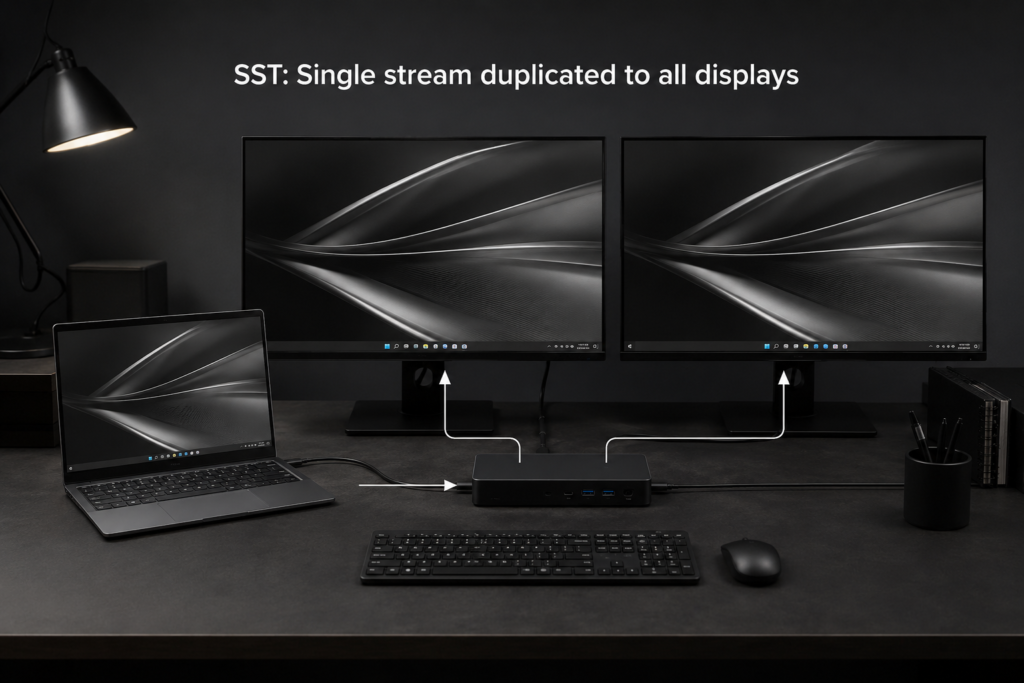
4.2 SST in Docks: Single-Stream Passthrough, Mirrored Output
SST is the most basic video output solution for docking stations. It requires no extra chips, has a lower cost, and is the mainstream choice for entry-level docks.
- How it works: The dock does not split the video signal. It simply passes through and duplicates the single DisplayPort signal from the host to every video port.
- Real-world performance: No matter if the dock has 2 or 3 video ports, all connected displays show the exact same image — also known as screen mirroring.
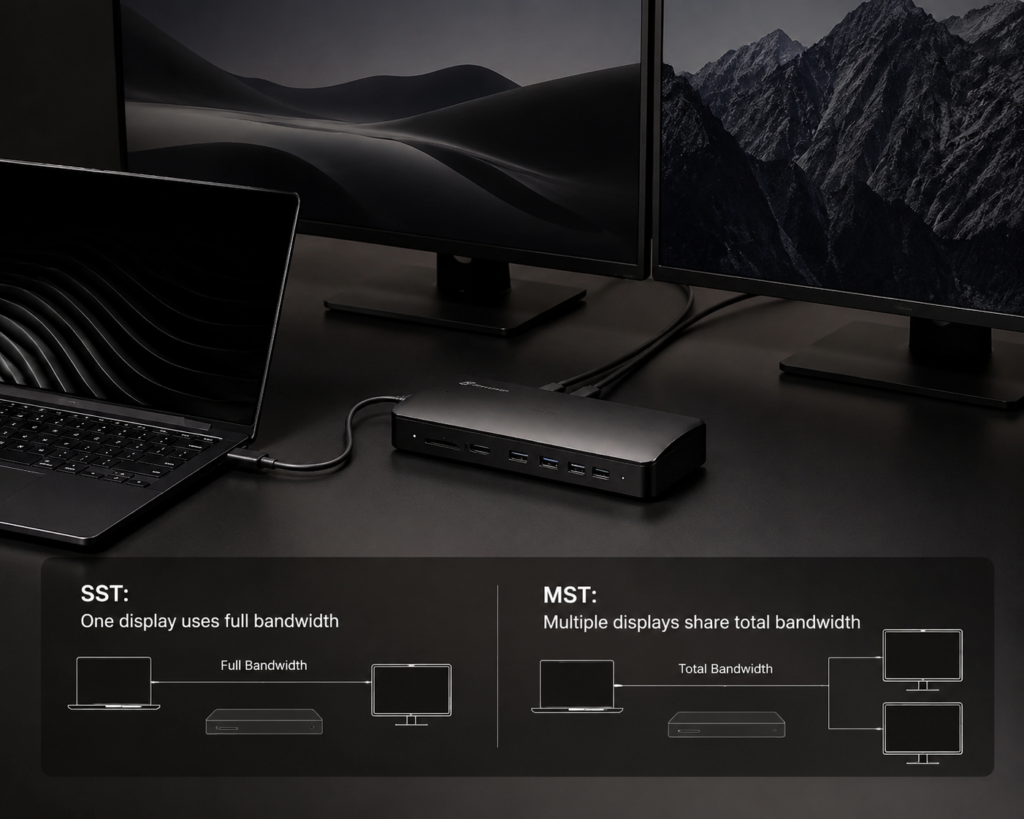
- Bandwidth behavior: When using a single display, it uses 100% of the available video bandwidth and can run at the maximum resolution and refresh rate supported by that DisplayPort version.
- Common products: Budget entry-level docks, portable docks designed for single-display use.
4.3 MST in Docks: Chip-Powered Splitting, Independent Displays
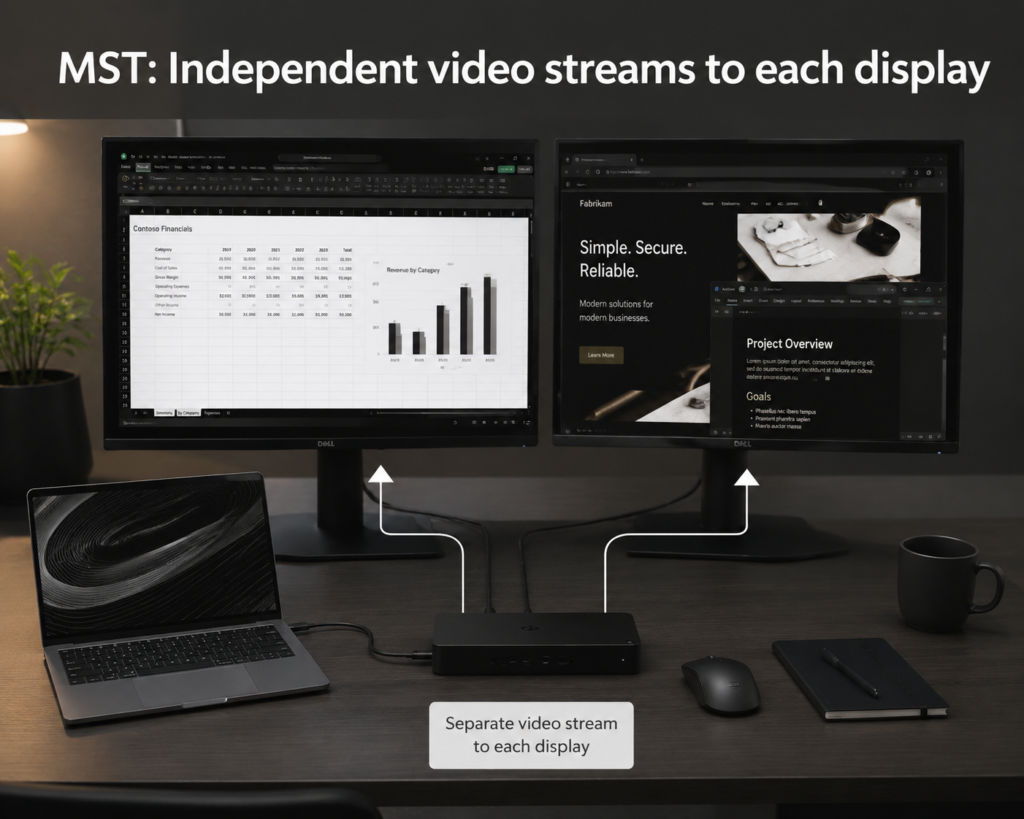
MST is the core differentiating feature of mid-to-high-end docking stations, and it can only work with dedicated hardware.
- How it works: The dock has a built-in MST Hub chip. It first receives a single composite video signal from the host, then splits it into multiple independent video streams and sends each one to a separate video port.
- Real-world performance: Each video port outputs an independent image. The system recognizes them as separate displays, supporting extended desktop and window dragging across screens.
- Bandwidth behavior: All video ports share the total bandwidth of the single DisplayPort link. The higher the resolution and refresh rate per display, the fewer screens can be supported at the same time.
- Common products: Mid-to-high-end office docks, multi-monitor dedicated docks, Thunderbolt docks.
4.4 Bandwidth Performance Comparison by Specification
SST uses full bandwidth for one screen, while MST shares total bandwidth across multiple screens. The typical output specs differ across DisplayPort versions as shown below:
| DisplayPort Version | Total Bandwidth | Max SST Single-Display Spec | Typical MST Dual-Display Spec |
|---|---|---|---|
| 1.2 (HBR2) | 21.6Gbps | 4K@60Hz | 4K@30Hz + 4K@30Hz |
| 1.4 (HBR3) | 32.4Gbps | 8K@60Hz / 4K@144Hz | 4K@60Hz + 4K@60Hz |
Some premium docks support DSC (Display Stream Compression), a visually lossless compression technology that improves bandwidth efficiency and enables higher-resolution multi-monitor setups.
4.5 Bonus: MST and Monitor Daisy Chaining
Many people have heard of monitor daisy chaining. This feature also relies on MST technology at its core.
The only difference is where the signal is split: an MST Hub dock splits the signal centrally inside the dock, while daisy chaining forwards the remaining video stream progressively inside each compatible monitor. The underlying technology is identical — both are based on the DisplayPort MST standard.
SST mode does not support daisy chaining. The signal ends at a single display and cannot be passed on to additional screens.
5. Compatibility Guide: Common Pitfalls Most Users Encounter
Support Differences Across Operating Systems
- Windows devices: Most laptops with Intel or AMD processors natively support MST multi-monitor extension, as long as the USB-C port supports DisplayPort Alt Mode. Popular models like the Dell XPS series and Lenovo ThinkPad series work directly with MST docks.
- Apple Mac devices: macOS does not natively support MST extended desktop mode. Even with an MST docking station, you will only get screen mirroring. Mac users who need extended multi-monitor setups should choose docks with DisplayLink technology, which achieves multi-display output via software compression. This limitation applies to both Apple silicon and Intel-based Mac models.
Four Common Misconceptions
- Myth: More video ports = extended multi-monitor support Fact: Many budget docks with multiple video ports only support SST mode. They can only mirror the display, not extend the desktop.
- Myth: MST is the same as screen mirroring Fact: Screen mirroring works with SST too. The core feature of MST is extended desktop — they describe concepts at different technical levels.
- Myth: Any USB-C port works with an MST dock Fact: Only full-featured USB-C ports with DisplayPort Alt Mode, or Thunderbolt ports, can output video. USB-C ports designed only for data transfer cannot connect to external displays.
- Myth: MST always reduces image quality Fact: When total bandwidth is sufficient, MST delivers identical image quality to a single display. Quality or refresh rate only drops when the resolution exceeds the available bandwidth.
Why Your Setup Won’t Extend Displays
If your dock only mirrors the image across multiple screens, it is usually one of four reasons:
- Your computer’s USB-C port does not support DisplayPort Alt Mode and has no video output capability
- Your computer’s GPU or operating system does not natively support the MST protocol
- The docking station has no built-in MST Hub chip and only supports SST
- Your monitor resolution or refresh rate settings are too high for the total available bandwidth
6. Buying Guide: How to Choose the Right Option
When to Choose an SST-Focused Dock
- You only need to connect one monitor
- You primarily game and prioritize high refresh rates
- You do professional design or video work and need maximum single-display quality
When You Need an MST-Enabled Dock
- You use dual or triple monitors for office productivity
- You work in software development, stock trading, or data analysis
- You need multiple open windows running side by side
Key Specs to Check Before Buying
- Whether the port supports DisplayPort Alt Mode
- Whether it explicitly lists MST multi-stream transport or extended display support
- The maximum resolution and refresh rate per video port
- The built-in DisplayPort version (1.2 / 1.4)
- For Mac users, confirm whether it uses DisplayLink technology
Quick Self-Check
After connecting two monitors, open your system display settings: if the system recognizes two separate displays and you can drag windows across screens, you are running in MST extended mode. If you can only duplicate the image, you are in SST mode.
Summary
SST Single-Stream Transport carries one video feed per cable. It has a simple design and universal compatibility, making it the standard choice for single-display setups.
MST Multi-Stream Transport carries multiple independent video feeds over one cable. It enables multi-monitor extension from a single port, but requires support from the host computer, dock hardware, and operating system.
For most users, you don’t need to memorize complex technical details: if you want an extended multi-monitor desktop, look for a dock explicitly labeled with MST support. Confirm your computer’s port and system compatibility before purchasing, and you will avoid nearly all common buying mistakes.