
1. Introduction
Scope and Target Audience
This guide is designed for all HP laptop users with no professional technical background. Whether you want to confirm if your device supports USB-C charging, choose compatible charging accessories, or fix common charging issues, you can follow this guide easily.
Background and Key Benefits of USB-C Charging for HP Laptops
More and more HP laptops are replacing traditional round power jacks with USB-C charging. This universal interface brings clear benefits: it is reversible so you never plug it in the wrong way; one cable handles charging, data transfer and video output at the same time; and you can use one charger for your laptop, phone and tablet when traveling, cutting down on extra gear.
2. Quick Check: Does Your HP Device Support USB-C Charging?
3 Simple Ways to Check
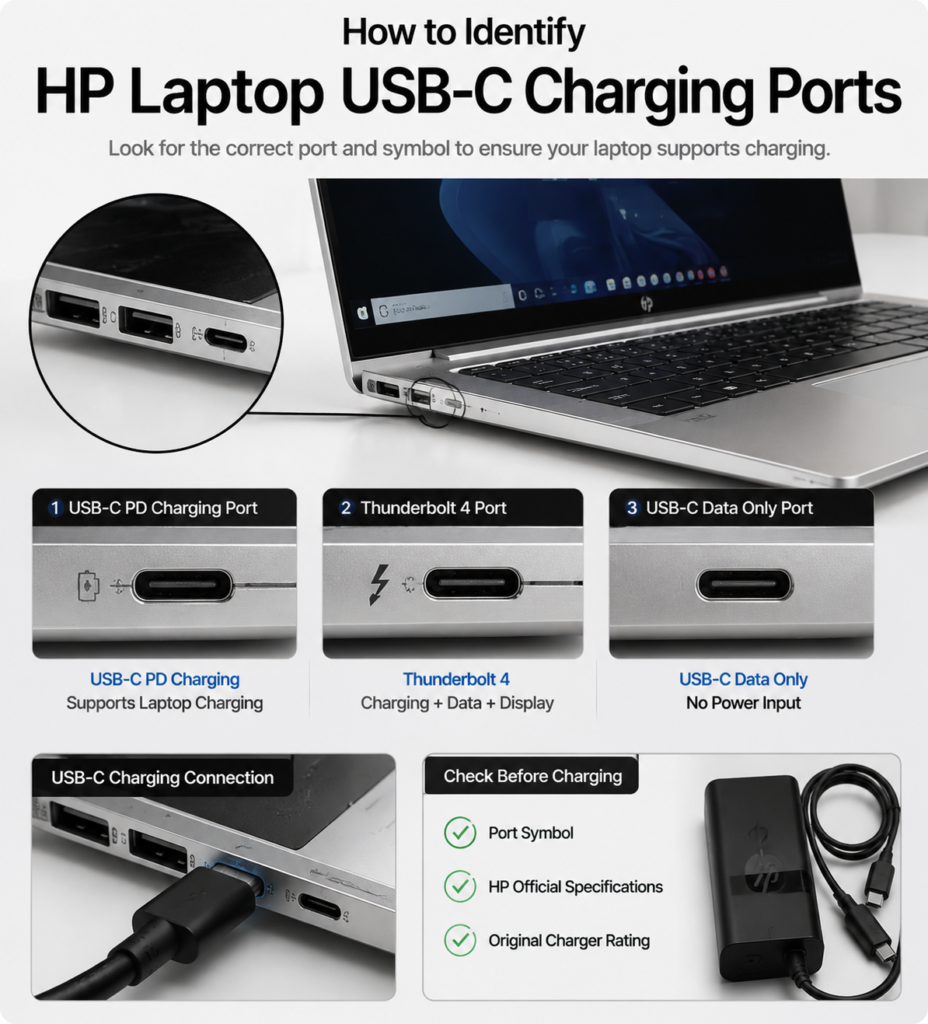
- Check the port label on your laptop Look at the USB-C ports on the side of your laptop. Ports with a battery icon or lightning bolt icon usually support charging. Ports with only a data symbol generally work for data transfer only, not power input.
- Check official specifications and system information Look up your laptop model on the official HP website and check power/interface details under “Product Specifications”. You can also find your model number in Windows Settings > System > About.
- Check your original charger If your original laptop charger uses a USB-C plug for output, your device definitely supports USB-C charging.
Common HP Product Series With USB-C Charging Support
- Consumer series: HP Spectre series, HP ENVY series, HP Star series, select high-end HP Pavilion models
- Business series: HP EliteBook series, HP ProBook series, HP Zhan 66 series
- Workstations and 2-in-1 devices: Select HP ZBook mobile workstations, ENVY x360, Spectre x360 and other convertible laptops
How to Identify Models That Do Not Support USB-C Charging
Most older models and high-performance gaming laptops (such as some Omen and Pavilion Gaming models) do not support USB-C charging. These devices use a dedicated round power port, and their USB-C ports only work for data and video. You can confirm this by checking the port shape or official product specifications.
3. HP USB-C Charging Power and Protocol Basics
Common Power Levels and Compatible Laptops
| Charging Power | Device Type | Typical Models |
|---|---|---|
| 45W | Ultra-thin office laptops, low-power models | Entry-level Star series, some lightweight 2-in-1 devices |
| 65W | Mainstream business laptops, standard ultrabooks | Zhan 66 series, mainstream EliteBook, ENVY series |
| 90W–100W+ | High-performance laptops, mobile workstations | High-end ZBook workstations, premium creative laptops |
Core Charging Protocols Explained
- USB PD fast charging protocol This is the universal industry standard for USB-C charging. The charger and laptop automatically negotiate a safe voltage and current level. All HP laptops with USB-C charging follow this standard.
- PPS (Programmable Power Supply) PPS is an upgraded feature of the USB PD protocol. It adjusts charging voltage more precisely for a smoother, cooler charging experience. Some newer HP laptops support this standard, and compatible chargers deliver optimized charging performance.
What Happens If You Use a Low-Power Charger?
Using a charger with lower power than your laptop requires will not damage your device, but you will notice: much slower charging speed; battery level may drop during heavy use; some models will show a “Slow charger connected” system warning.
4. USB-C Charger Buying Guide
Key Buying Criteria
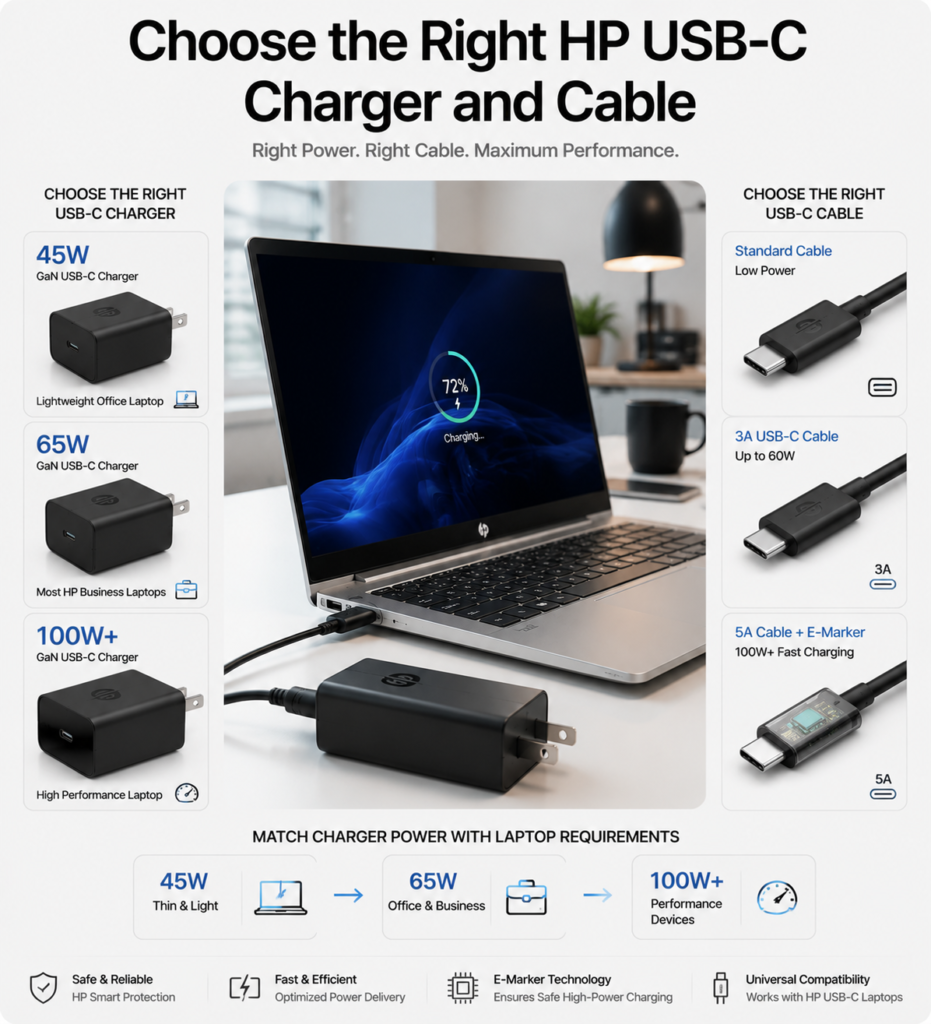
- Power matching rule: Choose a charger with power equal to or higher than your original charger. A slightly higher wattage is more reliable and avoids slow charging.
- Protocol and voltage requirements: The charger must support the USB PD protocol and have a 20V output level, the standard voltage for laptop charging.
- Safety certification and build quality: Prefer products with official safety certifications and USB-IF certification. Flame-retardant housing offers better safety.
Original HP Charger vs. Third-Party Charger
- Original HP chargers: Advantages and model identification Original HP chargers are fully tested by HP for the best compatibility, stability and safety. You can find the model number on the label of your original charger to buy an exact replacement.
- How to choose a reliable third-party charger Stick to well-known brands. Make sure it supports USB PD, delivers enough power, and carries official safety certifications. Avoid unbranded, ultra-cheap products.
- GaN (Gallium Nitride) chargers: Features and use cases GaN chargers are smaller, lighter and run cooler than traditional chargers. They are ideal for business travel and work perfectly for daily office use.
Recommendations by Use Case
- Business travel & portable use: Choose a 65W GaN charger — compact and works for laptops, phones and other devices.
- Desktop daily office use: Use the original HP charger for best reliability, or a high-power desktop charger.
- Multi-device charging: Choose a multi-port PD charger. Make sure the single-port output is powerful enough for your laptop, as power splits when multiple devices charge at once.
What to Avoid: Risks of Low-Quality Chargers
Never buy unbranded, uncertified chargers at extremely low prices. They often have false power ratings and no safety protection. At best, they fail to charge properly and wear out your battery. At worst, they can overheat and create fire hazards.
5. How to Choose the Right USB-C Charging Cable
Difference Between Regular Data Cables and Charging Cables
Many regular USB-C cables included with phones only support low current for phone charging. They cannot carry the high power needed for laptops, so your laptop may charge very slowly or not charge at all.
Key Requirements for High-Power Charging Cables
| Cable Type | Max Supported Power | Best For |
|---|---|---|
| Regular USB-C data cable | Around 10W–20W | Phones, small gadgets, data transfer |
| 3A USB-C charging cable | Up to ~60W | 45W and lower thin-and-light laptops, daily data transfer |
| 5A cable with E-Marker chip | 100W and higher | 65W+ laptop fast charging, high-power scenarios |
- 3A vs 5A cables: Power difference Cables are rated by how much current they can carry. 3A cables support up to around 60W, while 5A cables handle 100W or more. High-power laptops must use a 5A cable to charge at full speed.
- What is an E-Marker chip? This is a small chip built into the cable that tells the charger what power level the cable can handle. High-power cables require this chip to enable full-speed charging.
- Risks of low-quality cables Cheap cables often have false power ratings and no E-Marker chip. They cause slow charging, fail to trigger fast charge, and may overheat or damage your device port.
Cable Buying and Usage Tips
Pick a cable rated for your laptop’s charging power. Prefer branded cables with USB-IF certification. Do not use damaged or bent cables, and avoid sharply bending the plug ends.
6. Proper Daily Charging and Usage Tips
Standard Charging Procedure
Plug the charger into a power outlet first. Then connect one end of the USB-C cable to the charger, and the other end to your laptop’s charging-capable USB-C port. Push firmly — the plug is reversible, so there is no wrong direction.
Charging Performance in Different Laptop States
- Shutdown, sleep and awake charging Charging is fastest when the laptop is shut down, slightly slower in sleep mode. When the laptop is on and in use, charging slows down because the system consumes power.
- Effect of using while charging Light use like web browsing or document work barely affects charging speed. Heavy tasks like gaming or video editing use a lot of power, so charging will slow down noticeably, and your battery may even drain slowly.
Notes for Docking Station and Monitor Reverse Charging
If you charge your laptop through a USB-C dock or a monitor with USB-C power delivery, make sure the dock/monitor can output enough power for your laptop. Otherwise, charging will be slow or stop entirely.
Thunderbolt vs. Regular USB-C Charging
Thunderbolt 3 and Thunderbolt 4 ports look identical to USB-C and also support USB PD charging. For charging purposes, they work exactly the same as a regular charging-capable USB-C port. Thunderbolt just adds faster data transfer and video output features.
Charging Indicator Light Meanings
On most HP laptops: an amber (orange-yellow) light means charging is in progress; a white light means the battery is fully charged; a blinking light means a charging error or very low battery level.
7. Battery Health and Care Tips
Official HP Battery Protection Features
- HP Battery Care This built-in battery protection feature intelligently adjusts charging behavior to reduce battery wear and extend its lifespan.
- How to set a charging threshold You can enable Battery Protection Mode in HP Command Center or your laptop’s BIOS, and set a charging limit (for example, 80%). The laptop will stop charging once the battery reaches this level — ideal for users who keep the laptop plugged in long-term.
Daily Habits to Extend Battery Life
You do not need to fully drain the battery before recharging. Feel free to top it up whenever convenient. Try to avoid letting the battery stay below 20% for long periods, and you do not need to charge it to 100% every time.
Tips for Permanent Plugged-In Use
It is safe to keep your laptop plugged in all the time for office work. Just turn on the battery protection threshold (such as an 80% limit), and the system will manage charging automatically without repeatedly cycling the battery.
Charging in Extreme Temperatures
In very hot environments (like a car left in summer sun) or very cold environments (below freezing), the battery will enter protection mode. Charging will slow down or stop completely. Always charge your laptop at room temperature.
8. Common Issues and Troubleshooting
Charger Plugged In, But No Charging
- Hardware checks (port, cable, charger) Try a different power outlet first. Test with another known-good cable and charger. Check the USB-C port for dust or debris, and gently clean it if needed. Make sure you are using a port that supports charging.
- System checks (drivers, power settings) Restart your laptop. Update the official HP chipset driver and power management driver. Check your Windows power settings to make sure charging is not disabled.
Slow Charging / Not Reaching Full Power
This is almost always caused by an underpowered charger or a cable that cannot handle high power. It can also happen if you have many heavy programs running in the background, or if battery protection mode is limiting charging speed.
Intermittent Charging / Keeps Disconnecting
This is usually a loose connection. Check that both ends of the cable are plugged in firmly, and that the port is not loose. The cable may also be internally damaged — try a different cable.
Third-Party Charger Not Recognized / Warning Popup
Make sure the charger supports USB PD and has enough power. Some HP models show a warning for non-original chargers. As long as the charger is a reputable, certified product, you can confirm and use it normally — it will not damage your device.
Abnormal Overheating While Charging
Slight warmth during charging is normal. If the laptop or charger gets very hot, unplug it, close heavy programs, and let it cool down. If overheating keeps happening, check if your charger or cable is low-quality and replace it.
9. Safety Tips and Summary
Key Charging Safety Rules
Never use unbranded, uncertified low-quality chargers and cables. Do not plug or unplug chargers with wet hands. Do not charge on beds, sofas or other flammable surfaces where heat can build up. Do not crush or sharply bend charging cables.
Key Takeaways for HP USB-C Charging
First, confirm your laptop supports USB-C charging. Buy a reputable charger with matching power and USB PD support. Use a good-quality charging cable rated for the correct power. Turn on battery protection for daily use to extend battery life.
Recommended Charging Solutions by User Type
- Office workers and frequent travelers: 65W GaN charger + 5A E-Marker cable — portable and versatile.
- High-performance laptop / workstation users: Stick to the original 90W+ HP charger for stable, reliable power.
- Multi-device users: Choose a reputable multi-port PD charger, and confirm single-port output meets your laptop’s power needs.