
Meta Description: Two USB-C cables can look identical, but one may support 240W charging and 40Gbps data while the other only handles 60W. Learn how to read the hidden E-Marker chip inside your cables using phones, computers, or portable testers, and avoid fake, mislabeled cables.
Quick Summary
- An E-Marker (Electronic Marker) is a tiny built-in “digital ID chip” in high-performance USB-C cables, defined by official USB-IF standards. It stores the cable’s true power, speed, and feature capabilities.
- There are 4 practical ways to read E-Marker data: mobile apps (free, on-the-go), desktop software (free, for computers), portable USB testers (best for most users, most accurate), and professional analysis tools (for engineers and technicians).
- For everyday users, a portable USB power tester is the top choice: it costs around $30–$60, works independently of phones or computers, and reads full E-Marker details in seconds.
- Important note: E-Marker data can be rewritten by counterfeit makers. For high-power or high-speed cables, always cross-check results with real-world charging and speed tests.
1. What Is a USB-C E-Marker Chip?
1.1 Definition & Official Standard
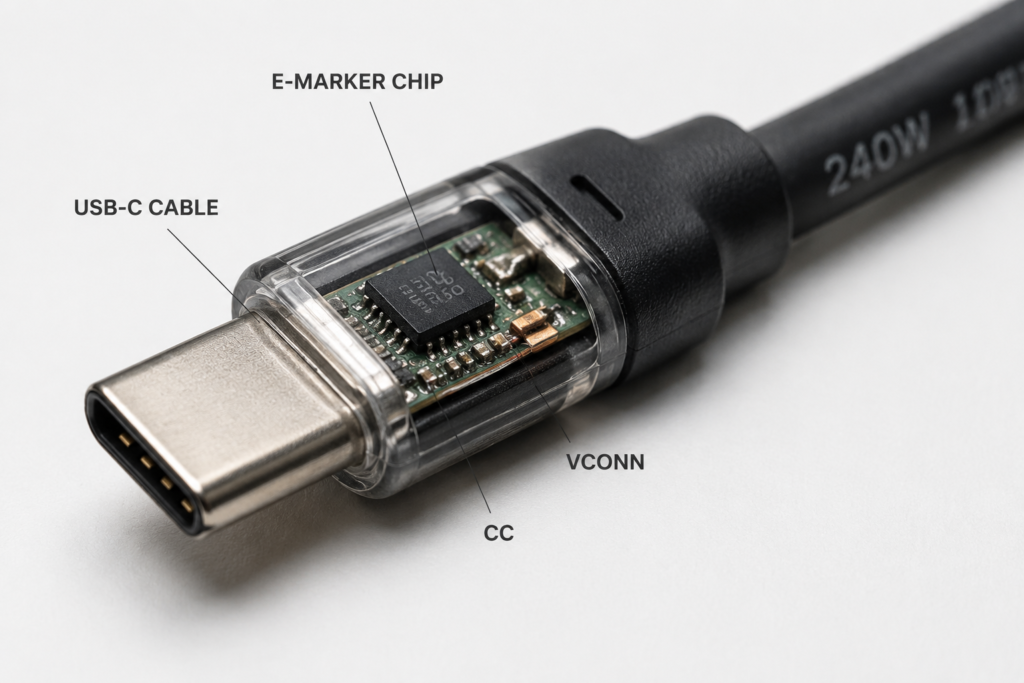
Think of the E-Marker as a tiny birth certificate for your USB-C cable. Tucked inside the connector housing, this 1mm² microchip is defined and required by the USB Implementers Forum (USB-IF) as part of the USB Type-C and Power Delivery (PD) specifications.
When you plug in a cable, the host device (charger, laptop, phone) supplies tiny power to the chip through the VCONN pin, then communicates over the CC (Configuration Channel) pin to read the cable’s declared capabilities. This handshake happens automatically every time you connect a device, keeping charging and data transfer safe and matched to the cable’s limits.
1.2 Which Cables Have an E-Marker?
E-Markers are mandatory for cables that exceed basic 60W/3A limits or support high-speed data. You will find them in:
- 5A current cables rated for 100W, 140W, 180W, or 240W PD charging
- Cables with USB 3.2 or faster data speeds
- All USB4, Thunderbolt 3, Thunderbolt 4, and Thunderbolt 5 cables
- Active cables with built-in signal repeaters and fiber-optic USB-C cables
You will not normally find an E-Marker in:
- Standard 3A / 60W basic charging cables
- USB 2.0-only low-speed data cables
- Entry-level, budget USB-C cables that meet basic safety standards
Note: A cable without an E-Marker is not necessarily “bad”—it simply means it is designed only for lower power and basic use.
1.3 What Information Does an E-Marker Store?
Every compliant E-Marker holds 5 categories of data:
- Identity: Vendor ID (VID), Product ID (PID), manufacturer name, firmware version
- Power capability: Maximum current (3A/5A), maximum supported voltage, PD revision, EPR (Extended Power Range) support
- Data capability: USB speed rating (USB 2.0 up to USB4 80Gbps), Thunderbolt compatibility
- Video & alternate modes: DisplayPort Alt Mode support, USB4 tunneling
- Cable attributes: Passive / active / optical type, rated length, signal latency class
1.4 Why Every User Should Learn to Check E-Marker Data
- Avoid scams: Catch cables labeled “240W USB4” that actually only deliver 60W USB 2.0
- Fix problems: Slow charging, dropped file transfers, or no display output are often caused by mismatched cables
- Get full performance: Make sure your expensive laptop, dock, or monitor actually runs at the speed you paid for
- Stay safe: Fake high-power cables with thin internal wires can overheat and damage your devices
2. Overview: 4 Methods to Check E-Marker Info
| Method | Cost | Difficulty | Detail Level | Best For |
|---|---|---|---|---|
| Mobile app (Android) | Free | Very easy | Basic | Quick on-the-go checks |
| Desktop software | Free | Moderate | Good | Computer users who want a free option |
| Portable USB tester | Low ($30–$60) | Very easy | Full | Most users; most reliable all-around choice |
| Professional analyzer | High ($200+) | Advanced | Complete | Engineers, labs, quality control |
3. Method 1: Mobile App Check (Free & Portable)
3.1 Android Phones
Android devices can read basic E-Marker data if they support USB Host (OTG) mode and supply VCONN power over the CC pin.
What you need:
- An Android phone with USB-C and OTG support
- A USB-C OTG adapter
- A compatible diagnostic app
Recommended apps:
- USB Device Info
- USB-C Checker
- Ampere (premium features)
Steps:
- Connect the OTG adapter to your phone
- Plug the USB-C cable you want to test into the adapter
- Open the diagnostic app
- Look for “Cable info” or “E-Marker” section to view current rating and USB version
Limitations:
- Cheaper phones may not supply enough VCONN power to wake the E-Marker chip
- Apps usually only show core parameters, not full VDO data
- Results vary by phone model and system version
3.2 iPhone & iPad
iOS is a closed system and does not expose public APIs for reading E-Marker data directly from third-party apps. There is currently no reliable way to check E-Marker info directly on an iPhone.
Workarounds:
- Use a portable USB tester (Method 3)
- Check the cable on a Mac or Windows computer (Method 2)
4. Method 2: Desktop Software (Free & No Extra Hardware)
4.1 Windows
Windows does not natively show full E-Marker details in Device Manager, but you can read partial data with free tools.
Recommended tool: USB Device Tree Viewer
- Download and install USB Device Tree Viewer (freeware)
- Plug your USB-C cable directly into a USB-C port on your PC
- Launch the program and locate your USB host controller and active port
- Open the device properties and look for VDO (Vendor Defined Object) data, VID/PID, and connection speed information
What you can see:
- Vendor and product IDs
- Negotiated connection speed
- Basic current capability hints
Limitations:
- The Windows USB stack does not expose complete E-Marker fields to user apps
- You may need technical knowledge to interpret raw VDO values
4.2 macOS
Macs, especially Apple Silicon models, have far better built-in support for reading cable capabilities.
Option 1: WhatCable (Beginner Friendly, Recommended)
WhatCable is a free menu bar app made exclusively for Apple Silicon Macs (macOS 14+). It reads raw E-Marker VDO data from the system and translates it into plain English.
- Install WhatCable from its official website or GitHub
- Plug a USB-C cable into your Mac
- Click the WhatCable icon in the menu bar
- You will instantly see: max power rating, data speed, manufacturer info, and bottleneck warnings
Option 2: System Information (No Install Needed)
- Click the Apple logo → About This Mac → More Info → System Report
- Go to the USB or Thunderbolt section
- Look for the connected cable or device entry to see negotiated link speed and basic power details
Limitations:
- System Information often omits full E-Marker fields
- Results can be incomplete for cables with no device on the far end
4.3 Linux & ChromeOS
For advanced users, Linux exposes raw Type-C cable data through the sysfs interface.
- Read identity data directly from
/sys/class/typec/port0-cable/identity - Use
usbpd-toolsfor friendlier command-line parsing - On ChromeOS (developer mode), use
ectool typecstatusto view port and cable state
4.4 Common Limits of All Software Methods
- Accuracy depends on your computer’s USB controller and drivers
- Some low-power E-Marker chips will not wake up on certain ports
- Software only reads what the chip declares—it cannot verify if the physical wiring inside the cable matches the claim
5. Method 3: Portable USB Tester (Best for Most Users)
A portable USB-C power tester is the most popular, practical, and accurate way to check E-Marker info for everyday users. These small, screen-equipped devices supply their own VCONN power and talk directly to the chip.
5.1 Popular Entry-Level Models
- Budget picks: FNIRSI FNB48 / C1, AVHzY basic models
- Mid-range recommended: ChargerLAB POWER-Z KM003C, YZXstudio advanced models (supports PD 3.1 EPR and USB4 decoding)
5.2 Step-by-Step Operation
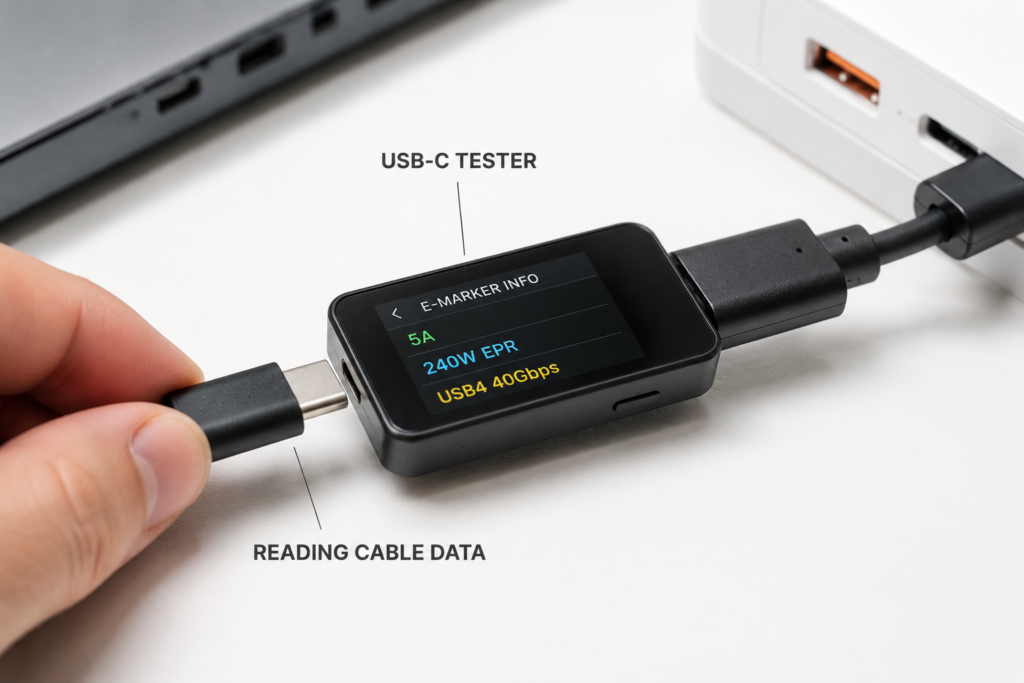
- Power the tester by plugging it into a charger or power bank
- Leave the far end of the test cable completely empty—do not connect any device (critical for clean communication)
- Navigate the menu to the “E-Marker” or “Cable Info” mode
- Plug the cable into the tester
- Wait 1–2 seconds for the chip to respond; full parameters will appear on screen
5.3 What You Can Read
- Full power specs: current rating, max voltage, PD version, EPR support
- Data speed rating, USB4 / Thunderbolt compatibility
- Cable type (passive / active), vendor info, and cable length class
- Raw Cable VDO values for advanced users
5.4 Why This Is the Best Choice for Most People
- Works completely independently—no phone or computer required
- Reads the full set of E-Marker fields reliably
- Small enough to carry in a pocket, so you can test cables before you buy them
- Doubles as a voltage/current meter for general charging diagnostics
6. Method 4: Professional Testing Equipment (For Experts)
6.1 USB PD Protocol Analyzers
Tools like Teledyne LeCroy USB PD analyzers capture every raw packet sent over the CC line, including full Discover Identity, Cable VDO, and Product VDO messagesTeledyne L….
- Use case: Product development, USB-IF certification testing, advanced counterfeit forensics
- What you get: Every bit of E-Marker register data, full PD negotiation logs, and timing analysis
6.2 Industrial Cable Test Stations
Factory-grade cable testers check far more than just the E-Marker:
- Wire continuity, pinout, and impedance
- Signal integrity for high-speed USB4 / Thunderbolt
- Full E-Marker register validation against certification standards
6.3 Physical Teardown (Last Resort)
You can cut open the connector housing and read the silk-printed part number on the actual E-Marker chip. Common legitimate chip brands include Cypress (Infineon), Hynetek, and Chipower.
- Warning: This permanently destroys the cable and voids all warranties. Only do this for extreme counterfeit verification.
7. How to Interpret E-Marker Data (Simple Guide)
7.1 Power Ratings & 240W EPR
- Basic rule: 3A = max 60W at 20V; 5A = max 100W at 20V (standard PD / SPR)
- How to confirm a true 240W cable (all four must be true):
- Current rating = 5A
- Supports 48V operation
- USB PD revision = 3.1 or newer
- EPR Support = Enabled
- Common myth: “5A means 240W” → Wrong. A standard 100W cable is also 5A, but only rated for 20V. 240W requires 48V EPR support in both the chip and the cable insulation.
7.2 Data & Video Capabilities
Speed classes from slowest to fastest:
USB 2.0 (480Mbps) → USB 3.2 Gen1 (5Gbps) → Gen2 (10Gbps) → Gen2×2 (20Gbps) → USB4 Gen2 (20Gbps) → USB4 Gen3 (40Gbps) → USB4 v2 (80Gbps)
- Thunderbolt cables: Will show an explicit Thunderbolt version and operate at 40Gbps or higher
- Video output: Cables with DisplayPort Alt Mode or USB4 tunneling can drive external monitors
7.3 Cable Type: Passive vs Active vs Optical
- Passive: No internal electronics beyond the E-Marker. Cheaper, best for short lengths (≤1m for high speeds).
- Active: Built-in signal repeater / retimer chips. More stable for longer high-speed cables.
- Optical: Uses fiber for data transmission. Very long lengths, immune to electrical interference, usually expensive.
7.4 3 Quick Checks for Fake Cables
- If a cable is labeled 100W/240W but has no detectable E-Marker → it is fake.
- If the package says USB4 / Thunderbolt but the E-Marker reports USB 2.0 only → it is fake.
- If the Vendor ID is blank, garbled, or does not match the brand → highly suspicious of counterfeit firmware.
8. Common Issues & Misconceptions
8.1 Why Can’t I Detect an E-Marker?
- Normal cause: The cable is a 3A / 60W basic cable and legitimately has no chip.
- Power issue: Your phone / laptop port does not supply enough VCONN. Try a different port or use a dedicated tester.
- Hardware fault: The cable’s CC pin is damaged, bent, or has a bad solder joint.
- Firmware issue: Your tester has old firmware and cannot recognize newer PD 3.1 EPR chips. Update the tester firmware.
8.2 4 Big Myths Debunked
- Myth 1: All USB-C cables have an E-Marker. Fact: Only cables above 3A / 60W or with high-speed data are required to have one. Basic charging cables do not need them.
- Myth 2: No E-Marker = bad / unsafe cable. Fact: A properly built 3A 60W cable can be perfectly safe and compliant without an E-Marker.
- Myth 3: Higher E-Marker specs = better build quality. Fact: The chip only declares specs on paper. Counterfeiters can flash fake high specs onto cheap chips. The actual wire gauge, shielding, and build quality are invisible to the E-Marker.
- Myth 4: Reading E-Marker data can damage your device. Fact: All methods use standard read-only PD commands. They do not modify the chip or harm your hardware in any way.
8.3 Safety Reminders
- Fake high-power cables with undersized wires can overheat, melt, or damage your device under full load. Never use a counterfeit 240W cable for continuous high-power charging.
- A 240W EPR cable alone will not give you 240W charging. You need a 240W EPR charger and a 240W-compatible device as well.
- Avoid sharp bends on high-speed cables, as this can break internal signal wires or damage the CC line used for E-Marker communication.
9. Frequently Asked Questions (FAQ)
Q1: Can I use a USB-C cable that has no E-Marker?
A: Yes, as long as you use it within its limits (3A / 60W or lower). It will work fine for phone charging and basic tasks.
Q2: Why can’t iPhones read E-Marker data directly?
A: Apple restricts low-level Type-C controller access on iOS. There is no public API for third-party apps to read E-Marker VDO data.
Q3: Can E-Marker data be faked? How do I protect myself?
A: Yes, cheap chips can be reprogrammed with false specs. Protect yourself by cross-verifying: use E-Marker reading + real charging power test + real file transfer speed test. Buy from reputable brands.
Q4: Why does the same cable show different info on different devices?
A: Different hosts and testers have different PD stack capabilities and may expose different fields. The core parameters (current rating, speed class) should remain consistent. Trust a dedicated USB tester over phone or desktop apps.
Q5: What makes Thunderbolt cable E-Markers different?
A: Thunderbolt cables include additional Intel / USB4 specific VDO fields and certification IDs. Basic testers may show them as “USB4” or high-speed cables.
Q6: How do I confirm a cable supports 240W from its E-Marker?
A: Look for four things together: 5A current rating, 48V voltage support, PD 3.1 or higher, and EPR enabled. Missing any one means it is not a full 240W cable.
Q7: Will reading E-Marker damage the cable or my device?
A: No. All standard E-Marker queries are read-only and part of the normal USB PD specification.
Q8: Why is a 5A cable not always 240W?
A: 5A is the current, but wattage = voltage × current. 20V × 5A = 100W (standard PD), 48V × 5A = 240W (EPR). The voltage rating matters just as much as the current.
Q9: What is the practical difference between active and passive cables?
A: For short cables (under 1m), you will rarely notice a difference. For 2m+ high-speed (40Gbps+) cables, active cables maintain signal stability where passive cables would need to drop speed.
Q10: Are $10 “240W USB4” cables a good deal?
A: Almost always no. Genuine 240W USB4 cables require thick wiring, proper shielding, and certified chips. If the price seems too good to be true, the E-Marker is almost certainly flashed with fake specs.
10. Tool Recommendations & Final Summary
10.1 Best Tools by User Type
| User Type | Recommendation | Budget |
|---|---|---|
| Casual user, occasional checks | Entry-level USB tester (FNIRSI C1 / similar) | $30–$50 |
| Computer user, no extra cost | Free desktop software (WhatCable for Mac, USB Tree Viewer for Windows) | $0 |
| Tech enthusiast | Mid-range USB tester (POWER-Z KM003C) + software tools | $60–$120 |
| Engineer / QC / lab | PD protocol analyzer or industrial cable tester | $200+ |
10.2 Key Takeaways
- The E-Marker is the digital identity chip inside every high-spec USB-C cable, defined by USB-IF standards.
- For most people, a portable USB tester is the best balance of cost, ease, and accuracy for reading E-Marker data.
- E-Marker info tells you what the cable claims to be—always verify high-end cables with real power and speed tests.
- Knowing how to read an E-Marker is one of the simplest ways to save money, avoid counterfeits, and get the full performance out of your USB-C gear.
10.3 Practical Tip
Test all the USB-C cables you own, label each one with its max power and speed, and sort them by use case. You will never again grab the wrong cable and wonder why your monitor won’t work or your laptop charges slowly.