
Have you ever had this experience: you have two USB-C cables that look identical in your hand. One can connect to a monitor for screen casting and transfer large files super fast, while the other only charges when plugged in, gives no signal when connected to a monitor, and takes half an hour to transfer a 4K video?
Many overseas students and cross-border shoppers should have a deeper understanding of this: search for “USB C cable” on overseas e-commerce platforms, place an order when the title says 100W Fast Charge, High Speed, or even Full Featured, only to find that the cable can’t cast to the library’s USB-C monitor, takes more than ten minutes to transfer a homework video, and you have to pay shipping and wait a week if you want to return or exchange it—more trouble than it’s worth.
Many people think “as long as it’s a USB-C cable, the functions are all the same”, which is actually the most common misconception. USB-C is just the shape of the connector, and it has nothing to do with how many functions it can support—this is the first sentence you should remember most after reading this article.
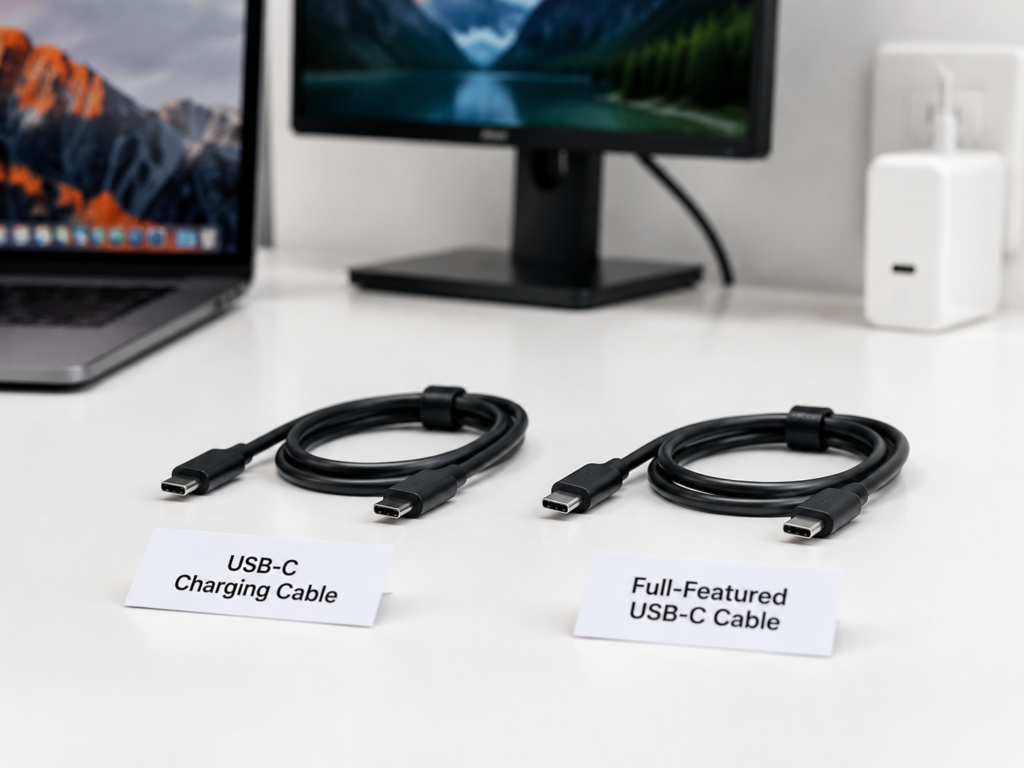
Today we will thoroughly explain the difference between full-featured USB-C cables and ordinary USB-C charging cables: from why they look the same but have such different functions, to how to quickly distinguish them, how to choose according to your needs, and how to troubleshoot common faults. After reading this, you will never buy the wrong cable again.
First, Let’s Clarify: What Are We Comparing?
Before we officially talk about the differences, we need to clarify the scope first, otherwise it’s easy to get more confused as you read.
What we are comparing today are all legitimate brand C-to-C cables with USB-C connectors on both ends—cables like USB-A to C, Lightning, and MagSafe are not within the scope of discussion, nor are unbranded low-quality cables, faults of the charger itself, or damaged device connectors.
So what is a full-featured USB-C cable, and what is a charging cable? We define them according to the most commonly used terms in the consumer market:
- USB-C charging cable: Core purpose is power supply, usually only has USB 2.0 low-speed data function at most, and some cannot even transfer data or cast screens at all.
- Full-featured USB-C cable: A cable that supports charging, high-speed data transfer, and video output at the same time, which can be used to connect to a docking station to achieve “one cable handles charging, monitor, and peripherals”.
First, Correct a Most Basic Misconception: USB-C Is Just the Connector Shape, Not Equal to Full-Featured
Many people think “USB-C” is synonymous with “all-around”, but that’s not the case at all. USB-C only describes the shape of the plug—oval, reversible, that’s it.
For example: for the same 3.5mm headphone jack, some can only play audio, while others can connect a microphone and support in-line controls; for the same round power plug, some can be used for air conditioners, while others can only be used for desk lamps. The connector shape is the same, but the internal carrying capacity can be vastly different.
Whether it’s a device or a cable, the inside of the USB-C connector can have different functional configurations: some only support charging, some support USB 2.0 low-speed data, some support USB 3.x high-speed data, and some support USB4, Thunderbolt, and video output. The phone in your hand has a USB-C port, but it may not even be able to cast to a monitor—the same goes for cables.
All Conclusions Have Premises: 4 Key Factors That Affect Final Performance
What you see online about “how fast a cable can run, how much power it supports” is not absolute. The final performance always follows the “barrel effect”—the shortest plank determines how much water the entire barrel can hold:
- Device port capability: Whether the C port of your computer, mobile phone, or tablet itself supports high-speed data, video output, and Thunderbolt directly determines how much capability the cable can exert.
- Cable’s own specifications: Even if they are all called “full-featured cables”, some only have a speed of 5Gbps, while others can reach 40Gbps; some support 60W charging, while others support 240W—there are big differences.
- Cable length and type: High-speed data and high-definition video have high requirements for signal quality. The longer the cable, the more severe the signal attenuation. Long-distance high-speed cables often require special design and are more costly.
- Peripheral compatibility: The capabilities of chargers, docking stations, monitors, and external hard drives will also limit the performance of the cable—for example, a 100W charger paired with a 60W cable will ultimately only run at a maximum of 60W.
Why Must We Distinguish? The Real Troubles of Buying the Wrong Cable
You might think “it’s just a cable, it’s fine to make do”, but when you actually need to use it, the trouble of buying the wrong cable is more than you think:
Office Screen Casting: No Signal on Monitor, the Whole Meeting Room Waits for You
Using an ordinary charging cable to connect a laptop to a USB-C monitor will most likely only have charging function and no picture. When you have a meeting, a business trip presentation, or a group project display, you fiddle with the black-screen monitor for a long time, thinking the computer or monitor is broken, only to find out that you just took the wrong cable—embarrassing and time-wasting. The typical symptom is that the monitor prompts “no signal”, and you can’t find the external screen in the computer’s display settings.
Transferring Large Files: Speed Is So Slow You Think the Hard Drive Is Broken
The vast majority of ordinary charging cables only support USB 2.0, with a theoretical speed of 480Mbps. When actually copying large files, the speed is only about 30-40MB/s. Transferring a few GB of video, tens of GB of photo library or system backup will make you wait so long you’ll doubt your life. Many people’s first reaction is that the external hard drive is broken, or there’s a problem with the computer port, but actually it’s just the wrong cable.
Docking Station One-Cable Solution: All Peripherals Don’t Work
One of the biggest uses of full-featured cables is that when connected to a docking station, one cable can simultaneously power the laptop, transfer data, and output video. If you use a charging cable to connect to the docking station, it may only charge the docking station or the computer, and the USB flash drive, network port, and monitor plugged into the docking station will all have no response. Especially for Thunderbolt docking stations and USB4 docking stations, the requirements for cables are higher, and using the wrong cable will directly make them half-functional.
High-Power Charging: Power Can’t Reach Full Capacity, Battery Drains While Using
High-power charging like 60W, 100W, 140W, and 240W requires the charger, device, and cable to all support the corresponding specifications. Ordinary 3A charging cables can only reach a maximum of 60W, and 5A cables exceeding 3A need corresponding capability declarations. Under high load, if the cable can’t carry enough power, gaming laptops and high-performance laptops may experience battery drain while charging.
Additional Pain Points for Overseas Users
For cross-border shoppers or frequent business travelers, the cost of buying the wrong cable is higher:
- “Fast Charging”, “High Speed”, and “Full Featured” on English product pages are mostly marketing terms with no clear parameters, making it easy to fall into traps. For example, the “High Speed” written by many merchants is actually the old official name of USB 2.0, not the high-speed data transfer we are talking about at all.
- The vast majority of complimentary cables given with chargers and mobile phones are just ordinary cables that can only charge or have USB 2.0, not full-featured at all.
- If you only bring one cable for business trips or studying abroad, buying the wrong one will affect charging, screen casting, and data transfer at the same time, and you may not be able to find a suitable specification when buying locally temporarily.
- Cross-border returns and exchanges have expensive shipping costs and long cycles, which are far less convenient than in China. If you don’t read carefully before buying, you basically have to accept your bad luck.
Explaining the Essence in Plain Language: Why Do They Look the Same But Have Such Different Capabilities?
Both cables have oval C ports from the outside, so why are their functions so different? The core reason lies in the internal circuit design.
Core Difference: Internal Paths Are Different, the Difference Between a Single Lane and Multiple Lanes
You can think of cables as highways:
- Charging cables are single-lane roads, mainly reserved for the “main road” for electric current, with at most a narrow slow lane for USB 2.0 low-speed data. Because there are fewer circuits, the cost is low, and making them long is also cheap.
- Full-featured cables are multi-lane highways, with lanes for charging, lanes for high-speed data, and dedicated lanes for video signals, as well as channels for identification and negotiation. With more circuits, high requirements for shielding and craftsmanship, the cost is naturally higher.
Of course, full-featured cables of different specifications also have different internal designs—some are 4-lane, some are 8-lane, and there are differences in speed and capability. So you can’t judge good or bad just by the three words “full-featured”, you still have to look at the specific parameters.
The “Electronic ID” in the Cable: What Is an E-Marker Chip?
You may have heard the term “E-Marker chip”. To put it simply, it’s an electronic ID hidden inside the cable, with the official name E-Marker electronic marking chip—you don’t need to remember this term, just know that it’s used to “report identity” to the device. When you plug the cable into the device, the device will first read the information in this chip, know how much current the cable can carry, how fast it supports, and whether it can transmit video, and then negotiate the highest specification supported by both parties.
There is a very important misconception here: having an E-Marker chip does not mean it is a full-featured cable.
- Any 5A cable exceeding 3A (such as a 100W pure charging cable), USB4/Thunderbolt cable, or 240W USB PD 3.1 EPR cable usually requires an E-Marker chip, otherwise the device will not dare to provide too high power.
- That is to say, a pure charging 100W or 240W cable may also have an E-Marker, but it can still only charge, and cannot transmit high-speed data and video.
- If there is no E-Marker in the cable, the device will generally negotiate according to the lowest capability as a precaution, for example, the current does not exceed 3A, and the maximum power is 60W.
A little common knowledge: 100W USB-C charging has a common specification of 20V/5A; while 240W is the highest specification of the USB PD 3.1 EPR standard, which is 50V/5A, with higher requirements for cables and devices, and it’s not something you can just label 240W and use.
The Longer and Thicker the Cable, the Better?
Not necessarily. There are two common misunderstandings here:
- Thick cable does not equal full-featured: A thick cable may just be because the power core is thicker (can carry more current), the outer sheath is thicker (more durable), or there are more shielding layers, but it does not mean there are high-speed data and video circuits inside. Many 100W pure charging cables are also made very thick, but still cannot cast screens.
- The longer the cable, the easier it is for high-speed capability to be discounted: It’s not difficult for current to travel far, but high-speed data and high-definition video signals are easily attenuated. So high-speed full-featured passive cables (cables without additional enhancement chips) are usually relatively short, commonly 0.8 meters or 1 meter, and if they are longer, the signal will not work. If you need to run high-speed data or 4K/8K video over 2 meters, you have to use “active cables” with signal enhancement chips, which are much more expensive. Moreover, some active cables have directionality (the two ends cannot be reversed) or only support specific protocols, so you must read carefully when buying.
Always Remember the Barrel Effect: The Weakest Link Determines Final Performance
Let me emphasize again: whether it’s charging, data transfer, or screen casting, the final performance is not determined by the best device, but by the worst one. Here are a few of the most common examples:
- If your phone’s C port only has USB 2.0, even if you use a 40Gbps Thunderbolt 4 cable to transfer photos, the speed will not get faster.
- If your phone itself does not support video output, even if you use the best full-featured cable to connect to a monitor, there will still be no picture.
- If you use a 100W charger paired with a cable with a maximum of 60W, the final charging power will only be about 60W at most.
So if there’s a problem in the future, don’t immediately blame the cable. First check the device port, cable specifications, and peripheral capabilities to find the shortest plank.
Item-by-Item Comparison of Core Capabilities
You may still be a bit confused, that’s okay. We will break down and compare the core capabilities of the two one by one. First, here is a core function summary table, so you can understand the key differences at a glance:
| Comparison Item | USB-C Charging Cable | Full-Featured USB-C Cable | Judgment Conditions/Exceptions |
|---|---|---|---|
| Charging Power | Commonly 60W (3A), high-current models can reach 100W (5A), new models support 240W (USB PD 3.1 EPR) | Usually at least 60W, mainstream supports 100W, high-end USB4/Thunderbolt cables can reach 240W | Charging speed is not determined by “whether it is full-featured”, the core depends on the current/power level of the cable |
| Data Transfer | Most only support USB 2.0 (actual large file copy is about 30-40MB/s), some pure charging cables do not support data at all | Commonly supports 5Gbps, 10Gbps, 20Gbps, 40Gbps, etc., depending on specifications | “High Speed” in the title does not equal high-speed data, you must look at the clear speed number |
| Video Output | Generally not supported, most likely no signal when connected to a monitor | Supports video output, can connect to USB-C monitors and docking stations | When the device’s C port itself does not support video, no matter how good the cable is, it’s useless |
| Docking Station Compatibility | Usually only can supply power, cannot carry video and high-speed data | Can simultaneously support “one-cable solution” for charging, monitor, USB flash drive, network port, etc. | For Thunderbolt/USB4 docking stations, it is recommended to use original or certified cables, otherwise speed reduction and no video are prone to occur |
| Cable Length Options | Many available lengths, 1-3 meters or even longer are common, price increases slowly with length | High-speed passive cables are commonly 0.8-1 meter, longer high-speed cables require active design and are more expensive | The longer the cable, the easier it is for high-speed data and video signals to attenuate |
Supplement: Price, Suitable Users, and Common Misconceptions
In addition to core functions, these three points are also the most concerned when choosing cables:
- Price positioning: Ordinary USB-C charging cables are mostly in the low-price range, focusing on durability, long length, and fast charging; full-featured cables range from medium to high price, the higher the speed and the more functions supported, the higher the price usually. Note that high price does not necessarily mean full-featured, some high-priced cables only focus on braided durability or brand premium.
- Suitable users: Charging cables are suitable for daily scenarios that only require charging, backup cables, car cables, and bedside cables; full-featured cables are suitable for office screen casting, docking station one-cable solutions, high-speed data transfer, and Thunderbolt device users. When there is no demand for high-speed data and video, choosing a charging cable is more cost-effective.
- Common misconceptions: Common misunderstandings about charging cables are “if it can charge, it can transfer data/cast screen” and “100W means full-featured”; common misunderstandings about full-featured cables are “full-featured cables must charge faster” and “the thicker the cable, the stronger the function”. All judgments must be based on specific parameters, don’t just look at promotional words or appearance.
Below we will elaborate on a few of the most easily confused points:
Charging Capability: Full-Featured Cables Don’t Necessarily Charge Faster
Many people think that full-featured cables must charge faster than ordinary charging cables, but that’s not the case at all. The core of charging speed is the current/power level that the cable can carry, which has no direct relationship with whether it is full-featured.
For example: a 5A pure charging cable (supports 100W) definitely has stronger charging capability than a 3A full-featured cable (max 60W). During actual charging, the final power also depends on the output capability of the charger, the input limit of the device, whether the fast charging protocol is matched, and even the temperature and charge level of the battery—for example, when the battery is almost full, or when the temperature is too high, the power will automatically drop, which has nothing to do with the cable.
Data Transfer: Don’t Be Fooled by “High Speed”
Most ordinary charging cables only have USB 2.0 speed, and actual large file transfer is only 30-40MB/s, taking four or five minutes to transfer a 10GB video. The speed of full-featured cables ranges from 5Gbps to 40Gbps, and the actual speed will be affected by the hard drive, main controller, port, and file type:
- 5Gbps: Suitable for ordinary external hard drives and faster USB flash drives; if paired with an SSD, matching port and main controller, the actual speed can reach hundreds of MB/s, but the speed of ordinary USB flash drives or mechanical hard drives will be much lower
- 10Gbps: Suitable for high-speed portable SSDs, when devices are matched, actual large file copy is commonly about 700-1000MB/s
- 20Gbps/40Gbps: Suitable for professional SSDs, Thunderbolt hard drive enclosures, and high-end docking stations. 40Gbps devices have a common speed of about 2500-3200MB/s in fully equipped scenarios
A special reminder here: “High Speed” written on English product pages is not necessarily the high-speed data we are talking about. In the official USB naming, USB 2.0 used to be called “High Speed USB”, so the “High Speed” written by many merchants may just mean it supports USB 2.0, not high-speed data at all. Be sure to check if there are clear numbers: 5Gbps, 10Gbps, 20Gbps, 40Gbps—numbers are reliable.
Video Output: You Can’t Cast Screen Just by Plugging in the Cable
Ordinary charging cables basically do not support video output, and most likely have no signal when connected to a USB-C monitor. Although full-featured cables support video, there is also a premise: your device’s C port itself must support video output—commonly known as “C port video output mode”, officially called DP Alt Mode. You don’t need to remember this name, just know that not all C ports can output video. If the device’s C port itself has no video function, even with the most expensive Thunderbolt 4 cable, you can’t cast the screen.
In addition, video has high requirements for bandwidth: 4K 60Hz is the current mainstream threshold for office work. If you want 8K, high refresh rate, or multi-screen output, the bandwidth requirements for cables and ports will be higher, and you need to choose higher-specification full-featured cables.
Docking Station One-Cable Solution: The Core Value of Full-Featured Cables
The most practical scenario for full-featured cables is the “one-cable solution” when connecting to a docking station—just plug one cable into the laptop, and you can charge, connect to a monitor, and use a USB flash drive/network port/keyboard and mouse at the same time, making the desktop very tidy. If you use an ordinary charging cable, you can either only power the docking station or only charge, and video and high-speed data cannot be used.
Of course, if your docking station is only used for plugging in a keyboard and mouse or connecting a low-speed USB flash drive, then a charging cable with USB 2.0 may barely work, but performance and stability are not guaranteed. If you want to use an external monitor, high-speed storage, and network port stably, it is recommended to prioritize full-featured cables; especially for Thunderbolt docking stations and USB4 docking stations, it is best to use original cables or certified Thunderbolt/USB4 cables, otherwise problems such as speed reduction, no video, and unstable peripherals are prone to occur.
Practical Identification: 10 Seconds to 5 Minutes to Judge Whether a Cable Is Full-Featured
After talking about so many differences, what you care about most must be: is the cable in my hand, or the cable I want to buy, actually full-featured? In fact, the method is very simple, from 10-second quick judgment to 5-minute actual test, there is always one suitable for you.
First remember a 10-second self-check mnemonic: First check power, second check speed, third check if there’s video; all three are reliable.
10-Second Quick Judgment: Check Product Page and Packaging Parameters
The fastest way is to check the parameters, remember one principle: those that only write fast charging, power, durability, braided are basically charging cables; those that clearly write “charging power + data speed + video specifications” at the same time are full-featured cables.
For example:
- Only writing “100W Fast Charging”, “Braided Cable”, “Durable”: only indicates it’s a fast charging cable, has nothing to do with full-featured.
- Writing “100W + 10Gbps + 4K 60Hz”: has all three parameters, basically a full-featured cable.
- High-end ones will write “USB4 40Gbps”, “Thunderbolt 4”, “8K 60Hz”, “240W EPR”: these are all signs of high-specification full-featured cables.
If you are buying on overseas e-commerce platforms, pay special attention: “Full Featured”, “Universal”, “All-in-One” written by merchants are mostly self-proclaimed, with no official standards, and you must find specific numerical parameters to count. If the product page only writes “universal cable”, “full compatibility”, “high-speed transmission”, but has no specific numerical parameters, then it is most likely falsely labeled, buy with caution.
30-Second Check of Cable Body: Markings Are Only for Reference, Can’t Be Fully Trusted
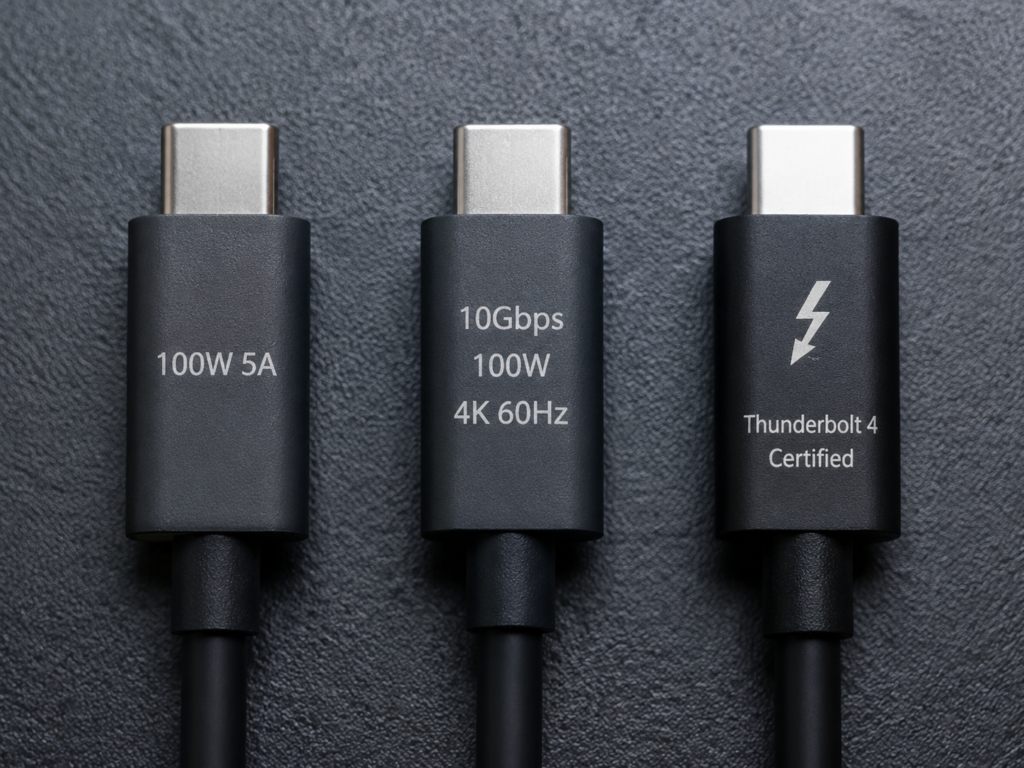
Some cables have markings printed on the connectors or cable body, you can take a rough look, but note: markings from legitimate brands have reference value, while markings from unbranded products may be printed randomly and cannot be taken seriously.
- USB-IF certified cables from overseas legitimate brands will directly mark the speed and power on the packaging or next to the connector, such as “10Gbps 100W”, the more specific the marking, the more credible it is.
- Thunderbolt cables usually have a lightning-shaped logo and the words “Thunderbolt Certified”. Certified Thunderbolt cables have more guaranteed compatibility, but you also need to check if it’s Thunderbolt 3, Thunderbolt 4, or Thunderbolt 5—different versions have different capabilities.
- If there are only markings of “5A”, “100W”, “240W”, it only means that the cable has good power supply capability, it absolutely cannot alone prove that it supports high-speed data and video.
5-Minute Actual Test: The Most Reliable Method
If the cable is already in your hand, the simplest and most direct method is actual testing, which can be done with the devices at hand:
- Test data: Use a computer to connect to a high-speed portable SSD or USB flash drive, and copy a large file of more than 1GB. If the speed is only 30-40MB/s, it’s a USB 2.0 charging cable; if it can reach hundreds of MB/s or even higher, it means there is a high-speed data channel.
- Test video: Use a computer or mobile phone that is confirmed to support video output to connect to a USB-C monitor or TV. If it can output a stable picture, it means the cable supports the video link.
- Test docking station: After connecting to the docking station, check at the same time whether charging is normal, whether the monitor has a picture, and whether the USB flash drive/network port can be used. Only when all are normal is it a true full-featured cable.
- Note: Testing charging is useless—being able to charge only means the cable is not broken, it cannot prove it is a full-featured cable.
4 Most Common Misjudgments, Don’t Fall for Them Again
Finally, correct a few mistakes that many people make:
- The thicker and stiffer the cable, the more full-featured it is? Wrong. High-current pure charging cables can also be made very thick. Thickness only means the power core is thick or the outer sheath is thick, it has nothing to do with the number of functions.
- Having an E-Marker chip means it’s a full-featured cable? Wrong. 100W/240W pure charging cables also have E-Marker, it’s only used to tell the device how much current it can carry, it does not mean there are data and video channels.
- Original cables are all full-featured? Wrong. Many original cables given with mobile phones and chargers are just charging cables or cables with USB 2.0, which do not support high-speed data and video at all, especially original cables for mid-range and low-end mobile phones.
- High price means full-featured cable? Wrong. Some high-priced cables only focus on braided durability, brand premium, or are just high-power charging cables, not full-featured at all.
Choose Cables According to Your Needs: Don’t Blindly Buy the Most Expensive One
When choosing cables, many people think “buying the most expensive one is definitely right”, but that’s completely unnecessary. Different scenarios have different requirements for cables, just enough is good, which saves money and doesn’t waste.
For These Scenarios, Buying an Ordinary USB-C Charging Cable Is Enough
If your demand is only charging, or only very basic data needs, then buying a charging cable is enough, it’s cheaper, has more options, and long cables are more cost-effective:
- Daily charging of small devices such as mobile phones, earphones, bracelets, and power banks
- Pure charging needs at fixed positions like bedside, car, and office desk
- Backup cables, easily lost cables, cables shared by multiple people
- Scenarios where you only charge your laptop, not connect to a docking station or monitor
After all, when there is no demand for high-speed data and video, the extra capabilities of full-featured cables are simply not used, a pure waste of money.
For These Scenarios, You Must Use a Full-Featured USB-C Cable
If it involves video, high-speed data, or docking stations, you must buy a full-featured cable, otherwise it won’t work:
- Laptop connected to a docking station, needing to achieve “one-cable solution” for charging, monitor, and peripherals
- Laptops, tablets, and some mobile phones that support video output connected to a USB-C monitor or TV
- Computer connected to high-speed portable SSDs, Thunderbolt hard drive enclosures, and large-capacity material drives
- Using high-bandwidth devices such as Thunderbolt docking stations, USB4 docking stations, and eGPU enclosures
- Handheld consoles or gaming devices (such as the commonly used Steam Deck and Rog Ally overseas) connected to a dock, needing to charge and output video at the same time (note that you also need to confirm dock compatibility)
For Uncertain Vague Scenarios, Judge Like This
In some scenarios you may be unsure whether to buy a full-featured cable, choose according to the following principles and you won’t go wrong:
- Laptop charging: If only charging, look at power; if connecting to a docking station/monitor, you must look at full-featured, USB4 or Thunderbolt specifications. For example, most C ports on MacBook and high-end Windows laptops support full functionality, but many budget Chromebooks only have some C ports that support video, so it’s best to check the device specifications before buying.
- Mobile phone connected to computer to transfer photos: First check what specification your phone’s C port is—if it only has USB 2.0, buying a 40Gbps cable won’t make it faster, an ordinary charging cable with data is enough.
- CarPlay/Android Auto: Usually only a cable that supports data is needed, no need for a high-end full-featured cable that supports video. Of course, using a full-featured cable is also fine, it just wastes the video capability.
- Portable SSD: At least buy a cable marked 5Gbps or 10Gbps, don’t buy cables that only write fast charging, transferring large files will be painfully slow.
- USB-C monitor: Prioritize checking if there are markings for 4K 60Hz, video output support, USB4 or Thunderbolt support, don’t buy the wrong one that can only charge.
3-Step Cable Selection Mnemonic, Never Buy Wrong Again
Actually choosing cables is very simple, just remember three steps:
- Step 1: List functions—what do you use this cable for? Only charging, transferring large files, connecting to a monitor, connecting to a docking station, different needs correspond to different cables.
- Step 2: Determine power—how much charging power do you need? Mobile phones are usually tens of watts, thin and light laptops commonly have 65W/100W, high-end gaming laptops may need 140W or even higher.
- Step 3: Find the minimum satisfying specification—as long as it can meet your needs, you don’t need to buy Thunderbolt 4/USB4 cables for all scenarios, which are expensive and unnecessary.
Practical Matching Suggestions for Ordinary Users
If you don’t know how many cables to buy, here’s a combination that works for most people:
- 1 reliable full-featured cable: Put it in your computer bag or on your desk, specifically used to connect to docking stations, monitors, and portable SSDs, don’t take it out randomly for casual use.
- 2-3 ordinary charging cables: Put them by the bedside, in the car, and in the travel bag respectively, specifically responsible for charging, you won’t feel bad if they are lost or broken.
- 1 short high-speed cable (optional): If you often use a portable SSD, prioritize a short cable of 0.5-1 meter, which has better stability than long cables.
The advantage of this combination is that it not only meets all needs, but also doesn’t use expensive full-featured cables as charging cables, reducing the risk of wear and loss, and has the highest cost-effectiveness.
Acceptance Checklist After Receiving the Goods
No matter which kind of cable you buy, it’s best to test it briefly after receiving it, especially for cross-border purchases, where returns and exchanges are troublesome, so detect problems early and deal with them early:
- Check packaging: Are the power, speed, and video specifications marked on the packaging consistent with the product page promotion?
- Test charging: Plug it in to see if the device can fast charge normally, and if there is any abnormal heating.
- Test data: Transfer a large file of more than 1GB to see if the speed meets expectations.
- Test video: Try connecting to a monitor to see if the resolution and refresh rate are correct and stable.
- Test docking station (if needed): Test charging, display, USB flash drive/network port at the same time to see if everything is normal.
If it doesn’t meet expectations, prioritize returning or exchanging, don’t make do with it—especially in high-power charging or important office scenarios, falsely labeled cables may cause problems.
Pitfall Avoidance and Troubleshooting
4 Most Common Publicity Traps for Full-Featured Cables
Now many merchants play word games, boasting ordinary cables as full-featured cables. Here are a few common traps:
- Calling “charging + USB 2.0 data” a full-featured cable: Does not support video, nor has high-speed data, not really full-featured at all.
- Marked as full-featured but with extremely low specifications: For example, only supports 4K 30Hz, USB 2.0, or only writes “high speed” “high definition”, no specific numbers.
- Only writes fast charging, universal, full compatibility, no specific parameters: This kind is basically deceiving. Merchants with real capability will definitely write the parameters clearly. “Full Featured” and “All-in-One” on overseas platforms mostly belong to this category, so be extra careful.
- Confusing full-featured with high power: The title has big “100W” “240W”, making you think high power means full-featured, but actually it’s just a charging cable.
The way to avoid traps is very simple: you must find three types of parameters at the same time: “charging power, data speed, video specifications”, be cautious if any one is missing.
No Response When Connected to Monitor? Troubleshoot in These 4 Steps
If you still can’t connect to the monitor even with a full-featured cable, don’t immediately blame the cable, troubleshoot in order:
- Step 1: Confirm the device port supports video—first check if your computer/phone’s C port supports video output. Many devices’ C ports can only charge or transfer data, cannot cast screens. For example, many budget Chromebooks and entry-level Android phones have C ports without video function.
- Step 2: Try a known good cable—for example, the original monitor cable, or a cable confirmed to be able to cast screens, to rule out problems with the cable itself.
- Step 3: Check peripherals and settings—see if the monitor’s input source is selected correctly, if the docking station is powered, and if the external screen is recognized in the computer’s display settings.
- Step 4: Try lowering the resolution/refresh rate—if the cable or port bandwidth is insufficient, high resolution and high refresh rate may not work. Try lowering to 4K 30Hz or 1080P, if the picture comes out, it’s a bandwidth insufficiency problem.
File Transfer Is Very Slow? Troubleshoot in These 4 Steps
If the file transfer speed is very slow, it’s not necessarily the cable’s problem:
- Step 1: Confirm cable specifications—see if it only has USB 2.0, or if it’s originally a low-speed cable.
- Step 2: Confirm the speed of devices at both ends—does the computer’s C port support high speed? Is the external hard drive enclosure or the hard drive itself high-speed? For example, if you plug a USB 2.0 USB flash drive into a 3.2 port, the speed definitely won’t be fast.
- Step 3: Test with a single large file—if you’re transferring thousands of small photos or small documents, the speed will naturally be slow, this is a file system problem, not a cable problem. Find a single large file of more than 1GB to test, that’s the real speed.
- Step 4: Check if it’s connected to a low-speed port—if connected to a docking station, see if it’s plugged into the docking station’s USB 2.0 port, or if the system has reduced speed for some reason.
Charging Can’t Reach Nominal Power? Troubleshoot in These 4 Steps
If the charging power is insufficient, don’t blame the cable first:
- Step 1: Confirm the power level of the cable—is it 3A (max 60W), 5A (max 100W), or 240W EPR? If the cable’s level is insufficient, it definitely can’t reach full capacity.
- Step 2: Confirm the charger and device are matched—does the charger support the corresponding fast charging protocol and power level? Does the device support this power? For example, if you use a 65W charger to charge a 100W computer, it definitely won’t reach 100W.
- Step 3: Check device status—when the battery is almost full, or when the temperature is too high or too low, the device will actively reduce the charging power, this is a normal protection mechanism, not a cable problem.
- Step 4: Check physical connection—is the port plugged in tightly? Is the cable damaged or bent? Is the connector oxidized? Poor contact can also cause the power to not go up.
Several Safety Precautions
Although cables are small items, using them incorrectly can also have safety hazards, especially during high-power charging:
- If the cable is abnormally hot, has a strange smell, or the connector is loose, stop using it immediately, don’t make do.
- Cables with damaged outer sheath, bulges at bends, or poor contact should not continue to be used for high-power charging, as they are prone to danger.
- When unplugging the cable, hold the connector and pull, don’t yank the cable body, as it’s easy to break the internal wires.
- For high-power laptops and long-time charging scenarios, prioritize choosing cables from legitimate brands with clear parameter markings, don’t buy too cheap unbranded products. Especially for users living in dormitories or shared apartments overseas, try not to use high-power cables of unknown origin, as claims are very troublesome if something goes wrong.
Want to Know More? You Need to Know These Boundaries
If you want to understand more deeply, or often need to choose cables for devices, this advanced knowledge can help you avoid many pitfalls:
Device Port Capability Is the Upper Limit of the Cable
Many people overlook this point: no matter how good the cable is, it’s useless if the device port doesn’t support it.
- Many mid-range and low-end mobile phones have USB-C ports, but only have USB 2.0, or even do not support video output at all.
- For some Windows laptops, not all C ports support Thunderbolt/USB4/video—some C ports can only charge or transfer ordinary data, only specific C ports support full functionality, so be sure to check clearly before buying.
- The port capabilities of devices from different brands and models vary greatly: for example, the C ports of many models in the MacBook series support Thunderbolt/USB4 full functionality, but specifications still differ by year and size (Air/Pro), so be sure to refer to official website parameters; the port capabilities of iPad Pro, flagship Android phones, and handheld consoles like Steam Deck/Rog Ally also vary, you can’t judge full functionality support just by the port shape.
How to check the device’s port capability? Look at the manual, the official website’s specification page, the markings next to the port (for example, the lightning logo is Thunderbolt), or check in system information, you can also search for actual tests by other users.
Version Compatibility Rules: Backward Compatible, But the Upper Limit Is Determined by the Lowest
High-specification cables are generally backward compatible with low-specification devices, for example, using a Thunderbolt 4 cable to charge a mobile phone is completely fine, it won’t damage the phone. But the actual speed and functions are always determined by the lowest link in the chain—high-specification cables can’t make old devices faster, nor can they make phones that don’t support video suddenly able to cast screens.
Another reminder: USB naming is particularly confusing, things like USB 3.2 Gen 1, Gen 2, Gen 2×2, as well as USB4 20Gbps, 40Gbps, ordinary users simply can’t remember. Teach you the simplest method: don’t care about the name, just look at the speed number—5Gbps, 10Gbps, 20Gbps, 40Gbps, the bigger the number, the faster the speed, much more reliable than remembering names.
What’s the Difference Between Passive and Active Cables?
You may have heard the terms “passive cable” and “active cable”, here’s a brief explanation:
- Passive cable: It’s an ordinary cable, no extra chips inside, simple structure, good compatibility, and cheap price. But the effective length during high-speed transmission is usually limited: many 40Gbps passive cables have a common length of 0.8 meters or 1 meter, 10Gbps passive cables may have longer specifications, but the specific maximum supported speed must be based on product certification and nominal parameters.
- Active cable: It has built-in signal enhancement chips that can amplify the signal, so it can be made longer. If you need to stably run high-speed data or 4K/8K video over 2 meters, you usually have to use an active cable, which is much more expensive; moreover, some active cables have directionality (the two ends cannot be reversed), or only optimize specific protocols (for example, only support Thunderbolt, not some USB 3.x scenarios), so when buying long cables, you must clearly check the supported protocols, power, and video specifications.
Reference Value of Certification Markings
Many cables are marked with various certifications, are these certifications useful?
- USB-IF certification: It’s the official USB certification, indicating that the cable has passed relevant official tests, with lower risk of false labeling, but it doesn’t mean that uncertified ones are necessarily bad.
- Thunderbolt certification: If you use Thunderbolt devices, such as Thunderbolt docking stations, Thunderbolt hard drive enclosures, eGPU enclosures, prioritize cables with Thunderbolt certification, for more guaranteed compatibility and stability.
- USB4 marking: Don’t just look at the three words “USB4”, clearly check if it’s 20Gbps or 40Gbps, how much power it supports, and if it has video support, different USB4 cables have different capabilities.
Overall, certified cables are more reliable, but the price will be a bit higher. If it’s a small brand, with vague parameters and abnormally low price, be careful even if it says it has certification, it may be fake.
Situations Not Applicable to This Article
Finally, the content of this article is mainly aimed at the daily use scenarios of ordinary consumers, these situations are not within the scope of discussion:
- Non-USB-C to USB-C cables, such as USB-A to C, Lightning, MagSafe, etc.
- Independent issues such as charger protocols, device battery health, system drivers, etc.
- Professional content such as laboratory-level signal testing, cable disassembly, certification processes, etc.
- Scenarios with special requirements for certification and reliability, such as enterprise procurement, medical/industrial equipment, etc.
Frequently Asked Questions
Is a full-featured USB-C cable necessarily faster to charge than a charging cable?
Not necessarily. Charging speed mainly depends on the cable’s power level, charger, device, and fast charging protocol. A 5A pure charging cable may have stronger charging capability than a 3A full-featured cable.
Can a 100W USB-C cable cast screens?
Not necessarily. 100W only indicates the power supply capability of this cable, it does not mean it supports video output. It depends on whether the product page clearly states video-related specifications such as video output, 4K 60Hz, USB4 or Thunderbolt.
If a USB-C cable can transfer files, is it necessarily a full-featured cable?
Not necessarily. Many ordinary charging cables support USB 2.0 low-speed data and can also transfer files, but the speed is very slow, and they do not support high-speed data and video output.
Why can’t I connect to the monitor even with a full-featured cable?
It may be that your device’s C port itself does not support video output, or the monitor’s input source is not selected correctly, the docking station is not powered, the resolution and refresh rate are too high exceeding the bandwidth, there is a problem with the system display settings, or the cable itself is falsely labeled.
Is it necessary for ordinary people to buy Thunderbolt 4 cables?
If it’s just for charging mobile phones, charging ordinary laptops, and occasionally transferring photos, it’s completely unnecessary. If you often connect to docking stations, 4K high-refresh monitors, high-speed portable SSDs, or use Thunderbolt devices, then it’s worth buying.
Can cheap 100W USB-C cables on overseas e-commerce platforms be bought?
If it’s just for charging mobile phones, earphones, and power banks, you can buy them; but if you want to use them for screen casting, connecting to docking stations, or transferring high-speed data, you must find clear data speed (such as 10Gbps) and video specifications (such as 4K 60Hz) on the detail page. Those that only mention power but not these two items are most likely pure charging cables, don’t take chances.
Summary
Finally, we will refine the core content again for your convenience to remember:
Core Difference in One Sentence
USB-C charging cables mainly solve charging problems, while full-featured USB-C cables solve charging, high-speed data, and video output problems at the same time.
3-Second Cable Selection Logic
- Only charging: choose a USB-C charging cable with matching power, that’s enough
- Need to transfer large files: choose a data cable clearly marked 5Gbps/10Gbps/20Gbps/40Gbps
- Need to connect to monitor/docking station: choose a full-featured cable that clearly supports video output, USB4 or Thunderbolt
The Most Important Pitfall Avoidance Principle
Don’t just look at the USB-C shape, don’t just look at the 100W/240W power numbers, and don’t just trust marketing terms like “full-featured” “Full Featured”. Before buying, be sure to confirm three types of parameters at the same time: charging power, data speed, video capability, be cautious if any one is missing.
When there’s a problem, don’t just blame the cable, troubleshoot according to the barrel effect—device, cable, charger, docking station, monitor, all may be that shortest plank.