
Have you ever had these experiences: you spend a lot of money on a 100W or even 240W fast charger and Type-C cable, but when charging your laptop, you find the speed is about the same as the old cable; or after using the cable for a while, the connector gets so hot that you worry it might burn out; or when you connect a docking station, it charges but the monitor just won’t turn on, and you don’t know where the problem is.
Behind these problems, there is often a small thing hidden in the Type-C cable connector — the E-Marker. Many people have heard this name, but don’t know what it actually does, and even think it is an “acceleration chip” that can make charging faster. In fact, it is a very critical part of USB-C high-power charging safety, neither so mysterious nor omnipotent.
If you are choosing a 100W, 140W, or 240W Type-C fast charging cable, or use the one-cable solution function of laptops, tablets, phones, docking stations, and portable monitors daily, or want to figure out whether slow fast charging or hot connectors are related to the cable, this article will start from the most basic concepts, so that you can judge by yourself, choose cables, and troubleshoot faults, no longer confused by various parameters.
First, Understand: What E-Marker Is, and Its Relationship With Charging Safety
E-Marker Is the “Electronic ID Card” of the Cable
You can think of E-Marker as the electronic ID card of a USB-C cable: it is a small chip hidden in the cable, professionally called an electronic marker chip. Its function is not to “accelerate” charging, but to actively tell the charger and device: how much current my cable can safely withstand, what charging protocols it supports, whether it can transmit high-speed data, and whether it supports high-voltage fast charging mode.
Unlike ordinary memory chips, E-Marker is not a “small note” that memorizes information rigidly. It requires low-voltage power provided by the interface (professionally called VCONN) to work, and exchanges information with chargers and devices through the communication pins of the Type-C interface. It is a safety design component of the cable itself, neither in the charger nor in the phone or computer.
Here is a key point first: E-Marker only “declares” the upper limit of the cable’s capability, and will not actively increase the charging power. Just like your ID card says you can drive a truck, it doesn’t mean you will definitely drive a truck, it just means you have the qualification.
Why We Need This “Electronic ID Card”
In the era without E-Marker, chargers had no idea how much power the plugged-in cable could withstand. They either output conservatively, wasting fast charging capability; or forced high power output, which easily caused overheating or even burning when encountering inferior cables.
With E-Marker, before outputting high power, the charger will first “check” the cable’s ID card, confirm that it can withstand it, and then provide the corresponding power. Of course, this ID card can also be faked — if the parameters written in the chip are different from the actual materials of the cable, for example, it can only withstand 3A but is marked as 5A, it is essentially a fake ID card, which is even more dangerous.
Which USB-C Cables Have E-Marker
Not all Type-C cables have E-Marker. It generally only appears in cables that have requirements for power or data capability:
- USB PD fast charging cables with current exceeding 3A: for example, common 20V5A, 100W cables, must be equipped with E-Marker supporting 5A according to standards;
- PD3.1 EPR high-voltage fast charging cables: that is, high-power cables such as 140W, 180W, 240W, must have E-Marker supporting EPR mode;
- USB4, Thunderbolt 3/4/5 cables: these high-speed data cables need to declare capabilities such as data bandwidth and video output, and usually have E-Marker, or even more complex signal conditioning chips;
- Full-featured Type-C cables: cables that support charging, video, and high-speed data at the same time basically come with E-Marker to declare comprehensive capabilities.
As for ordinary USB-C charging cables of 3A/60W and below, most do not have E-Marker and can be used normally. Only a few high-specification 3A full-featured cables may have it.
Where E-Marker Is Hidden
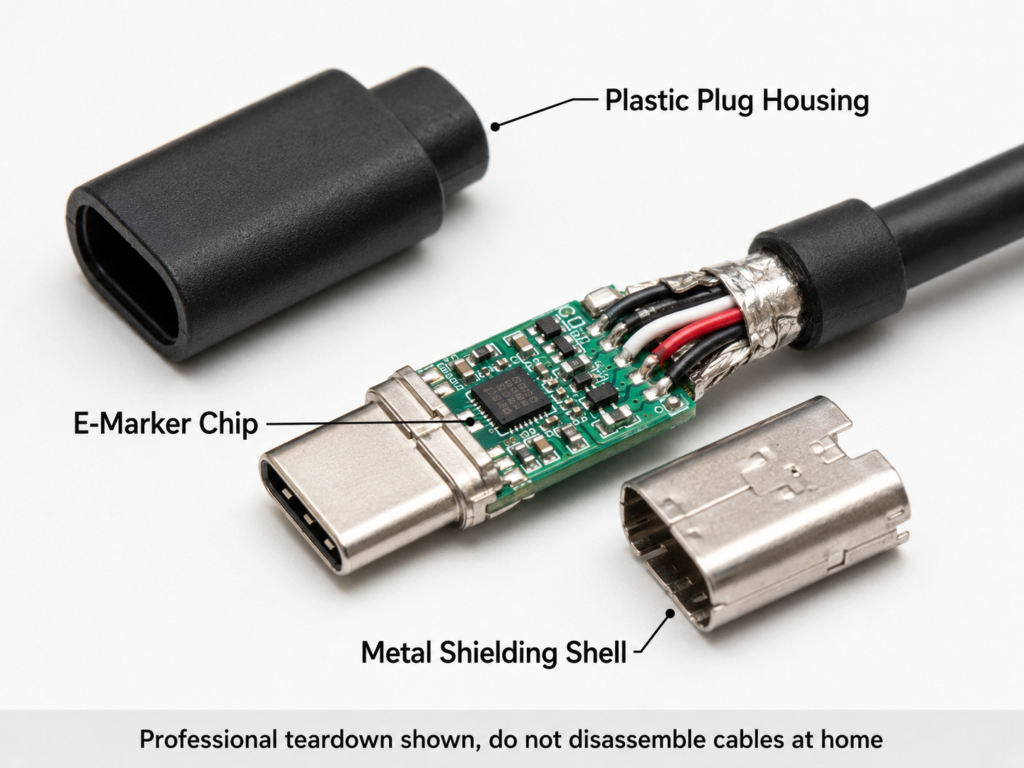
The vast majority of E-Markers are integrated inside the USB-C plug, hidden between the plastic shell and the metal shell, and are completely invisible to ordinary users from the outside. For active cables such as USB4 and Thunderbolt, there may be more signal processing chips in the cable body, with a more complex structure.
Never disassemble the cable just to check if there is an E-Marker. Disassembly will damage the insulation and structure of the cable, which instead brings safety hazards. To judge whether there is a qualified E-Marker, parameters, certifications, and testers are enough, no need to disassemble.
What Safety-Related Information Is Stored in E-Marker
There is a lot of information in this “electronic ID card”, and the most relevant ones to charging safety are these categories:
First is current capability: the most core ones in the USB PD standard are the 3A and 5A levels. According to regulations, cables that can withstand 5A must have E-Marker, otherwise the charger will not recognize them.
Second is voltage/mode capability: ordinary PD cables belong to SPR (Standard Power Range), supporting up to 20V; cables supporting PD3.1 EPR (Extended Power Range) can support higher voltages, up to 48V, which is the 240W level.
Third is cable type: for example, passive cable, active cable, full-featured cable, or USB4/Thunderbolt cable. Different types of cables have different applicable scenarios.
Fourth is data capability: whether it can transmit high-speed data such as USB 2.0, USB 3.x, USB4, Thunderbolt, which is separate from charging capability.
There is also direction and plug information, which is used to help the PD system identify the insertion direction of the cable and adjust the communication method.
Here we also need to correct a misunderstanding many people have: conventional E-Marker only “reports parameters”, it cannot monitor the temperature of the entire cable in real time. Over-temperature protection is generally implemented by temperature sensors in the charger and device interface, or proprietary solutions added by manufacturers themselves, which is not the job of E-Marker.
First Clarify These 5 Common Misconceptions for Beginners
When first getting in touch with E-Marker, many people fall into these pitfalls. Let’s clarify them first, so it’s not easy to be fooled later:
First misconception: All USB-C cables have E-Marker. In fact, many ordinary 3A/60W charging cables do not have it and can be used normally, it is not mandatory.
Second misconception: The thicker and more expensive the cable, the more it must have E-Marker. A thick cable may just have a thick outer sheath, which does not mean the copper core is thick enough, nor does it mean there is a compliant E-Marker chip inside.
Third misconception: Having E-Marker can make charging faster. It only declares the upper limit of the cable. The final power is determined by the charger, device, and cable together. No matter how good the cable is, if the device only supports 18W, it cannot reach 100W.
Fourth misconception: Being able to charge means the cable is safe. Poor contact, falsely marked cable core, or too long cable may cause overheating under high power. Being fine with low-power charging usually does not mean it is safe under high power.
Fifth misconception: A 240W cable must charge a phone faster than a 100W cable. How much power a phone can accept is determined by the phone and the charger. The cable just has a higher upper limit, just like driving a car on an 8-lane highway won’t be faster than on a 4-lane one, because the speed limit of the car is there.
Core Logic: Why High-Power Charging Cannot Do Without Cable Capability Identification
Where Do the Risks of High-Power Charging Come From
Let’s start with the most basic formula: Power = Voltage × Current. To achieve high-power charging, you either increase the voltage, increase the current, or increase both. Either way, it will bring new safety risks.
If the current is increased, the resistance of the cable core will convert electrical energy into heat, and the heat generation is proportional to the square of the current — for example, if the current increases from 3A to 5A, the heat generation is not 1.7 times the original, but nearly 3 times. That’s why 5A cables have such high requirements for the copper core; a slightly thinner core will double the heat generation.
If the voltage is increased, the requirements for the cable’s insulation layer, the creepage distance of the connector (that is, the safety distance between two live parts), and the design of the connector will be higher. The higher the voltage, the more likely there is a risk of insulation breakdown and electric leakage.
There is another risk point that is easily overlooked: the connector. If the connector is loose, oxidized, dusty, or the pins are deformed, the contact resistance will rise sharply. When current flows through, the connector will heat up first, just like a loose socket at home will get hot or even burn black.
If the cable core is shoddy, uses thin copper wires, or is too long, it will not only cause slow charging and large voltage drop, but also more serious heat generation, which is very unsafe for long-term use.
The Role of E-Marker in the Safety Chain
The existence of E-Marker is to add a “qualification verification” checkpoint to high-power charging:
Before outputting high current or EPR high voltage, the charger will first read the E-Marker information, confirm that the cable has the corresponding capability, and then output the corresponding power. For example, it will not send 5A current to a cable that can only withstand 3A, nor will it send 240W high voltage to an ordinary 100W cable.
If the cable’s capability is insufficient, the system will automatically downgrade to a safe power level, instead of blindly outputting full power, to avoid problems caused by overheating of the cable due to overload.
Of course, it is only one part of the safety chain, and cannot replace the actual materials of the cable core, the workmanship of the connector, certification testing, as well as the temperature control and overcurrent protection of the charger. All these together can ensure charging safety.
What Happens If There Is No E-Marker
If it is a compliant USB PD device and charger, when encountering a cable without E-Marker, it will default that the cable can only withstand a maximum of 3A current, that is, supporting a maximum power of 20V3A=60W.
So it’s not that without E-Marker you can only charge slowly at 5V. For PD fast charging within 60W, a 3A cable can fully handle it. For example, if you use an ordinary 3A cable to charge a 65W laptop, it may reach about 60W, just a little short of full capacity, not that it can’t fast charge.
If the device needs 100W but the cable does not have E-Marker, the system will usually drop to a safe level of 60W or even lower. If the communication pins of the interface are in poor contact, or the charger’s strategy is relatively conservative, it may directly retreat to 5V basic power supply, or even no power supply at all.
But note that if you encounter non-compliant no-name chargers, or inferior proprietary protocol cables, they may bypass this identification mechanism and directly output high power, which is very dangerous and easy to burn the cable or even the device.
The Relationship Between Non-PD Fast Charging and E-Marker
Note that the E-Marker rules we are talking about only apply to the standard USB-C PD fast charging system. Many mobile phone brands’ proprietary fast charging, such as super fast charging of more than 100W, uses the manufacturer’s own dedicated cables, dedicated contacts, and proprietary identification chips, which is not the same as the standard PD E-Marker.
There are also USB-A to Type-C cables, Apple’s Lightning cables, and some magnetic charging cables, which do not belong to the USB-C PD E-Marker system, and these rules cannot be directly applied.
When judging, first figure out: are you using a general USB-C PD fast charge, or a brand’s own proprietary fast charge ecosystem? The cable requirements for the two are different.
Plain Language Workflow: How E-Marker Participates in Charging Safety Negotiation
The “Three-Party Negotiation” Mechanism During Charging
A complete PD fast charge is actually the result of “negotiation” among the charger, device, and cable, not decided by any one party:
- The charger is the “power supplier”, which will first report all voltage and current levels it can provide, such as 5V3A, 9V3A, 20V5A, 28V5A, etc.;
- The device is the “power consumer”, which will request appropriate power from the charger according to its own battery level, temperature, current load, and supported protocols;
- The cable is the “transport channel”, which reports its maximum withstand current, voltage mode, and data capability through E-Marker.
The final actual charging power is the maximum value supported by all three, which is “the shortest plank of the wooden barrel”. For example, if the charger is 240W, the device is 100W, and the cable is 240W, the maximum is only 100W in the end, it will not be faster because the cable and charger have high power.
Simplified Process of a Standard PD Fast Charge
Let’s break the whole process into several steps, and it will be easy to understand:
Step 1: You plug in the Type-C cable, and the CC pin (that is, the pin responsible for communication) in the interface first “handshakes” to confirm that the cable is plugged in and what the direction is, then outputs basic 5V power supply first to ensure the device can power on first.
Step 2: The charger “wakes up” the E-Marker chip in the cable through VCONN (that is, the low-voltage power supply that powers the E-Marker, the voltage is very low and will not shock people at all), and reads its capability information: how much current can it withstand? Does it support EPR high voltage? Can it transmit high-speed data?
Step 3: The charger and device start PD negotiation, and the device requests the corresponding power level according to its own needs.
Step 4: The charger determines the final output voltage and current by combining its own capability, the device’s request, and the cable’s upper limit. If the cable’s capability is insufficient, it will automatically drop to a safe level; if there are serious problems such as short circuit or overcurrent, it will directly cut off power to ensure safety.
Plain Explanation of Several Key Terms
You don’t need to memorize the professional terms mentioned here, just have a general idea of what they are:
- CC pin: the key channel in the Type-C interface responsible for connection detection and PD communication, equivalent to a “telephone line”, all negotiation information is transmitted through it;
- VCONN: the low-voltage power supply that powers the E-Marker chip in the cable, equivalent to the “power supply of the ID card reader”;
- E-Marker communication: professionally, it reads cable information through SOP′/SOP″ messages of the PD protocol. Ordinary users don’t need to care about the details, just know that it is transmitted through the CC pin.
If the CC pin is in poor contact, for example, dust gets into the interface or the pin is crooked, there will be problems such as unrecognizable cable, invalid fast charging, and repeated disconnection of charging. Many times, slow fast charging is not because the cable is broken, but because the interface is dirty.
Common Safety Results When Negotiation Is Abnormal
If the three-party negotiation is not smooth, compliant PD systems will prioritize safe solutions. Common results are as follows:
- If the cable only supports 3A: it cannot enter the 5A 100W level, and can only reach about 60W at most;
- If the cable does not support EPR: it cannot enter high-voltage levels such as 140W, 180W, 240W, and can only stay at the ordinary PD level of 100W at most;
- If E-Marker reading fails: most compliant devices will limit the current, which may drop to 3A, or even return to 5V basic power supply, depending on the device’s strategy;
- If there is short circuit, overcurrent, over-temperature, or interface abnormality: compliant chargers will automatically limit current, cut off power, or renegotiate, and will not force output.
Note here: power downgrade does not necessarily mean the cable is broken, it may just be a mismatch of the three capabilities. For example, if you use a 100W cable to charge a 240W gaming laptop, not reaching full capacity is a normal safety downgrade, not a fault.
Scenario Correspondence: E-Marker Requirements Under Different Powers
Quick Check of USB-C PD Power Levels and Cable Requirements
For your convenience, I have organized the common power levels and corresponding cable requirements into a table, which you can understand at a glance:
| Common Power Upper Limit | Voltage and Current Combination | Is E-Marker Mandatory? | PD System | Applicable Scenario Examples |
|---|---|---|---|---|
| 60W | 5V3A/9V3A/15V3A/20V3A | Not mandatory | Standard Power Range (SPR) | Ordinary phones, tablets, entry-level thin and light laptops |
| 100W | 20V5A | Mandatory (5A E-Marker) | Standard Power Range (SPR) | Mainstream thin and light laptops, tablet fast charging, power banks |
| 140W | 28V5A | Mandatory (E-Marker supporting EPR) | Extended Power Range (EPR/PD3.1) | High-performance thin and light laptops, entry-level gaming laptops |
| 180W | 36V5A | Mandatory (E-Marker supporting EPR) | Extended Power Range (EPR/PD3.1) | Gaming laptops, mobile workstations |
| 240W | 48V5A | Mandatory (E-Marker supporting EPR) | Extended Power Range (EPR/PD3.1) | High-end gaming laptops, high-performance devices |
Just remember two simple judgment rules: if the power exceeds 60W, you need to check if there is a 5A E-Marker; if the power exceeds 100W, you need to check if there is a PD3.1 EPR E-Marker.
Core Differences Between 100W Cables and 240W Cables
Many people can’t tell the difference between 100W cables and 240W cables, thinking they just have different power numbers, but in fact they are quite different:
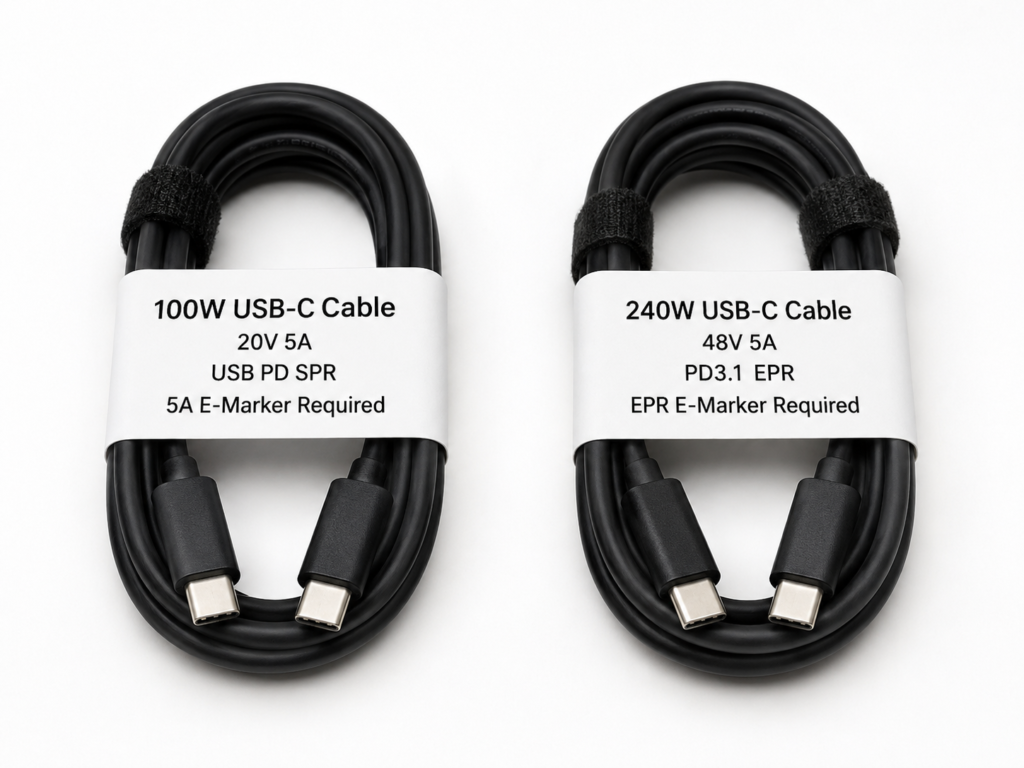
100W cables correspond to the SPR standard of ordinary PD, supporting up to 20V5A, that is, 100W;
240W cables correspond to the EPR standard of PD3.1, supporting up to 48V5A, that is, 240W, and are backward compatible with low power levels such as 100W and 60W.
A 240W cable can be used to charge a 100W laptop, no problem at all, but it will not make the charging speed faster, because the upper limit of the device is there. Conversely, ordinary 100W cables cannot be used as 240W EPR cables, because not only do they not have the corresponding E-Marker declaration, but the insulation and connector design may also not withstand the 48V high voltage, and forced use will be risky.
Here I want to remind everyone: when buying cables, don’t just look at vague statements like “high power” and “super fast charging”. Be sure to check if there is a clear voltage and current combination and PD3.1 EPR logo, otherwise it is easy to buy falsely marked products.
How to Choose Cables for Common Devices
Different devices have different requirements for cables. You don’t have to blindly buy the highest specification, just choose the one that suits you:
- Phones: if it is standard PD fast charging, ordinary 3A cables within 60W are enough; if it is a brand’s proprietary high-power fast charging, you need to check the official requirements, many must use dedicated cables to reach full capacity.
- Tablets: most tablets’ PD fast charging is within 60W, ordinary 3A cables are enough, and a few high-power models can be selected according to official specifications.
- Thin and light laptops: 65W, 90W, 100W are more common. Those above 65W basically need a 100W cable with 5A E-Marker to reach full capacity, otherwise they may only reach 60W.
- Gaming laptops/mobile workstations: if they support 140W, 180W, 240W USB-C power supply, be sure to choose corresponding PD3.1 EPR cables, ordinary 100W cables cannot reach full capacity.
- Portable monitors/docking stations: you can’t just look at charging power, you also need to check if they can transmit video and high-speed data, otherwise when plugged in, it charges but the monitor doesn’t turn on. You need to choose full-featured Type-C cables, USB4 cables, or Thunderbolt cables.
- Power banks: for bidirectional 100W, 140W, 240W power banks, the cable can easily become a bottleneck. You need to choose a cable that matches the input and output power, otherwise charging and discharging cannot reach full capacity.
- Car chargers: the temperature in the car is high in summer, especially after being exposed to the sun. You should choose cables from regular brands with appropriate length, pay attention to whether the connector gets hot, and try not to use too long cables.
Easily Confused Non-Standard Scenarios
There are several types of cables that are easily confused with standard PD E-Marker cables, so everyone should pay special attention:
- USB-A to Type-C cables: basically do not support standard PD E-Marker identification. Don’t expect to use A to C cables for 100W PD fast charging, most can only reach ordinary power.
- Lightning cables: Apple’s MFi certification is another system, which has nothing to do with USB-C E-Marker, don’t confuse them.
- Magnetic Type-C cables: magnetic connectors have many contacts, and the contact resistance is generally larger than that of direct-plug ones. Many do not support high-power PD charging. Be sure to check the parameters clearly when buying, and don’t use them casually to charge laptops.
- Stacking multiple adapters and extension cables: multiple adapters connected together can easily damage the PD identification mechanism, increase contact resistance, and cause more serious heat generation. Try not to use them during high-power charging.
- Proprietary fast charging cables: many proprietary fast charging cables are marked with 5A, 6A or even higher current, but those are parameters under proprietary protocols, which are not equal to the E-Marker capability of standard PD. When plugged into an ordinary PD charger, they may only run at 3A.
Practical Judgment: How to Identify High-Power Cables With Qualified E-Marker
Quick Judgment Method for Ordinary Users Without Tools
Most of the time, we don’t need professional tools. By looking at parameters and certifications, we can avoid most pitfalls:
First, look for clear parameters: prioritize products with clear information such as “100W/5A”, “240W/PD3.1 EPR”, “USB4 certified”, “Thunderbolt certified”. Those that only write “high power”, “full protocol”, “super fast charging” without even specific parameters, just pass directly.
Second, look at the voltage and current combination: 100W must correspond to 20V5A, 240W must correspond to 48V5A. If only wattage is marked, not voltage and current, it is most likely falsely marked.
Third, look at certifications and brands: products with USB-IF certification and Thunderbolt certification have been officially tested, and are much more reliable than unbranded products; reliable brands, even without public certification, at least have their own quality control, which is better than no-name brands.
Fourth, look at the length: for cables of the same specification, the shorter the cable, the smaller the voltage drop and heat generation, and the longer the cable, the higher the requirements for materials. For example, a 2-meter 100W cable is definitely more difficult to make than a 1-meter one, and the price will be a little more expensive. If a 2-meter 100W cable is cheaper than a 1-meter one, be careful.
Fifth, look at the purpose: if it’s just for charging, just buy an ordinary charging cable; if you need to connect a monitor or docking station, you must buy a full-featured cable, USB4 cable, or Thunderbolt cable, otherwise you can’t use video and data functions.
Don’t Judge Only by Appearance
Many people like to look at whether the cable is thick and whether the connector looks good when choosing cables. In fact, these are not reliable:
A thick cable doesn’t necessarily mean a thick copper core; it may just have a thick outer sheath, and the copper core inside is very thin; no matter how beautiful the metal shell of the connector is, it doesn’t mean the welding process inside is good, let alone that the E-Marker is compliant.
Especially those cables that cost a few dollars or more than ten dollars and are marked with “240W full protocol”, you don’t even have to think about it, there must be something wrong. The cost is not enough, it can’t be qualified.
Clear printing on the cable body and exquisite packaging can only be used as a reference, and cannot prove that the cable is definitely qualified. After all, packaging and printing can be made casually.
Advanced: How to Identify Falsely Marked E-Marker and Fake Cables
If you want to judge more accurately, or often buy cables, you can learn about common false marking tricks and verification methods:
There are several common false marking tricks:
The first is chip false marking: the E-Marker says it has 5A or EPR capability, but the actual cable core is very thin and cannot withstand the corresponding current and voltage at all, which is equivalent to ID card fraud, reporting false information.
The second is vague parameters: only marked “240W”, no PD3.1 EPR, 48V5A, and no certification information. In fact, they sell high-current cables for proprietary fast charging as PD 240W cables.
The third is confusing concepts: packaging dedicated cables for proprietary fast charging as general PD high-power cables, which cannot reach the nominal power at all when plugged into a standard PD charger.
The fourth is mixing data and charging capabilities: for example, boasting USB4 cables as “all-round cables”, but in fact USB4 cables do not necessarily support 5A high current. Charging capability still depends on the current marking, it’s not that fast data speed means strong charging.
There are several correct verification methods:
- Use a USB-C tester that supports E-Marker reading: directly read the information in the chip to see if the current, voltage, EPR, and data capabilities are consistent with the nominal ones. This is the most accurate.
- Actual use test: use a regular charger and device, run at the nominal power for a period of time, see if it can stably reach the corresponding power, and whether it will drop the level.
- Temperature test: after running at high power for more than ten minutes, touch the connector and cable body. If it’s just warm, it’s fine; if it’s so hot that you can’t touch it, there must be a problem, stop using it immediately.
Things you must never do: don’t deliberately let the cable run under overload to test the authenticity, for example, force a 100W cable to plug into a 240W device. This is very dangerous in itself, and it is easy to burn the cable or even the device.
Core Skills for Reading Parameters
When looking at cable parameters, remember these skills, and you won’t be easily fooled:
Don’t just look at the wattage, calculate voltage × current: 20V×5A=100W, 28V×5A=140W, 48V×5A=240W. The parameters must have the corresponding voltage and current combination, only marking wattage doesn’t count.
The power marked on the cable is its upper limit, not the actual output power. The actual power is determined by the device. Charging low-power devices with high-specification cables will not damage the device, just like your home socket can withstand 2500W, plugging in a 10W charger won’t break it.
For high-speed data cables, you need to look at three dimensions separately: data bandwidth, video capability, and charging power. These three are independent, it’s not that one is strong and the other two are strong. You need to confirm them separately when buying.
Available Auxiliary Tools
If you want to have a deeper understanding of your cables and charging status, you can prepare a few small tools:
- USB-C power meter: ones that cost a few dozen yuan are sufficient, they can display the current voltage, current, and power, which is very convenient for judging whether the fast charging level has been entered.
- Cable tester that supports E-Marker reading: suitable for users who often buy cables or do repairs, can directly read the E-Marker information of the cable, such as whether it is 5A, whether it supports EPR, whether it is USB4.
- Device system prompts: for example, the “slow charging” prompt on laptops, the fast charging icon on phones, can be used as a reference, but are not accurate enough. For example, some phones show fast charging, but actually only 18W, not necessarily full speed.
- Infrared thermometer or temperature sticker: used to measure the temperature of the connector and cable body, to judge whether there is abnormal heating. Ordinary users can also roughly judge by touching with hands; if it hurts to touch, it must be wrong.
Safety Boundary: E-Marker Is Not a Universal Insurance
Many people think that cables with E-Marker are absolutely safe, but that’s not the case. It is only one part of the safety chain, and there are many things it can’t control.
What E-Marker Can Control
Its actual job is actually very limited:
- Declare whether the cable can withstand 3A/5A current;
- Declare whether the cable supports EPR high-voltage mode;
- Help the PD system avoid outputting power exceeding the cable’s declared capability;
- Help chargers and devices identify cable types and some data capabilities.
To put it bluntly, it’s just a “parameter reporter”, and it can’t control the rest.
What E-Marker Can’t Control
These situations are useless even with E-Marker, you must know:
- Can’t control whether the cable core is shoddy: the information in E-Marker can be written casually. If the manufacturer falsely marks the parameters, the chip reports false information, and it will not correct it itself.
- Can’t control physical damage: broken cable, broken skin, broken copper wire, bitten by pets, these physical damages cannot be detected by E-Marker, and problems may still occur.
- Can’t control local heating of the connector: increased contact resistance caused by oxidation, dust, or looseness of the connector, the heating point is at the interface, E-Marker can’t detect it, and won’t trigger protection.
- Can’t control inferior chargers: if a no-name charger doesn’t follow PD specifications, doesn’t read E-Marker at all, and directly outputs full power, then E-Marker is just a decoration.
- Can’t control non-standard accessories: for example, the risks brought by stacking magnetic heads, adapters, and extension cables. These things may bypass E-Marker identification, or add additional heating points.
- Can’t control problems with the device itself: for example, abnormalities caused by device charging circuit failure or battery aging, E-Marker can’t control them either.
Prerequisites for E-Marker to Work
For E-Marker to work normally, the following conditions must be met:
- The charger, cable, and device are all compliant USB PD products, and the entire link is standard;
- The CC pin is in good contact, no dust, oxidation, deformation, and VCONN can normally power the E-Marker;
- The charger complies with PD specifications and has overcurrent, over-temperature, and short circuit protection;
- The actual material of the cable is consistent with the E-Marker declaration, not falsely marked;
- The cable is not damaged, water ingress, severely bent, and the interface is not loose;
- The ambient temperature should not be too high, the cable should not be covered by quilts, sofas, or carpets, and heat dissipation should be good.
If any condition is missing, the effect of E-Marker will be reduced, or even completely useless.
Common Misconceptions About Safety Boundaries
Here we correct a few more common safety-related misunderstandings:
- Is it definitely safe with E-Marker? No, it just adds an identification checkpoint. The cable core material, connector workmanship, and use environment are all very important. Falsely marked cables with E-Marker are even more dangerous.
- Can’t you fast charge without E-Marker? No, 3A PD fast charging within 60W can be used normally without E-Marker, and is completely safe.
- Can a 100W cable run 240W? No, 240W requires PD3.1 EPR cables. Ordinary 100W cables do not support high-voltage EPR mode, and forced use is risky.
- Will high-wattage cables damage low-power devices? No, the cable just has high carrying capacity, the device only takes the power it needs, and will not be damaged by high-wattage cables.
- Is slow charging definitely a broken cable? No, it may be that the device is almost fully charged, the temperature is too high, the multi-port charger divides power, or the device limits itself, not necessarily a cable problem.
- Is it definitely safe if the cable is not hot? No, it may be that the inside of the interface is heating up, which can’t be felt from the outside. You also need to check if there is disconnection, burning smell, or discoloration of the connector.
- Is a proprietary fast charging cable equal to a PD E-Marker cable? No, they are two completely different systems, cannot be confused. Proprietary fast charging cables do not necessarily support the high power of standard PD.
Troubleshooting: How to Find the Cause When High-Power Charging Is Abnormal
When encountering problems such as slow fast charging, disconnection of charging, or overheating, don’t panic. Troubleshoot in order, and most can find the cause.
Troubleshooting Order for Not Reaching Nominal Power
Start from the simplest and easiest place to check, step by step:
Step 1: First check the device status:
- Is the battery almost full? For example, when the phone reaches more than 80%, it will start trickle charging, reducing speed to protect the battery, which is normal.
- Is the device temperature too high or too low? For example, if the phone is hot from the sun in summer, or in sub-zero temperatures outdoors in winter, the device will limit the charging power, which is also a normal protection mechanism.
- Is it charging while using? For example, playing large games or running video editing, the device will allocate power to performance, and the charging power will naturally decrease.
Step 2: Check the charger:
- Does it support the target power level? For example, if you want 100W and the charger only has 65W, of course it can’t reach full capacity.
- Does it support the protocol required by the device? For example, if the device requires PPS or EPR, and the charger does not support it, it cannot reach the nominal power.
- Is the multi-port charger plugged with other devices? Many multi-port chargers dynamically allocate power, and if two devices are plugged in, the power of each will decrease.
Step 3: Check the cable:
- Does it support the corresponding current? 3A, 5A or EPR? Is there an E-Marker?
- Is it a charging-only cable or a full-featured cable? If it’s for a docking station, ordinary charging cables definitely won’t work.
- The most reliable method is to cross-test with a known qualified cable. If it works normally after changing the cable, then the original cable has a problem.
Step 4: Check the interface:
- Is there dust, lint, or oxidation in the interface? For example, if a phone is often put in a pocket, lint can easily clog the interface, causing poor contact.
- Is the connector fully plugged in? Sometimes if it’s only half plugged in, it can only do basic charging and cannot trigger fast charging.
- Is it only possible to fast charge when plugged in one direction, but not the other? Then there may be a problem with the CC contact, or one end of the cable is broken.
Step 5: Check protocol compatibility:
- If it’s a phone’s proprietary fast charging, do you have to use the original cable and original charger? Many proprietary fast chargings are not compatible with third-party cables and can only run at ordinary PD power.
- Does the laptop limit the power of third-party chargers? For example, some laptops can only run 65W with third-party chargers, and can only reach 100W with the original one.
Common Symptoms of E-Marker Abnormality
If there is a problem with E-Marker, or reading fails, there are usually these symptoms:
- Previously could stably run 100W, now can only run 60W or even lower, after eliminating device and charger problems;
- Previously could enter 140W/240W EPR level, now can only reach 100W at most;
- Repeated disconnection after plugging in, constantly renegotiating charging;
- USB4 and Thunderbolt devices slow down, external monitor goes black, flickers, or disconnects intermittently;
- Only one end or one direction has problems when plugged in, and it works normally when changing direction or end. It may be that the E-Marker or CC circuit in the plug is broken.
But note that these phenomena may also be problems with the charger, device interface, or system software. Be sure to cross-test before drawing conclusions, don’t immediately assume that the E-Marker is broken.
Danger Signals That Must Be Stopped Immediately
If these situations occur, no matter the reason, immediately unplug the power supply and stop using it, safety first:
- The connector or cable body is so hot that it hurts to touch, and it doesn’t cool down continuously, not warm, but too hot to hold;
- There is burning smell, plastic smell, smoke smell. As long as you smell abnormal odor, immediately cut off power;
- The connector is discolored, blackened, melted, and the pins are skewed or deformed;
- The cable body is broken, bulging, cracked, with copper wires exposed;
- There is a feeling of sparking during charging, or a sizzling abnormal sound, frequent power off and restart;
- Abnormal heating near the device interface, still hot after changing the cable and charger, may be a problem with the device itself, stop using it immediately and send it for repair.
The Difference Between Slow Charging and Safety Faults
Many people get nervous as soon as they encounter slow charging. In fact, you can first distinguish whether it is normal slow charging or an abnormal problem:
- Normal slow charging: no overheating, no disconnection, no abnormal odor, just low power, usually caused by power negotiation downgrade, device temperature control, or battery nearly full, completely fine.
- Abnormal slow charging: accompanied by disconnection, interface heating, burning smell, device prompting insufficient power supply, may be a problem with the cable or interface, need to check in time.
- Safety fault: high temperature, melting marks, broken skin, smoke, sparking occur, stop using immediately, don’t hesitate.
Purchase and Use: How to Choose High-Power Cables With E-Marker More Safely
Basic Principles for Choosing Cables
Don’t blindly buy the highest specification, choose according to your own device needs, just enough is fine:
- For devices within 60W, such as ordinary phones and tablets, regular 3A USB-C cables are enough, no need to buy 240W ones, it’s a waste of money.
- For thin and light laptops from 65W to 100W, prioritize 100W cables with 5A E-Marker, which can reach full power and are more versatile.
- For devices from 140W to 240W, such as gaming laptops and mobile workstations, just choose PD3.1 EPR 240W cables, which are backward compatible with all low power levels, and can be used when you change devices later.
- For connecting monitors and docking stations, choose full-featured Type-C cables, USB4 cables, or Thunderbolt cables, don’t just buy ordinary charging cables, otherwise you can’t use video and data functions.
- For use in cars or high-temperature environments, prioritize shorter products from regular brands with good connector temperature rise control, as risks are higher at high temperatures.
Parameters to Prioritize When Purchasing
Sorted by importance, focus on these when choosing cables:
- Current: 3A or 5A, this is the most basic, determining the maximum current carrying capacity;
- Power: 60W, 100W, 140W, 240W, corresponding to the maximum power of your own device;
- Protocol: USB PD, PD3.1 EPR, PPS, USB4, Thunderbolt, see what protocol you need;
- Data capability: USB 2.0, 5Gbps, 10Gbps, 20Gbps, 40Gbps. If only for charging, USB 2.0 can also be used. For data transmission, choose the corresponding bandwidth;
- Video capability: whether it supports DP Alt Mode or Thunderbolt video output, need to confirm if connecting a monitor;
- Length: For high-power cables, try to choose 1m to 1.5m. Too long cables have large voltage drop and high heat generation. Unless necessary, don’t buy too long ones;
- Certification: products with USB-IF or Thunderbolt certification are more reliable, or official test reports from reliable brands are also acceptable.
Safety Habits for Daily Use
They are all small things, but can avoid many risks:
- Don’t charge high-power charging cables under quilts, sofas, or carpets. Covering them leads to poor heat dissipation and easy overheating.
- Don’t let the connector be bent hard for a long time. For example, when plugged into a laptop, the cable is bent at 90 degrees. Over time, it will damage the E-Marker, CC circuit, and solder joints inside.
- Try to use less magnetic heads, extension cables, and multiple adapters stacked together for high-power charging. Each additional connector adds a risk point.
- In cars and places directly exposed to sunlight, try not to charge at full power for a long time in high-temperature environments. The higher the temperature, the faster the insulation ages, and the higher the risk.
- Regularly check the connector to see if it is loose, discolored, or dusty. If there is a lot of dust, you can clean it with a soft brush or air blower. Don’t use metal objects to dig, as it is easy to damage the pins.
- If you find abnormal heating or abnormal odor, don’t plug and test repeatedly, stop using it immediately, the more you test, the more dangerous it is.
When Must the Cable Be Replaced
If these situations occur, it’s time to change the cable, don’t make do with it:
- Originally could trigger fast charging, after eliminating charger and device problems, still can only slow charge;
- The connector is obviously loose, and charging disconnects with a light touch;
- The cable body is damaged, bulging, cracked, discolored;
- The connector or cable body is abnormally hot;
- USB4, Thunderbolt, video output frequently disconnects, still the same after eliminating device problems;
- The cable has been in water, pressed by heavy objects, or bitten by pets. No matter how good it looks, replace it, the inside may already be damaged.
Examples of Several Real Scenarios
Finally, use a few common examples to connect the previous knowledge, making it easier to understand:
First example: A 65W thin and light laptop, charged with an ordinary C to C cable, can only reach 60W, not reaching the nominal 65W.
The reason is simple: that cable is 3A, without E-Marker, the charger defaults to a maximum of 3A, that is, 20V3A=60W, so it can’t reach 65W. Change to a 100W cable with 5A E-Marker, and it can reach 65W. This also confirms what we said earlier: power supply exceeding 60W basically requires a 5A E-Marker cable.
Second example: Bought a 240W fast charging cable, used to charge the phone, the speed is exactly the same as the previous 100W cable, no faster.
This is normal: the fast charging power of the phone is determined by the phone and the charger. The cable just has a higher upper limit and will not break through the phone’s limitations. For example, if the phone supports up to 65W, the speed is exactly the same with a 100W cable and a 240W cable. High-specification cables are just backward compatible and will not make the device faster.
Third example: A 100W PD cable connected to a 140W gaming laptop can only reach 100W at most, not 140W.
Because 140W belongs to the PD3.1 EPR level, which is 28V5A, ordinary 100W cables are 20V5A and do not support EPR high-voltage mode, so they can only reach 100W at most. 100W cables cannot replace PD3.1 EPR cables, and EPR cables must be used for power exceeding 100W.
Fourth example: Using the one-cable solution function of the docking station, it can charge the laptop, but the external monitor does not turn on.
Most likely, the cable used is just an ordinary charging cable, which only has charging pins and no channels for video and high-speed data. Although it can charge, it cannot transmit video signals. Just change to a full-featured USB-C cable, USB4 cable, or Thunderbolt cable. This also shows that E-Marker and high power are just one dimension of the cable, and video and data capabilities need to be confirmed separately.
At this point, you should have a relatively comprehensive understanding of E-Marker and high-power charging safety. To sum up, you should now be able to independently judge these things: which USB-C cables must have E-Marker, where the safety boundaries of different power cables are, what factors determine the final charging power, how to identify falsely marked and unsafe cables, and how to troubleshoot when encountering abnormalities and when you must stop using them.
In fact, the safety of USB-C cables is both complicated and simple: don’t be greedy for cheap unbranded products, choose the appropriate specification according to your own needs, pay attention to inspection and maintenance in daily use, and you can avoid most risks. After all, charging safety is no small matter, knowing a little more makes you feel more at ease when using.