
Have you ever had this experience: you hold a USB-C cable in your hand, wanting to connect your laptop to a monitor for work, or hook up your Steam Deck to a TV to play games. After plugging it in, the screen is completely black, and repeatedly unplugging and replugging doesn’t help — only to finally find out that this cable doesn’t support video transmission at all.
Many people think that “as long as it’s a USB-C shaped cable, it can connect to a monitor”, which is the most common misconception. USB-C is just the shape of the interface, it does not mean it has all functions. To figure out whether a cable can be used for video output, you don’t need to understand complex circuits. Just follow the logic from “checking labels” to “actual testing”, and ordinary people can quickly figure it out.
The USB-C video output mentioned here refers to using a USB-C/Type-C cable or adapter to connect devices like computers, mobile phones, tablets, and handheld consoles such as the Switch to monitors, TVs, and projectors for image transmission; judging whether a cable works is not just as simple as “whether there is a picture” — it also depends on whether the system can recognize the external screen, whether the display is stable, and whether it can achieve the resolution and refresh rate you want (such as 1080p60, 2K144, 4K60, 8K, etc.). If you use a docking station, you also need to check whether it can simultaneously meet comprehensive needs such as charging, data transfer, network connection, and dual screens.
Zero-Cost Preliminary Judgment: How to Tell If a Cable Can Transmit Video Without Plugging It Into a Device
You don’t need to find a device to plug it in. First, look at the cable’s own labels and appearance, you can eliminate a large number of cables that definitely cannot transmit video, and also make a preliminary judgment on which ones are likely to work.
Check Label Keywords: 100 Times More Reliable Than Appearance
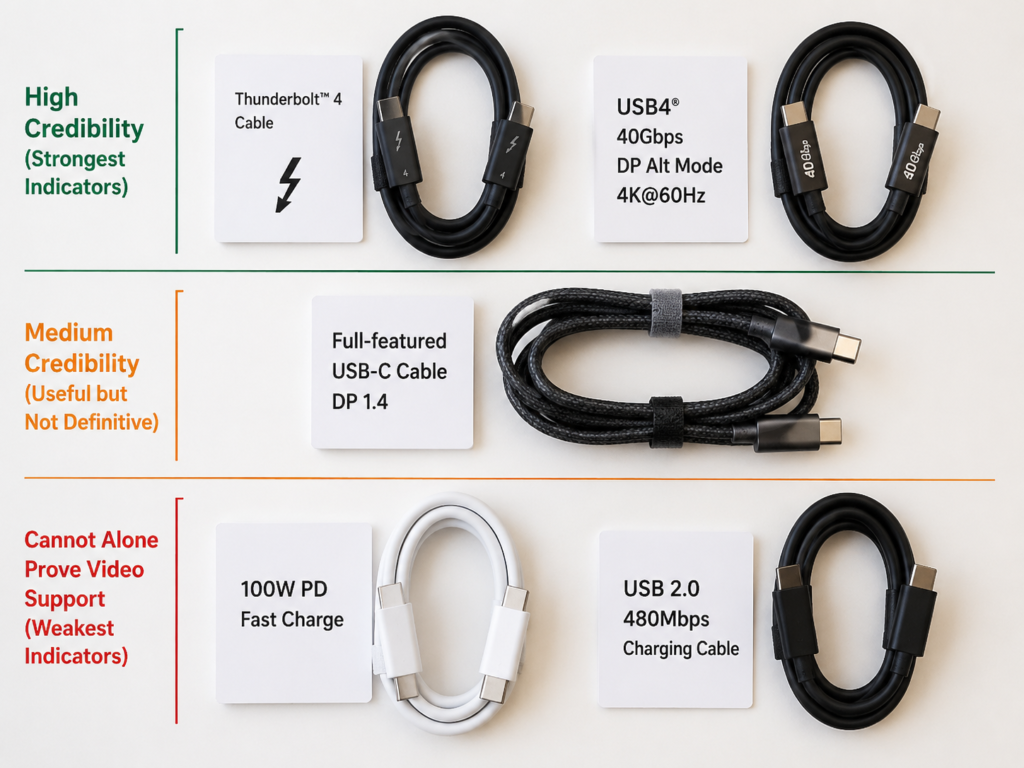
The most reliable method is to look at the cable’s packaging, printed text on the cable body, and the specification table on the product detail page, to find keywords related to video. They can be divided into three categories according to credibility:
- High-credibility keywords (you can basically confirm video support when you see them):
- Thunderbolt 3/4/5 (usually with a lightning logo and number)
- USB4 40Gbps/80Gbps
- DP Alt Mode/DisplayPort over USB-C
- Clearly marked video output, display support, external display support
- Explicitly written specific video parameters such as 4K@60Hz, 5K, 8K, 4K@120Hz, etc.
- Medium-credibility keywords (need further confirmation):
Full-featured USB-C cable, USB-C monitor cable, DP 1.2/1.4/2.0/2.1 related descriptions. These terms indicate that the cable may have video capability, but the specific supported specifications still depend on whether there are more detailed parameters. - Terms that cannot alone prove video support (don’t buy as a video cable when you see these):
100W/240W/PD fast charging/EPR, charging cable, USB 2.0/480Mbps, only marked 5Gbps/10Gbps/20Gbps but no mention of video at all, only written “full-featured” but the detail page has no descriptions related to video, resolution, or DP Alt Mode.
Special reminder: Many merchants call cables that “charge + transfer data” “full-featured cables”, and such cables do not support video at all. As long as there is no clear video-related description, even if it says “full-featured”, don’t assume it can connect to a monitor.
Check Certification Labels: Can Reduce Risk, But Are Not Omnipotent
- Thunderbolt certification: Cables certified for Thunderbolt 3/4/5 usually support video, docking stations, and high-speed data, making them a reliable choice for high-specification scenarios. But note that some longer passive Thunderbolt 3 cables may only have a bandwidth of 20Gbps, and may not be able to run the highest video specifications.
- USB-IF certification: Cables certified by the official USB organization have more standardized parameter labeling and a lower probability of false labeling. But certification only means the cable meets a certain type of standard; you still need to confirm whether it is a charging cable, a high-speed data cable, or a USB4 cable.
Certified cables only guarantee that the cable itself meets the standard, and cannot guarantee that your computer, monitor, or docking station can support the highest specification video — the final capability is determined by the weakest link in the entire chain.
Check Interface Pins: Can Only Roughly Eliminate, Cannot Finalize Confirmation
Look at the metal contacts inside the USB-C plug against the light. If there are obviously only a few contacts, it is most likely a charging cable or USB 2.0 cable, and basically does not support video output.
But if the contacts look complete, it does not prove that it must support high-specification video: it is difficult for the naked eye to accurately count 24 pins, complete contacts do not mean all internal wire cores are connected, let alone that shielding, impedance, bandwidth, and identification chips meet the standards. This method can only be used to quickly eliminate cables that definitely don’t work, and cannot be used for “confirmation”.
Check Cable Length and Appearance: Only for Auxiliary Judgment
- Cable length: Cables within 1 meter are more likely to stably run high-bandwidth video; cables 1 to 2 meters long must have clear specification markings, especially for needs like 4K60, high refresh rate, Thunderbolt, and USB4; for cables over 2 meters that need to run high-specification video, prioritize active cables or cables clearly marked with long-distance video capability.
- Thickness and appearance: Cables that support high-speed video are usually a bit thicker, but this is not absolute — high-quality short cables can also be made very thin. Braided outer layers, gold-plated plugs, lighting, magnetism, etc. are all appearance selling points and have nothing to do with whether video can be transmitted.
Be Wary of Fake Product Labels
It is very common for off-brand low-priced cables to falsely label parameters, they dare to write anything like “Thunderbolt 4”, “8K”, “full-featured”. If the information in the product title, detail images, and specification table conflicts, the priority from highest to lowest is: official specification table > certification labels on packaging and cable body > brand official website model page > specific devices, resolutions and refresh rates in user actual test reviews.
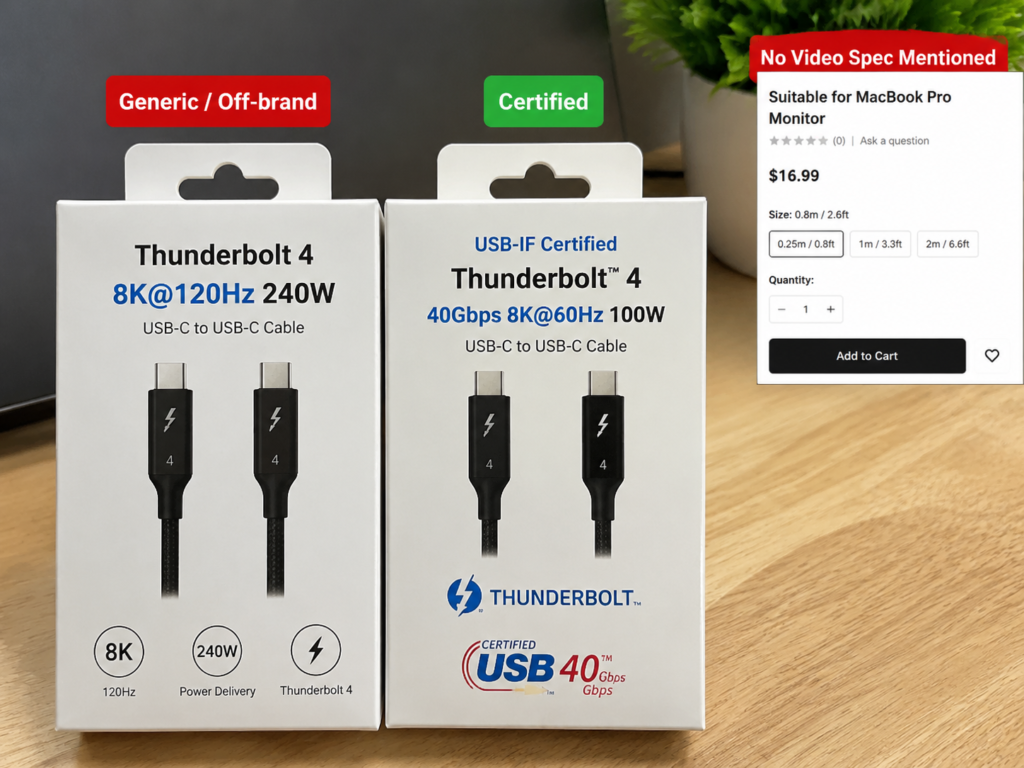
Don’t just look at “suitable for MacBook/iPad/monitor” in the title; this kind of “compatibility description” only means it can be plugged in, not that it has video capability.
Actual Testing Verification Method: The Most Reliable Way to Determine Whether Video Can Be Transmitted
No matter how good the label says, whether it can finally work and meet your needs still depends on actual testing. But actual testing is not just plugging it in casually; you need to rule out device factors first, otherwise it is easy to misjudge a device problem as a cable problem.
Rule Out Device Factors Before Testing
- Confirm that the USB-C port of the output device supports video:
First check if there are labels like lightning (Thunderbolt), DP (DisplayPort), or a monitor icon next to the interface; if not, check the parameters on the device’s official website, look for keywords like DP Alt Mode, Thunderbolt, USB4, external display. Many laptops have multiple USB-C ports with different functions, some can only charge, and some can output video, don’t assume every port is the same. For handheld consoles (such as Steam Deck, Switch), you also need to confirm that the USB-C port of the corresponding model supports video output, and some models require an official or certified docking station to cast the screen normally. - Confirm display end support:
If it is a USB-C monitor, confirm that its USB-C port supports video input, not just power supply or use as a USB Hub; if it is an HDMI/DP monitor or projector, confirm that the specifications and direction of the adapter or cable match. - Prepare a known working video cable as a control:
For example, if you are sure that a certain cable works well when connecting the same device and monitor, you can quickly compare it during later troubleshooting, to avoid blaming the cable under test for device problems.
Standard Test Steps
- Use the cable under test to directly connect the output device and a USB-C monitor; if it is an HDMI/DP monitor or projector, use the corresponding adapter or conversion cable.
- Select the correct input source on the display device. For example, if you plug in USB-C, select USB-C; if you plug in HDMI1, select HDMI1. Many times the black screen is just because the wrong input source is selected.
- Check whether the system can recognize the external screen:
- Windows: Open Settings → System → Display, or press Win+P to switch between duplicate/extend/second screen only modes;
- macOS: Open System Settings → Displays, and see if there is an option for an external monitor;
- iPadOS: Check the display settings after connection, some apps and devices have external display restrictions;
- Android: Check if there is a prompt for desktop mode or screen casting mode. Many Android phones’ USB-C ports do not support video output at all;
- Handheld consoles: Check the external display option in system settings to confirm whether screen casting output is enabled.
- Check the available resolution and refresh rate to confirm whether it can reach your target:
- Windows can view the current resolution and refresh rate in “Advanced Display”;
- macOS can press and hold the Option key and click “Scaled” in display settings to view available resolution and refresh rate options.
How to Judge Test Results
Different test results correspond to different problem directions:
- No response at all, system does not recognize external screen: It may be that the cable does not support video, the output port does not support video, the adapter is incompatible, the monitor input source is selected incorrectly, or the cable is damaged;
- Can be recognized but black screen: It may be that the resolution/refresh rate exceeds the monitor’s capability, HDCP copyright protection is incompatible, the docking station has insufficient power supply, or the system display settings are abnormal;
- Can display but only low resolution or low refresh rate: It means the cable or link supports video, but the bandwidth or specification is insufficient, or it may be limited by the HDMI/DP version of the adapter or monitor;
- Can display but has screen flickering, screen artifacts, intermittent disconnection: Common causes are insufficient cable quality, cable too long, poor interface contact, docking station overheating or unstable power supply;
- Stably reaches the target resolution and refresh rate: It means this cable supports the corresponding video specification under your current device combination.
Cross-Testing Method: Accurately Locate the Problem
If the test is abnormal, don’t directly assume the cable is broken. Test by changing only one variable at a time, and you can find the root cause of the problem:
- Replace the cable under test with a known good video cable: If it returns to normal, it means the cable under test most likely does not support video or is faulty;
- Switch to another USB-C port on the same device: To determine whether the current port does not support video;
- Switch to another computer that is confirmed to support video output: To determine whether it is a port, system or driver problem of the original device;
- Switch to another monitor/projector or another adapter: To determine whether it is a problem with the receiving end or conversion device;
- Lower the resolution or refresh rate and test again: If 4K60 is unstable but 1080p60 is stable, it means most likely the bandwidth or cable quality is insufficient — but stability at low specifications does not mean the cable can meet high-specification needs.
Common Troubleshooting for No Picture Even When the Cable Supports Video
Many times the cable itself is good, but a problem in one link of the entire chain will also cause no picture. Troubleshooting in the following order can solve most problems.
Problems on the Output Device Side
- USB-C port does not support video: The front Type-C port of many Windows laptops, some Type-C ports of desktop computers, and the Type-C port of most mid-to-low-end Android phones can only charge and transfer data, and have no video output capability at all. The same computer may also only have a certain USB-C port that supports Thunderbolt or DP Alt Mode;
- Display mode not switched: For Windows, press Win+P to select duplicate, extend, or second screen only; for macOS, check whether mirroring mode is turned on, or the external screen is not recognized; for mobile phones and tablets, you may need to manually turn on desktop mode, screen casting mode, or grant external display permissions;
- Drivers or firmware are too old: Outdated graphics card drivers, chipset drivers, Thunderbolt controllers, and USB4 firmware may all cause the external screen not to be recognized. Updating the corresponding drivers and firmware through the official channels of the device manufacturer, graphics card or motherboard manufacturer may improve the problem of non-recognition or instability; if it still doesn’t work after updating, continue to troubleshoot ports, cables, adapters and monitor settings;
- Battery or performance limitations: Some mobile phones and handheld consoles will limit the performance of external display or even turn off the function when in low battery or low power mode. Try charging it or turning off power saving mode.
Problems on the Monitor, TV or Projector Side
- Wrong input source selected: This is the most common low-level mistake. Plugging into HDMI1 but selecting HDMI2, plugging into USB-C but staying on DP input, will all cause a black screen;
- Different USB-C port functions: Some monitors’ USB-C ports can only be used for power supply or as a USB Hub, and do not support video input; only specific USB-C ports support video + reverse charging;
- Monitor menu setting restrictions: Some high-refresh-rate monitors require you to manually set the DP version to 1.4 in the menu to run 4K60 or high refresh rate; some monitors will occupy video bandwidth after enabling the USB 3.x Hub function, resulting in a decrease in resolution;
- HDMI version limitation: HDMI 1.4 is usually limited to 4K30 in common monitor, TV and adapter scenarios; to stably output 4K60, HDMI 2.0 or above is generally required, and the adapter, cable and display end must all support the corresponding specification.
Problems with Adapters and Docking Stations
- Direction requirement: The vast majority of USB-C to HDMI/DP cables/adapters are unidirectional, they can only output from USB-C to HDMI/DP monitors, and cannot be reversed to connect an HDMI computer to a USB-C monitor;
- Insufficient specifications: An adapter marked 1080p definitely cannot output 4K60, and those only marked “4K” without 60Hz most likely only support 4K30;
- Insufficient docking station power supply: When using multiple screens, network ports, hard drives, and charging at the same time, the power of the docking station may be insufficient, and an external PD power supply is required for stable operation;
- MST multi-screen limitation: Most Windows devices support MST multi-screen extension, but macOS has very limited support for ordinary DP MST extension, and may only mirror or output one screen. The situation is much better when using a Thunderbolt docking station.
Problems with the Physical Link
- Cable not plugged in tightly: The USB-C looks like it’s plugged in, but if it’s not fully inserted, there may be normal power supply but abnormal video. Unplug it and plug it back in tightly to try;
- Interface dirty or loose: Dust, oxidation, and foreign objects can cause poor contact. When cleaning, first disconnect all power and turn off the device. Prioritize using a dry soft brush or air blower to clean the dust inside the interface; if you really need to clean stains, you can use a dust-free cotton swab dipped in a small amount of isopropyl alcohol to gently wipe, wait for it to completely evaporate and dry before powering on. Be careful not to leave cotton lint or liquid, and do not use metal tools to scratch the interface contacts;
- Internal cable damage: Frequent bending, pulling, and long-term high temperature may cause the internal high-speed signal lines to break or have poor contact. It may be broken even if the appearance looks intact;
- Cable too long or insufficient quality: High-resolution, high-refresh-rate signals have higher requirements for cables. Cables that are too long or of poor quality are prone to screen flickering, black screen, and disconnection problems.
These Special Scenarios Are Most Prone to Misjudgment
Thunderbolt Cables Are Not the Only Choice, But Are More Suitable for High Specifications
Many people think that only Thunderbolt cables can transmit video, but in fact ordinary full-featured USB-C cables can fully meet the common needs within 4K60, and are cheaper.
Thunderbolt 3/4 cables are more suitable for these scenarios: Thunderbolt docking stations, using high-speed external hard drives + monitors at the same time, multi-screen output, and office scenarios that require high stability. But note that when a Thunderbolt cable is plugged into an ordinary USB-C port, it will be downgraded, and the final capability is determined by the ordinary USB-C port.
Fast Charging Cables and Video Cables Are Two Different Things
Numbers like 100W and 240W only represent power supply capability, and have nothing to do with video capability. Many original USB-C cables for mobile phones, although supporting high-power fast charging, only have USB 2.0 data capability and cannot transmit video at all. When judging, be sure to look for video-related keywords, don’t just look at the wattage.
“Full-Featured Cables” Also Depend on the Specification Upper Limit
“Full-featured cable” is a very vague term: some full-featured cables can support 4K60, some can only stably do 1080p or 4K30, and some merchants call “charging + data transfer” full-featured, which has no video capability at all.
When buying, prioritize models that clearly state “4K60”, “8K”, “DP Alt Mode”, “Thunderbolt”, “USB4”, don’t just look at the three words “full-featured”.
USB-C Video of Mobile Phones and Tablets Varies Greatly
Don’t think that as long as it is a mobile phone or tablet with a USB-C interface, it can cast the screen via cable:
- The USB-C/Thunderbolt ports of iPad Pro, some iPad Air, and MacBook mostly support external display;
- Android phones vary greatly. Some flagship models support DP Alt Mode and desktop mode, and many mid-to-low-end models’ USB-C ports can only charge and transfer USB 2.0 data, and cannot output video at all.
USB-C to USB-C and USB-C to HDMI Are Not the Same Thing
- USB-C to USB-C cable: Both ends are USB-C, requires the monitor to support USB-C video input, suitable for USB-C monitors, portable screens, and docking stations;
- USB-C to HDMI cable: Usually has a built-in DP to HDMI chip, and does not use the rare HDMI Alt Mode for direct transmission. The USB-C port on the output end must still support DP Alt Mode, Thunderbolt or USB4 video output, and the HDMI end is also limited by the HDMI version of the TV/monitor;
- USB-C to DP cable: Used to connect USB-C devices to DP monitors. It is usually more stable than HDMI conversion in high-refresh-rate monitor scenarios, but it still depends on the specific specifications of the cable and device.
Quick Judgment Process: From Fastest to Most Reliable
If you are in a hurry, you can follow the process below step by step, and you can get a conclusion in a few minutes.
Three-Step Quick Judgment Method
- Step 1: Check the cable label
If there are keywords like Thunderbolt, USB4, DP Alt Mode, 4K60, 8K, video output, it most likely supports video; if there are only words like PD, 100W, 240W, charging, 480Mbps, don’t use it as a video cable. - Step 2: Check the device port
The USB-C port of the output device must support DP Alt Mode/Thunderbolt/USB4 video, and the monitor, adapter, and docking station must support the corresponding input and target specifications. - Step 3: Actually test the target specification
Only when it can be stably recognized and reach the resolution and refresh rate you need can it be considered truly usable under your device combination.
One-Minute Judgment Comparison Table
| Label/Phenomenon Seen | Preliminary Conclusion | What Still Needs to Be Confirmed |
|---|---|---|
| Thunderbolt 3/4/5 | Most likely supports video | Device port, cable length, target resolution and refresh rate |
| USB4 40Gbps/80Gbps | Most likely supports high-specification video | Whether the host and display end support corresponding video output |
| DP Alt Mode/DisplayPort over USB-C | Clearly for video output | DP version, 4K60/high refresh rate/multi-screen capability |
| Marked 4K@60Hz/8K/video output | Clearly supports a certain type of video specification | Brand credibility, whether parameters are real |
| 100W/240W/PD fast charging | Only indicates power supply capability | Whether there are additional video-related labels |
| USB 2.0/480Mbps | Basically not suitable for video | None |
| 5Gbps/10Gbps but no video written | Uncertain | Check specification table or actual test |
| Can display 1080p but not 4K60 | Supports low-specification video | Bandwidth, adapter, monitor HDMI/DP version |
| Completely black screen | Cannot directly determine cable is broken | Rule out problems such as port, settings, input source according to cross-test |
Quick Reference for Cable Selection According to Demand
- 1080p office/online classes/mobile phone screen casting: Clear support for video output/DP Alt Mode is sufficient
- 4K@60Hz office audio-visual: Full-featured cable marked 4K60, DP Alt Mode, or Thunderbolt/USB4 cable
- 2K/4K high-refresh-rate gaming: Thunderbolt 4/USB4 40Gbps cable marked with corresponding refresh rate, DP 1.4+DSC
- 8K/multi-screen/Thunderbolt docking station: Certified Thunderbolt 4/5 or USB4 high-specification cable, and the entire link supports it
- Long distance over 2 meters: Prioritize active cables or manufacturer’s official recommended models
Final Summary: The Core Logic of Judging USB-C Video Capability
In fact, for the entire judgment process, just remember three sentences: First check the label, then check the port, and finally test actually.
- The label tells you what this cable “may be able to do”;
- The device port determines “whether it has video output capability”;
- Actual testing lets you know “whether it can stably reach the target specification under your device combination”.
Remember four more “don’ts” to avoid most pitfalls:
- Don’t take the USB-C interface shape as a functional guarantee;
- Don’t take fast charging wattage as video capability;
- Don’t take data transfer capability as being able to connect to a monitor;
- Don’t take “being able to light up the screen” as being able to run full 4K, high refresh rate or multi-screen.
Mastering these methods, you can not only quickly judge whether a USB-C cable can connect to a monitor, TV or projector, but also distinguish the general capabilities of charging cables, full-featured cables, Thunderbolt cables, and USB4 cables. When encountering problems like external screen black screen or inability to increase resolution, you can also locate the cause by yourself with cross-testing, and choose the right cable according to your needs.