
Have you ever had this experience: you dig out a USB-C cable, connect your phone to your computer to transfer a few photos, but after waiting for a long time, you only get a charging prompt, and the phone can’t be found on the computer at all. You might think the phone is broken, or there’s a problem with the computer’s driver, but most of the time, the problem is with the cable — it may not support data transfer at all, and is just a charging-only cable.
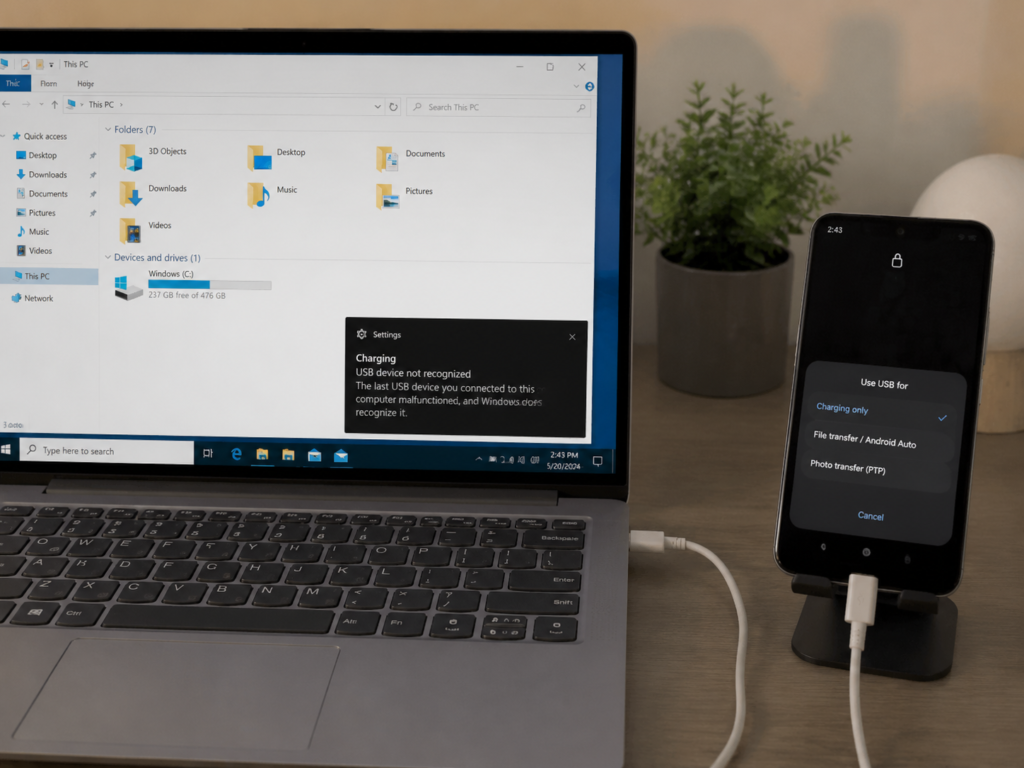
Many people think that as long as a cable has a USB-C shape, it can both charge and transfer data, which is a very common misunderstanding. USB-C only refers to the physical shape of the plug; it does not mean that the cable has data wires inside, nor does it indicate support for transfer rates of 480Mbps, 10Gbps, or 40Gbps.
First, Understand the Core Logic: A USB-C Cable Does Not Necessarily Support Data Transfer
Before starting to judge, clarifying the most basic concepts will help you avoid 80% of misjudgments.
Distinguish the Judgment Objects First: Cables, Ports, and Devices Are Not the Same Thing
When many people encounter a connection failure, their first reaction is that the cable is broken, but in fact, they often confuse the judgment objects:
First is cable: the wire with plugs on both ends used to connect devices, which is also the core judgment object of this article;
Second is port: the USB-C jack on computers, phones, chargers, car infotainment systems, and monitors. Ports in different positions may have completely different functions;
Third is device: the connected terminals such as phones, USB flash drives, external hard drives, and docking stations.
Common misjudgments include: the phone has not enabled file transfer permissions, the car’s USB-C port is only a charging port, and the extended C port on the monitor does not support external storage — none of these are related to the cable. Before judging the cable, you should at least first confirm that the ports at both ends of the test support data transfer themselves.
Why Some USB-C Cables Can Only Charge and Cannot Transfer Files
You might ask: since they are all USB-C cables, why can’t some transfer data?
Compliant cables designed according to the official USB-C specification should usually have basic data transfer capabilities, but there are a large number of non-standard or simplified “charging-only cables” on the market — these cables only retain the wires and contacts required for power supply, and omit the circuits related to data transfer, resulting in lower costs.
Such cables are commonly found in free cables included with power banks, short matching cables for small appliances like Bluetooth headsets, small fans, and desk lamps, as well as unbranded low-cost cables that only promote fast charging power and do not mention data functions at all.
Remember in one sentence: USB-C is just the shape of the port, it does not mean it can definitely transfer data, let alone that it is a high-speed data cable.
Common USB-C Cable Types and Functional Differences
USB-C cables on the market have very different functions. From simplest to most full-featured, they can be roughly divided into these categories. Having a general impression first will make subsequent judgment easier:
- Charging-only cable: Can only supply power, usually cannot transfer files, connect USB flash drives/keyboards/mice/docking stations. Most are low-cost simplified gift cables.
- USB 2.0 data cable: Can both charge and transfer basic data, with a theoretical rate of 480Mbps. It is completely sufficient for daily use such as syncing phone photos and transferring documents.
- USB 3.x data cable: Common rates are 5Gbps, 10Gbps, 20Gbps, much faster than USB 2.0. Suitable for transferring large files, connecting portable SSDs or some docking stations.
- USB4/Thunderbolt 3/Thunderbolt 4 cable: Has the strongest high-speed data capability, commonly 20Gbps or 40Gbps. It has better support for video output, professional docking stations, and external high-speed storage, but the actual performance depends on the joint support of the cable, device port, and system.
A special reminder here: even a cable labeled “full-featured” does not mean it can run at full speed in all scenarios — the final capability of the entire link is always determined by the lowest-spec link among the cable, device port, peripheral, and system.
6 Common Misconceptions Beginners Must Avoid
Many people can’t judge accurately because they start with wrong perceptions. Let’s avoid these common misconceptions first:
- Misconception 1: All USB-C shaped cables can transfer data — Wrong. There are indeed many charging-only cables on the market, and faulty cables that have been used for a long time may also lose data function.
- Misconception 2: Cables that support fast charging can definitely transfer data — Wrong. Charging power and data function are two completely independent dimensions, unrelated to each other.
- Misconception 3: 100W, 240W high-power cables must be high-speed data cables — Wrong. Many high-power cables only enhance power supply capability, may only support USB 2.0 data, and some low-quality cables even only have charging function.
- Misconception 4: The thicker the cable, the better it can transfer data — Wrong. A thick cable may only be designed to carry a larger charging current, with thicker power supply wires inside, which has no necessary relationship with data capability.
- Misconception 5: Only cables that can transfer video are called data cables — Wrong. Although ordinary USB 2.0 data cables do not support video output, they can still transfer files and connect USB flash drives, so they are proper data cables, just not as full-featured.
- Misconception 6: If the computer does not recognize the device, it must be the cable’s problem — Wrong. It could also be phone permissions, computer drivers, unsupported ports, insufficient power supply, or the peripheral itself is broken.
1-Minute Preliminary Judgment: Screen Out a Batch Without Plugging in Devices
If you just want to quickly know whether the cable in your hand can roughly transfer data, you don’t need to plug in a device. Checking these points first can screen out most obvious charging-only cables. However, note that appearance judgment can only be used for preliminary screening, not as a final conclusion.
Check the Markings on the Cable Body, Packaging, and Product Page
This is the most direct preliminary screening method. Prioritize finding keywords or icons related to data:
- Valid keywords: Data Transfer, Sync, USB 2.0, USB 3.2, USB4, Thunderbolt, 480Mbps, 5Gbps, 10Gbps, 20Gbps, 40Gbps.
- Valid icons: USB trident logo, SuperSpeed logo with rate marking, official Thunderbolt certified lightning logo.
If a cable’s packaging or product page only marks power-related content such as 65W, 100W, 240W, PD fast charging, and does not mention data function at all, do not assume it supports data transfer — even if some cables may actually have basic USB 2.0 data capability, it should be subject to clearly marked specifications or actual device testing.
Check USB-C Male Plug Contacts: Only for Auxiliary Preliminary Screening
If the cable has no packaging and no markings can be found, you can look at the internal contacts of the USB-C male plug (the metal head that plugs into the device) against the light.
- Characteristics that may support data: The contacts are relatively complete, with no obvious large-area missing.
- Characteristics that may be a charging-only cable: Obviously only a small number of power supply contacts are retained, and most of the middle contacts are missing.
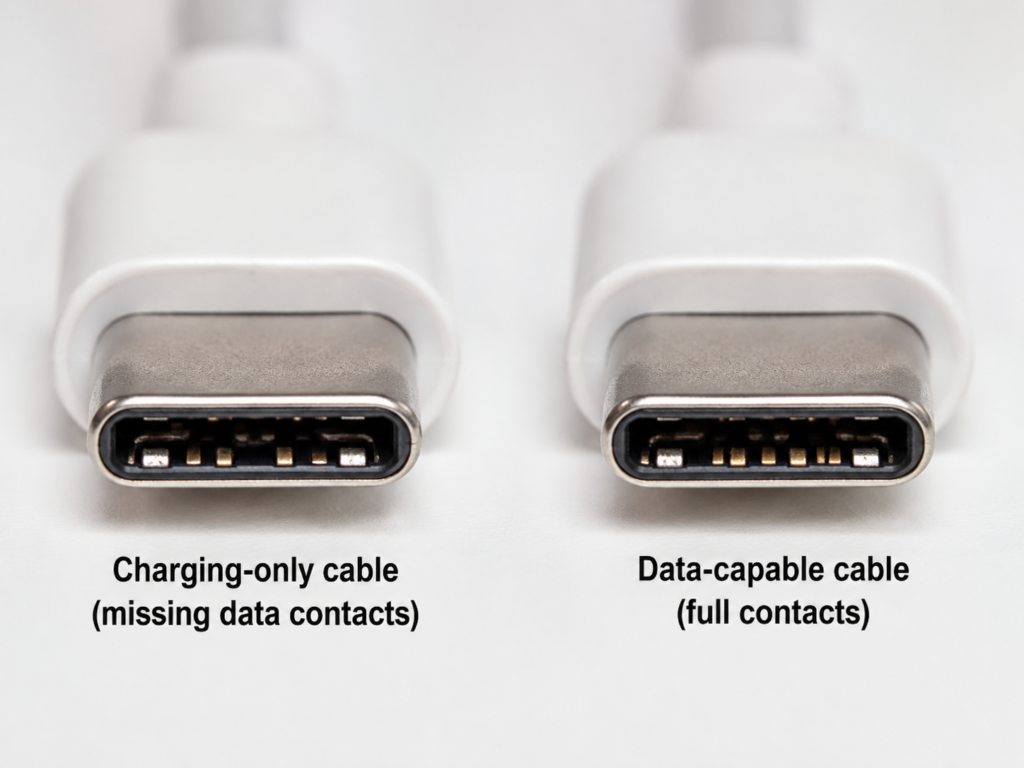
But this method has great limitations: complete-looking contacts do not mean that the internal wires are definitely connected — many cables that have been used for a long time have broken internal data wires, but the external contacts are still good, which cannot be seen with the naked eye at all. Also, do not use sharp objects such as needles, blades, or tweezers to pick at the contacts, as this can easily scratch the terminals and even cause a short circuit.
Check the Product Page Specification Table and Avoid Marketing Rhetoric
For cables that have not yet been purchased, be sure to check the information in the specification parameter table on the product page, and don’t just look at the main image promotional slogans. Focus on checking parameters such as USB version, transfer rate, whether data sync is supported, video capability, cable length, power, and certification marks.
Be wary of descriptions that only say “Type-C cable”, “fast charging cable”, “suitable for phone charging”, “PD 100W” — none of these equal support for data. More reliable are contents with specific rates such as “USB 2.0 480Mbps data transfer” and “USB 3.2 Gen 2 10Gbps”.
In addition, USB-IF certified and Thunderbolt certified cables are relatively more trustworthy, but you can’t just look at the certification mark; you still need to confirm the specific specifications — even certified cables have different rate and function levels.
Appearance Is Only Auxiliary, Cannot Be Used Alone to Draw Conclusions
There are also some appearance patterns that can be used as reference, but you absolutely cannot draw a conclusion based on this alone:
- Cables that are very short, very thin, very soft, and have no markings are more likely to be charging-only or low-speed cables.
- Cables with obviously longer and thicker connectors and a stiffer cable body may be high-speed cables, but this is not absolute.
- Braided outer sheath, magnetic head, luminous cable, elbow design — these have nothing to do with data capability, they are all appearance marketing selling points.
The Most Accurate Method: Actual Device Connection Test
Appearance judgment can only screen out obvious charging-only cables. To truly determine whether a cable can transfer data, you still need to test it on actual devices. Prepare well before the test to eliminate unnecessary interference.
Preparations Before Testing
- Do not test with chargers, power banks, or charging-only USB-C ports — these themselves have no data channel, so testing is useless.
- Prioritize using a computer USB port and phone that you are sure support data transfer, as well as a USB-C USB flash drive or external hard drive.
- If testing with a phone, remember to unlock the screen in advance, and be ready to switch to “File Transfer/MTP” mode, or click “Trust This Computer”.
- Android phones: After connecting, pull down the notification bar and change the USB use to “File Transfer”. Some phones also require enabling OTG function first.
- iPhone/iPad: After connecting to a computer, click “Trust This Computer” on the phone. On Mac, it can be recognized through Finder or the Photos app.
A boundary should be clarified here: the result of the actual device test only represents whether the current combination of devices + cable can transfer data, and cannot alone prove the maximum speed level of the cable.
Method 1: Connect Phone to Computer, Most Suitable for Ordinary Users
This is a test that most people can do, as long as they have a phone and computer at hand.
The operation is very simple: connect the phone and computer with the cable to be tested, unlock the phone, and complete the settings for file transfer mode or trusting the computer.
- Windows computer: If the phone device appears in File Explorer, and you can open it to browse photos and copy files, it means the cable supports at least basic data transfer.
- macOS computer: For iPhone or iPad, you can see the device in the Finder sidebar or the Photos app; for Android phones, due to system differences, you usually need to install third-party tools such as Android File Transfer or OpenMTP to recognize them. Don’t think the cable is broken just because Mac can’t read Android by default.
If there is only a charging prompt and the computer does not recognize it, it is not necessarily the cable’s problem: it may be that the phone is not authorized, the computer driver is not installed, the port itself does not support data, or even the company computer has disabled external storage. A more rigorous approach is to replace it with a good cable that you are sure can transfer data, and test it on the same device and same port — if the good cable can be recognized but the test cable cannot, then it is the cable’s problem.
Method 2: Test with USB-C USB Flash Drive or External Hard Drive, More Intuitive
If you have a USB-C interface USB flash drive, external hard drive, or hard drive enclosure at hand, this method is more direct, because you don’t have to mess with the phone’s permission settings.
Operation: Connect the computer and the USB-C storage device with the cable to be tested.
- Judgment of data support: A new disk pops up in the system, can be opened, and can normally copy and paste files.
- Abnormal performance: No device prompt at all, only the light is on but not recognized, frequent disk disconnection, interruption in the middle of copying.
However, you should also pay attention to eliminating interference: if the hard drive light is on but the computer does not recognize it, it is not necessarily that the cable has no data function. It may also be insufficient power supply for the external hard drive, a broken hard drive enclosure, a partition format that the computer does not recognize, or system permissions restricting external storage. It is recommended to test with a small-capacity USB-C USB flash drive, because USB flash drives have low power consumption, no problem of insufficient power supply, and less interference.
Method 3: Peripheral Connection Test, Suitable for People with Keyboards, Mice, or Docking Stations
If you have a USB-C interface mouse, keyboard, small card reader, or docking station at hand, you can also use them to test basic data capability.
Operation: Connect the computer and these peripherals with the cable to be tested.
- Judgment result: The peripheral works normally (for example, the mouse can move, the keyboard can type, the card reader can read cards), indicating that the cable has at least basic data capability.
But note: if you connect a docking station and it doesn’t work, it’s not necessarily a data problem — it may be that the cable does not support video output, the power supply is insufficient, or the computer’s USB-C port does not support video output mode (DP Alt Mode). Therefore, it is more accurate to prioritize testing with low-power peripherals that only require basic data, such as keyboards, mice, and card readers.
Advanced: Check Current Connection Rate in System Information
If you not only want to know whether data can be transferred, but also want to know the current connection speed, you can check it in the system.
- Windows: You can find USB devices in Device Manager, or use Microsoft’s official USBView tool to check the connection speed.
- macOS: Click the Apple icon in the upper left corner → About This Mac → System Report → USB, find the device you connected, and you can see the current connection speed, such as 480 Mb/s, 5 Gb/s, 10 Gb/s.
- Linux: Enter
lsusb -tin the terminal to see the device’s mounting rate.
What the system displays is the current connection rate of the entire link, which is jointly determined by the cable, port, and device, and is not equal to the maximum capability of the cable itself. For example, a high-speed cable labeled 10Gbps, when connected to an old phone that only supports USB 2.0, the system will only show a speed of 480Mbps. This is not because the cable is bad, but because the device port’s upper limit is stuck here.
Being Able to Transfer Data ≠ Fast Transfer: Understand USB-C Speed Levels
Many people think that “able to transfer data” means a high-speed cable. In fact, data capability is divided into different grades, and the price gap is also very large. The table below can help you quickly understand the difference between different speeds:
| Common Specification | Theoretical Maximum Rate | Applicable Scenarios |
|---|---|---|
| Charging-only cable | No data capability | Only charging phones and small appliances |
| USB 2.0 data cable | 480Mbps | Transferring photos, documents, backing up phone data |
| USB 5Gbps data cable | 5Gbps | Transferring large files, ordinary external hard drives |
| USB 10Gbps data cable | 10Gbps | Portable SSDs, fast transfer of large video files |
| USB 20Gbps data cable | 20Gbps | Professional high-speed storage, relatively low compatibility |
| USB4 / Thunderbolt 3/4 data cable | 20/40Gbps | High-speed SSDs, professional docking stations, multiple monitors |
Note that these are all theoretical maximum rates in a laboratory environment, and the actual file copy speed will be much lower — after all, there is protocol overhead during transmission, and it is also affected by factors such as storage medium performance, number of small files, and system load. For example, with USB 2.0’s 480Mbps, it actually takes about 30 seconds to 1 minute to transfer a single 1GB file. If transferring hundreds of small photos, the speed will be even slower. This is all normal, not a broken cable.
Correspondence Between Markings and Rates
Cable markings on the market are quite messy. Remember these correspondences and you won’t be confused:
- Marked 480Mbps or USB 2.0: Can transfer data, but the speed is slow.
- Directly marked 5Gbps, 10Gbps, 20Gbps, 40Gbps: This is a more intuitive new marking method currently, prioritize judging by the numbers.
- Marked SS, SuperSpeed, SS 5Gbps, SS 10Gbps: These are old markings, SS is the abbreviation of SuperSpeed, can be used as reference.
- With Thunderbolt lightning logo: Pay attention to distinguishing the official certification logo on the cable from the printed icon next to the device port. Ultimately, it should be subject to clear specifications such as Thunderbolt 3/4, USB4, 20Gbps/40Gbps, do not judge solely by a lightning pattern.
- Cables with no markings at all: Cannot be directly judged as not supporting data, but must be confirmed by actual testing.
Parameters Easily Confused with Data Capability
Many merchants use other parameters to confuse data capability. Don’t be fooled when purchasing:
- Charging power: 60W, 100W, 240W only represent power supply capability, which are two independent parameters that need to be confirmed separately from data rate. You cannot use power specifications to infer whether a cable can transfer files or is a high-speed cable.
- E-marker chip: This is a small chip hidden in the cable head, used to inform the device of the upper limit of current or rate supported by the cable. Having an e-marker does not mean it must be a high-speed data cable. Many high-power charging cables also have e-markers, but only have power supply capability; without an e-marker, it may still support basic USB 2.0 data.
- Video output: Video output requires the cable, computer port, and display device to simultaneously support DP Alt Mode, USB4, or Thunderbolt protocol. Being able to transfer data does not mean it can connect to a monitor; ordinary USB 2.0 data cables do not support video output.
- Cable length: For high-speed passive cables such as 5Gbps, 10Gbps, 20Gbps, USB4/Thunderbolt, the longer the cable, the more it tests the wire craftsmanship and certification standards. Low-quality or overly long cables may have problems such as speed reduction and disk disconnection. The specific situation should be subject to nominal specifications, certification, and actual testing; low-speed USB 2.0 transmission is less affected by length.
- Device port: The functions of USB-C ports on different devices vary greatly. For example, some phone C ports only support USB 2.0 data, and some computer C ports are only charging ports. You cannot assume the functions are the same just by looking at the port shape.
Special Judgment for USB-C to USB-A Cables
Many people still have cables with USB-C on one end and USB-A on the other, and the judgment is slightly different:
- The color of the USB-A end can only be used as a weak reference: usually blue is USB 3.x, black/white is USB 2.0, but this is just an industry habit, not a mandatory standard. Some manufacturers also make 2.0 ports blue.
- Looking at the contacts of the USB-A male plug is more reliable: USB 3.x USB-A heads have an extra row of high-speed contacts than 2.0 ones, and two layers of contacts can be seen against the light.
- The most reliable is still to check the rate marking on the packaging or product page.
- The final speed of this type of cable is also determined by the slowest link in the entire link: C end, A end, computer port, peripheral — if any one is low-speed, the whole will be reduced to low speed.
Troubleshooting: Is the Cable Broken, or Is It a Device/System Problem?
If a cable used to be able to transfer data but suddenly can’t now, or works intermittently, you can troubleshoot according to the following methods, don’t rush to throw the cable away.
Originally Able to Transfer, Later Only Charging: Prioritize Suspecting Cable Fault
If this cable was fine before, but suddenly becomes only able to charge and cannot transfer data, it is most likely a problem with the cable. There are three common reasons:
- Broken internal data wire: USB cables are often bent, pulled, and crushed. Data wires are much thinner than power wires, so they are easier to break — at this time, power supply is still normal, but the data channel is already broken.
- Oxidized or dusty contacts: The metal contacts of the connector will oxidize after long use, or get dust or liquid in them, resulting in poor contact of data contacts, while power contacts can still work normally because of their large area.
- Loose or deformed connector: For cables that are frequently plugged and unplugged or have been dropped, the connector may be loose or the shell may be deformed. After plugging in, the power contacts make contact but the data contacts are not aligned, resulting in only charging.
The troubleshooting method is very simple: use the same computer, same port, same device, and try replacing it with a good cable that is confirmed to be able to transfer data — if the good cable works normally but the test cable does not, then it is basically the cable’s problem.
Handling suggestions: If the contacts are dirty, you can gently wipe them with isopropyl alcohol or alcohol cotton after powering off, and try again after drying; if the internal wire is broken or the connector is loose, just replace it directly, the cost of repair is higher than buying a new one.
Recognizable but Slow: First Distinguish Whether It’s a Specification Limit or a Fault
If the cable can transfer data but the speed is particularly slow, don’t rush to say the cable is broken:
- If this cable is originally USB 2.0, it is normal to transfer large files slowly, it is not a fault.
- If it is a high-speed cable labeled 5Gbps or 10Gbps, but the actual speed is only 480Mbps, it may be that you connected it to a low-speed USB port, the device itself only supports USB 2.0, or the cable quality is poor and does not meet the standard.
- If the speed was normal before but suddenly slows down, it may be poor contact of the contacts, bending damage to the cable, dirty port, or the system’s energy-saving strategy has reduced the device’s speed.
- If transmission is often interrupted or the disk disconnects, it may be poor cable contact, insufficient power supply for the external hard drive, overheating of the hard drive enclosure, or a loose port.
Judgment method: First check the current connection rate in the system information, then perform cross-tests by replacing the cable with the same device and replacing the port with the same cable, then you can find out where the problem is.
Not Recognized at All: Troubleshoot One by One According to Variables
If it can charge when plugged in but does not recognize data at all, you can troubleshoot in this order:
- Change the port: Many of the computer’s front USB ports, USB-C ports on monitors, and USB-C ports on car infotainment systems are just charging ports or have very poor stability. Try the rear USB-C port that comes with the computer motherboard.
- Change the device: Replace with a phone, USB flash drive, or card reader that you are sure is normal, to rule out that the peripheral itself is broken.
- Change the cable: Use a known normal data cable as a benchmark to rule out the cable problem.
- Check permissions: Is the phone unlocked? Is file transfer mode enabled? Is the computer trusted? If it is a company computer, external storage devices may be disabled.
- Check power supply: Devices with high power consumption such as external hard drives, docking stations, and capture cards may require additional power supply to work normally.
Cross-Validation Method for Fastest Problem Location
If the above troubleshooting still can’t find the problem, you can use the cross-validation method — fix two variables, only change the third, and see if the problem changes:
- Fix the device and port, only change the cable: If only a certain cable is not recognized, prioritize suspecting the cable is the problem.
- Fix the cable and device, only change the computer port: If a certain port is not recognized, prioritize suspecting the port’s function or fault problem.
- Fix the cable and computer, only change the peripheral: If only a certain peripheral is not recognized, prioritize suspecting the peripheral, permissions, power supply, or format problem.
The simplest test combination is: computer’s USB-C data port + a normal USB-C USB flash drive + the cable to be tested — this combination has the fewest variables, the least interference, and is the easiest to judge where the problem is.
Quick Judgment Process and Purchase Suggestions
If you are in a hurry, just follow the steps below, no need to read the full article.
1-Minute Preliminary Judgment Process
- Check the cable body, packaging, or product page to see if data transfer, USB version, or specific rate is clearly marked.
- If only fast charging power is marked and data function is not mentioned, temporarily treat it as “data capability uncertain”.
- You can observe the USB-C male plug contacts against the light; those with obviously simplified contacts are most likely charging-only cables (only for auxiliary reference).
- If still uncertain, directly perform an actual device test.
Accurate Actual Test Process
- Prepare a computer USB port known to support data, paired with a low-power USB-C USB flash drive (or phone).
- Connect the device with the cable to be tested, and complete necessary settings such as phone authorization and file transfer mode switching.
- If the computer can recognize the device and read/write files normally, it means the cable supports data transfer.
- When it is not recognized at all, replace with a known normal data cable for comparison to rule out device or port problems.
- When you need to confirm the speed level, you can check the current connection rate in the system information.
Choose Cables According to Usage Scenarios to Avoid Buying Wrong
- Only for charging: Just look at power, length, brand, and safety. Do not assume it can transfer data.
- Daily photo transfer, phone backup: Choosing a cable clearly marked “Data Transfer/480Mbps/USB 2.0” is enough, no need to buy too expensive high-speed cables.
- Frequent transfer of large files: Choose 5Gbps or 10Gbps cables, and confirm that the computer and external hard drive also support the corresponding speed, otherwise you won’t get full speed even if you buy it.
- External SSD for editing footage: Prioritize 10Gbps, 20Gbps, USB4 or Thunderbolt cables, and confirm that the hard drive enclosure and computer port also support the corresponding specifications.
- Connecting to docking station or monitor: Don’t just buy a “data cable”. Confirm that the cable supports video output, USB4 or Thunderbolt, and that the computer port also supports DP Alt Mode/Thunderbolt/USB4.
- Need both fast charging and data: When purchasing, be sure to check both parameters of power and data rate. Cables that only mark power and do not write data are not recommended to buy.
Frequently Asked Questions
Can a USB-C cable that charges but cannot transfer files be broken?
Not necessarily. It may be a charging-only cable, or it may be a problem with device permissions, ports, or drivers. You can judge by comparing with a known normal data cable on the same device and same port.
Is a fast charging cable necessarily a data cable?
Not necessarily. Fast charging and data transfer are two independent functions. The former depends on power supply specifications, and the latter depends on data wires and USB standards. They cannot be inferred from each other.
Can a 100W or 240W USB-C cable transfer data?
It depends on whether the data rate is marked. It may support USB 2.0, 5Gbps or higher, or may only support charging. It shall be subject to specification descriptions or actual testing.
A USB-C cable can transfer data, why can’t it connect to a monitor?
Video output requires the cable, computer port, and display device to simultaneously support DP Alt Mode, USB4, or Thunderbolt protocol. Ordinary data cables do not have video capability.
Why does the system show only 480Mbps?
It may be that the cable, device, or port only supports USB 2.0, or the high-speed link is degraded due to contact or quality problems. Cross-validation by changing cables and ports is required.
Can unmarked USB-C cables still be used?
Yes, but for important scenarios, it is recommended to first test and confirm the data capability; for high-power fast charging or high-speed transmission scenarios, prioritize choosing branded cables with clear specifications.
Summary
To judge whether a USB-C cable supports data transfer, remember these core points:
- Preliminary screening depends on markings: Do not assume cables only marked with fast charging power support data. They shall be subject to clear rate markings or actual device testing.
- Actual testing is the most reliable: Use a computer port known to support data paired with a USB flash drive or phone. Only when the device can be recognized and files can be read/written does it mean the current combination supports data transfer.
- Cross-validate first when encountering problems: Phone permissions, computer ports, insufficient power supply, and system drivers may all cause non-recognition. Troubleshoot one by one by changing cables, ports, and devices to locate the problem.
- Choose cables according to needs to avoid waste: USB 2.0 data cables are sufficient for daily sync. Choose 5Gbps/10Gbps or higher for transferring large files. For connecting to docking stations or monitors, confirm support for video, USB4 or Thunderbolt.
- Don’t confuse concepts: Being able to transfer data does not mean high speed; being able to fast charge does not mean being able to transfer data; USB-C is just the port shape, not equal to full functionality.