
Have you ever had these experiences: you buy a USB-C portable solid-state drive at a high price, but when you plug it into your computer to transfer files, it’s not even faster than a regular USB flash drive; you connect a docking station to a 4K monitor, but the USB ports on the docking station suddenly slow down; even with the same cable, plugging it in one way allows data transfer, but plugging it in the other way only supports charging?
These problems seem varied, but their core is actually related to the “data channels” inside USB-C. Many people think USB-C is just an interface shape, and that any USB-C port must support high-speed data, video output, and fast charging. But in reality, the differences in pin assignments, operating protocols, and cable capabilities inside a USB-C port are far greater than you might imagine.
Understanding data channels essentially means grasping how pins, protocols, cables, and current modes jointly determine the actual transmission capability of USB-C.
Beginner’s Primer: What Are Data Channels, and How Do They Differ from Charging?
Let’s put it in plain terms: a data channel is a path inside USB-C specifically used to transmit “information”, just like an information highway in a city. The power supply channel for charging is a power pipeline. Although both run through the same cable, they each perform their own duties.
When you transfer files, use a keyboard or mouse, connect a camera for video, use an external network card, cast your screen, or even use PCIe data for external graphics cards or high-speed external hard drives (PCIe can be understood as the bus inside a computer that connects high-speed devices like graphics cards and SSDs; Thunderbolt/USB4 can carry this type of data externally), all of these use data channels. The power supply channel is only responsible for charging devices, relying on the two sets of pins: VBUS and GND. The two can work simultaneously, but high power does not equal fast data — just as a thick electrical wire may not be able to transmit high-speed internet, these are two completely independent sets of specifications.
Here’s the most important warning first: USB-C is only the shape of the interface, and it does not mean it necessarily supports high-speed data, video output, USB4, or Thunderbolt. The USB-C ports on many devices are only used for charging, and cannot even recognize a USB flash drive — this is completely normal.
Before we continue, let’s learn 5 core concepts. You don’t need to memorize them, just have a general impression, as they will all be used later:
The first is differential pair: you can think of it as a pair of twin signal lines. The two lines simultaneously transmit the positive and negative versions of the same signal, and the receiving end restores the information based on the difference between the two signals. Because external interference has roughly the same effect on both lines, the anti-interference ability is extremely strong. All high-speed USB, DisplayPort video, and Thunderbolt protocols rely on differential pairs to transmit signals.
The second is Lane: an independent data path composed of a set of high-speed differential pairs, just like a lane on a highway. Bandwidth is like the traffic capacity of a lane; adding one more lane increases the total transmission capacity. USB 3.x, USB4, video output, and others all allocate bandwidth by lane.
The third is negotiation: when two devices are first plugged in, they first “introduce themselves to each other” — whether you are a host or a peripheral, how much power you can supply, how fast you support, whether you can cast the screen — and after reaching an agreement, they work in the agreed mode. This process is fully automatic, and the user does not need to intervene.
The fourth is Alt Mode (Alternate Mode): when the high-speed lanes originally used to transmit USB data are temporarily repurposed to transmit other signals, such as DisplayPort video, this is called Alternate Mode. It is equivalent to temporarily converting a regular road into a dedicated race track, which can only run specific vehicles.
The fifth is E-Marker (Electronic Marker): a small chip hidden inside the cable, equivalent to the cable’s ID card, which stores information such as the maximum current and speed supported by the cable. But note: having an E-Marker does not mean it is a high-speed data cable. Many fast charging cables that only carry 5A high current also have E-Markers, but their data capability may only be USB 2.0.
People who are new to USB-C most often fall for these common misconceptions:
First, as long as it is a USB-C interface, it must have high-speed data. In fact, many cheap power bank included cables and USB-C ports on low-end devices only have power supply pins, and do not even support the most basic USB 2.0 data — plugging in a USB flash drive will get no response at all.
Second, a 100W/240W fast charging cable must transfer data quickly. Power supply and data are two completely independent specifications. A fast charging cable only needs to make the power supply wires thick, and does not necessarily have high-speed differential pairs. Many 240W cables are slower at transferring files than a few-dollar USB 2.0 cable.
Third, a C to C cable is definitely faster than a C to A cable. Speed depends on the protocol and device capabilities of the entire link, and has nothing to do with the connector shape. For example, if the computer has a 10Gbps USB-A port paired with a 10Gbps C to A cable, the speed will definitely be much faster than a C to C cable that only supports USB 2.0.
Fourth, if it can cast the screen, it must be able to copy files at high speed. Screen casting likely occupies the high-speed lanes, and the remaining USB data can only use the “small path” of USB 2.0, so file transfer will naturally be slow at that time.
Fifth, if the cable body says “full-featured”, there are no limitations. “Full-featured” is a marketing term used by merchants, with no unified standard. Some so-called full-featured cables can only charge + transfer USB 2.0 + output 1080P, and cannot achieve 10Gbps data or 4K60Hz output at all. You must check the specific parameters one by one.
Pin Identification: You Don’t Need to Memorize 24 Pins to Understand Which Pins Are Responsible for Data
Many people get a headache when they hear that USB-C has 24 pins, but you don’t need to memorize them at all. Just divide them into several categories by function, and you can quickly understand which are related to data and which are for other purposes.
The 24 pins of USB-C are distributed symmetrically on both sides, which is why it can be plugged in either way. Pins related to data are mainly divided into four categories: USB 2.0 D+/D-, high-speed data TX/RX differential pairs, CC pins, and SBU pins. The remaining VBUS and GND are for power supply and grounding, and are not responsible for transmitting user data.
USB 2.0 Pins: D+ and D-
These are the USB 2.0 data pins we have used for many years. They are arranged on both the front and back sides of the USB-C socket, so that they can be connected regardless of which way the plug is inserted. These D+/D- are used for flip compatibility, and are usually not two independent USB 2.0 links. The device end still follows the same USB 2.0 data path in the end, so the speed will not double just because you plug it in one way or the other.
The theoretical rate of USB 2.0 is 480Mbps. Converted to the familiar MB/s, the theoretical upper limit is about 60MB/s, but when actually transferring large files, it is usually only 30~40MB/s. This is due to encoding overhead, protocol loss, and the performance limitations of the device itself. If you are transferring a large number of small files, the speed will be even slower.
Its typical uses are scenarios with low speed requirements, such as keyboards, mice, audio devices, printers, regular USB flash drives, and MTP file transfer on mobile phones. Almost all USB-C ports with data functionality support USB 2.0, but if it is a “charging-only” USB-C port, it may not even have these two pins.
USB 3.x High-Speed Data Pins: TX/RX Differential Pairs
High-speed data transmission uses paired differential pairs for transmit (TX) and receive (RX), which are present on both front and back sides. So when plugging in either way, the controller on the device end will automatically switch the corresponding TX/RX path to ensure that the transmit end is connected to the receive end and not reversed. You won’t feel this switching process at all, unless there is a problem with the hardware design.
These high-speed differential pairs are the core of USB 3.x, USB4, Thunderbolt, and DP Alt Mode. High-bandwidth devices such as portable solid-state drives, high-speed USB flash drives, capture cards, and high-speed docking stations all rely on them to transmit data.
The speed varies depending on the number of lanes used: USB 3.x at 5Gbps and 10Gbps usually only uses a single set of high-speed lanes, while USB 3.2 Gen2x2 at 20Gbps requires two sets of high-speed lanes to transmit USB data simultaneously. Of course, to reach the corresponding speed, the host interface, cable, and peripheral must all support it, and the high-speed lanes must not be occupied by Alt Mode or other functions.
USB4/Thunderbolt Related High-Speed Channels
Many people can’t tell the difference between USB4, Thunderbolt, and regular USB. In fact, they all use the same set of high-speed pins in USB-C, but run different protocols. USB4 and Thunderbolt 3/4 can simultaneously transmit USB data, DisplayPort video, and PCIe data on these high-speed lanes, which is equivalent to packaging multiple types of signals to run on the same high-speed road, and can also dynamically allocate bandwidth.
Typical uses of this type of high-speed channel are scenarios with extremely high bandwidth requirements, such as Thunderbolt docking stations, multi-screen output, high-speed SSD arrays, external graphics cards, and professional capture devices. Remember one thing: USB-C only has the same shape; the capabilities of USB4, Thunderbolt, and regular USB 3.2 are very different, and their prices are not at the same level either.
CC and SBU: They Don’t Directly Transfer Files, But They Affect the Mode
Many people think CC pins are for transmitting data, but they are not. CC is more like a “traffic control booth”. Its functions include: judging whether the plug is inserted, judging the direction of the plug (front or back), determining which is the host and which is the peripheral, declaring the default power supply capability, carrying the communication signal for USB PD fast charging, and triggering the entry of advanced modes such as DP Alt Mode and Thunderbolt/USB4. Among them, the default current capability is the basic current declaration after a Type-C connection is established, and USB PD is further communication on the CC line to negotiate higher voltage, current, and Alt Mode capabilities.
In short, CC does not directly transfer the files you copy, but without it, the device would not know what mode to work in, and even charging might not work properly. For example, some cheap C to C cables do not have the CC pins properly connected, and when plugged in, they may only support slow charging, or cannot recognize high-speed devices.
SBU is an auxiliary signal pin, equivalent to a “backup side road”. It is not used at all for regular USB file transfer, and is only used to transmit auxiliary signals in special modes such as DP Alt Mode and audio accessories. If the SBU pins in the cable are not connected, it may cause some video modes or special functions to be unavailable, but it will not affect regular USB data transmission.
Methods to Quickly Identify Cable/Interface Capabilities
Ranked by reliability from highest to lowest, the most accurate is always official specifications: the device’s manual, official website parameters, and port descriptions for laptops or motherboards are more accurate than any appearance judgment.
Next, look at the printed text on the cable body: standard cables will have their speed printed on the body, such as 480Mbps, 5Gbps, 10Gbps, 20Gbps, 40Gbps, or labels like USB4 and Thunderbolt, which are more reliable than merchant product titles.
Then look at certification marks: the USB-IF certification logo and the Thunderbolt lightning logo are both officially tested and more credible than ordinary marketing terms.
Never judge by the color inside the interface: there is no unified standard for the color of the plastic piece inside a USB-C interface. Some manufacturers use blue for USB 2.0 and black for Thunderbolt, with no pattern at all, so it cannot be used as a basis.
Ultimately, it is subject to the system negotiated rate and stable actual measurement: Windows users can use USBTreeView, macOS users can check the System Report, and Linux users can use lsusb -t to check the negotiated rate, and then confirm with actual testing using high-speed devices.
Reversible Plug Logic: How USB-C Data Channels Automatically Align
The most convenient thing about USB-C is that it works no matter which way you plug it in. But have you ever encountered a situation where the same cable can run at high speed when plugged in one way, but only charges or slows down when plugged in the other way? This is not metaphysics; it’s a problem with the alignment of the data channels.
The core principle of reversible plugging is very simple: when you insert the USB-C plug, the device first judges the direction of the plug through the CC pin, and then automatically adjusts the internal connection path.
For USB 2.0 D+/D-, because there are symmetrical contacts on both sides, the device only needs to connect the set corresponding to the direction, which is very simple to implement.
For high-speed TX/RX differential pairs, a component called a multiplexer (you don’t need to remember the professional name) is required to automatically connect the host’s transmit end to the corresponding receive contact on the plug, and the receive end to the transmit contact, to ensure the direction is correct. Under normal circumstances, this switching is completed instantly and you won’t feel it at all, but if the hardware design is poor, one side may work abnormally.
There are several common reasons for inconsistent performance between front and back plugging:
The first is a problem with the cable itself: the high-speed contacts on one side are damaged, oxidized, or have poor contact, resulting in the high-speed signal not being connected when plugged in reverse, so only USB 2.0 can be used or data cannot be transmitted at all.
The second is a problem with the adapter or docking station: some cheap adapters have non-standard wiring of the internal high-speed differential pairs, and the signal quality on one side does not meet the standard, resulting in one side being able to run at high speed and the other not.
The third is a problem on the device end: for example, the host’s Type-C controller, switching switch, or retimer has poor quality, and problems occur during switching, causing one side to slow down.
Another common reason is that high-speed signals have high requirements for cable length, impedance, and shielding. If one set of differential pairs in the cable does not meet the quality standard, it may happen that one side can negotiate to high speed, while the other side can only slow down or even disconnect.
It’s also very simple to quickly determine where the problem lies:
Use the same cable and the same device, and test the file transfer speed once with the plug inserted front and once with it inserted back. If only one side can transmit data and the other can only charge, first suspect a problem with the cable or interface contacts. If both sides can transmit but the speed difference is large, check the cable, adapter, docking station, and host port in turn. If this problem only occurs on a certain device, it is most likely a problem with the device’s port, driver, or firmware.
Speed Tiers: Common USB-C Data Channel Types and Achievement Conditions
USB-C data speed is not just “fast” and “slow”, but is divided into several tiers, each with different requirements and applicable scenarios. For your convenience in comparison, I have compiled a table:
| Speed Tier | Theoretical Link Rate | Typical Actual Speed for Large Files | Typical Use Cases | Remarks |
|---|---|---|---|---|
| USB 2.0 | 480Mbps | 30~40MB/s | Keyboards, mice, printers, regular USB flash drives, phone file transfers | Supported by almost all USB-C ports with data functionality |
| USB 3.2 Gen1 (5Gbps) | 5Gbps | 350~450MB/s | Entry-level portable SSDs, high-speed USB flash drives, docking stations | Formerly known as USB 3.0 and USB 3.1 Gen1; merchants often label it inconsistently |
| USB 3.2 Gen2 (10Gbps) | 10Gbps | 700~1000MB/s | Mainstream NVMe portable hard drives, high-speed card readers | Currently the most cost-effective high-speed tier |
| USB 3.2 Gen2x2 (20Gbps) | 20Gbps | 1500~2000MB/s | High-end portable hard drive enclosures | Average compatibility; some computers do not support it |
| USB4/Thunderbolt 3/4 (40Gbps) | 40Gbps | 2000~3000MB/s+ | Thunderbolt docking stations, multi-screen output, external graphics cards | Can carry USB, video, and PCIe data simultaneously |
Next, we will explain the details of each tier one by one, as well as the pitfalls you need to pay attention to.
USB 2.0: Basic Data Channel
It is the “standard configuration” of all USB-C ports with data functionality. As long as a port can transmit data, it will at least have USB 2.0. To judge: if the system shows High-Speed, or the stable speed of a single large file is only about 30~40MB/s, it is more likely to be USB 2.0. You cannot judge solely by a speed lower than 300MB/s, because low-end USB flash drives, card readers, and SSDs with exhausted cache may also be very slow. Note that you should not take the theoretical 60MB/s as the actual achievable speed — that is the upper limit under ideal conditions, and it is almost impossible to reach in real use.
USB 3.2 Gen1: 5Gbps High-Speed Channel
It was once called USB 3.0 and USB 3.1 Gen1. Merchants often change names to mislead people, but they are all the same thing. Its theoretical rate is 5Gbps, and the actual large file transfer speed is about 350~450MB/s, which is suitable for entry-level portable SSDs, high-speed USB flash drives, ordinary docking stations, etc. If the cable or device is marked with “5Gbps”, “SuperSpeed”, “SS”, or the system shows “SuperSpeed USB”, it is basically this tier.
USB 3.2 Gen2: 10Gbps High-Speed Channel
Its former name is USB 3.1 Gen2, and it is currently the most cost-effective high-speed tier. Mainstream NVMe portable hard drive enclosures and high-speed card readers basically have this speed. Its theoretical rate is 10Gbps, and the actual large file speed is about 700~1000MB/s. To reach this speed, the host port, cable, hard drive enclosure, and SSD itself must not hold back. If any link is 5Gbps, the overall speed will drop to 5Gbps.
USB 3.2 Gen2x2: 20Gbps Dual-Lane Channel
It requires two sets of high-speed lanes to transmit USB data simultaneously, with a theoretical rate of 20Gbps and an actual speed of 1500~2000MB/s. But the compatibility of this tier is average. Many Mac laptops and some Windows thin and light laptops do not support Gen2x2. Even if you buy a 20Gbps hard drive enclosure, it will only run at 10Gbps when plugged in. So before buying a 20Gbps device, be sure to confirm that your computer port explicitly supports USB 3.2 Gen2x2, otherwise it will be a waste of money.
USB4/Thunderbolt 3/4: High-Speed Multiplexed Channel
This is the current mainstream high-end specification for consumer use, with a theoretical rate of 40Gbps. The actual speed of external SSDs can usually reach 2000~3000MB/s or more, depending on the controller, heat dissipation, and protocol. Its biggest feature is that it can encapsulate USB data, DisplayPort video, and PCIe data all in the same high-speed link, dynamically allocating bandwidth. For example, when you connect a monitor, it allocates more bandwidth to video, and when transferring files, it allocates more to USB.
To identify it, look for the Thunderbolt lightning logo on the device, the USB4 40Gbps label, or check the Thunderbolt/USB4 device tree in the system report.
The USB4 v2 specification can support 80Gbps and an asymmetric mode of 120Gbps in a specific direction, but the current popularity of hosts, cables, and peripherals is limited. Ordinary users should still mainly focus on USB4 40Gbps or Thunderbolt 3/4 when purchasing.
The Wooden Bucket Effect of Speed Achievement
No matter which tier it is, speed follows the “wooden bucket effect”: the maximum speed of the entire link is determined by the slowest component. The host port, cable, peripheral, adapter/docking station, and current working mode must all support the target rate to reach the corresponding speed.
For example, a 10Gbps SSD plugged into a 5Gbps port can only run at 5Gbps; if the upstream of the docking station is only 10Gbps, then the SSD, network port, card reader, and camera connected below will all compete for this 10Gbps bandwidth together. If video output is enabled and occupies the high-speed lanes, the bandwidth of USB data will also decrease. Also note that the labels on devices are all “maximum support”, which does not mean that your current connection has reached full speed. Always be subject to actual negotiation and testing.
Why Actual Speed Is Lower Than the Labeled Speed
Many people wonder why the measured speed is much lower than the labeled speed. There are several common reasons:
The first is encoding and protocol overhead: just like sending a courier requires packaging, when data is transmitted, each packet of data has “packaging” such as verification, address, and protocol header, which will take up part of the bandwidth. Different USB versions have different encoding methods, and the overhead is also different.
The second is storage bottlenecks: the controller, NAND flash, and cache strategy of USB flash drives and SSDs have a much greater impact on speed than the interface. For example, an ordinary USB flash drive, even if given 10Gbps bandwidth, cannot reach 100MB/s, because its controller itself is slow.
The third is thermal throttling: portable SSDs and hard drive enclosures generate heat during high-speed transmission. When the temperature reaches a certain level, they will actively reduce speed for protection, so when transferring large files for a long time, the speed will get slower and slower.
The fourth is file type: transferring a single 10GB movie will be much faster than transferring thousands of photos of a few MB each, because each small file needs to be processed separately, which has a large overhead.
The fifth is system factors: antivirus software scanning, system indexing, background tasks, driver issues, and power-saving strategies will all affect transmission speed.
Alternate Mode and Bandwidth Sharing: Why USB Slows Down After Screen Casting
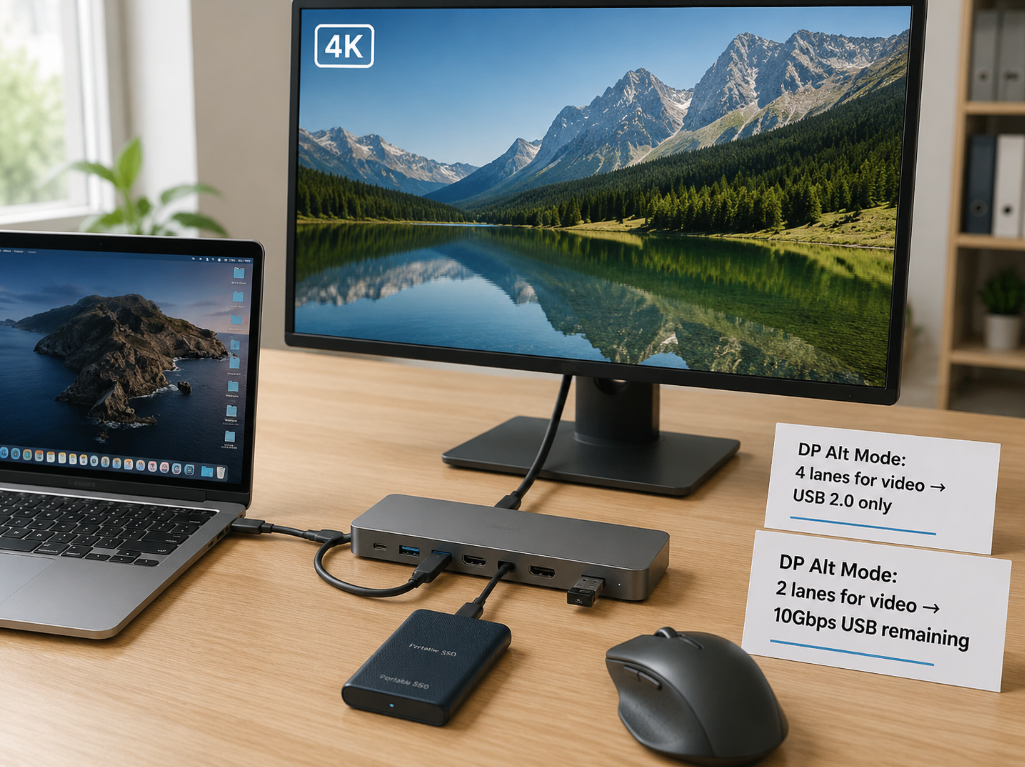
Many people buy a docking station, and after connecting a 4K monitor, they find that the USB ports on the docking station suddenly slow down, thinking it is broken. In fact, this is usually related to video output occupying the high-speed data channels, which is what we call DP Alt Mode.
DP Alt Mode: The Most Common USB-C Video Output Method
Its principle is very simple: the high-speed lanes originally used to transmit USB data are temporarily repurposed to transmit DisplayPort video signals. Depending on the number of lanes occupied, it is divided into two modes:
If only 2 high-speed lanes are used for video, the remaining 2 can still be used to transmit USB 3.x data, and USB can still maintain high speed at this time. If 4 high-speed lanes are used for video, then all high-speed lanes are occupied, and USB data can only use the “small path” of USB 2.0, so the speed will naturally be slow.
In many DP 1.2/HBR2, USB-C docking stations without DSC compression, 4K60 often occupies 4 lanes. If the host, monitor, and docking station support higher DP rates or DSC, a 2-lane solution may also be achieved. When purchasing, refer to the docking station’s explicitly labeled “USB speed while video is active” as the standard.
The Relationship Between HDMI and USB-C Video
Many people ask: is USB-C to HDMI also based on this principle? Yes, and you rarely hear of “HDMI Alt Mode” because almost no devices use this mode. The vast majority of USB-C to HDMI cables and docking stations on the market first obtain the DisplayPort signal through DP Alt Mode, and then convert it to HDMI signal inside the adapter. So when purchasing, you should pay more attention to whether the device supports DP Alt Mode, the resolution and refresh rate supported by the docking station, and whether it has functions you need such as HDCP, HDR, and VRR, rather than just looking at whether it can convert to HDMI.
Video and Data Multiplexing Under USB4/Thunderbolt
If it is USB4 or Thunderbolt, bandwidth scheduling will be more flexible, because USB4 and Thunderbolt package USB data, video, and PCIe signals all in the same high-speed link for transmission, and will not completely occupy the lanes like traditional DP Alt Mode. But its total bandwidth is still limited. For example, with a 40Gbps link, if you connect two 4K60Hz monitors, which already occupy most of the bandwidth, then plugging in a high-speed SSD will definitely cause the speed to drop, but the drop may be smaller than with traditional DP Alt Mode.
Docking Station Bandwidth Allocation Rules
Many people can’t figure out the bandwidth logic of a docking station, but it’s actually very simple: the total bandwidth of the docking station is determined by the upstream cable connected to the computer and the computer’s port — this is the total budget. All downstream interfaces on the docking station, including USB ports, network ports, card readers, monitors, audio, and cameras, share this total upstream bandwidth.
Merchants’ promotions often play word games: they separately say “supports 4K60Hz output” and separately say “has 10Gbps USB ports”, but they won’t tell you whether both can run at full speed at the same time. So when buying a docking station, be sure to look for products that clearly label “what is the maximum speed of the USB ports while video output is active”, otherwise it is easy to fall into a trap.
Can Charging and Data Work Simultaneously?
Of course they can. PD power supply and USB data are parallel. Charging uses VBUS and GND, and does not occupy the high-speed data lanes, so it will not directly cause USB speed reduction like video.
But sometimes there are indirect effects: for example, if the docking station is poorly designed, it will generate serious heat during charging, affecting the stability of high-speed signals; or the device’s power strategy causes frequency reduction during charging, indirectly affecting transmission speed. But overall, 100W charging capability and 10Gbps data capability must be confirmed separately.
Cable Selection and Wiring: Don’t Waste USB-C Data Channel Performance
Once you understand the principle, you won’t be fooled by merchants when choosing cables and wiring. You don’t need to buy the most expensive one, just buy the one suitable for your scenario.
Choose Cables by Capability, Not Just by Interface Shape
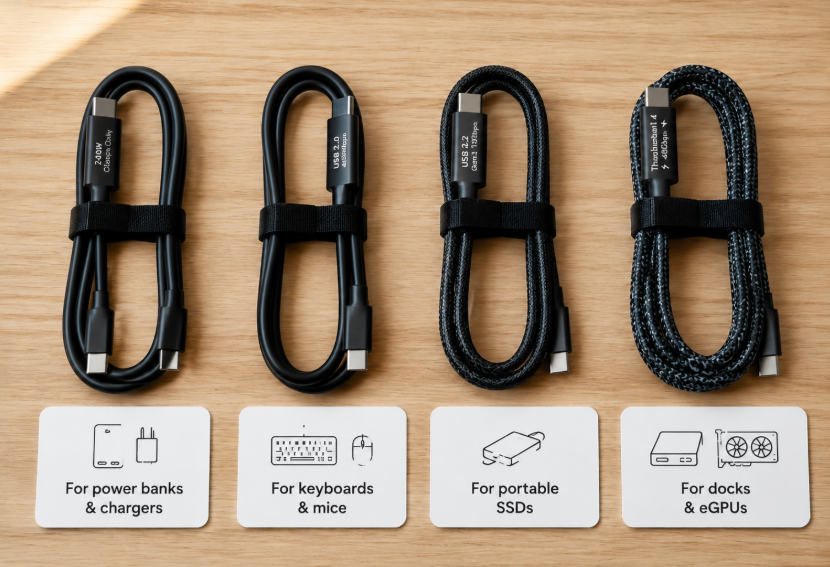
Common cables are divided into the following categories, you can choose according to your needs:
Charging-only cables: may not have data pins at all, or only have USB 2.0 data, suitable for scenarios that only require charging, such as charging power banks and desk lamps.
USB 2.0 data cables: can transfer files, but the speed is only tens of MB/s, suitable for devices with low speed requirements such as keyboards, mice, printers, and regular USB flash drives.
USB 3.x high-speed cables: common ones are 5Gbps, 10Gbps, 20Gbps. Be sure to look for clear speed labels, suitable for devices such as portable SSDs and high-speed docking stations.
USB4/Thunderbolt cables: usually labeled 40Gbps or higher, suitable for scenarios such as high-speed hard drives, Thunderbolt docking stations, and multi-screen output, and are also more expensive.
There is also the “full-featured cable” that merchants often mention. This term has no unified standard. When buying, be sure to confirm the data rate, video capability, power supply power, cable length, and certification separately. Don’t just place an order because you see the words “full-featured”.
The Boundary of E-Marker’s Role
Many people confuse the relationship between E-Marker and high-speed cables. Let’s clarify here:
60W/3A C-C cables do not necessarily require an E-Marker; cables rated for 5A/100W or higher power via USB PD 3.1 EPR (Extended Power Range, supporting high power levels such as 140W/180W/240W) usually require an E-Marker to declare their capabilities. High-specification cables such as USB4 and Thunderbolt also use E-Markers to declare their capabilities, but having an E-Marker does not mean the cable supports high-speed data of 10Gbps, 20Gbps, or 40Gbps — many 5A fast charging cables also have E-Markers, but their data capability is only USB 2.0. An E-Marker only indicates that the cable’s capability declaration can be read, and cannot replace speed labeling and certification. So to judge whether a cable is a high-speed cable, you still need to look for clear speed labeling.
Cable Length, Shielding, and High-Speed Stability
High-speed signals have high requirements for cables, requiring strict impedance control, multi-layer shielding, and high-precision wire pair matching, otherwise the signal is easily attenuated or interfered with.
For example, passive 40Gbps Thunderbolt cables are usually more stable within 0.8 meters. For longer lengths, active cables with chips are required, which costs much more. The same goes for 10Gbps and 20Gbps cables: the longer the cable, the harder it is to stably run at full speed. It’s not that short cables are definitely faster, but short cables are more likely to meet the signal integrity requirements for high-speed signals, so for cables of the same specification, shorter ones are usually more stable.
If you experience abnormal heating, frequent disconnections, or disconnection when you lightly touch the cable when using a certain cable, be sure to stop using it immediately and test with another cable to avoid damaging the device.
Daily Wiring Precautions
In daily use, a few small habits can help you maintain the stability of the data channel:
First, avoid sharp bends in the cable, long-term compression by heavy objects, and do not let the interface hang under long-term stress, otherwise it is easy to damage the internal wire core or contacts.
Second, try to use a direct connection during high-speed transmission, and reduce unnecessary adapters and extension cables. Each additional adapter link adds one more point of signal loss and failure probability.
Third, do not let the interface work in a loose or half-inserted state. The high-speed contacts of USB-C are very sensitive to contact quality, and poor contact can easily cause speed reduction or disconnection.
Fourth, if you use a docking station, prioritize connecting devices with high bandwidth requirements such as high-speed SSDs to the highest-spec direct-connect port on the docking station, and do not crowd them with other high-bandwidth devices.
Fifth, many people worry that parallel power cables and data cables will cause interference. In fact, parallel operation over short distances is basically no problem, but if they are poor-quality cables, wound over long distances, or in a strong interference environment (such as near high-power power supplies or routers), it may indeed increase the risk of instability, so try to avoid it.
Common Limitations of Device-End Interfaces
Don’t think that all USB-C ports on a device are the same. Common limitations include:
The multiple USB-C ports on a laptop may have completely different specifications: one supports Thunderbolt 4/USB4, while another may only support USB 2.0 or only charging. Be sure to read the manual to distinguish them when using.
Many front USB-C ports on desktop computers cannot run at full speed, because they are affected by the quality of the motherboard’s front header pins and the internal wiring of the chassis. The rear USB-C port may run at 10Gbps, while the front one can only run at 5Gbps or even lower.
Most mid-range and low-end mobile phones only support USB 2.0 on their USB-C ports. Only flagship models may support USB 3.x or video output. So if transferring photos from a phone to a computer is slow, it’s not necessarily the cable’s problem — it may be that the phone’s own port only has USB 2.0.
Also, the USB-C ports on chargers and power banks are almost all only responsible for power supply and have no data function. Plugging in a USB flash drive will get no response, which is normal.
In addition, the USB-C ports on the back of docking stations and monitors have a difference between upstream ports and downstream ports. The upstream port is used to connect to the computer, and the downstream port is used to connect peripherals, with different capabilities. Don’t mix them up.
Pitfall Avoidance and Troubleshooting: How to Judge Whether the Data Channel Is Working Properly
We’ve talked about so many principles earlier, and finally, in terms of actual use, it’s about how to avoid pitfalls and how to troubleshoot when encountering problems.
Pitfall Avoidance Checklist for Cable/Device Selection
First, let’s talk about a few of the most common pitfalls, you can check against them:
- Do not default a fast charging cable as a high-speed data cable; the correct approach is to look for clear speed labels such as 480Mbps, 5Gbps, 10Gbps, 20Gbps, 40Gbps.
- Do not default a “USB-C interface” as a “full-featured interface”; the correct approach is to check the official port specifications to confirm whether it supports high-speed data, video output, and other capabilities.
- Do not default “supports 4K output” as “USB can also run at full speed”; the correct approach is to check the USB speed parameter while video output is active.
- Do not default a “short cable” as a “high-speed cable”; the correct approach is still to rely on clear speed labels and certification.
- Do not judge the specification only by the product title; the correct approach is to look for clear labels such as speed and certification in the parameter page.
- Do not use a regular USB flash drive to judge the upper limit of a USB-C port; the correct approach is to test with a sufficiently powerful external SSD to avoid the peripheral itself becoming a bottleneck.
- Do not be greedy for cheap products whose prices are significantly lower than mainstream products of the same specification; the correct approach is to prioritize products with official certifications such as USB-IF and Thunderbolt to avoid false labeling.
How to Check Which Speed Tier Is Currently Negotiated
Different systems have different viewing methods, all very simple:
Windows users can open Device Manager, find the USB controller and the corresponding device, and check the speed information in the properties; you can also use a small tool like USBTreeView to more clearly see the connection speed, port hierarchy, and whether it is running at SuperSpeed.
macOS users have it even easier: open the System Report in “About This Mac”, find the USB and Thunderbolt/USB4 device trees, and you can see the negotiated rate of each device.
Linux users can use the lsusb -t command in the terminal to view the connection rate and hierarchy of devices.
Of course, the most intuitive way is actual testing: use a sufficiently powerful external SSD (do not use a regular USB flash drive), transfer a large file of 10GB or more, and record the average speed during the stable phase. Do not look at the initial instantaneous peak, which is the cache speed and is inaccurate.
Fault 1: Can Charge But Cannot Transfer Data
First step: replace with a good cable that is confirmed to support data. 80% of these problems are caused by using a charging-only cable. If changing the cable still doesn’t work, try another USB-C port on the computer or phone to rule out the problem of the port itself. If it’s a mobile phone, confirm whether you have selected “File Transfer/MTP” mode on the phone instead of charging only. If it still doesn’t work, check whether the interface has dust, oxidation, or looseness, or whether the port is disabled in the system.
Common causes of this problem are charging-only cables, device ports that only supply power, abnormal drivers, and damaged interfaces.
Fault 2: Can Transfer But Only Has USB 2.0 Speed
First, confirm whether your cable clearly supports a rate of 5Gbps or higher. Many people use the fast charging cable that comes with their phone, thinking it can transfer high-speed data, but in fact that cable only has USB 2.0. Then confirm whether the host’s port supports USB 3.x or USB4, and do not plug it into a charging-only or USB 2.0-only port. Then confirm whether the peripheral itself supports high speed — for example, whether your hard drive enclosure is 10Gbps, and whether the phone’s port is USB 2.0. Then remove all intermediate docking stations, adapters, and extension cables, and connect directly to the computer for testing to rule out problems with the adapter devices. Finally, check the negotiated rate in the system to distinguish whether it is really negotiated to USB 2.0, or whether the peripheral’s own storage performance is too low — for example, a regular USB flash drive cannot reach USB 3.0 speed even if plugged into a 10Gbps port.
Fault 3: High-Speed Transmission Is Intermittent and Speed Fluctuates Greatly
First, check whether the cable is bent, damaged, or too long, or whether the interface is loose. Then check whether the portable SSD or hard drive enclosure is overheating — too high a temperature will cause active speed reduction, or even disconnection. Then check whether many high-load devices are connected at the same time through the docking station, such as a monitor, network card, and card reader used together. Insufficient bandwidth or overheating of the docking station will cause fluctuations. If you still can’t find out, use cross-testing to locate: try the same cable with a different device, try the same device with a different cable, try the same peripheral with a different port, and you can locate the problematic link. If necessary, update the motherboard’s BIOS, chipset drivers, and Thunderbolt/USB4 firmware — sometimes firmware bugs can also cause instability.
Fault 4: USB Speed Drops After Connecting an External Monitor
This is usually normal, not a fault, because DP Alt Mode occupies part or all of the high-speed lanes. The most common manifestation is that when outputting 4K60Hz, the USB port of the docking station drops from 10Gbps to 5Gbps or USB 2.0.
If you want to optimize, you can try these methods: switch to a host, cable, and docking station that support USB4/Thunderbolt, which have more flexible bandwidth scheduling; reduce the resolution or refresh rate of the monitor to occupy less bandwidth; use a separate video cable and a separate USB data cable instead of running both through a single USB-C cable; or directly buy a docking station that clearly labels “USB remains 10Gbps while video output is active”.
Fault 5: The Same Cable Performs Differently When Plugged In Front and Back
There are many possible reasons: defective contacts on one side of the cable, dirty contacts on the interface, abnormal switching switch on the device end, or problematic wiring of the adapter.
The troubleshooting method is also very simple: first test the speed once with the plug inserted front and once with it inserted back to confirm the difference; then clean the interface, and try replacing with a known good cable; remove the intermediate adapter and connect directly to the computer for testing; then test again with another computer. If the problem follows the cable and goes away after changing the cable, then it’s the cable’s problem. If the problem is fixed on a certain port, and remains the same no matter what cable or device you use, then it’s the device port’s problem.
Real-Scenario Judgment: Application Cases From Beginner to Semi-Proficient
We’ve talked about so much theory and methods. Let’s practice with a few common real scenarios to see if you really understand.
Scenario 1: Why Is It Slow to Transfer Photos When a USB-C Phone Is Connected to a Computer?
There are three possible reasons: first, your phone’s port itself only supports USB 2.0, which is the case for most mid-range and low-end phones now; second, the cable you use only has USB 2.0, such as the fast charging cable that comes with the phone; third, you haven’t selected the file transfer mode on the phone, and the default is charging only.
The judgment method is very simple: check the official specifications of your phone to see what the USB version is. If the phone itself has a USB 2.0 USB-C port, then no matter how expensive a high-speed cable you buy, it’s useless — the speed upper limit is there. So remember: a phone having a USB-C port does not mean it has USB 3.0 high-speed data capability.
Scenario 2: Why Is the Portable SSD Labeled 1000MB/s But Only Runs at 400MB/s on the Computer?
There are several possible reasons: first, your computer port only has 5Gbps, and the upper limit is just over 400MB/s; second, the cable you use only has 5Gbps, holding back the speed; third, the SSD’s cache is used up, or the hard drive enclosure has poor heat dissipation, causing speed reduction; it’s also possible that you are connected through a docking station, and the bandwidth is occupied by other devices.
Judgment method: first check the negotiated rate in the system to confirm whether the link is 10Gbps; then test with a single large file of 10GB or more to avoid the impact of cache; then confirm the specifications of the SSD and hard drive enclosure to see if they can really reach 1000MB/s. The conclusion is: a speed of 1000MB/s requires a full-link 10Gbps plus a sufficiently powerful SSD, both are indispensable.
Scenario 3: Why Do USB Ports Slow Down After a 4K Monitor Is Connected to a Docking Station?
This is most likely because DP Alt Mode occupies the high-speed lanes, or the upstream bandwidth of the docking station is insufficient. You can check the manual of the docking station to see if the parameters state “USB speed at 4K60Hz”. This is usually a design trade-off, not a fault.
Scenario 4: Why Are Thunderbolt Cables Expensive, But Regular Fast Charging Cables Cheap?
Because the cost structures of the two are completely different. Thunderbolt/USB4 cables require strict high-speed signal design, multi-layer shielding, high-precision wire pair matching, as well as certification and dedicated chips, so the cost is very high. Regular fast charging cables only need to make the power supply wires thick enough to carry sufficient current, and may not even have high-speed data pins, so the cost is naturally low.
So don’t compare cable prices by power. A 100W fast charging cable may only cost a dozen or so yuan, but a 40Gbps Thunderbolt cable may cost over a hundred yuan. This is completely normal, because their positioning and cost are completely different.
Study Summary: What You Should Be Able to Judge Independently Now
After reading this article, you have mastered beginner to semi-proficient knowledge of USB-C data channels. Finally, let’s summarize a few core methods and conclusions for your easy review at any time.
Three Steps to Judge the Data Capability of a USB-C Cable/Port
First step: look at the specifications and labels, find clear speed numbers: 480Mbps, 5Gbps, 10Gbps, 20Gbps, 40Gbps, or USB4 and Thunderbolt certification marks. Do not believe vague marketing terms like “full-featured” or “high-speed”.
Second step: look at the usage scenario. Whether you are casting the screen at the same time, using a docking station, or sharing bandwidth with multiple devices, these will affect the actual available USB data bandwidth.
Third step: verify the actual negotiated rate and stable transmission speed according to the system report and external SSD test methods mentioned earlier — this is the most accurate.
Troubleshooting Priority Mnemonic
When encountering problems, follow this order to avoid detours: first replace with a known good cable, then replace with a known high-speed port, remove intermediate adapters and docking stations, check the negotiated rate in the system, and finally check the peripheral’s performance, temperature, drivers, and firmware.
Core Conclusions
USB-C is only the shape of the interface. Data capability is jointly determined by the host, cable, peripheral, adapter device, and current working mode. Don’t assume a USB-C port is high-speed just by seeing it.
Fast charging capability is not equal to high-speed data capability. The two are independent specifications and must be confirmed separately.
Video output will occupy high-speed channels, and all interfaces of a docking station share the upstream bandwidth. Don’t think that the labeled parameters can all be achieved at the same time.
When choosing a cable, look at the clear speed, certification marks, cable length, and your actual usage scenario. Don’t buy unnecessary high-specification products, and don’t be greedy for cheap products with false labels.
When judging problems, don’t just look at the labeled speed, but look at the actual negotiation result and stable transmission speed. Actual testing is always the most accurate.