
Have you ever had this experience: you have five or six USB-C cables piled up in a drawer, all looking the same. Some can charge an iPhone to 50% in half an hour, while others only add 20% after a whole afternoon of charging. When you use them to charge a MacBook or Dell laptop, some trigger fast charging directly, while others pop up a “Slow Charging” prompt. They’re all USB-C ports, so why is there such a big difference? In fact, USB-C is just the shape of the interface, and it has nothing to do with whether fast charging is supported. The following article will start from the basic logic of fast charging, and introduce zero-cost quick judgment methods, precise tool detection methods, adaptation rules for different fast charging types, and common troubleshooting ideas for “nominal fast charging but not fast charging”, to help you quickly distinguish the fast charging capability of cables.
Must-Know Before Judging: Core Prerequisites for USB-C Fast Charging
Before you start judging, there are a few core logics you must understand first, otherwise you will easily waste your effort, or even waste money.
First of all, it should be clear: USB-C is just the shape of the interface, which does not mean it supports fast charging. What we often call USB-C refers to the oval interface shape that can be plugged in either way, just like round buttons—some are used for coats, some for shirts, with completely different functions. Many people think that “as long as it’s a USB-C cable, it supports fast charging”, which is the most common misunderstanding. Many unbranded low-cost USB-C cables on the market actually only have a 5V2A specification, that is, 10W slow charging, which can only meet basic charging and ordinary data transmission. The core difference between fast charging cables and slow charging cables lies in the inside: fast charging cables have thicker wire cores that can carry higher voltage and current, and also have dedicated fast charging identification signal lines used to negotiate power with chargers and devices.
The second key point that is easily overlooked: fast charging triggering requires “three-party matching”. Fast charging is never achieved by a single cable alone. It requires the charger, cable, and charging device to all support the corresponding fast charging protocol and power. The final actual charging power is determined by the one with the lowest upper limit among the three—just like three people passing water in a line, the slowest person determines the overall speed. For example: if you use a 240W PD fast charging cable to charge an old phone that only supports 18W fast charging, the maximum speed can only reach 18W, it cannot be faster.
Third, the fast charging capability of a cable is mainly determined by two core parameters. The first is the maximum current, commonly 3A and 5A. The higher the current, the greater the power it can carry (power = voltage × current, this formula will be used later). The second is the E-Marker chip, which you can understand as the “identity card” of the cable, which stores information such as the maximum current of the cable and the supported protocols. The charger will first read this card to confirm that the cable can withstand it before outputting high power. According to the general PD fast charging standard, USB-C PD cables with 60W or less and within 3A usually do not need an E-Marker; high-power PD cables that exceed 60W and require 5A current must have a built-in E-Marker chip, otherwise the charger will default that the cable only supports 3A current, and the maximum power is limited to about 60W.
For your convenience, here is a summary of the fast charging power range of common devices:
| Device Type | Common Fast Charging Power Range | Description |
|---|---|---|
| Mobile phones, tablets | 18W-65W | General PD fast charging is mostly 18W-45W, some brand proprietary protocols are higher |
| Thin and light laptops | 65W-100W | Mainly general PD fast charging, common in models such as MacBook, Dell XPS, etc. |
| Gaming laptops, high-power devices | 100W-240W | Mostly PD3.1 standard or brand proprietary protocols |
Zero-Cost Quick Judgment Method (First Choice for Ordinary Users)
After understanding these basic logics, you won’t fall into the trap of “buying a high-power cable to charge an old phone”. Next, let’s talk about the most commonly used method for ordinary users—no need to spend a penny, and you can make a basic judgment within 10 minutes.
The first method is also the most trouble-free: look at the printed markings on the cable body or packaging, and you can make a preliminary judgment in 10 seconds. When judging, prioritize finding clear numerical values, such as directly printed power like “60W”, “100W”, “240W”, or current like “3A”, “5A”. The higher the value, the greater the supported fast charging power. If there are no specific values, look for reliable certification marks: such as the PD (Power Delivery, currently the most universal cross-brand fast charging standard) mark, USB-IF certification (official certification of the USB industry association, with more credible parameters); if it is a USB-C to Lightning cable, you can additionally pay attention to Apple MFi certification (Apple’s official accessory compatibility certification).
Here we must avoid a pitfall: if the cable body or packaging only says “fast charging cable” or “Type-C universal” without any specific parameters, it is basically marketing rhetoric, with very low credibility. If a cable has no markings at all, it is conservatively estimated that it can only be used for basic charging. Do not use it for high-power devices such as laptops to avoid problems.
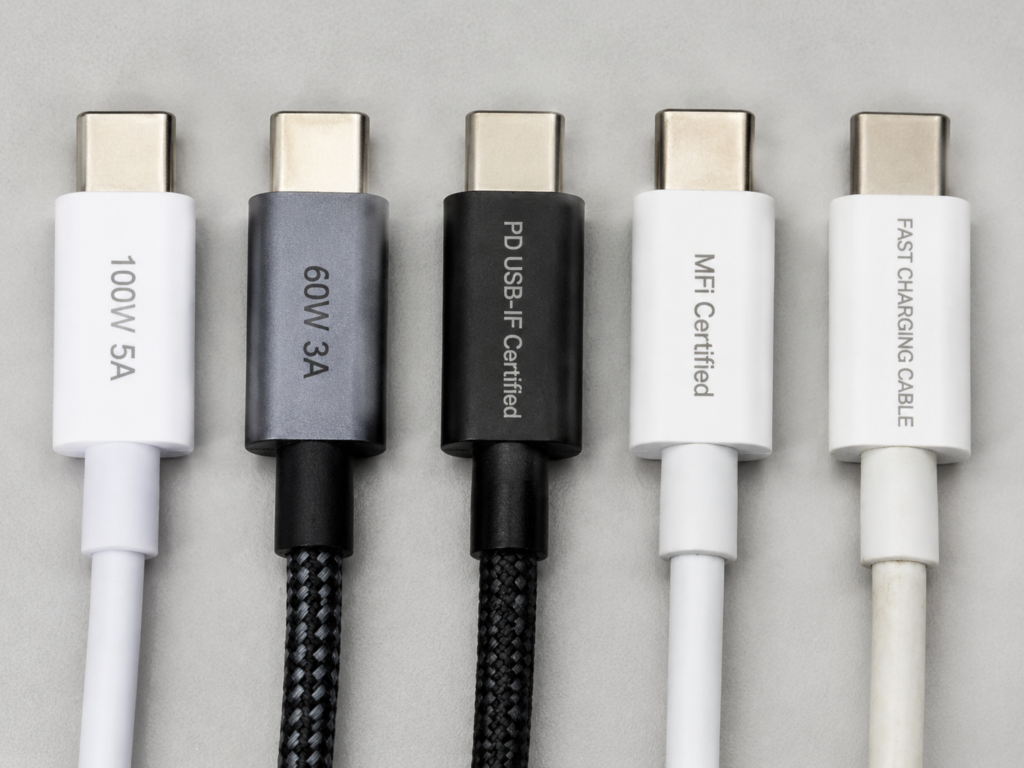
The second method is to look at the appearance and feel, but note: this can only be used as an auxiliary clue, and absolutely cannot be used as evidence for judgment. First look at the interface type: only cables with USB-C interfaces at both ends (that is, C to C cables) may support standard PD fast charging above 65W; if it is an A to C cable with one end USB-C and one end USB-A, it is usually not suitable for PD scenarios above 65W. A few brand proprietary protocols (such as Qualcomm QC, some manufacturers’ proprietary A-port fast charging) may achieve higher power, but they need to be matched with original or corresponding certified cables. Common ordinary A to C cables are mostly 18W-30W specifications.
Then look at the thickness of the cable body: for cables of the same length, fast charging cables are usually a little thicker than slow charging cables because their internal wire cores are thicker, but conversely, “thick ≠ fast charging”—many unbranded cables use thick outer sheaths or plastic fillers to make the cable very thick, looking very solid, but actually the internal wire core is very thin, and there is not even a fast charging identification signal line. How to distinguish? You can pinch the cable body: fast charging cables with pure copper cores are soft and tough; if the cable is hard and cannot be pinched, it is most likely a poor-quality cable filled with a lot of plastic.
Also pay attention to the effect of length: for cables of the same specification, long cables over 2 meters are more prone to power loss, and may slow down in high-power scenarios. So if it is a long cable, be sure to confirm that its nominal power corresponds to this length, not the test value at 1 meter length.
The third method is to test with your existing devices, which is the most reliable judgment method without tools. However, you must do preparatory work before the test: first confirm that the combination of “your fast charging charger + your charging device + a known qualified fast charging cable” can trigger fast charging, first eliminate the problems of the charger and device, otherwise the test result will be inaccurate.
Several conditions must be met during the test to ensure reliable results: the device’s battery level is between 20%-50% (because when the battery level exceeds 80%, most devices will activate battery protection and automatically slow down, so the measured speed will be slower), the device’s screen is off, background high-power consumption apps are closed, in a room temperature environment, and the charger is only plugged into this one device (multi-port chargers charging multiple devices at the same time will split current, affecting power).
After meeting the conditions, start charging. If any of the following is met, it can be basically confirmed that the cable supports the corresponding fast charging: the phone pops up a prompt like “Fast Charging” or “Super Fast Charging”; the laptop does not pop up a warning of “Low Power Charging” or “Slow Charging”; for ordinary smartphones (battery capacity about 4000-5000mAh), the battery level increase after 10 minutes of charging is ≥10%. The reference value of the charging ratio for large-battery phones and foldable phones can be appropriately reduced. For large-battery devices such as tablets and laptops, do not use the charging ratio to judge, and prioritize referring to system prompts or tool test results. If you are not sure if it is the cable’s problem, you can do a replacement verification: replace the cable to be tested with the known qualified fast charging cable. If fast charging works after replacement but not with the cable to be tested, then it can basically be judged that this cable does not support the corresponding power of fast charging.
Finally, there is an auxiliary reference: look at the data transmission speed, but it cannot be used as a basis alone. If a USB-C cable supports high-speed data transmission of USB3.0 and above (for example, transferring a few G movie takes only tens of seconds), then it most likely supports fast charging above 30W—because high-speed data transmission also has relatively high requirements for the internal wire core. It should be noted that the data transmission specification and power supply capability are two independent parameters. You cannot judge the charging power solely by USB 3.x, and it is still subject to the cable’s nominal current/power or actual measurement; if you want to confirm both fast charging and high-speed transmission at the same time, you should check the charging power/current nominal and USB transmission specifications separately, and cannot use one parameter to replace the other.
Simple Tool Precise Judgment Method (Used When Confirming Specific Power)
If you not only want to know whether fast charging is supported, but also want to confirm the specific power, or often buy and test cables, you can use a few simple small tools, and the accuracy will be much higher.
The first tool is a USB power meter, which is also the most worthwhile for ordinary users to buy, with the highest accuracy. This small tool usually has C ports at both ends (there are also styles with A ports), connected in series between the charger and the cable, and can display the current voltage, current and power in real time, commonly known as “charging power tester”. It is not expensive and the operation is very simple.
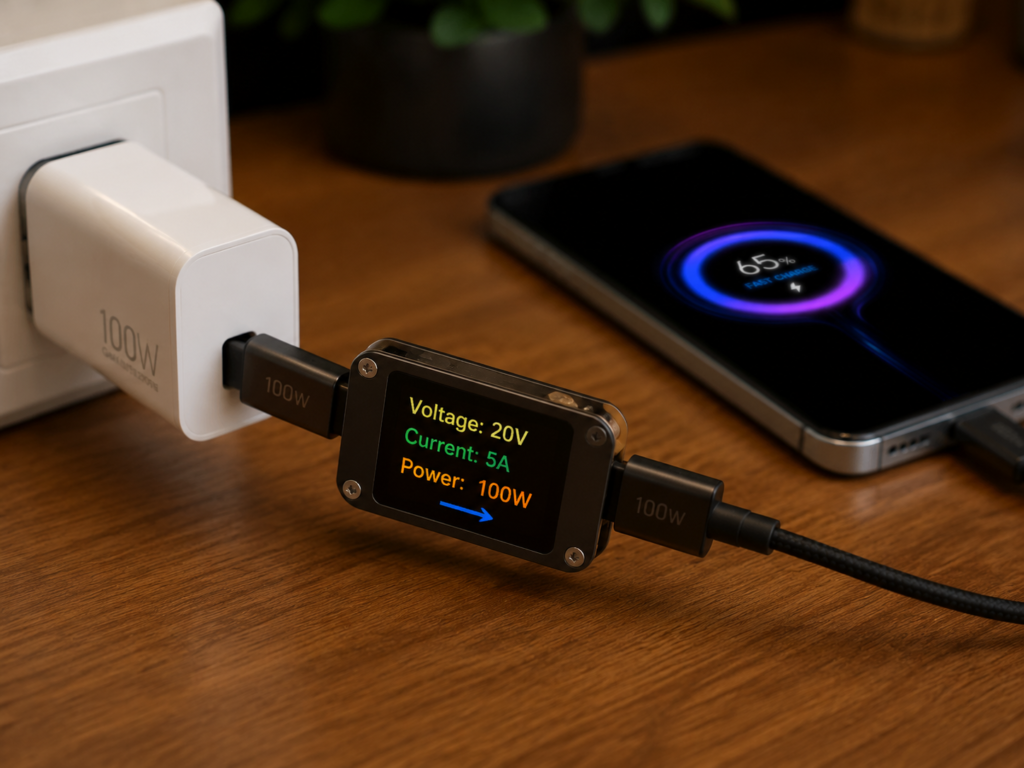
The test conditions are the same as the previous tool-free actual test: low-power device, screen off, single-port charging, room temperature. The wiring sequence is: fast charging head → power meter → cable to be tested → low-power fast charging device. Wait until the charging stabilizes (usually 1-2 minutes after plugging in), then look at the displayed power value. Power = voltage × current, for example, 9V×2A is about 18W, 20V×3A is about 60W, 20V×5A is about 100W. If the stable power is close to the maximum supported power of your device or charger, it means that this cable is up to standard.
When testing, pay attention to several sources of error: if the device is almost fully charged (battery level above 80%), it will automatically slow down, which is normal, not a problem with the cable; if you use a multi-port charger and plug in other devices at the same time, the current will be split leading to power reduction; in addition, if the power meter itself does not support high power (for example, a power meter that only supports 60W is used to test a 100W cable), the measurement will be inaccurate, so you should choose a power meter with the corresponding power range.
The second is E-Marker chip detection, which is mainly used to judge high-power cables. If you buy a 100W or 240W high-power cable and want to confirm whether it has false labeling, you can use a USB power meter with E-Marker reading function, or a dedicated C-port tester. Plug in the cable to read information such as the nominal maximum current, power, and supported protocols of the cable, which is equivalent to directly reading its “identity card”. Here is a judgment standard: for general PD fast charging cables with 60W or less and within 3A, it is normal to have no E-Marker; but high-power PD cables that exceed 60W and require 5A current must have an E-Marker, otherwise the charger will default that it can only withstand 3A current, with a maximum limit of 60W, which cannot reach the nominal high power. If it is 240W fast charging with PD 3.1 standard, it also needs a dedicated cable supporting 5A/48V Extended Power Range (EPR), and ordinary 100W E-Marker cables cannot meet this standard.
There is also a professional high-current test, which uses an electronic load meter to pull full current to detect the voltage drop of the cable. This is only used by professional maintenance or testing personnel. Improper operation can easily burn out the device, so ordinary users must not try it.
Cable Adaptation Rules for Different Fast Charging Types
Many people struggle when buying cables: why is it that for cables of the same 100W, some can trigger super fast charging on my phone, while others can only do ordinary fast charging? This involves the cable adaptation rules for different fast charging types. Once you understand them, you won’t buy the wrong one.
First is the cable requirements for general PD fast charging, which is a cross-brand universal standard. For example, laptops from Apple, Dell, Lenovo, and most new mobile phones support PD fast charging. According to different power levels of the PD standard, the cable requirements are different: PD 60W and below do not need a built-in E-Marker chip, as long as there is a CC pin (that is, the fast charging “communication line” we mentioned earlier, used to negotiate power) and support 3A current; PD 60W-100W must have a built-in E-Marker chip and support 5A current; PD 3.1 240W requires a dedicated 240W EPR (Extended Power Range) cable, supporting 5A current and 48V voltage, and ordinary 100W E-Marker cables cannot meet this standard.
Then is the cable requirements for brand proprietary fast charging, which are exclusive fast charging protocols extended by various brands on the basis of general PD. Different brands have great differences in cable requirements: a few brands’ high-power proprietary fast charging requires the cable to have a built-in dedicated identification chip, or must use official/certified cables to trigger the maximum power; many proprietary fast charging are based on general extension standards such as USB PD PPS, and the requirements for cables are mainly based on general specifications such as 3A/5A current and E-Marker configuration, and may not require brand-specific chips. If you use an ordinary PD fast charging cable to charge a device that supports proprietary fast charging, it usually can only trigger the general PD fast charging gear, and cannot reach the highest proprietary power标称 by the brand. For example, some mobile phones featuring 100W-level proprietary fast charging may only trigger the general PD fast charging gear with an ordinary 100W PD cable, and need to be matched with the brand’s official or certified dedicated cable to reach the highest proprietary power. However, most proprietary fast charging cables are backward compatible with general PD fast charging, so you don’t have to worry about buying them and not being able to use them. The specific adaptation requirements shall prevail in the official description of the device.
Finally, here is a cable matching logic for different devices. Follow it to choose and you basically won’t go wrong: for mobile phones and tablets, if you only use general fast charging, a 60W (3A) PD cable is enough. If you want to trigger the maximum power of the brand’s proprietary fast charging, you need to buy a certified cable or official cable of the corresponding brand; thin and light laptops need at least a 65W C to C PD cable, and it is more recommended to choose a 100W (5A) cable, which has better compatibility and can be used when you change to a higher-power device in the future (for example, for charging a MacBook Air, a 65W cable is enough, and choosing a 100W cable can also be adapted when you change to a Pro model in the future); gaming laptops and high-power devices need PD3.1 cables above 100W, or corresponding brand proprietary fast charging cables.
Common Judgment Misconceptions (Must-Read for Avoiding Pitfalls)
After talking about the judgment methods and adaptation rules, let’s sort out a few of the most easy-to-fall pitfalls, so you don’t waste money in vain.
Misconception 1: As long as it’s a USB-C interface cable, it supports fast charging
Truth: USB-C is just the interface shape, which itself does not determine the charging speed. Many low-cost USB-C cables on the market are only 10W slow charging specifications. For the judgment method, see the previous article: check the nominal parameters or actual measurement verification, do not default to support just because you see a USB-C port.
Misconception 2: The thicker the cable, the higher the supported fast charging power
Truth: The thickness of the cable body can only be used as an auxiliary reference. Some no-name cables use thick outer sheaths/plastic fillers to pretend to be thick cables, but the actual wire core is very thin. For the judgment method, see the previous article: prioritize looking at the nominal parameters. Soft and tough cables usually have higher core purity, but the final result is subject to parameters or actual measurement.
Misconception 3: Cables that support fast charging must support high-speed data transmission
Truth: Fast charging capability and data transmission speed are two independent parameters, and there is no necessary correlation. Many fast charging cables are dedicated for charging, only support USB2.0 low-speed transmission, and cannot meet the needs of high-definition video transmission and large file copying. If you need to use both functions at the same time, you need to confirm the corresponding parameters separately, and they cannot be derived from each other.
Misconception 4: Original cables must support the highest fast charging power
Truth: The original cables included with some devices are “just enough” models, only matching the power of the included charger. If the device itself supports higher power gears, you may need to purchase a 5A/E-Marker cable or brand-certified cable specified in the official description separately.
Misconception 5: Showing “Charging” means entering fast charging
Truth: Both slow charging and fast charging will show a charging icon, which cannot be judged by the icon alone. Fast charging will start only after the charger and the device successfully negotiate high voltage/current. For the judgment method, see the previous article: check the device’s fast charging prompt, rough test with timing, or use tools to detect.
Troubleshooting: Reasons for Nominal Fast Charging But Actual Slow Charging
Many people have encountered this situation: the cable body is clearly printed with 100W fast charging, but the actual charging is very slow. What should I do at this time? We can troubleshoot step by step to locate the problem.
Step 1: First troubleshoot the problem of the cable itself
First look at physical damage: if the cable body has obvious bending, breakage, or bulging, it is likely that the internal wire core has been broken or damaged, resulting in the current not going up, so naturally it charges slowly. Then look at the connector contacts: if the metal contacts of the USB-C port are oxidized, dirty, or covered with dust or oil, it will cause poor contact and trigger charging protection to automatically slow down. In this case, you can gently wipe the contacts with an alcohol cotton pad, dry them and try again. Another possibility is that the internal E-Marker chip or proprietary identification chip is broken, unable to negotiate fast charging with the charger. In this case, generally you can only replace the cable.
If the following situations occur, it is recommended to replace the cable directly: the cable body is damaged and deformed, the connector gets hot or even has a peculiar smell during charging, frequent disconnection of charging, or confirmed that it does not support the power you need.
Step 2: Troubleshoot other non-cable links
Many times the slow charging is not a problem with the cable at all, but a problem with other links. First check the charger: is the power insufficient? For example, if you use a 20W charger to charge a 65W laptop, it will definitely be slow; does it not support the corresponding fast charging protocol? For example, using a charger that only supports basic PD to charge a mobile phone that supports PPS proprietary fast charging may not trigger the highest gear; is it a multi-port charger with several devices plugged in at the same time, causing current splitting? It is also possible that the charger itself is broken.
Then check the device: is the battery level too high? Most devices will activate battery protection and automatically slow down when the battery level reaches above 80%, which is normal; is the device’s charging port dirty or broken? It is also possible that the system limits fast charging, for example, some mobile phones will automatically slow down to protect the battery at high temperatures. Also check if there are intermediate accessories: if you connect a docking station, adapter, or extension cable in the middle, it is likely to have power loss, or protocol incompatibility, resulting in failure to trigger fast charging. Try to use the cable directly to connect the charger and the device.
Step 3: Cross-verify to locate the problem (advanced method)
If the first two steps don’t find the problem, you can use the replacement method to eliminate one by one: replace the cable to be tested with a known qualified fast charging cable. If fast charging is restored after replacement, it means the original cable is the problem; replace the original charger with a known qualified fast charging charger. If fast charging is restored after replacement, it means the original charger is the problem; replace the original device with another device that supports the corresponding fast charging. If fast charging is restored after replacement, it means the original device is the problem. After replacing like this, you can basically accurately locate which link has the problem.
Summary: Core Logic of Quick Judgment
Finally, we sort out today’s content into a simple and easy-to-remember action list. Whether you are a novice or want to advance, follow it and you won’t go wrong.
For ordinary users to judge whether a USB-C cable supports fast charging at zero cost, there are only three steps: the first step is to look at the clear parameters on the cable body or packaging. If there are specific power and current values, or PD and official certification marks, it is very likely to support fast charging; those that only say “fast charging cable” without parameters are directly regarded as slow charging cables. The second step is to test with a known qualified fast charging head + low-power device to see if the device has a fast charging prompt. For ordinary smartphones, you can refer to the rough standard of ≥10% charge in 10 minutes. For large-battery devices such as tablets and laptops, prioritize looking at the system charging prompt. The third step is if you are not sure, use the replacement method, replace it with a known qualified fast charging cable for comparison. If the qualified cable can fast charge but the cable to be tested cannot, it means the cable to be tested is not up to standard.
If you need to confirm the specific power value, the most accurate common method is to use a USB power meter to test the power during stable charging; for high-power cables, you can also use a tester with E-Marker reading function to directly read its nominal parameters.
Mastering these methods, you can not only quickly judge whether the USB-C cables in your hand support fast charging and whether they are compatible with your own devices, but also troubleshoot and locate the problem link step by step when you encounter the problem of “slow charging”.