
For thin and light laptops with minimal ports like the MacBook and Dell XPS, a USB-C dock is almost essential: connecting monitors, USB drives, Ethernet cables, and charging the laptop all rely on this palm-sized little block. But you often yank your hand back when you touch it: why does it get hot? Will it burn out your computer? Did you buy a defective product?
Below we will explain one by one from the boundary between normal and abnormal, the root causes of heat, troubleshooting methods to cooling solutions, to help you quickly judge whether your dock is a problem.
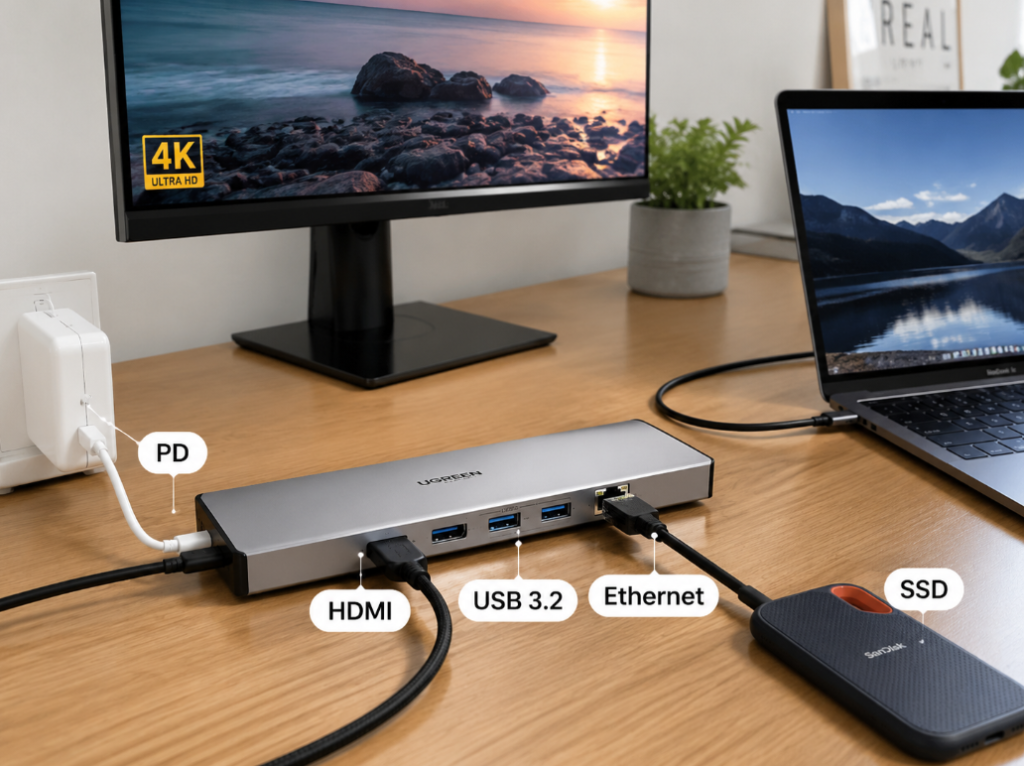
First, Define the Boundary: Is Heat a Normal Phenomenon or a Fault?
Let’s start with the conclusion: as long as it is a multi-functional dock with power delivery, video, and high-speed USB, it will definitely generate heat when working. This is not a quality problem, but not all heat can be ignored — the core is to see whether it exceeds the safety boundary.
Many people think a dock is just a “splitter”, but in fact, it hides several functional chips inside: a power management chip for PD charging, a Hub chip for splitting USB ports, a video conversion chip that converts USB-C signals to HDMI, as well as dedicated chips for network cards and card readers. As long as these chips are powered on and working, they consume electrical energy, part of which is dissipated as heat; the more peripherals you connect and the more fully you use its functions, the higher the heat will be.
You can refer to the table below to quickly judge whether it is normal heating or abnormal overheating (the following are references at 25°C room temperature, not absolute standards):
| Comparison Dimension | Normal Heating | Abnormal Overheating |
|---|---|---|
| Touch Sensation | Metal shell is quite hot but the back of the hand can stay on it for more than 10 seconds; plastic shell may feel less hot, but the interior may not be cooler, so judgment should still be combined with function and smell | So hot that you yank your hand back immediately, or there is a burnt smell, deformed or bulging shell |
| Temperature Reference | A shell temperature of 50-60°C under full load is common for small metal docks; temperature varies with load, room temperature, ventilation, and shell material | Be alert if it exceeds 70°C, exceeds 60°C at no load, or is accompanied by abnormal symptoms |
| Functional Status | Stable display, no device disconnections, no abnormalities in charging/Ethernet port | Frequent disconnections, screen flickering, drive dropping out, intermittent charging |
| Temperature Pattern | Temperature rises when heavy load is connected, and gradually drops 10-15 minutes after removal | Still obviously hot at no load, or temperature keeps rising |
| Heat Distribution | Concentrated near the main controller and PD/video ports, no local abnormal hot spots | A single port/plug is extremely hot, or the overall temperature is abnormally high |
It is recommended to use the back of your hand to judge touch sensation: not only is it more sensitive to temperature, but if it is too hot, you can quickly pull your hand away to avoid burns. Here we first correct the most common misconception: a metal shell that feels hot does not mean poor heat dissipation. On the contrary, metal conducts heat quickly, so the heat from the chip can be quickly transferred to the shell and dissipated; it feels hot to the touch but the internal chip temperature may be lower. A plastic shell conducts heat slowly, trapping heat inside, so it may feel warm but actually be more dangerous. You cannot judge heat dissipation solely by the feel of your hand.
If the following types of danger signals appear, stop using it immediately and do not continue testing:
- Safety category: So hot that you yank your hand back immediately, burnt smell or smoke, softened/deformed/bulging shell, yellowed or blackened ports, soft cable ends or sockets
- Function category: Frequent disconnections, screen flickering or distortion, monitor repeatedly goes black and reconnects, USB drive or hard drive drops out, Ethernet port disconnects, computer prompts that USB device power consumption is too high
- Power supply category: Intermittent PD charging, computer charges then stops charging intermittently, charger whines or generates abnormal heat
- No-load abnormality: Only connected to the computer, no peripherals connected, still obviously hot after standing for 10 to 15 minutes, or temperature is still rising
Apart from “hot metal shell = poor heat dissipation”, there are three common cognitive pitfalls that many entry-level users fall into:
The first is “heat equals poor quality”. In fact, all docks with power delivery, video, Ethernet, and high-speed USB generate heat. The key is whether the heat is stable, whether it exceeds the safety boundary, and whether it affects functions, not simply whether it feels hot.
The second is “the more expensive the dock, the less heat it generates”. High-end docks often have more ports, higher bandwidth, and higher PD power, so their heat under full load may be more obvious than a cheap small Hub with only two USB ports. The value of expensive products lies in standardized design, complete protection, and long-term stability, not zero heat generation.
The third is “it won’t get hot if it’s plugged in but not used”. As long as the dock is connected to the computer, the main controller chip will be in standby mode, with slight standby power consumption. It is normal for it to feel a little warm, but if it is still hot or has a strange smell at no load, there is definitely a problem.
Explained in Plain Language: Why Do Docks Generate Heat?
Simply put, the essence of a dock is to “split” one USB-C port on the computer into several ports with different functions — some are responsible for charging, some for data transmission, some for video output, and some for Ethernet connection. Each additional function means one more working chip and more heat. Moreover, today’s portable docks are getting smaller and smaller, with a smaller heat dissipation surface area. With the same power consumption, a small box will definitely be hotter to the touch than a large base.
For example, just like your phone: it’s only warm when you’re just scrolling through WeChat, but if you’re charging, playing games, and on a video call at the same time, the back will quickly get very hot — the same is true for a dock. The more tasks it does at the same time, the more heat it generates.
Specifically, heat mainly comes from three aspects:
First is the power consumption of the chip itself. Whether it’s the Hub chip for splitting USB ports, the conversion chip for video, or the network card chip, as long as it’s powered on and working, even if it’s not running at full performance, it will consume electrical energy, part of which becomes heat.
Second is the loss from electrical energy and signal conversion.
During PD power supply, the dock needs to perform power negotiation, protection, and distribution, and may also step down the input voltage for use by modules such as USB devices, network cards, and card readers. In different designs, the main power supply to the computer does not necessarily go through buck-boost conversion, but power management and peripheral power conversion cannot have zero loss, and the lost electrical energy is converted into heat.
For high-speed video and USB data, sometimes the signal needs to be rearranged for more stable transmission (professionally called retiming), or converted from one protocol to another (such as USB-C to HDMI). The higher the specification, the greater the conversion workload, and the more heat is generated. Of course, conversion efficiency is not a fixed value; it varies greatly with different designs, power levels, and chips. There’s no need to get hung up on specific percentages — the key is the temperature and stability during actual use.
Third is additional heat from contact. If the cable used is of poor quality, the wire core is too thin, or the port is loose and the plug is oxidized, the current will “get stuck” when passing through, generating extra heat — this kind of heat is often concentrated near the plug or port, and is riskier than uniform heating, because the local temperature may be high enough to burn out the port.
You may be curious: among so many functions, which one generates the most heat? We’ve ranked them from largest to smallest contribution, so you can compare with your own usage scenario:
First place is PD charging. When supplying reverse power to a laptop, the current is very large, and voltage conversion and power distribution generate very obvious heat.
Second place is video output. Especially for 4K 60Hz, dual-screen, 8K, high refresh rate, or HDR video, the required bandwidth is very high, so the load on the video conversion chip is large, and naturally more heat is generated.
Third place is high-speed data transmission. For example, when a portable SSD continuously copies large files, or several USB 3.x devices transmit data at the same time, both the Hub chip and the power supply circuit will heat up.
Fourth place are additional functions like Ethernet ports, card readers, and audio. The power consumption of a single one is not high, but if all are turned on and used for a long time, the heat will add up.
Fifth place is abnormal cables or ports. Although heat caused by poor contact is not functional heat from the dock itself, it has the highest risk, because it is local high temperature and can easily burn out devices.
Here we need to talk specifically about video output: not all USB-C to monitor connections generate the same amount of heat, which many people easily overlook:
If your dock lets the USB-C port directly output the graphics card’s DisplayPort video signal (this mode is called DP Alt Mode, i.e., Display Alternate Mode), when connected to a DP monitor, it is mostly just signal pass-through or simple rearrangement, so heat is relatively controllable.
If it is USB-C to HDMI, a dedicated active conversion chip is usually required, especially for specifications of 4K 60Hz and above; the chip has a heavy workload, so heat will be more obvious.
If it is dual-screen or multi-screen output, more bandwidth and chip resources are required, and small-sized docks can easily approach their design limit, resulting in more severe heat.
There is also a type of dock called DisplayLink, which takes a different route: it compresses video signals into ordinary USB data for transmission, relies on a dedicated chip in the dock to decompress and then output to the monitor, and also requires the computer to install drivers. Therefore, its heat source is different from that of ordinary DP Alt Mode direct-output docks.
Common Factors That Increase Heat During Normal Use (Not Faults)
Often, a dock getting hot is not a fault, but a normal temperature rise caused by usage scenario, environment, or load. The most direct influencing factor is the level of external load. For example, if you connect PD fast charging, dual 4K monitors, a portable SSD continuously transferring files, and a Gigabit Ethernet cable at the same time, it’s equivalent to all the dock’s chips running at full load, so heat will definitely be obvious. But if you only connect a keyboard, mouse, and ordinary USB drive, it will basically only be a little warm.
The two most common high-heat scenarios:
- Working with the laptop lid closed, with the dock connected to a 4K monitor, PD charging, Ethernet cable, keyboard and mouse at the same time, running continuously for two or three hours;
- When editing videos or backing up files, an external SSD continuously copies large files, while connected to a monitor for preview, and also charging the computer.
To judge whether it is a normal temperature rise caused by load, you can confirm by removing high-load peripherals one by one and observing temperature changes; the specific method will be explained in detail in the troubleshooting steps later.
Apart from connecting many devices, the higher the signal specification of the devices, the greater the pressure on the dock, mainly reflected in these types of scenarios:
- Video: With the same monitor connection, 4K 60Hz is hotter than 4K 30Hz, dual 4K is hotter than single 4K, and enabling 8K, high refresh rate, or HDR will further increase the load.
- Data: Continuous large file transfer over USB 3.2 10Gbps is much hotter than USB 2.0 connected to a keyboard and mouse.
- Ethernet port: When a Gigabit Ethernet port downloads and uploads at full speed for a long time, the network card chip will continuously generate heat.
- Card reader: When continuously importing footage from a high-speed SD card, especially for small-sized all-in-one docks, the card reader chip will generate obvious heat.
Poor heat dissipation conditions will also make the dock hotter under the same load. For example, at a summer room temperature of 30°C, it will definitely feel hotter than at a winter temperature of 20°C; if you put the dock on a quilt, sofa, thick mouse pad, or in a closed desk hole, the heat cannot dissipate and the temperature will get higher and higher; if it is pressed by the computer, covered by books, or placed against things that generate heat themselves like power adapters and hard drive enclosures, the heat will add up and feel hotter. Also, regarding the size of the dock itself: thin and light portable models have a small heat dissipation area, so when fully loaded for a long time, they will definitely be hotter to the touch than large-sized desktop docks.
Another easily overlooked situation is mismatched cables and accessories, which cause additional heat. If the USB-C cable specification does not match, it will not only cause slow charging, reduced data transfer speed, and charging interruptions, but also generate extra heat. Don’t judge a cable’s capability just by the shape of its port. If the charger does not support the PD protocol, has insufficient power, or is of unstable quality, the dock and charger will repeatedly negotiate power, leading to intermittent charging and also generating extra heat. As for HDMI or DP video cables, if their specifications are insufficient, they may cause screen flickering, black screen reconnection, but generally do not directly make the dock hotter; it’s just easy to mistakenly think the problem is caused by the dock’s heat, so pay attention to distinguishing this.
In Which Cases Might Heat Be Caused by a Problem with the Product Itself?
If you have ruled out these normal use factors and the dock is still abnormally hot, then you need to consider whether it is a problem with the product’s own design, a fault, or incorrect model selection.
First is insufficient heat dissipation and material design. For example, some cheap docks have no thermal pads or heat sinks inside at all; the heat generated by the chip cannot be transferred to the shell, and gets trapped inside, getting hotter and hotter. Or they have a fully sealed plastic shell with small internal space, which simply cannot dissipate heat. Some docks use core chips with insufficient specifications; for example, they claim to support 100W PD and 4K 60Hz, but the actual chip used can just barely handle it. Under long-term full load, efficiency will drop, temperature will get higher and higher, and even disconnections and speed reduction may occur — this is commonly known as “false specification”. There are also workmanship issues, such as poor solder joints, loose ports, and poor internal wiring design, which will cause local contact resistance to increase and heat to concentrate in one place. This is not only hot but also easy to burn out ports.
Second is aging, physical damage, or contamination of internal components. If your dock has been used for a long time, long-term high-temperature operation will accelerate the aging of internal capacitors, solder joints, and ports, which manifests as being much hotter under the same load than when it was new. Dropping or bumping may cause internal solder joints to become loose or ports to become loose; this kind of heat is often concentrated near a certain port and may be accompanied by disconnection problems. If it has been exposed to water, moisture, or has a lot of dust accumulated inside, it may cause leakage, short circuits, or poor contact. This situation is very risky, so it’s best not to use it anymore. The clue for judgment is simple: if it was recently dropped, exposed to water, or the port is loose, and the temperature is suddenly much higher than before, then a fault is the primary suspect.
Another situation that is easily mistaken for a fault is incompatibility of firmware, drivers, or protocols. Here’s a little common sense for entry-level users first: the Thunderbolt and USB4 we often talk about both use USB-C-shaped ports, but not all USB-C ports support these high-specification standards, their controllers and drivers are also different, and the manifestations of compatibility issues will also differ.
The dock itself has firmware (that is, its internal small system). If the firmware version is old and incompatible with the computer’s USB controller, Thunderbolt/USB4 controller, or graphics card driver, it may cause devices to connect repeatedly, video to negotiate repeatedly, and charging status to toggle back and forth. All of these will generate extra heat and make the dock hot. Especially after a system update, if problems like heat, screen flickering, and disconnections suddenly appear, it is most likely that the driver or compatibility has changed, not that the dock is broken. The typical manifestation of this situation is: devices refresh repeatedly in the computer’s Device Manager, the monitor occasionally goes black and reconnects, and the charging icon turns on and off intermittently.
The last situation is not that the dock is broken, but that the product’s positioning does not match your usage needs. For example, those small, portable Hubs without external power are originally for temporary use when going out, suitable for connecting a USB drive, mouse, and occasionally a monitor. But if you put it on a fixed workstation, connecting dual screens, 100W PD, and several portable hard drives every day, running at full load for a long time, it will definitely be very hot — because it is not designed for this kind of use. Conversely, desktop docks or Thunderbolt docks are larger, have independent power supplies, and better heat dissipation design, so they are suitable for long-term use at a fixed workstation. Judging whether there is a demand mismatch is also simple: if after reducing the video specification and reducing peripherals, the temperature drops and functions are normal, it means the dock is not broken, you just used it beyond its “comfort zone”.
Step-by-Step Troubleshooting: From Simple to Complex, Find the Real Cause of Heat
If danger signals such as burnt smell, deformation, or smoke mentioned in the first chapter have already appeared, skip the troubleshooting steps directly, stop using it immediately, and contact after-sales service.
Entry Level: 4-Step Quick Judgment Without Tools
The first step is initial touch judgment. Lightly touch the dock shell with the back of your hand, and first rule out immediate danger against the normal heating standards in the first chapter.
The second step is to check accompanying symptoms. If it’s just hot, but the display is stable, USB devices don’t disconnect, the Ethernet port doesn’t drop, and charging is normal, then it’s mostly normal heating; if there are also frequent disconnections, screen flickering, hard drive dropouts, or intermittent charging, you need to continue troubleshooting.
The third step is load reduction testing. Unplug peripherals one by one, the recommended order is: first unplug the portable hard drive/SSD, then the monitor, then the Ethernet cable, and finally the PD charging head. After unplugging each one, wait three to five minutes and touch to see if the temperature has dropped significantly.
The fourth step is no-load verification. Unplug all peripherals, leaving only the dock connected to the computer, and let it stand for 10 to 15 minutes. If it is still obviously hot, or the temperature is still rising, then it is most likely a problem with the dock itself, the cable, or the port.
Advanced Level: Locate the Problem with Temperature Measurement and Replacement Method
If the entry-level method still can’t find the cause, or you want a more accurate judgment, you can use the advanced method of temperature measurement plus replacement:
Temperature Measurement Method
- Where to measure: Use an ordinary infrared thermometer to measure the temperature at the highest point of the dock shell, near the PD input port, and near the video output port, while recording the room temperature and what devices were connected at the time.
- Reference values: At a room temperature of 25°C, a shell temperature of 50-60°C under full load is relatively common; if it exceeds 70°C, or exceeds 60°C at no load and is accompanied by abnormal symptoms, you should be alert.
- Metal shell error handling: Infrared temperature measurement on metal shells will have relatively large errors because metal reflects light. You can stick a small piece of black electrical tape on the area to be measured, and measure the surface of the tape after the temperature stabilizes, so the value will be much more accurate.
Replacement Method Troubleshooting
- Replace with a compliant USB-C cable that meets power and speed requirements. If the temperature drops or charging becomes stable after replacement, the original cable may be faulty;
- Replace with an original or regular brand PD charger. If charging no longer cuts out repeatedly after replacement, the original charger may have protocol incompatibility or insufficient power;
- Try connecting the same dock and peripherals to another computer. If the temperature is significantly lower and there are no disconnection problems, then there may be a problem with the original computer’s port, driver, or protocol compatibility;
- You can also do a specification reduction test: lower the monitor resolution from 4K 60Hz to 4K 30Hz or 1080P. If the temperature drops significantly, then the video link is the main heat source.
Semi-Proficient Judgment: Deduce the Heat Source from the Heat Location
If you have already measured the temperature and know which position is the hottest, you can also roughly deduce the heat source in reverse, helping you locate the problem faster:
- If the area near the PD input port is the hottest, first check whether the charging power, charger, USB-C cable, and the dock’s own PD input and output specifications match.
- If the area near the HDMI or DP video port is the hottest, first check the monitor’s resolution, refresh rate, whether HDR is enabled, the specification of the video cable, and whether the load on the video conversion chip is too high.
- If the area near the USB-A or USB-C data port is the hottest, check whether devices like portable hard drives, SSDs, or card readers are connected, whether there is continuous high-speed transmission, or whether the device’s power demand is too high.
- If the area near the Ethernet port is the hottest, check whether there is long-term full-speed download or upload; continuous heat generation from the Gigabit network card chip is a very common phenomenon.
- If a certain plug is extremely hot, not the whole dock, then first suspect poor contact, cable aging, or port damage, rather than simple full-load heating.
Practical Cooling Methods: Relief Without Replacing the Device
If troubleshooting shows it’s normal load heating, or just poor heat dissipation conditions, don’t rush to replace the dock. Try the following methods, most of which can significantly alleviate the problem.
The most effective and cheapest method is to reduce unnecessary load. For example, unplug the portable hard drive or SSD after transferring files, don’t leave it plugged in all the time to avoid background read/write; if you don’t need fast charging, unplug the dock’s PD charging cable and charge directly through the computer’s own charging port; if daily office work doesn’t require high display specifications, lowering 4K 60Hz to 4K 30Hz or 1080P will generate much less heat; also, unplug unused Ethernet ports, card readers, and USB devices in time to reduce the working burden on the chips.
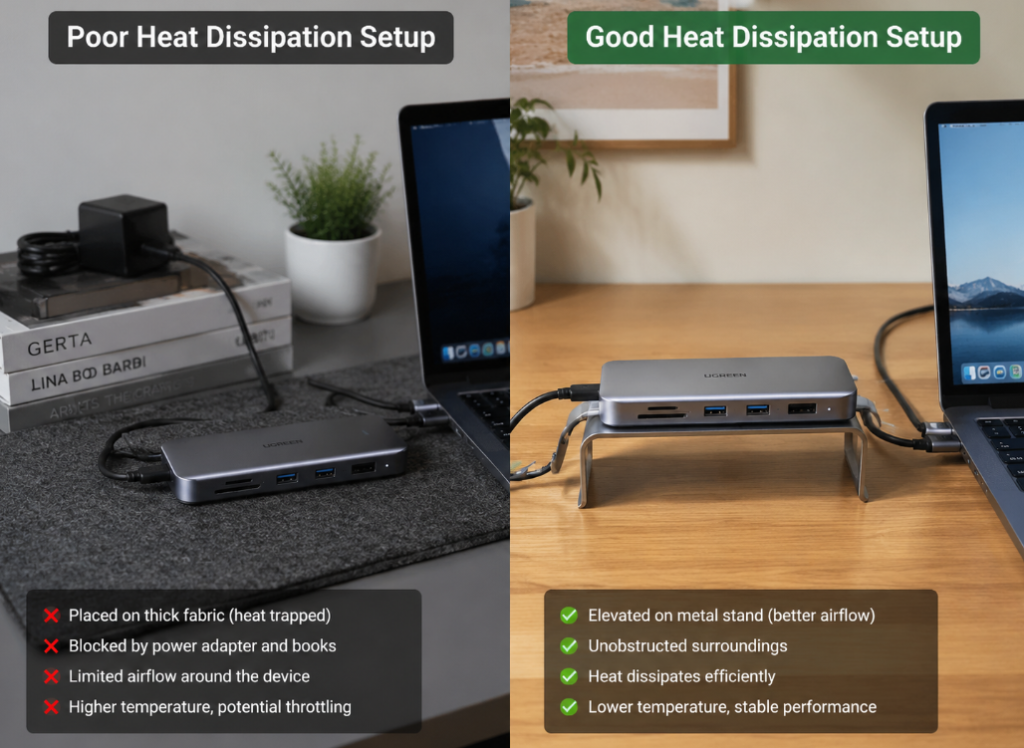
The second fast-acting method is to improve the dock’s heat dissipation environment. Place it on a hard desktop, such as a wooden desk, metal stand, or glass desktop, not on soft, airtight places like quilts, sofas, or thick desk pads; keep the surrounding area ventilated, don’t let it be pressed by computers, books, or storage boxes; don’t pile it together with things that generate heat themselves like power adapters, hard drive enclosures, and routers. If you need to use it at full load for a long time, you can also stand the dock upright, or place it where there is air flow, and the heat dissipation effect will be much better.
If the heat is caused by mismatched cables or chargers, replacing compliant accessories can solve it. USB-C cables are not the more expensive the better; they need to match your actual needs: cables only for charging have different requirements than those that need to transmit 10Gbps data and also output video. 60W can usually be covered by a 20V/3A cable; when exceeding 60W, requiring 5A current, or using high-power PD scenarios like 100W/240W, you should choose a USB-C cable with matching rated power. This type of high-power cable usually has a built-in E-marker chip (equivalent to the cable’s “capability ID card”, which can tell the device how much power and speed it supports), to avoid negotiation errors that cause extra heat; 240W PD also requires the cable, charger, computer, and dock to all support the corresponding specification, don’t just look at the port shape.
The charger’s power should also be sufficient: it should not only cover the computer’s needs, but also account for the dock’s own loss and peripheral power supply. It is recommended to leave a 20% to 30% margin to avoid long-term full-load operation. Also, for high-power portable hard drives, such as 3.5-inch mechanical hard drives or high-performance SSDs, you can switch to a hard drive enclosure with independent power supply, or connect to a Hub with external power, instead of letting the dock power it. This can reduce a lot of power supply pressure and heat.
If it is ineffective heat caused by compatibility issues, updating firmware and drivers can solve it. Remember to always go to the brand’s official website to download the dock’s firmware, drivers, or management tools, don’t use third-party ones to avoid problems. At the same time, you can also update the drivers for the computer’s USB controller, Thunderbolt/USB4 controller, graphics card, and system patches; many compatibility problems will be resolved with driver updates. If the heat and disconnection problems only appeared after a system update, remember to record the update time, system version, and dock model, so that you can locate the problem faster when contacting after-sales service later. Finally, a reminder: when updating the firmware, be sure to confirm that the model and version are correct, and do not cut off power midway, otherwise it may cause the dock to be unusable.
Abnormal Heat Handling and Low-Heat Purchase Pitfall Avoidance
If it is confirmed to be the abnormal overheating situation mentioned in the first chapter, handle it in the following way.
If it is still within the warranty period, never disassemble it, drill holes, or add heat sinks yourself. This will void the warranty and may also cause a short circuit, which is even more dangerous. Keep the purchase voucher, videos or photos of the fault, temperature measurement records, and the list of devices you connected at the time. When contacting after-sales service, try to clearly state your computer model, system version, charger power, external monitor specifications, and which USB devices are connected, so that after-sales can judge the problem faster. If the port already has burn marks, a burnt smell, or has already burned out peripherals, do not plug it into the computer for testing again, to avoid burning out the computer’s port as well, resulting in greater losses.
If you plan to buy a new dock and want it to generate less heat, you can refer to these practical tips:
First, choose ports according to your needs, don’t blindly pursue full ports. The more ports there are, the more internal chips there are, the higher the no-load and full-load power consumption will be, and naturally more heat will be generated. Ports you don’t use are actually extra heat sources.
Second, check the PD specifications clearly. The PD input power of the dock is not equal to all of it being available for the computer. For example, for many docks with 100W PD input, the actual output to the computer may be marked as about 85W or 90W, with the remaining power for the dock itself and peripherals; the specific value is subject to the “PD output” or “Power Pass-through” marked on the product parameter page, don’t buy one that is just barely enough.
Third, leave sufficient power margin. Whether it’s the dock’s PD power or the charger’s power, it is recommended to leave a 20% to 30% margin to avoid long-term full-load operation; this will result in much less heat and greater durability.
Fourth, match video specifications. Don’t just look at whether there is an HDMI or DP port; check clearly the supported resolution, refresh rate, and what protocol is used — whether it’s DP Alt Mode, HDMI 2.0, or Thunderbolt/USB4, and whether it supports HDR and dual-screen output. All of these are directly related to heat generation.
Fifth, prioritize metal shells and regular brands. Metal shells have better heat conduction and dissipation than plastic shells, and regular brands have more reliable electrical protection, firmware support, and after-sales service. Although they also generate heat, at least safety and stability are guaranteed.
Sixth, if you use it at a fixed workstation for a long time, prioritize desktop docks with independent power supply, or Thunderbolt/USB4 docks. Don’t use small portable Hubs for long-term full-load operation; they are not only hot but also easy to break.
Quick Summary: 3 Things You Can Do Right Now
Finally, let’s quickly sort it out. After reading this article, you can do three things right now to judge whether your dock is a problem:
The first thing is to first judge whether it is dangerous. If there are situations like burnt smell, deformation, smoke, blackened ports, or frequent disconnections, stop using it immediately; if the metal shell is just quite hot under full load, all functions are normal, and the temperature drops after removing the load, then it’s mostly normal heating, don’t panic.
The second thing is to find the main heat source using the troubleshooting method. Unplug devices one by one in the order of portable hard drive/SSD, monitor, Ethernet cable, PD charging, and observe which step results in the most obvious temperature drop; if it is still obviously hot after 10-15 minutes of no-load with only the computer connected, then suspect the dock itself, cables, ports, or internal faults.
The third thing is to handle it according to the cause. If the load is too high, reduce peripherals, lower video specifications, and switch to direct computer charging; if heat dissipation is poor, place it on a hard desktop, away from heat sources, and keep it ventilated; if accessories are mismatched, replace with compliant USB-C cables, PD chargers, or use independently powered devices; if the product positioning does not match, and you use it under high load for a long time, replace it with a higher-specification desktop dock.