
Many people buy a USB-C docking station to connect two monitors to their laptop for better productivity, only to find after plugging in the cables that either both screens are black, or they only display the same image, and they can’t get it working after tinkering all afternoon. In fact, the vast majority of USB-C dual-display issues are not caused by broken equipment, but by a mismatch in one link of the entire chain — dual display is not something that “works as soon as you plug in two ports”, but the result of joint negotiation between the host, interface, docking station, cables, monitor, and even the system.
First: Confirm If This Article Applies to Your Situation
Before starting troubleshooting, take 1 minute to confirm whether your situation is covered in this article to save time.
This article mainly focuses on scenarios where laptops, mini PCs, and all-in-one computers connect to dual displays via USB-C, Thunderbolt, or USB4 interfaces. Whether you use a USB-C docking station, USB-C to dual HDMI/DP adapter, Thunderbolt/USB4 docking station, DisplayLink docking station, or DP daisy-chaining, you can find troubleshooting ideas here for common issues (such as both external screens not turning on, only one screen turning on, only being able to display the same image without extended desktop, the system not detecting the second monitor, resolution and refresh rate not reaching the advertised values, dual 4K 60Hz only running at 30Hz, screen flickering, black screens, disconnections, screen loss after sleep/wake, external screens turning off with only one remaining when the lid is closed, etc.).
The following scenarios are not the focus of this article: issues with multiple HDMI/DP ports directly connecting to multiple displays on a desktop discrete graphics card; multi-display failures caused by wireless screen casting, remote desktop, or screen casting software; the complete repair process for single-display direct connection; exclusive compatibility issues with desktop mode on phones and tablets; and repair-level hardware issues such as physical damage to monitors or motherboard interfaces. For these situations, it is recommended to directly contact the after-sales service of the corresponding device or refer to a dedicated repair guide.
4 Types of Information to Prepare Before Troubleshooting
Before formal troubleshooting, it is recommended to first organize 4 types of key information to avoid wasting time by forgetting your own device specifications during the process:
- Host information: Record the brand and model, CPU/graphics card model, and system version; focus on confirming the type of USB-C port in use (ordinary charging/data port, full-featured USB-C/DP Alt Mode, Thunderbolt 3/4/5, USB4). Different USB-C ports on the same computer may have different capabilities; also check the official maximum number of supported external displays, and note whether the built-in screen is counted toward the total. Some models have different numbers of supported external displays depending on whether the built-in screen is enabled or disabled.
- Docking station/adapter information: Record the model and solution type (MST, DisplayLink, Thunderbolt/USB4, DP Alt Mode passthrough); confirm whether it supports “dual independent extended displays” rather than only mirroring/copying; check the specific specifications for simultaneous output (such as dual 1080p@60Hz, dual 2K@60Hz, dual 4K@30Hz, etc.); pay attention to the specified dual-display interface combination (some docking stations only support dual displays via HDMI+DP, and dual HDMI may not work simultaneously); confirm whether driver installation is required (especially for DisplayLink solutions).
- Monitor and cable information: Record the resolution, refresh rate, and interface version of the two monitors (HDMI 1.4/2.0/2.1, DP 1.2/1.4/2.1, whether USB-C video input is supported); confirm whether the HDMI/DP cables and main USB-C cable support the target specifications; USB-C cables must be clearly marked as supporting video output — ordinary charging cables cannot transmit video by default; for high-spec dual displays, prioritize short, certified cables to reduce the risk of signal attenuation.
- Target specifications: Dual 1080p@60Hz has the lowest threshold, and can be achieved by most USB-C ports with video output paired with a suitable docking station; dual 2K@60Hz requires attention to DP version, docking station solution, simultaneous output specifications, and cable quality; dual 4K@60Hz usually requires Thunderbolt/USB4, or DP 1.4 HBR3 + DSC with explicit support from the docking station; enabling high refresh rate, HDR, or 10-bit color depth will significantly increase bandwidth requirements, making it more prone to frequency reduction, black screens, or only one screen lighting up; in scenarios with built-in screen + two external displays, the total number of displays or available bandwidth may be lower than when only external displays are connected.
Essential Basics for Beginners: Why USB-C Dual Displays Often Have Problems
To understand why dual displays often have issues, you first need to know the complete transmission path of the image from the computer to the monitor: the host graphics card generates the image → transmits it to the USB-C/Thunderbolt/USB4 interface that supports video output → sends it to the docking station or adapter via the main USB-C cable → then transmits it to the monitor via HDMI/DP/USB-C cable → finally the system recognizes it and sets the display mode. Any link in this path that does not meet the requirements can cause a fault — either no signal, only one screen lights up, the resolution can’t go up, or the screen flickers from time to time. Simply put, the final effect of dual displays is the result of negotiation by all devices in the entire chain, not something that “works as soon as you plug it in”.
5 Necessary Conditions for Dual Displays to Work Properly
For dual displays to work properly, 5 basic conditions must be met at the same time; missing any one may cause problems:
- The host itself supports a sufficient number of external monitors;
- The USB-C port used supports video output, rather than only charging or data transmission;
- The docking station or adapter supports dual independent extended displays and is compatible with the current system;
- The bandwidth of the entire chain is sufficient to carry the target resolution, refresh rate, color depth, and HDR;
- The system is set to extended mode, and the monitor’s input source, power supply, and driver status are normal.
First, Distinguish the 4 Common Dual-Display Solutions
There are 4 main types of USB-C dual-display solutions on the market. Understanding which one you are using can cut your troubleshooting detours in half.
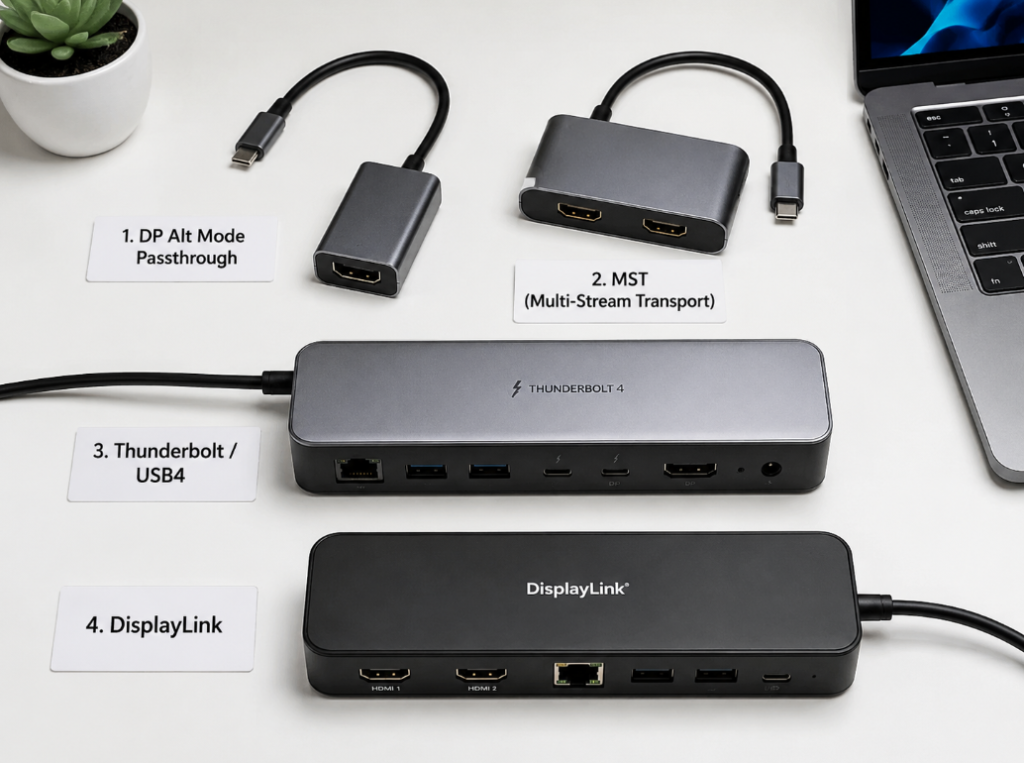
The first is DP Alt Mode passthrough. Simply put, the USB-C interface directly outputs the internal DP video signal to the monitor or docking station. This solution has low latency and intuitive compatibility, but its shortcomings are also obvious: it is completely limited by the host’s own number of external displays and DP bandwidth. If the host can only connect 1 external display, no matter how many ports you add with this type of docking station, it will be useless.
The second is MST (Multi-Stream Transport), which splits one DP signal into multiple independent images, equivalent to multiple lanes branching off from one road. Many dual-display docking stations and DP daisy chains on the Windows platform use this solution. MST has good support on Windows, but usually cannot achieve two independent extended desktops on macOS — it can only display mirrored images or only light up one screen. This is the most common reason why many Mac users buy a “dual-display docking station” but can’t use it.
The third is Thunderbolt/USB4. Although these two interfaces also have a USB-C form factor, their protocol capabilities are much stronger, and they can transmit high-speed data and multiple display streams at the same time, making them suitable for dual 4K or even higher-spec dual-display scenarios. But don’t think that having Thunderbolt solves everything — you still have to meet conditions such as the host’s maximum number of external displays, docking station specifications, and cable specifications, otherwise it still won’t work.
The fourth is DisplayLink. This solution is different from the first three: it does not rely on native video signal transmission, but compresses the image through a driver, transmits it to the docking station via a normal USB data channel, and then the docking station decodes and outputs it to the monitor. Its advantage is that it can bypass the native external display number limit of some hosts. For example, the base model M-series Mac can originally only connect 1 external display, but can connect multiple with a DisplayLink docking station. But its disadvantages are also clear: it has a certain latency, occupies CPU/GPU resources, and may affect high-refresh gaming, professional low-latency drawing, and HDCP copyrighted video playback. After a major system version upgrade, the driver usually needs to be updated, otherwise compatibility problems are prone to occur.
Here are a few more terms that will be used later, explained in plain language:
- DP Alt Mode: The USB-C interface borrows internal high-speed channels to output DP video signals, which is the basic function of many USB-C monitors and docking stations.
- DSC (Display Stream Compression): A visually lossless compression technology, equivalent to “packing” the image more compactly, so that the same cable can transmit higher-spec images — but only if the host, docking station, cable, monitor, and system all support it and the negotiation is successful.
- EDID/Handshake: The process by which the host reads the monitor’s capability information such as resolution and refresh rate. If the handshake fails, problems such as the system not detecting the monitor, incorrect resolution, and black screen after wake-up will occur.
5-Minute Quick Troubleshooting: Solve 80% of Common Problems First
After covering the basic principles, let’s do a 5-minute quick troubleshooting. 80% of common problems can be solved in this step, without looking up complicated parameters.
30-Second Triage to Narrow Down Your Issue
First, spend 30 seconds classifying your situation to quickly narrow the troubleshooting scope:
- Windows users: First press the Win+P shortcut key to confirm whether “Extend” mode is selected, then check the solution type of the docking station;
- Mac users: First check the official external display limit for the corresponding model on Apple’s official website. If using a dual-display docking station with MST solution, prioritize confirming solution compatibility (Mac does not support MST independent dual extension, see the previous explanation);
- Dual 4K 60Hz users: First check whether the docking station’s official instructions clearly mark “simultaneous dual 4K@60Hz”, then confirm whether the main USB-C cable, HDMI/DP cables, and interface versions meet the standard;
- Only one screen lights up: Prioritize checking whether the interface combination is correct, whether the cable is faulty, and whether the host only supports 1 external display;
- Both dual screens are not lit: First check whether the USB-C port used supports video, whether the docking station is powered, and whether the monitor input source is correct.
Find the First Troubleshooting Step by Symptom
Next, based on the specific symptom you are experiencing, first perform the most likely useful operation:
- Both dual screens are not lit: Prioritize checking the video capability of the USB-C port, docking station power supply, whether the main USB-C cable supports video, and whether the monitor input source is correct;
- Only 1 screen lights up: Swap the cables of the two monitors and the ports on the docking station to determine whether the problem is with a certain cable, a certain port, or a certain monitor;
- Can only copy but not extend: First check whether the system is set to mirror mode, whether the docking station only supports copying, and Mac users need to additionally confirm solution compatibility;
- Resolution/refresh rate can’t reach the target: First lower to 1080p@60Hz for testing. If it works normally after lowering, it is most likely due to insufficient bandwidth or specifications;
- Screen flickering/black screen/disconnection: First check power supply, cables, interface versions, confirm whether HDR/high color depth is enabled, whether the docking station is connected to high-speed peripherals that occupy bandwidth, and whether sleep settings are reasonable;
- External screens turn off when the lid is closed: First check whether the power is connected, whether the lid close action is set to sleep, and Mac users also need to confirm whether an external keyboard and mouse are connected.
Basic Physical Connection Check
These operations may seem simple, but at least half of the problems are caused by issues here:
The docking station must be connected to an original or sufficient-power independent power supply, especially when connecting dual displays and also plugging in peripherals such as portable hard drives and network ports. Don’t rely only on the computer’s USB-C port for reverse power supply — insufficient power can easily cause screen flickering, disconnection, or even failure to light up.
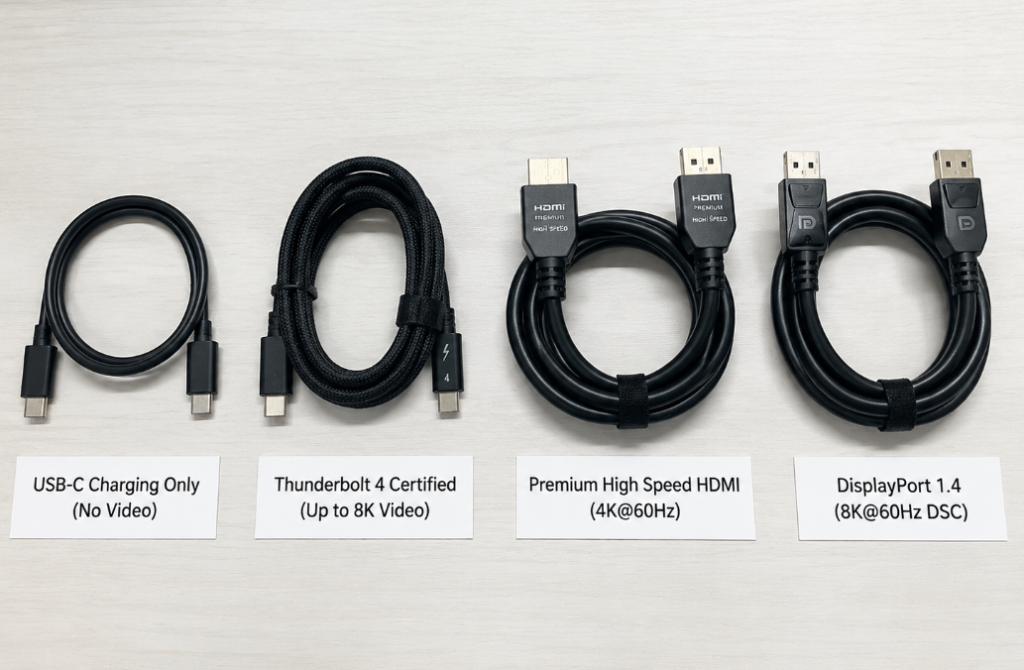
For the main USB-C cable, prioritize using the original cable that came with the docking station, or a Thunderbolt-certified or USB4-certified cable. Do not use an ordinary USB-C cable only marked “charging” as the main video cable.
Both monitors must be manually switched to the corresponding input source. Do not stay in auto-input mode, to avoid failure to recognize the device due to abnormal automatic switching. Finally, plug in all HDMI/DP cables firmly. If there are still problems, you can unplug both the monitor and docking station from the power outlet, wait 30 seconds, then plug them back in and restart — many small problems can be solved this way.
System Display Mode Check
If the physical connection is fine, then check the display settings in the system:
For Windows users, press Win+P to select “Extend”, then go to Settings → System → Display, click “Detect”, confirm whether the system recognizes two monitors, then check whether the resolution and refresh rate of each are correct.
For Mac users, go to System Settings → Displays, first uncheck “Mirror Displays”; if you don’t see the second screen, hold down the Option key, and a “Detect Displays” button will appear on the interface — click it to try to recognize it; in addition, be sure to first confirm the official external display limit of your model, and do not force functions that the hardware does not support.
If you are using ChromeOS or Linux, first confirm whether the system recognizes the monitor, then check the corresponding kernel, driver, DisplayLink or MST compatibility. Docking station support for these two systems is not as complete as Windows and Mac, and often depends on the specific model.
If the system only recognizes 1 external screen, don’t rush to adjust complicated parameters first. First do a single-display direct connection and swap test to locate the fault point.
Locate Problems with the Simplest Replacement Method
If the previous checks don’t find the problem, you can use the simplest replacement method to locate the fault point with the least operations:
- Connect a single display directly to the host’s USB-C port: verify whether the host interface, monitor, and cable have basic video capabilities;
- Swap the cables of the two monitors and the docking station ports: determine whether a certain cable, a certain interface, or a certain monitor is faulty;
- Replace the main USB-C cable with one that clearly supports video output: rule out the problem of using a charging cable as a video cable;
- Unplug portable hard drives, network ports, capture cards, and fast-charging devices from the docking station: rule out problems caused by insufficient power supply or bandwidth occupation;
- Lower both monitors to 1080p@60Hz for testing: if they are stable after reducing specifications, it means the original target specification exceeds the capability of the entire chain.
Dig Into Root Causes Link by Link: From Beginner to Semi-Proficient
If quick troubleshooting doesn’t solve the problem, then we will dig deep link by link along the signal path, from the host to the monitor, to find out what the root cause is. This part is a bit more advanced, but it can help you determine where the problem is and what to replace, so you don’t waste money blindly.
Hard Limitations on the Host Side
The host is the source of the entire chain, and the root of many problems is actually the host.
The first common misconception: not all USB-C ports can transmit video. Only USB-C interfaces that support DP Alt Mode, Thunderbolt, or USB4 can natively output display signals. Some USB-C ports only support charging and data transmission, and even the most expensive docking station won’t light up a monitor when plugged into them. Moreover, different USB-C ports on the same computer may have different capabilities — prioritize using interfaces with a lightning logo (Thunderbolt), DP logo, or officially marked “full-featured”.
The second hard limitation is the maximum number of external displays, which is determined by hardware and cannot be solved by changing settings. The number of external displays supported by Windows computers is subject to the manufacturer’s official specifications, especially for thin and light laptops, mini PCs, and other models with integrated graphics, which may be limited by the graphics card and motherboard wiring and can only connect 1 external display. Mac users should pay even more attention: the number of external displays supported by Intel Macs is subject to Apple’s official specifications. Don’t think that “supporting multiple external displays” means supporting MST daisy-chain independent extension. Among Apple Silicon base models, M1/M2 base models usually natively support only 1 external display; some M3 base models may support 2 external displays under specific conditions such as closed lid and connected power supply — this must be based on Apple’s official specifications for the specific model. Pro/Max/Ultra versions natively support more external displays, but the number, resolution, and refresh rate still have official specification limits, and are not unlimited. If you want to break through the native display number limit, you can choose the DisplayLink solution, but note that it is implemented via drivers, not native output.
The third influencing factor is the built-in screen, lid closure, and graphics card mode. When the built-in screen is on, the available number of displays or total bandwidth of some models will change, because the built-in screen also occupies graphics card resources. Mac’s clamshell mode (using external displays with the built-in screen closed) usually requires a power connection, as well as an external keyboard and mouse, otherwise closing the lid will put it to sleep. Windows’ lid close action settings, power plans, USB selective suspend, etc. will all affect the stability of external displays. For example, the docking station losing screens after hibernation is often caused by USB selective suspend. In addition, settings such as the USB-C video switch, discrete graphics direct connection, and hybrid graphics mode in the BIOS/UEFI may also affect the output chain. If all other troubleshooting is ineffective, you can enter the BIOS to check whether relevant options are enabled.
The fourth is the problem of system firmware and graphics card drivers. Outdated graphics card drivers, chipset drivers, and Thunderbolt/USB4 controller firmware can all cause recognition abnormalities, screen flickering, disconnection, and other problems. For branded computers, it is recommended to prioritize using stable drivers and firmware provided by the manufacturer’s official website, and do not casually use third-party driver tools to update to the latest version, which is prone to compatibility problems. After a major system version upgrade, DisplayLink drivers, Thunderbolt docking station firmware, and graphics card drivers may all need to be updated synchronously, otherwise problems are likely to occur.
The Most Pitfalls Are in Docking Stations/Adapters
The docking station is the link where it is easiest to step on pitfalls in the dual-display chain, and many problems are caused by choosing the wrong one when buying.
Docking stations are mainly divided into four categories: DP passthrough, MST, Thunderbolt/USB4, and DisplayLink. For the differences in capabilities and compatibility of different solutions, refer to the previous solution description.
To judge the dual-display capability of a docking station, don’t just look at the product title — be sure to check the official “simultaneous output specification table”: first confirm whether it is “dual independent extended displays” or “dual display mirroring/copying”; second, confirm the interface combination that supports dual displays (some docking stations only support dual displays via HDMI+DP); also check the system compatibility table, especially for macOS, ChromeOS, and Linux users; finally, confirm whether driver installation is required.
Here are several common promotional misconceptions to be particularly wary of — don’t be fooled by the title:
- “USB-C docking station” does not equal supporting video output; some docking stations only support data and charging;
- “Supports 4K” may only be supported by a single port, does not mean dual displays output 4K simultaneously, and does not default to 4K@60Hz (it may only be 30Hz);
- “Dual HDMI” only means there are two interfaces, does not mean supporting dual independent extended displays — it may only support mirroring or only one port is usable;
- “Mac compatible” may only support single display or mirroring, does not mean it can achieve Mac dual independent extended displays (Mac users should avoid MST solutions, see the previous explanation);
- “100W PD power supply” only represents power supply capability, and has no direct relationship with video bandwidth or dual-display capability;
- “USB 10Gbps/20Gbps” only represents data rate, and does not directly mean sufficient display bandwidth — DP Alt Mode also depends on the DP version and channel allocation.
Hidden Limitations of Cables and Adapters
Many people spend a lot of money on good docking stations and monitors, but stumble on unremarkable cables.
First, let’s talk about the basic concept of video bandwidth. You don’t need to memorize complicated formulas, just have a general idea: the effective video bandwidth of DP 1.2 is about 17.28Gbps, and DP 1.4 is about 25.92Gbps, which can transmit higher-definition images. For USB-C ports that support DP Alt Mode, sometimes all 4 lanes are used to transmit video, and sometimes only 2 lanes are used for video because they need to transmit USB 3.x high-speed data at the same time — this will reduce dual-display capability. The DSC (Display Stream Compression) technology mentioned earlier, if supported by the entire chain, can improve the bearable image specifications through 2:1 or 3:1 visually lossless compression, but as long as one link does not support it, it cannot be enabled.
Ordinary users don’t need to memorize these numbers, just remember a simple judgment method: if it works normally when lowered to 1080p@60Hz, but has problems when raised to 2K, 4K, or high refresh rate, then it is most likely that the bandwidth, cable, or interface version is insufficient.
The choice of the main USB-C cable is very important: ordinary USB-C charging cables cannot transmit video by default, so don’t use a phone charging cable as a substitute. For high-spec dual displays such as dual 4K 60Hz, prioritize using the original cable that came with the docking station, or a Thunderbolt-certified or USB4-certified cable; the longer the cable, the lower the signal margin. For high-spec scenarios, prioritize shorter certified cables. If you must use a long cable, choose a certified cable or active cable clearly marked with the corresponding specification to avoid failures caused by signal attenuation. In addition, try not to use multi-layer adapters, such as USB-C to HDMI then HDMI extender then capture card — each additional layer of adapter greatly increases the probability of failure.
There are also considerations for choosing HDMI/DP cables and adapters: if the source end, adapter chip, or monitor interface only supports HDMI 1.4, the common output upper limit is 4K@30Hz; the cable capability should be checked by its official certification level (such as High Speed, Premium High Speed, Ultra High Speed), not just the version number marked by the merchant. HDMI 2.0 supports 4K@60Hz, but may have insufficient bandwidth when enabling HDR, 10-bit color depth, or high refresh rate; HDMI 2.1 has higher specifications, but requires the entire chain of source end, cable, monitor, and adapter chip to support it to run at full capacity. For DP cables, DP 1.4 is more suitable for high-spec dual displays than DP 1.2, and whether DSC is supported also affects the upper limit. Many people ask whether active or passive adapters are better. In fact, this is not the only judgment standard — the key still depends on the source protocol, conversion chip, target interface version, and official nominal specifications. Don’t buy just because of the words “active adapter”.
Easily Overlooked Settings on the Monitor Side
Many people only check the computer and docking station when encountering dual-display problems, but ignore the settings and limitations of the monitor itself.
First are the settings in the monitor menu. Many people have never opened the monitor’s menu, but there are many options that affect dual displays. For example, the input source — it’s best to manually lock it to the HDMI/DP/USB-C port you are using, instead of using automatic switching, to avoid random automatic switching or failure to recognize the device. There is also the DP version. Some monitors can switch between DP 1.2 and DP 1.4 in the menu. If you encounter black screens or unrecognizable problems, you can try switching — it may be a compatibility issue. If using DP daisy-chaining, the MST switch must be turned on in the menu of the first monitor, otherwise you can’t daisy-chain the second one. For monitors with a USB-C interface, some can choose “video priority” or “data priority”. If data priority is selected, the video bandwidth will be reduced, which may cause the resolution to fail to reach the target or screen flickering. Some monitors’ HDMI interfaces have “enhanced mode” or “compatibility mode” — you need to enable enhanced mode to run high resolution and high refresh rate, otherwise you can only run low specifications.
Then there are the hardware conditions for DP daisy-chaining. Many people think that as long as the monitor has a DP port, it can be daisy-chained, but that’s not the case: the first monitor must have a DP Out interface, or a USB-C interface that clearly supports video downstream, otherwise it can’t pass the signal to the second one. Moreover, the resolution and refresh rate of the second monitor are limited by the total bandwidth of the entire chain, not just the parameters of the second monitor itself. For example, if the first monitor is 4K 60Hz, the second one may only run at 1080p. In addition, Mac users are not recommended to use DP MST daisy-chaining to achieve independent dual-display extension, see the previous explanation.
Finally, there are issues with EDID handshake, firmware, and sleep/wake. We mentioned earlier that EDID is the process by which the host reads the monitor’s capability information. If there is a problem with this process, problems such as the system not detecting the monitor, incorrect resolution, missing refresh rate, and black screen after sleep/wake will occur. When encountering this kind of problem, you can try unplugging the monitor’s power supply, waiting 30 seconds, then plugging it back in and restarting, or resetting the monitor’s input settings and trying a different input port. Some monitor firmware also affects USB-C recognition, sleep/wake, and high-refresh stability. If all other troubleshooting is ineffective, you can check the monitor manufacturer’s official website for firmware updates.
Differences Between Systems and Drivers
Different systems have very different support for dual-display solutions, and cannot be generalized.
First, let’s talk about Windows: first confirm that basic settings such as extended mode, monitor arrangement, main monitor, resolution, and refresh rate are correct in display settings. Then go to Device Manager to see if there are yellow exclamation marks under Display adapters, Universal Serial Bus controllers, and Thunderbolt/USB4 devices. If there are, there is a driver problem. You can also enter the Intel, NVIDIA, or AMD graphics control panel to confirm whether parameters such as multi-display settings, refresh rate, color depth, HDR, and scaling are correct. If the driver is abnormal, you can update to the stable version on the manufacturer’s official website, or roll back to the previous version that worked fine — don’t blindly chase the latest version. If the problem of the docking station losing screens after hibernation occurs frequently, you can turn off “USB selective suspend setting” in Power Options to reduce disconnections caused by the system automatically cutting power. If you still can’t find the problem, you can check logs in Event Viewer such as display driver resets, USB disconnections, and Thunderbolt device errors, which can help you find more specific causes.
Next, let’s talk about macOS: the first step is always to check the official number of external displays and maximum specifications for your Mac model — don’t waste time tinkering with functions that the hardware does not support. macOS usually does not support MST independent dual-display extension (see the previous explanation), so pay attention when choosing a docking station. Using the DisplayLink solution requires installing the official DisplayLink Manager and granting screen recording permission; after a major system version upgrade, the driver and permissions may become invalid and need to be reconfigured. When using external displays with the lid closed, be sure to connect the power supply, as well as an external keyboard and mouse, otherwise closing the lid will put it to sleep and the external screens will naturally turn off.
Finally, ChromeOS and Linux: the support of these two systems for MST, DisplayLink, and Thunderbolt docking stations is very dependent on the specific model, kernel version, and drivers, and you cannot directly apply Windows experience. For example, DisplayLink may require additional driver packages on Linux, and compatibility varies greatly between distributions. If you use these two systems, be sure to check user feedback and official compatibility lists before buying a docking station to avoid buying one that doesn’t work.
Targeted Troubleshooting by Connection Method
Different dual-display connection methods have different common problems. We will talk about targeted troubleshooting ideas for the 5 most common connection methods respectively.
Two Monitors Each Directly Connected to the Host’s USB-C/Thunderbolt Ports
The premise of this connection method is that the host has at least two USB-C ports that support video output, and the maximum number of external displays allows it. If either one works normally when connected alone, but fails when connected at the same time, prioritize checking the host’s maximum number of external displays, whether the built-in screen occupies resources, whether the graphics card bandwidth is sufficient, and whether the system display settings are correct. If one USB-C port can display and the other cannot, it means the two C ports have different capabilities — try a different interface.
Dual Displays Connected via USB-C Docking Station
For this connection method, be sure to use the dual-display interface combination specified in the manual — don’t just plug into two random ports and think it will work. Windows users should confirm the solution type of the docking station and set the system to extended mode. Mac users should prioritize choosing Thunderbolt/USB4 or DisplayLink solutions that clearly support Mac dual independent extended displays, and avoid MST solutions (see the previous explanation). If the dual displays frequently flicker or disconnect, first unplug high-power and high-speed peripherals from the docking station (such as portable hard drives, capture cards), then test stability — many times it is caused by insufficient power supply or bandwidth.
USB-C to Dual HDMI/DP Adapter
These small adapters look compact, but having two video ports does not mean they support independent extension — the key depends on the internal chip solution. The MST solution is suitable for Windows use, not suitable for Mac for independent dual-display extension; the DisplayLink solution requires driver installation and permission granting; some cheap adapters only support mirroring/copying, and cannot be extended into two independent desktops at all. To run dual 4K@60Hz, you must confirm that the entire chain of host, adapter, cables, and monitor supports it, otherwise it won’t work.
Thunderbolt/USB4 Docking Station
This type of docking station has high specifications, but also high requirements: first, the host interface must truly support Thunderbolt or USB4 — plugging into an ordinary USB-C port may only work at a reduced speed, or even have no display output at all. Second, the main USB-C cable must meet Thunderbolt/USB4 specifications. For high-spec scenarios (such as dual 4K 60Hz), don’t casually replace it with an ordinary USB-C cable, otherwise it won’t work. Even for Thunderbolt docking stations, you have to confirm the number of supported displays, resolution, refresh rate, and Mac/Windows compatibility — not all Thunderbolt docking stations support dual 4K 60Hz. Especially when connecting high-spec monitors such as 5K or 6K, be sure to check the official simultaneous output specification table.
DP Daisy-Chain
This connection method does not require a docking station — it uses one DP cable to daisy-chain two monitors, but it also has many requirements: the first monitor must have a DP Out interface, or a USB-C port that supports video downstream; the MST function must be enabled in the menu of the first monitor; this solution is more suitable for Windows users, and Mac users are not recommended to use it for independent dual-display extension (see the previous explanation). In addition, the resolution and refresh rate of the second monitor are limited by the first monitor, DP version, and total bandwidth — you can’t run as high as you want.
Root Cause Location Matrix: Quick Judgment by Symptom
To make it easier for you to quickly correspond to your problem, I have organized the 6 most common symptoms, the most likely causes, verification actions, and solution directions into a table, which you can check against:
| Symptom | Most Likely Cause | Verification Action | Solution Direction |
|---|---|---|---|
| Both dual screens are not lit | USB-C port does not support video, docking station is not powered, main USB-C cable does not support video, monitor input source is incorrect, docking station is incompatible with the system | Connect a single display directly to the host, replace with a USB-C cable that supports video, try a different USB-C port, check official interface specifications, provide independent power to the docking station | Switch to an interface that supports video, replace the video cable/docking station, choose a solution compatible with the system |
| Only 1 screen lights up | Incorrect interface combination, faulty cable/port, host only supports 1 external display, docking station only supports single display or current system does not support dual extension | Swap the cables and ports of the two screens, check the docking station’s simultaneous output table, check the host’s maximum number of external displays, lower to dual 1080p for testing | Use the correct interface combination, replace faulty cables, replace with a docking station that supports dual independent extended displays, or accept the host’s upper limit |
| Can only copy but not extend | System is set to mirror mode, adapter only supports copying, Mac uses MST solution, DisplayLink driver is not installed or has insufficient permissions | For Windows, press Win+P to select Extend; for macOS, turn off mirroring; check the docking station solution type, confirm DisplayLink driver status | Adjust system settings; Mac users switch to Thunderbolt/USB4 native multi-display solution or DisplayLink solution |
| Resolution or refresh rate does not meet the standard | Insufficient DP/HDMI version, USB-C only allocates 2 lanes for video, unqualified cable, insufficient docking station simultaneous output specifications, HDR/10-bit occupies bandwidth | Turn off HDR and 10-bit, lower the refresh rate, replace with a short certified cable, switch to DP interface, check the docking station specification table | Upgrade cables, docking station, or interface; lower target specifications; enable DSC when the entire chain supports it |
| Screen flickering, black screen, screen loss after sleep | Unstable power supply, insufficient cable signal margin, abnormal monitor handshake, driver issues, USB energy-saving strategy, overheating docking station | Provide independent power to the docking station, replace with a short cable, power off and restart the monitor, update/roll back drivers, turn off USB selective suspend, remove high-power peripherals | Improve power supply and cables, update firmware and drivers, reduce display specifications, or replace with a more stable docking station |
| External screens turn off when the lid is closed | Lid close action is set to sleep, power is not connected, external keyboard/mouse conditions are not met, host changes display number strategy after lid closure | Connect power, adjust Windows lid close action, confirm macOS clamshell mode conditions, test the number of external screens when the lid is open and closed | Adjust power and sleep settings, maintain docking station power supply, accept the model’s lid closure condition limits if necessary |
Common Misconceptions and Purchase Pitfall Avoidance
Many people have dual-display problems because they stepped on pitfalls when buying and didn’t choose the right equipment. Here we have sorted out the key points to check before buying and the easily misleading promotional words, to help you avoid wasting money.
5 Items to Check Before Buying
Before buying, be sure to check 5 aspects of information — missing any one may lead to pitfalls:
- Host: Officially supported number of external displays, video capability of the USB-C port, whether it supports Thunderbolt/USB4, system compatibility;
- Docking station: Whether it supports dual independent extended displays, maximum simultaneous output specifications, specified dual-display interface combination, whether a driver is required;
- Cables: Whether the main USB-C cable supports video output, whether HDMI/DP cables meet the target specifications, whether the length is appropriate (short cables are prioritized for high specifications);
- Monitor: Interface version, whether it supports MST/DP Out, whether the USB-C port supports video input, whether there is firmware update support;
- System: Windows, macOS, ChromeOS, and Linux have very different support for MST, DisplayLink, and Thunderbolt docking stations — don’t buy something that works on Windows but can’t be used on a Mac.
Don’t Be Misled by These Promotional Words
Be especially careful of these easily misleading promotional words — don’t order just based on the literal meaning:
- “Full-featured USB-C”: Different manufacturers have different definitions. Some manufacturers’ so-called full-featured only supports charging and data, and may not support video. Be sure to check the official detailed specifications;
- “Supports 4K/dual 4K”: Need to confirm whether it is single-port or dual-display simultaneous output, and what the specific refresh rate is, subject to the official simultaneous output specification table;
- “Mac compatible”: Does not default to supporting Mac dual independent extended displays. Mac users should avoid MST solutions (see the previous explanation);
- “High-power power supply/high-speed data”: Power supply power and data rate have no direct relationship with video capability, and cannot be used as a basis for judging dual-display capability.
When to Adjust Settings, Replace Cables, Replace Docking Stations, or Accept the Upper Limit
Finally, here is a judgment standard for you to know what to do in what situation, so you don’t waste money blindly:
- Can be solved by adjusting settings: Problems such as mirror mode, incorrect input source, not clicking detect displays, lid close set to sleep, improper refresh rate/HDR settings — no need to spend money;
- Can be solved by replacing cables: Problems such as using a charging cable as a video cable, unstable long cables, insufficient HDMI/DP version, flickering under high specifications — just replace the cable with the corresponding specification;
- Can only be solved by replacing the docking station: Problems such as the docking station only supports copying, only supports single display, is not compatible with Mac dual extension, and simultaneous output specifications cannot reach the target — you need to replace it with a suitable docking station;
- Can only accept the hardware upper limit: The host interface does not support video, the host natively only supports 1 external display and you don’t want to use DisplayLink, the total bandwidth cannot carry the target specifications — in this case, either lower your requirements or replace the host.
Recommended Troubleshooting Order: From Simple to Complex
Finally, we have sorted out a troubleshooting order from simple to complex for you. Following this order can save you a lot of detours and avoid unnecessary tinkering.
Step 1: Confirm whether it is a setting problem. Windows users press Win+P to select Extend, Mac users turn off mirroring, monitors switch to the correct input source, click detect displays, and if there is a problem with the lid closed, test with the lid open first — many times it’s just such a simple setting problem.
Step 2: Confirm whether the basic hardware works. Connect a single display directly to the host’s USB-C port to see if it lights up; replace the main USB-C cable with one that clearly supports video; swap the cables of the two monitors and the docking station ports to see if a certain cable or port is broken; connect the docking station to an independent power supply, don’t rely on the host for power.
Step 3: Confirm whether the solution is compatible with the system. Windows users first confirm whether the docking station’s solution type works normally; Mac users first check the official external display limit to see if they have mistakenly used an MST solution docking station; if using DisplayLink, confirm that the driver is installed, permissions are enabled, and the system version matches.
Step 4: Confirm whether the target specification exceeds the chain’s capability. First lower to dual 1080p@60Hz to see if it works stably; if yes, then gradually increase to 2K, 4K, high refresh rate, HDR, 10-bit, to see at which step the problem occurs; then check the simultaneous output specifications of the host, docking station, cables, and monitor to find the bottleneck.
Summary
Overall, when encountering USB-C dual-display problems, don’t panic. First quickly judge three things:
First, determine the nature: is it a small connection/setting problem, or is the hardware specification itself not supported?
Second, locate the bottleneck: is it in the host, docking station, cables, monitor, or system drivers?
Third, choose a solution: for Windows dual 1080p@60Hz, you can usually consider a USB-C port with video output paired with a suitable MST/Thunderbolt/USB4 docking station; Mac users should not default to choosing an MST solution — they must first check the native external display upper limit, and choose a Thunderbolt/USB4 or DisplayLink solution that clearly supports Mac dual independent extended displays. For dual 4K@60Hz, prioritize high-spec Thunderbolt/USB4 docking stations; base model Macs that want to connect multiple displays can consider DisplayLink, but must accept its characteristics of latency and resource occupation.
As long as you check step by step along the entire chain, the vast majority of problems can be found — either just adjust the settings, or replace the right equipment to make it work.